
Workflow Steps#
This section provides detailed documentation for each step in the calibration workflow.
Step 1: Project Setup#
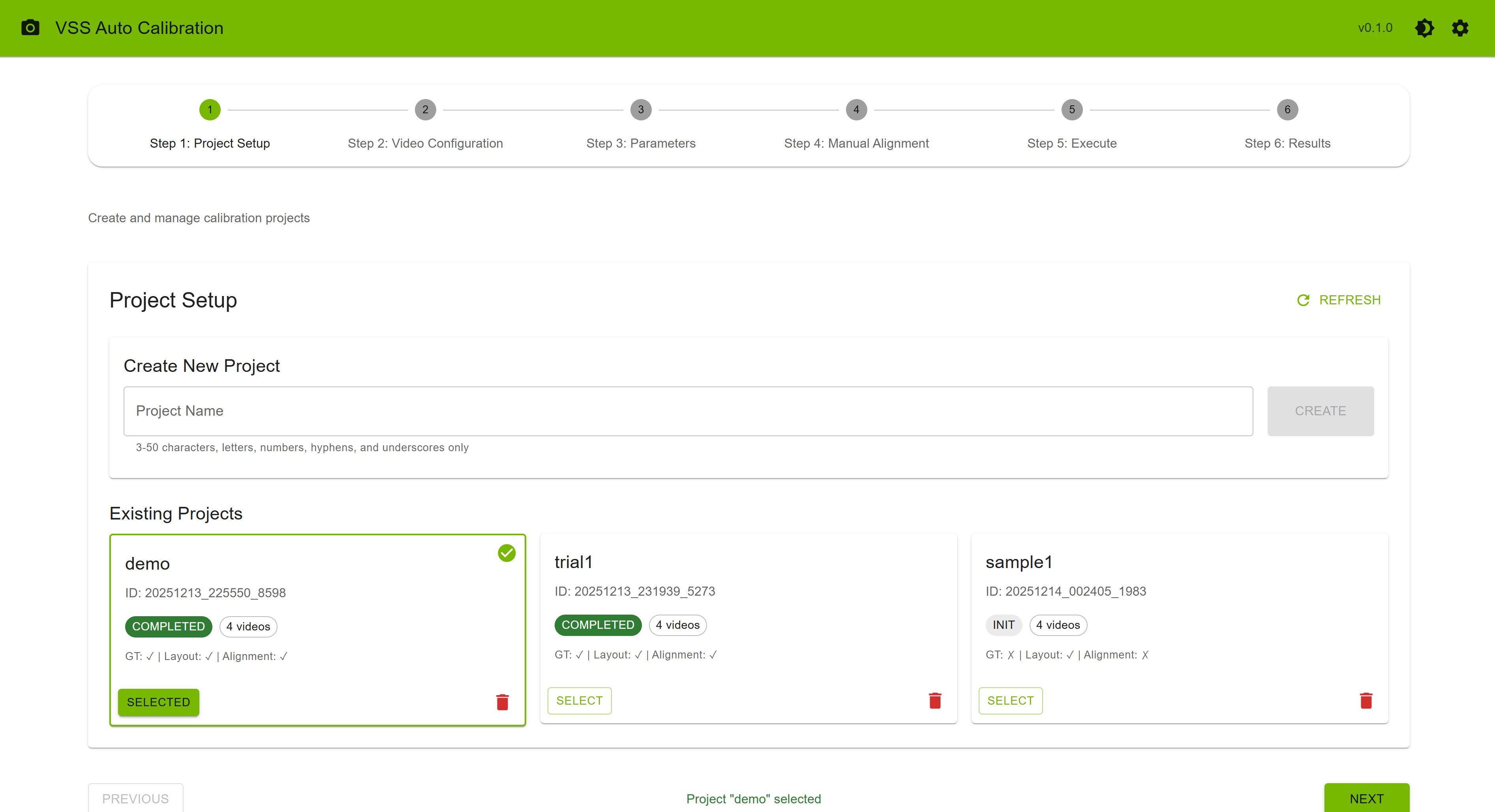
The Project Setup step allows you to create and manage calibration projects.
Creating a New Project#
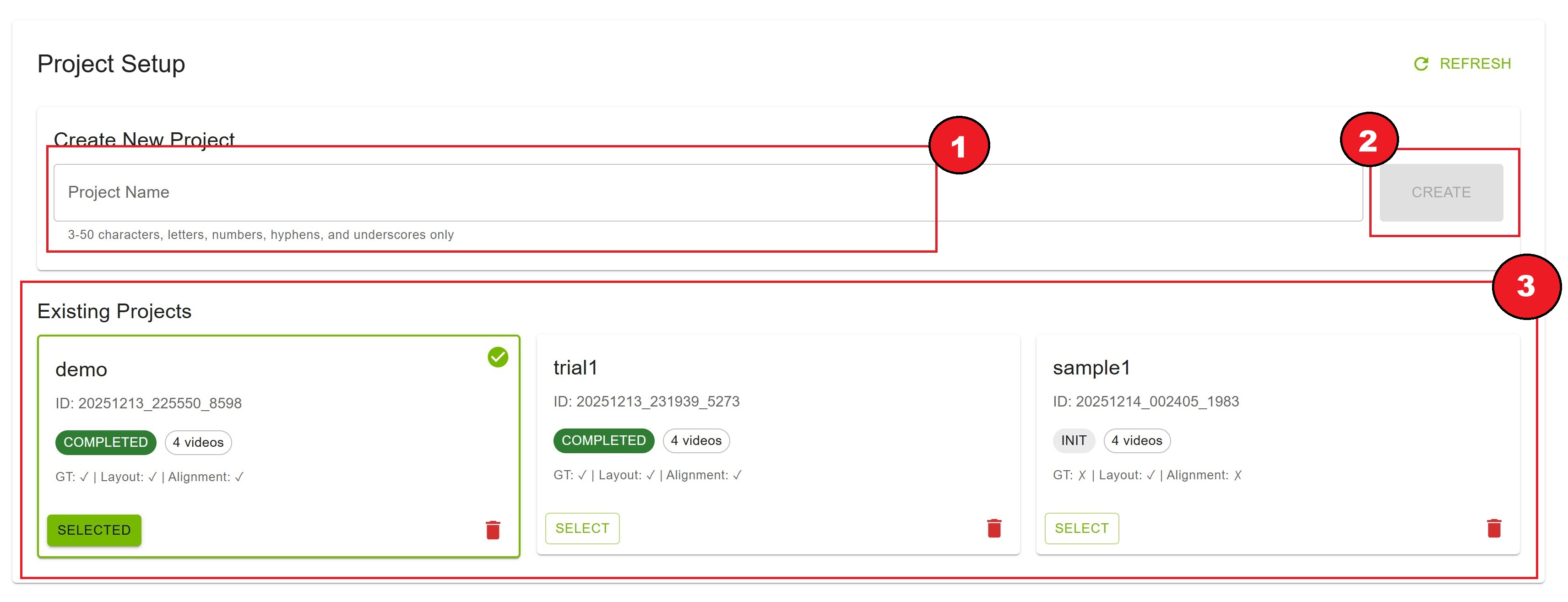
Enter a project name in the text field
Requirements: 3-50 characters
Example:
warehouse_cam_2024,parking_lot_north
Click the “Create” button
The new project appears in the “Existing Projects” list below
Project Name Validation
✓ Valid:
warehouse_calibration,site_01,parking-lot-A✗ Invalid:
ab(too short)
Selecting a Project#
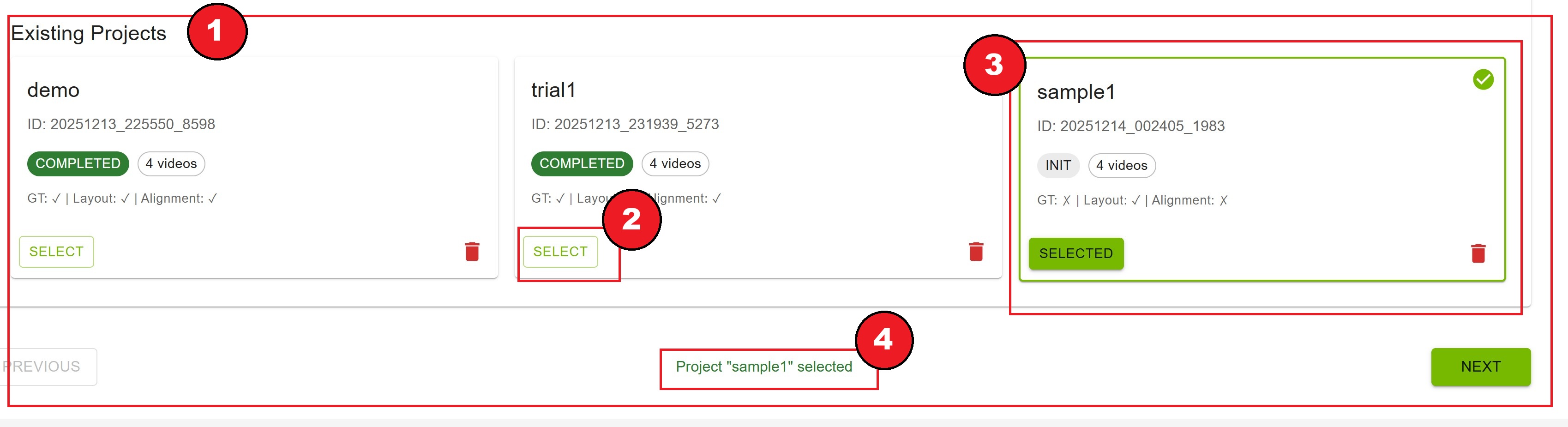
Browse the list of existing projects
Click the “Select” button on the desired project card
The selected project is highlighted with a green border and checkmark
Project information is displayed at the bottom: “Project ‘name’ selected”
Project Card Information
Each project card displays:
Project Name: The name you assigned
Project ID: Unique identifier (UUID)
Project State: Current status badge
INIT(gray): Initial state, files not yet uploadedREADY(green): Ready for calibrationRUNNING(orange): Calibration in progressCOMPLETED(green): Calibration finished successfullyERROR(red): Calibration failed
Video Count: Number of uploaded video files
File Status: Checkmarks for uploaded files
GT (Ground Truth): ✓ or ✗
Layout: ✓ or ✗
Alignment: ✓ or ✗
Managing Projects#
Refreshing the Project List
Click the “Refresh” button in the top-right corner to reload the project list from the server.
Deleting a Project
Click the trash icon (🗑️) on the project card
Confirm deletion in the dialog that appears
The project and all associated data are permanently deleted
Warning
Deleting a project cannot be undone. Export any important calibration results before deletion.
Project States Explained
INIT: Project created, awaiting file uploads
READY: All required files uploaded and verified
RUNNING: Calibration pipeline is executing
COMPLETED: Calibration finished, results available
ERROR: Calibration failed, check logs or re-upload files
Step 2: Video Configuration#
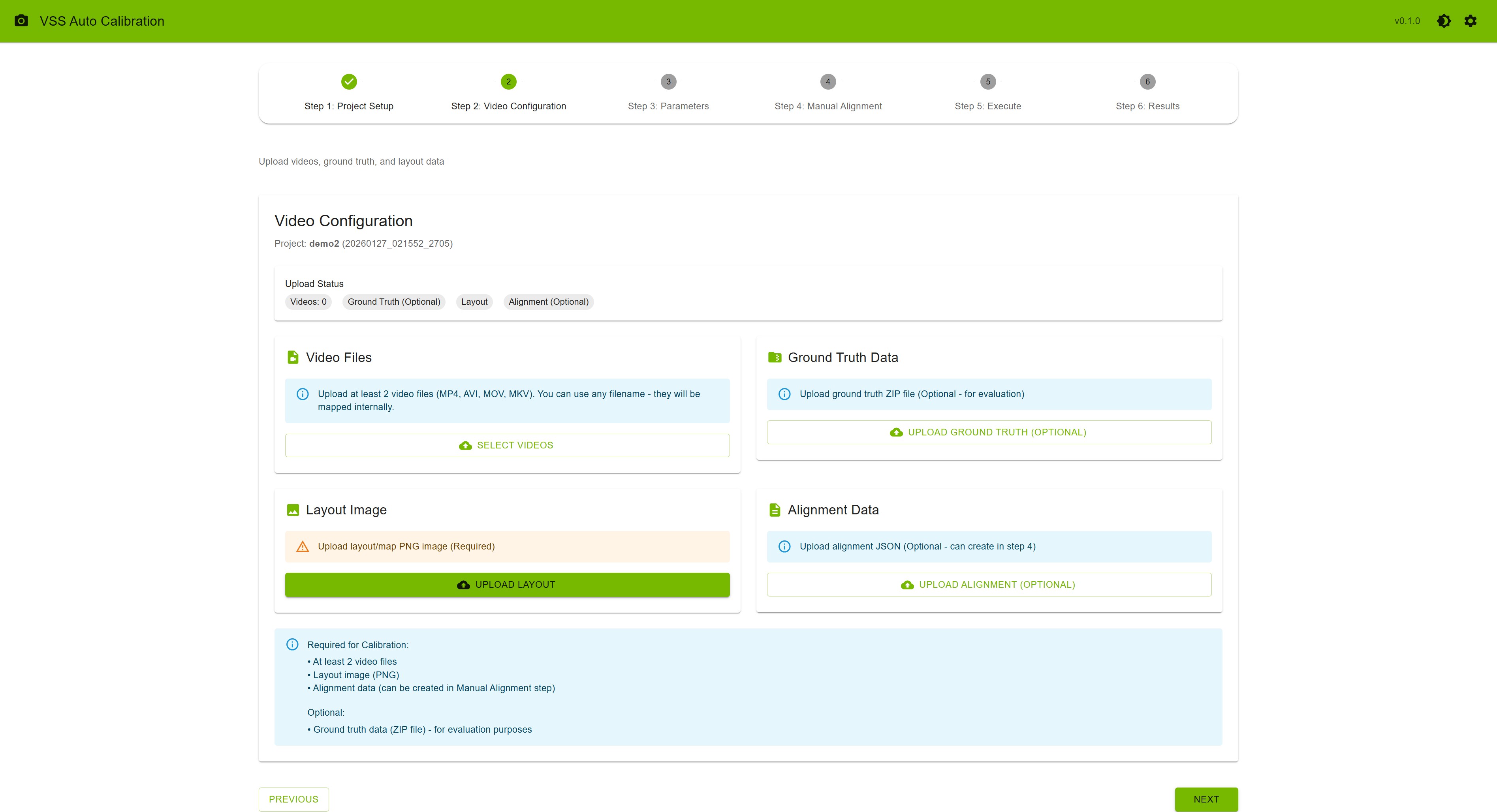
Upload camera videos, layout image, ground truth data, and optional alignment file.
Upload Status Overview#
At the top of the page, you’ll see a status summary showing:
Videos: Count of uploaded videos (minimum 2 required)
Ground Truth (Optional): Upload status
Layout: Upload status (required)
Alignment (Optional): Upload status

Uploading Video Files#
Requirements
Minimum: 2 video files
Formats: MP4
Required Video Resolution: 1920 x 1080
Upload Process
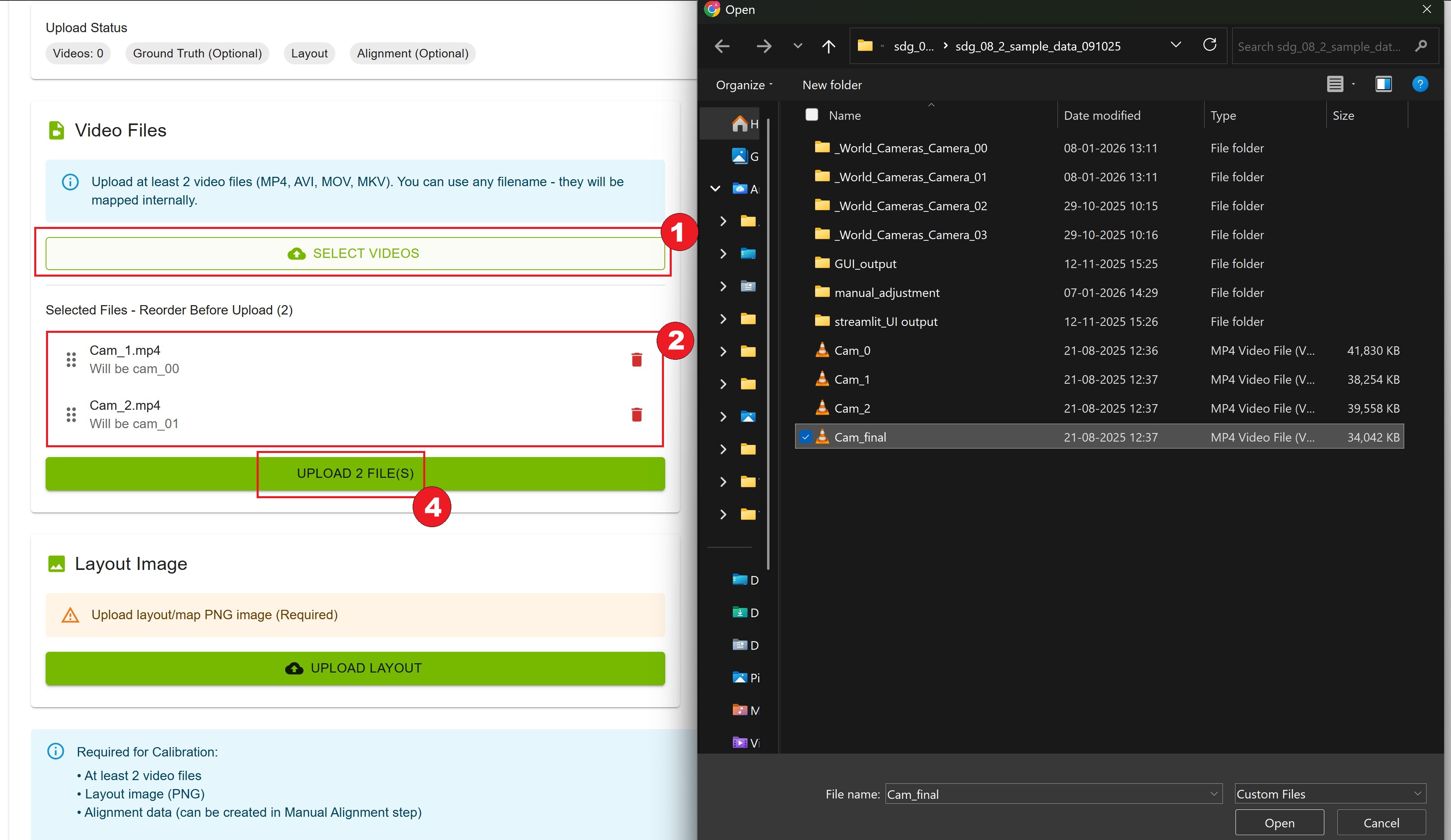
Click the “Select Videos” button to choose video files from your computer
Selected videos appear in a list where you can reorder them by dragging
Reorder the videos to match your desired camera order (cam_00, cam_01, etc.)
Click the “Upload” button to upload all selected videos
Wait for the upload progress bar to complete
Managing Video Files
View List: All selected videos are listed with their filenames
Reorder: Drag and drop videos to change their order before uploading
Delete Video: Click the trash icon (🗑️) next to a video to remove it
Re-upload: Delete and upload again if needed
Uploading Ground Truth Data#
Ground truth data is optional and used for calibration evaluation.
Requirements
Format: ZIP file
Content: Ground truth calibration data
Upload Process
Click “Upload Ground Truth (Optional)” button
Select your ZIP file
Wait for upload confirmation
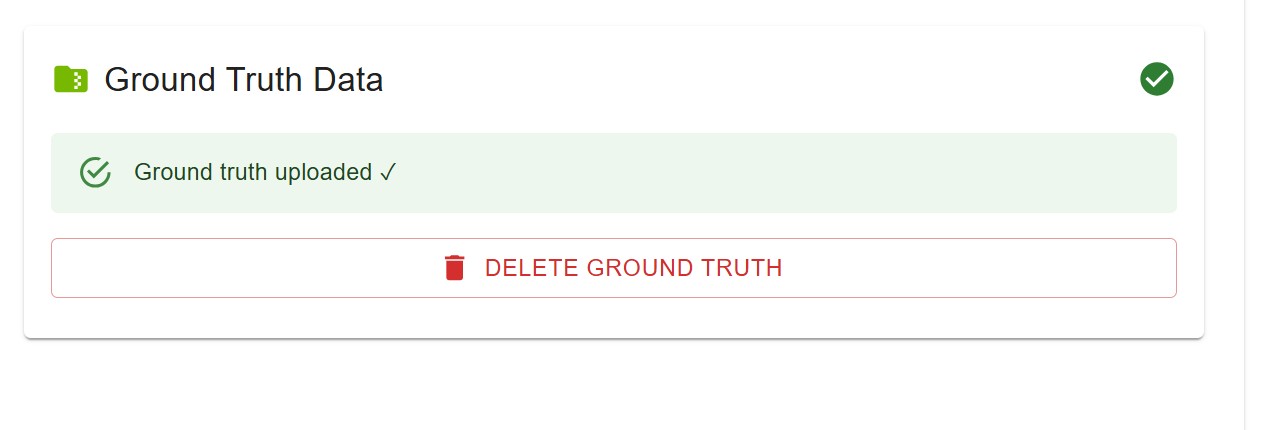
Status changes to “Ground truth uploaded ✓”
Deleting Ground Truth
If ground truth is already uploaded, the button changes to “Delete Ground Truth”. Click it to remove the file.
Uploading Layout Image#
The layout image is required and represents the top-down view or map of your surveillance area.
Requirements
Format: PNG, JPG, or JPEG
Content: Bird’s eye view map or layout diagram
Recommended: High resolution for better accuracy
Upload Process
Click “Upload Layout” button
Select your image file
Wait for upload confirmation
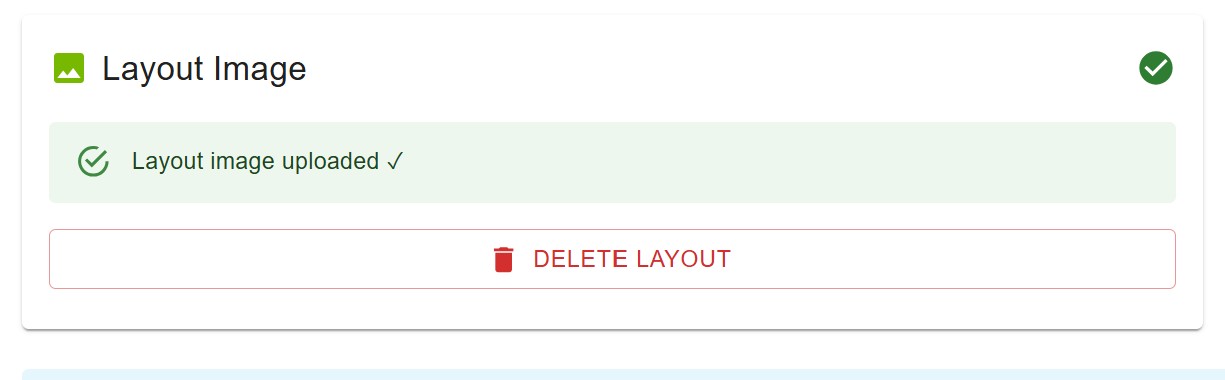
Status changes to “Layout image uploaded ✓”
Deleting Layout
If layout is already uploaded, the button changes to “Delete Layout”. Click it to remove the file.
Uploading Alignment Data#
Alignment data is optional at this step. You can either upload a pre-existing alignment file here or create it interactively in Step 4.
Requirements
Format: JSON file
Content: Alignment point data (4+ point sets)
Upload Process
Click “Upload Alignment (Optional)” button
Select your JSON file
Wait for upload confirmation
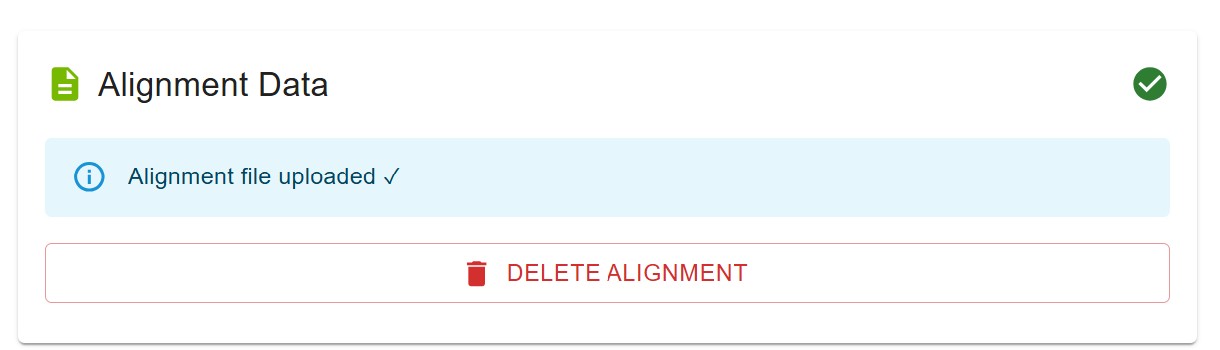
Status changes to “Alignment file uploaded ✓”
Deleting Alignment
If alignment is already uploaded, the button changes to “Delete Alignment”. Click it to remove the file.
Requirements Note#
At the bottom of the page, you’ll see a summary of requirements:
Required for Calibration:
At least 2 video files
Layout image (PNG)
Alignment data (can be created in Manual Alignment step)
Optional:
Ground truth data (ZIP file) - for evaluation purposes
Note
You can proceed to the next step even if ground truth and alignment are not uploaded. Alignment can be created interactively in Step 4.
Step 3: Parameters#
Configure camera parameters, draw ROIs (Regions of Interest), and define tripwires.
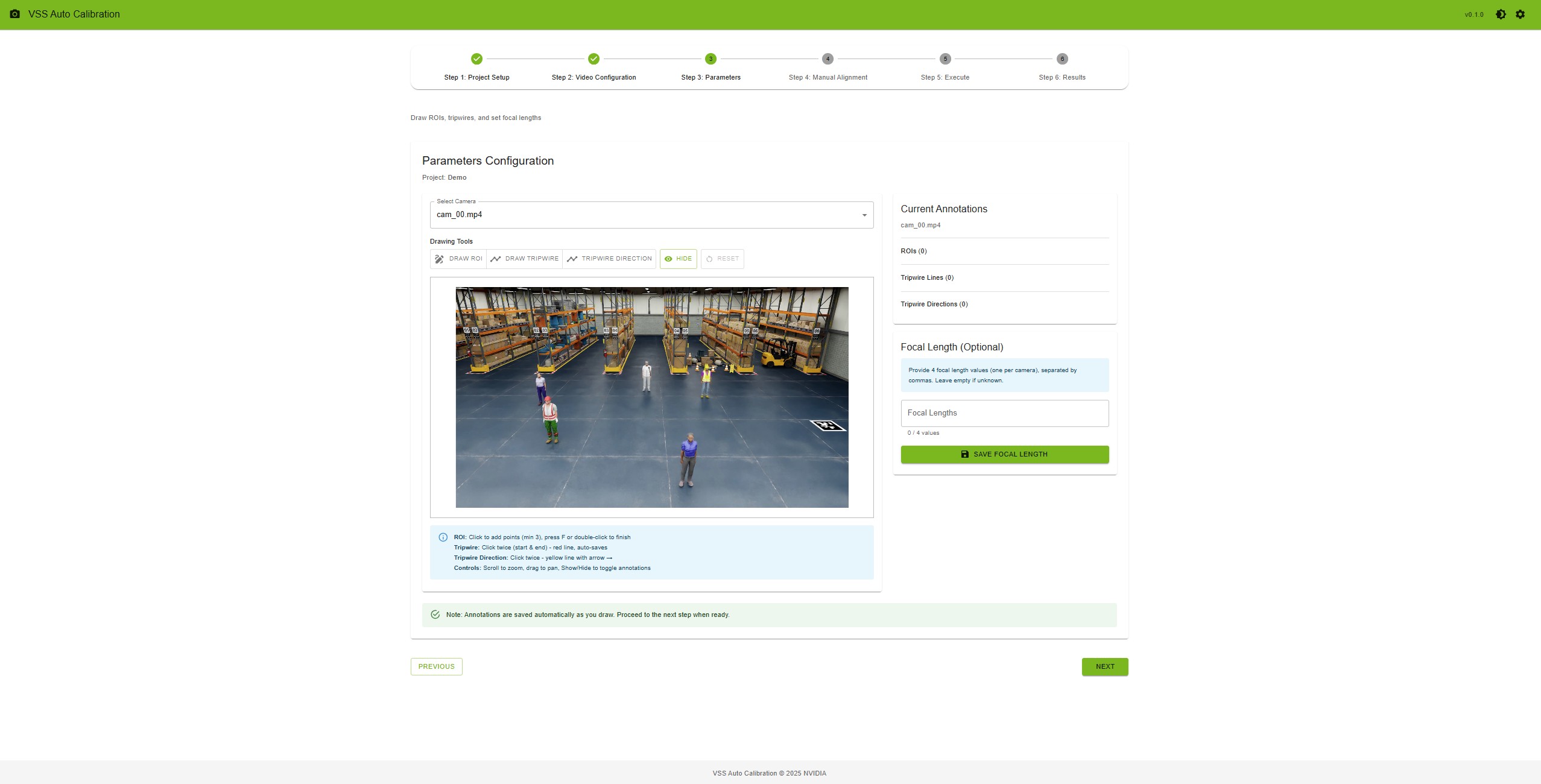
Interface Layout#
The Parameters step is divided into two main sections:
Left Panel (Main Canvas)
Camera selection dropdown
Drawing tools toolbar
Video frame canvas with annotations
Instructions and controls
Right Panel (Sidebar)
Current annotations list
ROI count and details
Tripwire lines count
Tripwire directions count
Focal length configuration
Camera Selection#
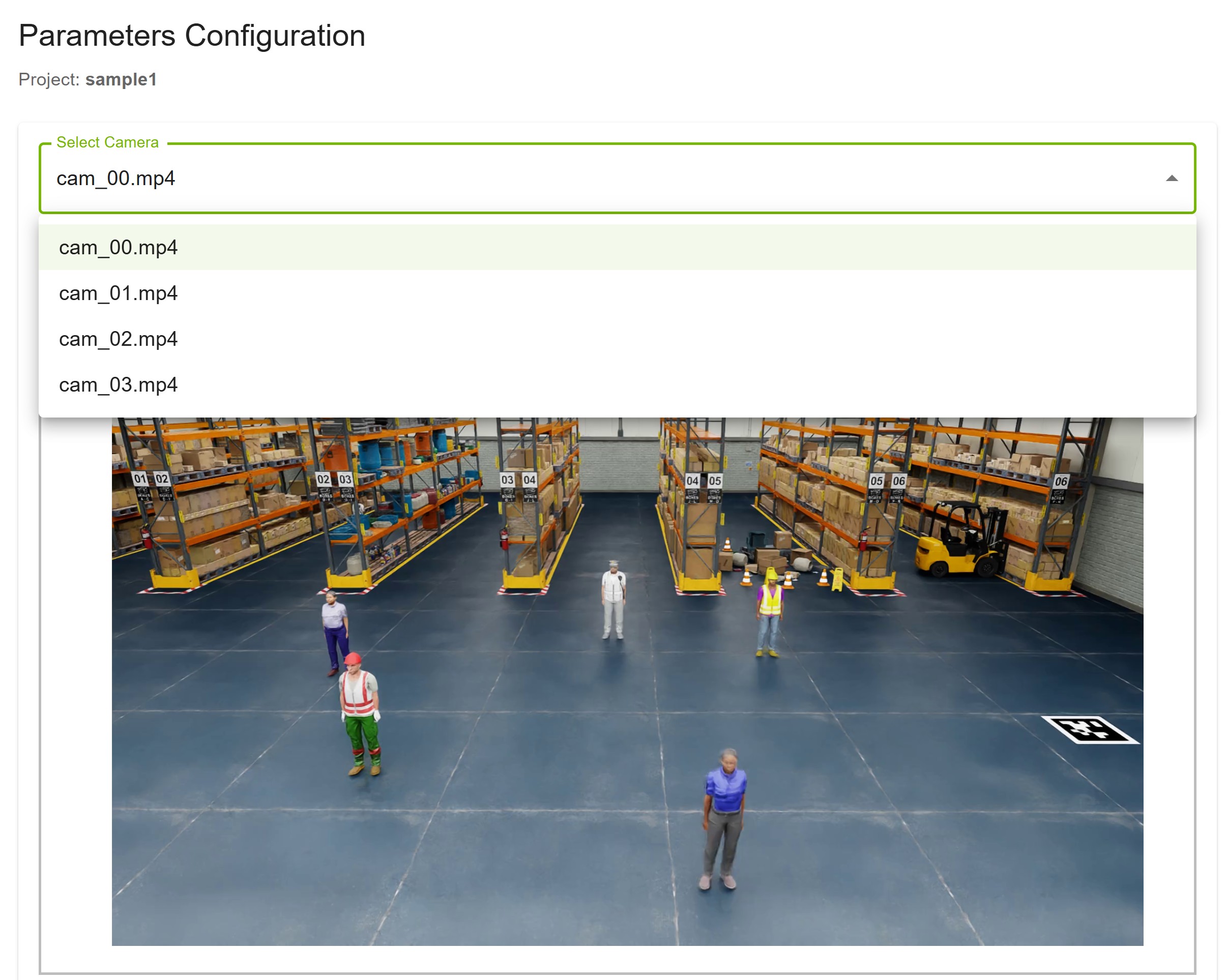
Select a camera from the dropdown menu at the top
The first frame of the selected video loads on the canvas
Switch between cameras to annotate each one
Drawing Tools#
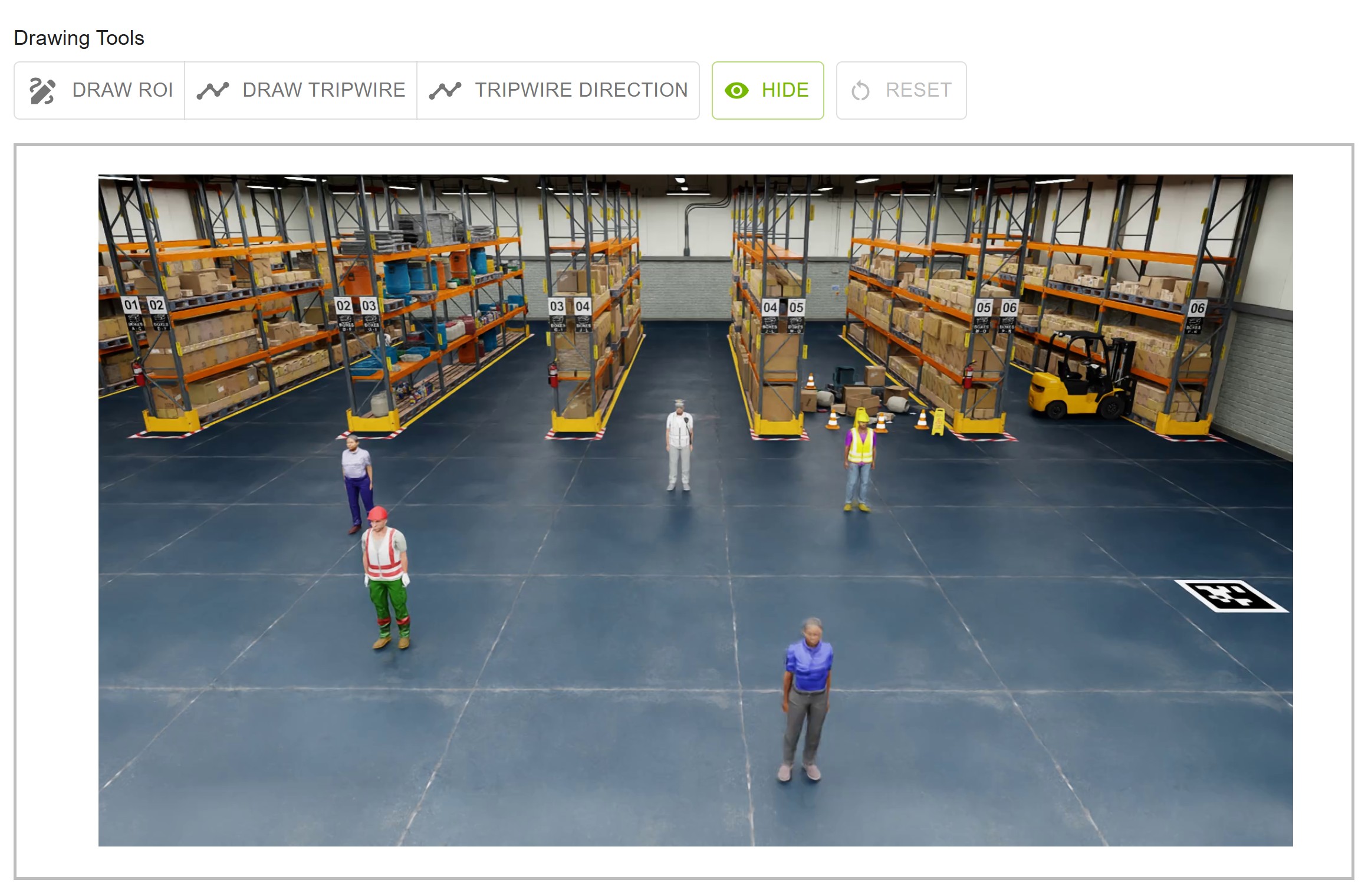
Available Tools
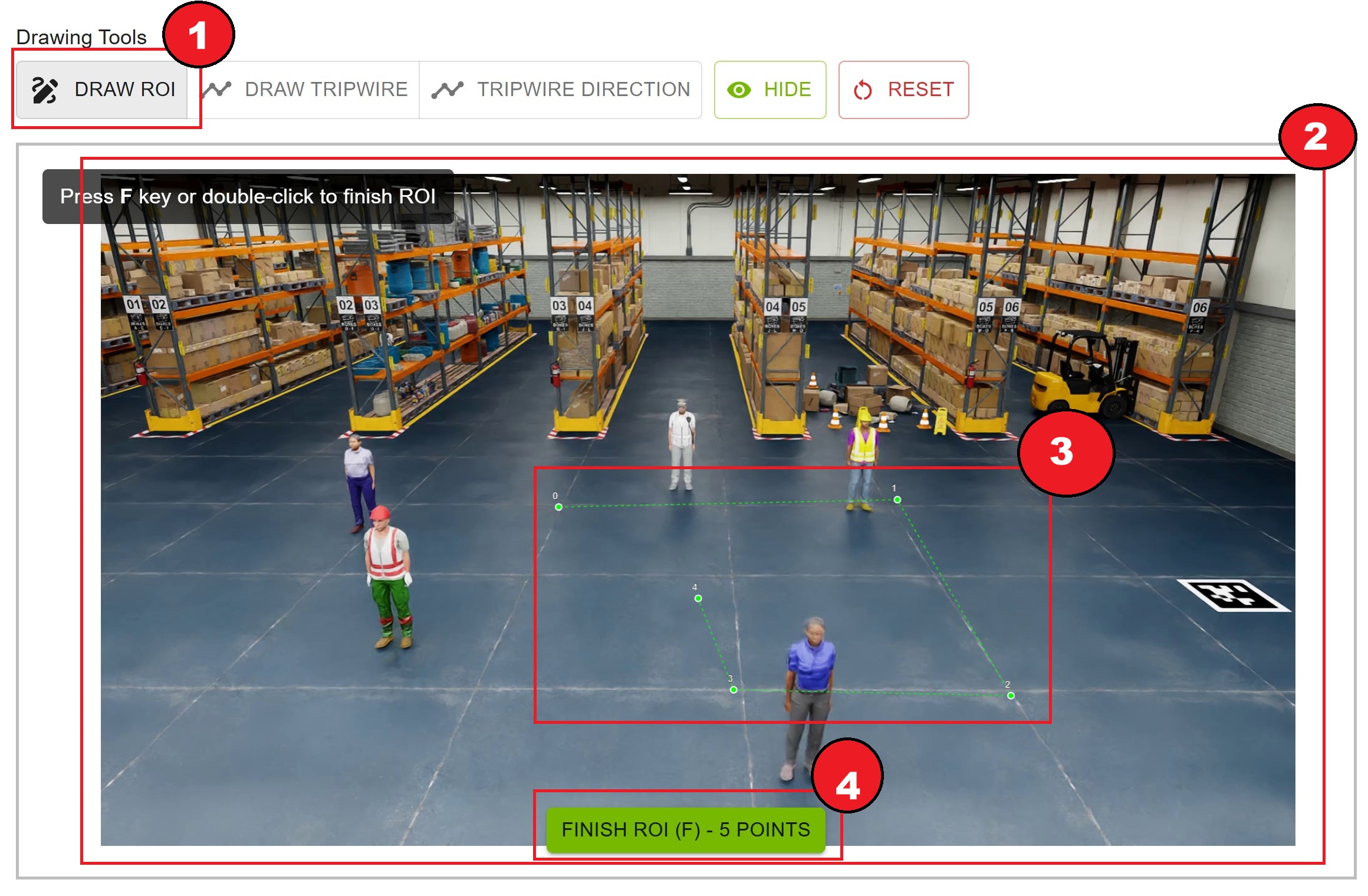
Draw ROI: Create polygonal regions of interest
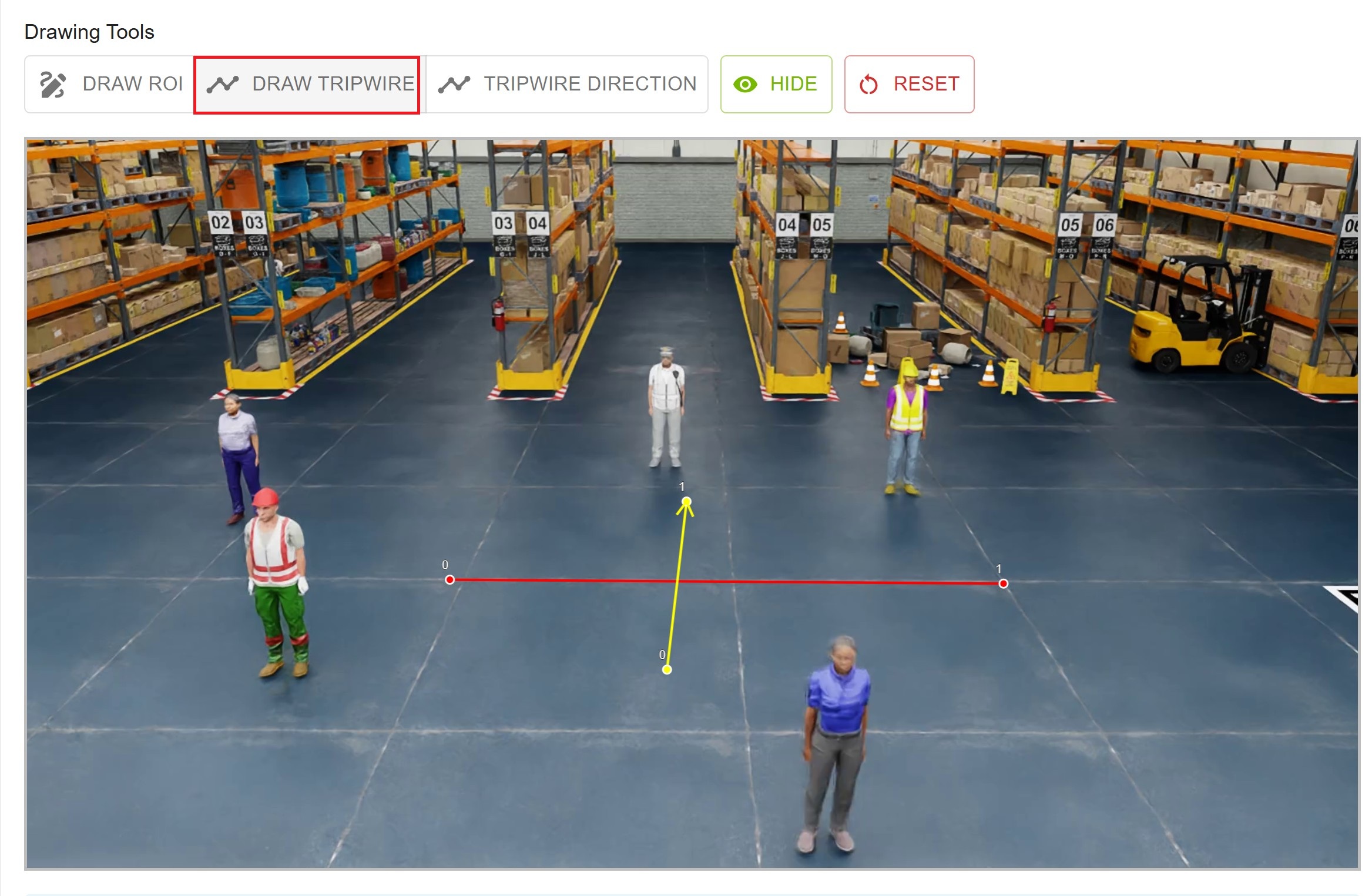
Draw Tripwire: Create tripwire lines for counting
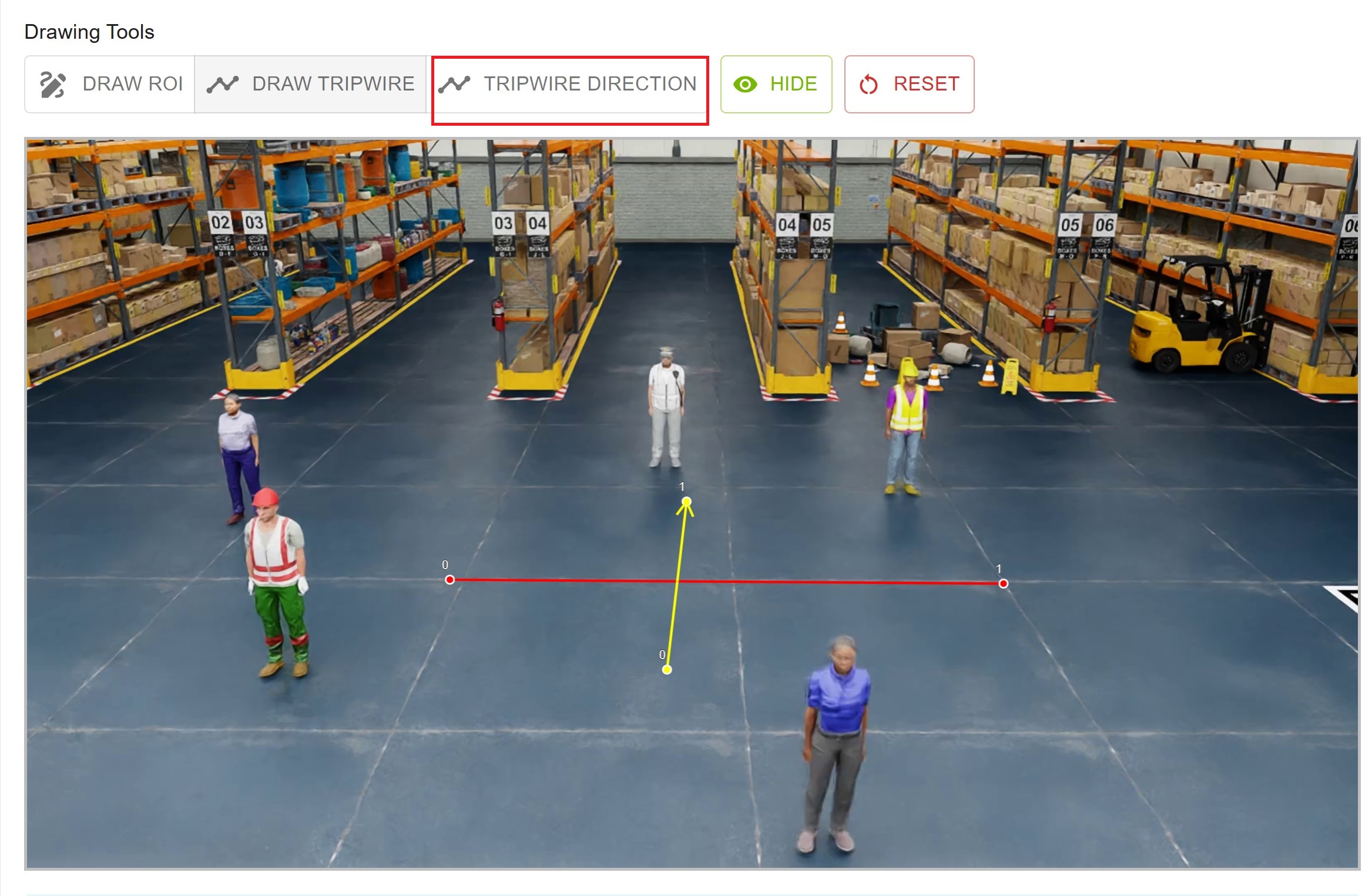
Tripwire Direction: Create directional tripwires with arrows
Show/Hide: Toggle visibility of annotations
Reset: Clear all annotations for current camera
Drawing ROIs#
ROIs define areas of interest for detection and tracking.
How to Draw
Click the “Draw ROI” button (it becomes highlighted)
Click on the video frame to add points
Add at least 3 points to form a polygon
Finish the ROI by:
Pressing the
Fkey
The ROI is automatically saved with a green color
ROI Features
Color: Green (#00ff00)
Minimum Points: 3
Maximum Points: Unlimited
Auto-save: Saved immediately upon completion
Editing ROIs
Delete: Click the delete button next to the ROI in the right panel
Redraw: Delete the existing ROI and draw a new one
Drawing Tripwire Lines#
Tripwire lines are used for counting objects crossing a line.
How to Draw
Click the “Draw Tripwire” button
Click once to set the start point
Click again to set the end point
The tripwire line is automatically saved with a red color
Tripwire Line Features
Color: Red (#ff0000)
Points: Exactly 2 (start and end)
Auto-save: Saved immediately upon completion
Use Case: Bidirectional counting
Drawing Tripwire Directions#
Tripwire directions are used for unidirectional counting with an arrow indicator.
How to Draw
Click the “Tripwire Direction” button
Click once to set the start point
Click again to set the end point (direction of arrow)
The tripwire direction is automatically saved with a yellow color and arrow
Tripwire Direction Features
Color: Yellow (#ffff00)
Arrow: Shows direction from start to end
Points: Exactly 2 (start and end)
Auto-save: Saved immediately upon completion
Use Case: Unidirectional counting (e.g., entry/exit)
Canvas Controls#
Zoom and Pan
Scroll Wheel: Zoom in/out on the canvas
Click + Drag: Pan around when zoomed in
Show/Hide Button: Toggle visibility of all annotations
Reset Button: Clear all annotations for the current camera
Visual Feedback
Drawing Mode: Active tool is highlighted in the toolbar
Cursor: Changes to crosshair when in drawing mode
Point Markers: Visible while drawing
Completed Annotations: Rendered with solid colors
Annotation List (Right Panel)#
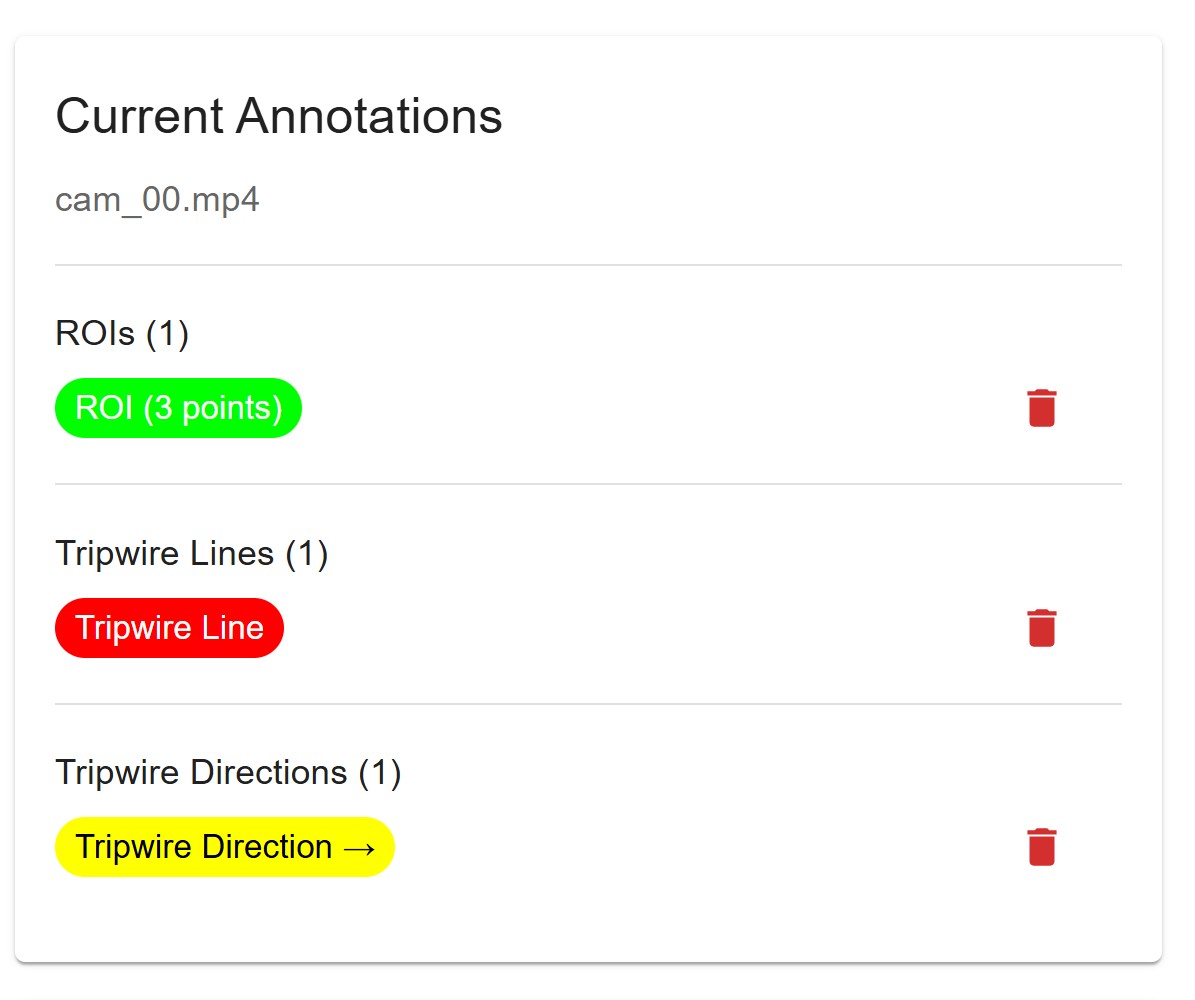
The right panel shows all annotations for the currently selected camera.
ROIs Section
Count of completed ROIs
Each ROI shown as a green chip with point count
Delete button for each ROI
Tripwire Lines Section
Count of completed tripwire lines
Each line shown as a red chip
Delete button for each line
Tripwire Directions Section
Count of completed tripwire directions
Each direction shown as a yellow chip with arrow
Delete button for each direction
Focal Length Configuration#
Focal lengths are optional but can improve calibration accuracy.
Requirements
One value per camera
Comma-separated list
Positive numbers only
Count must match video count
How to Configure
In the right panel, find the “Focal Length (Optional)” card
Enter focal lengths separated by commas
Example:
1269.01, 1099.50, 1099.50, 1099.50
Click “Save Focal Length” button
Confirmation message appears
Clearing Focal Lengths
Delete all text from the input field
Click “Save Focal Length”
Focal lengths are cleared from the project
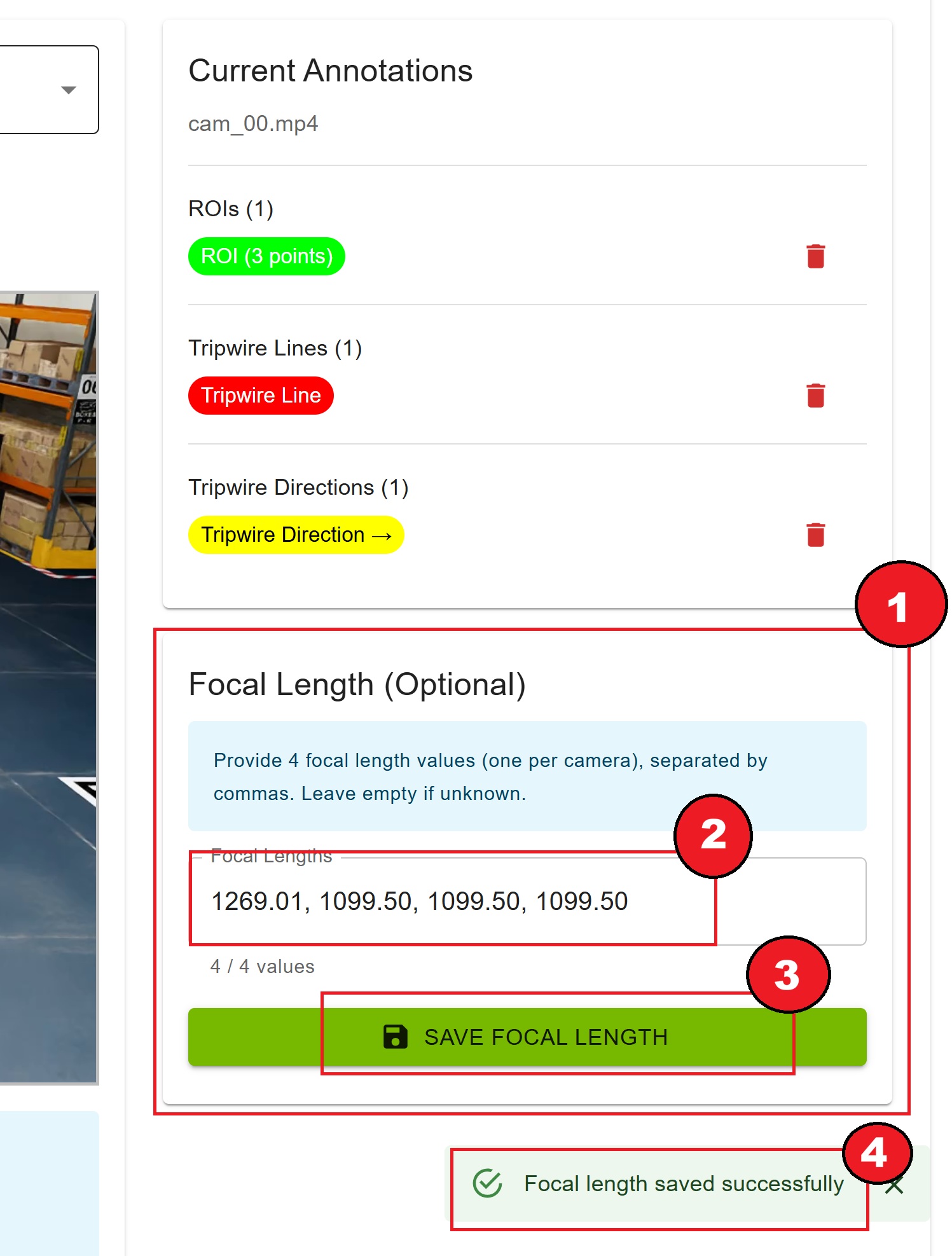
Auto-Save Feature#
All annotations (ROIs, tripwires, tripwire directions) are automatically saved to the server as you draw them.
No manual save required
Instant persistence
Per-camera storage
Survives page refresh
Note
The green success message “Note: Annotations are saved automatically as you draw. Proceed to the next step when ready.” confirms auto-save is active.
Configuring Settings#
On the Parameters step, you can customize calibration settings before running the pipeline. The settings icon in the top-right corner of the header is only visible on this step.
Accessing Settings
Click the settings icon in the top-right corner to access application settings.
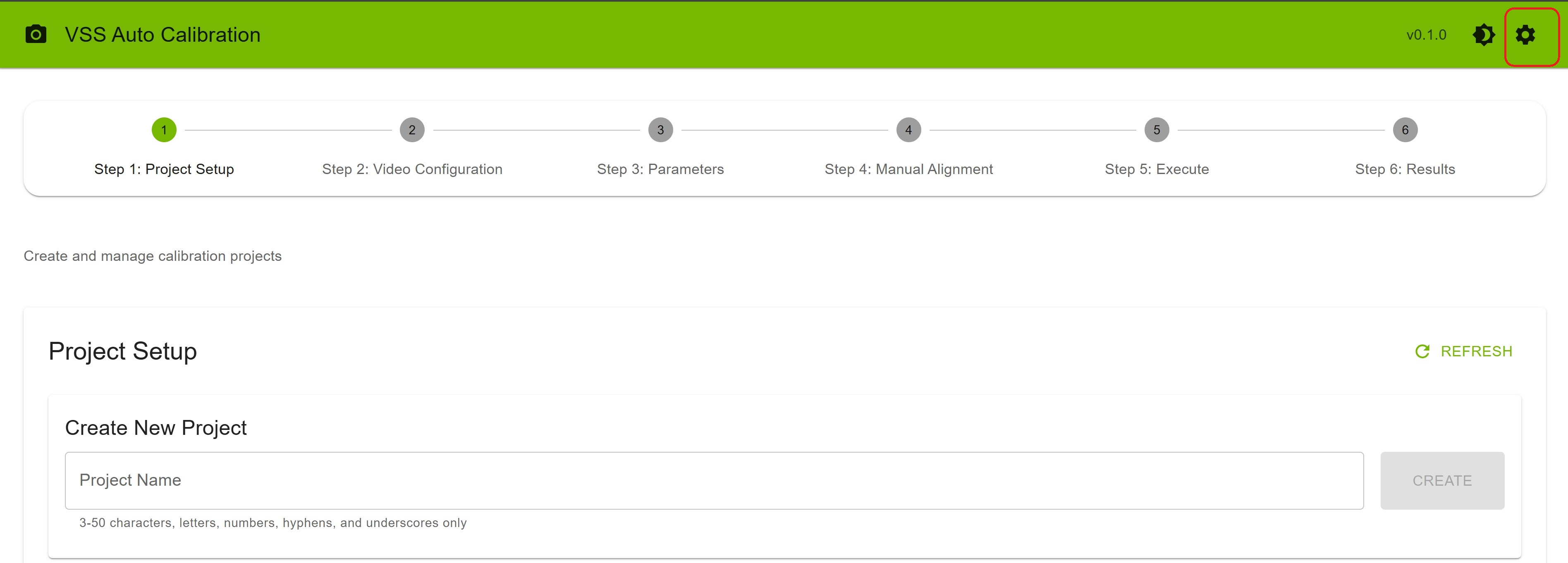
Configuration Options
You have two options to configure the settings:
Option 1: Upload - Upload a pre-configured settings file to apply all parameters at once
Option 2: Manual Configuration - Modify each parameter individually through the settings interface
Additional Actions
Download: Click the download button to export the current settings configuration to a file
Reset to Defaults: Click to restore all settings to their default values
Save Settings: Click “Save Settings” to save your changes
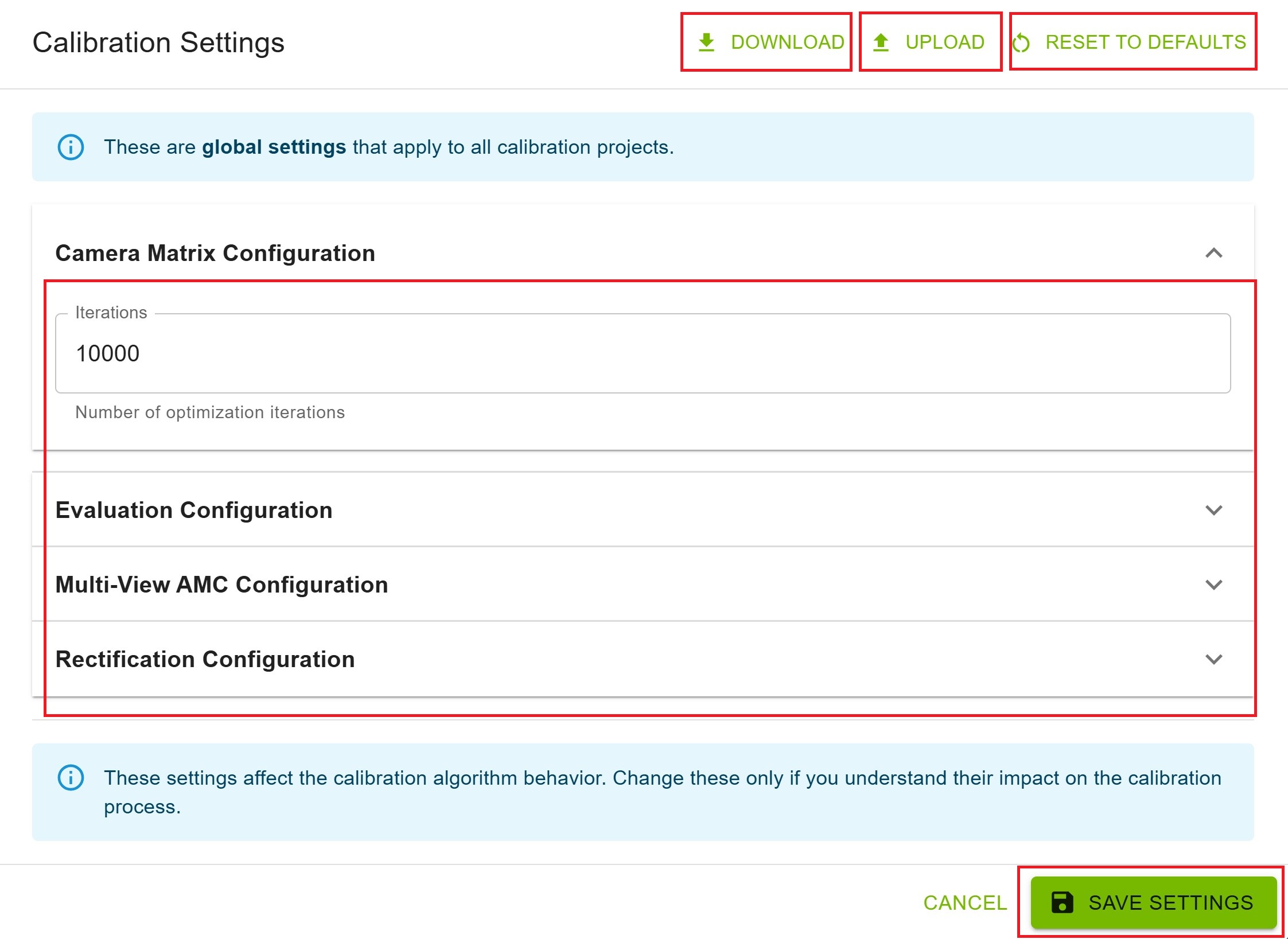
Warning
Do not attempt to change the settings while AMC calibration is running. Make all configuration changes before starting the calibration process (in Step 5: Execute).
Step 4: Manual Alignment#
Two Options for Alignment#
Option 1: Upload Existing Alignment
If you already have an alignment_data.json file:
Click “Upload alignment_data.json” button
Select your JSON file from your computer
Wait for upload confirmation
Proceed to the next step
Option 2: Create Alignment Interactively
Create alignment data by selecting corresponding points:
Click “Open Alignment Tool” button
The interactive alignment interface opens
Follow the point selection process
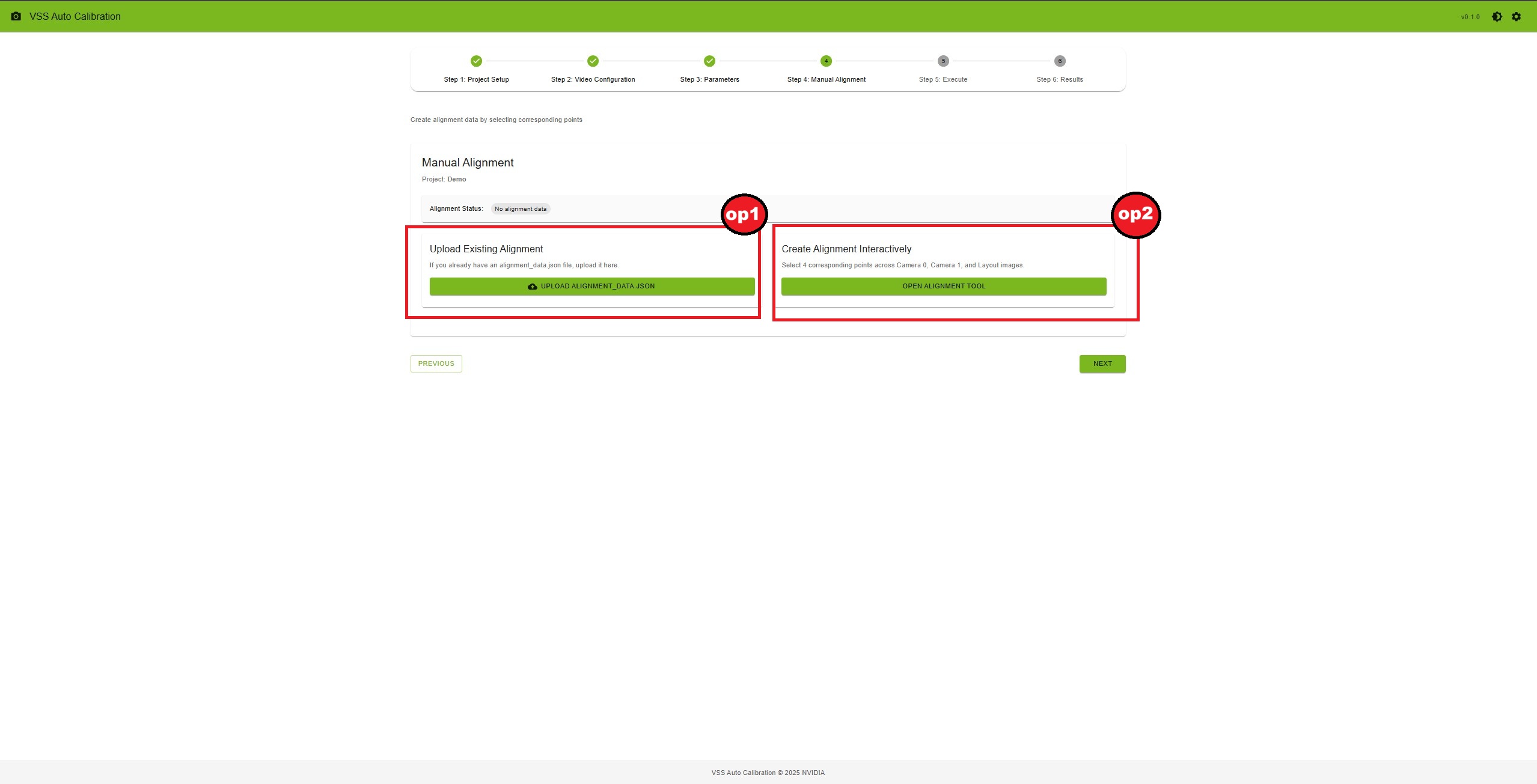
Create alignment data by selecting corresponding points across camera views and the layout map.
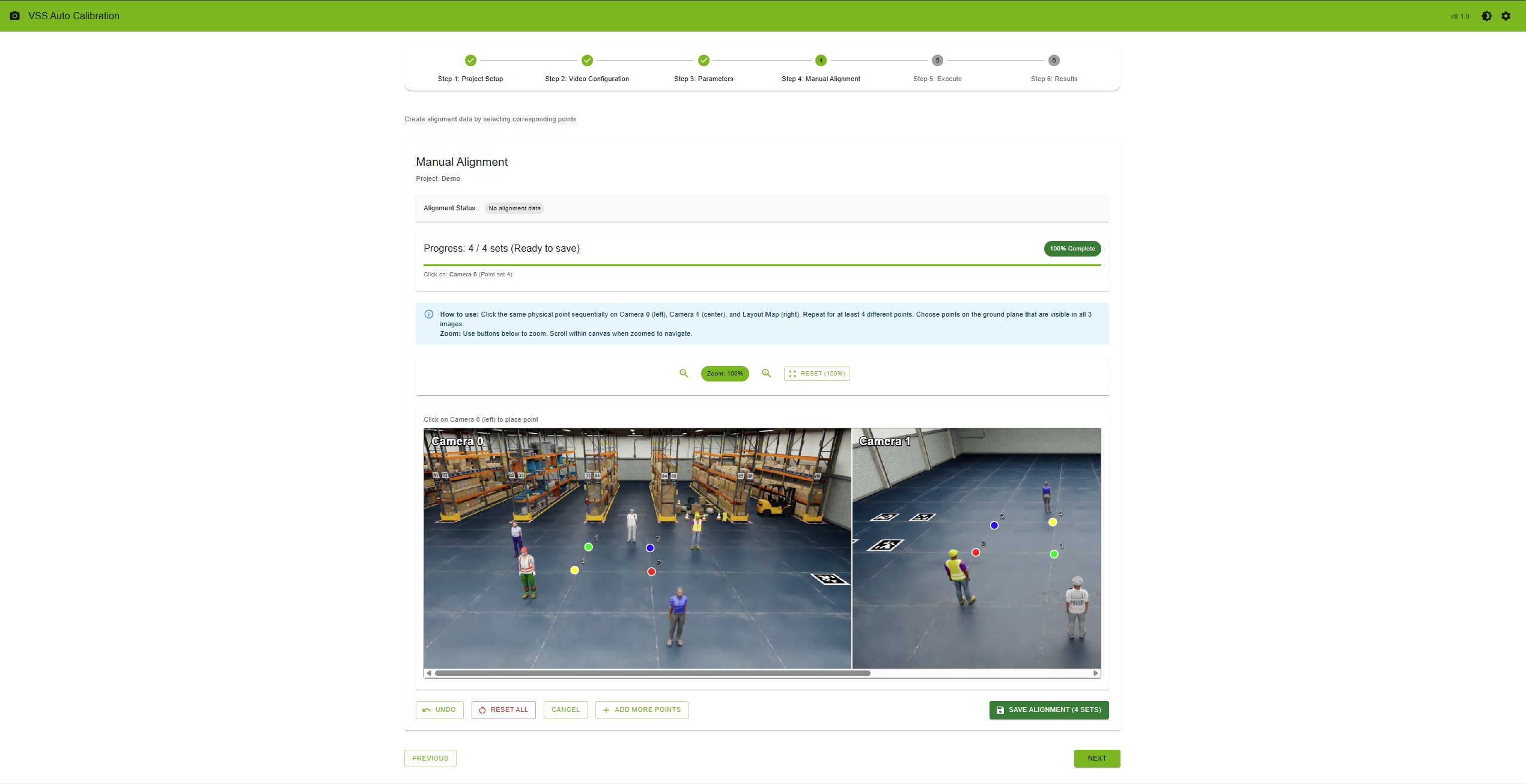
Alignment Status#
At the top of the page, you’ll see the current alignment status:
Green Badge: “Alignment data exists” - File already uploaded or created
Gray Badge: “No alignment data” - Need to upload or create alignment
Prerequisites Check#
Before creating alignment interactively, the system checks:
✓ At least 2 videos uploaded
✓ Layout image uploaded
If prerequisites are not met, you’ll see a warning message directing you to Step 2.
Interactive Alignment Tool#
Interface Overview
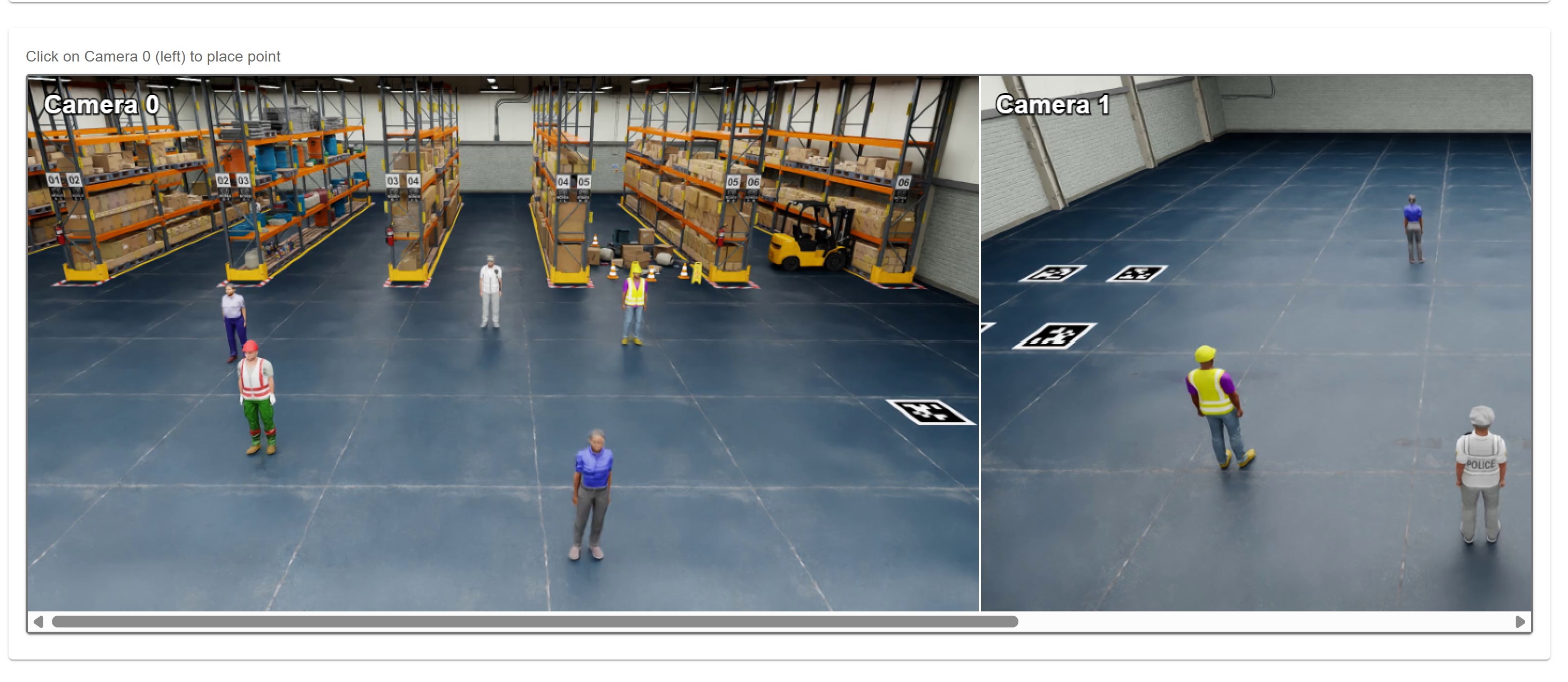
The alignment tool displays three images side-by-side in a single concatenated canvas:
Left: Camera 0 (cam_00.mp4)
Center: Camera 1 (cam_01.mp4)
Right: Layout Map (BEV - Bird’s Eye View)
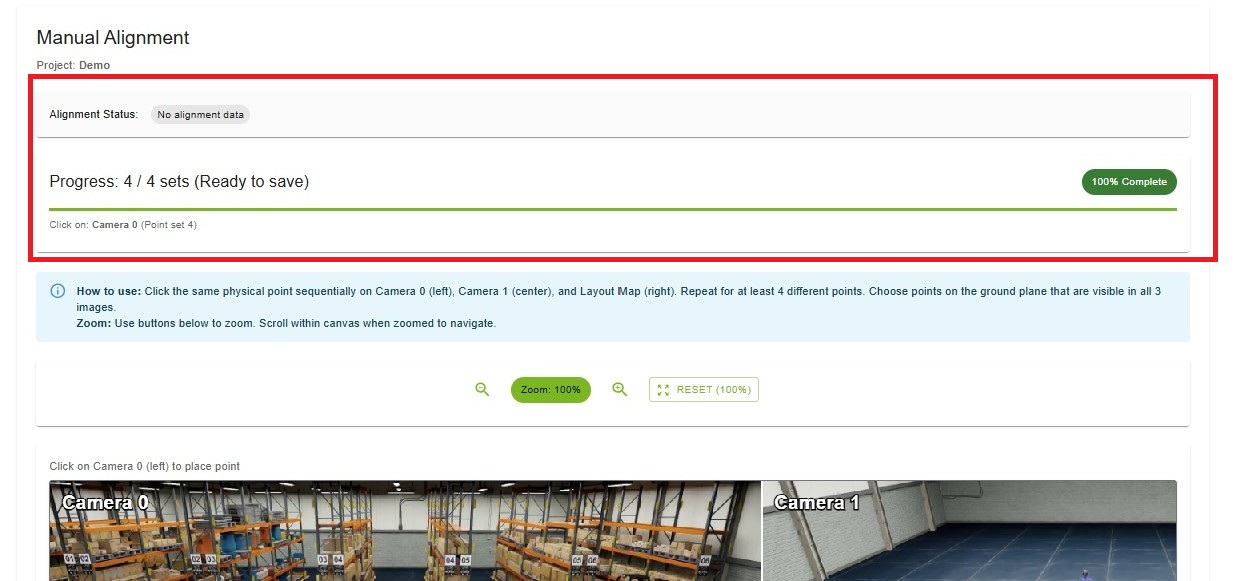
Progress Indicator
At the top, you’ll see:
Progress Bar: Visual progress (0-100%)
Completion Status: “X / Y sets (Min 4 required)” or “(Ready to save)”
Current Action: “Click on: Camera 0 / Camera 1 / Layout Map (Point set N)”
Point Selection Process#
Step-by-Step Instructions
Select Point on Camera 0
Click on a distinct feature visible in Camera 0 (left section)
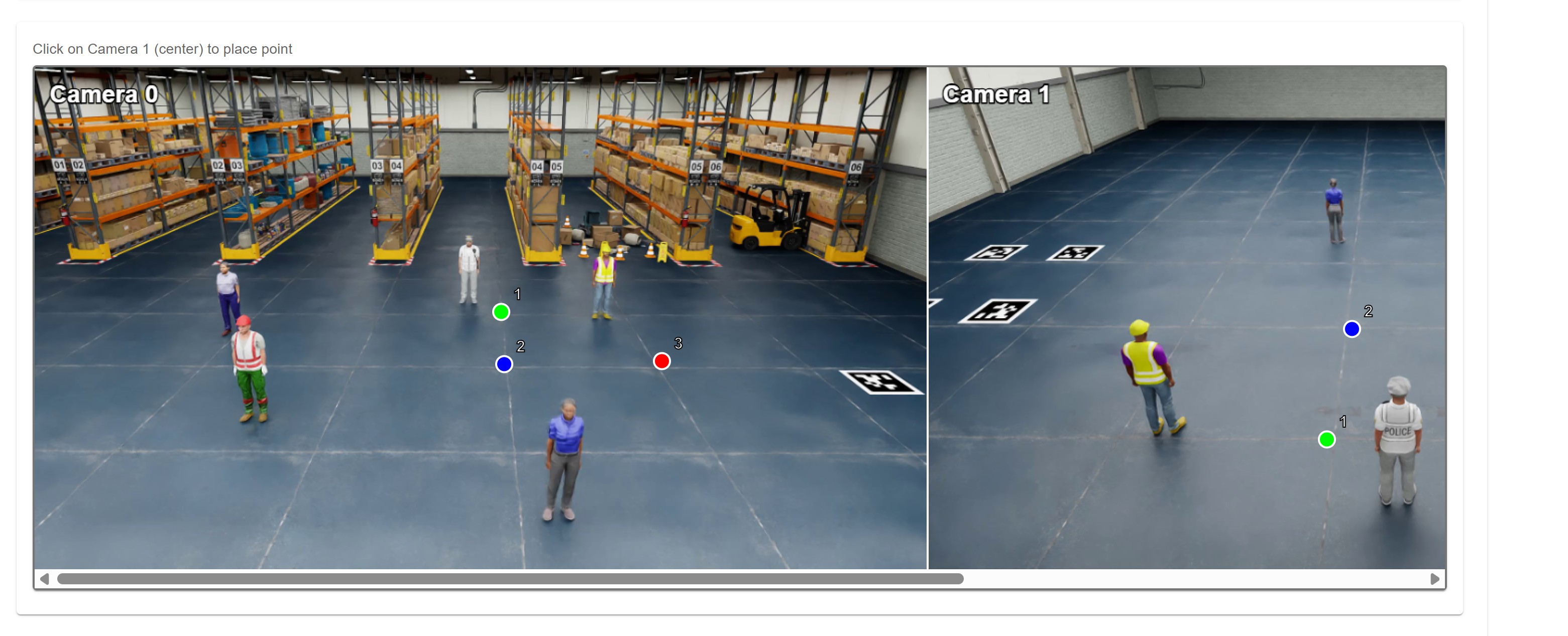
A colored circle with number “1” appears
System prompts: “Click on: Camera 1”
Select Corresponding Point on Camera 1
Click on the same physical location in Camera 1 (center section)
A colored circle with number “1” appears
System prompts: “Click on: Layout Map”
Select Corresponding Point on Layout
Click on the same physical location on the Layout Map (right section)
A colored circle with number “1” appears
Point Set 1 Complete!
Repeat for Additional Points
System automatically moves to Point Set 2
Repeat the process for at least 4 total point sets
Each set uses a different color (Green, Blue, Red, Yellow)
Point Selection Tips
Choose points on the ground plane
Select distinct features (corners, markings, poles)
Ensure points are visible in all three images
Distribute points across different depths and locations
Avoid points on moving objects
Use zoom controls for precision
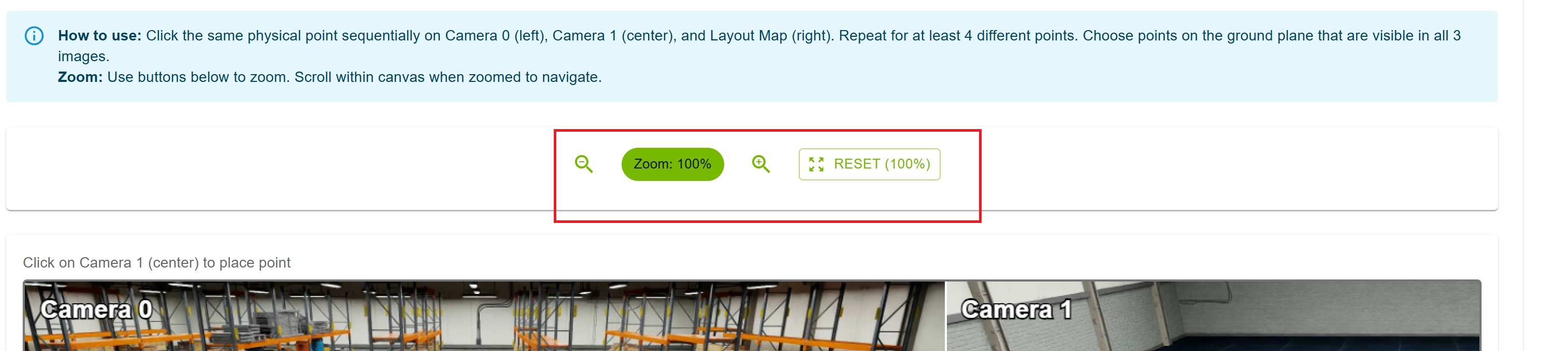
Zoom and Navigation#
Zoom Controls
Located above the canvas:
Zoom In (🔍+): Increase zoom level
Zoom Out (🔍-): Decrease zoom level
Reset (100%): Return to original zoom level
Current Zoom: Displayed as percentage (e.g., “Zoom: 150%”)
Navigation
Scroll Wheel: Zoom in/out on the canvas
Click + Drag: Pan around when zoomed in
Zoom Range: 50% to 300%
Point Set Management#
Undo Last Point
Click the “Undo” button to remove the most recently placed point.
Reset All Points
Click the “Reset All” button to clear all points and start over.
Add More Points
After completing 4 point sets, you can add more for improved accuracy:
Click “Add More Points” button
A new empty point set is added
Continue selecting points as before

Saving Alignment Data#
Requirements
Minimum 4 complete point sets
Each set must have all 3 points (Camera 0, Camera 1, Layout)
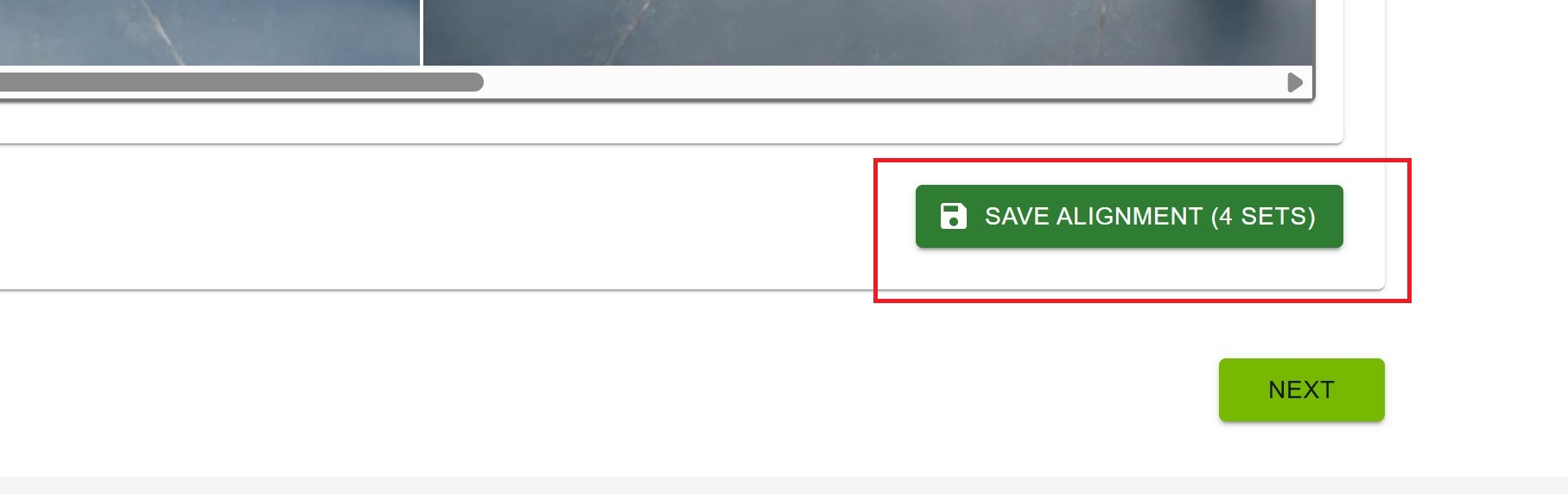
Save Process
Complete at least 4 point sets
The “Save Alignment” button becomes enabled
Button shows: “Save Alignment (X sets)” where X is the count
Click “Save Alignment (X sets)”
System generates and uploads the alignment JSON file
Success message appears
Alignment tool closes automatically
Cancel Creation
Click the “Cancel” button to exit the alignment tool without saving.
Alignment Data Format#
The generated alignment data is a JSON array with the following structure:
[
  [
    [x0_cam0, y0_cam0],
    [x0_cam1, y0_cam1],
    [x0_layout, y0_layout]
  ],
  [
    [x1_cam0, y1_cam0],
    [x1_cam1, y1_cam1],
    [x1_layout, y1_layout]
  ],
  ...
]
Each outer array element represents one point set
Each point set contains 3 coordinate pairs [x, y]
Coordinates are in pixel space of the original images
Deleting Alignment Data#
If alignment data already exists and you want to recreate it:
The interface shows: “Alignment data already exists for this project”
Click “Delete Alignment Data” button
Confirm deletion
Create new alignment using either upload or interactive method
Warning
Deleting alignment data cannot be undone. You’ll need to recreate or re-upload it.
Best Practices#
Point Selection Strategy
Minimum 4 points: Required for calibration
Recommended 6-8 points: Better accuracy and robustness
Point Distribution
Spread points across the entire area
Include points at different depths (near and far)
Cover all quadrants of the layout
Avoid clustering points in one area
Point Quality
Use sharp, distinct features
Avoid ambiguous or blurry areas
Prefer corners and intersections
Ensure good contrast
Common Mistakes to Avoid
✗ Selecting points on walls or elevated surfaces
✗ Choosing points only in the center
✗ Using points on moving objects
✗ Clicking too quickly without precision
✗ Forgetting to zoom in for accuracy
Step 5: Execute#
Verify project requirements and run the calibration pipeline with live monitoring.
Project State Overview#
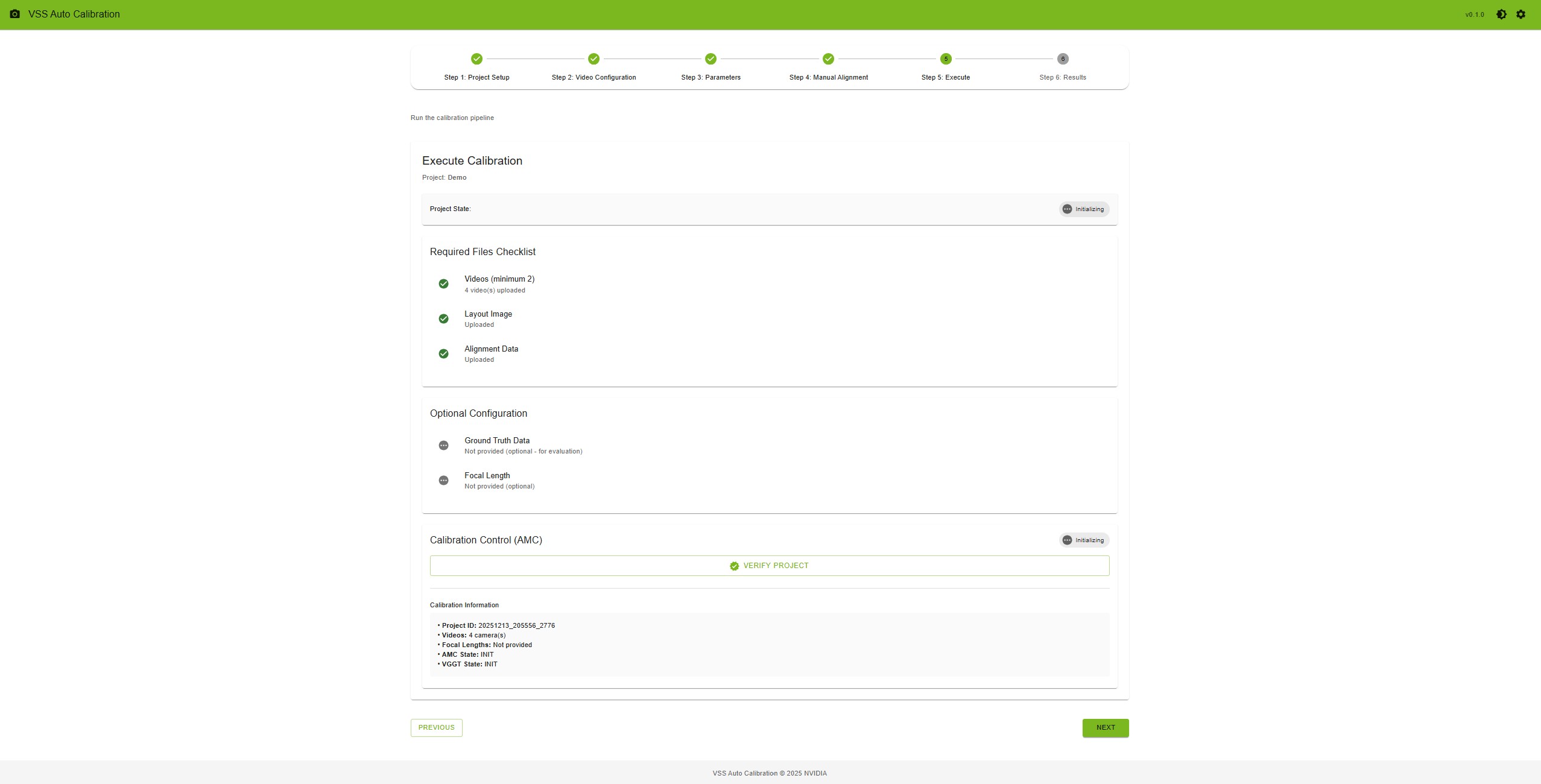
At the top of the page, you’ll see the current project state:
INIT (gray): Initial state
READY (blue): Ready to run calibration
RUNNING (orange): Calibration in progress
COMPLETED (green): Calibration finished
ERROR (red): Calibration failed
When RUNNING, an elapsed time counter and progress bar are displayed.
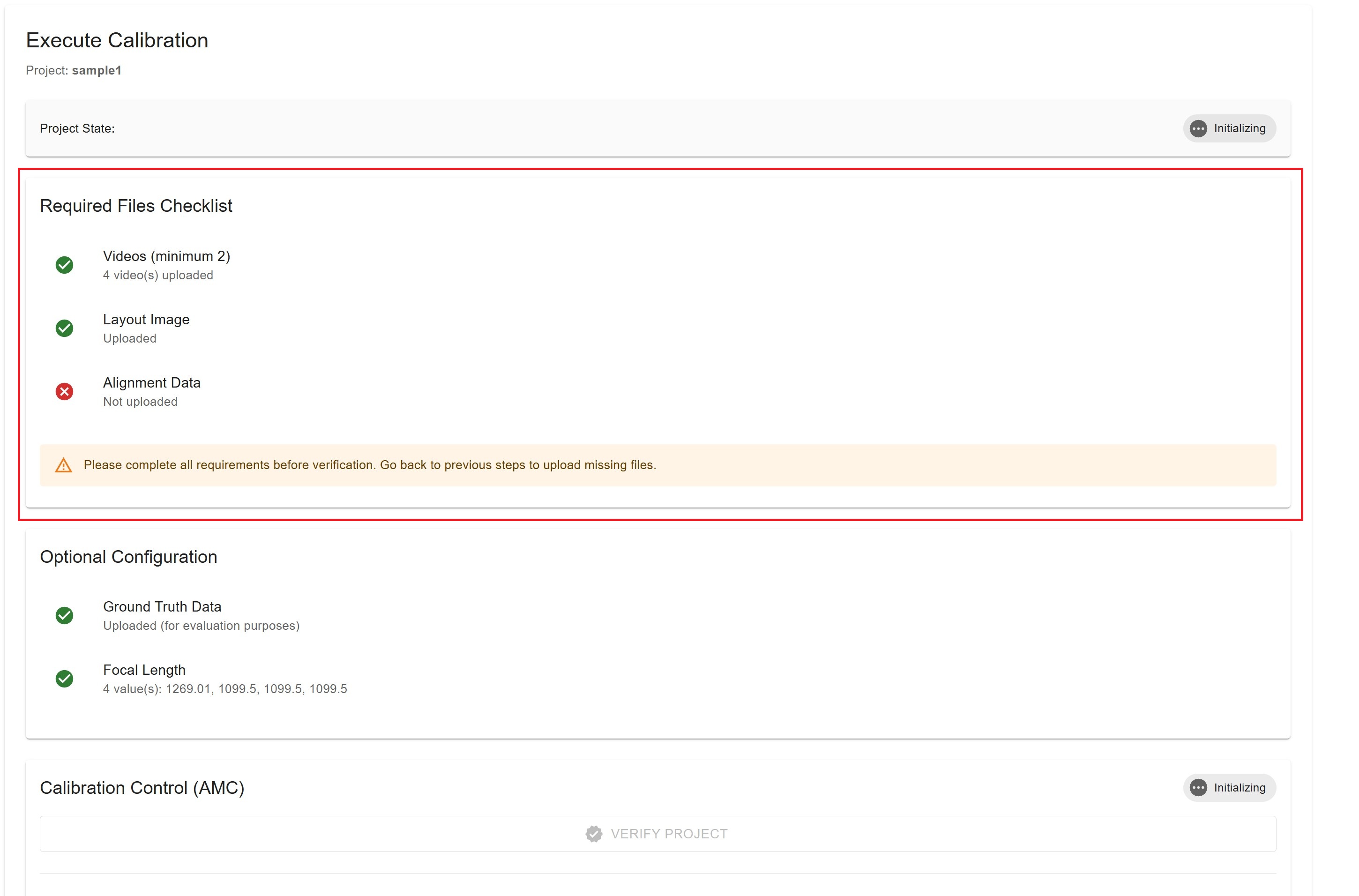
Requirements Checklist#
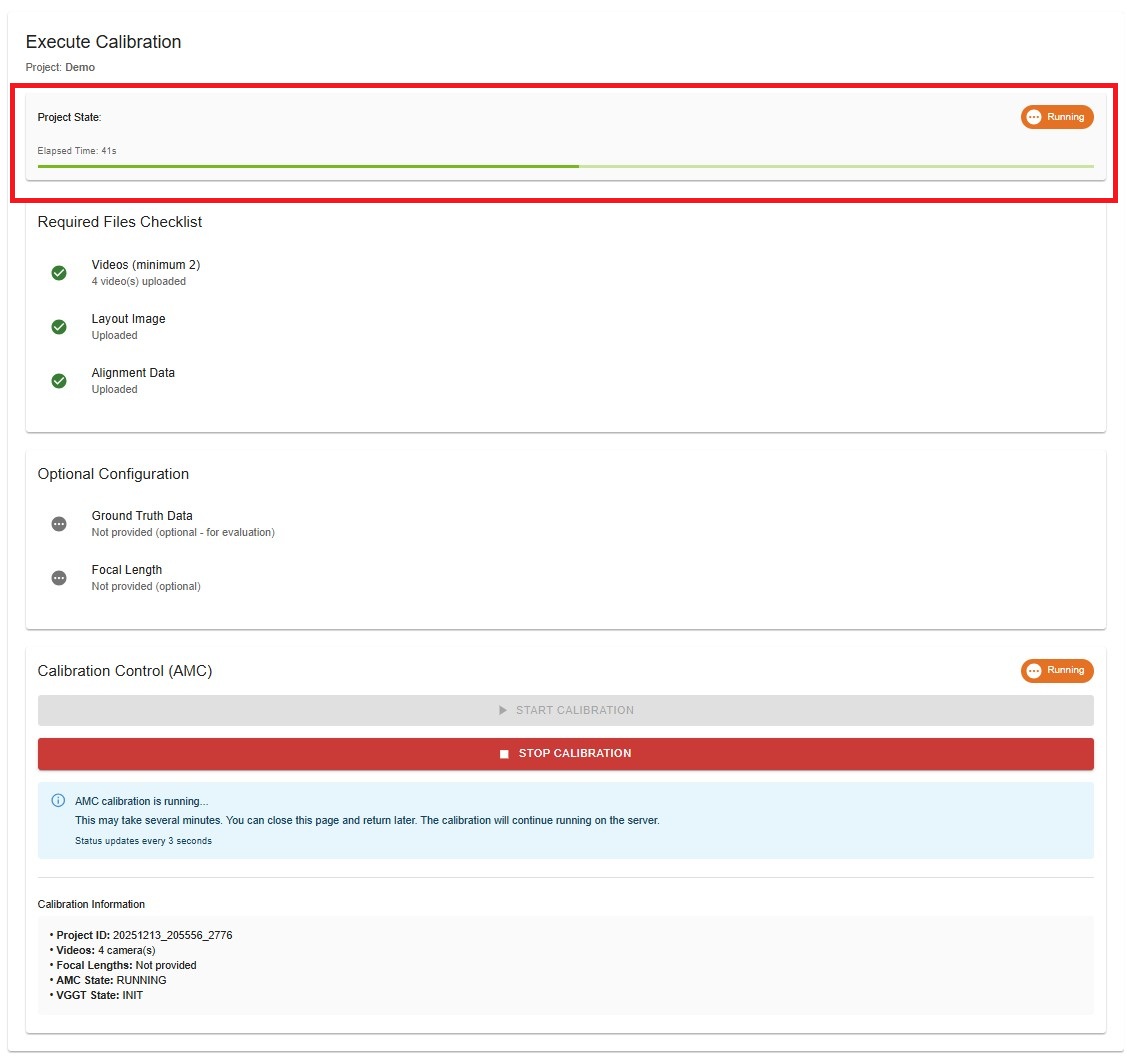
The system validates all required files before allowing calibration:
Required Files
✓ Videos (minimum 2): Shows count of uploaded videos
✓ Layout Image: Confirms layout is uploaded
✓ Alignment Data: Confirms alignment is uploaded or created
If any requirement is not met, you’ll see a warning message:
Warning
Please complete all requirements before verification. Go back to previous steps to upload missing files.
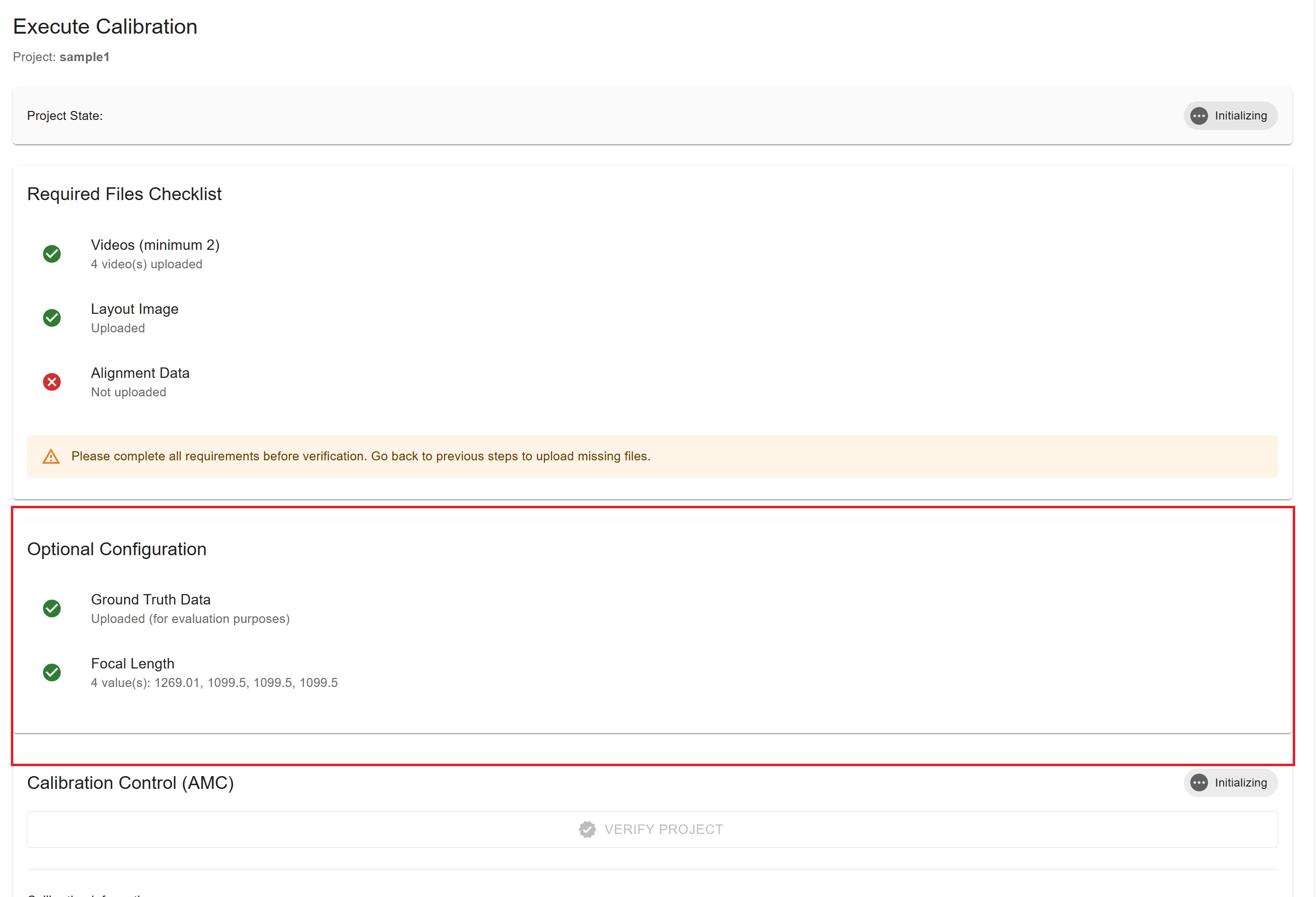
Optional Configuration#
The system also displays optional configuration status:
Ground Truth Data
✓ Uploaded (for evaluation purposes)
⊙ Not provided (optional - for evaluation)
Focal Length
✓ X value(s): Shows the focal length values
⊙ Not provided (optional)
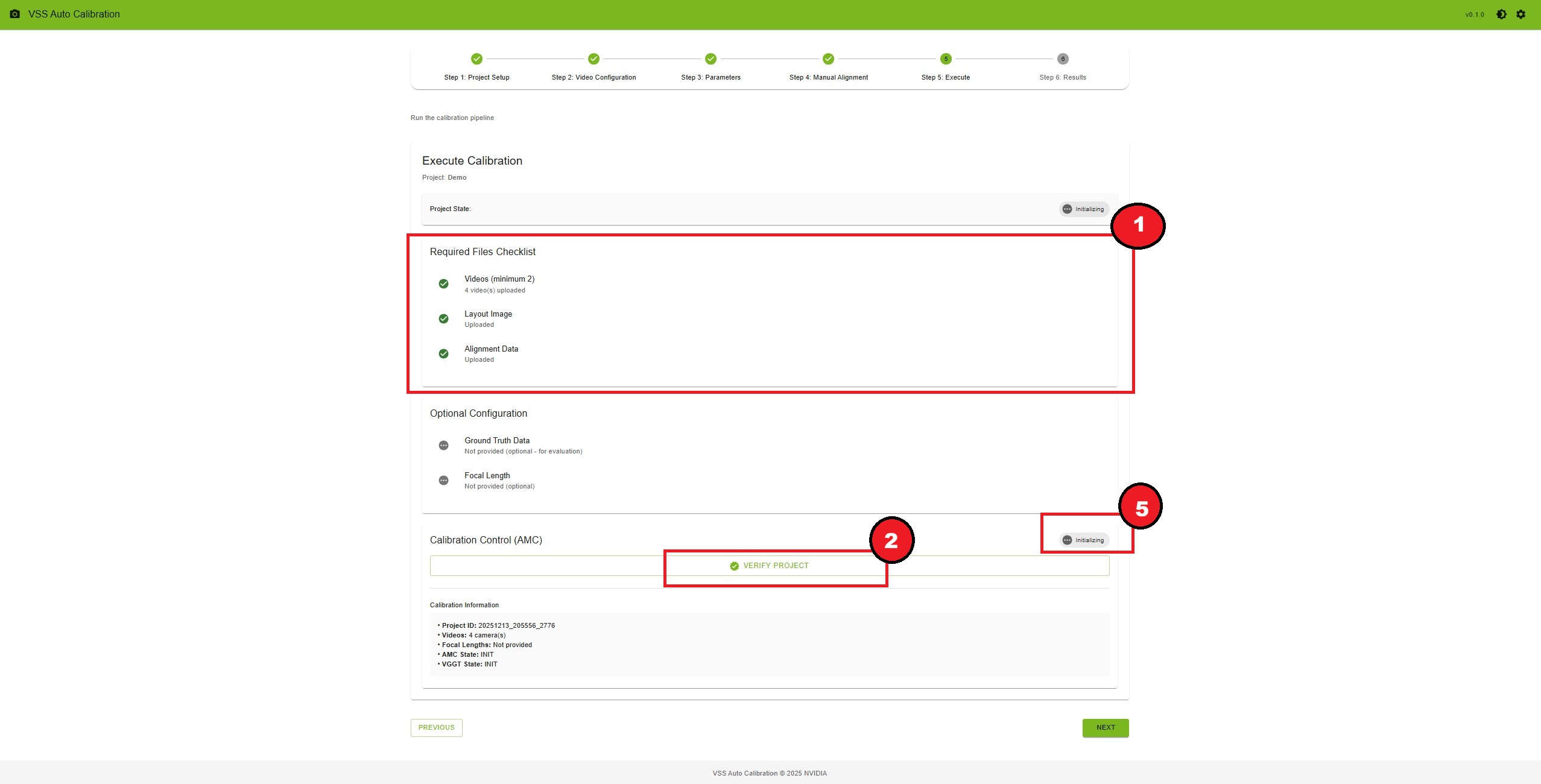
Verification Process#
Before running calibration, you must verify the project.
How to Verify
Ensure all requirements are met (green checkmarks)
Click the “Verify Project” button
System validates all files and configurations
Success message appears: “Project verified successfully”
Project state changes to “READY”
“Start Calibration” button becomes enabled
Running AMC Calibration#
AMC (Auto Magic Calibration) is the primary calibration method.
How to Start
After verification, click “Start Calibration” button
Calibration pipeline begins immediately
Project state changes to “RUNNING”
Progress indicators appear
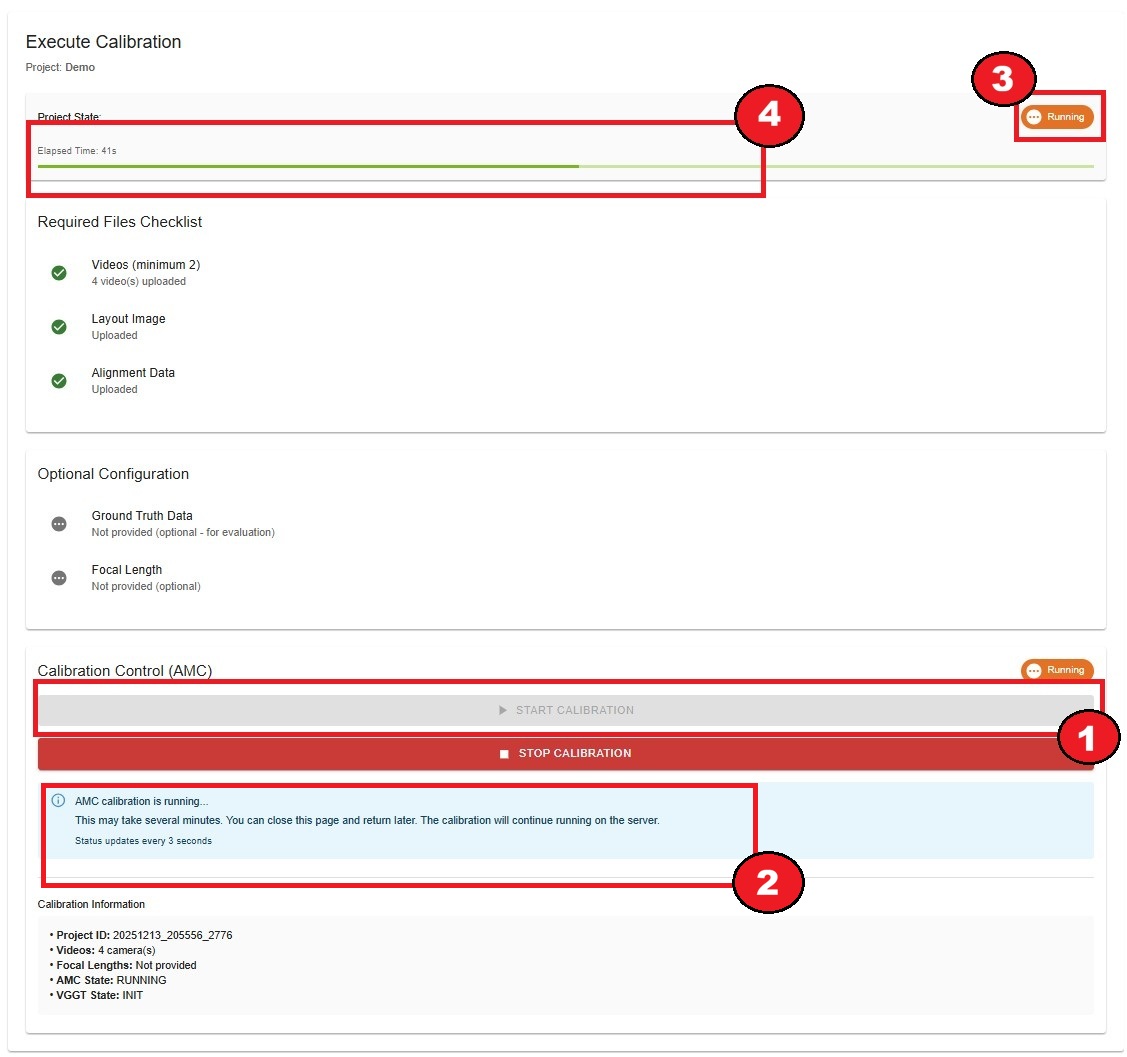
During Calibration
Elapsed Time: Updates every second
Progress Bar: Animated progress indicator
Status Message: “AMC calibration is running…”
Info Alert: “This may take several minutes. You can close this page and return later.”
AMC Live Logs: Real-time calibration logs displayed during execution
Auto-refresh: Status updates every 3 seconds
Stopping Calibration
If needed, you can stop the calibration:
Click “Stop Calibration” button (appears when RUNNING)
Calibration process terminates
Project state changes back to “READY”
Elapsed time resets
Warning
Stopping calibration will discard partial results. You’ll need to start over.
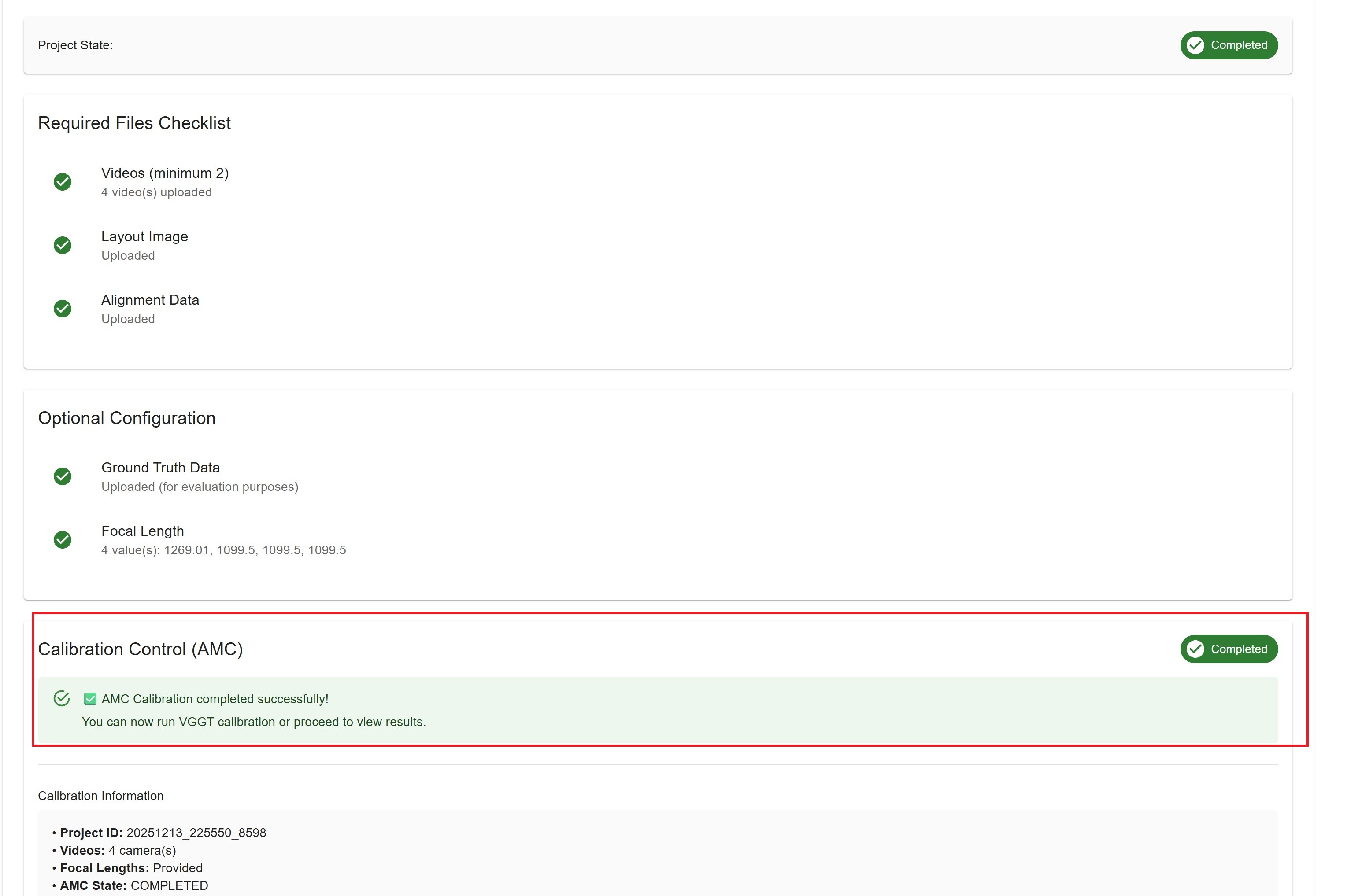
Calibration Completion#
When AMC calibration finishes successfully:
Success Alert: “✅ AMC Calibration completed successfully!”
Message: “You can now run VGGT calibration or proceed to view results.”
Project State: Changes to “COMPLETED”
AMC State: Shows “COMPLETED” badge
Next Steps: Proceed to Results or run VGGT (if available)
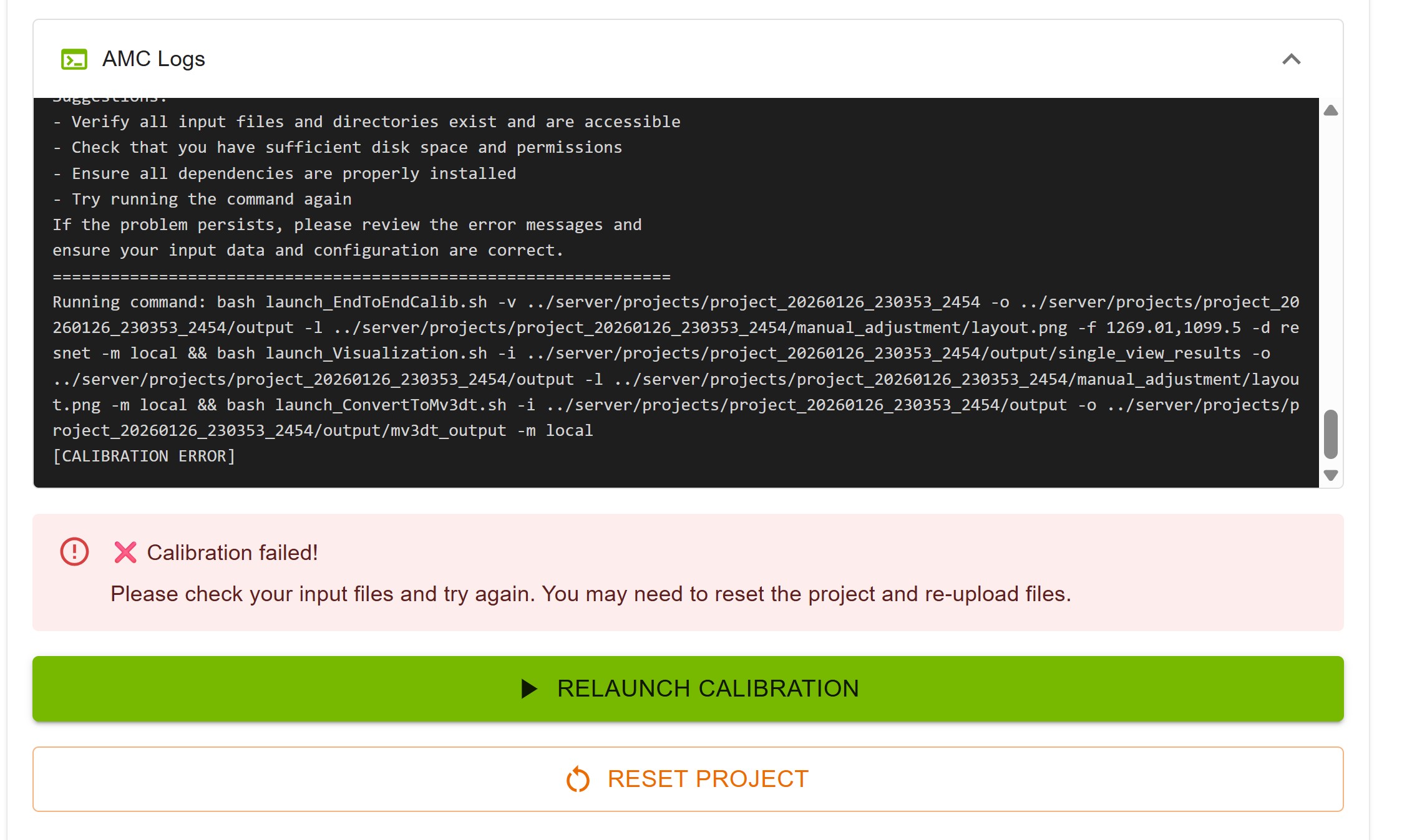
Calibration Failure#
If calibration fails:
Error Alert: “❌ Calibration failed!”
Message: “Please check your input files and try again.”
Project State: Changes to “ERROR”
Reset Option: “Reset Project” button appears
How to Recover
Option 1: Relaunch Calibration
Click “Relaunch Calibration” button
The project is re-verified automatically
If verification passes, project state returns to “READY”
You can then start calibration again
Option 2: Reset Project
Click “Reset Project” button
Project state returns to “INIT”
Go back to previous steps
Check and re-upload files if needed
Try calibration again
VGGT Calibration (Optional)#
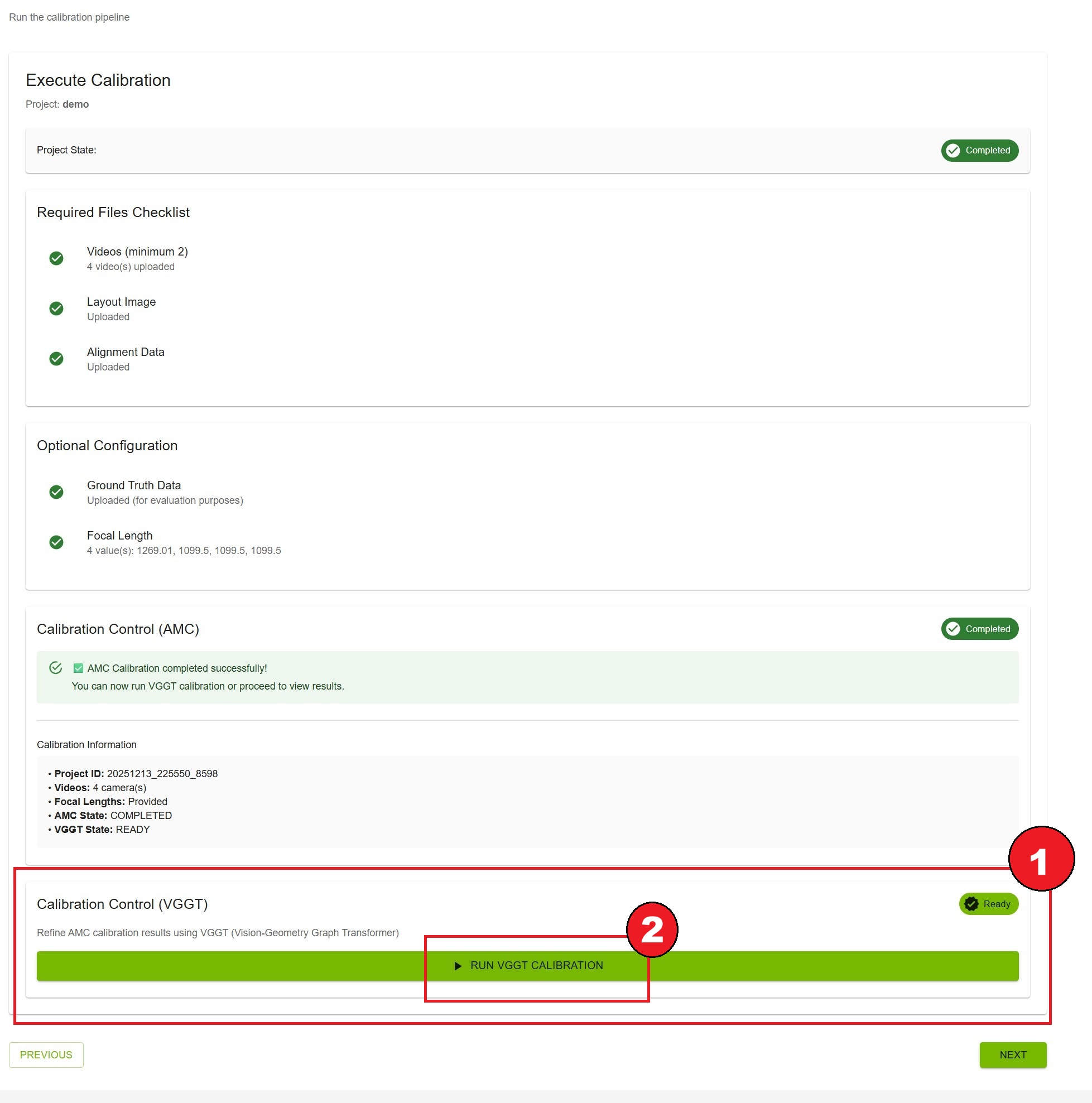
VGGT (Vision-Geometry Graph Transformer) is an optional refinement method available after AMC completes.
Note
VGGT is only available if the backend server has VGGT support installed.
When Available
AMC calibration must be completed first
VGGT section appears below AMC section
VGGT state shows “READY”
How to Run VGGT
After AMC completes, scroll to “Calibration Control (VGGT)” section
Click “Run VGGT Calibration” button
VGGT pipeline begins
Progress indicators appear (similar to AMC)
VGGT Features
Refinement: Improves AMC results using graph transformer
Duration: Typically 2-3 minutes
Independent: Can be run multiple times
Optional: AMC results are valid without VGGT
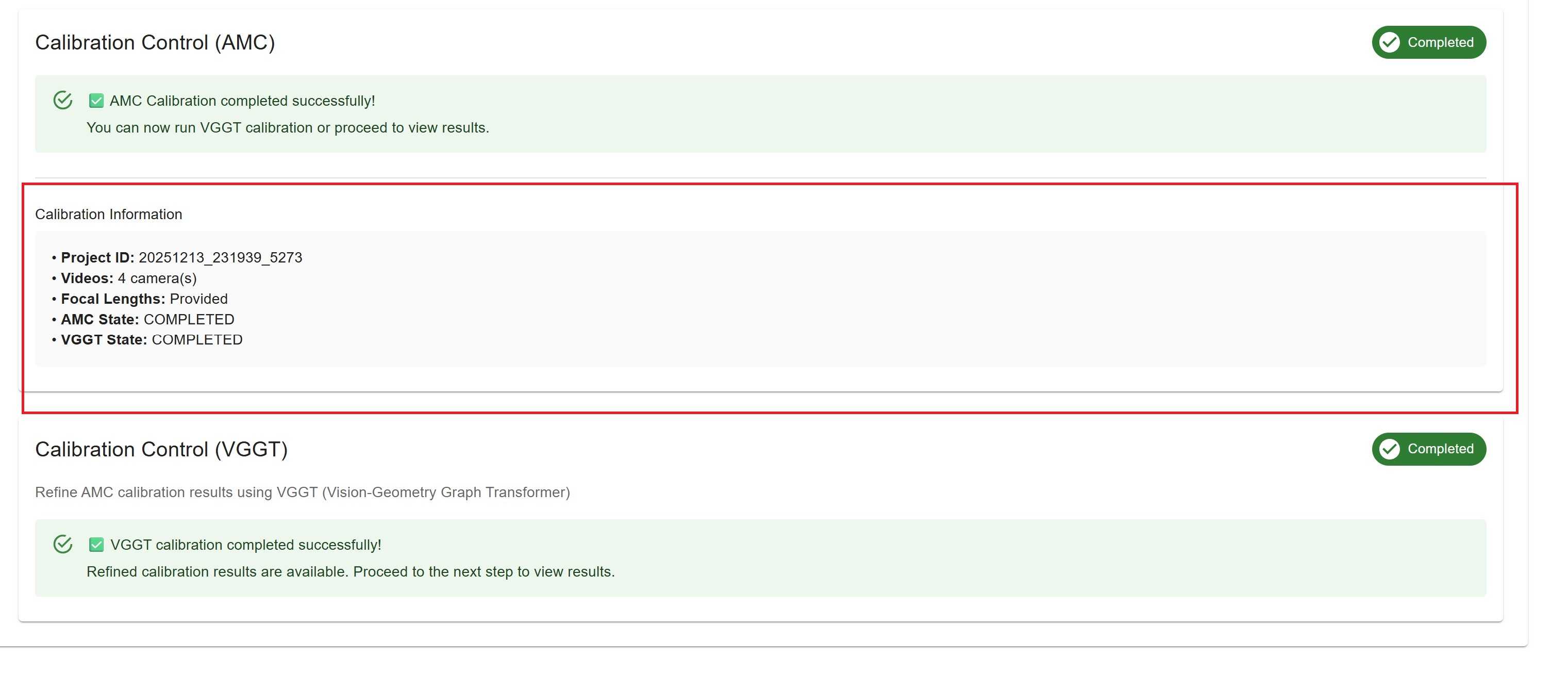
VGGT Completion
When VGGT finishes:
Success Alert: “✅ VGGT calibration completed successfully!”
Message: “Refined calibration results are available.”
VGGT State: Shows “COMPLETED” badge
Results: Both AMC and VGGT results available in next step
VGGT Not Available
If VGGT is not installed on the backend:
Info Alert: “VGGT Calibration Not Available”
Message: “VGGT (Vision-Geometry Graph Transformer) is not installed on this system.”
Action: Proceed with AMC results only
Calibration Information#
At the bottom of the page, you’ll see a summary of calibration information:
Project ID: Unique identifier
Videos: Number of cameras
Focal Lengths: Provided or Not provided
AMC State: Current AMC state
VGGT State: Current VGGT state
Resetting the Project#
If you need to start over:
Click “Reset Project” button (available in ERROR state)
Confirm the action
Project state returns to “INIT”
All calibration results are cleared
Files remain uploaded
Warning
Resetting clears all calibration results. Export results before resetting if needed.
Best Practices#
Before Calibration
Double-check all uploaded files
Verify alignment points are accurate
Review ROIs and tripwires
Ensure stable network connection
After Calibration
Verify results in the Results step
Run VGGT if available for refinement
Export results before making changes
Keep a backup of exported data
Troubleshooting#
Verification Fails
Check that all required files are uploaded
Ensure video files are not corrupted
Verify alignment data has at least 4 point sets
Try re-uploading files
Calibration Takes Too Long
Normal duration: 5-15 minutes depending on video length
Check server resources (CPU, GPU, memory)
Verify network connection is stable
Contact administrator if exceeds 30 minutes
Calibration Fails
Check video file formats and quality
Verify alignment points are on ground plane
Ensure layout image matches physical space
Review server logs for detailed errors
Step 6: Results#
View calibration results, evaluate accuracy, and export calibration data.
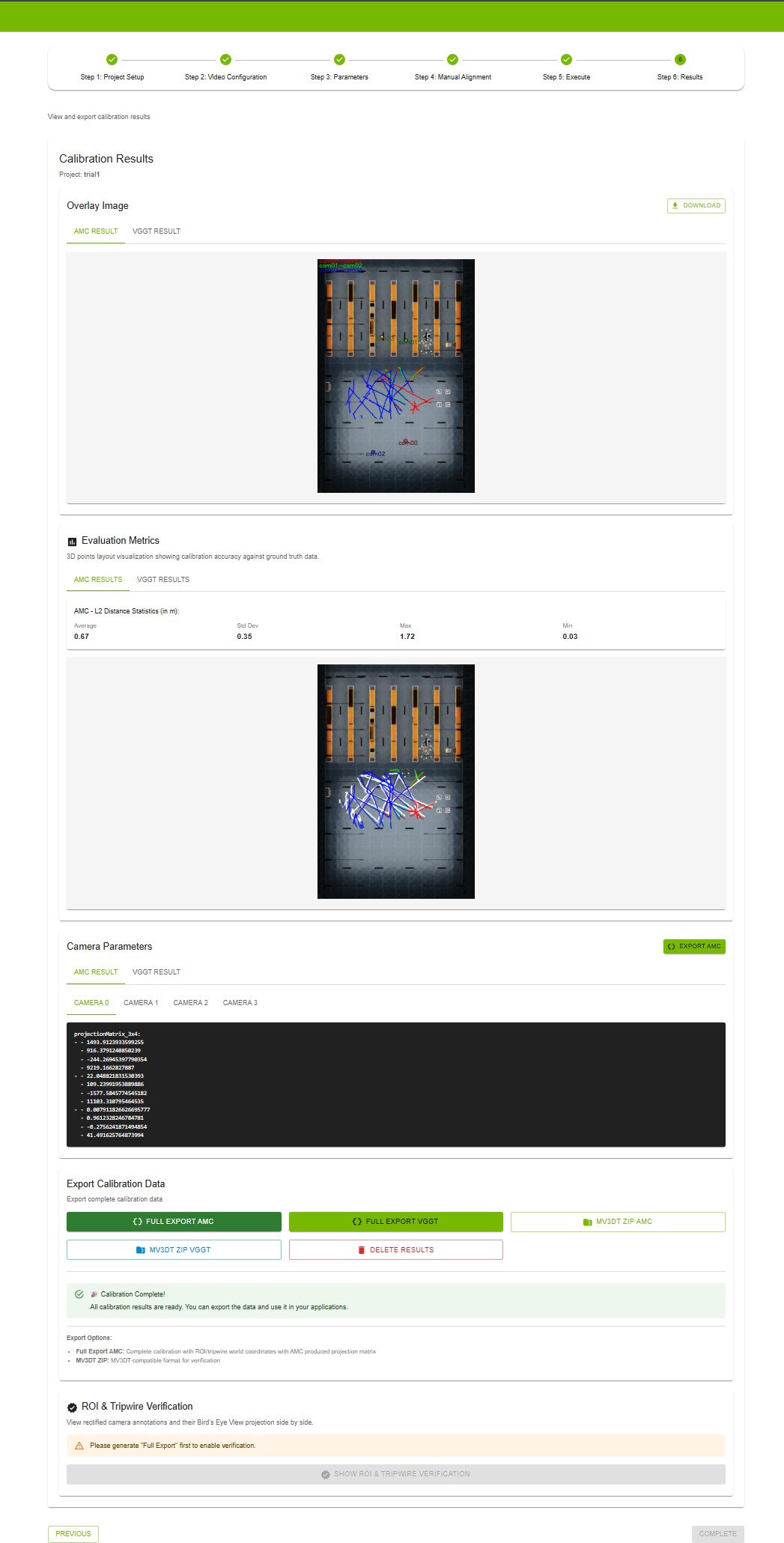
Results Availability#
The Results step is only accessible after calibration completes successfully.
If Calibration Not Complete
You’ll see an alert message:
Running: “Calibration is still running - Please wait for calibration to complete.”
Error: “Calibration failed - Please check your input files and try again.”
Init/Ready: “Please run calibration in the Execute step”
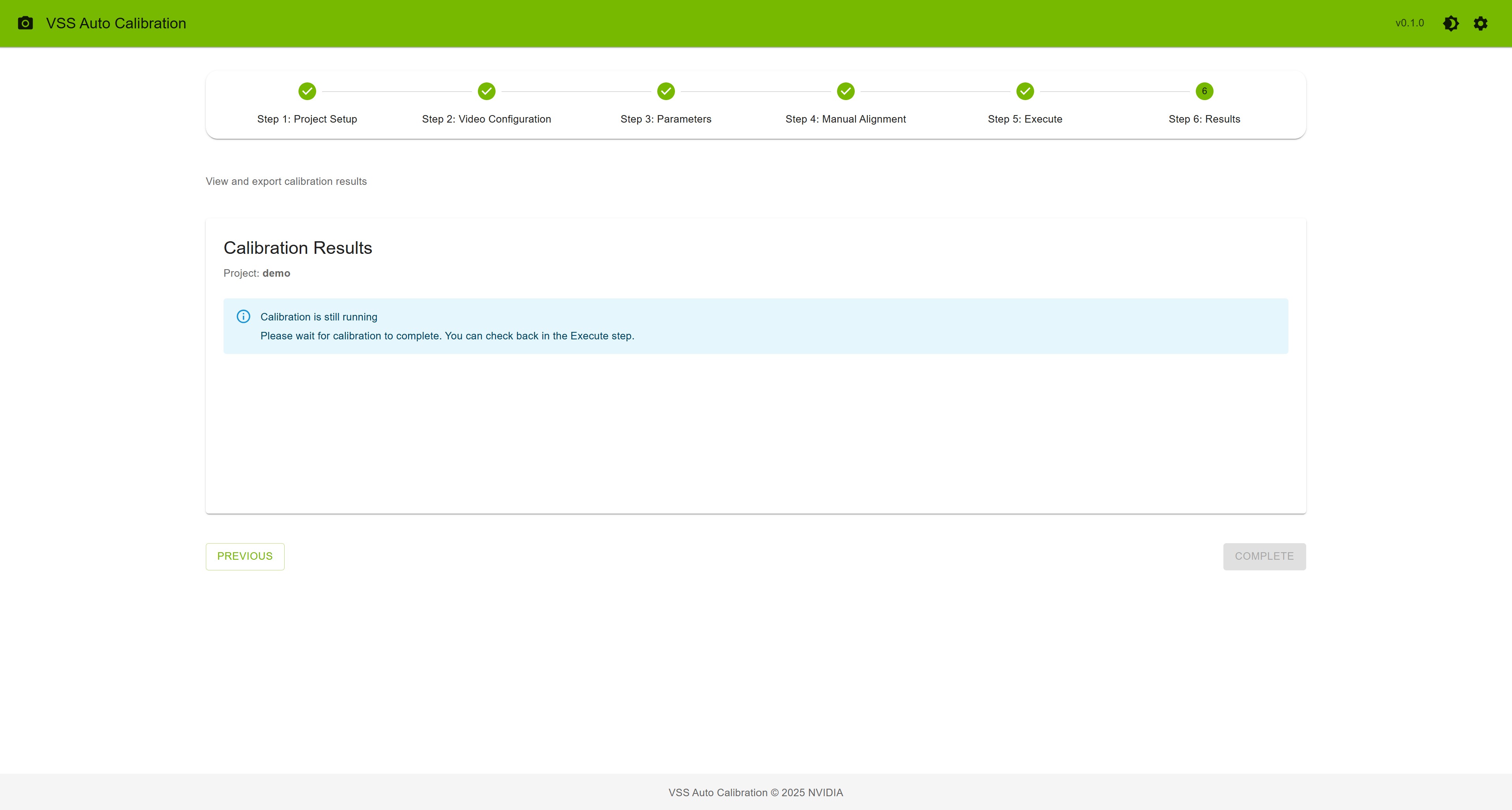
Overlay Image#
The overlay image shows the calibration results projected onto the layout map.
Features
View: Displays cameras’ fields of view on the layout
Download: Save the overlay image to your computer
Result Type Tabs: Switch between AMC and VGGT results (if available)
How to View
The overlay image loads automatically
Use the tabs to switch between AMC and VGGT results
Click “Download” button to save the image
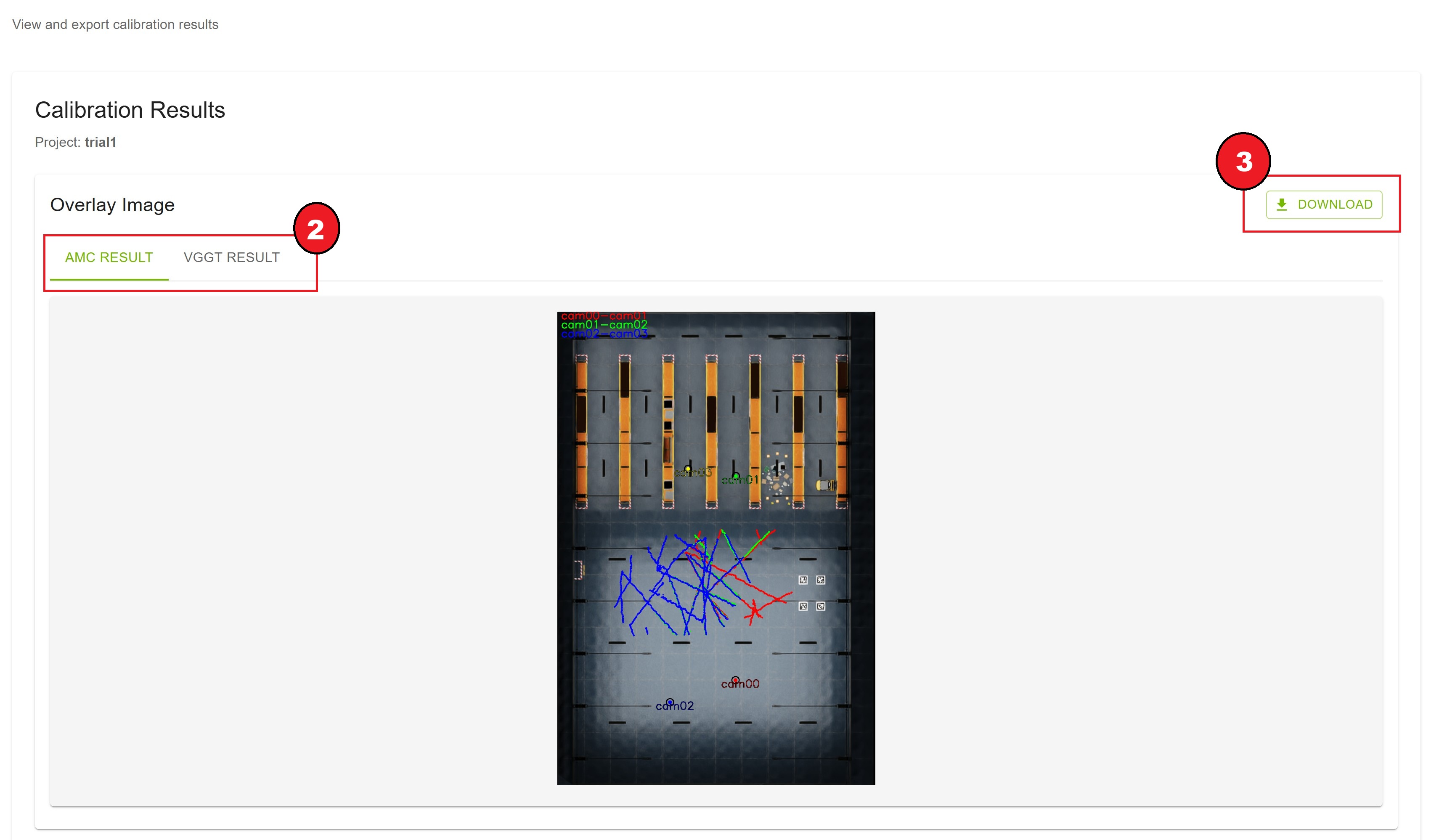
Result Type Selection
AMC Result tab: Shows AMC calibration overlay
VGGT Result tab: Shows VGGT calibration overlay (if available)
VGGT tab is disabled if VGGT calibration was not run
Evaluation Metrics#
If ground truth data was uploaded, evaluation metrics are available.
Metrics Display
Layout Visualization: 3D points plotted on layout showing accuracy
Statistics Card: L2 distance statistics in meters
Average L2 distance
Standard deviation
Maximum distance
Minimum distance
Result Type Tabs: Switch between AMC and VGGT evaluation
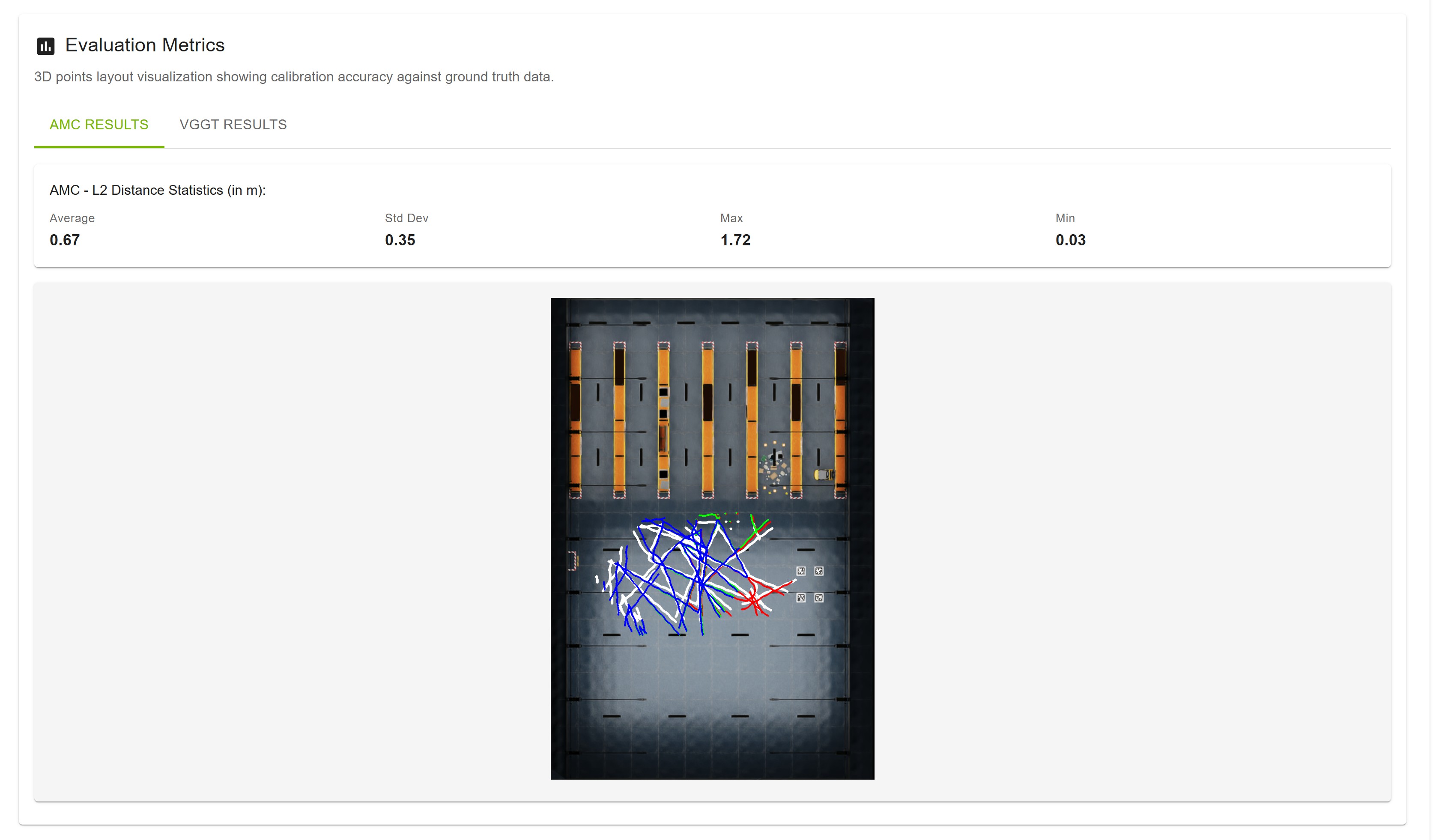
Interpreting Metrics
Lower Average: Better calibration accuracy
Lower Std Dev: More consistent calibration
Compare AMC vs VGGT: VGGT typically shows improvement
Note
Evaluation metrics are only available if ground truth data was uploaded in Step 2.
Camera Parameters#
View detailed calibration parameters for each camera.
Features
Camera Tabs: Switch between cameras (Camera 0, Camera 1, etc.)
Result Type Tabs: Switch between AMC and VGGT parameters
YAML Format: Parameters displayed in YAML format
Export Button: Export all camera parameters
How to View
Click on a camera tab (e.g., “Camera 0”)
Parameters load and display in a code block
Switch between AMC and VGGT tabs to compare
Click “Export AMC” or “Export VGGT” to download all parameters
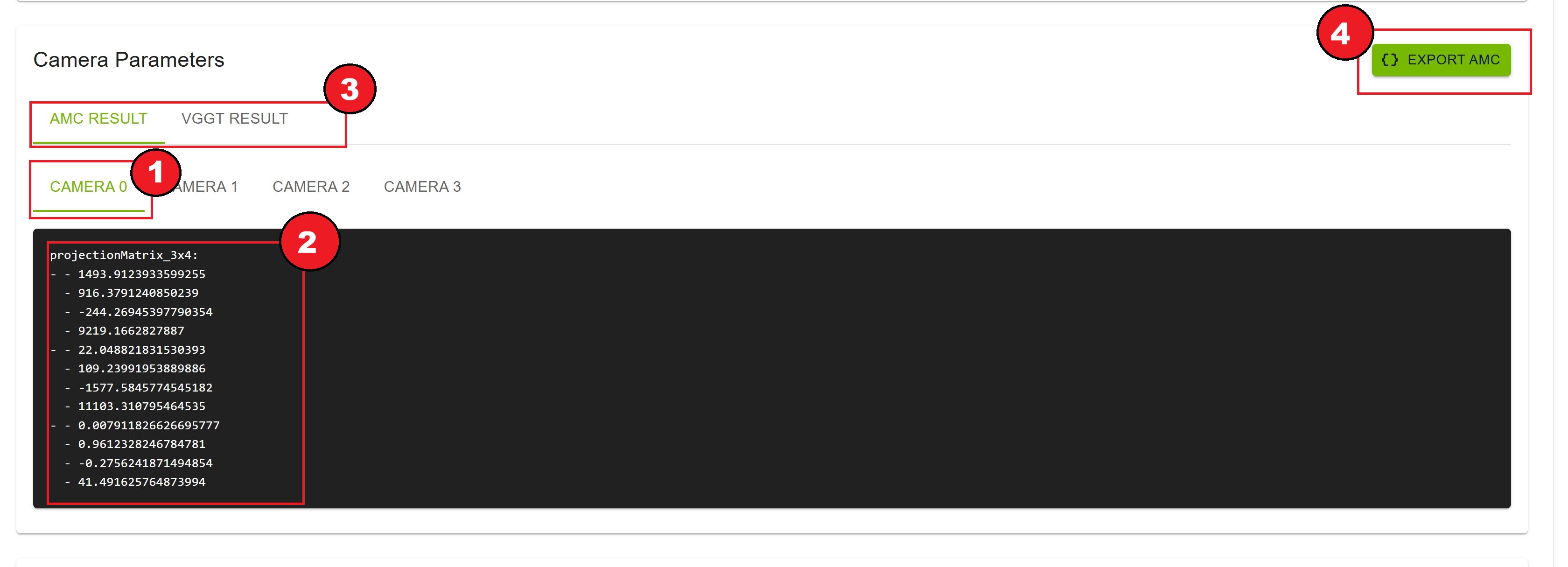
Parameter Contents
The YAML file contains:
Camera Projection Matrix (3X4): Camera projection matrix
Additional Metadata: Project ID, timestamp, etc
Export Calibration Data#
Export complete calibration data in various formats.
Export Options
Full Export AMC
Complete calibration data with ROI/tripwire world coordinates
Uses AMC projection matrix
JSON format
Filename:
{project_name}_exported.json
Full Export VGGT (if available)
Complete calibration data with ROI/tripwire world coordinates
Uses VGGT projection matrix
JSON format
Filename:
{project_name}_exported_vggt.json
MV3DT ZIP AMC
MV3DT-compatible format for verification
ZIP archive with all necessary files
Filename:
{project_name}_mv3dt.zip
MV3DT ZIP VGGT (if available)
MV3DT-compatible format with VGGT results
ZIP archive with all necessary files
Filename:
{project_name}_vggt_mv3dt.zip
Delete Results
Removes all calibration results
Project returns to READY state
Allows re-running calibration
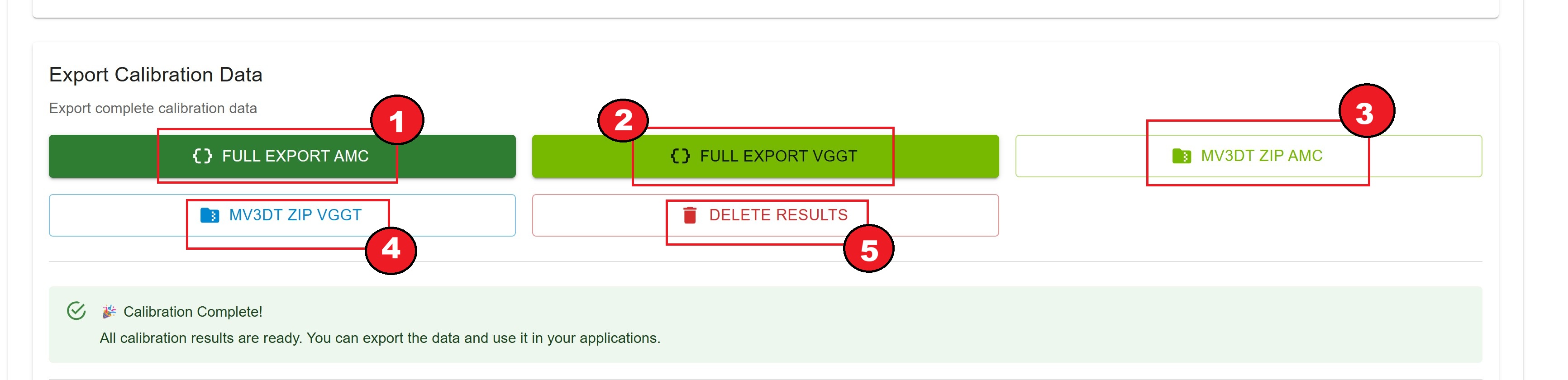
How to Export
Full Export AMC and Full Export VGGT: The JSON is loaded in an editor where you can view and edit the calibration data. Once you are done editing, click Export AMC or Export VGGT to download the file automatically to your browser’s download folder.
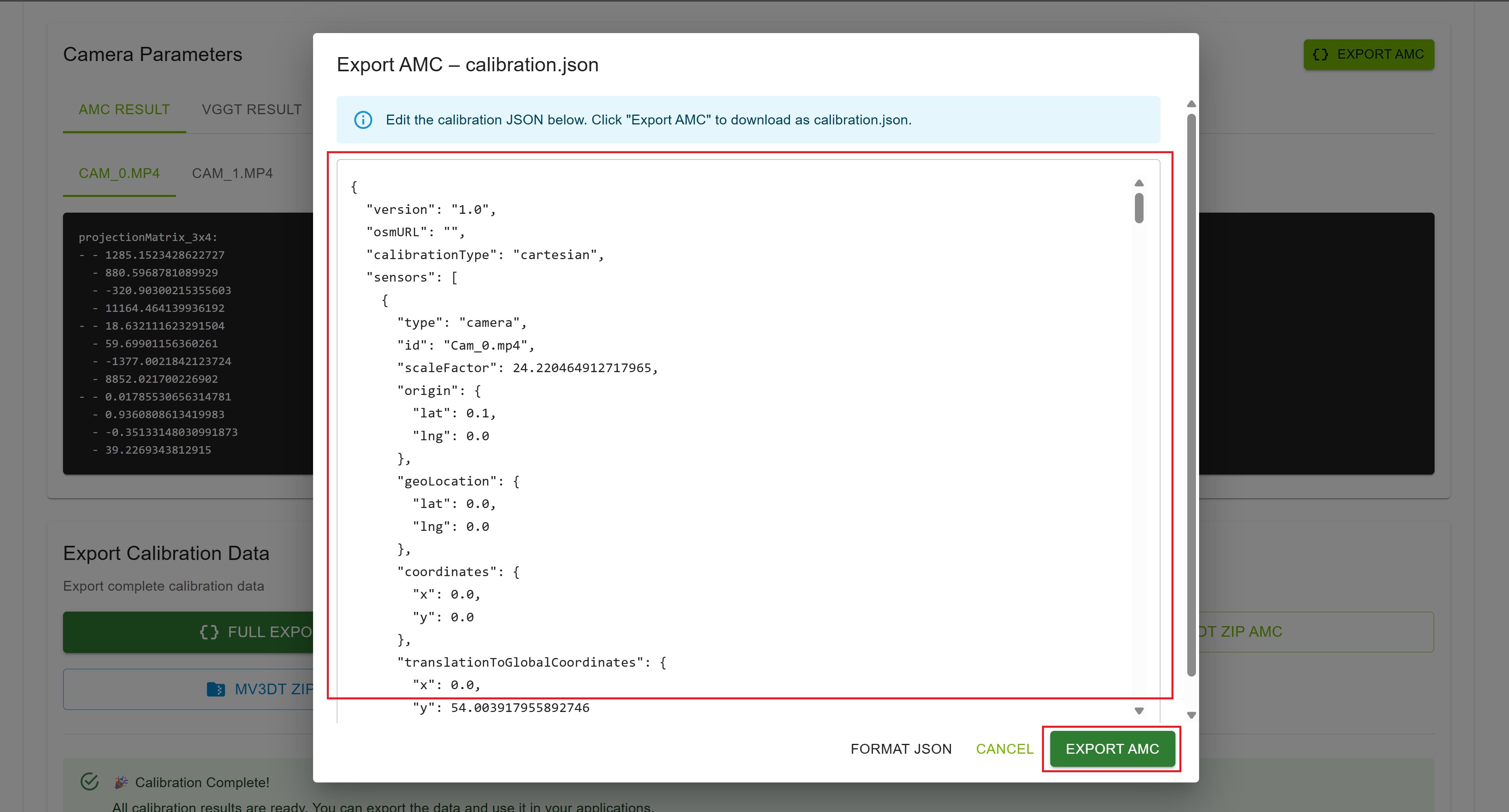
Note
This is an advanced user feature. Edit the JSON only if you understand the calibration schema; any changes should be made carefully to avoid invalid or incorrect calibration output.
Other exports (MV3DT ZIP):
Click the desired export button
Wait for processing (may take a few seconds)
File downloads automatically to your browser’s download folder
Success message confirms export
Note
Export Options Explained:
Full Export: Complete calibration with ROI/tripwire world coordinates
MV3DT ZIP: MV3DT-compatible format for verification
ROI & Tripwire Verification#
Verify that ROIs and tripwires are correctly projected onto the layout.
Features
Side-by-Side View: Camera view and Bird’s Eye View (BEV) simultaneously
Camera Selection: Choose which camera to verify
Result Type Tabs: Switch between AMC and VGGT projections
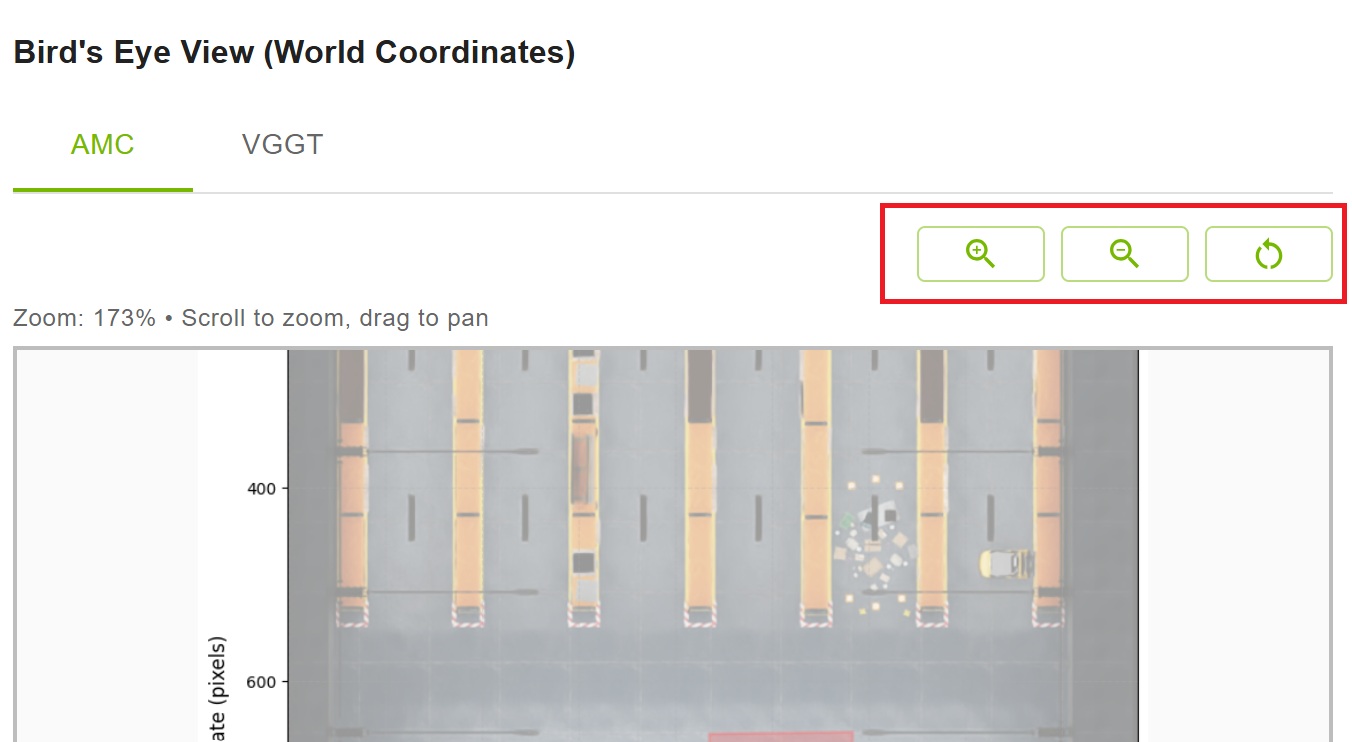
Zoom Controls: Zoom in/out on BEV for detailed inspection
Pan Support: Drag to pan around zoomed BEV
How to Use
Note
Prerequisite: You must click “Full Export AMC” (and “Full Export VGGT” if vggt results are available) button first to generate the required calibration data before using this verification feature. If you haven’t exported yet, the verification button will be disabled or show a warning message.
Click “Show ROI & Tripwire Verification” button
Select a camera from the dropdown
View annotations on the camera frame (left panel)
View projected annotations on BEV (right panel)
Switch between AMC and VGGT tabs to compare
Use zoom controls for detailed inspection

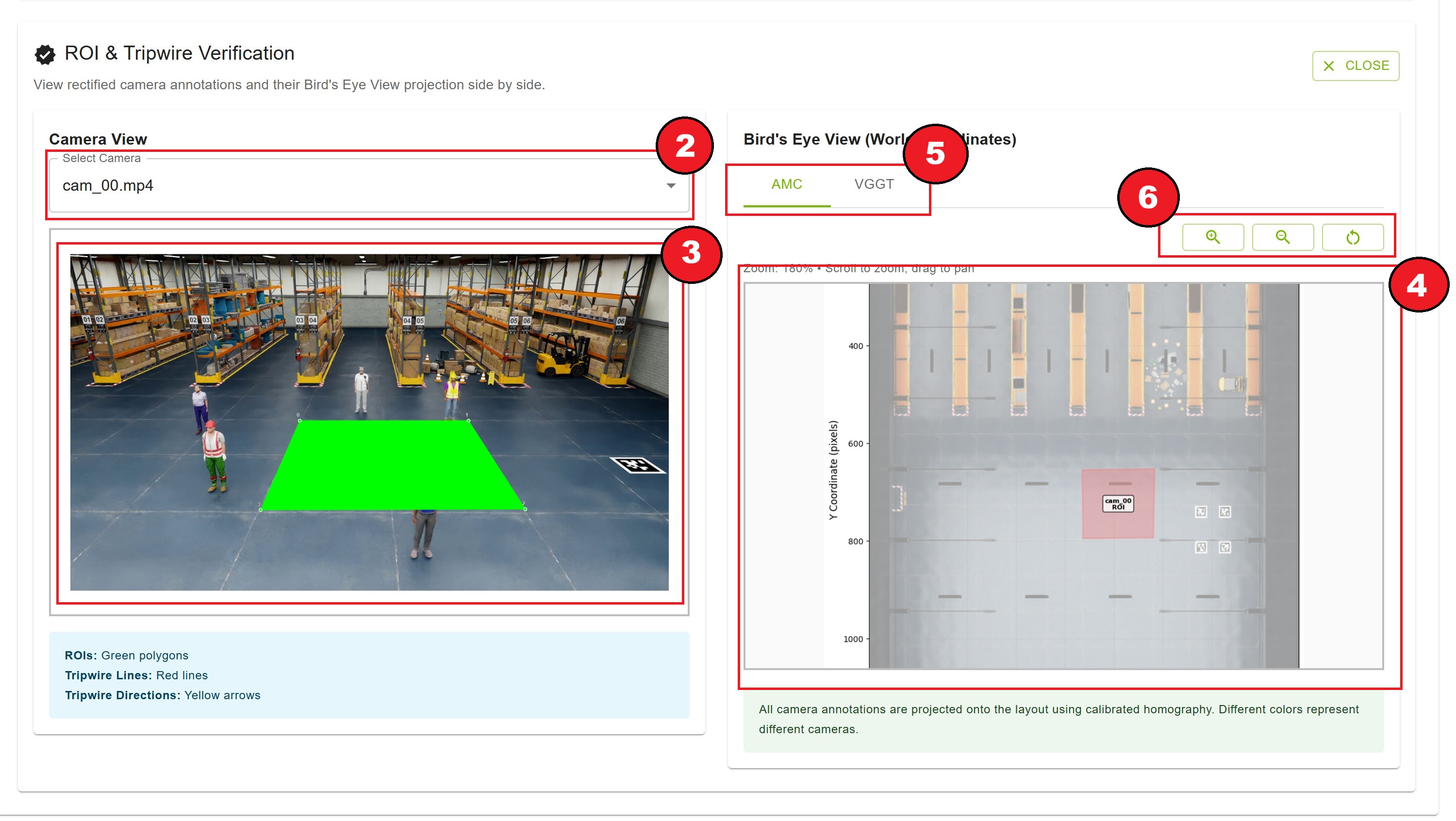
Camera View (Left Panel)
Shows rectified camera frame
ROIs displayed as green polygons
Tripwire lines displayed as red lines
Tripwire directions displayed as yellow arrows
Bird’s Eye View (Right Panel)
Shows layout map with projected annotations
All cameras’ annotations shown with different colors
Zoom: 50% to 500%
Pan: Click and drag when zoomed
Zoom Controls
Zoom In (🔍+): Increase zoom level
Zoom Out (🔍-): Decrease zoom level
Reset (↻): Return to 100% zoom
Current Zoom: Displayed as percentage
Deleting Results#
If you need to re-run calibration with different parameters:
Click “Delete Results” button
Confirm deletion in the dialog
All calibration results are removed
Project state returns to “READY”
Files (videos, layout, alignment) remain uploaded
Warning
Deleting results cannot be undone. Export important data before deletion.
Completion Message#
At the bottom of the page, you’ll see a success message:

Message
Title: “🎉 Calibration Complete!”
Text: “All calibration results are ready. You can export the data and use it in your applications.”
How to Interpret Calibration Outputs#
Upon completion of the calibration process, the UI presents the results including overlay images and various metric numbers, depending on whether ground truth data was provided.
Case 1: Ground Truth Data Exists
If ground truth data was uploaded during the project setup, the tool calculates the L2 distance as the primary evaluation metric. The L2 distance is defined as the Euclidean distance between the 3D ground truth object location and the estimated location determined by triangulation.
The UI displays the following statistics for the L2 distance:
Average: Mean L2 distance across all points
Standard Deviation: Measure of consistency
Maximum: Worst-case error
Minimum: Best-case error
Since a lower L2 distance indicates better accuracy, users can compare these metrics between the AMC and VGGT results to select the superior calibration.
Additionally, the calibration results from the two methods can be compared visually using the overlay visualization. In this image, the object trajectories reconstructed using the camera matrices are shown as colored lines. The ground truth trajectories are displayed in white. A close alignment of the colored trajectories with the white lines signifies accurate camera parameters.
Note
When comparing AMC and VGGT results:
Look for lower L2 distance values (better accuracy)
Compare overlay images for trajectory alignment
Check consistency of colored lines with white ground truth lines
Case 2: No Ground Truth Data
When ground truth data is unavailable, calibration results can be compared qualitatively. One approach is to compare overlay images generated by different methods.
These overlay images display:
Reconstructed object trajectories: Shown as colored lines
Estimated camera locations: Shown as colored dots with corresponding camera IDs
By comparing the relative positions of the cameras and object trajectories against the floor map, one can determine the superior result.
Qualitative Evaluation Tips:
Camera positions should match expected physical locations
Object trajectories should follow logical paths on the floor map
FOV (Field of View) boundaries should align with physical constraints
Compare AMC and VGGT overlays to identify which better matches the layout
Best Practices#
Reviewing Results
Check overlay image for proper camera coverage
Verify evaluation metrics if ground truth is available
Compare AMC and VGGT results if both available
Review camera parameters for reasonableness
Exporting Data
Export both AMC and VGGT results for comparison
Keep MV3DT ZIP for verification purposes
Store exports with descriptive names and dates
Maintain backups of important calibration data
Verification
Always verify ROI/tripwire projections
Check all cameras, not just one
Use zoom to inspect details
Compare AMC vs VGGT projections
Before Deleting
Export all needed data first
Verify exports are complete and valid
Document any issues or observations
Consider keeping project for reference
Next Steps#
After completing calibration:
Use exported data in your surveillance application
Integrate calibration parameters with your tracking system
Set up ROIs and tripwires in your production environment
Monitor and validate calibration accuracy in real-world scenarios