

AutoMagicCalib
Overview
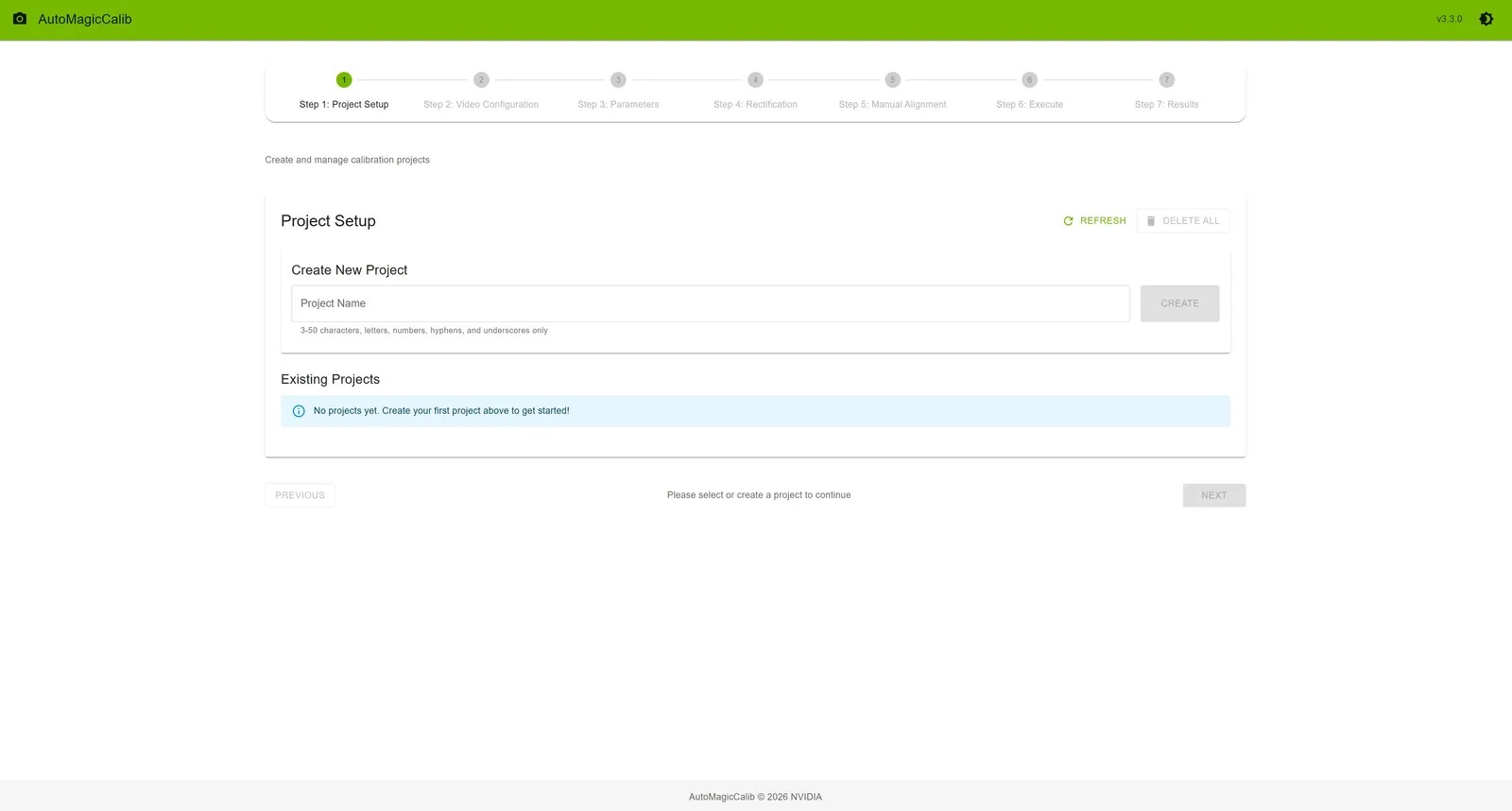
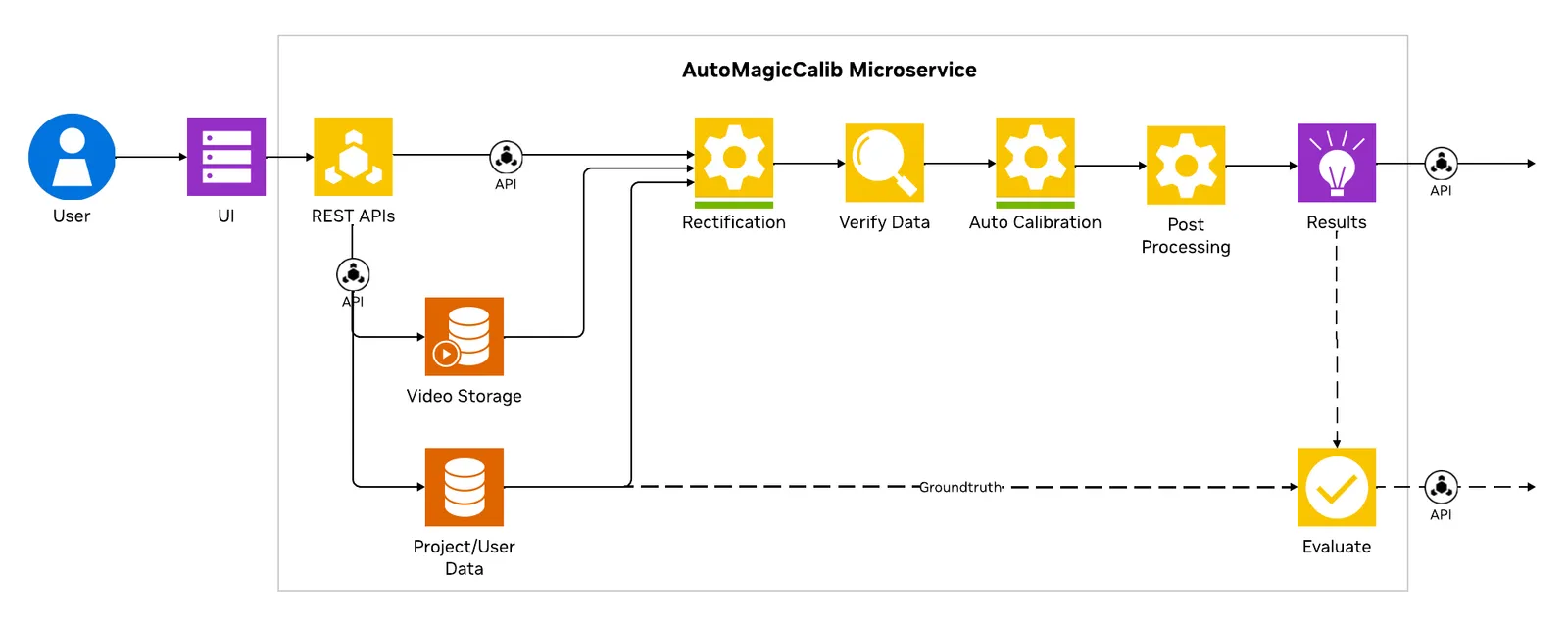
Auto Magic Calib Microservice enables automatic calibration of multi-camera and single-camera systems through a simple, web-based, step-by-step workflow.
It is powered by AutoMagicCalib (AMC), which estimates camera intrinsics and extrinsics to generate accurate projection matrices and lens distortion parameters for 3D and multi-view applications.
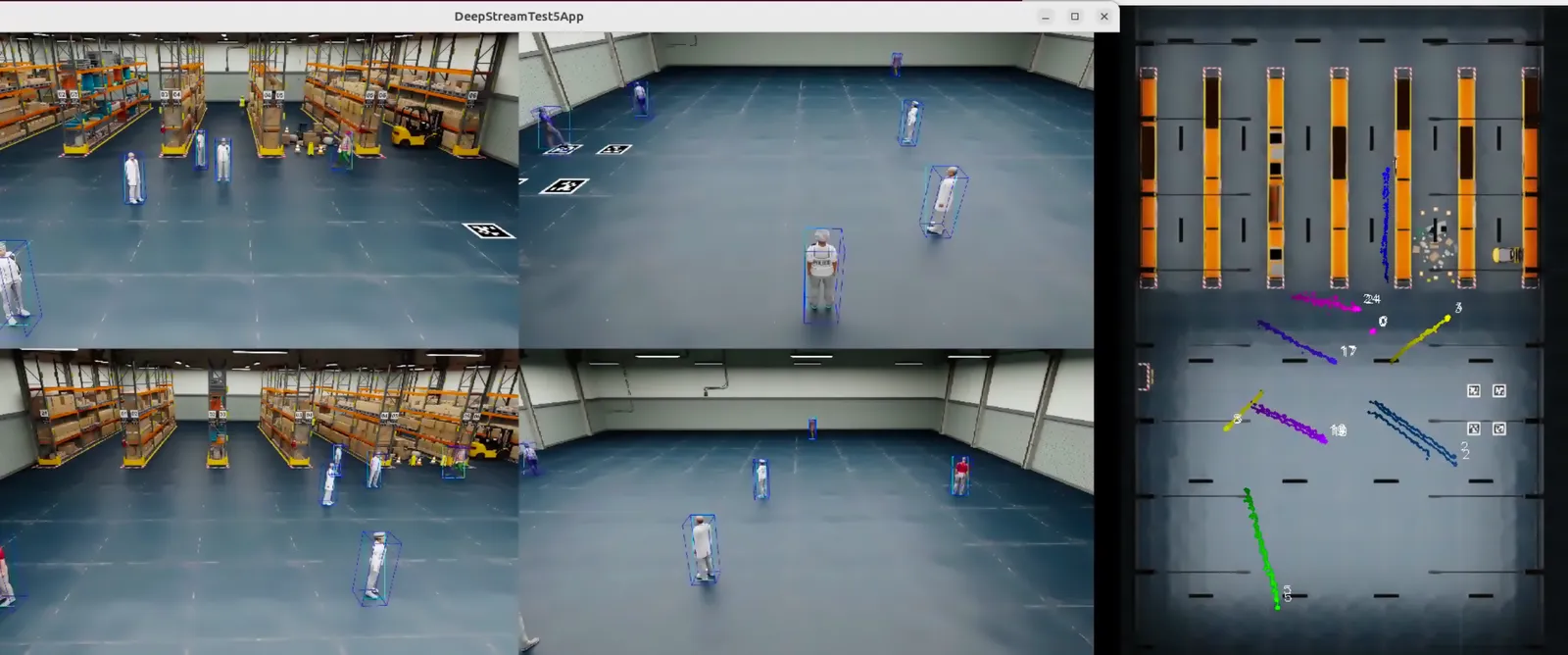
Unlike checkerboard-based methods, AMC uses naturally moving objects in the scene. With NVIDIA DeepStream detection and tracking, it follows objects (e.g., people) and derives camera parameters from normal operational footage—no setup, no downtime, and supports calibration from archived videos.
The service supports both a geometry-based approach (AMC) using object trajectories and geometric relationships, and a model-based approach (VGGT) that leverages learned models for higher accuracy and robustness. VGGT is optional, available for multi-camera projects only (two or more cameras), and requires the VGGT model on the backend.
Key Features
- Guided Workflow: 7-step process with progress tracking and real-time validation at each step
- Project Management: Create and manage multiple projects; track states (INIT, READY, RUNNING, COMPLETED, ERROR); refresh; delete individual projects, Delete selected, or Delete all; data persistence
- Flexible Video Input: Upload MP4 files or time-synchronized RTSP streams (when VIOS is configured on the server); one camera for single-camera calibration, two or more for multi-camera
- Interactive Tools: Per-camera and global (layout-map) ROI drawing, tripwire configuration, manual alignment (camera-to-world), real-time preview; Export image-mode JSON for pixel-coordinate ROIs/tripwires without running calibration
- Dual Calibration Methods: AMC (tracklet-based) and optional VGGT (Vision-Geometry Graph Transformer). On multi-camera projects the two methods are independent: VGGT can run without a prior AMC run. Single-camera projects support AMC only.
- Export Options: Full export dialog (AMC or VGGT when both available), MV3DT-compatible ZIP (AMC and VGGT), per-camera parameter export, ROI/tripwire world-coordinate verification on BEV
System Requirements
- x86_64 system
- Ubuntu 24.04
- NVIDIA GPU with a hardware encoder (NVENC)
- NVIDIA driver 590
- Docker, set up to run without sudo, and the NVIDIA Container Toolkit
- NGC CLI, to pull the AutoMagicCalib images and download the optional NGC sample dataset
- One or more time-synchronized camera videos (MP4, 1920×1080 required), or RTSP URLs when VIOS is configured
- A layout image of the surveillance area (PNG)
Tracklet-Based Calibration: Input Video Requirements
AMC follows moving objects across cameras. Input videos work best when:
- People or other distinct objects move through the scene
- Consecutive cameras have overlapping fields of view
- Trajectories cover as much of each field of view as possible
- Lens distortion is small. AMC can estimate distortion, but linear video produces a better result
Lens Distortion Output (distortion.yaml)
Distortion handling is a dedicated Rectification stage (Step 4), with Auto, Manual, or Videos Are Rectified paths. AMC and VGGT consume the staged rectified.mp4 and rectified.jpg files. They do not rectify again during calibration.
When Auto or Manual rectification finishes, each camera folder contains:
GeoCalib writes a richer record. The default model is simple_divisional:
Supported models:
simple_divisional— default.k1is not an OpenCV radial coefficient.simple_radialradial— also includesk2
Already-linear inputs use Videos Are Rectified. That path stages the source videos as linear media and does not write distortion.yaml.
Exported calibration and MV3DT ZIP files describe cameras in rectified image space. Downstream applications should use the generated rectified.mp4 files, or apply distortion.yaml with the model-specific remap before using the AMC projection matrices. Do not pass simple_divisional coefficients to cv2.undistort(). AMC builds its own destination-to-source maps and uses cv2.remap() only to resample the image. Apply the coefficients at the original resolution. Do not undistort a video that AMC already rectified.
Optional inputs:
- Ground truth data (ZIP file) for calibration evaluation
- Pre-existing alignment data (JSON file)
- Focal length values for cameras
- Config parameters for your dataset
- A VIOS server and
VIOS_BASE_URLwhen the input is RTSP
Quick Start
Deploy the UI and backend microservice with Docker Compose.
NGC Setup
This step pulls the AutoMagicCalib images and can download NGC resources such as nvidia/amc-nv-warehouse.
- Install the NGC CLI and confirm it is available with
ngc --version. - Visit the NGC sign-in page, enter your email address, and click Next, or create an account.
- Choose your organization and team.
- Generate an API key.
- Configure the CLI with
ngc config set. - Log in to the NGC Docker registry. When prompted, enter
$oauthtokenas the username and paste the NGC API key as the password.
Project Setup
Optional VIOS Setup for RTSP Capture
RTSP support requires VIOS_BASE_URL. If a VIOS server is already reachable from the AMC host, verify it before setting VIOS_BASE_URL in compose/.env. Without VIOS, the rest of the calibration workflow still runs, but RTSP capture stays disabled.
If VIOS is not deployed yet, use the VIOS deployment assets from the VSS repository and follow 1click_README.md in that directory. A typical development deployment command is:
Verify VIOS before enabling it:
Configure Environment Variables
Edit compose/.env.
HOST_IP must not be empty. If it is empty, the UI API URL renders as an invalid host. Leave VIOS_BASE_URL unset to keep RTSP capture disabled.
Set Directory Permissions
The projects and models directories must be owned by UID/GID 1000 so the containers can read and write them.
Launch Services
The microservice listens on http://<HOST_IP>:<AUTO_MAGIC_CALIB_MS_PORT> (default port 8000) and the UI on http://<HOST_IP>:<AUTO_MAGIC_CALIB_UI_PORT> (default port 5000).
Stop the services with docker compose down.
For VGGT, download vggt_1B_commercial.pt from Hugging Face (VGGT-1B-Commercial) and place it in $MODEL_DIR/vggt/. Accept the model license on Hugging Face before downloading.
Workflow Steps
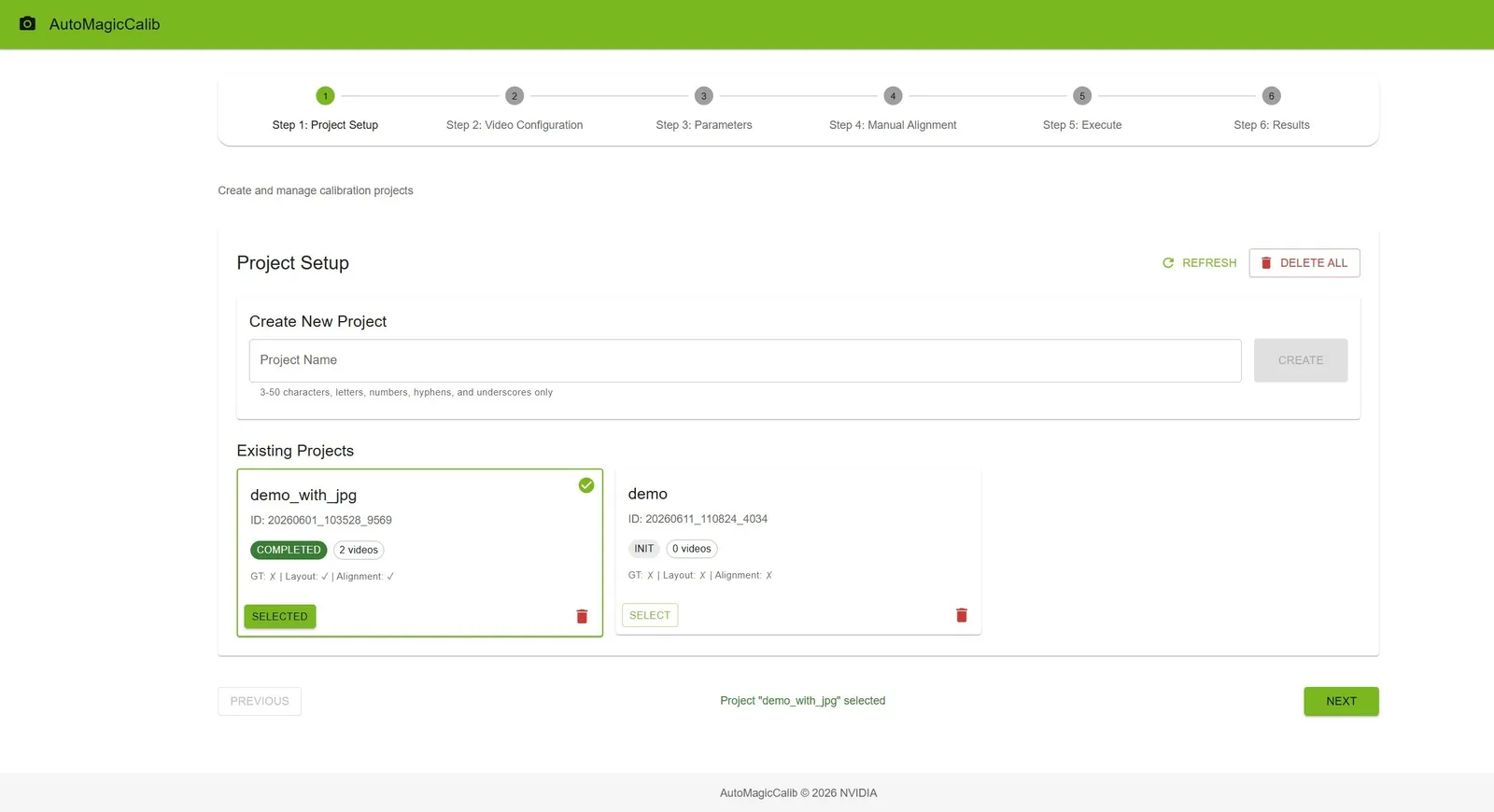
Step 1: Project Setup. Create a project (name 3–50 characters), click Create, then Select. Project cards show state (INIT, READY, RUNNING, COMPLETED, ERROR), video count, and file status (GT, Layout, Alignment). Refresh, delete individual projects, or use Delete all. Projects with calibration running or RTSP capture in progress are skipped.
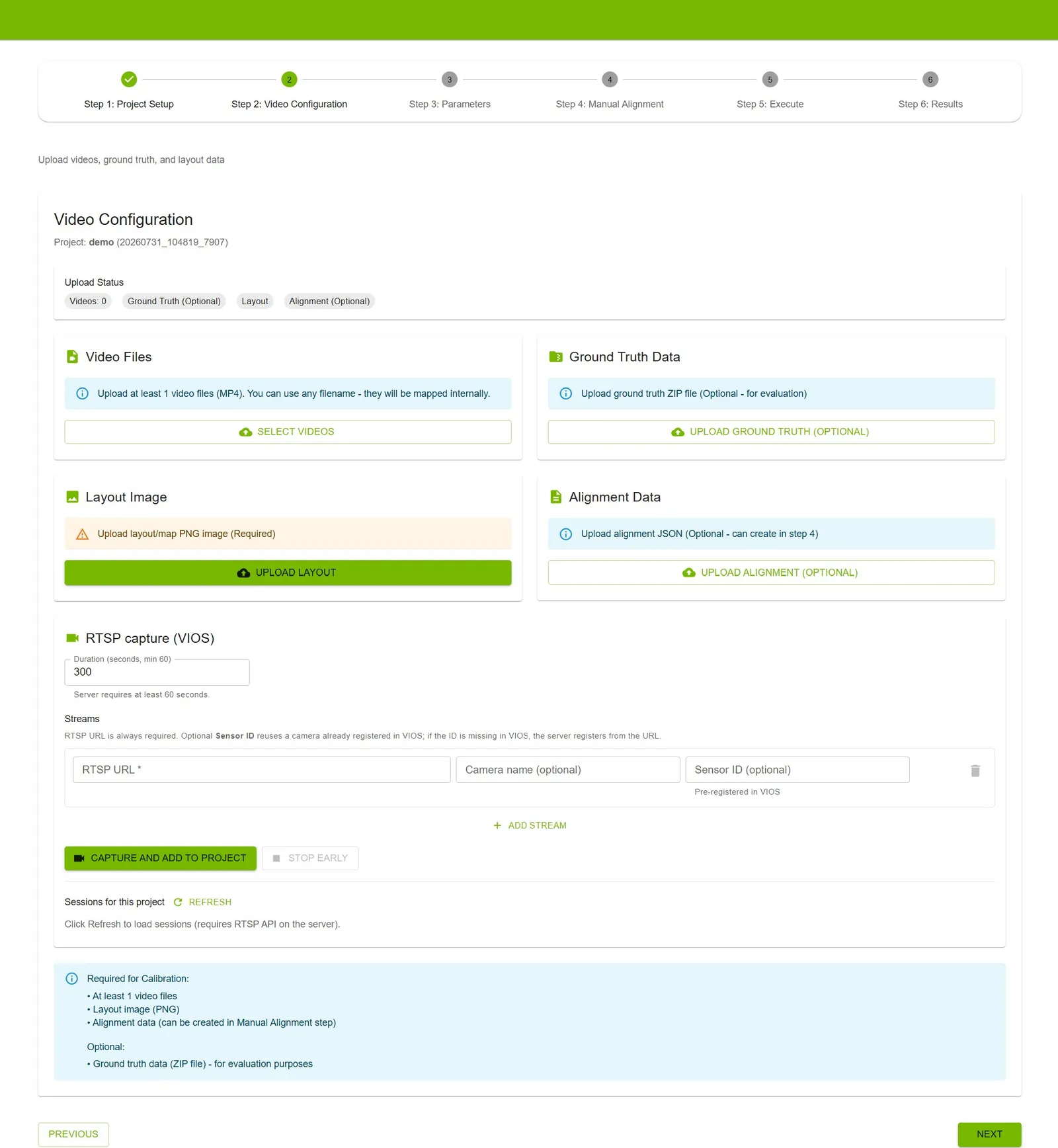
Step 2: Video Configuration. Provide camera inputs with either file upload or RTSP URLs. RTSP is shown only when VIOS is configured on the server. Use at least one video (MP4, 1920×1080 required), and two or more for multi-camera calibration. Order videos by overlapping field of view (cam_00, cam_01, and so on). All multi-camera clips must cover the same time window. The UI does not mix an active file-upload queue with RTSP. Remove file-uploaded clips before switching to RTSP, and the other way around.
- Option A: upload video files. Select them, reorder by drag-and-drop, then upload.
- Option B: RTSP URLs, when VIOS is configured. Set a duration of at least 60 seconds. Enter every RTSP URL, then run one Capture and add to project. Do not add streams later or run staggered captures. Ingest is automatic after recording. You can stop early only after 60 seconds of recording. For VIOS pre-registered streams, use the source URL (for example the NVStreamer URL), not the VIOS-proxied URL.
Also upload a required layout image (PNG) and optional ground truth (ZIP) or alignment (JSON).
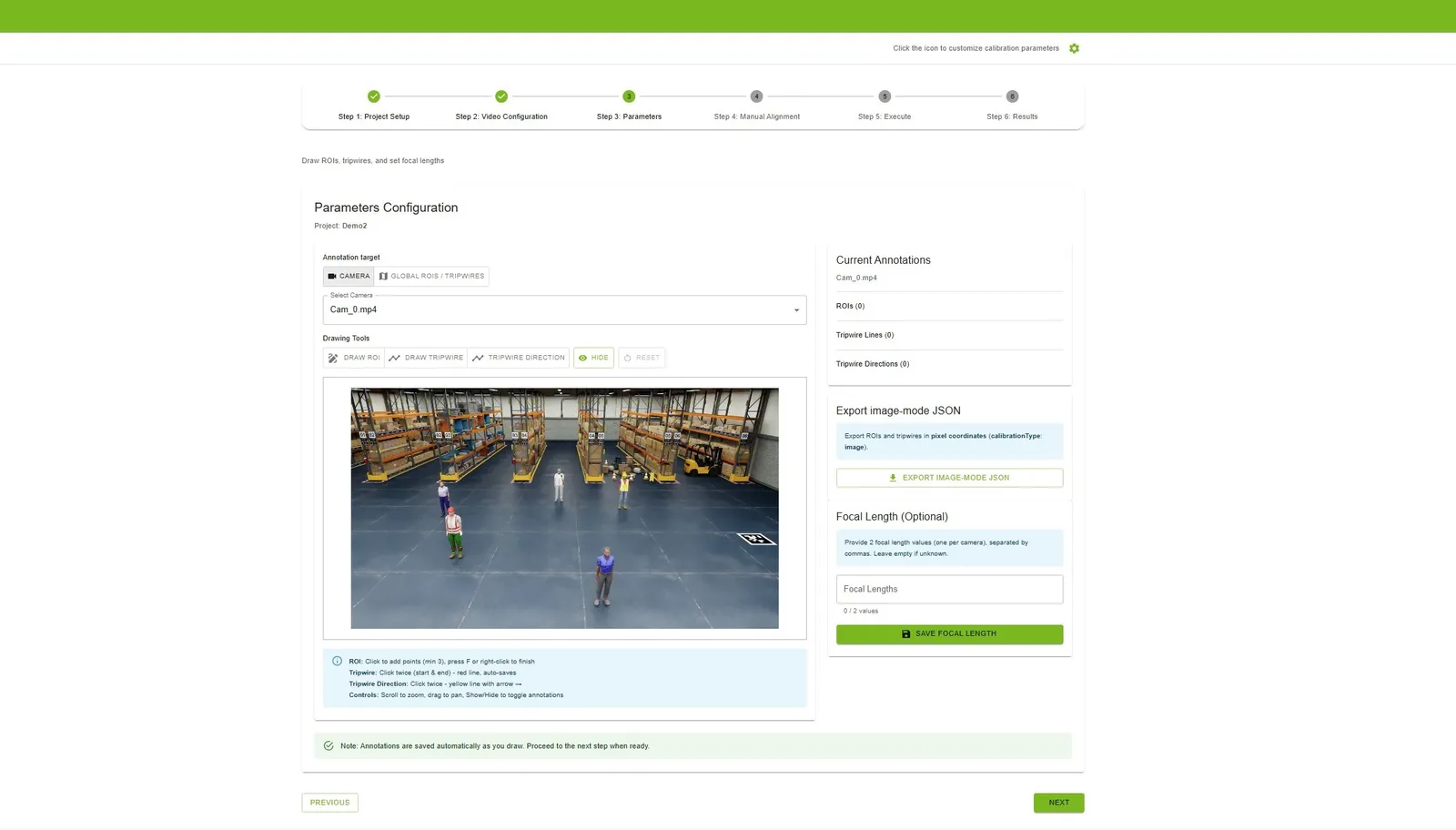
Step 3: Parameters. Under Annotation target, choose Camera (per-stream ROIs and tripwires on video frames) or Global ROIs / tripwires (draw on the layout map; this requires a layout from Step 2). Use Draw ROI (polygon, at least 3 points; press F or right-click to finish), Draw Tripwire, and Tripwire Direction. Show, hide, and reset each target. Annotations are saved automatically.
Optional: export image-mode JSON (pixel coordinates, calibrationType set to image, no calibration required); enter focal lengths (comma-separated, one per camera); set Layout Pixels Per Meter for the floor map; use the settings icon on this step to upload a config, adjust it, download it, reset to defaults, or save settings. Do not change settings while AMC or VGGT calibration is running. Rectification model and K1 search settings are configured on Step 4, not here.
Step 4: Rectification. Generate linear camera media before alignment and calibration. Rectification must reach COMPLETED before Manual Alignment. Verification on Execute also rejects nonlinear or stale input.
For Auto Rectification, choose simple_divisional (default), simple_radial, or radial, optionally set the K1 search range, then save settings and start. When the state is Ready for Review, generate the rectified videos. Ready for Review alone does not unlock the next step. Manual Rectification can start from those estimates or from values you set. Re-running rectification after COMPLETED invalidates downstream alignment, calibration, and post-processing.
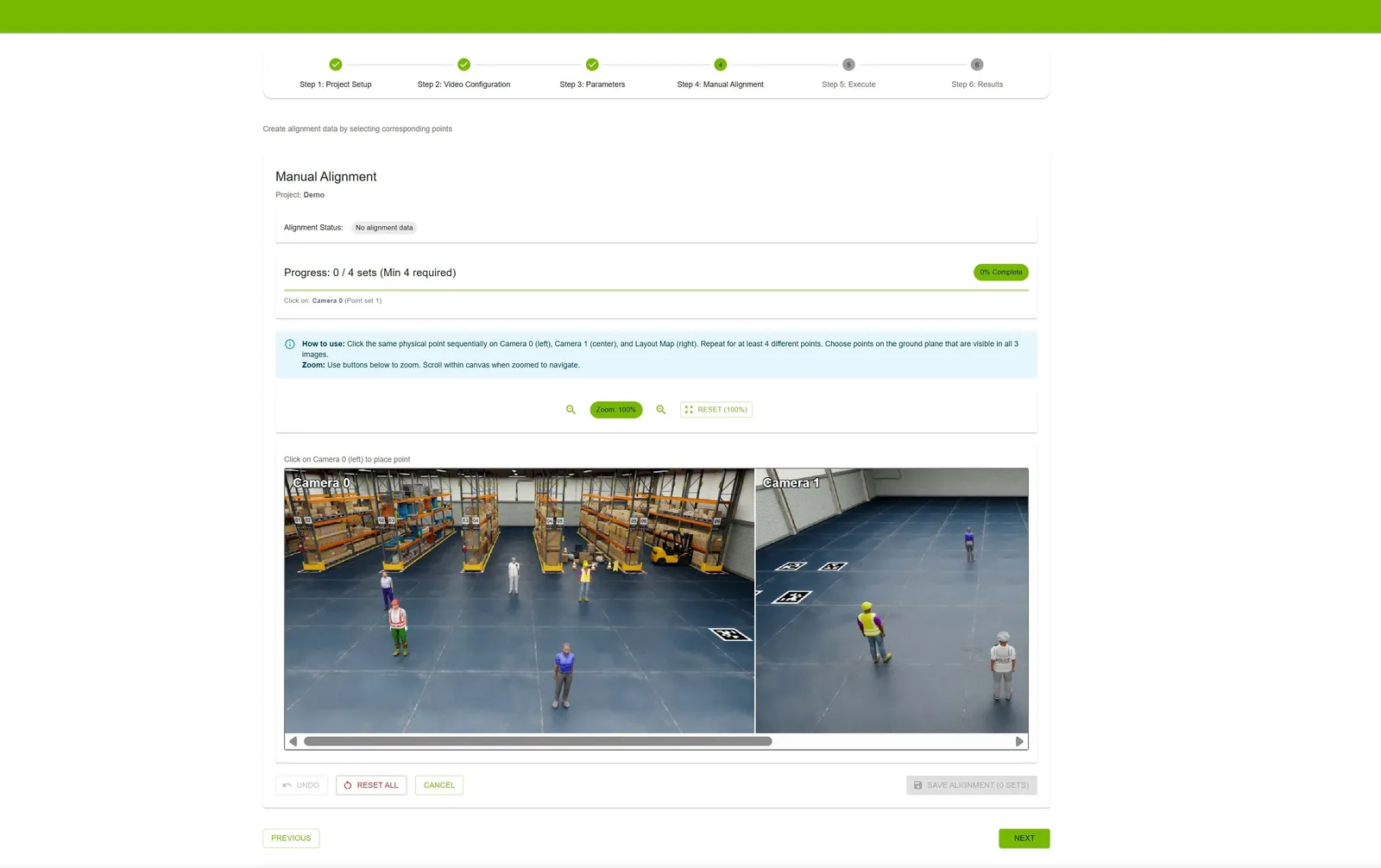
Step 5: Manual Alignment. Upload alignment_data.json or open the alignment tool. Interactive points are collected on the rectified frames from Step 4. An uploaded alignment file uses original, pre-rectification camera coordinates.
- Multi-camera (2 or more videos): each of at least 4 point sets must include a point for every camera view plus the layout map, then Save Alignment.
- Single-camera (1 video): click the same physical point on the camera and the layout map for each of at least 4 point sets (2 clicks per set), then Save Alignment.
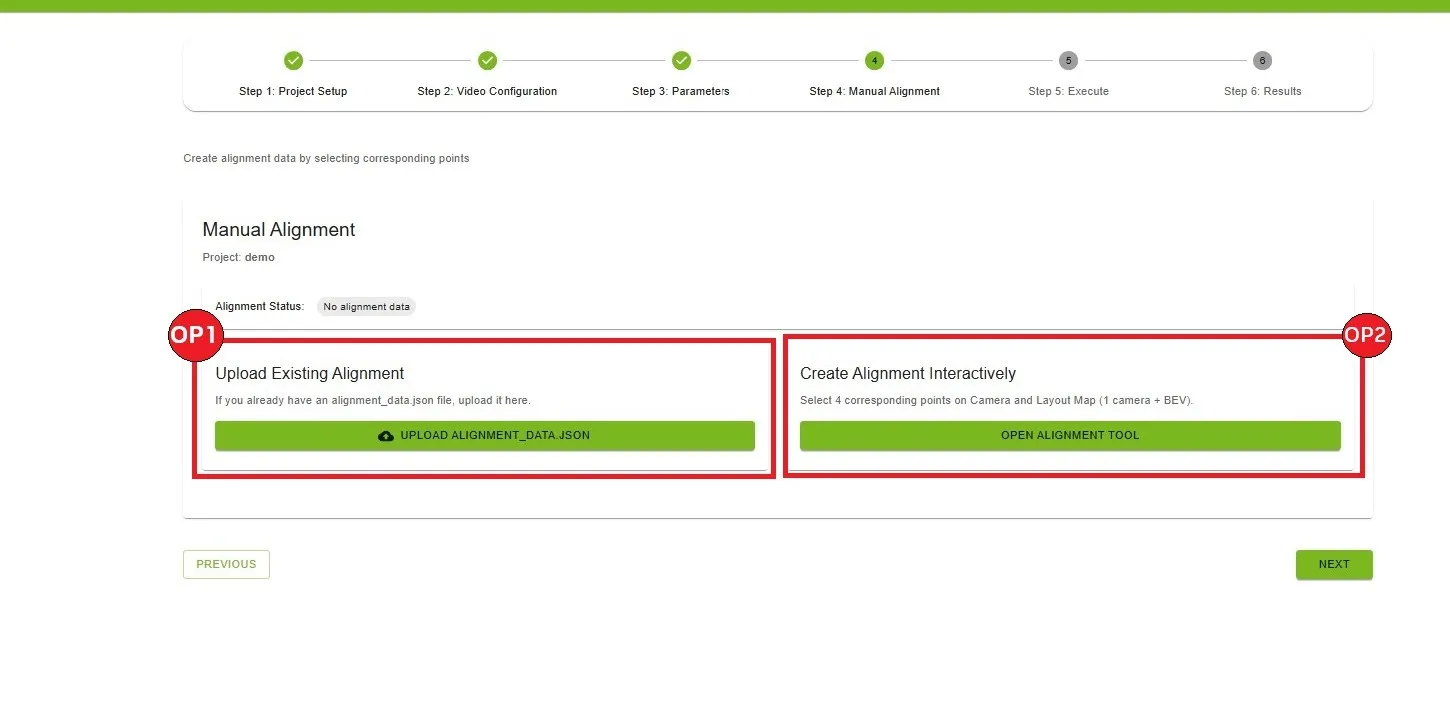
To create the alignment data interactively, use the alignment tool.
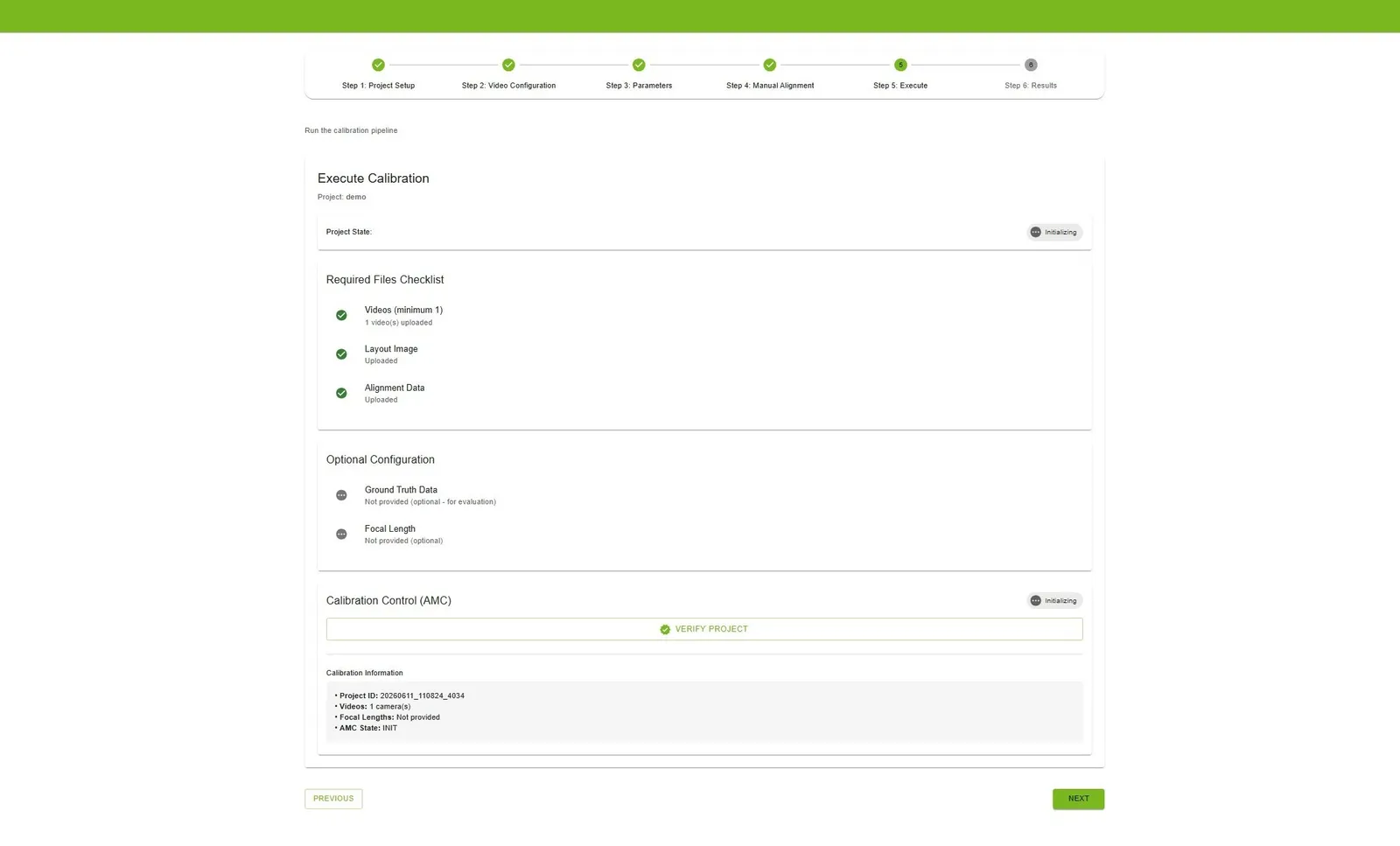
Step 6: Execute. Confirm videos, layout, completed rectification, and alignment with 4 or more point sets, then click Verify Project. AMC and VGGT are independent. You can run either one, in either order, after verification. AMC consumes the staged rectified media only. On multi-camera projects, choose detector type ResNet or Transformer when it is shown. ResNet is the faster default for clear video. Transformer is for crowded scenes, occlusions, or low contrast. Status updates about every 3 seconds, and the UI shows live logs.
VGGT is optional and is offered only for multi-camera projects after rectification is COMPLETED and the project is verified. It does not require a successful AMC run. Place vggt_1B_commercial.pt in $MODEL_DIR/vggt/ before starting the services.
After AMC or VGGT completes on a multi-camera project, run shared layout post-processing for trajectory overlays, optional ground-truth evaluation, MV3DT exports, and virtual-GT imagery. Single-camera projects use the AMC single-view post-processing path. Re-rectification requires you to verify again, relaunch calibration, and re-run post-processing.
Step 7: Results. Results are available after AMC or VGGT completes and, for multi-camera projects, after layout post-processing. View the overlay image (AMC and VGGT tabs), evaluation metrics (L2 distance if ground truth was uploaded), and per-camera parameters (YAML; AMC and VGGT tabs).
Export with Full Export (a dialog to choose AMC or VGGT when both exist; optional metadata and a JSON editor), MV3DT ZIP AMC, or MV3DT ZIP VGGT when that result is available. Use Delete Results to run calibration again.
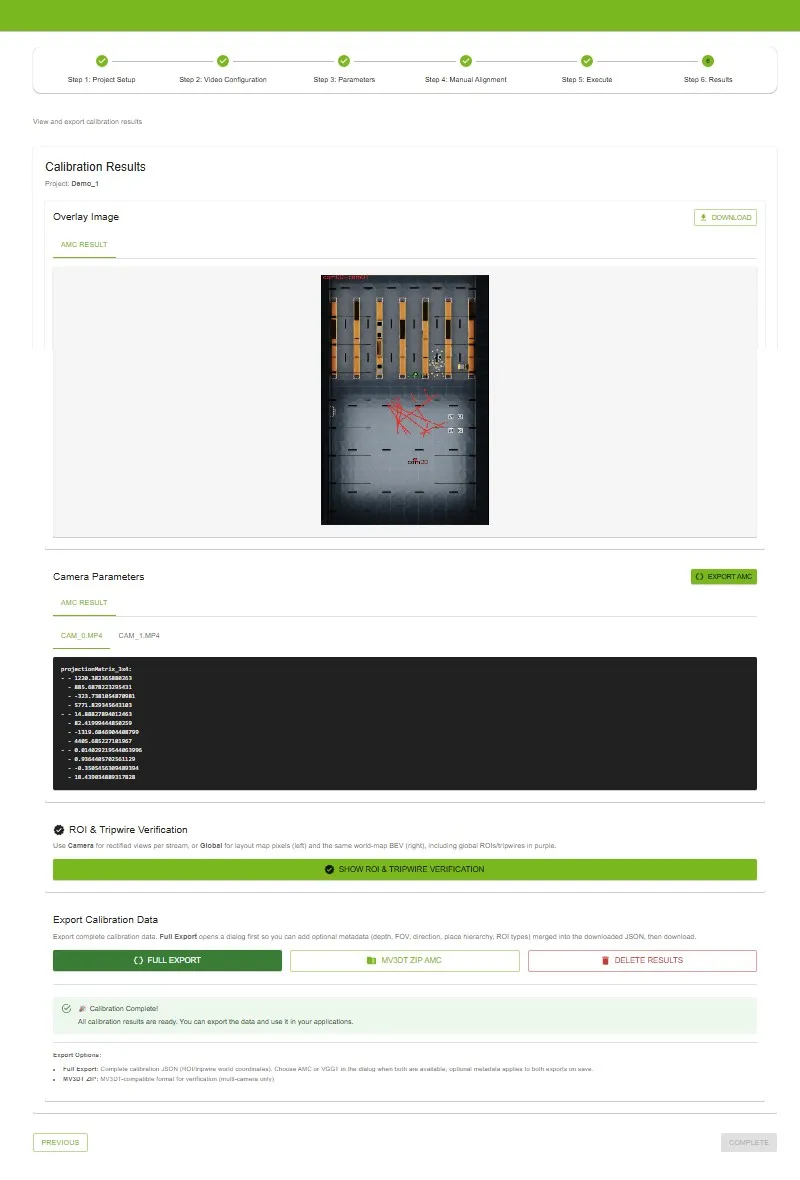
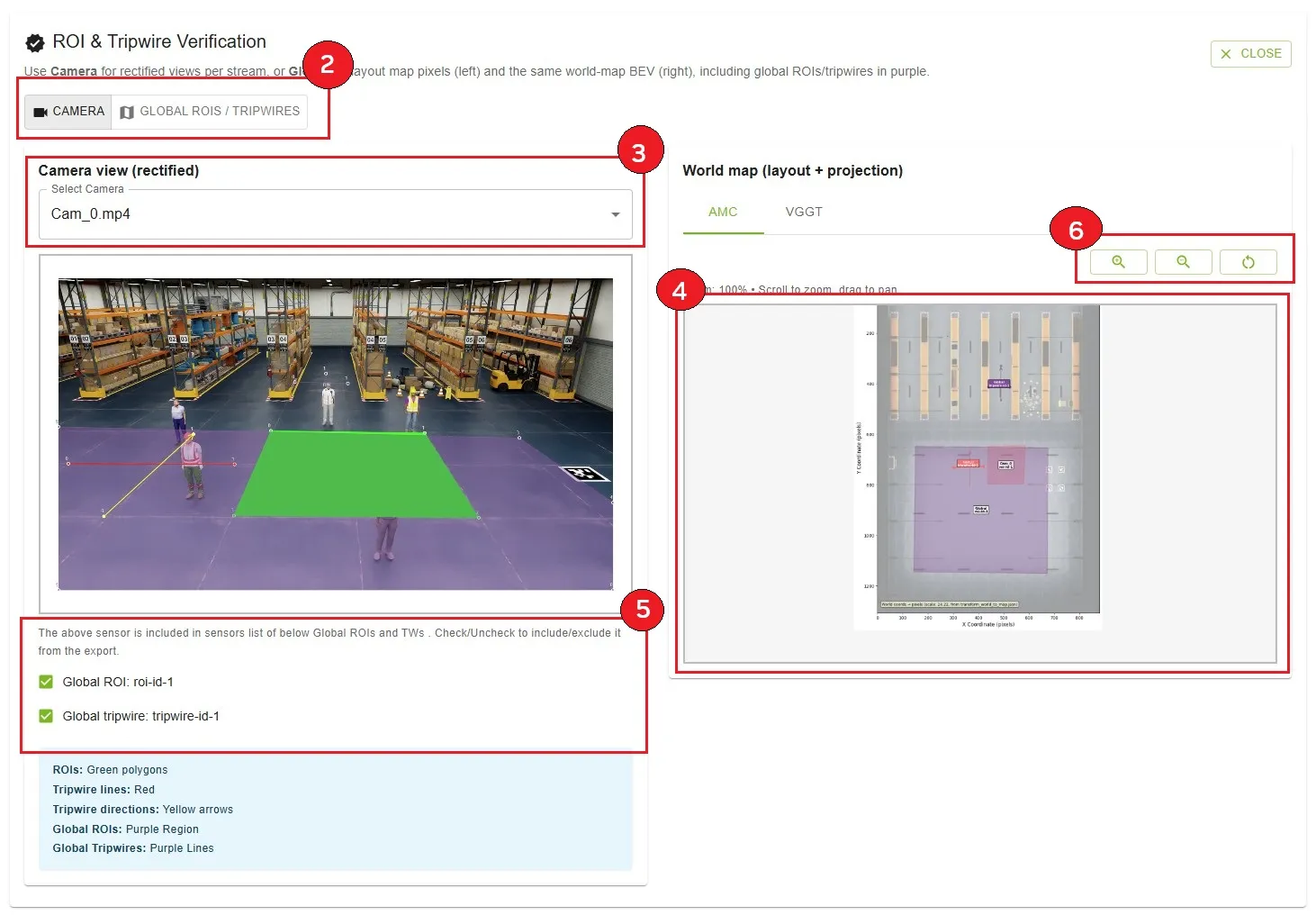
To verify ROIs and tripwires:
- Click Show ROI & Tripwire Verification.
- Choose Camera or Global ROIs / tripwires in the annotation target toggle.
- Camera target: pick a stream from Select Camera. Review the left rectified frame and the right world map. Use the AMC / VGGT tabs on the world map as needed.
- Global target: the left panel shows global shapes on
layout.png(pixel coordinates). The right panel shows their world-map projection in purple. - Under the camera view, use the checkboxes labeled Global ROI and Global tripwire to include or exclude that camera in each ROIs/Tripwires
sensorslist. Only global items projected to that camera are listed. - Use the world-map zoom controls for detail, then click Close.

Custom Dataset
Prepare:
- Input videos. One or more camera video files, or time-synchronized RTSP URLs. Uploaded video must be 1920×1080. Upload or capture order defines camera pairing and the field-of-view overlap chain. Consecutive cameras should have overlapping fields of view.
- Floor map. A layout image of the surveillance area (PNG), plus Layout Pixels Per Meter from Step 3.
- Rectified media. Complete Step 4 before alignment and calibration.
- Alignment data.
alignment_data.json, uploaded or created in the UI. - Ground truth (optional). For evaluation, a ZIP containing
calibration.jsonandground_truth.json.
calibration.json is a sensors array. Each sensor has id, intrinsicMatrix (3×3), extrinsicMatrix (3×4), cameraMatrix (3×4), and attributes such as frame width and frame height. Matrices follow OpenCV-style definitions.
ground_truth.json uses the frame index as the key. Each value is an array of objects with object id, object type, object name, 3d location [x, y, z], and 2d bounding box visible (camera id mapped to [x_min, y_min, x_max, y_max]).
Guidelines for Input Videos to Achieve Optimal Calibration Results
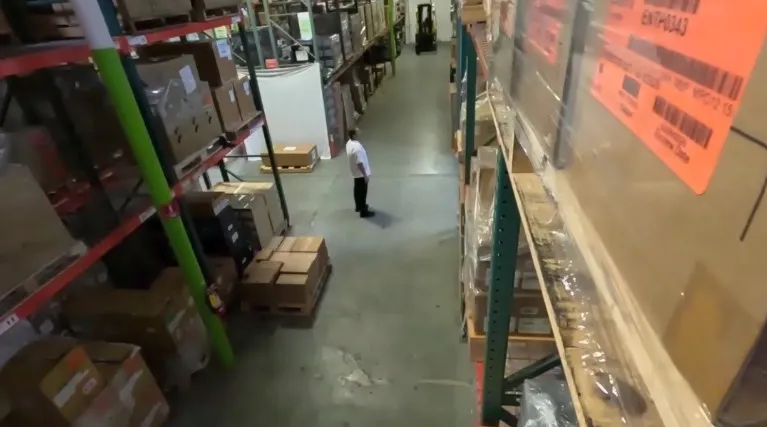
- Minimizing lens distortion. Calibration performs best when input videos are linear, meaning they show no lens distortion. The tool can handle minor distortion, but the best results come from video with no distortion.
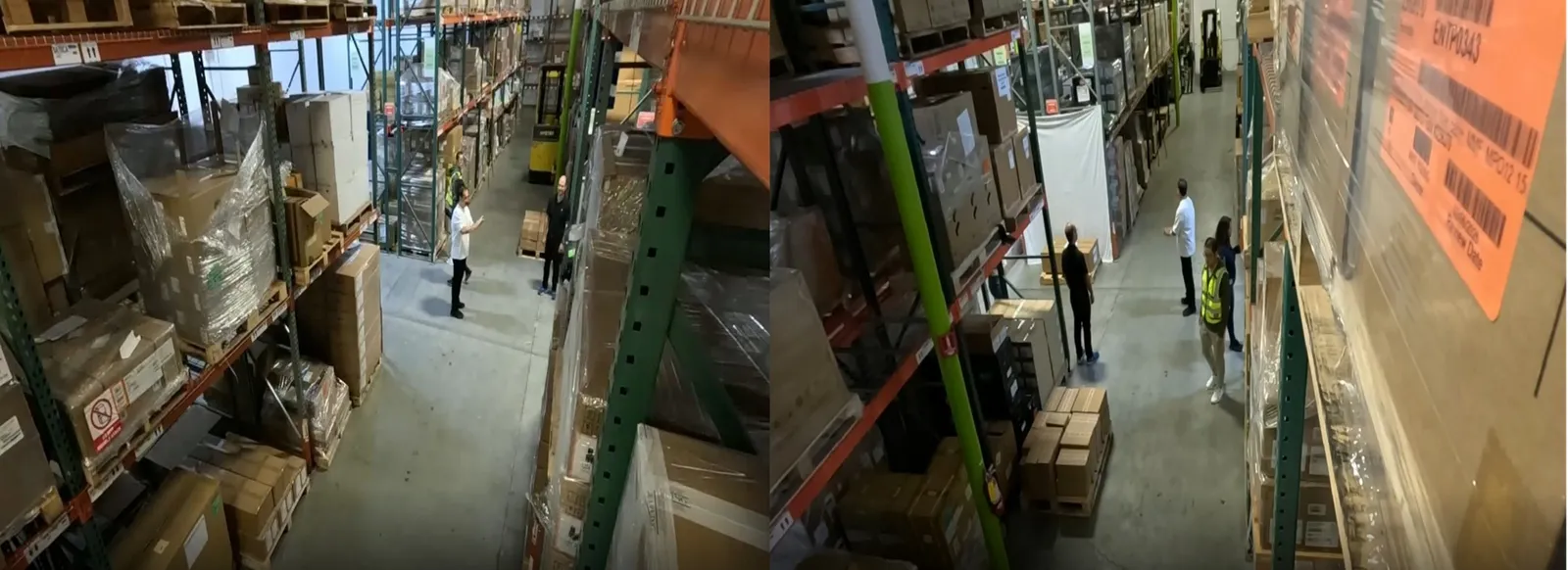
- Maximizing camera overlap. Accurate calibration needs a significant overlap between the fields of view of the cameras.
- Leveraging unique scene features. Diverse, unique objects improve calibration accuracy. The tool uses people moving in the field of view, so videos with many moving people are ideal. Those trajectories should cover the field of view as broadly as possible.
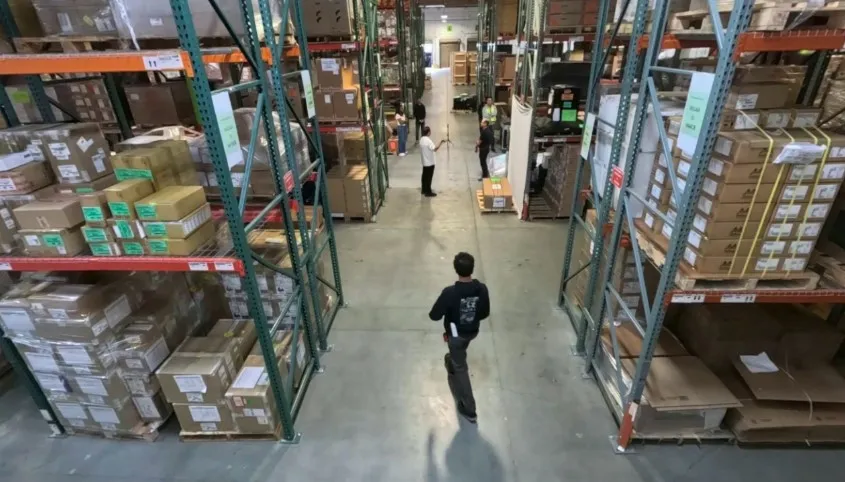
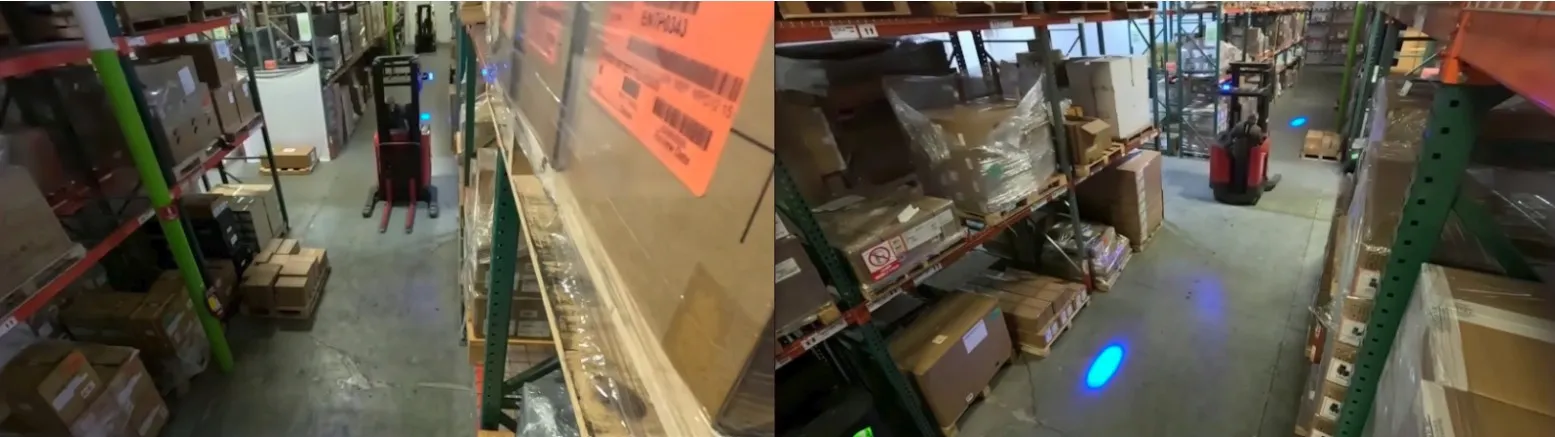
Large, unique objects also help. In a warehouse, repeated racks make views look alike. A distinct object such as a forklift gives the calibration a clearer feature.
Calibration Output
After calibration, the UI provides overlay images (AMC and VGGT tabs), evaluation metrics (L2 distance average, standard deviation, minimum, and maximum when ground truth is provided), and per-camera parameters (projection matrix and intrinsics/extrinsics in YAML).
With ground truth, compare L2 distance statistics and overlay trajectories (colored reconstructed paths versus white ground-truth lines) between AMC and VGGT, and keep the better result.
Without ground truth, compare overlay images qualitatively: camera positions, object trajectories, and field-of-view boundaries against the floor map.
Export options:
- Full Export. Complete calibration JSON with ROI and tripwire world coordinates. Choose AMC or VGGT in the dialog when both completed. The file is
{project_name}_exported.jsonor{project_name}_exported_vggt.json. - Export image-mode JSON (Parameters step). ROIs and tripwires in pixel coordinates, without bundle adjustment.
- MV3DT ZIP AMC / MV3DT ZIP VGGT. Archives for Multi-View 3D Tracking verification.
Integration with MV3DT
From the Results step, export MV3DT ZIP AMC or MV3DT ZIP VGGT. The generated ZIP can be used with Multi-View 3D Tracking verification tools.
Troubleshooting
- Cannot access the UI. Confirm the backend and UI are running (
docker ps). Check the URL, port, firewall, and connectivity. - Port already in use. Change
AUTO_MAGIC_CALIB_MS_PORTandAUTO_MAGIC_CALIB_UI_PORTincompose/.envand restart, or stop the process using the port (for examplesudo lsof -i :5000). - API_URL_NOT_PROVIDED. Set
HOST_IPincompose/.env, then rundocker compose downanddocker compose up. - Verification fails. Provide the videos, a layout, alignment with 4 or more point sets, and rectification state COMPLETED. Multi-camera point sets must include every camera plus the layout. After re-rectification, verify again before relaunching calibration.
- Calibration fails or takes too long. Check video sync, layout scale (
layout_px_per_m), and alignment on the ground plane in rectified space. Runs longer than about 30 minutes are a signal to inspect inputs and GPU load. VGGT does not require a successful AMC run. On multi-camera projects, run layout post-processing after calibration for overlays and evaluation. - RTSP input issues. Configure VIOS. Use source URLs, not VIOS-proxied URLs, for pre-registered streams. Configure every stream, then run one Capture and add to project. Record for at least 60 seconds. Ingest is automatic.
- Rectification issues. Upload videos before starting Auto, Manual, or Videos Are Rectified. Generate Rectified Videos after Ready for Review. Use Videos Are Rectified only when the footage is already linear. After re-rectification, verify again, relaunch calibration, and re-run post-processing.
- VGGT is not available. Place
vggt_1B_commercial.ptin$MODEL_DIR/vggt/. VGGT requires two or more videos and completed rectification. Single-camera projects do not support VGGT. AMC is not a prerequisite. - Export or ROI verification issues. At least one calibration path (AMC or VGGT) must have completed, and multi-camera projects need layout post-processing for overlays. Use Show ROI & Tripwire Verification after calibration. For world-coordinate export, use Full Export and choose AMC or VGGT.
Additional Resources
The source repository README has the same workflow with additional UI screenshots: AutoMagicCalib README.