

Service Maker for C/C++ Developers
Getting Started with Service Maker C++ APIs
Before starting on the actual application, we need to create a text file with name ‘CMakeLists.txt’ for building our application later:
Now we can create a sample deepstream app (my_deepstream_app.cpp) with a pipeline to perform object detection from a incoming video stream:
In order to build the application, we should use the CMake to create build environment:
Once the build is complete, we can run the application to start the object detection pipeline:
Currently, despite the pipeline running, we aren’t obtaining object information from the application. To access this data, we need to create a buffer probe that iterates through the metadata generated by the nvinfer plugin.
A sample metadata probe can be implemented as follows:
By attaching the buffer probe into the inference plugin within the existing pipeline before starting it, we’ll get the vehicle count information from each frame of the video stream:
Rebuild the application and run it again, vehicle count will be printed out.
Application Developer Fundamentals
Pipeline
A pipeline serves as the foundation of Deepstream-based AI streaming applications. Media streams flow through interconnected functional blocks within a pipeline, processed via buffers widths metadata. A pipeline and the elements within it autonomously manage states and data flow, reducing the need for external intervention by application developers.
A functional pipeline requires appropriate elements from Deepstream plugins to be added, configured and linked correctly. This can be seamlessly achieved using Pipeline APIs in a fluent manner:
For elements that have single static input and output, links can be established in a very straightforward manner:
However, if an element supports dynamic or multiple input/output, extra information is required to establish the link:
Pipeline construction can also be achieved through a declarative YAML configuration file, significantly reducing coding efforts in application development. The above pipeline can be defined as follows in YAML configuration.
And with the YAML configuration being applied, the application source can be simplified a lot:
The YAML configuration of a pipeline begins with a “deepstream” keyword, and is composed of two sections:
- Node definition list under “nodes”: each item defines an instance to be added to the pipeline, with “type”, “name” and “properties” specified. The “type” field corresponds to the element name defined in DS plugins, such as “nvstreammux”; “name” is a string to identify the instance within the pipeline and must be unique; “properties” field initialize the supported properties for the instance.
- Link definition list under “edge”: each item defines one or more connections, where the key specifies the source and the value specifies the target(s). In the case that a source has more than one output, the output name should also be specified, such as “source.vsrc_%u: mux”.
Guideline for Fine-tuning a Pipeline through Configuration File
The YAML configuration file also offers users a straightforward option to finely tune the pipeline, enabling them to optimize performance effortlessly.
Users can always start with a pipeline design from the blueprint with appropriate nodes and edges, tailored precisely to suit the specific objectives of their projects. Before proceeding, it’s essential to address the following parameters:
- batch-size: this is a important property that could affects the performance. It specifies the total number of frames for streammux to create a batch, it must equal to the maximum streams expected to be fed into the pipeline. It is an inherent parameter of “streammux”, while in the case of “nvmultiurisrcbin”, “max-batch-size” should be set instead.
- batched-push-timeout: this is another property for “streammux” or “nvmultiurisrcbin”. It determines how long streammux will wait until all the frames are collected, given the batch-size. Change in batched-push-timeout affects the framerates, especially when the input is live source, e.g RTSP.
- buffer-pool-size: this property defines the number of buffer pool used by streammux. In scenarios where the processing latency is prolonged to the extent that the buffer pool depletes before a buffer is returned, adjustments to certain properties may be necessary. Nonetheless, it’s imperative to ensure that these adjustments do not surpass a limit of 16.
In the majority of cases, performance degradation stems from hardware bottlenecks, which may arise from the CPU, GPU, or other components. To identify bottlenecks, users can modify the type of potentially problematic nodes to “identity,” effectively disabling them, and then retest the performance iteratively until the actual bottleneck is pinpointed.
Another factor contributing to performance degradation occurs when the pipeline lacks full parallelization, often resulting from irregular overloading of certain nodes. In such instances, inserting a queue before the problematic node can provide a solution.
Additionally, unnecessary scaling can lead to wasteful computation. Therefore, it’s beneficial to carefully consider the processing dimensions for each node. Ensuring that the processing dimension aligns with either the input/output dimension or model dimension can effectively minimize scaling.
Elements and Plugins
The Deepstream SDK introduces Element as the fundamental functional block accessible through various plugins. Each type of element offers specific capabilities, including encoding, decoding, pre-processing, post-processing, AI inference, and Object Tracking. When integrated into a pipeline, an element initiates the processing of media buffers flowing through the pipeline, generating metadata or messages as a result.
Elements are highly configurable, supporting customization through key-value pairs or an external configuration file. This flexibility enables them to adapt to diverse task requirements. The output of an element, comprising data buffers, metadata, and messages, can be seamlessly captured by downstream counterparts for continuous processing. Alternatively, it can be retrieved by the application for external processing through customized objects.
An element can be instantiated using its predefined type name within the Deepstream SDK:
A more practical approach supports instantiating and configuring an element through the higher-level Pipeline API:
To properly direct the flow of media, elements need to be sequentially linked within the Pipeline. In most cases, a straightforward linking operation can be achieved using a simple link method, with the names of each Element instance specified in order. However, in certain scenarios, additional information may be required to facilitate the linking process. This complexity can arise from variations in how Elements handle inputs and outputs.
Buffer
The Buffer object serves as a wrapper for the data segments flowing through the pipeline.
For a read only buffer, you can invoke the read method to access the data in read-only mode, employing a customized callable object for data processing. Similarly, for a read-write buffer, the process is analogous, with the added capability of modifying the data within the buffer.
Metadata
In addition to the output data from an element, users may have a keen interest in the metadata generated by the element. This becomes particularly relevant in AI inference pipelines, where inference results are commonly conveyed in metadata format.
The following is a list of currently supported metadata objects:
More details about Deepstream Metadata can be found here.
SourceConfig
SourceConfig is a convenience tool to load source configurations from a YAML file, allowing users append extra information to a source and create a list for multiple sources. A sample source config looks as follows
There are 2 sections in the YAML file: source-list and source-config, each defines the inputs and the configurations of the source bin(s):
- source-list: each item defines the uri, sensor-id and sensor-name for a source
- source-config: defines the type of the source node and corresponding properties. The property specification under “properties” MUST be consistent with the type of the source node.
When the number of the streams fed into the pipeline is big and variable during runtime, separating the source config from the pipeline definition gives more clarity, however, it is always the developers’ decision for the most suitable approach.
CameraConfig
CameraConfig is a convenience tool to load camera configurations from a YAML file, allowing users to create a list of multiple camera sources (V4L2/CSI). A sample camera config looks as follows:
There is only one section in the YAML file: camera-list which defines the camera source and its configuration:
- camera-list: each item defines camera-type, camera-width, camera-height, camera-fps-n, camera-fps-d, for CSI camera source: camera-csi-sensor-id and for V4L2 camera source: camera-v4l2-dev-node.
CommonFactory and custom Objects
Application developers can utilize custom objects to access the processing results of specific Deepstream Elements tailored to their unique needs. These custom objects can be instantiated directly through the ‘new’ keyword if they are defined within the application code. Alternatively, if implemented through a plugin, they can be created through the common factory interface.
Custom objects can be incorporated into the pipeline using the ‘attach’ method, requiring the name of the element to which they should be attached.
Upon attachment, the designated element will assume control of the lifecycle of the custom object.
The following is a list of currently supported custom objects:
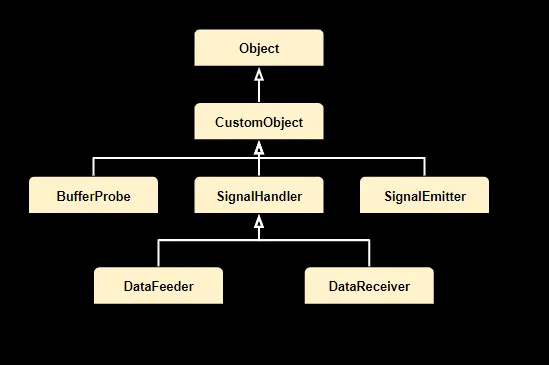
BufferProbe
Application developers can employ a buffer probe to retrieve the output buffer generated within the pipeline. Various interfaces can be implemented based on the specific requirements of the probe, offering flexibility for different purposes.
SignalHandler
Signaling is a vital mechanism that facilitates interaction between elements within a running pipeline and the external world, notifying observers of specific events. An element can support a variety of signals, each uniquely registered during instantiation. The comprehensive details regarding signal support for an element can be found in the corresponding plugin manual.
Application developers have the flexibility to enhance the functionality of their applications by attaching signal handlers to Element instances. Once attached, these handlers respond promptly to the emitted signals, allowing developers to implement custom logic in response to specific events.
DataFeeder
The DataFeeder signal handler is specifically designed for attachment to an Element instance to capture data request related signals, such as “need-data” and “enough-data” signals from an “appsrc.” By using DataFeeder, application developers gain the ability to seamlessly inject data directly into the target Element during runtime.
DataReceiver
The DataReceiver signal handler is specifically for attachment to an Element instance to capture data ready related signals, such as “new-sample” signal from an “appsink.” By using DataFeeder, By using DataReceiver, application developers can receive the processed data from the target Element during runtime.
SignalEmitter
The signal emitter is another pivotal component in the signaling mechanism, responsible for emitting signals rather than handling them. When an element seeks to have certain activities driven by the external environment, it accepts signal emitters. In this mechanism, with a signal emitter attached to an Element instance that is configured to receive such signals, corresponding activity will be triggered on the Element instance when the emit method is invoked on the signal emitter object.
Prepare and Activate
For specific use cases, we have introduced alternative APIs to manage pipeline execution:
Pipeline.prepare()
Unlike pipeline.start(), which transitions the pipeline’s state to playing in a new thread, pipeline.prepare() sets the pipeline’s state to paused within the same thread. This is particularly useful in multi-pipeline scenarios where each pipeline’s state needs to be changed to paused sequentially.
Pipeline.activate()
After using pipeline.prepare(), pipeline.activate() transitions the pipeline’s state from paused to playing in a new thread. This effectively starts the pipeline. In multi-pipeline scenarios, this allows all pipelines to begin execution concurrently.
Pipeline.wait()
This API is used to join the threads created by pipeline.activate(), ensuring that all threads complete their execution before proceeding.
The Sample Test 5 Application demonstrates how to utilize these API calls effectively.
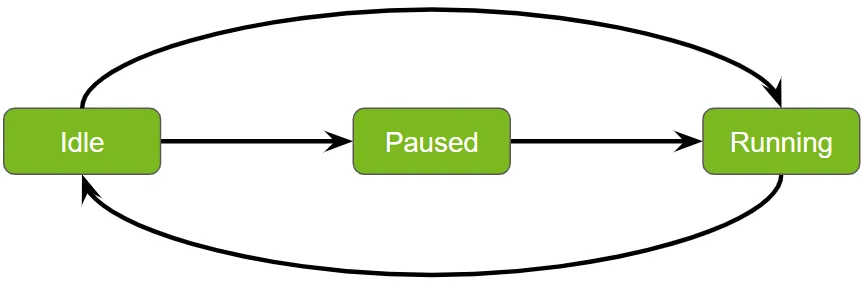
State Transitions in Service Maker Pipelines
Managing state transitions in service pipelines is essential for ensuring efficient and orderly operations. Service maker facilitates synchronous state transitions, enabling smooth and predictable changes in the pipeline’s status. Here’s a clearer and more structured explanation of these transitions:
Start
- Transition: From idle to running.
- Process: Utilize the pipeline.start() API to initiate the pipeline, moving it from an idle state to actively running tasks.
Prepare and Activate
- Transition: From idle to paused, then to running.
- Process: By executing pipeline.prepare() followed by pipeline.activate(), the pipeline transitions through a paused state before becoming fully operational. This sequence allows for any necessary setup or configuration prior to execution.
Wait
- Purpose: Suspend the current thread until the pipeline completes its execution.
- Process: The pipeline.wait() function is required after both the start and prepare/activate sequences to ensure that the current thread pauses until the pipeline has finished processing.
Stop
- Transition: Back to idle.
- Process: The pipeline.stop() API is used to return the pipeline to its idle state, effectively halting operations and resetting it for future tasks.
These transitions are designed to manage workflow efficiently, allowing for both immediate execution and necessary preparatory phases.
Sample Applications
Sample applications can be found from the Deepstream installation directory /opt/nvidia/deepstream/deepstream/service-maker/sources/apps/cpp/, and with the following commands user can build them:
Migrating Traditional DeepStream Apps to Service Maker
For users who have been integrating Deepstream applications into their solutions for an extended period, migrating to the new Service Maker APIs requires minimal effort.
Traditional Deepstream applications rely on configuration files for pipeline customization and parameter setup. The Service Maker APIs follow a similar approach, offering a configuration specification with slight differences:
-
Global Parameters
In the traditional Deepstream applications, all the global parameters need to be defined under a specific section named ‘applications’:
With Service Maker APIs, some of the parameters are expected to be added as command line argument. For example, the test5 app built from the Service Maker can change the performance measurement interval through a command line argument:
—perf-measurement-interval-sec 5
As for others which are not truly ‘global’, they can be set as a property of the corresponding modules. For example, the ‘gie-kitti-output-dir’ is actually a property of the ‘kitti_dump_probe’ plugin built with the Service Maker, thus it can be set under the ‘Properties’ of the ‘kitti_dump_probe’ instance within the pipeline.
-
Pipeline customization
In contrast to the traditional Deepstream application, Service Maker adopts a graph-based YAML definition to represent a pipeline structure, providing users with maximum flexibility for customization. The predefined sections in the traditional configuration, such as ‘primary-gie’, ‘secondary-gie’, ‘tracker’, ‘tiled-display’, and ‘osd’, can all be configured through the properties of each independent element within the Service Maker YAML definition.
-
Source and Batching
In traditional Deepstream applications, source management involves a combination of ‘sourceX’, ‘streammux’, ‘source-list’, and ‘source-attr-all’ in the configuration file. Service Maker simplifies this by separating the source management into a standalone source configuration file. In this file, source information, including ‘list’, ‘sensor-name-list’, and ‘sensor-id-list’, is placed within the ‘source-list’ section. Meanwhile, pipeline customization, such as specifying the source type and properties, is handled in the ‘source-config’ section.
-
Sink management
Compared to the traditional Deepstream application, Service Maker offers support for a wider range of arbitrary sink options. These include existing types such as ‘Fakesink’, ‘Display’, ‘File’, ‘UDP’, and ‘MsgConvBroker’. Each of these sinks must be defined within the graph pipeline specification, which includes all necessary element nodes and the edges between them. This approach provides greater flexibility in configuring sinks for the pipeline.
-
Smart Recording Feature
Test5 application can be configured to record the original video feed based on the event received from the server. In this way, instead of saving data all the time, this feature allows to record only event of interests. Refer to the DeepStream plugin manual and
gst-nvdssr.hheader file for more details about smart record. Event based recording can be enabled by settingsmart-recordunder[sourceX]group. Currently test5 app only supports source type = 4 (RTSP). Similar approach can be used for other types of sources as well. There are two ways in which smart record events can be triggered:ServiceMaker-test5 application can be configured to record video feed based on the event received from server. This is available for nvurisrcbin module only.
To use Smart Record feature set properties example:
Following minimum Json message is expected to trigger the start / stop of smart record on topic
test5-sr:NOTE: Before running the app must run ‘mkdir /tmp/record’ to create the directory with writing permission.