

Quickstart Guide
Jetson [Not applicable for NVAIE customers]
This section explains how to use DeepStream SDK on a Jetson device.
Boost the clocks
After you have installed DeepStream SDK, run these commands on the Jetson device to boost the clocks:
For Jetson Orin Nano modules, use sudo nvpmodel -m 2 instead of -m 0 to enable MAXN SUPER mode.
For all other Jetson Orin modules (including Orin NX), use -m 0.
You should run these commands before running DeepStream application.
Run deepstream-app (the reference application)
-
Navigate to the configs/deepstream-app directory on the development kit.
$ cd /opt/nvidia/deepstream/deepstream-9.2/samples/configs/deepstream-app
-
Enter the following command to run the reference application:
Where <path_to_config_file> is the pathname of one of the reference application’s configuration files, found in configs/deepstream-app/. See Package Contents in configs/deepstream-app/ for a list of the available files.
Config files that can be run with deepstream-app:
a. source30_1080p_dec_infer-resnet_tiled_display.txt
b. source30_1080p_dec_preprocess_infer-resnet_tiled_display.txt
c. source4_1080p_dec_infer-resnet_tracker_sgie_tiled_display.txt
d. source1_usb_dec_infer_resnet.txt
e. source1_csi_dec_infer_resnet.txt
f. source2_csi_usb_dec_infer_resnet.txt
g. source6_csi_dec_infer_resnet.txt
h. source2_1080p_dec_infer-resnet_demux.txt
i. source4_1080p_dec_infer-resnet_tracker_sgie_tiled_display.yml
j. source30_1080p_dec_infer-resnet_tiled_display.yml
k. source4_1080p_dec_preprocess_infer-resnet_preprocess_sgie_tiled_display.txt
l. source2_dewarper_test.txt
- Refer to Sample Configurations and Streams for detailed explanation of each configuration file.
- You can find sample configuration files under
/opt/nvidia/deepstream/deepstream-9.2/samplesdirectory. Enter this command to see application usage:
- To save TensorRT Engine/Plan file, run the following command:
- To show labels in 2D Tiled display view, expand the source of interest with mouse
left-clickon the source. To return to the tiled display,right-clickanywhere in the window. - Keyboard selection of source is also supported. On the console where application is running, press the
zkey followed by the desired row index (0 to 9), then the column index (0 to 9) to expand the source. To restore 2D Tiled display view, presszagain.
Expected output (deepstream-app)
The image below shows the expected output of deepstream-app with source30_1080p_dec_infer-resnet_tiled_display.txt config:
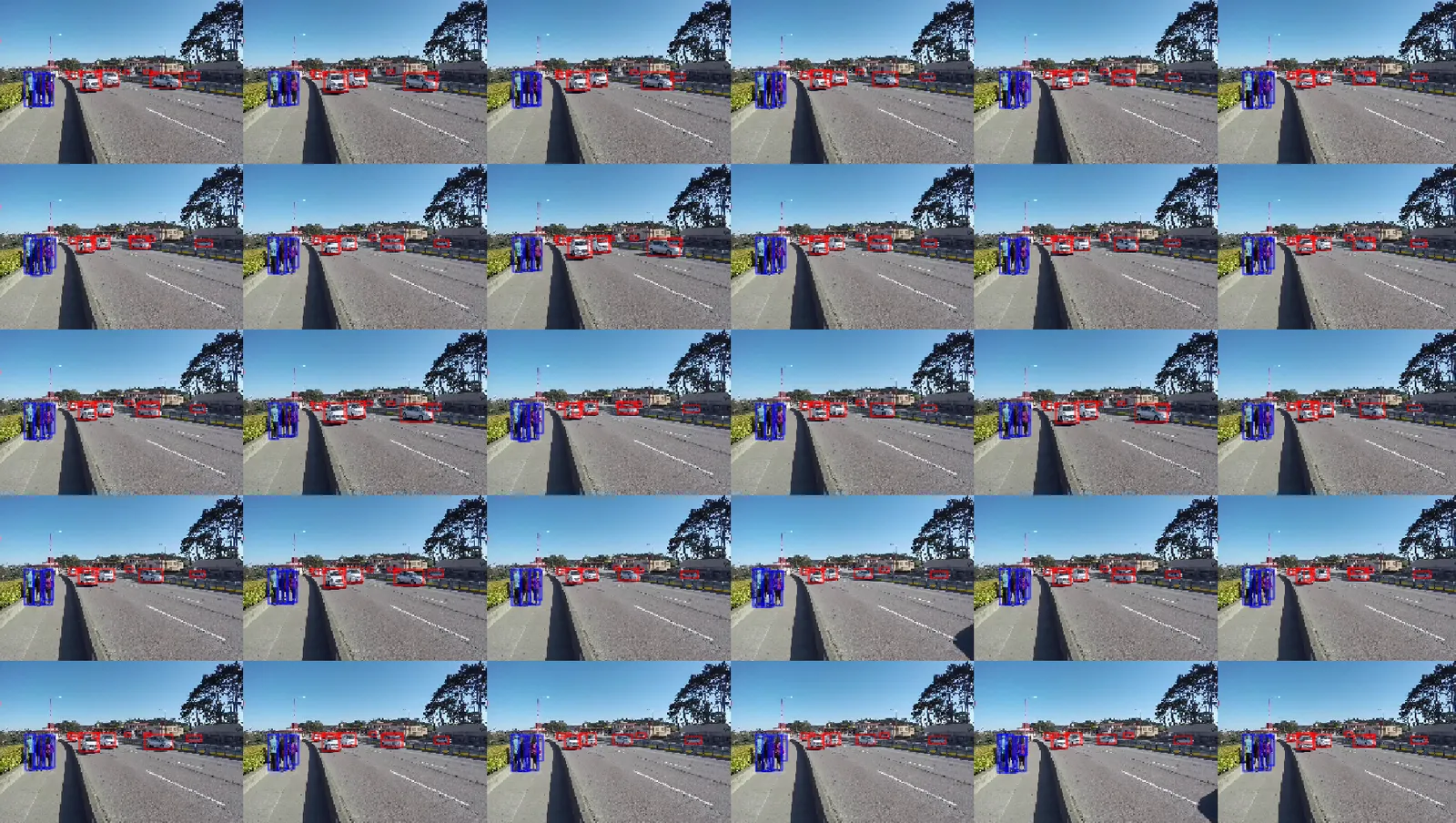
Performance metrics including FPS (~30 FPS for this configuration) are displayed on the output terminal during application runtime.
Run precompiled sample applications
- Navigate to the chosen application directory inside
sources/apps/sample_apps. - Follow the directory’s README file to run the application.
If the application encounters errors and cannot create Gst elements, remove the GStreamer cache, then try again. To remove the GStreamer cache, enter this command:
$ rm ${HOME}/.cache/gstreamer-1.0/registry.aarch64.bin
When the application is run for a model which does not have an existing engine file, it may take up to a few minutes (depending on the platform and the model) for the file generation and the application launch. For later runs, these generated engine files can be reused for faster loading.
dGPU for Ubuntu
This section explains how to use DeepStream SDK on a x86 machine.
Run the deepstream-app (the reference application)
-
Navigate to the configs/deepstream-app directory on the development kit.
$ cd /opt/nvidia/deepstream/deepstream-9.2/samples/configs/deepstream-app
-
Enter the following command to run the reference application:
Where <path_to_config_file> is the pathname of one of the reference application’s configuration files, found in configs/deepstream-app. See Package Contents in configs/deepstream-app/ for a list of the available files.
Config files that can be run with deepstream-app:
a. source30_1080p_dec_infer-resnet_tiled_display.txt
b. source30_1080p_dec_preprocess_infer-resnet_tiled_display.txt
c. source4_1080p_dec_infer-resnet_tracker_sgie_tiled_display.txt
d. source4_1080p_dec_infer-resnet_tracker_sgie_tiled_display_gpu1.txt
e. source1_usb_dec_infer_resnet.txt
f. source2_1080p_dec_infer-resnet_demux.txt
g. source4_1080p_dec_infer-resnet_tracker_sgie_tiled_display.yml
h. source30_1080p_dec_infer-resnet_tiled_display.yml
i. source4_1080p_dec_preprocess_infer-resnet_preprocess_sgie_tiled_display.txt
j. source2_dewarper_test.txt
- Refer to Sample Configurations and Streams for detailed explanation of each configuration file.
- To dump engine file, run the following command:
- You can find sample configuration files under
/opt/nvidia/deepstream/deepstream-9.2/samplesdirectory. Enter this command to see application usage:
- To show labels in 2D tiled display view, expand the source of interest with a mouse
left-clickon the source. To return to the tiled display,right-clickanywhere in the window. - Keyboard selection of source is also supported. On the console where application is running, press the
zkey followed by the desired row index (0 to 9), then the column index (0 to 9) to expand the source. To restore the 2D Tiled display view, presszagain.
Expected output (deepstream-app)
The image below shows the expected output of deepstream-app with source30_1080p_dec_infer-resnet_tiled_display.txt config:
Performance metrics including FPS (~30 FPS for this configuration) are displayed on the output terminal during application runtime.
Run precompiled sample applications
- Navigate to the chosen application directory inside
sources/apps/sample_apps. - Follow that directory’s README file to run the application.
If the application encounters errors and cannot create Gst elements, remove the GStreamer cache, then try again. To remove the GStreamer cache, enter this command:
When the application is run for a model which does not have an existing engine file, it may take up to a few minutes (depending on the platform and the model) for the file generation and application launch. For later runs, these generated engine files can be reused for faster loading.
How to visualize the output if the display is not attached to the system
1 . Running with an X server by creating virtual display
Refer https://docs.nvidia.com/grid/latest/grid-vgpu-user-guide/index.html#configuring-xorg-server-on-linux-server for details.
2 . Running without an X server (applicable for applications supporting RTSP streaming output)
The default configuration files provided with the SDK have the EGL based nveglglessink as the default renderer (indicated by type=2 in the [sink] groups). The renderer requires a running X server and fails without one.
In case of absence of an X server, DeepStream reference applications provide an alternate functionality of streaming the output over RTSP. This can be enabled by adding an RTSP out sink group in the configuration file. Refer to [sink2] group in source30_1080p_dec_infer-resnet_tiled_display.txt file for an example. Don’t forget to disable the nveglglessink renderer by setting enable=0 for the corresponding sink group.
DeepStream Triton Inference Server Usage Guidelines
- Before running
prepare_classification_test_video.sh, refer note in section Docker Containers.
dGPU
- Pull the DeepStream Triton Inference Server docker
- Start the docker
-
The triton docker for x86 is based on Tritonserver Release 2.67.0, NGC Container 26.03. For Jetson, triton docker is based on Tritonserver Release 2.68.0, NGC Container 26.04. It has Ubuntu 24.04.
-
When the triton docker is launched for the first time, it might take a few minutes to start since it has to generate compute cache.
ARM SBSA (GH200, GB200, DGX Spark)
- Pull the DeepStream Triton Inference Server docker
- Start the docker
-
--privilegedis omitted above; add it only if the container needs access to all host devices or low-level driver operations. It grants near-root host access, so on shared or production systems prefer--device/--cap-addinstead. -
The triton docker for ARM SBSA is based on Tritonserver Release 2.68.0, NGC Container 26.04 and has Ubuntu 24.04.
-
When the triton docker is launched for the first time, it might take a few minutes to start since it has to generate compute cache.
-
ARM SBSA docker currently supports only nv3dsink for video display.
Jetson
DeepStream Triton container image (ghcr.io/nvidia/deepstream:9.2-triton-multiarch) has Triton Inference Server and supported backend libraries pre-installed.
In order to run the Triton Inference Server directly on device, i.e., without docker, Triton Server setup will be required.
Go to samples directory and run the following commands to set up the Triton Server and backends.
By default script will download the Triton Server Release 2.68.0 (for Jetson platforms). For setting up any other version change the package path accordingly.
Triton backends are installed into /opt/nvidia/deepstream/deepstream/lib/triton_backends by default by the script. User can update infer_config settings for specific folders as follows:
Single process
DLA usecases are not applicable on Jetson Thor
DeepStream reference application supports multiple configs in the same process. To run DLA and GPU in same process, set environment variable CUDA_DEVICE_MAX_CONNECTIONS as 32:
Triton Inference Server In Deepstream
For detailed information refer to the following links:
-
Triton inference server documentation entry: https://github.com/triton-inference-server/server
-
Triton inference server model repository: https://github.com/triton-inference-server/server/blob/main/docs/user_guide/model_repository.md
-
Triton inference server supported backends and QA: https://github.com/triton-inference-server/backend
-
Triton Model TensorRT optimization for ONNX: https://github.com/triton-inference-server/server/blob/main/docs/user_guide/optimization.md#framework-specific-optimization