

Real-Time Alerts
The Real-Time Alert Workflow monitors live video streams and generates alerts when the VLM detects anomalies or specified events.
Use Cases
- Traffic collision detection
- Unusual behavior detection
- Equipment malfunction identification
- Safety hazard detection
Estimated Deployment Time: 15-20 minutes
The following diagram illustrates the real-time alert workflow architecture:
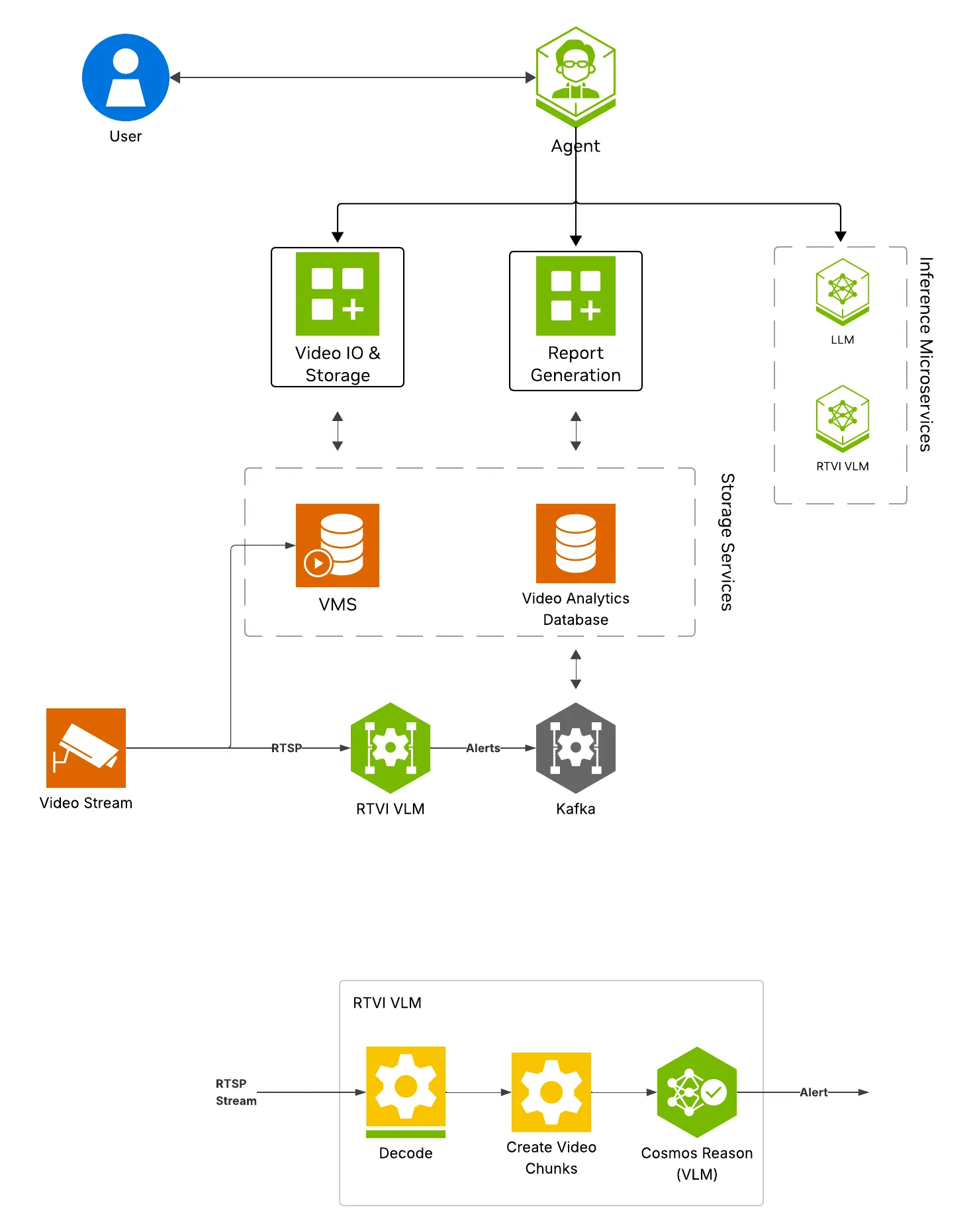
Key Features of the Real-Time Alert Agent:
- Continuous frame sampling and VLM-based anomaly detection from video streams using the RTVI VLM microservice
- Natural language queries for detected alerts
- Configurable alert prompts and invocation settings for custom detection scenarios
- Report Generation
What’s being deployed
- VSS Agent: Agent service that uses a configured LLM endpoint to route requests and orchestrate tool calls to VSS microservices and model endpoints (LLM/VLM NIMs) to answer questions and generate outputs
- VSS Agent UI: Web UI with chat, video upload, and different views
- RTVI VLM: Real-Time VLM Microservice for vision-language model inference used by real-time alerting
- Video IO & Storage (VIOS): Video ingestion, recording, and playback services used by the agent for video access and management
- NVStreamer: Video streaming service for video playback
- Nemotron LLM (NIM): LLM inference service used for reasoning, tool selection, and response generation
- ELK: Elasticsearch, Logstash, and Kibana stack for log storage and analysis
- Phoenix: Observability and telemetry service for agent workflow monitoring
This list describes the stock profile used by the manual Compose deployment. Build Vision AI customizes that profile for the requested capabilities. With the default NemoClaw harness, or with no harness, it does not deploy the in-stack VSS Agent or Phoenix. It also omits the Agent’s local LLM unless another selected service needs it. Ask for the in-stack VSS Agent if you plan to use the Agent REST API or the manual Agent UI workflow below.
Prerequisites
Before you begin, ensure all of the prerequisites are met. See Prerequisites for more details.
Deploy
For instructions on downloading sample data and the deployment package, see Download Sample Data and Deployment Package in the Quickstart guide.
With Agent Skills
Step 1: Deploy with Agent Skills
Use VSS Agent Skills from an agent such as Claude Code, Codex, or NemoClaw to deploy and manage the real-time alerts workflow.
First, install the vss-build-vision-ai skill as described in Agent Skills and make it
accessible to your agent. The host must meet the same deployment requirements listed above (supported GPU/hardware for that profile)
and must meet the Prerequisites.
The vss-build-vision-ai skill composes the stack from the capabilities you name and selects the <platform> and <mode> to match your system, as detailed in Development Profile GPU Requirements.
Refer to the requirements table for valid platform and mode combinations compatible with your hardware.
Optional: You can enable notifications by setting webhook.openclaw.enabled to true in the deploy/docker/developer-profiles/dev-profile-alerts/vlm-as-verifier/configs/config.yml config.
Deploy prompt structure
Name an image tag in the prompt to run a release’s images instead of the
containers.env default. See
Container image tag.
The vss-build-vision-ai skill uses Cosmos3 Nano Reasoner BF16 as the default VLM. You can ask the agent
which VLM models are available during the deployment process, or request a different model
directly in your deployment prompt:
The agent sets VLM_NAME and RTVI_VLM_MODEL_PATH in the generated
_builds/<name>/override.env to the model you request. The same options and
hardware constraints listed in
Available VLM Models apply.
If you selected NemoClaw, follow the Quickstart’s chat connection steps and continue the operational prompts in that chat.
Step 2: Add a Video Stream
To manage real-time alerts from your agent, install the vss-manage-alerts skill as described in Agent Skills.
Your agent can then start, stop, and inspect alerts through VSS with natural-language prompts, without requiring manual interaction with the UI.
Add a stream with the vss-manage-video-io-storage skill.
Add an RTSP stream to VIOS
If you do not have an RTSP stream, you can use NVStreamer at http://<HOST_IP>:31000 to upload a video file and create an RTSP stream.
What the agent does:
- Loads the
vss-manage-video-io-storageskill and verifies that VIOS is reachable. - Extracts the RTSP URL and requested sensor name from the prompt.
- Registers the stream with VIOS by calling
POST /vst/api/v1/sensor/addwithsensorUrlandname. - Confirms that VIOS lists the new sensor.
- Returns the sensor ID or configured name to use in alert prompts.
Step 3: Manage Alert Rules
Ask your agent to manage alert rules in natural language. The vss-manage-alerts skill routes these requests to the alert-specific workflow, checks that the alerts profile is running in VLM real-time mode, resolves the sensor name through VIOS/VST, and calls Alert Bridge to create, list, or delete persistent real-time rules. To change an existing rule, the agent uses the same rule-management workflow to replace the old rule with a new one.
For rule creation and replacement requests, the skill extracts the sensor and detection condition from your prompt, resolves the sensor ID and RTSP stream URL, derives a short alert_type tag, and submits the rule to Alert Bridge. For alert lookups, the skill routes the request through the agent incident-query workflow so that you can review notifications that have fired.
For direct API instructions, see Create a Rule with the REST API in the manual workflow.
To combine this workflow with long-video summarization, deploy one combined custom build. Starting the stock alerts and LVS profiles separately on the same host is not supported.
Add an Alert Rule
What the agent does:
- Parses the sensor name and detection condition from the prompt.
- Resolves the sensor ID and RTSP stream URL through VIOS/VST.
- Derives an
alert_typetag and submits a persistent real-time rule to Alert Bridge.
List Active Alert Rules
What the agent does:
- Fetches active rules from Alert Bridge.
- Resolves stream URLs back to readable sensor names when needed.
- Applies any sensor or alert-type filter from your prompt and returns the current rule IDs.
Show Alert Notifications
What the agent does:
- Routes the request to the incident-query workflow.
- Queries the stored incidents from Alert Bridge through
GET /api/v1/realtime/incidents. - Summarizes matching notifications with status, sensor, timestamp, and available evidence.
Replace an Alert Rule
What the agent does:
- Uses the rule ID to identify the rule that needs to change.
- Resolves the requested sensor and detection condition for the replacement rule.
- Creates the replacement rule through Alert Bridge, then asks for confirmation before deleting the superseded rule.
Delete an Alert Rule
What the agent does:
- Uses the rule ID to identify the rule to stop.
- Asks you to confirm before stopping the rule.
- After you confirm, calls Alert Bridge to delete the rule and reports whether it was stopped or was already inactive.
The Alerts Microservice supports receiving alerts on the OpenClaw UI. Ensure that notifications are enabled as noted above.
To use this feature, send the following prompt after creating an alert rule. Substitute your own VST public URL and gateway. Do not copy captured sandbox hosts from a previous environment.
NOTIFY_BACKENDS, VST_ENDPOINT, VST_PUBLIC_URL_BASE, and OPENCLAW_GATEWAY_URL are
relay process environment variables. VST_PUBLIC_URL_BASE is the URL clients use to play
clips (for example a reverse-proxy or Brev tunnel). Infer OPENCLAW_GATEWAY_URL from your
OpenClaw deployment. Use wss:// whenever the gateway crosses a network boundary because
the connection carries the gateway token and alert contents. Use ws:// only for loopback
(for example ws://127.0.0.1:18789) or another trusted internal connection.
host.openshell.internal is only reachable from inside that sandbox.
Manually
Step 1: Deploy with Docker Compose
- Set the NGC CLI API key and authenticate Docker to
nvcr.iobefore running the deploy commands. See Verify Your NGC Access. - Refer to Configure the LLM and Configure the VLM for all LLM and VLM (local and remote) configuration options. For RTVI-VLM configuration options, see Real-Time VLM.
- For advanced settings and Agent Customization, edit the profile
user-overrides.env.
See Configuration for common variables,
valid values, defaults, and env-file precedence. The complete profile-specific
template is
deploy/docker/developer-profiles/dev-profile-alerts/overrides.env.
From the repository checkout root, enter the Compose deployment directory:
overrides.env is the checked-in template. Copy it to any
filename matching *-overrides.env before selecting a layout. Files matching
that pattern are ignored by Git so local settings and credentials are not
committed. The commands below use user-overrides.env as a concrete example;
if you choose another name, use it consistently in every --env-file argument.
Repeat the copy only when you want to discard prior layout changes:
Before starting Compose, complete the host settings and select one hardware
layout below in deploy/docker/developer-profiles/dev-profile-alerts/user-overrides.env.
Environment-variable overrides: In deploy/docker/developer-profiles/dev-profile-alerts/user-overrides.env, update existing values in place; add a variable only when it is absent. COMPOSE_PROFILES is derived from values above it, so appending duplicate model-mode or model-slug variables can select the wrong services.
Direct Docker Compose Overrides
Apply all of the following settings in the user-overrides.env file created
above:
In RT-VLM 26.08.2, MESSAGE_BUS is the startup source of truth for
generated-message publishing. The packaged Compose variable
RTVI_VLM_MESSAGE_BUS=kafka sets it explicitly.
RTVI_VLM_KAFKA_ENABLED=true is retained only as the legacy compatibility
field while Compose still forwards it. Later --env-file arguments take
precedence over earlier arguments; therefore, changes to overrides.env made
after it has been copied do not affect a command that reads
user-overrides.env.
VSS_CONTAINER_REGISTRY (default nvcr.io/nvidia/vss-core) and
VSS_CONTAINER_TAG (default 3.3.0) are defined in
deploy/docker/containers.env.
Host-path and service-address overrides (all hardware profiles):
VSS_APPS_DIR: Absolute path to this repository’sdeploy/dockerdirectory.VSS_DATA_DIR: Absolute writable host directory for downloaded models, videos, and service data.HOST_IP: IP address or hostname that clients use to reach services on this VSS host. Set it to an address reachable by the intended clients.EXTERNAL_IP: Address VSS puts in externally reachable service URLs. It defaults to${HOST_IP}; on a cloud host or when clients connect from outside the host network, set it to the instance’s public address or external hostname.
The default deployed model is Cosmos3 Nano Reasoner with BF16 precision.
You can change this model by selecting an option from the following table and
setting VLM_NAME to the Name value and RTVI_VLM_MODEL_PATH to the Path value
in user-overrides.env.
Available VLM Models
Super models have only been tested on RTX PRO 6000 and H100 with a single GPU dedicated to the VLM.
NVFP4 models only work on Blackwell platforms.
Set these required placeholder values in the existing assignments:
Prepare host data directories before starting Compose. Export
VSS_DATA_DIR and VSS_APPS_DIR with the same absolute paths set above, then
run this block. The guards stop before mkdir or chmod if either value is
absent or is not absolute:
Default container image tag
containers.env uses VSS_CONTAINER_TAG as the default tag for all images.
Export the tag selected for this documentation branch before choosing a hardware
layout:
Any service-specific image tag or tag suffix shown inside a hardware tab supersedes or augments this common default. Use the SBSA settings shown in the GB300 and DGX Spark tabs when deploying on those platforms.
H100
GB300
RTXPRO6000BW
RTXPRO4500BW
L40S
DGX-SPARK
IGX-THOR
AGX-THOR
OTHER
Shared GPU
Dedicated GPU
Remote LLM
After replacing every placeholder in the selected layout, from deploy/docker
validate the resolved configuration, then start the profile:
On the first bring-up, Docker Compose pulls the required containers from the
configured NGC registries and builds five support images locally:
Elasticsearch, its initializer, the Kafka topic
initializer, the broker health checker, and the alerts Kibana initializer.
Those builds pull base images from Docker Hub and docker.elastic.co; the
Kafka support-image builds also download jq from GitHub. Allow outbound access
and disk space for both pulls and local builds. Depending on your network
speed, this may take a few minutes.
This deployment uses the following defaults:
- LLM model: nvidia/nemotron-3.5-lightning-30b-a3b
- VLM model: cosmos-reason3 (served via RTVI VLM container)
When using a remote VLM of model-type nim (not openai), see How does a remote nim VLM access videos? for access requirements.
Once the deployment is complete, check that all the containers are running and healthy:
Once all the containers are running, you can access the Agent UI at http://<HOST_IP>:7777/.
Step 2: Add a video stream
Add an RTSP stream by clicking the + Add RTSP button on the Video Management tab in the agent UI. If you do not have an RTSP stream, you can use NVStreamer at http://<HOST_IP>:31000 to upload a video file and create an RTSP stream.
For this profile, use the warehouse_sample.mp4 stream. When prompting, ensure the sensor name matches exactly what you configured for the stream (for example, warehouse_sample).
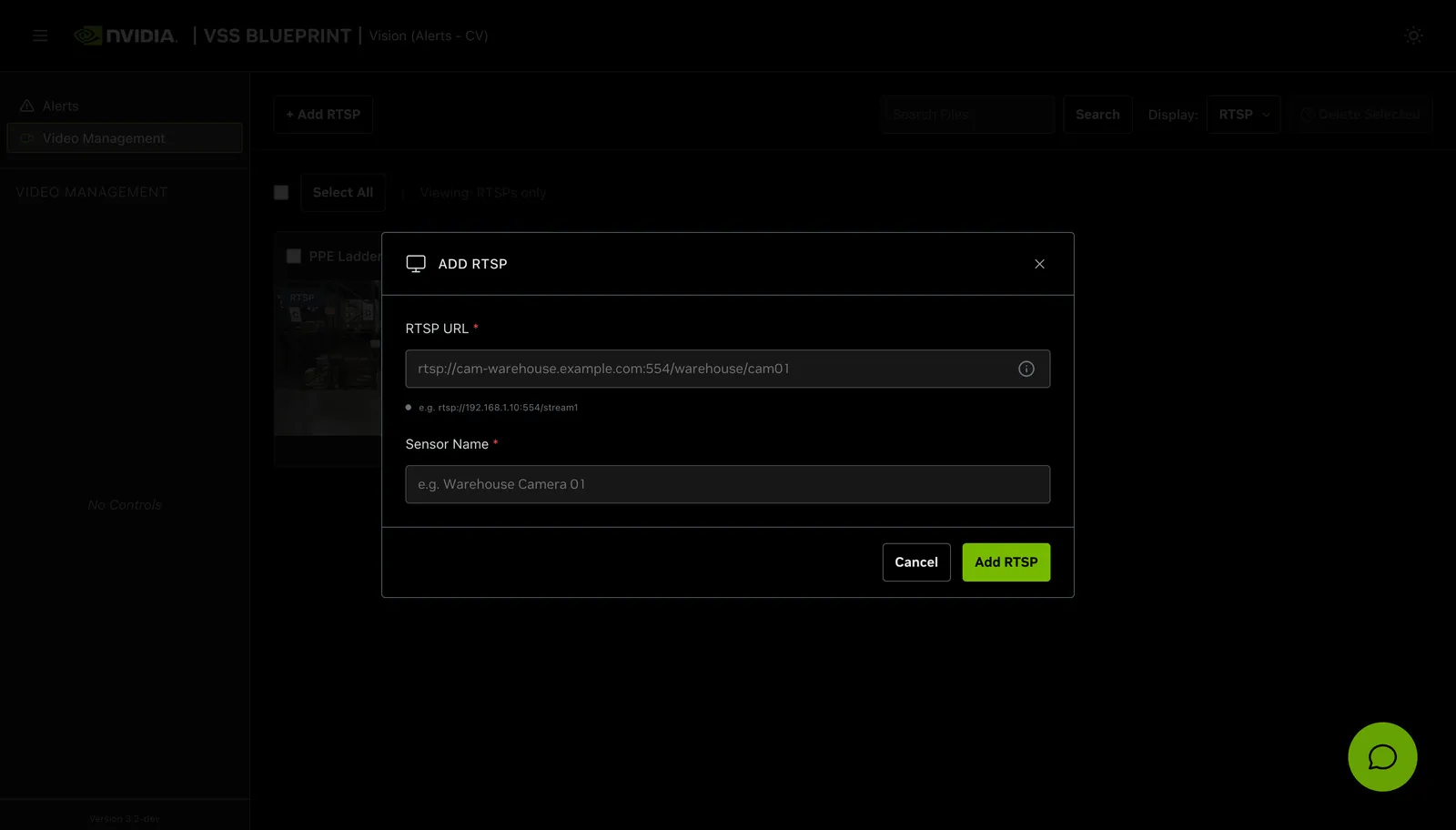
By default, this profile only supports up to one stream being processed at a time.
Step 3: Start a real-time alert
Launch the Agent UI at http://<HOST_IP>:7777/.
Use the Global Chat Sidebar to interact with the system:
-
Start an RTVI real-time alert for a stream by specifying the alert type.
- Sample prompt: Start real-time alert for boxes dropped on sensor warehouse_sample
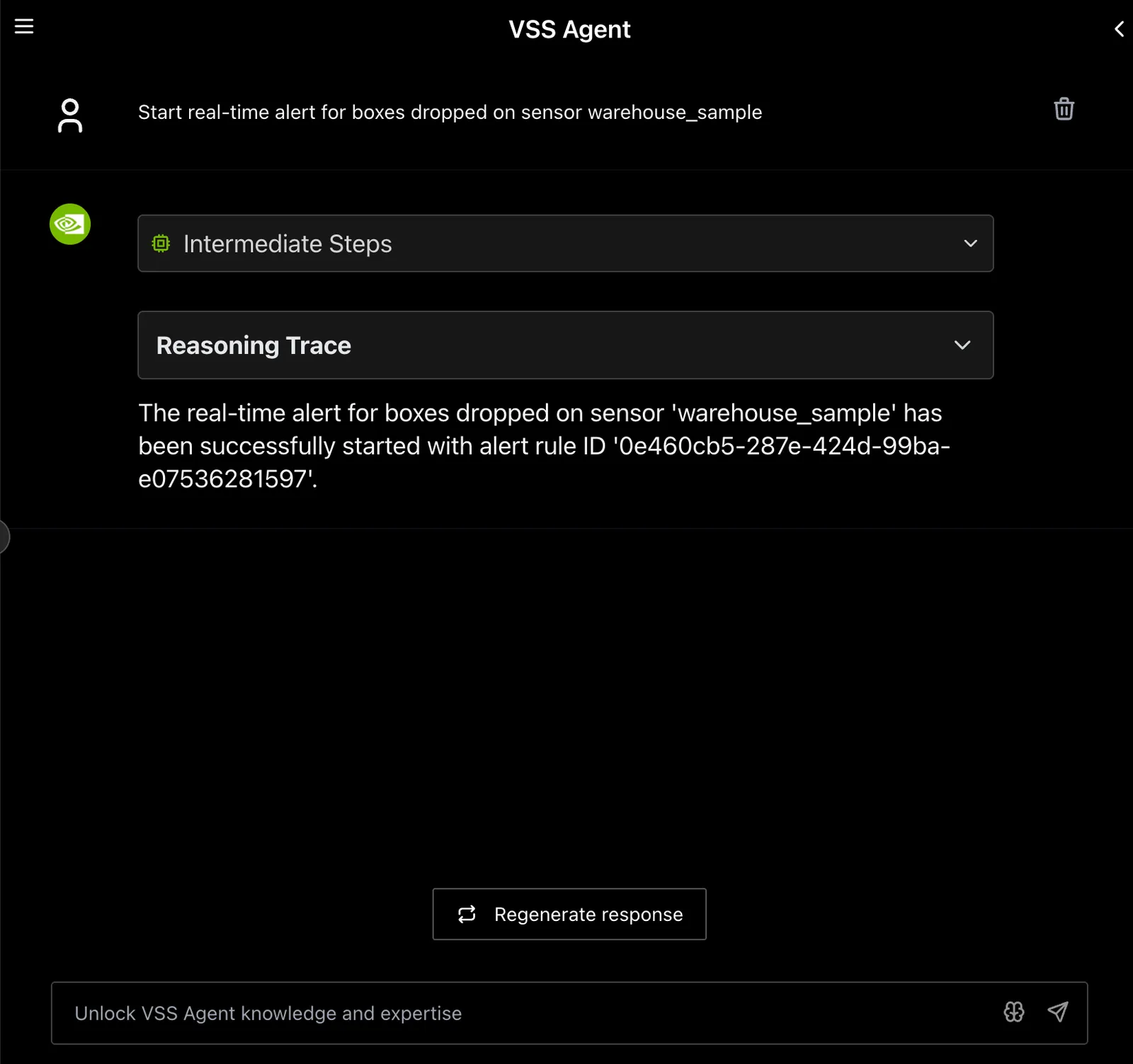
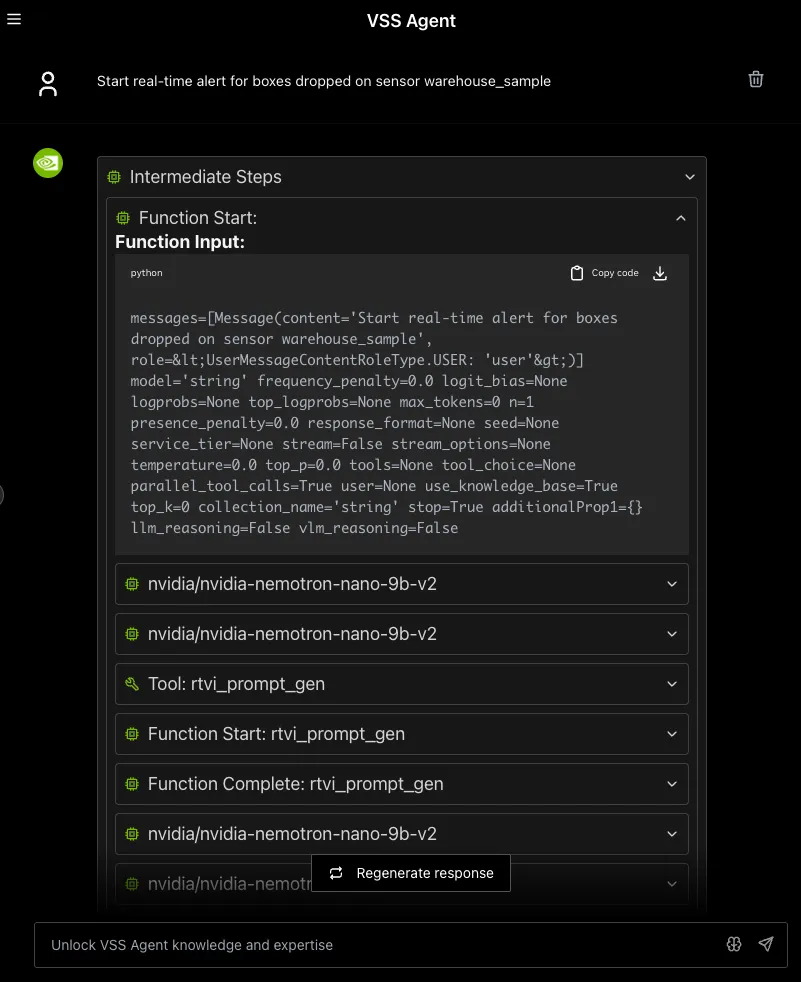
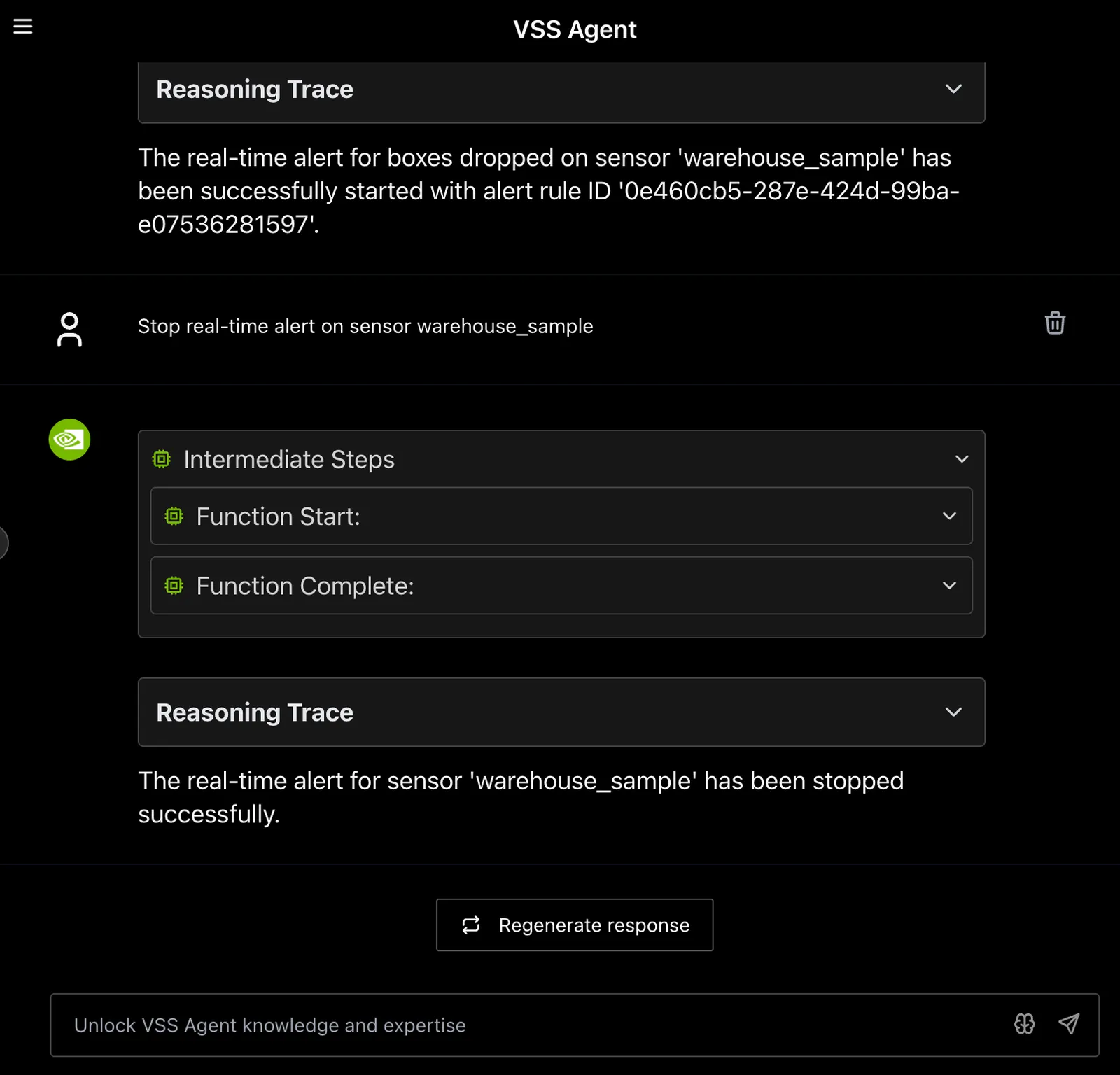
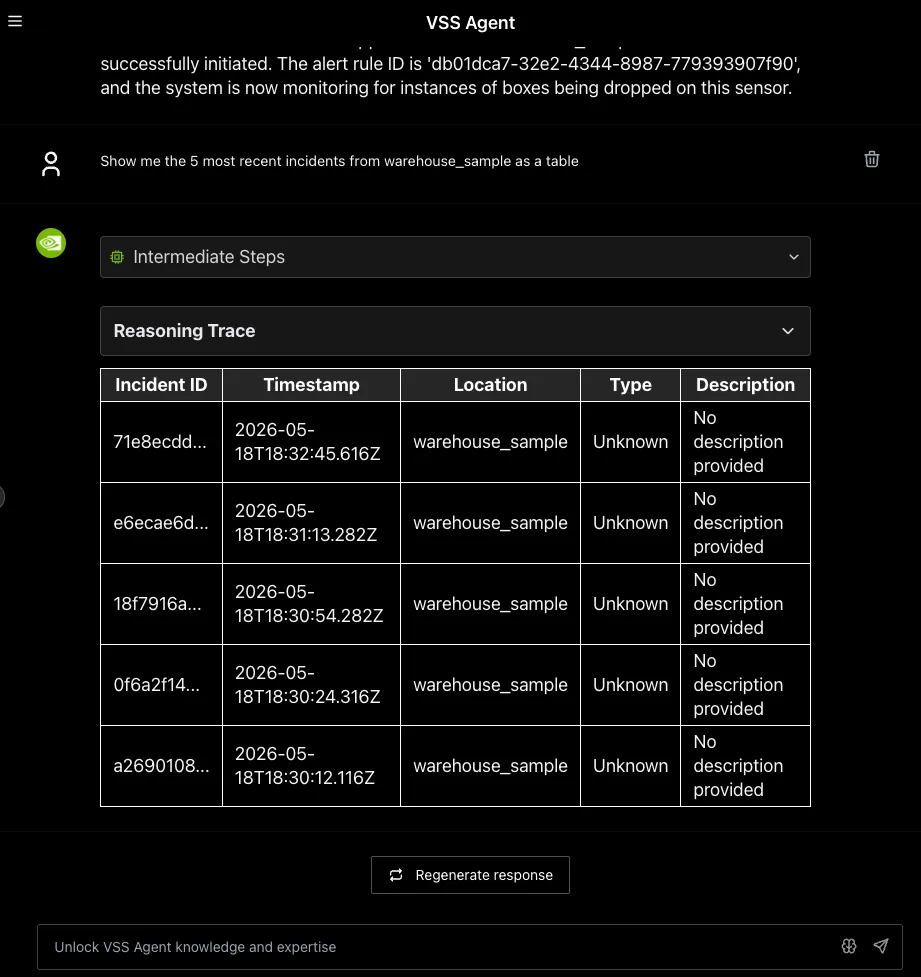
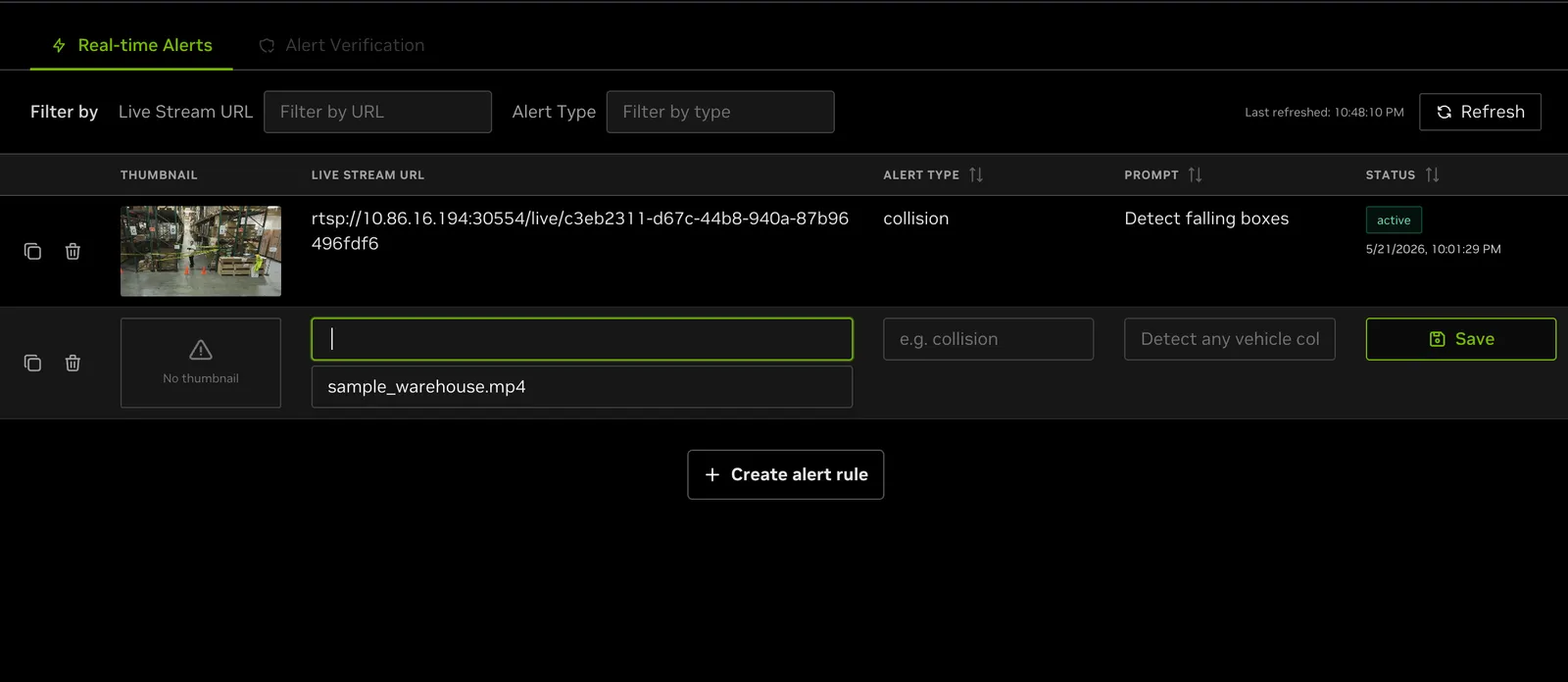
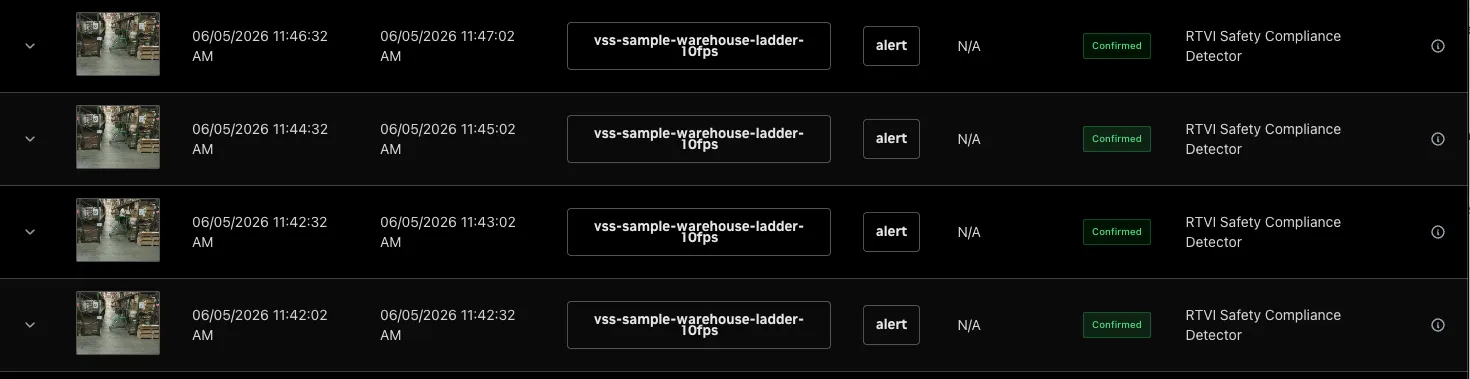
From the same Alerts tab, enable VLM Verified to view verified alerts for all active sensors.
Create a Rule with the REST API
For Docker Compose deployments, Alert Bridge listens on port 9080. Resolve the
sensor UUID and main RTSP URL from VIOS, then create the rule through Alert
Bridge—not directly through RT-VLM:
A successful create returns HTTP 201 and a body like:
Keep the returned id; it identifies the rule for GET /api/v1/realtime/{alert_rule_id}
and DELETE /api/v1/realtime/{alert_rule_id}. A real-time rule has no separate threshold,
sensitivity, or cooldown field. Tune the detection condition in prompt and
the evaluation cadence with the two chunk fields. The
alert_agent.event_filters settings documented for the Alerts Microservice
apply to upstream alert-verification event filtering, not to this real-time
rule payload.
Troubleshooting
If alerts do not appear in the VSS UI after you create an alert rule, check the following item:
- View the RTVI VLM container logs with
docker logs -f vss-rtvi-vlmand confirm that the alert rule was created and is being processed. If processing fails, confirm that the stream is valid and that the deployment has enough available GPU memory.
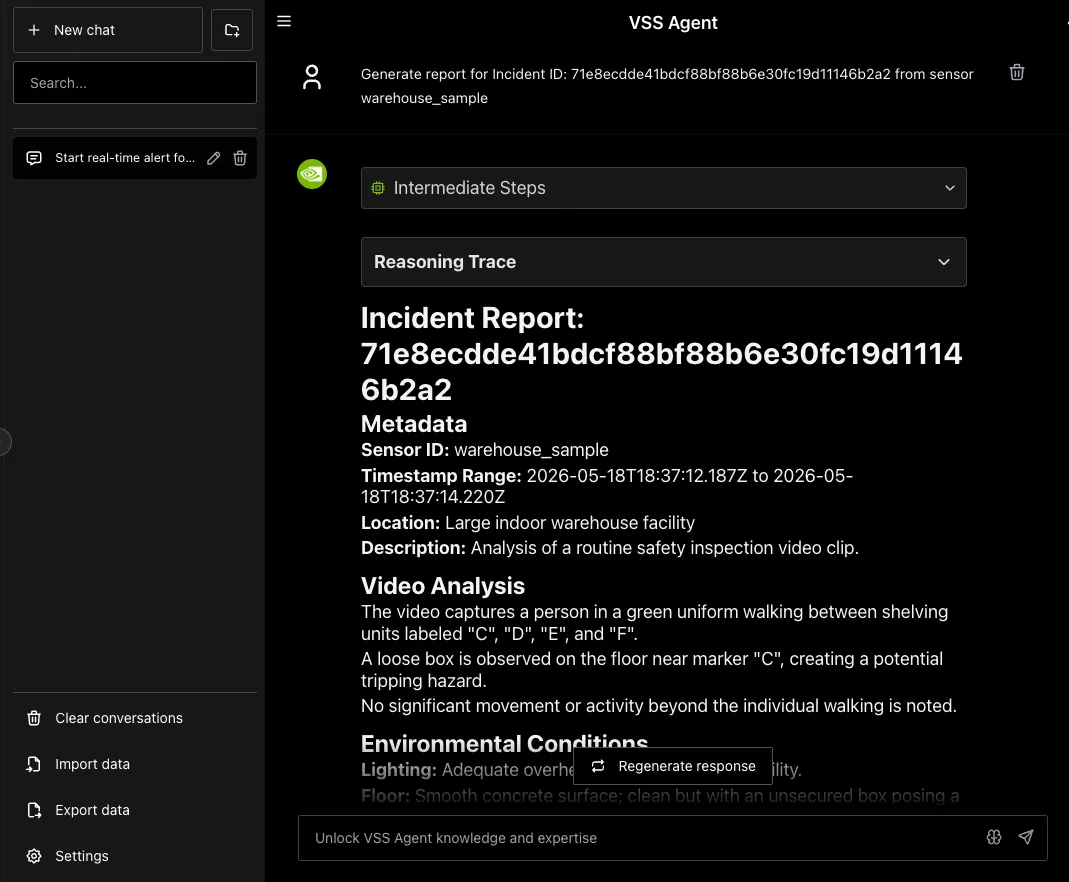
Step 4: Generate a Report for the Alert
You can use the chat interface to request creation of a report for the generated alerts. The report is currently generated in markdown format and displayed in the VSS UI.
As a first step, identify the alert ID for which the report needs to be generated. Use the chat interface to retrieve the ID as described earlier, or expand any alert in the Alerts tab to display the Id field along with associated metadata.
Now, use the ID to request generation of the report while also specifying the associated sensor, as shown in the sample image below.
Step 5: Teardown the Agent
To tear down the agent, run the following command:
This command stops the manually deployed real-time-alert containers and removes their Compose volumes.
Service Endpoints
The following endpoints apply to the stock manual Compose deployment. Build Vision AI reports the endpoints available in the deployment it creates; use that deployment summary instead of assuming every endpoint below is present.
The Jaeger UI is present only when the jaeger Compose profile is enabled; see OpenTelemetry Tracing in the Alerts Microservice page.
Known Issues
-
The default sample prompt may cause false positives on some streams. When using a video other than the default sample stream, update and make the alert prompt as specific as possible about the conditions to detect.
-
Only RTSP streams are supported as input when deploying the Alerts developer profile in real-time mode. Attempting to upload MP4 files directly to VIOS causes RTVI VLM errors.
-
Removing a camera from VIOS with always-on alerts enabled can leave an orphaned RT-VLM stream record even though the
camera_removewebhook reports success. Alert Bridge stops caption generation and deletes the stream concurrently; RT-VLM can reject the delete with HTTP 409 while shutdown is in progress. Alert Bridge removes the in-memory rule despite the delete failure, so subsequent VIOS retries return HTTP 200 without cleaning up the stale record. The camera UUID can remain inGET /v1/streams/get-stream-infoafter the pipeline stops. Workaround: Wait for caption shutdown to complete, then retry the RT-VLM stream delete for that camera UUID. This issue affects automatic camera removal teardown. -
Deleting a real-time alert rule for a camera that has multiple rules causes all other rules for that camera to stop producing alerts, even though they remain listed as active.
-
It is recommended to clear chat and refresh the VSS UI page after deployment to clear any data from a previous deployment.
-
VSS-RTVI-VLM logs may repeatedly show a “Generated text is empty” warning and result in incomplete/unreliable alert verdicts
-
VLM verdict verification can fail in the UI even when VLM requests are processed successfully. Alert Bridge response parsing accepts only raw verdicts such as
A/BorYes/Nobefore serializing them toconfirmedorrejected. As a result, a semantically validrejectedverdict from Cosmos Reason can fail schema validation and be persisted asverification-failed. -
Report generation may produce inaccurate results.
-
The VST UI is externally accessible on both port 30000 and 30888 because both ports are exposed on the host network. For security hardening, consider using a firewall to allowlist only the required VST ingress port.