

VIOS Microservices
Overview
Video IO & Storage (VIOS) Microservice provides an efficient way to manage cameras and videos, especially in scenarios where AI is the main functionality.
VIOS features hardware-accelerated video decoding, streaming, and storage. VIOS is easy to integrate with your video analytics application, through its REST API. It also includes a reference web UI for efficient management of your devices.
Key Features
VIOS auto-discovers ONVIF-S compliant IP cameras, and allows use of custom IP stream as video source. It then allows for video to be stored, played back at various speeds, or paused at any frame:
- Support ONVIF S-profile devices, ONVIF profile-T for H.265 encoding devices, ONVIF discovery with control and data flow.
- Manage devices manually by IP address and/or RTSP URLs.
- Video storage and recording with aging policy.
- RTSP proxy URL in pass-through and multi-cast mode.
- Media streaming using hardware-accelerated WebRTC and DASH protocols for live and recorded videos.
- Recorded playback supported with 2x,4x,8x FF, overlay & snapshot support.
- Supports both H.264 and H.265 video formats.
- Video wall feature which provides composite view of multiple webrtc streams.
- Provide REST APIs to write client application to control and configure VIOS.
- Support Redis/Kafka message bus to publish device add/remove events.
- Support outbound HTTP webhooks to deliver the same device events to external services (refer to Notification Config).
- Prometheus/Grafana integration for publishing VIOS statistics.
- Derive insights about the current status of VIOS.
- Cloud native. Deploy as a container.
- Supports milestone adaptor for fetching data from milestone VMS.
We included binary for a web-based client that allows to view live and recorded content, as well as to modify camera and stream configuration (Web-UI Viewer).
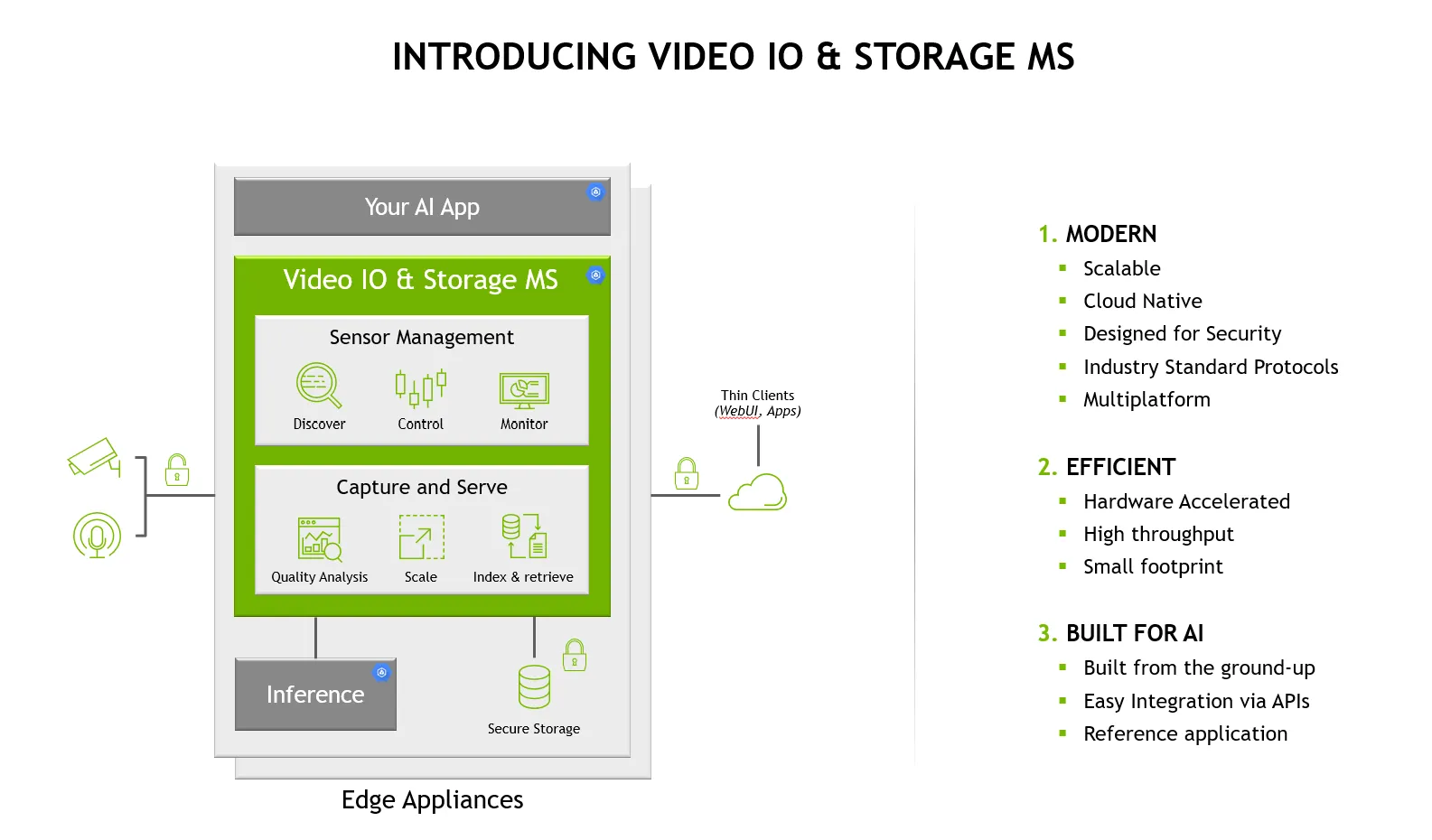
VIOS Modular Diagram
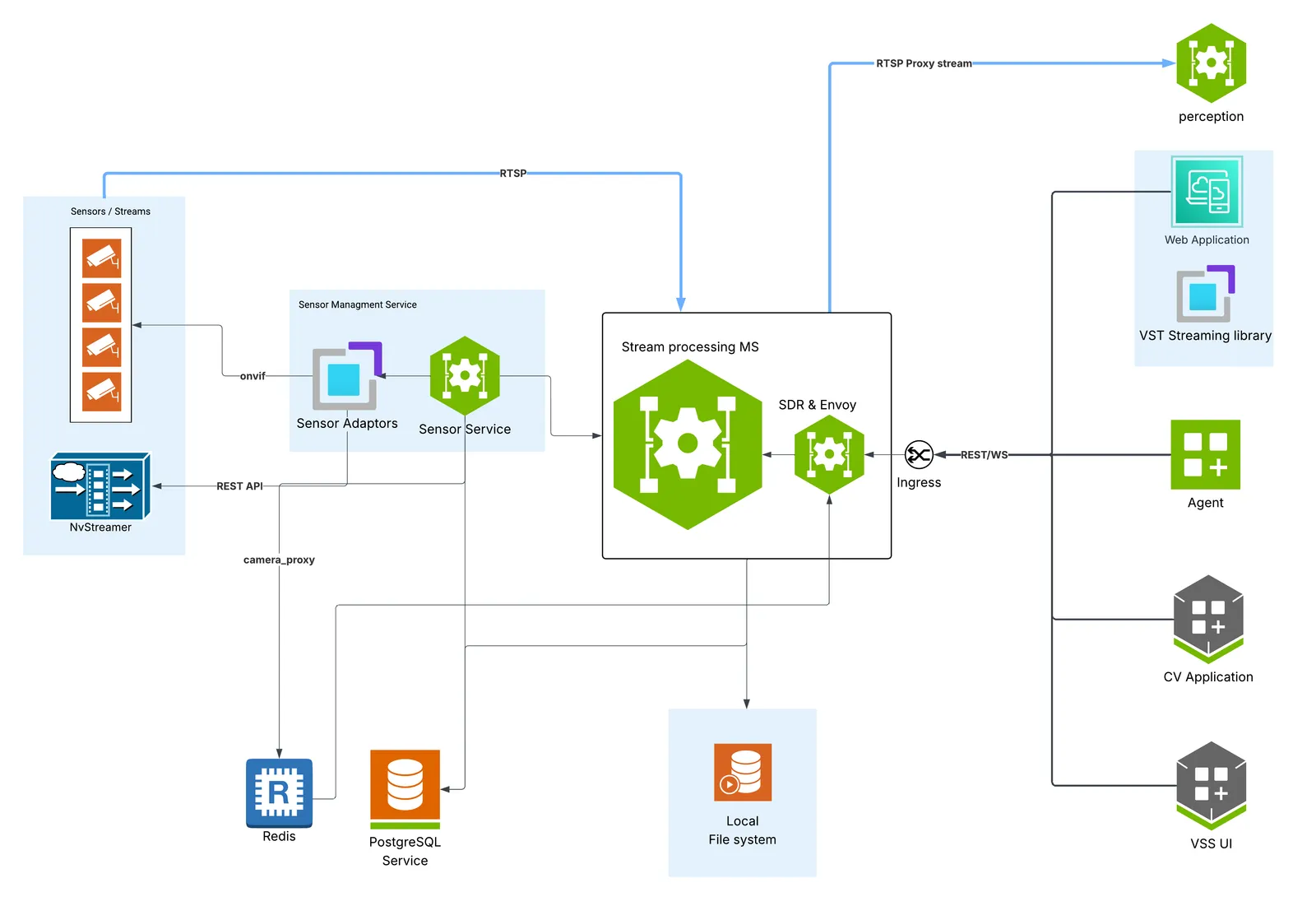
VIOS is built as a collection of cooperating microservices that together provide a unified platform for video streaming and processing. It integrates RTSP proxying, WebRTC and DASH streaming, recording, and storage into a single solution capable of real-time video ingestion, low-latency playback, and long-term archival.
The following diagram illustrates the high-level architecture of VIOS. Each service is responsible for a specific aspect of the system, and the list that follows describes the role of each component.
- Sensor Management Service: A comprehensive system designed to facilitate the administration and control of sensor-related functionalities. It handles sensor discovery, configuration, and stream management through dedicated sensor services and adaptors, and provides efficient management of sensors across the network. This service exclusively owns the sensor REST API surface — Sensor Management API (prefixed with
/v1/sensor). - Unified Stream Processing MS: A unified microservice that consolidates RTSP proxying, live and replay (recorded) WebRTC/DASH streaming, recording, and media storage into a single service. It handles video stream transformation, file ingestion, content download from ingested files, routing, and protocol conversion for real-time video ingestion, low-latency playback, and long-term archival. It exposes every stream- and media-related REST API in VIOS — Proxy Stream Management API (
/v1/proxy), Live Stream Management API (/v1/live), Record Stream Management API (/v1/record), Replay Stream Management API (/v1/replay), and Storage Management API (/v1/storage) — covering the entire VIOS API surface except the sensor APIs, which are owned by the Sensor Management Service. - Storage Layer: Multi-tier storage system supporting Redis for caching, PostgreSQL for metadata, and local filesystem object storage for video content.
- Client Interfaces: Support for various client types including web applications, perception services, computer vision applications, and the VSS UI.
- Ingress: A service that handles the ingress of the HTTP requests to the VIOS microservices.
- SDR Agent: A service that handles the workload distribution and service discovery for the scalable Unified Stream Processing MS instances.
- Envoy: A service that handles the Envoy proxy for load balancing and routing requests to the scalable Unified Stream Processing MS instances.
VIOS MS Horizontal Scaling
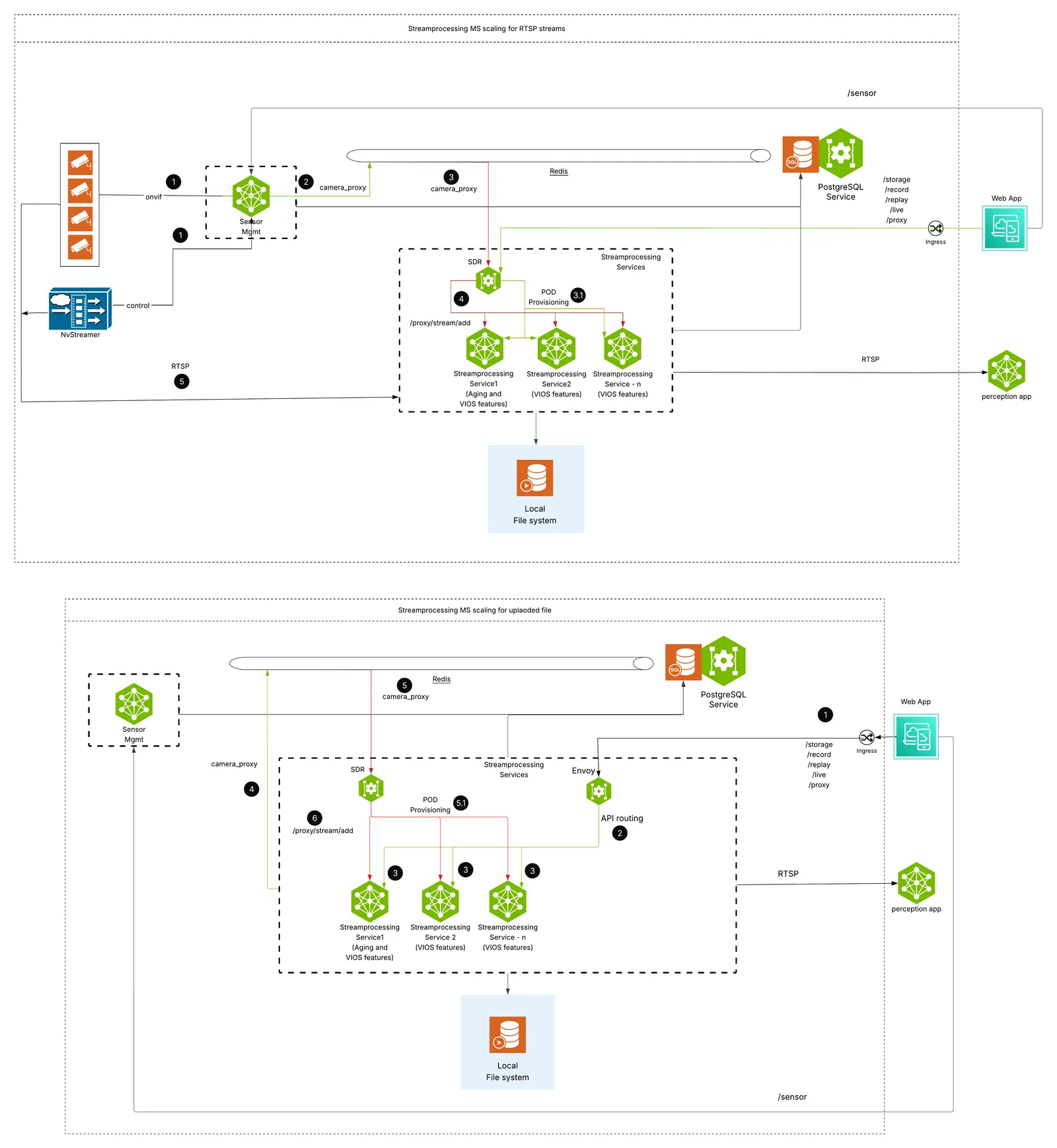
The Unified Stream Processing MS is designed to scale horizontally to handle increased workloads and provide high availability. The Sensor Management Service runs as a single instance and is not part of the horizontal-scaling fleet.
Horizontal Scaling Capabilities:
- Multiple Stream Processing instances: Deploy multiple Unified Stream Processing MS replicas behind the SDR Agent and Envoy proxy to distribute the workload.
- Load Distribution: Camera streams and video processing are distributed across the Stream Processing MS replicas.
- High Availability: Continuous operation is preserved even if individual Stream Processing MS instances fail.
- Shared Storage: All Stream Processing MS replicas access the same shared storage backend (local filesystem).
- Centralized Database: A single PostgreSQL database provides centralized configuration and metadata management shared by all Stream Processing MS replicas and the Sensor Management Service.
The diagram below illustrates the horizontal scaling architecture:
VIOS Microservices
The following table lists the microservices and containers that make up the VIOS Docker Compose deployment.
Notes:
1) The container names shown above apply to the Docker Compose deployment of VIOS.
2) The Sensor and Unified Stream Processing MS share a single container name across all four deployment profile variants.
Storage Calculation
The required storage can be calculated using the following formula:
Example Calculation for 1 stream at 8 Mbps for 1 day:
- Bitrate: 8 Mbps
- Duration: 1 day = 24 hours × 60 minutes × 60 seconds = 86,400 seconds
- Storage = (8 × 86,400) / 8 / 1024 = 84.375 GB per stream per day
General Formula:
For multiple streams, multiply by the stream count:
For operational planning, actual storage requirements may vary based on encoding efficiency, variable bitrate settings etc. So add a buffer of ~10–20% to the calculated storage requirements.
To configure required storage, set the total_video_storage_size_MB parameter in the vst_storage.json file, refer to Storage Config.
Cameras Tested in VIOS
Usage & Configuration
Reference Web App
Default URL: http://<IP_address>:30888/vst/
VIOS deployment can be verified using a web-based application binary. Please note: at this point the web-based application is only available for Chrome browser running on Linux, Windows or macOS. The UI can be accessed on any viewing machine on local subnet. The following instructions refer to same host. Substitute ‘localhost’ with IP address of your viewing machine.
- Launch Chrome browser
- In the address bar enter
http://<IP_address>:30888/vst/
The VIOS web-based UI allows for seamless and hassle-free discovery of most ONVIF-S compliant cameras.
Although a relatively short list of models are guaranteed to work with VIOS release, any fully ONVIF-S compliant camera you might already have purchased should work with this release as well. Contact us if your cameras are not working.
VIOS will auto-discover, and attempt to communicate with any ONVIF-S camera attached downstream of the host. Once discovered, VIOS will attempt to communicate with the camera, to retrieve its settings and parameters, and populate the web UI.
There is a good chance that your camera has been secured by a custom username and password prior to the first VIOS use. In such a case (even though the camera would be discovered) VIOS might not be able to communicate with it immediately.
This short guide will explain how to ensure that you can see live and recorded content from new or previously used ONVIF-S cameras.
Dashboard
Open a web browser (Chrome is required for best video streaming experience) at http://<IP_address>:30888/vst/. Enter admin for username and password if prompted otherwise ignore it. The following page will be displayed upon successful login:
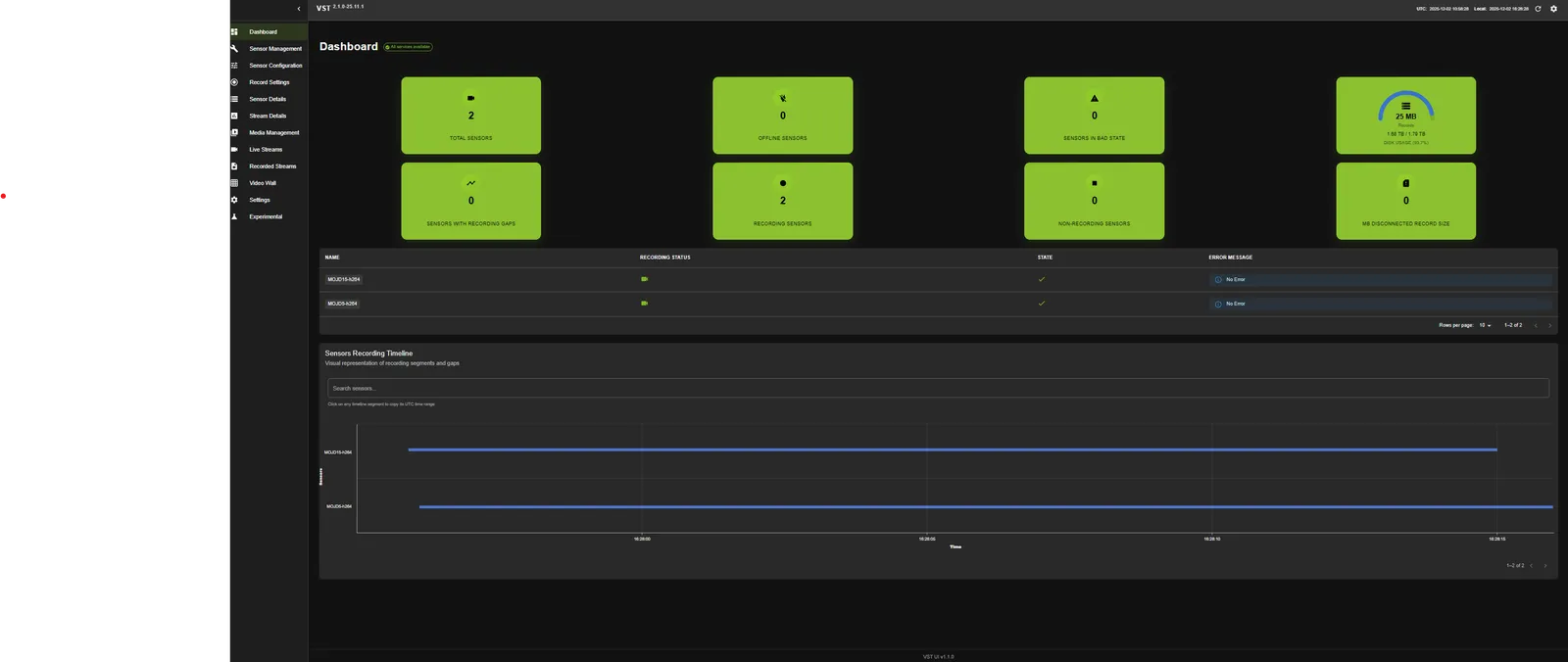
As the page opens, it shows overall health of VIOS, information about VIOS Devices, Sensors discovered, Record Size. Also, it shows the vital information about sensors such as Record Status, Sensor Status etc.,
User options like Home, Profile, Settings, etc., are not implemented in current release.
Sensor management
Cameras that had been discovered will be listed. If VIOS discovered the camera, but was not able to communicate with it, the camera status indicates a lock icon. If the lock icon appears, navigate to ‘Sensor Management’ tab, and click on ‘Sensor Credentials’ section as displayed in the following image:
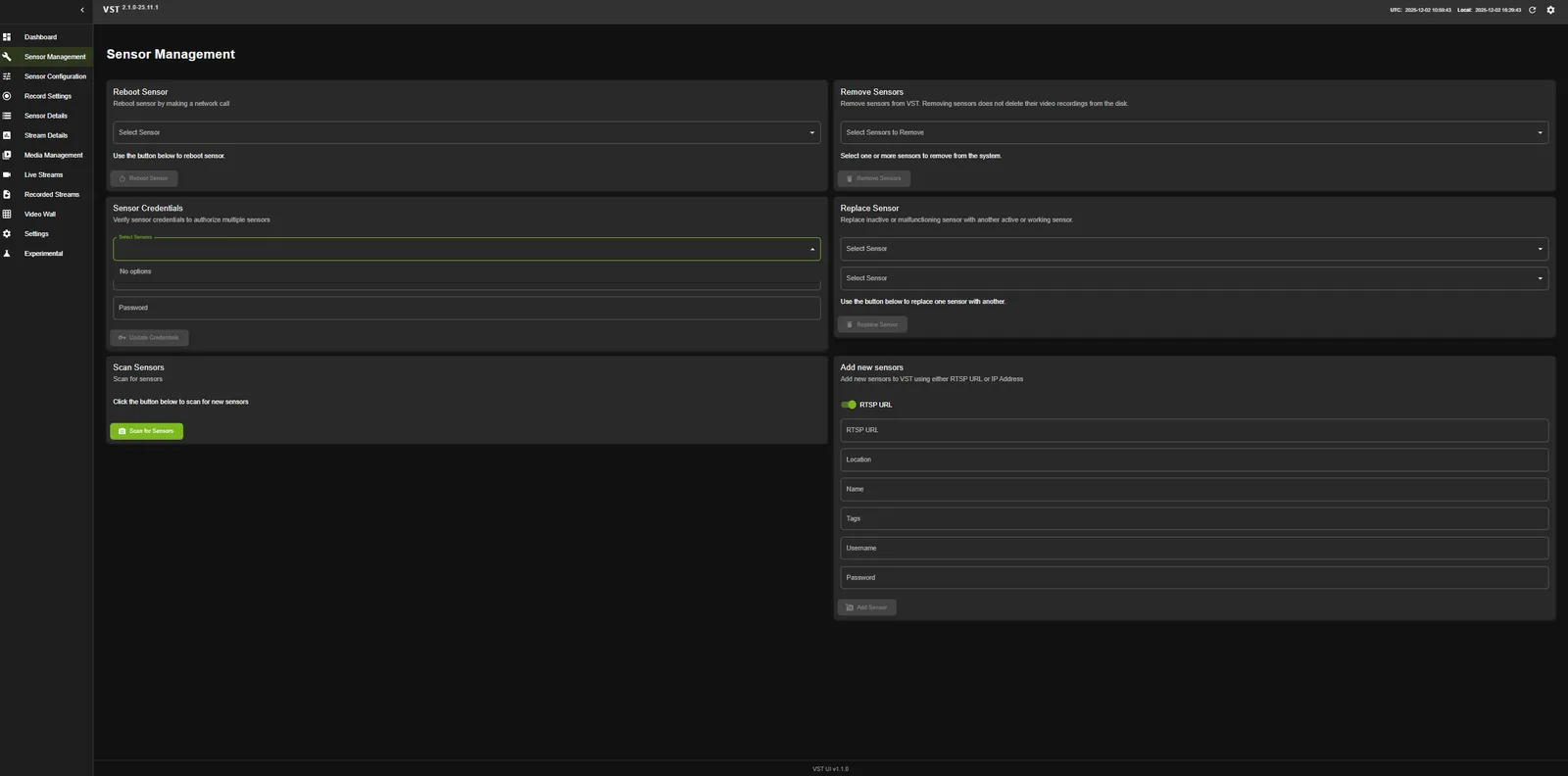
-
It should now be possible to stream from all the cameras attached to VIOS.
-
If you do not remember your camera’s custom username or password, you might need to perform a hardware factory reset for that camera, re-start VIOS, and consult that camera’s guide to set its username and password again.
-
VIOS is now aware of usernames and passwords for all cameras, and is ready to stream live video from the auto-discovered ONVIF-S sources.
Add sensors
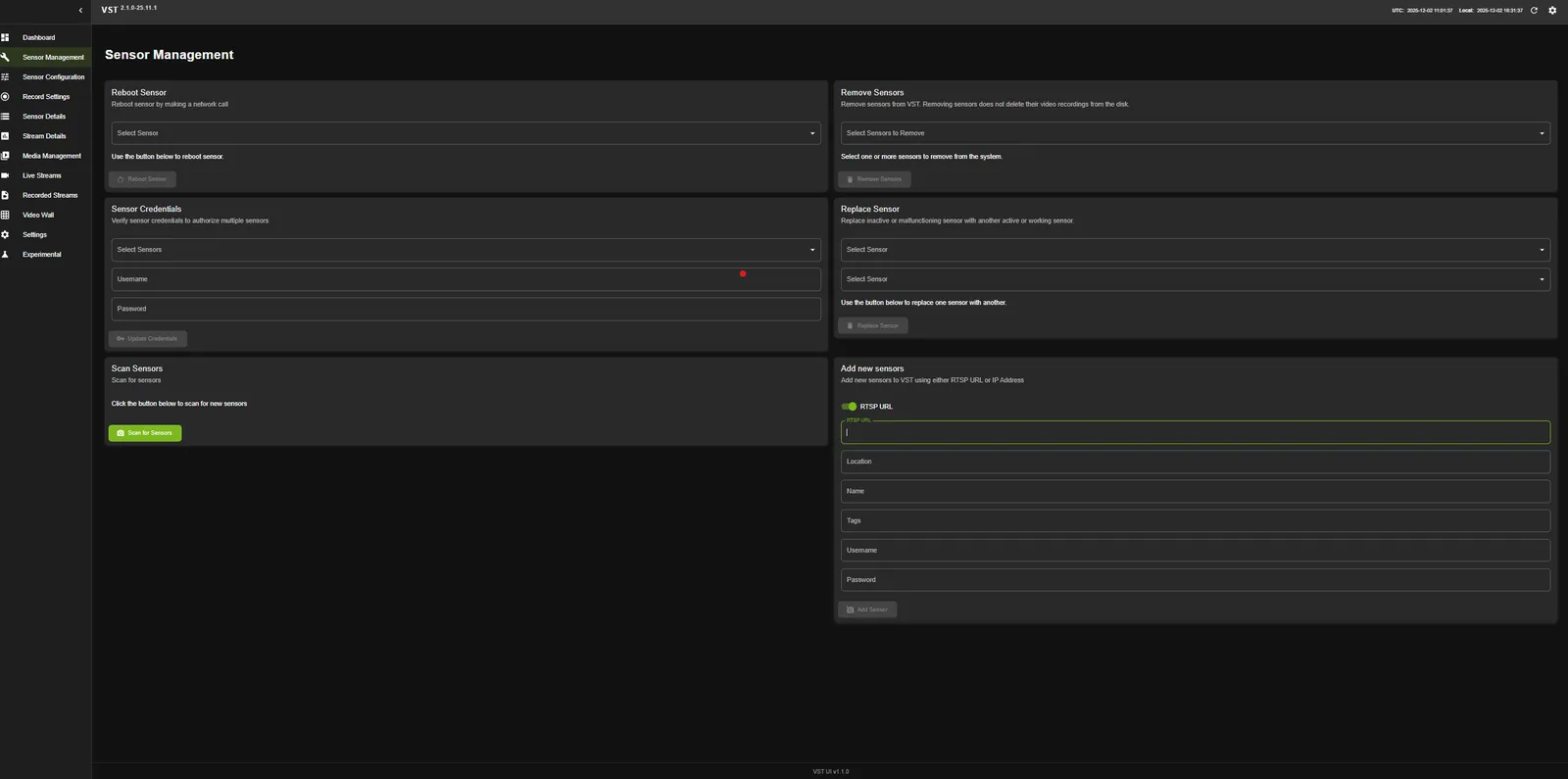
- Add Cameras/Streams from VIOS webUI: To manually add camera into VIOS, navigate to Sensor Management tab, and go to Add device manually option. To Add ONVIF compliant camera using IP option click on IP button then provide ip address, username, password fields. Remaining fields are optional. If you want to add directly RTSP url, click on RTSP option and provide RTSP url, username, password.
- Add Cameras/Streams from NVStreamer: To add streams from NVStreamer, VIOS provides a mechanism with the help of RTSP Stream Config file. You can provide the NVStreamer endpoint.
- Add Cameras/Streams using RTSP URLs: To add streams from RTSP URLs, VIOS provides a mechanism with the help of RTSP Stream Config file. You can provide the RTSP URL, username, password.
You can see a screen as displayed in the following image:
Remove sensors
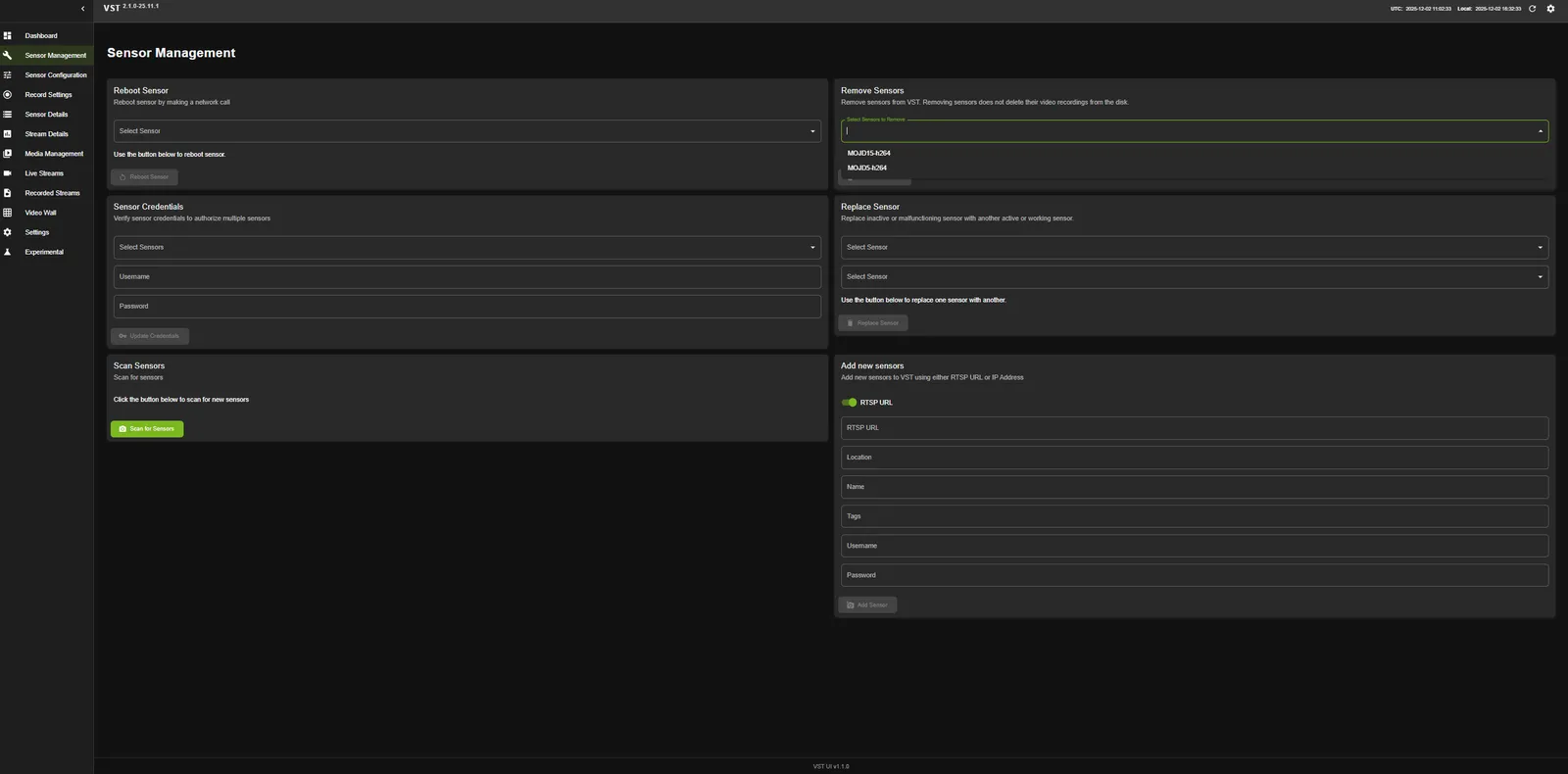
To remove the sensor from VIOS, navigate to Sensor Management tab, and go to Remove sensor option. Select the sensor from dropdown list and click on Remove button as displayed in the following image:
Live streams
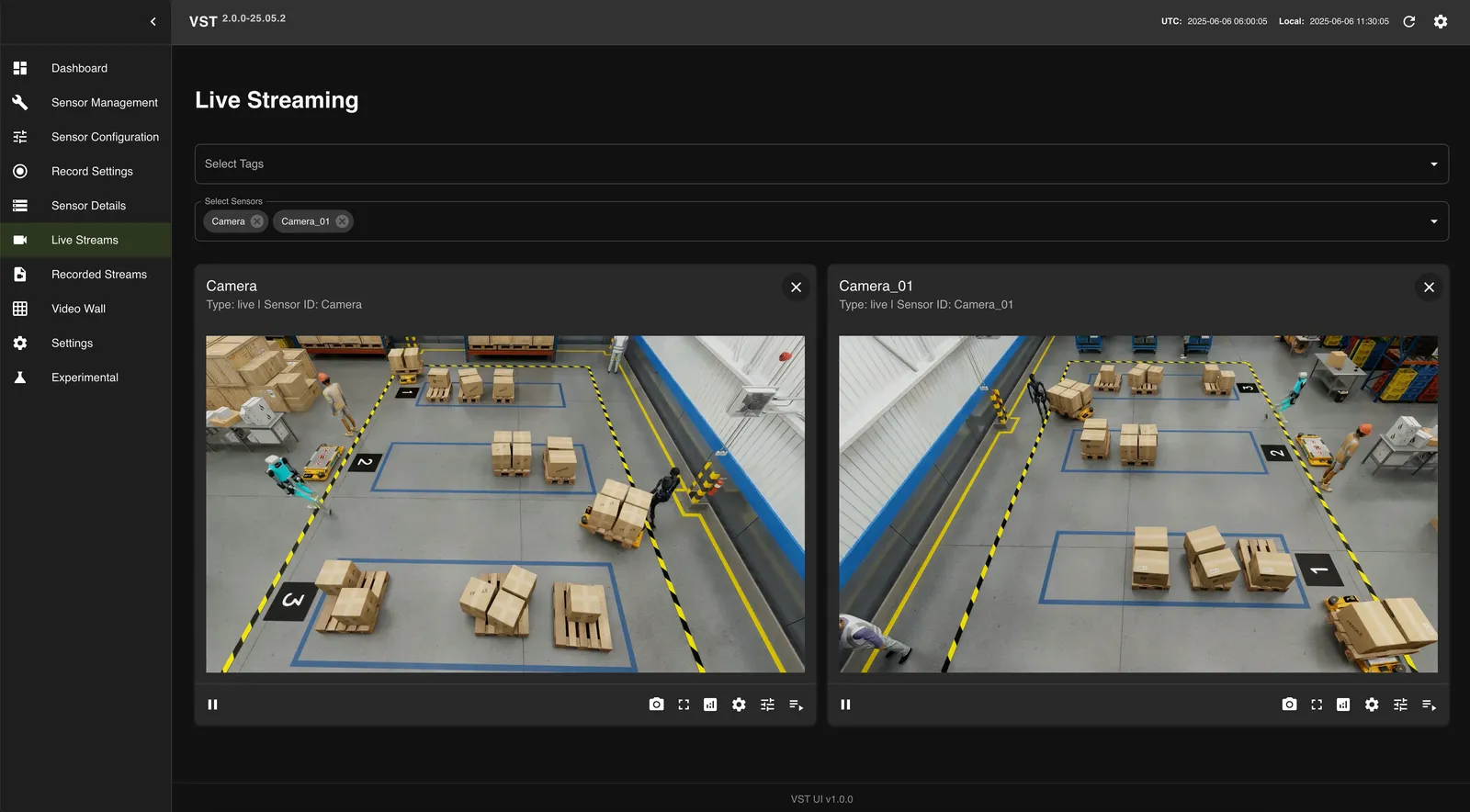
Navigate back to the Live Streams tab, click on the center drop-down list, and select the first camera on the list. A black rectangle will appear on the UI, and the camera’s IP address will be displayed on top of the drop-down list. Repeat the same with up to max cameras supported. You should see a screen similar to the following:
- It can take a few seconds for the VIOS to commence live streaming. If you see a constantly revolving crescent for a prolonged amount of time - please try to restart the browser.
- VIOS has been tested extensively with Chrome and we are aware of existing problems while streaming through alternative browsers.
Recording management
Setting
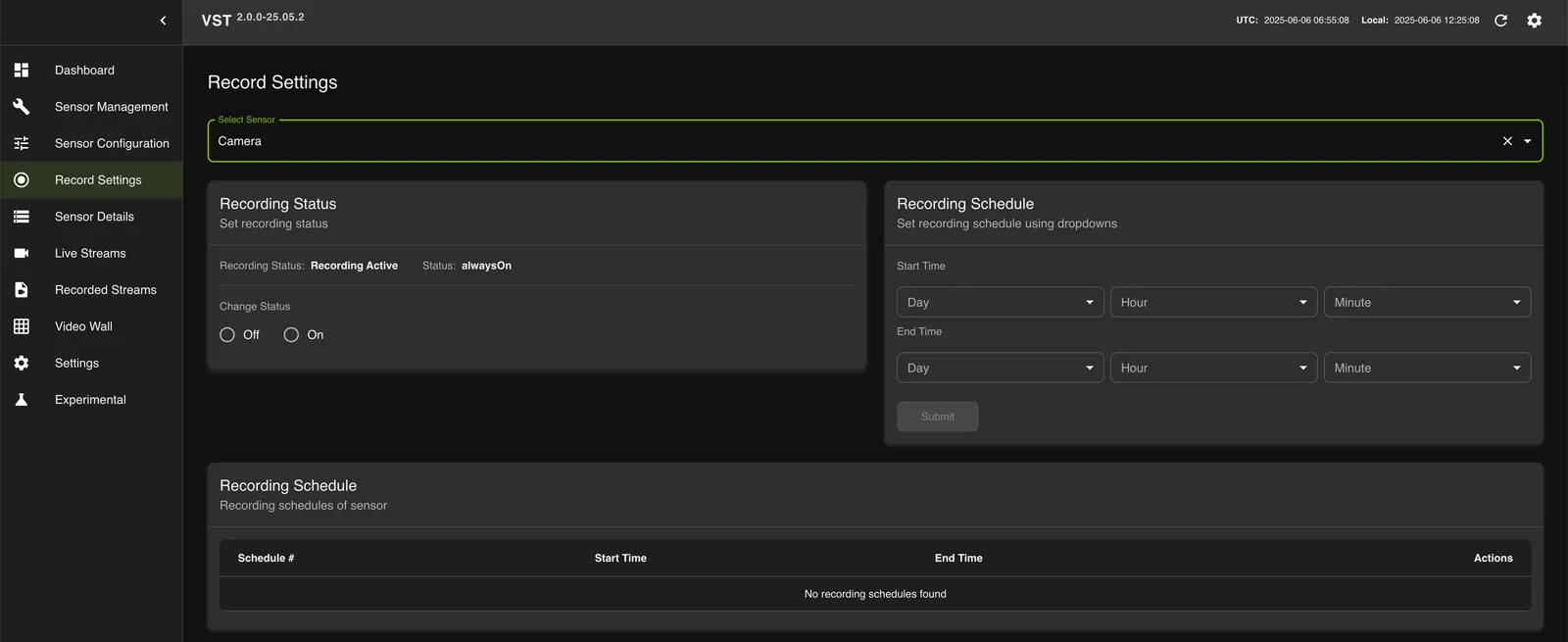
Now that you are able to stream live video, it is time to try out recording. Navigate to the Record Setting tab, and select camera from drop down list:
All recordings will be saved to your local storage; older recordings will be overwritten with newer ones automatically should VIOS run out of the disk space.
Playback recordings
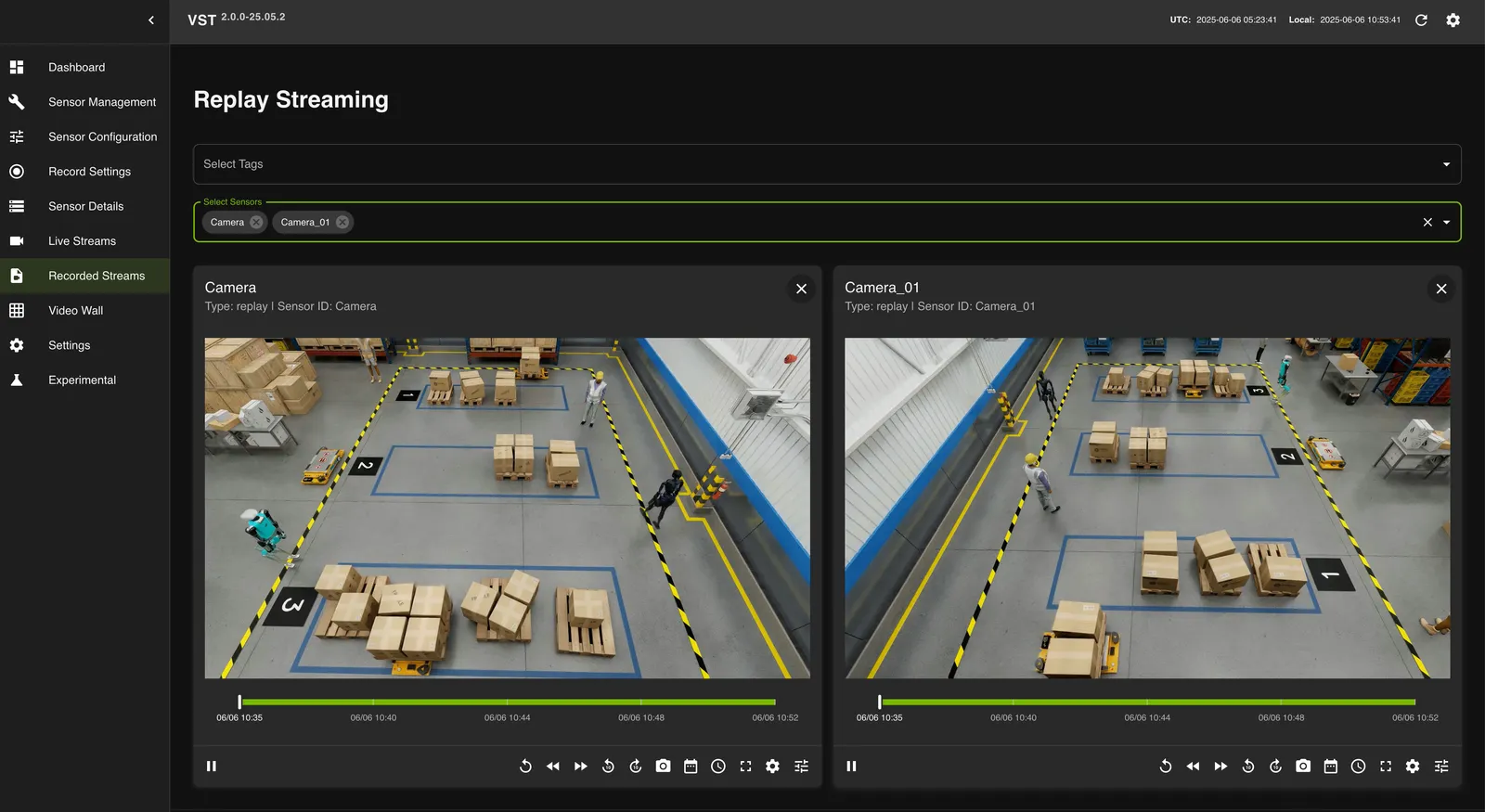
Now that you are able to record video, it is time to try out recorded playback feature of VIOS. To playback the recordings, navigate to Recorded Streams tab and select a video stream.
Some options:
- It provides options such as pause, fast playback 2x,4x,8x etc.
- Snapshot option to take screenshot of currently playing frame.
- Other options like overlay, time-range playback, quality selection etc.
Playback overlay on Live and Recorded Streams
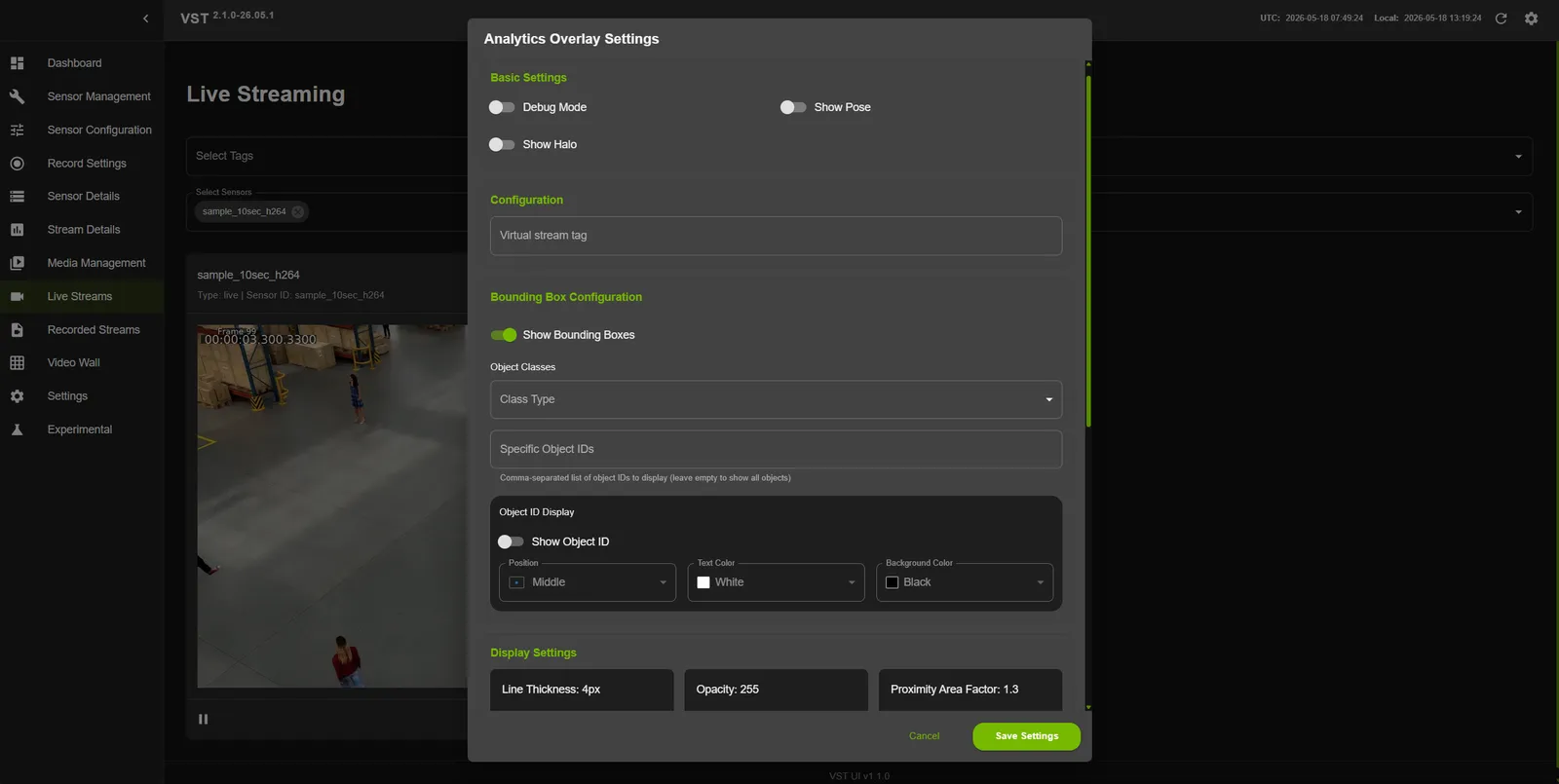
Now that you are able to playback recorded video, it is time to try out Overlay Feature of VIOS in Live and Recorded Streams. To enable bounding boxes on the video, navigate to Recorded Streams tab or Live Streams tab and select a video stream then select overlay option from the video player and enable it.
Some options:
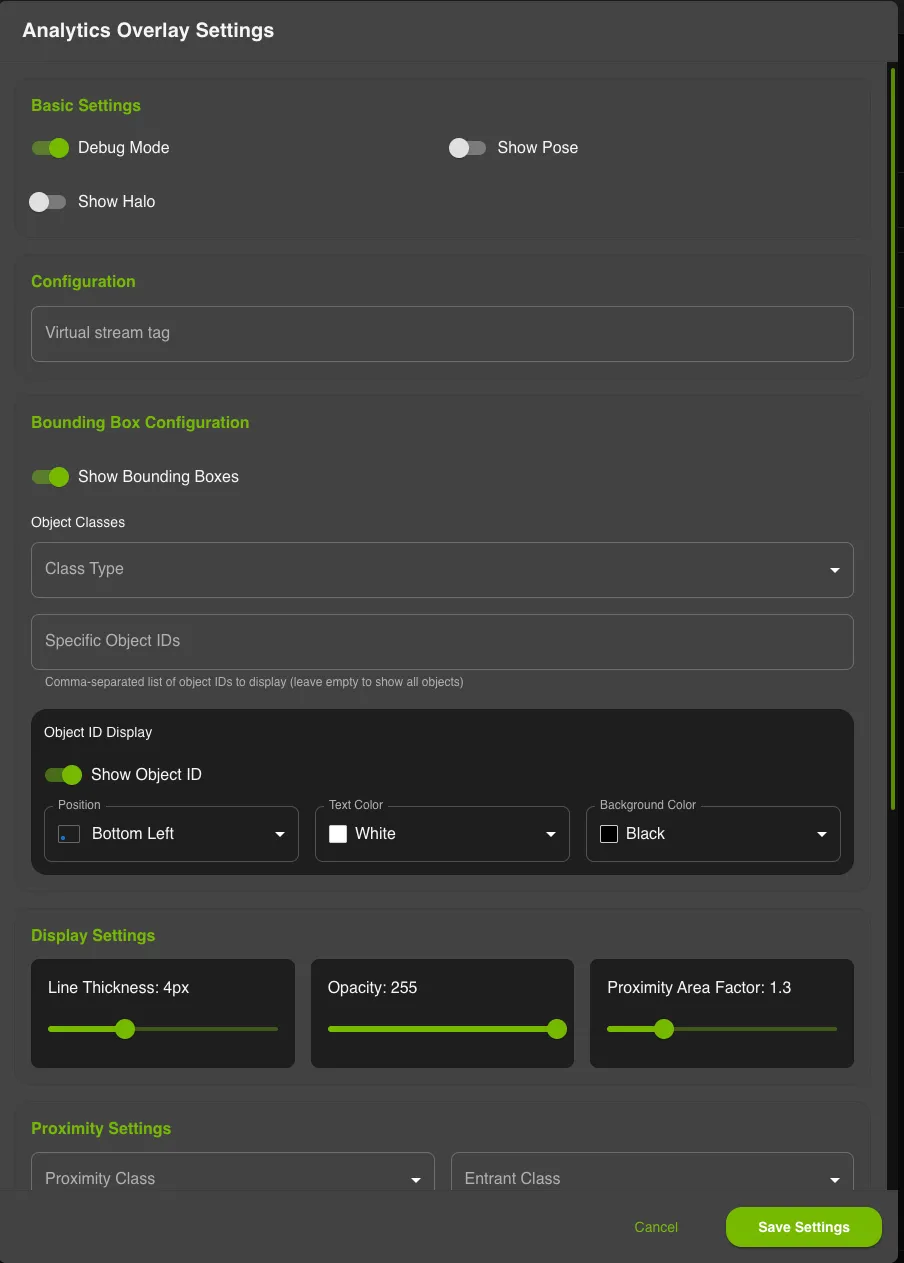
- Analytics Overlay Settings tab is used to enable / disable Bounding Boxes, Debug Mode
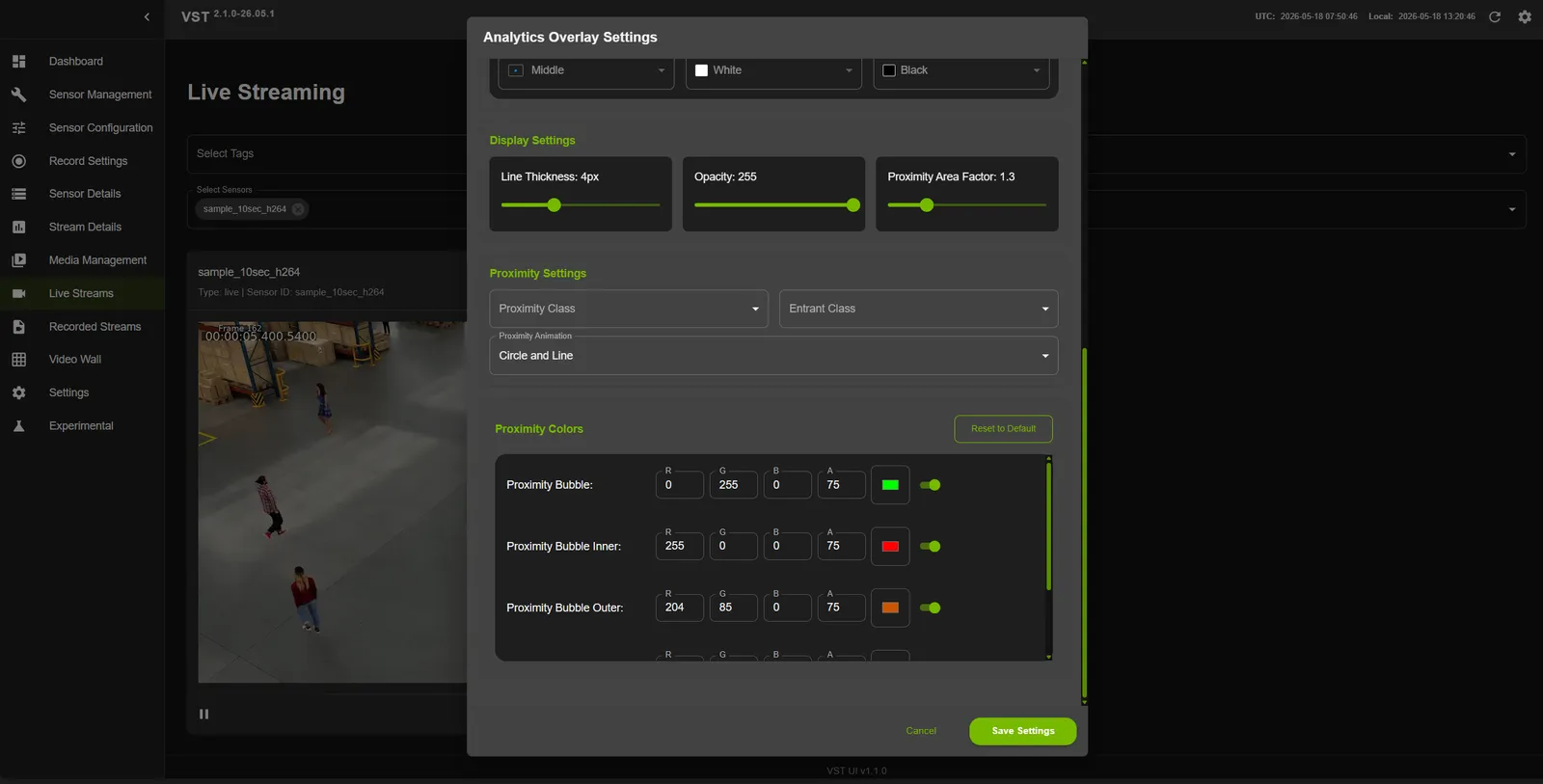
- Proximity Settings tab is used to set the proximity classes and entrant classes of the objects, along with the area factor and proximity animation.
- Color Settings tab is used to set the color of the bounding boxes for different object classes also the proximity bubble colors.
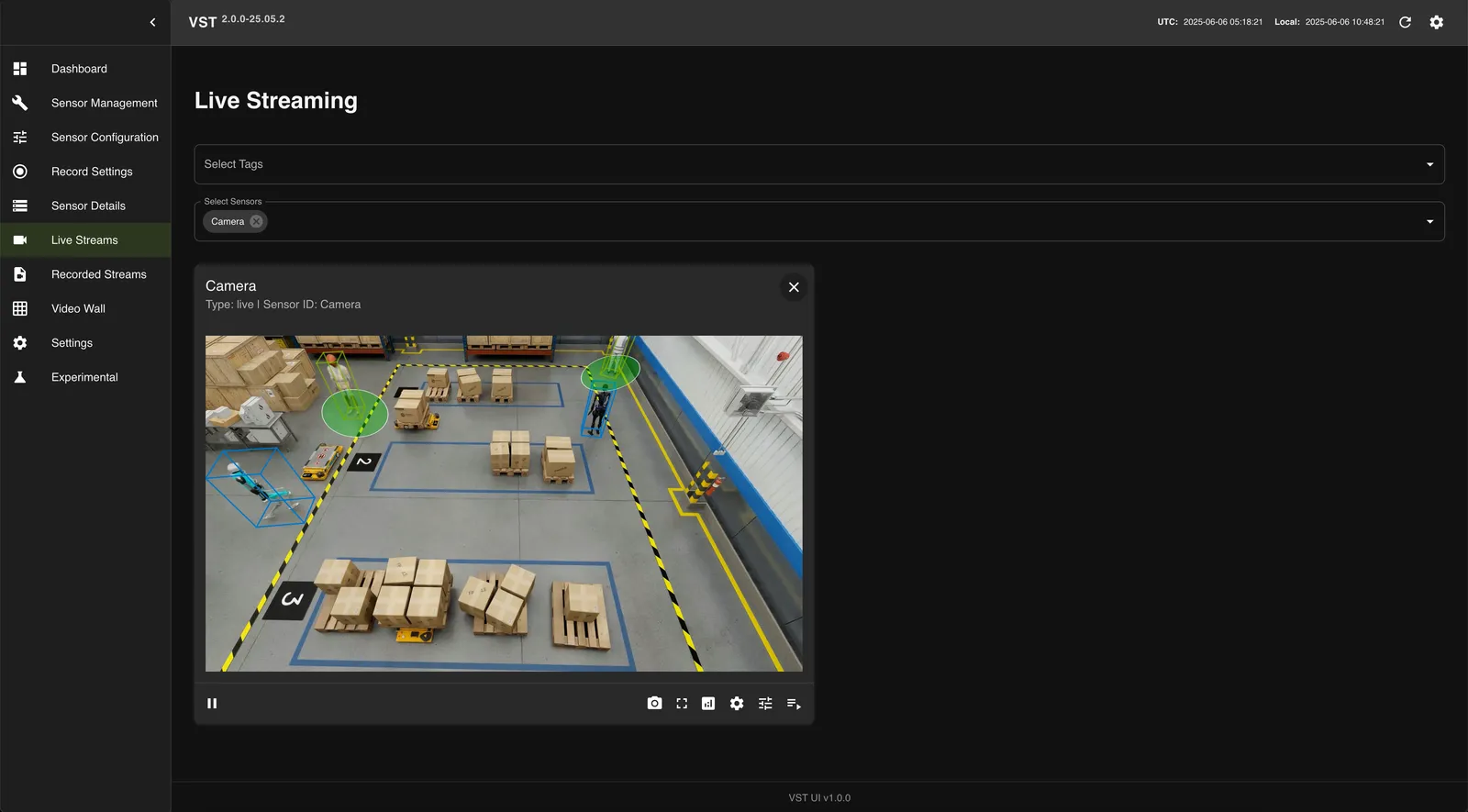
Display Object IDs in Warehouse Profiles
Enable the video player’s analytics overlay, then open Analytics Overlay Settings. Object ID display depends on the warehouse profile:
Click Save Settings to apply the changes. In the 2D settings, leave Specific Object IDs empty to show all objects, or enter a comma-separated list to filter the displayed objects.
Playback overlay on Video Wall
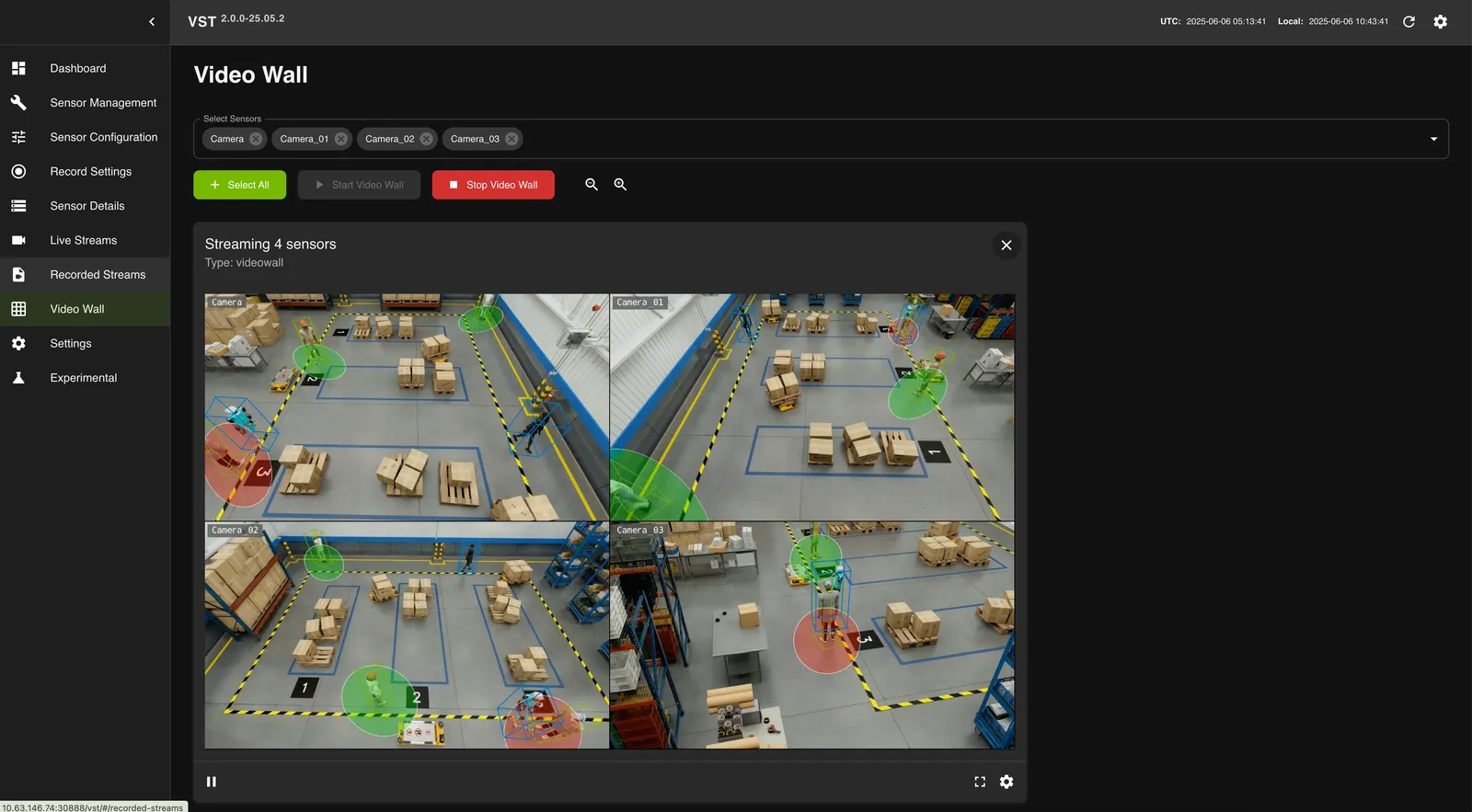
Now that you are able to enable Overlay Feature of VIOS in Live and Recorded Streams, it is time to extend the Overlay Feature of VIOS in Video Wall. To enable bounding boxes on the video, navigate to Video Wall tab and select streams from the dropdown list and enable overlay option from the video player and enable it.
For warehouse object ID display settings, see Display Object IDs in Warehouse Profiles.
Some options:
- Analytics Overlay Settings tab is used to enable / disable Bounding Boxes, Debug Mode, Include Floor Plan and setting the thickness of the bounding boxes.
- Proximity Settings tab is used to set the proximity classes and entrant classes of the objects, along with the area factor and proximity animation.
- Color Settings tab is used to set the color of the bounding boxes for different object classes also the proximity bubble colors.
Features:
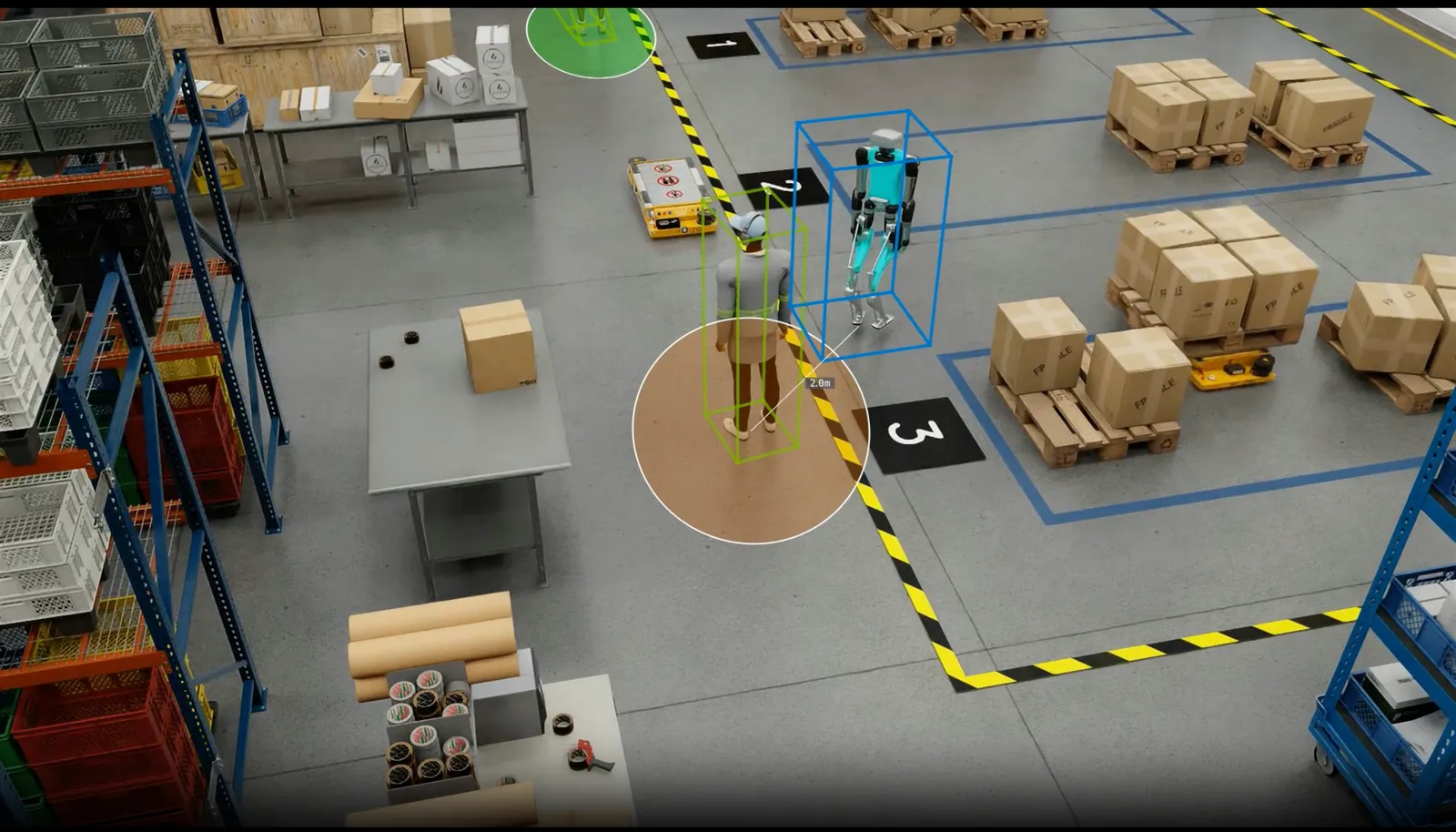
- Proximity Alert Bubble : a proximity bubble is drawn around the object of
Proximity class, the color of the bubble changes according to the distance of the object from theEntrant classobject. The default color of the bubble is green marking as safe zone and turns orange when the object is in the close proximity of the threshold and turns red when the object is in the danger zone. - Proximity Alert Line : when an object is in the close proximity of the threshold or in the danger zone, a proximity line with approximate distance is drawn between the object of
Proximity class, and the object ofEntrant class.
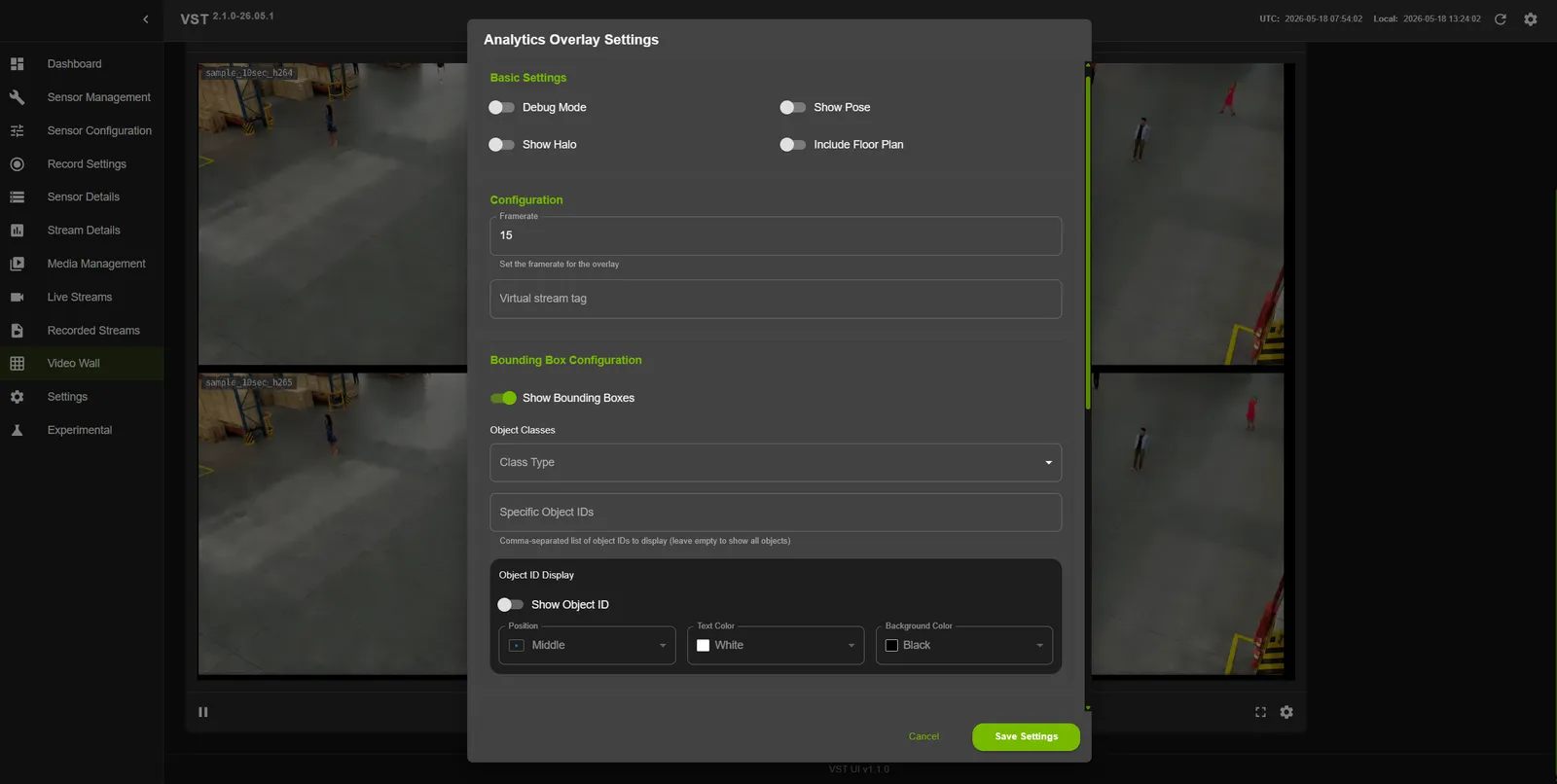
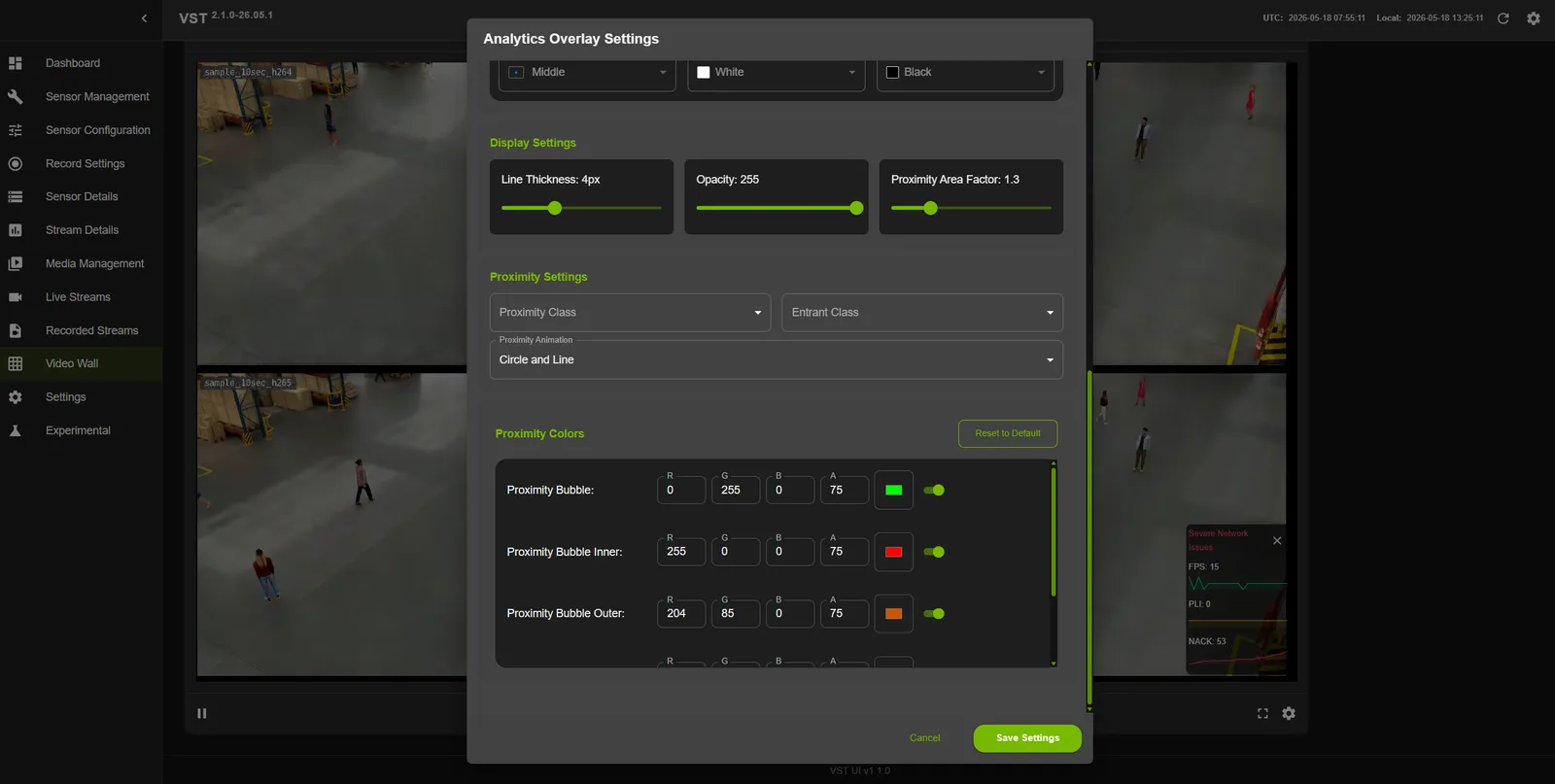
Proximity Alert Bubble and Lines in Video Wall
Proximity Alert Bubble and Line in Live Stream
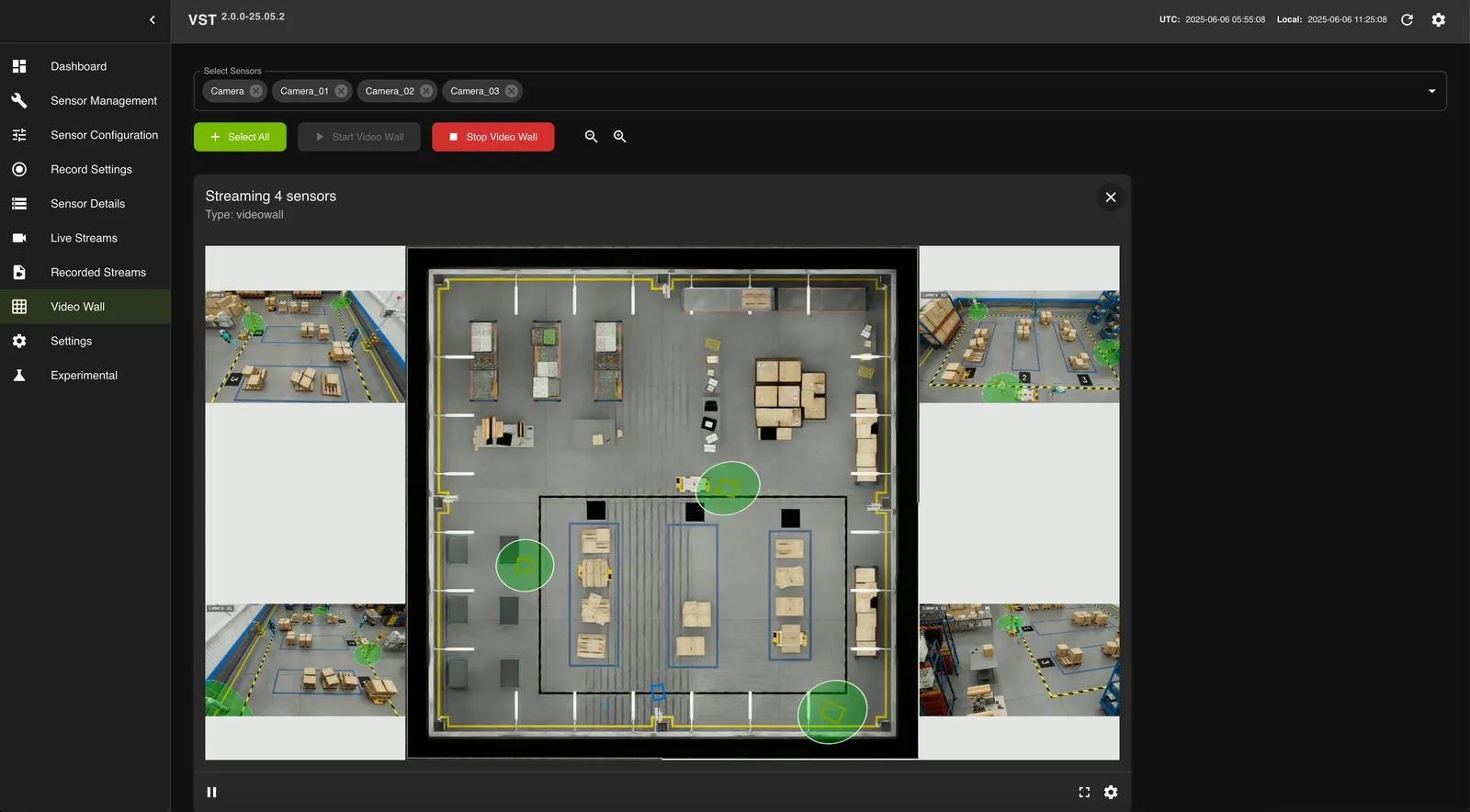
Floor Plan in Video Wall
To display a floor plan in the Video Wall, enable Include Floor Plan in the Analytics Overlay Settings. Set the floor plan image path in vst_config.json using the floor_map_file_path field. The supported image formats are PNG, JPEG, and SVG.
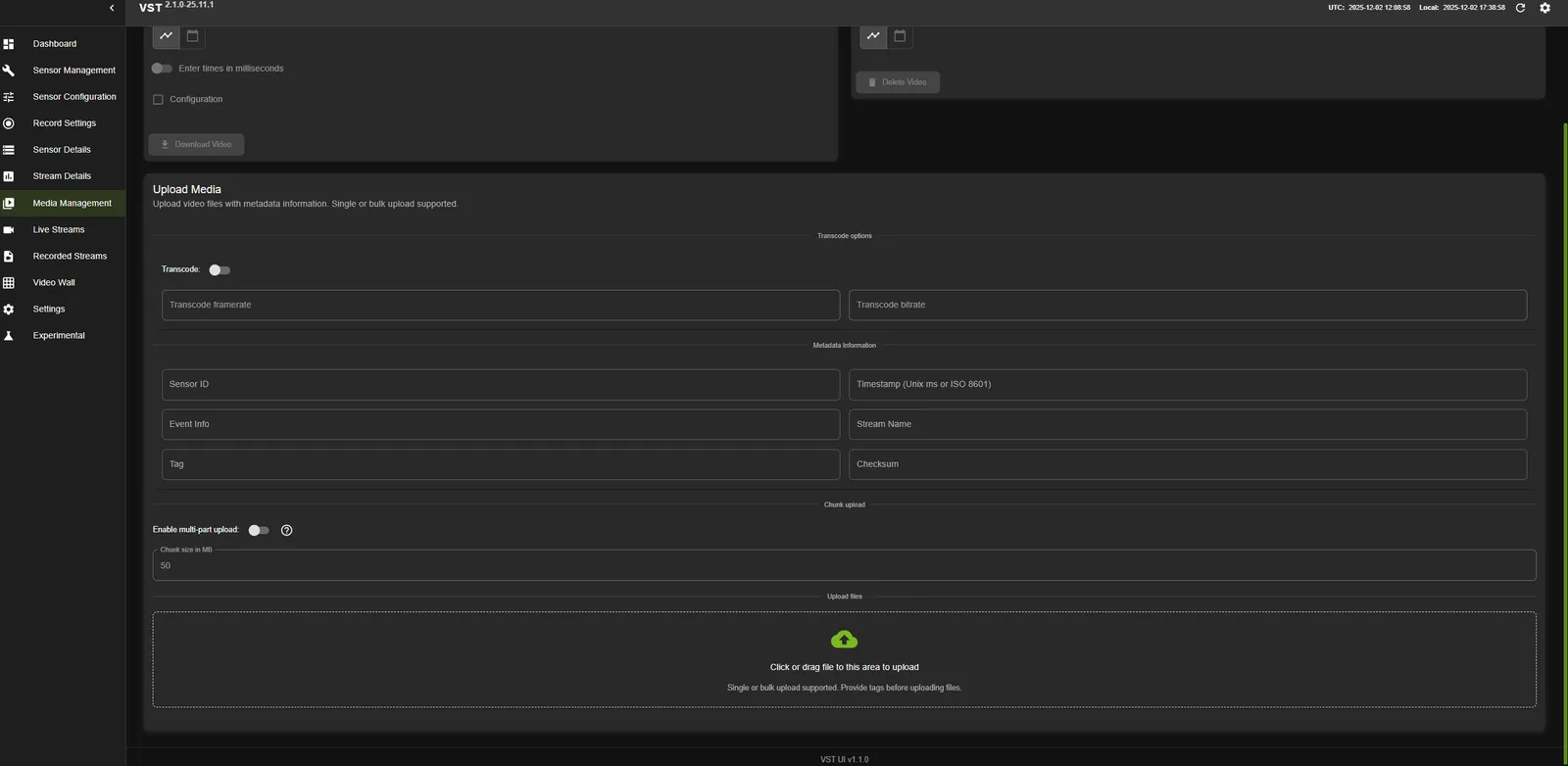
Upload media
To upload media, navigate to Upload Media option in Media Management tab. You can drag and drop files or choose files to be uploaded with several optional configurations:
-
Transcode: Enable video transcoding if needed
-
Metadata Info: Add metadata information such as:
- Sensor ID
- Timestamp
- Event Info
- Stream Name
- Tag
- Checksum
-
Enable multi-part upload: Enable this option for large file uploads
Configuring upload file size limit
The maximum upload file size in VIOS is controlled by two settings. The effective upload limit is the minimum of these two values, so both must be configured to allow larger uploads.
-
Stream-processor NGINX configuration (
client_max_body_size):Controls the maximum request body size accepted by the NGINX reverse proxy in the stream-processor. The default value is 500 MB. To allow larger uploads (for example, 10–20 GB), increase this value before deployment:
-
VIOS configuration (
nv_streamer_max_upload_file_size_MB):Controls the maximum file size accepted for upload in both VIOS and NVStreamer. The default value is 1000 MB. To allow larger uploads, set this parameter in the
datasection of the VIOS configuration file (refer to VIOS Config):
Both settings are configurable pre-deployment. Set them according to your upload size requirements. The effective upload limit is determined by whichever value is lower.
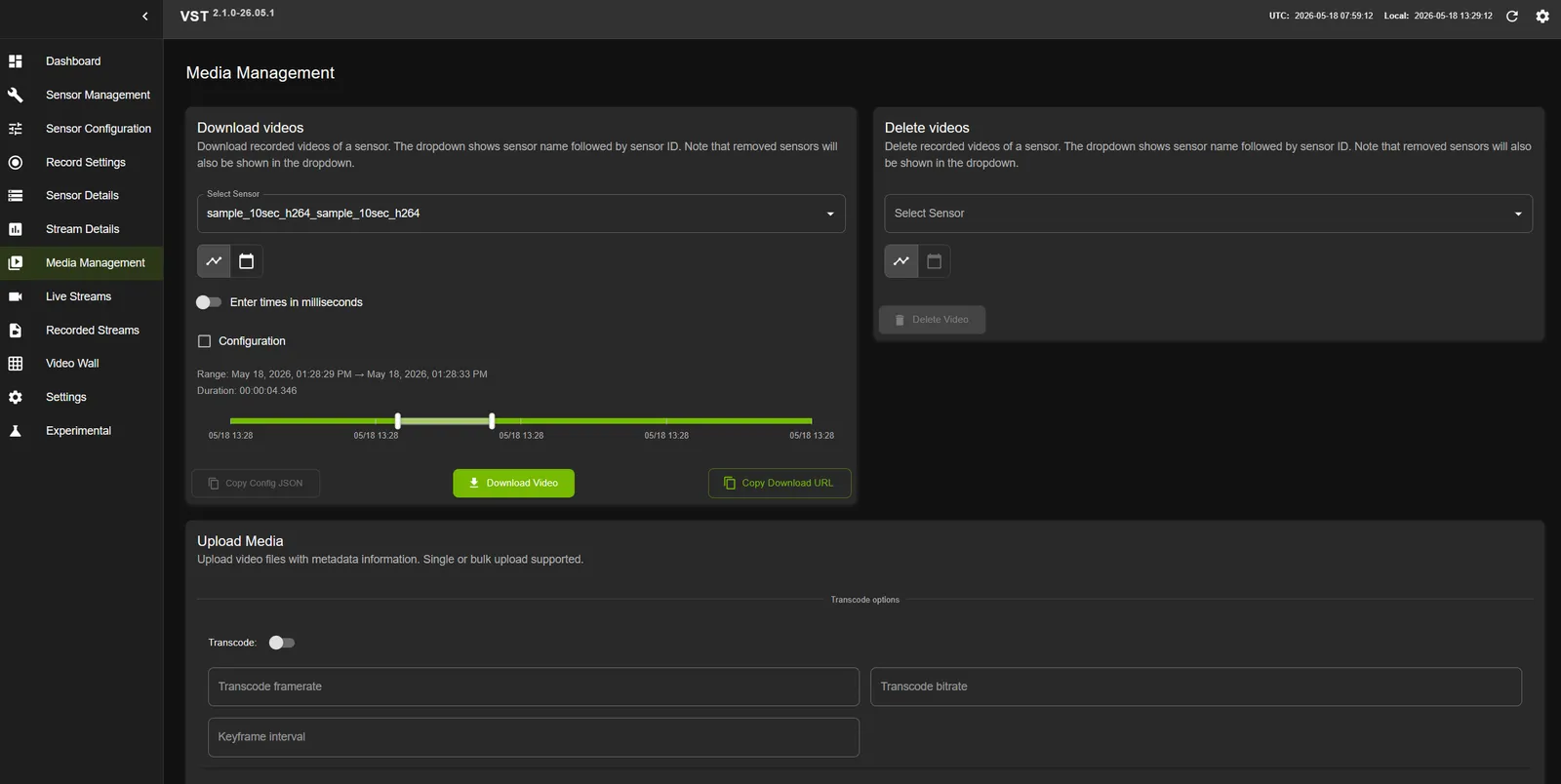
Download recordings
To download recorded video, select Download videos option in Media Management tab. Then choose the device and corresponding timeline.
- In case video download fails then you need to redeploy the VIOS with VST_INSTALL_ADDITIONAL_PACKAGES set to true
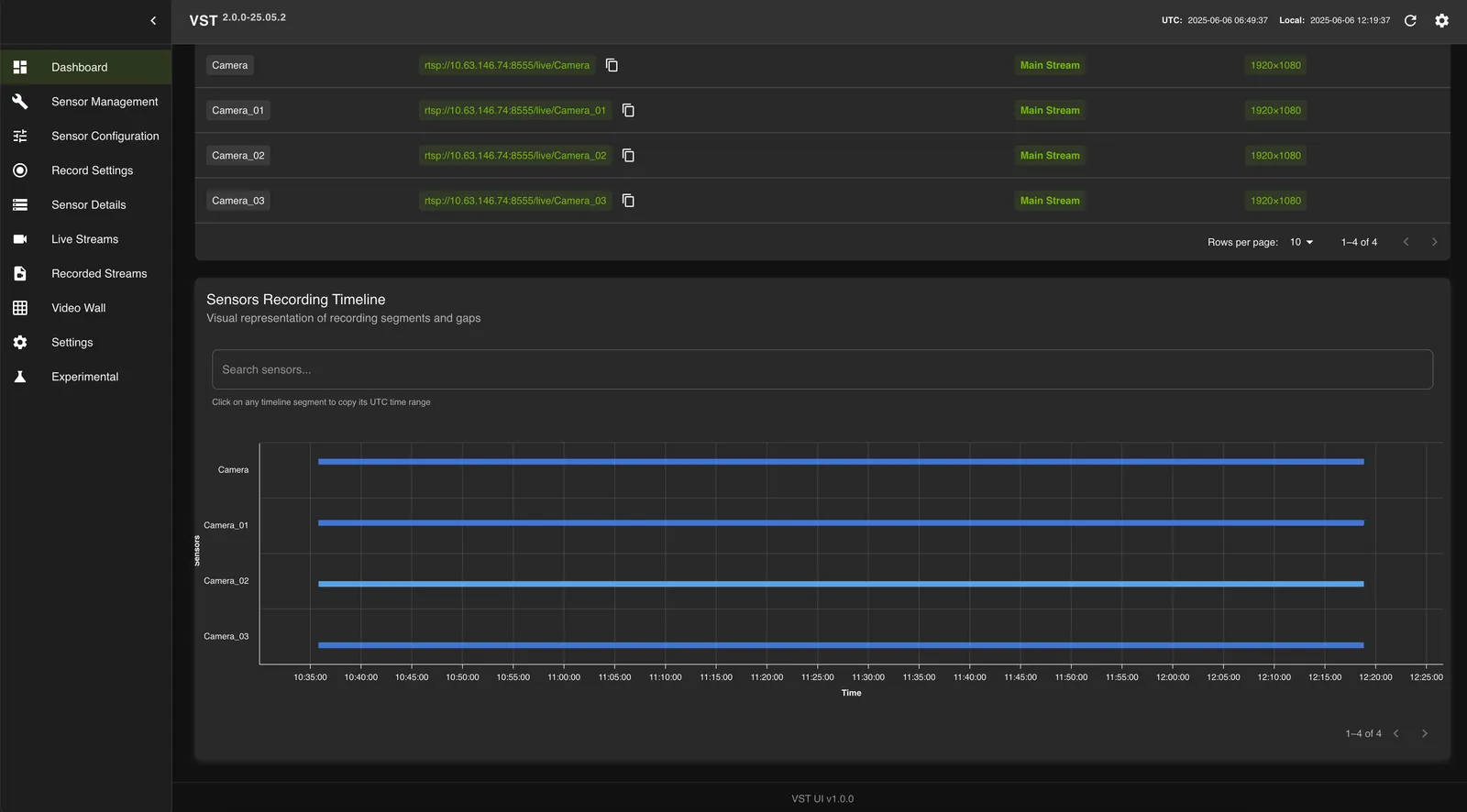
Storage utilization
You can examine the amount of disk space used by clicking on Dashboard tab:
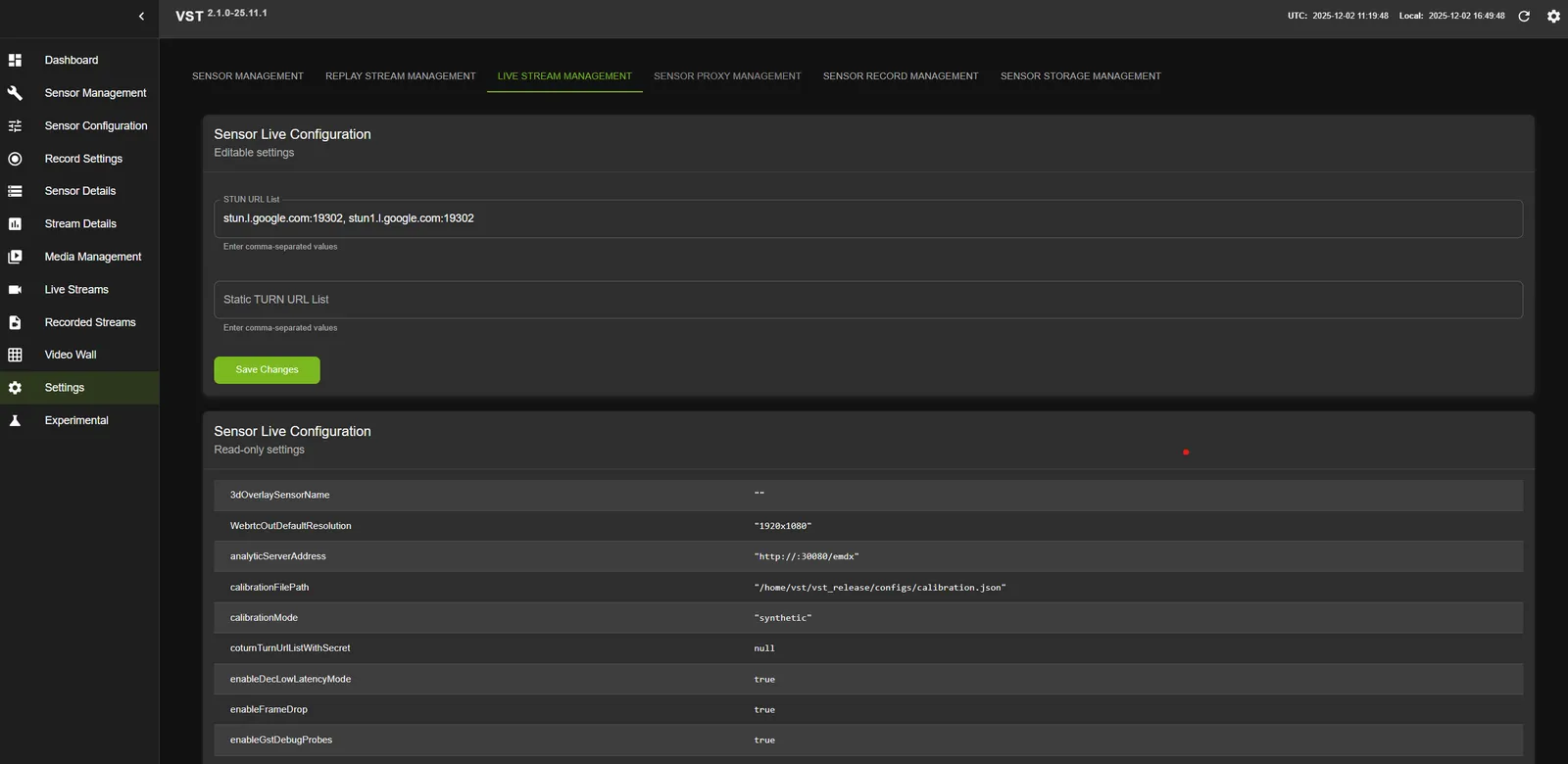
Configuration
The active VIOS configuration can be viewed from the Settings tab:
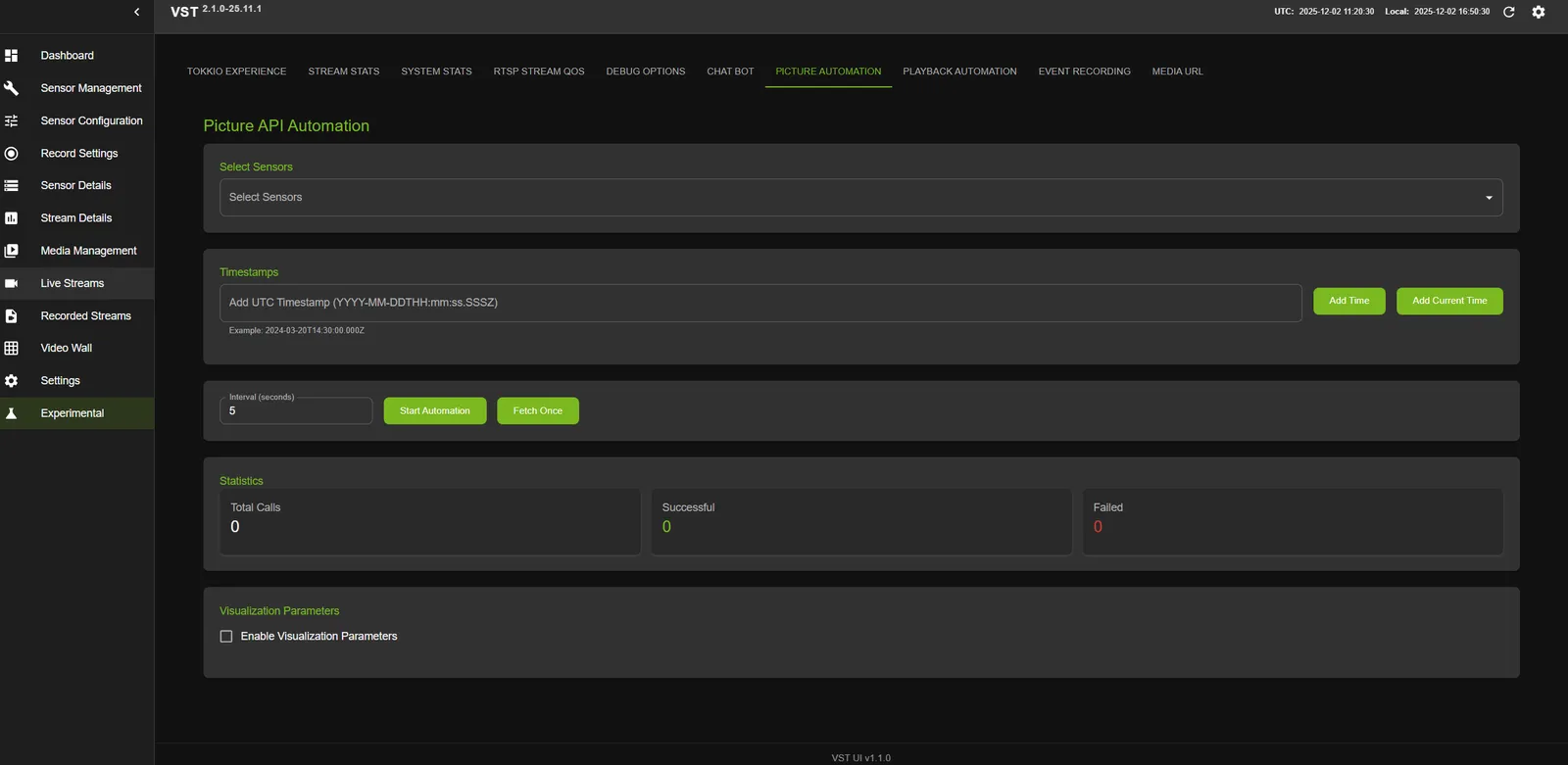
Experimental
Finally, the Experimental tab will allow you to create and examine a debug package. It will come handy if you ever need to contact us. Enjoy the VIOS experience!
Milestone VMS
What is Milestone VMS?
Milestone XProtect is a professional Video Management System (VMS) that provides centralized management of IP cameras and video streams. VIOS integrates with Milestone VMS through the ONVIF Bridge, enabling seamless access to cameras managed by Milestone.
Using Milestone VMS with VIOS
VIOS uses the Open Network Video Interface Forum (ONVIF) Bridge and AI Bridge from Milestone VMS to provide the following capabilities:
- Retrieve RTSP live and Video on Demand (VOD) RTSP streams from Milestone VMS
- Play live and VOD video streams
- Download Video clips
- Capture snapshots (download pictures)
Milestone VMS Configuration
To configure VIOS in MMS (Milestone Management System) mode, you need to:
Step 1: Adaptor Configuration
Add the following adaptor configuration to enable Milestone VMS integration (refer to Adaptor Config for complete configuration details):
Configuration Parameters:
- enabled: Set to
trueto enable the adaptor - id: Unique identifier for the adaptor (UUID format)
- name: Name of the adaptor (e.g.,
"milestone_onvif") - type: Set to
"mms"for Milestone VMS integration - ip: IP address of the Milestone XProtect server
- user: ONVIF username configured in Milestone
- password: ONVIF password for authentication
- port: Port number for ONVIF communication (typically
"580") - need_rtsp_server: Enable RTSP server for video streaming
- need_stream_monitoring: Enable stream health monitoring
- need_recording: Enable recording capabilities
- need_storage_management: Enable storage management features
- control_adaptor_lib_path: Path to the ONVIF client control library
- media_adaptor_lib_path: Path to the VMS media library
Environment Variables for Deployments Using Milestone VMS
For deployments using Milestone VMS, set the following environment variables:
Step 2: AI Bridge Endpoint Configuration
Add the AI Bridge endpoint to the network section of your VIOS configuration (refer to VIOS Config for complete configuration details):
Step 3: (Optional) Add AI Bridge Domain to Hosts File
If the AI Bridge domain is not resolvable via DNS, add an entry to the /etc/hosts file:
Once configured, VIOS will connect to Milestone VMS through the ONVIF Bridge and provide access to all cameras and recordings managed by the VMS.
Remote Access Options
Installation of STUN / TURN Server
Installation and configuration of these servers are mandatory for WebRTC streaming. Below are the NAT type requirements for STUN/TURN:
Depending on your network type, you may choose to install STUN and/or TURN servers:
- You can set the STUN server using
stunurlconfig parameter. - You can set the TURN server using
turnurlconfig parameter.
VIOS web UI is verified with coturn server. To install, run the following command:
TURN server is not mandatory, this is required only if Client and Server are in different networks.
- VIOS configuration details can be found here: VIOS Config.
- VIOS Storage Config details can be found here: Storage Config.
- VIOS Notification Config details can be found here: Notification Config.
- RTSP streams config file details can be found here: RTSP Stream Config.
VIOS Config
Following table describes the parameters in VIOS config file, which should be provided as command-line option deploying helm chart:
VIOS config file
When the Unified Stream Processing MS is scaled to multiple replicas, set restore_rtsp_streams_on_startup to false. Otherwise, on container restart or redeploy every replica will independently re-read the previously configured RTSP proxy streams from the central database and re-register them on the RTSP server, resulting in duplicate registrations and conflicts across replicas. Leave it set to true only when running a single Stream Processing replica.
Notification Config
Following table describes the parameters in VIOS notification config file (configs/notification_config.json):
VIOS notification config file
Webhooks
Webhooks deliver the same device notifications VIOS publishes on the message broker to arbitrary HTTP endpoints, so an external service can react to camera events without subscribing to Redis, Kafka, or MQTT.
The two delivery paths are independent. The message broker is enabled by message_broker.enable_notification and webhooks by webhooks.enabled, and either, both, or neither may be active. Each path keeps its own queue and worker thread, so a slow or unreachable webhook endpoint does not delay publishing on the broker.
When an event is raised, it is matched against every entry in webhooks.items[]. An entry matches when its trigger key names the event’s alert type and the configured value matches the corresponding event field: "camera_status_change": "camera_add" fires only on camera-add events. Every matching entry then delivers to all of the receivers in its request[] array, so one event can reach several endpoints. A receiver’s camera_type list narrows this further, skipping delivery when the event’s camera type is not listed.
Delivery is asynchronous. Each receiver is attempted, retried, and given up on independently, following its own timeout_ms and retry settings, so one failing endpoint does not hold up or fail the others.
By default the request body is the notification event as JSON, with the entry’s id added as a webhook_id field. Setting user_defined_metadata merges extra fields into that body’s event.metadata object, and setting body replaces the whole body with a rendered template. Header and query parameter values may also reference event fields using the {{event.<field>}} form.
webhooks.items[] — webhook definition
webhooks.items[].request[] — receiver definition
Custom body templates
A body value is a JSON template. Any string whose complete value has the form {{path.to.value}} is replaced with the value at that path in the notification, for example {{alert_type}}, {{created_at}}, or {{event.camera_id}}. The original JSON type is preserved, so a number stays a number and an object stays an object. A well-formed placeholder whose path is not present in the notification renders as an empty string ("").
Braces are reserved. A string containing {{ or }} must be exactly a full-wrap placeholder. An embedded placeholder such as camera-{{event.camera_id}}, an unterminated placeholder, or braces in an object property name are configuration errors. Templates nested deeper than 32 levels are also invalid. Invalid receiver entries are skipped at config load with a log line naming the webhook and receiver; valid sibling receivers continue to load and deliver.
Example
Adaptor Config
Following table describes the parameters in VIOS adaptor config file:
VIOS adaptor config file
Storage Config
Following table describes the parameters in VIOS storage config file:
VIOS storage config file
RTSP Stream Config
Following table describes the parameters in RTSP Streams config file:
RTSP Streams config file
APIs
VIOS microservice API documentation can be found in the following VIOS API references:
- Sensor Management API
- Live Stream Management API
- Replay Stream Management API
- Record Stream Management API
- Proxy Stream Management API
- Storage Management API
Components & Customization
Adaptor Architecture
Adaptor architecture has 3 interfaces. All the interfaces can be loaded automatically by the Adaptor loader in VIOS microservices — the Sensor Management Service (for sensor discovery and control adaptors) and the Unified Stream Processing MS (for media and storage adaptors).
1) Device Discovery Interface
This adaptor interface is used to discover devices, for example, ONVIF Protocol or UPnP Protocol:
- A new Device Discovery Adaptor should implement ISensorDiscoveryInterface Class (refer to the
include/sensor_discovery_adaptor.hheader file from VIOS container) - Implement the following methods to create and destroy adaptor object:
2) Device Control Interface
This adaptor interface controls the devices, for example, ONVIF Control Protocol:
- A new Device Control Adaptor should implement
ISensorControlInterfaceClass (refer to theinclude/sensor_control_adaptor.hheader file from VIOS container) - Implement the following methods to create and destroy adaptor object:
3) Milestone Media Interface
This adaptor interface to get media(snapshot and video recordings) from Milestone VMS using grpc protocol:
- A new Milestone Media Adaptor should implement
IMediaInterfaceClass (refer to theinclude/vms_media_interface.hheader file from VIOS container) - Implement the following methods to get media(snapshot and video recordings) from Milestone VMS server using grpc protocol:
KPI
For detailed VIOS performance benchmarks including stream profiling, per-replica stream counts, and per-request latency benchmarks, see VIOS Performance.
Troubleshooting
Common Issues
Container fails to start
Check for the following issues:
-
Examine container logs for error messages:
-
Verify GPU access: Ensure NVIDIA Container Toolkit is installed and
nvidia-smicommand works properly
Container reboots or becomes unresponsive after long period
This issue can be resolved by configuring Docker to use the cgroupfs driver.
Configuration Steps:
-
Add or confirm the following entry in
/etc/docker/daemon.json: -
Apply the configuration by running the following commands:
Uploads succeed but files are not visible
Check available disk space on the storage backend. Ideally, maintain more than 5% of total disk space free to avoid automatic file deletion.
VST uses the storage_threshold_percentage configuration parameter (default: 95) to control when aging policy triggers file deletion. When disk space consumption reaches the threshold (e.g., 95%), VST automatically deletes old files to maintain storage limits, which may include recently uploaded files.
Aging Policy Configuration:
The aging policy can be configured using these VST storage configuration parameters (see Storage Config):
storage_threshold_percentage- Disk usage percentage threshold for aging policystorage_monitoring_frequency_secs- Frequency of storage monitoring checkstotal_video_storage_size_MB- Total storage size allocated for videos
It is best to leave these values as default unless absolutely necessary to change them.
Monitor storage utilization from the Dashboard tab to track available space.
Download or video URL generation fails
The disableAudio query parameter is required in VST video download REST API calls for video download and URL generation to work properly.
Verification Steps:
-
Check the Stream Processing MS logs when the download API is called:
-
Look for a log line similar to:
-
Check
disable_audioin the log output:- Default (
ENABLE_AUDIO=falsein the VSS profile.env): expectdisable_audio: true. - Nemotron Omni / audio-aware agent (
ENABLE_AUDIO=true): expectdisable_audio: false.
- Default (
-
If the value does not match your profile, confirm the effective
ENABLE_AUDIOvalue from the profile.envand anyuser-overrides.envfile passed later to Docker Compose. Upload the video after enabling audio, then retry the operation.
VST services are up but common functionalities do not work
This issue is typically related to Redis connectivity problems.
Diagnostic Steps:
-
Check if Redis is running properly:
-
If Redis keeps restarting, check for port conflicts (Redis port may be blocked due to another process):
Verify Redis Connectivity:
Check all VST container logs for successful Redis connection messages:
You should see a log line similar to:
Ensure all VIOS containers (vss-vios-sensor and vss-vios-streamprocessing) show successful Redis connection logs. Restart the Redis container if necessary after resolving port conflicts.
VST APIs do not respond even after waiting several minutes post-deployment
VST installs required packages during every deployment. If apt package servers are slow or experiencing high latency, package downloads may take considerable time, delaying service readiness.
The package installation script is mounted to all VST containers:
Monitoring Installation Progress:
-
Check container logs to monitor package installation progress:
-
Verify package installation is complete by checking all VST container logs for the confirmation message:
-
Wait for this message to appear in all VST containers before attempting to use VST APIs
Configurable Installation Parameters:
If installation times out frequently, you can adjust the following parameters in user_additional_install.sh:
APT_UPDATE_TIMEOUT=$((60 + RANDOM % 41))- Timeout for apt-get update (60-100 seconds)PKG_INSTALL_TIMEOUT=$((100 + RANDOM % 101))- Timeout for package installation (100-200 seconds)MAX_RETRIES=3- Maximum number of retry attempts for failed installations
Increase these values if your network or apt servers are consistently slow.
Image capture failure
The VIOS replay service has a known issue: when an RTSP stream encoded with H265 is removed from VIOS, the image capture API may not operate as intended.
Handling time drift in ONVIF cameras
Time drift in ONVIF cameras can cause incorrect timestamps on recorded video, challenges correlating frames across multiple cameras, and difficulties during incident investigation. It typically arises from the following:
- The camera’s internal clock lacks high precision.
- Irregular or absent synchronization with a Network Time Protocol (NTP) server.
- Network latency or instability.
- Power outages or firmware-related issues.
Recommended approach:
Use a dual-pronged strategy to mitigate time drift:
-
Disable sensor NTP time in VIOS — By default, the configuration parameter
use_sensor_ntp_timeis set totrue. In this mode, VIOS uses the SenderReport and RTP-timestamp provided by the camera and forwards the same timestamp to downstream services such as Perception.However, if time drift is observed between the camera clock and the system clock, set
use_sensor_ntp_timetofalse:When this option is disabled, VIOS ignores the SenderReport and RTP-timestamp from the camera and assigns its own system timestamp when forwarding frames to downstream services like Perception. This ensures consistent and reliable timestamps based on the system clock, helping mitigate issues caused by camera time drift.
-
Enable NTP synchronization on the camera — Configure each ONVIF camera to synchronize with a reliable NTP server (for example,
pool.ntp.orgor a local enterprise NTP server). Set synchronization to occur at regular intervals (for example, every hour) to minimize drift.Most ONVIF cameras allow NTP setup through their web interface (typically under Admin Settings > Time Settings > NTP Configuration) or via the ONVIF Device Management API. Ensure the NTP server address is reachable by the camera and that the time zone and Daylight Saving Time settings are correct.
NTP synchronization alone may not be precise or frequent enough for time-sensitive applications. Disabling use_sensor_ntp_time remains the preferred and more reliable approach for maintaining accurate timing.
If the camera does not support NTP or cannot sync correctly:
- Set
use_sensor_ntp_timetofalseso that VIOS applies the system timestamp to each frame when received. - If feasible, replace the camera with one that fully supports NTP and ONVIF time configuration.
If the cameras are already well-synchronized and show no drift:
Developers can choose to enable the following VIOS configuration to propagate the original camera timestamp to downstream services: