

Object Detection and Tracking
Overview
The Real Time Video Intelligence CV Microservice leverages NVIDIA DeepStream SDK to generate metadata for each stream that downstream microservices can use to generate spatial metrics and alerts.
The microservice features rtvi-cv-app, a DeepStream pipeline that builds on the built-in deepstream-test5 app in the DeepStream SDK. This RTVI-CV app provides a complete application that takes streaming video inputs, decodes the incoming streams, performs inference & tracking, and sends the metadata to other microservices using the defined Protobuf schema.
The Real Time Video Intelligence CV Microservice supports both 2D single-camera detection models (RT-DETR, Grounding DINO) for object detection and classification, as well as 3D multi-camera model (Sparse4D) for birds-eye-view detection and tracking. All the models are integrated within DeepStream pipelines, providing a complete streaming analytics solution for AI-based video understanding.
Key Features
- Real-time Performance: TensorRT/Triton-accelerated inference
- Multi-model Support: Flexible architecture supporting different detection models
- DeepStream Integration: Built on NVIDIA’s proven streaming analytics framework
- Scalable Architecture: Handles multiple camera streams with batch processing
- Standardized Output: Consistent metadata schema for downstream processing
- Production-Ready: Configurable pipelines with comprehensive monitoring
Architecture
The Real Time Video Intelligence Microservice follows a modular, pipeline-based architecture built on NVIDIA DeepStream SDK. The architecture supports both 2D single-camera and 3D multi-camera detection pipelines.

Docker Compose Architecture
VSS Docker Compose stacks build on a shared RTVI-CV perception service. In your clone of the video-search-and-summarization repository, the base definition lives at deploy/docker/services/rtvi/rtvi-cv/compose.yaml. Industry profiles and developer profiles extend that service with extends and add profile-specific volumes, environment variables, dependencies, and startup behavior. The MV3DT pipeline uses a parallel base file and an additional BEV measurement fusion service — see MV3DT Compose Architecture below for details.
Layering model: compose.yaml defines perception → each profile service (perception-2d, perception-3d, perception-alerts, perception-2d-fusion, …) uses extends: that base and adds mounts and environment overrides.
Base perception service
The perception service in deploy/docker/services/rtvi/rtvi-cv/compose.yaml is the RTVI-CV microservice container:
- Image:
vss-rt-cv(set viaPERCEPTION_IMAGE/PERCEPTION_TAG) - Runtime: NVIDIA GPU,
network_mode: host, container namevss-rtvi-cvby default - Startup: runs
ds-start.sh(bind-mounted from the same directory ascompose.yaml) - Core environment:
DS_MODEL_FAMILY,DS_MODE_FLAG,STREAM_TYPE, tracker and OpenTelemetry settings
You can run this file alone for a minimal perception container (docker compose -f compose.yaml up from that directory). Full blueprints do not replace this file; they extend the perception service and layer configuration on top.
Profile-specific extensions
Each deployment profile declares its own service name, extends the base perception service, and supplies additional volumes, environment, depends_on, and sometimes a custom command. The table below lists reference RTVI-CV extensions in the VSS repository (paths are relative to the repository root).
Open the compose file that matches your deployment profile and inspect the service block (for example perception-2d: or perception-3d:) to see the full volume list, profiles activation, and service dependencies. Compose file layout and image tags can change between VSS releases—use the files from the same tag or branch as your deployment package.
MV3DT Compose Architecture
The MV3DT pipeline does not extend the default perception service in compose.yaml. Instead, it has its own base file and an additional BEV measurement fusion service, and the warehouse profile mounts MV3DT-specific models, calibration, and DeepStream configs on top. Warehouse Compose also starts appearance ReID (vss-reid-embed-mv3dt, plus etcd, MinIO, and Milvus).
MV3DT base file: deploy/docker/services/rtvi/rtvi-cv/rtvi-cv-mv3dt/compose.yaml defines two services:
perception— uses the samevss-rt-cvimage as the default base, with default container namevss-rtvi-cv-mv3dt. The MV3DT base file leaves the container’s startup command unset; the warehouse profile fills it in when it extendsperception. For the startup script itself, please refer todeploy/docker/industry-profiles/warehouse-operations/warehouse-mv3dt-app/deepstream/init-scripts/ds-start-mv3dt.sh. When appearance ReID is on (warehouse default), that command includes--tracker-reid. Because the MV3DT base file alone has no startup command, runningdocker compose -f compose.yaml upfrom this directory does not start the perception container. To run MV3DT outside the warehouse blueprint, use the standalone deployment inservices/rtvi/rt-cv-3d/rt-cv-mv3dt/, which ships its own compose file, config-generation scripts, and sample dataset. See MV3DT Standalone Deployment.measurement-fusion— companionvss-rt-cv-mv3dt-bev-fusionservice that consumes raw 3D measurements from theperceptionservice via the broker (on themdx-rawtopic), fuses them across camera views, and republishes fused tracks on themdx-bevtopic. BEV fusion does not consumemdx-compressed-embeddings.
MV3DT profile extension: deploy/docker/industry-profiles/warehouse-operations/warehouse-mv3dt-app/warehouse-mv3dt-app.yml adds two RTVI-CV services on top of the MV3DT base, following the same pattern as the Profile-specific extensions table above:
Open warehouse-mv3dt-app.yml directly to see the full volume list, profiles activation, and service dependencies — unlike the other perception extensions, the MV3DT perception service depends on mosquitto (vision-neighbor MQTT) and, when ReID is on, on reid-embed health. Compose file layout and image tags can change between VSS releases—use the files from the same tag or branch as your deployment package.
Core Components
- Video Source: Handles multiple RTSP streams, file inputs with dynamic stream add/remove capabilities
- Stream Multiplexer (nvstreammux): Batches video frames from multiple sources for efficient GPU processing
- Preprocessor: Hardware-accelerated image transformation, normalization, and augmentation using nvdspreprocess plugin
- Inference Engine: Supports both TensorRT (nvinfer) and Triton Inference Server (nvinferserver) backends for model execution
- Tracker: Multi-object tracker for maintaining object identities across frames
- Appearance ReID: Warehouse MV3DT gallery lookup that re-associates Person tracks geometry and MQTT handoff would otherwise lose.
- Metadata Generator: Converts detection outputs to standardized protobuf format
- Message Broker: Kafka producer for streaming metadata to downstream microservices
Data Ingestion Formats Supported
The following guidance applies to Real Time Video Intelligence (RTVI) data paths. RTVI-CV (this microservice) is configured through NVIDIA DeepStream like the other RTVI services. Real-Time Embedding and Real-Time VLM also rely on DeepStream-accelerated decode and streaming internally; they do not ship the same open C-level application customization guide as RTVI-CV here—use Real-Time Embedding and Real-Time VLM for their APIs, compose settings, and RTSP-related environment variables.
Streaming protocols
Reference VSS / RTVI deployments are configured for RTSP live ingest and for file- or URL-based video where each microservice documents those inputs. Anything else requires you to change the underlying DeepStream / GStreamer pipeline or to front the source with a gateway (for example remuxing to RTSP).
Supported out of the box (reference blueprint)
- RTSP is the primary live-ingest protocol used across the reference stack: RTVI-CV (DeepStream), Real-Time Embedding, and Real-Time VLM document RTSP URLs for live streams, and Video IO & Storage (VIOS) / NVStreamer serve test and demo content over RTSP. For DeepStream source configuration, see the DeepStream reference application — Source group.
- File-based video (for example MP4 and other common multimedia container formats) is supported where each microservice documents file or URL inputs for batch or offline processing. Codec and multimedia container format considerations for DeepStream-backed paths are summarized under File-based video and codecs.
For additional streaming protocols (such as HLS and RTMP), see Supporting additional streaming protocols.
Supporting additional streaming protocols
HLS, RTMP, and many other protocols are available through upstream GStreamer plugins (for example in gst-plugins-bad and related packages on a DeepStream image). The VSS blueprint does not ship compose profiles or API fields that accept HLS or RTMP URLs the same way as RTSP; you either insert the appropriate source and demux elements ahead of the DeepStream mux / inference path, or run a gateway that presents the stream as RTSP (or as a file) to the microservice.
Use the upstream plugin documentation when choosing elements and properties:
- HLS — GStreamer HLS plugin and hlsdemux. Playlists are usually fetched over HTTP(S); souphttpsrc (or another network source) typically sits before the demuxer.
- RTMP — rtmpsrc.
Extending RTVI microservices for custom ingestion
When you need a non-reference protocol or a custom source graph:
- RTVI-CV — Application-level customization (rebuild the DeepStream sample app, add or link GStreamer elements, and redeploy the container) is described under Application Customization.
- Real-Time Embedding and Real-Time VLM — For HLS, RTMP, or other GStreamer-supported sources, plan on modifying or rebuilding the service image and its internal pipeline, or terminating to RTSP with your own gateway. Model and deployment tuning for Embedding is under Customizations on the Embedding page; VLM documents RTSP-related environment variables with its deployment settings.
Use the DeepStream SDK Developer Guide for pipeline and plugin details, and validate latency, reconnect behavior, codecs, and dependencies on your DeepStream and driver versions.
File-based video and codecs
For RTVI microservices built on DeepStream, elementary streams are supported for H.264, H.265, JPEG, and MJPEG (see the DeepStream FAQ, including What types of input streams does DeepStream support?, for current SDK wording).
Those codecs are usually wrapped in common multimedia container formats such as MP4, MKV, and others. In general, multimedia container formats that GStreamer can autodetect and demux—typically via decodebin or an equivalent bin in your pipeline—work with the DeepStream SDK as long as the underlying video codec is one DeepStream supports and the rest of the pipeline matches your deployment.
Per-microservice APIs and compose profiles still define what each service accepts (file paths, URLs, RTSP-only live endpoints, and so on). See Real-Time Embedding, Real-Time VLM, and this Object Detection and Tracking guide for the inputs each exposes.
For live streaming protocols (RTSP versus optional HLS/RTMP via custom work), see Streaming protocols.
Models Supported
The Real Time Video Intelligence CV Microservice supports both 2D single-camera and 3D multi-camera detection models:
2D Single-Camera Models:
-
Mask-Grounding-DINO (Alerts Developer Profile): Open vocabulary multi-modal object detection model trained on commercial data with language grounding for zero-shot detection using natural language text prompts
-
RT-DETR (Alerts Developer Profile): Object detection model included in the TAO Toolkit, transformer-based end-to-end detector optimized for real-time performance
-
RT-DETR (Warehouse Blueprint): Real-Time Detection Transformer object detection model optimized for warehouse environments
3D Multi-Camera Models:
-
Sparse4D (Warehouse Blueprint): Multi-Camera 3D Detection and Tracking model with 4D (spatial-temporal) capabilities for Birds-Eye-View (BEV) detection across multiple synchronized camera sensors with temporal instance banking
-
MV3DT (Warehouse Blueprint): Distributed Multi-View 3D Tracking framework that lifts 2D detections (from RT-DETR by default) into BEV via per-camera Single-View 3D Tracking, with cross-camera communication for ID and measurement fusion
API Reference
The Real Time Video Intelligence CV (RTVI-CV) Microservice exposes a REST API for stream management, health checks, metrics, and AI/ML operations.
For the endpoint catalog and endpoint-availability notes, see the Object Detection and Tracking API Reference.
API categories:
- Health Check — Liveness, readiness, and startup probes (Kubernetes-compatible)
- Stream Management — Add, remove, and query video streams dynamically
- Monitoring — Metrics and telemetry with Prometheus and OpenTelemetry support
- Metadata — Service version and license information
- AI/ML Operations — Text embedding generation and other ML capabilities
- Text embeddings —
POST /api/v1/generate_text_embeddingsto generate vector embeddings from text
- Text embeddings —
All endpoints are prefixed with /api/v1. Base URL: http://<host>:9000.
RTVI-CV exposes its REST API under the /api/v1 prefix on port 9000, which differs from the other Real-Time Video Intelligence services (Real-Time VLM and Real-Time Embedding), which serve under the /v1 prefix. This is an architectural difference, not an inconsistency to reconcile in a client: RTVI-CV is built on the DeepStream SDK’s built-in REST server, which defines the /api/v1 route layout and the default port 9000, whereas the other services are FastAPI applications. When building a client that talks to multiple services, prefix RTVI-CV requests with /api/v1 and the FastAPI-based services with /v1.
ReID and Embeddings (REST API and Config Reference)
This section documents RT-CV vision-encoder and text-embedding plugins (SigLIP / RADIO-CLIP) used for search and 2D object embeddings. Warehouse and standalone MV3DT appearance ReID is a separate stack: the tracker extracts CLIP-ReID features and queries reid-embed (Milvus gallery on port 8088). Do not configure that gallery through the plugin INI keys below. See 3D Multi Camera Detection and Tracking (MV3DT).
For an end-to-end guide to fine-tuning RADIO-CLIP (and SigLIP 2) with TAO and swapping ONNX or TensorRT artifacts into this microservice, see Model customization overview and RADIO-CLIP object embeddings.
This section describes deployment, features, configuration, and REST APIs for text embeddings, object embeddings (vision encoder), adding video streams by URL, and attaching timestamps from the API payload.
Supported Models
Component — Model mapping
Combined ONNX Models (Image + Text)
Both models below are exported as combined CLIP-style ONNX files containing image and text encoders in a single graph. The plugins automatically extract the relevant subgraph (image-only for vision encoder, text-only for text embedder).
Model downloads (NGC) — deployable ONNX
Features added
- Text embeddings using RADIO-CLIP ONNX or SigLIP2 ONNX (config + REST API).
- Object embeddings using RADIO-CLIP / SigLIP2 (vision encoder plugin with TensorRT).
- Combined ONNX model support — a single ONNX file serves both image and text embeddings; the plugins automatically extract the relevant subgraph.
- Add file video URL via curl, including support for creation time of the file URL (see stream add API and streammux config below).
- Smart embedding inference — tracker-aware embedding cache that skips redundant vision encoder inference for already-tracked objects, with optional OFA-based motion prediction (see Smart Embedding Inference below).
Text embedder (config)
Enable the text embedder in your config file. The model-name property selects the encoder backend.
RADIO-CLIP ONNX — recommended
Uses local ONNX Runtime inference with a CLIPTokenizer. No PyTorch or HuggingFace download required. Uses model-name=siglip2-onnx with RADIO-CLIP model and tokenizer paths.
SigLIP2 ONNX — recommended
Uses local ONNX Runtime inference with a GemmaTokenizer. No PyTorch or HuggingFace download required.
Text embedder property reference
Generate text embeddings (curl)
Endpoint: POST http://localhost:9000/api/v1/generate_text_embeddings
Example:
Video URL — add stream (curl)
Endpoint: POST http://localhost:9000/api/v1/stream/add
Use this to register a video URL for download and add it as a stream. The payload can include creation_time; to use it as the stream timestamp, set [streammux] attach-sys-ts-as-ntp=0 (see section below).
Example:
Attach creation_time (base time of files) from REST API as timestamp (config)
To use the creation_time from the REST API payload (e.g. from /api/v1/stream/add) as the stream timestamp instead of system/NTP time:
- attach-sys-ts-as-ntp=0 — use the timestamp provided in the REST API payload (e.g.
creation_time). - attach-sys-ts-as-ntp=1 (default) — use system/NTP timestamp.
Ensure the stream-add payload includes a valid creation_time when using this option.
Vision encoder plugin (config)
The vision encoder plugin generates object embeddings (e.g. for ReID) using a TensorRT engine built from an ONNX model.
Combined ONNX model support: When a combined image+text ONNX model (e.g. RADIO-CLIP or SigLIP2) is provided, the TensorRT engine builder automatically:
- Detects multiple outputs and prunes to
image_embeddingonly. - TensorRT’s dead code elimination removes the entire text encoder.
- Extra text inputs (
input_ids,attention_mask) are bound with zero-filled buffers.
This means you can use the same ONNX file for both [visionencoder] (image embeddings via TRT) and [text-embedder] (text embeddings via ONNX Runtime).
Example: RADIO-CLIP
Property reference
Smart embedding properties
The following properties control smart inference and OFA prediction. See Smart Embedding Inference for detailed usage.
Example: SigLIP2
The SigLIP 2 ONNX stores its weights externally. Keep siglip_v2_v2.0_weights.bin in the same directory as siglip_v2_v2.0.onnx.
Note: Image normalization is auto-detected from the ONNX model path: [0, 1] for RADIO-CLIP, [-1, 1] when the path contains siglip.
Combined ONNX model deployment
Required files
Each combined ONNX model requires three components in the same directory:
Engine rebuild
When switching ONNX models, delete the existing .engine / .plan file and its .meta sidecar so the TensorRT engine is rebuilt with the correct output pruning:
The engine will be automatically rebuilt on next launch.
Smart Embedding Inference
The vision encoder plugin supports smart embedding inference — a multi-tier system that dramatically reduces GPU compute for embedding generation by avoiding redundant inference on already-tracked objects. This is especially beneficial in multi-stream deployments where hundreds of objects may be tracked simultaneously.
Problem: Without smart inference, the vision encoder runs the full TensorRT model on every detected object in every frame, even when the same person or vehicle has been continuously tracked and its appearance has not changed. This wastes GPU cycles on identical embeddings.
Solution: Smart inference uses a tracker-aware embedding cache combined with optional hardware-accelerated motion analysis to skip unnecessary inference while maintaining embedding accuracy.
Architecture
Smart embedding inference operates in up to two tiers, evaluated in order for each tracked object:
Tier 0 — Embedding cache (frame-count staleness):
When smart-infer=true, the plugin caches embeddings keyed by the tracker-assigned object_id. On each frame, cached objects are served directly from the cache without running the vision encoder.
Tier 1 — OFA motion analysis (hardware optical flow):
When ofa-predict=true and an upstream nvof element provides NvDsOpticalFlowMeta, the plugin extracts per-object motion vectors from the hardware Optical Flow Accelerator (OFA). OFA runs on a dedicated hardware unit on Turing/Ampere/Ada/Hopper GPUs, consuming zero CUDA core or Tensor Core resources. Motion analysis drives three outcomes:
- Low motion: The cached embedding is trusted as-is.
- Medium motion (between thresholds): A motion-compensated affine transformation predicts the new embedding from the cached one using flow vectors, without running the neural network.
- High motion: Full re-inference is forced because the object’s appearance likely changed significantly.
Decision flow
Configuration examples
Basic smart inference (cache only):
Smart inference with OFA motion prediction:
Requires nvof element in the pipeline upstream of the vision encoder.
ofa-predictrequiresnvofin the pipeline. If no optical flow metadata is available, the plugin falls back to cache-only behavior.ofa-predict=trueautomatically enablessmart-inferif not already set.
Deployment
Quick Start
Check out the repository reference selected for this documentation build so the deployment assets match the documented release:
Then follow the deployment guide for your target:
- Docker Compose and standalone — refer to
services/rtvi/rt-cv/README.mdin the blueprint repository. - Helm — refer to
deploy/helm/services/rtvi/charts/rtvi-cv/README-standalone-warehouse.mdin the blueprint repository.
IGX Thor: VIC clocks for best performance
For IGX Thor, VIC clocks need to be boosted for best performance and latency. Run the following before deployment:
1. Blueprint Deployment
For warehouse deployment, refer Warehouse Quickstart Guide For alerts developer profile deployment, refer Alerts Developer Profile Quickstart Guide
2. Verify Deployment
Check service health:
3. Monitor Output
View detection metadata in Kafka topic or check logs for the service:
4. TensorRT Engine File Creation and Reuse
On the first run, TensorRT automatically builds optimized engine files (.engine) from the ONNX models. This engine generation can take significant time depending on the model size and GPU. Warehouse blueprints store engines at /opt/storage/ inside the container (2D: host directory $VSS_DATA_DIR/models/; 3D: host directory $VSS_DATA_DIR/models/sparse4d/; MV3DT: host directory $VSS_DATA_DIR/models/ with RT-DETR at the root of that tree, BodyPose3DNet/ for pose, and reid/ for CLIP-ReID plus SigLIP 2).
The engine files are automatically retained across container restarts via these default volume mounts, so subsequent restarts reuse the previously built engines without rebuilding.
If the Docker volumes are removed, the engine files will be deleted and TensorRT will rebuild them on the next run.
Warehouse blueprint storage (default engine reuse):
Warehouse Docker Compose files mount persistent storage at /opt/storage so TensorRT engines built on first run are retained across container restarts. You do not need a separate engine volume mount.
Warehouse 2D Blueprint — deploy/docker/industry-profiles/warehouse-operations/warehouse-2d-app/warehouse-2d-app.yml (perception-2d service, volumes: section):
ONNX models and generated .engine files live under $VSS_DATA_DIR/models/ on the host. Point onnx-file and model-engine-file in ds-pgie-config.yml to paths under /opt/storage/. See 2D Single Camera Detection and Tracking (RT-DETR) for details.
Warehouse 3D Blueprint — deploy/docker/industry-profiles/warehouse-operations/warehouse-3d-app/warehouse-3d-app.yml (perception-3d service, volumes: section):
The perception-3d named Docker volume persists engine files at /opt/storage/. The default engine_file path is /opt/storage/model.engine in config.yaml. See 3D Multi Camera Detection and Tracking (Sparse4D) for details.
Warehouse MV3DT Blueprint — deploy/docker/industry-profiles/warehouse-operations/warehouse-mv3dt-app/warehouse-mv3dt-app.yml (vss-rtvi-cv-mv3dt service, volumes: section):
ONNX models and generated .engine files live under $VSS_DATA_DIR/models/ on the host (mounted at /opt/storage/). RT-DETR is at the root of that tree, pose under BodyPose3DNet/, and CLIP-ReID under reid/. Point onnx-file and model-engine-file in ds-pgie-config.yml and onnxFile / modelEngineFile in the PoseEstimator and ReID blocks of ds-mv3dt-tracker-config.yml to paths under /opt/storage/. See 3D Multi Camera Detection and Tracking (MV3DT) for details.
Custom models and pre-built engines:
When deploying a custom ONNX model (for example, a fine-tuned RT-DETR or Sparse4D checkpoint), place the ONNX file in the storage location above. On first run, TensorRT builds the engine into the same /opt/storage location. To reuse a pre-built engine from another machine with the same GPU architecture and TensorRT version, copy the .engine file into that storage path and ensure model-engine-file (2D) or engine_file (3D) in the config matches the file name.
- Engine files are tied to the GPU architecture and TensorRT version they were built on. If you change GPU hardware or update TensorRT, delete the engine file from the storage volume and allow the application to rebuild it.
- When switching to a different ONNX model, remove the previous
.enginefile from the storage volume so TensorRT rebuilds it for the new model.
2D Single Camera Detection and Tracking
2D models perform object detection and classification on individual camera streams, providing accurate bounding box predictions and class labels in image coordinates. These models are ideal for single-camera applications requiring high-accuracy object detection.
DeepStream Pipeline
The diagram below shows the RTVI-CV pipeline used for 2D single camera detection and tracking.
The VSS platform supports multiple 2D detection models, each optimized for different use cases:
- RT-DETR: Transformer-based end-to-end detector
- Grounding DINO: Zero-shot detector with language grounding for open-vocabulary detection
RT-DETR Detector RTVI-CV Pipeline
The RT-DETR (Real-Time Detection Transformer) detector pipeline is based on the deepstream-test5 app in the DeepStream SDK. The app takes streaming video inputs, decodes the incoming stream, performs inference & tracking, and lastly sends metadata over Kafka to other Metropolis Microservices, using the defined Protobuf schema.
RT-DETR for warehouse blueprint is a transformer-based end-to-end object detector optimized for real-time performance. The model supports the following classes: Person, Agility_Digit_Humanoid, Fourier_GR1_T2_Humanoid, Nova_Carter, Transporter, Forklift, and Pallet.
A finetuned RT-DETR model is used for the alerts developer profile. The model supports the following classes: background, two_wheeler, Vehicle, Person, and road_sign.
Configuration Options
The RT-DETR Detector RTVI-CV Pipeline has several key configuration options:
-
Sources: To change input source type and number of channels, refer to:
- Source Group for offline configuration
- RTVI-CV microservice API for dynamic configuration
-
PGIE: To change AI model, batch size, and model parameters, refer to the Primary and Secondary GIE Group and the Gst-nvinfer plugin
-
Tracker: To change Multi-Object Tracker parameters, refer to the Gst-nvtracker and the NvMultiObjectTracker Parameter Tuning Guide
-
Message Broker: To change Message Broker parameters, refer to the Gst-nvmsgbroker
Grounding DINO Detector RTVI-CV Pipeline
The Grounding DINO detector pipeline is based on the deepstream-test5 app in the DeepStream SDK. The app takes streaming video inputs, decodes the incoming stream, performs inference & tracking, and lastly sends metadata over Kafka to other Metropolis Microservices, using the defined Protobuf schema.
Grounding DINO is a zero-shot object detection model that combines vision and language understanding to detect objects based on free-form text descriptions (prompts). The implementation uses the DeepStream Triton Inference Server plugin (Gst-nvinferserver) with a custom processing library for text prompt support and optional instance segmentation masks. The app is enabled with PGIE (Primary GPU Inference Engines), NVDCF/DeepSORT tracker and message broker for sending metadata to Kafka.
Configuration Options
The Grounding DINO Detector RTVI-CV Pipeline has several key configuration options:
-
Sources: To change input source type and number of channels, refer to:
- Source Group for offline configuration
- RTVI-CV microservice API for dynamic configuration
-
PGIE: The implementation uses Triton Inference Server backend via the Gst-nvinferserver plugin. To change AI model, batch size, and model parameters, refer to the Primary and Secondary GIE Group
-
Tracker: To change Multi-Object Tracker parameters, refer to the Gst-nvtracker and the NvMultiObjectTracker Parameter Tuning Guide
-
Message Broker: To change Message Broker parameters, refer to the Gst-nvmsgbroker
Text Prompt Configuration
Labels for Grounding DINO are defined in the nvinferserver configuration file (config_triton_nvinferserver_gdino.txt) in the postprocess section. The text prompts enable zero-shot detection of objects using natural language descriptions.
Prompt Syntax:
- Use periods (
.) followed by spaces (” . ”) to separate multiple objects - Add a semicolon (
;) followed by confidence threshold (e.g.,;0.4for 40% confidence) - Descriptive phrases enable fine-grained detection (e.g., “person wearing helmet”)
- Case-insensitive processing
- The threshold value filters detections below the specified confidence level
3D Multi Camera Detection and Tracking
The 3D pipeline performs object detection and tracking across multiple synchronized camera streams, producing 3D-aware metadata that downstream microservices use for spatial analytics. The pipeline ingests multicamera video streams and processes them through calibrated projection matrices for spatial alignment. Two pipeline variants are supported:
-
Sparse4D RTVI-CV Pipeline: Uses Sparse4D, a Birds-Eye-View (BEV) detection model that performs 3D detection and temporal tracking with instance banking directly from synchronized multi-camera inputs. Outputs include 3D position, orientation, velocity, and persistent instance IDs.
-
MV3DT RTVI-CV Pipeline: Pairs the 2D RT-DETR detector with Multi-View 3D Tracking (MV3DT), a distributed real-time multi-view multi-target 3D tracking framework introduced in DeepStream 8.0. Each camera performs Single-View 3D Tracking (SV3DT) and exchanges tracklets with vision-neighbor cameras over MQTT to negotiate globally consistent IDs and fuse 3D measurements across overlapping fields of view. This per-camera, message-passing design scales horizontally across multi-GPU deployments and large camera networks, accepts custom 2D detectors in place of the default RT-DETR, and offers a lighter-weight 3D perception path.
Both pipelines emit DeepStream’s standardized message format over Kafka brokers for downstream applications such as Multi-Camera Tracking (MCT), Real-Time Location Systems (RTLS), and Facility Safety Logic (FSL). They are optimized for real-time performance with TensorRT acceleration (FP16/FP32) and configurable batch processing, making them ideal for complex spatial understanding in applications like warehouse automation and traffic monitoring.
Sparse4D RTVI-CV Pipeline
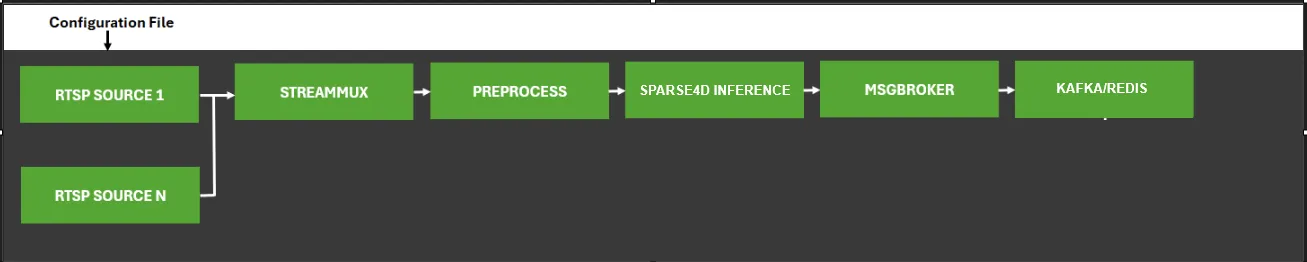
The Sparse4D RTVI-CV pipeline is based on the deepstream-test5 app in the DeepStream SDK. The app takes streaming video inputs from multiple synchronized camera streams, decodes the incoming streams, performs 3D inference & temporal tracking using instance banking, and sends metadata over Kafka to other Metropolis Microservices, using the defined Protobuf schema.
Sparse4D is a Birds-Eye-View (BEV) detection model that performs 3D object detection and tracking across multiple synchronized camera sensors. The model maintains object identity across frames through temporal tracking with instance banking, providing 3D position, orientation, velocity, and persistent instance IDs for each detected object.
The diagram below shows the RTVI-CV pipeline used for the Sparse4D variant.
Configuration Options
The Sparse4D RTVI-CV Pipeline has several key configuration options:
-
Inference Configuration: To configure model inference parameters, calibration settings, preprocessing properties, instance bank properties, decoder properties, and debugging options, refer to the Inference Configuration File section.
-
DeepStream Configuration: To change input source type, number of channels, stream multiplexing, and message broker settings, refer to:
- Source Group for offline configuration
- RTVI-CV microservice API for dynamic configuration
- DeepStream SDK Documentation for complete configuration options
-
Preprocessing: To configure preprocessing operations such as resizing, scaling, cropping, format conversion, and normalization, refer to the DeepStream Preprocessing Plugin Documentation and the Preprocess Plugin Configuration File section.
-
Message Broker: To change Message Broker parameters, refer to the Gst-nvmsgbroker
-
Runtime Configuration: For common configuration adjustments such as modifying the number of input streams or integrating a new Sparse4D model checkpoint, refer to the Modifying the Number of Input Streams and Integrating a Sparse4D Model Checkpoint sections in the 3D Multi Camera Detection and Tracking (Sparse4D) documentation.
MV3DT RTVI-CV Pipeline
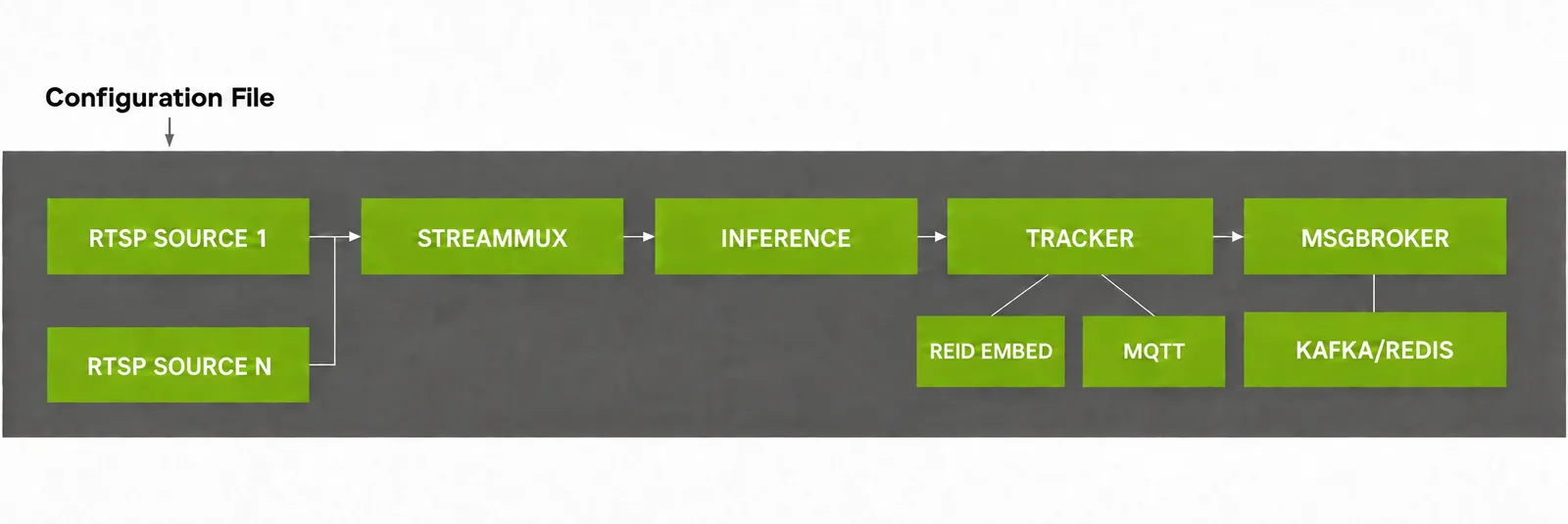
The MV3DT RTVI-CV pipeline is also based on the deepstream-test5 app in the DeepStream SDK. The app takes streaming video inputs from multiple synchronized camera streams, decodes the incoming streams, performs 2D detection with RT-DETR and multi-view 3D tracking, and sends metadata over Kafka to other Metropolis Microservices, using the defined Protobuf schema.
MV3DT pairs the 2D RT-DETR detector with the Multi-View 3D Tracking (MV3DT) module of the NvMultiObjectTracker low-level tracker library. Each camera performs Single-View 3D Tracking (SV3DT) using its camera projection matrix and exchanges tracklets with vision-neighbor cameras over MQTT to negotiate globally consistent IDs and fuse 3D measurements across overlapping fields of view. Tracking outputs include 3D position and dimension, visibility, class labels, and globally consistent instance IDs.
The diagram below shows the RTVI-CV pipeline used for the MV3DT variant.
Configuration Options
The MV3DT RTVI-CV Pipeline has several key configuration options:
-
Inference Configuration: To configure RT-DETR model inference parameters, and class filtering parameters, refer to the Inference Configuration File section.
-
DeepStream Configuration: To change input source type, number of input streams, stream multiplexing, and message broker settings, refer to the DeepStream Configuration File section, as well as:
- Source Group for offline configuration
- RTVI-CV microservice API for dynamic configuration
- DeepStream SDK Documentation for complete configuration options
-
Tracker Configuration: To configure the SV3DT and MV3DT modules (object model projection, pose estimation, multi-view association, and MQTT communicator), refer to the Tracker Configuration File section and the DeepStream MV3DT Documentation.
-
MQTT Publish/Subscribe Configuration: To declare which cameras share tracklets with each other, refer to the 3D Multi Camera Detection and Tracking (MV3DT) section.
-
Camera Information Files: To provide per-camera 3x4 projection matrices and per-class object model dimensions, refer to the Camera Information Files section.
-
Message Broker: To change Kafka or Redis message broker parameters, refer to the Gst-nvmsgbroker and the Kafka Configuration File section.
-
Common Configuration Adjustments: For common configuration adjustments such as modifying the number of input streams, running on a custom dataset, or integrating a new RT-DETR model checkpoint, refer to the Modifying the Number of Input Streams, Running on a Custom Dataset, and Integrating a New RT-DETR Model sections in the 3D Multi Camera Detection and Tracking (MV3DT) documentation.
Implementation Details
Since the application is built using DeepStream SDK deepstream-test5-app, refer to the following documentation for more details:
Kafka Integration
The Real Time Video Intelligence CV Microservice publishes detection and tracking metadata to Kafka for downstream processing by other microservices such as Multi-Camera Tracking (MCT), Real-Time Location Systems (RTLS), and Facility Safety Logic (FSL).
Kafka Topics
The microservice publishes messages to configurable Kafka topics. By default, detection metadata is sent to the deepstream-metadata topic.
Configuration
Configure Kafka integration in the DeepStream application configuration file:
Message Formats
Detection and tracking metadata is serialized as Protocol Buffer messages using the Frame message type defined in the Protobuf Schema.
Message Header:
- message_type:
"frame"(default, if not specified)
Message Structure:
Key Fields:
Frame message:
- version: Schema version
- id: Frame identifier
- timestamp: Frame timestamp in UTC format
- sensorId: Camera/sensor identifier
- objects: Array of detected objects with bounding boxes, classifications, tracking IDs, and attributes
- info: Additional metadata (key-value pairs)
Object message:
- id: Object tracking ID
- bbox: Bounding box coordinates (leftX, topY, rightX, bottomY) for 2D detection
- bbox3d: 3D bounding box coordinates for Sparse4D detection
- type: Object class (e.g., Person, Vehicle, Forklift)
- confidence: Detection confidence score
- coordinate: 3D position (x, y, z) for Sparse4D detection
- speed: Object velocity for Sparse4D tracking
- dir: Movement direction vector for Sparse4D tracking
- info: Additional object attributes
Environment Variables Reference
The table below consolidates the environment variables that configure RTVI-CV across the Docker Compose profiles and the standalone container, in the same style as the Real-Time VLM reference. It covers DeepStream model configuration, GPU / device, Kafka, and OpenTelemetry settings. Values shown as Empty are unset by default; Profile-specific values are set automatically by the reference blueprints. GPU device selection uses the Docker --gpus flag (see Standalone Microservice Deployment and Testing), not an environment variable. For the detailed, in-context settings see Kafka Configuration, Message Broker Customization, DeepStream Configuration Files, and OpenTelemetry Support.
Redis message-broker settings are configured through the DeepStream application configuration files (msg-broker-proto-lib, msg-broker-config), not environment variables — see Message Broker Customization.
DeepStream Configuration Files
The following table lists the DeepStream configuration files for different blueprint deployments. These configurations define the pipeline behavior, model parameters, and integration settings for 2D and 3D computer vision models.
DeepStream configuration files are present in RTVI-CV Docker at below mentioned locations.
Alerts Developer Profile
Configuration Location: deploy/docker/developer-profiles/dev-profile-alerts/deepstream/configs/
Note: Few config parameters are updated dynamically based on the model name and number of streams.
Search Developer Profile
Configuration Location: deploy/docker/developer-profiles/dev-profile-search/video-analytics-2d-app/deepstream/configs/
The Search Developer Profile follows the same configuration structure as the Warehouse 2D Blueprint. Please refer to the Warehouse 2D Blueprint documentation for configurations.
Warehouse 2D Blueprint
Configuration Location: deploy/docker/industry-profiles/warehouse-operations/warehouse-2d-app/deepstream/configs/
Please refer to the Warehouse 2D Blueprint documentation for configurations.
Warehouse 3D Blueprint
Configuration Location: deploy/docker/industry-profiles/warehouse-operations/warehouse-3d-app/deepstream/configs/
Please refer to the Warehouse 3D Blueprint documentation for configurations.
Warehouse MV3DT Blueprint
Configuration Location: deploy/docker/industry-profiles/warehouse-operations/warehouse-mv3dt-app/deepstream/configs/
Please refer to the Warehouse MV3DT Blueprint documentation for configurations.
Customization of Microservice
The microservice provides flexible customization options to adapt to different deployment requirements, models, and use cases. This section describes the key customization areas.
Model Customization
Updating Model Checkpoints for provided models
The microservice supports RT-DETR and Grounding DINO detection models for 2D object detection:
For custom 2D detection models (RT-DETR and Grounding DINO) trained with TAO Toolkit:
- Export your model to ONNX format using TAO
- Update deepstream application configuration file to reference your model:
Update the PGIE configuration file (nvinfer or nvinferserver ) for your custom model in the deepstream application configuration file.
For integrating custom model architectures (beyond RT-DETR and Grounding DINO), you will need to export your model to ONNX format, configure the DeepStream nvinfer plugin with appropriate preprocessing and parsing parameters, and potentially implement custom bounding box parsers. Refer to the DeepStream nvinfer Plugin Guide for detailed integration steps.
For 3D object detection models, refer to the Integrating a Sparse4D Model Checkpoint section in the 3D Multi Camera Detection and Tracking (Sparse4D) documentation.
Tracker Customization
Tracker Selection and Configuration
DeepStream supports multiple tracking algorithms. You can configure tracker section in the deepstream application configuration file as per your requirements. For example:
Tracker Algorithm Options
- NvDCF: Discriminative Correlation Filter (recommended for most use cases)
- IOU: Intersection over Union tracker (lightweight, best for static cameras)
- DeepSORT: Deep learning-based tracker (best accuracy, higher compute)
Known Limitation (NvDCF Tracker): Each VPI™ backend low-level tracker library supports at most 128 streams. When running more than 128 streams, configure sub-batching to run multiple instances of the low-level tracker library. Refer to the DeepStream nvtracker sub-batching documentation for details.
For detailed tracker configuration options, parameters, and algorithm-specific settings, refer to the Gst-nvtracker Plugin Documentation.
Message Broker Customization
Kafka Configuration
Customize message broker output in the deepstream application configuration file:
Redis Configuration
For Redis message broker, use the deepstream application configuration file:
Application Customization
The application can be customized to add custom processing logic, modify metadata handling, or integrate additional GStreamer elements.
Source Code Location
The application source code is typically located in /opt/nvidia/deepstream/deepstream/sources/apps/sample_apps/metropolis_perception_app/ :
Key Customization Points
-
Adding Custom Probes
Add probes to access metadata and buffers at specific pipeline elements:
Building Custom Application
After modifying the source code, rebuild the application:
Deployment Considerations
When deploying customized applications using docker compose:
-
Update the Docker container to include your custom binary:
-
Ensure all dependencies and libraries are available in the container
-
Update configuration files to match your custom processing requirements
Common Customization Use Cases
- Custom Object Filtering: Filter detected objects based on size, confidence, or region of interest
- Custom Analytics: Implement line crossing, zone intrusion, or occupancy counting
- External System Integration: Connect to databases, REST APIs, or other services
- Performance Monitoring: Add custom telemetry and performance metrics collection
RTSP Streaming
Kafka Configuration
Standalone Microservice Deployment and Testing
The RTVI-CV microservice can be run independently outside the full blueprint deployment. This is useful for validating models, benchmarking inference performance, testing configuration changes, or developing custom integrations without deploying the entire Metropolis stack.
Deployment options
You can deploy and test RTVI-CV outside a full Metropolis blueprint in two ways:
Docker deployment
Reference configuration files for every supported model are packaged inside the RTVI-CV container at /opt/nvidia/deepstream/deepstream/sources/apps/sample_apps/metropolis_perception_app/reference-configs. Pull the RTVI-CV container, place your model assets, adjust batch size and paths in the bundled configs, and launch the application.
Prerequisites
- The RTVI-CV Docker image from NGC
- For IGX Thor / Jetson platforms, boost VIC clocks before benchmarking — see the Deployment section for instructions
- MV3DT only: an MQTT broker (for example
mosquitto, by default atlocalhost:1883) reachable from the RTVI-CV container for vision-neighbor tracklet exchange between cameras. A reachable Kafka broker is also required for metadata output: the perception service publishes per-sensor 3D measurements on the Kafka topicmdx-raw, and the per-sensor tracklets already share the same IDs for the same objects across views. Optionally, also run the BEV measurement-fusion service (vss-rt-cv-mv3dt-bev-fusionimage) if you want fused BEV frame on the Kafka topicmdx-bev.
Reference Configuration Files
Reference configuration files for standalone testing ship inside the RTVI-CV container at:
No separate download or bind-mount is required — the configs are already present in the image. The reference-configs directory contains a README.md and configs organized by model:
MV3DT does not ship reference configs in the in-container reference-configs directory. Use the configs under deploy/docker/industry-profiles/warehouse-operations/warehouse-mv3dt-app/ in your clone of the video-search-and-summarization repository as reference. See the Warehouse MV3DT Configurations section for the full list of configuration files (ds-main-config-mv3dt.txt, ds-pgie-config.yml, ds-mv3dt-tracker-config.yml, pub_sub_info_config.yml, ds-kafka-config.txt, per-camera camInfo/<sensor_id>.yml, etc.).
Start the Docker Container
Pull and launch the RTVI-CV container with GPU access and a persistent storage volume. The reference configs are already baked into the image, so no config bind-mount is needed.
Replace <rtvi-cv-image> with the full NGC image path and tag for your platform. Replace device=0 with the target GPU index.
x86 / aarch64 (multi-arch):
SBSA (Spark):
Thor (Jetson):
Before running benchmarks on Jetson Thor, boost the CPU/GPU and VIC clocks on the host (outside the container):
Then launch the container:
The -v $HOME/standalone-storage:/opt/storage mount persists downloaded models and TensorRT engines across container restarts. The reference configs are already present inside the container at /opt/nvidia/deepstream/deepstream/sources/apps/sample_apps/metropolis_perception_app/reference-configs, so no additional bind-mount is required.
Configure the NGC CLI inside the container before downloading any models or resources:
All remaining steps are run inside the container.
Step 1: Place Your Model and Assets
Download or copy the required model assets into the container. The table below lists what each model needs:
Use the NGC CLI to download models, or place your own custom ONNX exports in /opt/storage/.
Step 2: Pre-Run Setup (Model-Specific)
Most models require no additional setup beyond placing the model and updating configs. Sparse4D and Grounding DINO are exceptions — they require extra steps before running.
If you are running Warehouse 2D, Warehouse MV3DT, or Smart City RT-DETR, skip this step and proceed to Step 3: Update Configuration.
Sparse4D (Warehouse 3D)
Sparse4D requires environment variables, config file placement, and a TensorRT engine build before launching:
-
Set environment variables (required for every terminal session):
LD_PRELOADloads the MSDA custom TensorRT plugin that Sparse4D depends on at engine build time and inference time. -
Copy the reference config and calibration files into the Sparse4D source directory:
-
Generate the TensorRT engine:
Engine generation takes a few minutes depending on the GPU. The engine is cached and reused on subsequent runs.
If you modify config.yaml after the initial copy (for example, changing batch size, enabling visualization, or updating paths), you must re-copy it to $SPARSE4D_REPO/configs/config.yaml before running the application.
Grounding DINO (Smart City)
Grounding DINO uses the Triton Inference Server backend. You must copy the ONNX model into the Triton model repository and build a TensorRT engine before launching:
-
Copy the ONNX model:
-
Build the TensorRT engine (replace
<N>with your batch size):Rebuild the engine when changing batch size. For text prompt configuration, see Text Prompt Configuration.
Step 3: Update Configuration
All models share a common set of configuration touch points. When changing the number of streams (batch size), the following keys in the main pipeline config must stay in sync:
Additionally, each model has its own config files where model paths and batch size must be updated:
The model-engine-file name typically encodes the batch size (e.g. _b4_gpu0_fp16.engine). When changing batch size, update the engine file name to match, or delete the existing engine file so TensorRT rebuilds it. See the TensorRT Engine notes under Deployment for details.
MV3DT-specific configs. The provided camInfo/ and pub_sub_info_config.yml are calibrated for the bundled sample dataset. When bringing your own cameras, regenerate both files from your calibration.json using the two utility scripts under tools/rtvi-cv-mv3dt-utils — generate_cam_info_configs.py (produces one <sensor_id>.yml per camera) and generate_pub_sub_configs.py (produces a vision-neighbor publish/subscribe graph). See Running on a Custom Dataset for the full command-line options.
Step 4: Run the Application
Launch the application from the metropolis_perception_app directory with the appropriate config file:
By default, the configs use type=1 (FakeSink) so no display is required. On the first run, TensorRT automatically builds optimized engine files from the ONNX models — this may take several minutes. Subsequent runs reuse the cached engines from /opt/storage/.
Stream Management
All reference configs use dynamic stream addition by default (use-nvmultiurisrcbin=1). The pipeline starts with zero streams and exposes a REST server at http://localhost:9000. After the application is running, add streams via the REST API.
Add a stream dynamically:
The camera_url can be a local file path (file:///opt/storage/videos/sample.mp4) or an RTSP URL (rtsp://<ip>:<port>/<path>). You can add up to max-batch-size streams.
MV3DT only: all input streams must be time-synchronized across cameras. MV3DT fuses per-sensor measurements by timestamp, so unsynchronized streams (drifting timestamps, or different frame rates) will cause cross-camera tracklet matching, ID adoption and BEV fusion to break down. For this reason, local file paths (file:///...) are not supported as camera_url for MV3DT — use synchronized RTSP sources instead.
For the complete stream management API, see the API Reference.
Use static sources instead:
To launch with pre-configured sources rather than adding them dynamically, populate the [source-list] section in the main pipeline config:
For RTSP streams, replace file URIs with rtsp:// URLs. Ensure num-source-bins, max-batch-size, and all other batch-size touch points match.
Visualization (Optional)
The default configs use FakeSink (no display). To visualize detection output on screen, set the DISPLAY environment variable and update the main pipeline config:
For Sparse4D (Warehouse 3D) only, also enable 3D bounding box rendering in config.yaml:
After changing config.yaml, re-copy it to the Sparse4D source directory before running.
Standalone Helm chart deployment (warehouse)
For warehouse 2D (RT-DETR) and warehouse 3D (Sparse4D) perception on Kubernetes without deploying the full Metropolis stack, use the vss-rtvi-cv subchart under the rtvi Helm umbrella. Profile modes standalone-2d and standalone-3d run DeepStream with file sources from the NGC vss-warehouse-app-data bundle on a shared PVC. Kafka and Redis are not used in these profiles (FakeSink / STREAM_TYPE=none).
Install steps, prerequisites, values, NGC download Job, StatefulSet rollout, uninstall, and troubleshooting are documented in the chart README at deploy/helm/services/rtvi/charts/rtvi-cv/README-standalone-warehouse.md in your clone of the video-search-and-summarization repository. Check out the repository reference selected for this documentation build, then follow that README for authoritative install commands and values.
Prerequisites (summary)
- Kubernetes cluster with NVIDIA GPU nodes and the NVIDIA device plugin
- Helm 3 and network access to pull images from
nvcr.ioand other registries - NGC CLI API key in a Secret (default: Secret
ngc-api, keyNGC_CLI_API_KEY) - StorageClass for RWO volumes (or cluster default when
persistence.storageClassis empty) - Optional: image pull secret (for example
ngc-docker-reg-secret) if required by your cluster
Chart location and profiles
The umbrella chart is at deploy/helm/services/rtvi in the video-search-and-summarization repository. With default naming, workload objects use the subchart name vss-rtvi-cv (StatefulSet, PVC, NGC download Job).
Do not use alerts or search profile modes in the same release if you intend this standalone warehouse flow; those modes use different StatefulSet templates (Kafka, alternate configs).
Minimal install (summary)
Clone the repository, create a namespace and NGC secret, then install from deploy/helm/services/rtvi with the subchart enabled and app-data download on (see the README for full commands and timeouts):
Key behaviors documented in the README:
downloadNgcAppData=trueruns Jobvss-rtvi-cv-download-ngc-app-datato fetch and extract the warehouse bundle onto the models PVC (markervss-warehouse-app-data/.ngc-extracted).downloadModelsFromNgc=falseskips a separate model download Job; standalone 2D/3D assets are expected from the app-data bundle unless you add extra models viangcModelsToDownload.- TensorRT engines are written under writable
/opt/storage/trt-cacheon the PVC; wait for the NGC Job andkubectl rollout status statefulset/vss-rtvi-cvbefore checking logs.
For uninstall, PVC deletion, and troubleshooting (init container waiting on NGC, wrong profileMode, permission errors), follow the README sections Uninstall and clean PVC / data and Troubleshooting.
OpenTelemetry Support
The microservice supports OpenTelemetry for exporting metrics to observability platforms like Prometheus and Grafana.
Configuration
Configure OpenTelemetry using the following environment variables:
Additionally, set below parameters in the deepstream application configuration file:
Supported Prometheus Metrics
The following metrics are exported to Prometheus for monitoring and alerting:
Stream Performance Metrics:
System Resource Metrics:
gpu_memory_gb is not applicable on aarch64 devices (e.g., Jetson Thor) as they use unified memory, so it returns -1.
OpenTelemetry Collector Configuration
Ensure an OpenTelemetry Collector is running on the configured otlp-uri endpoint. To filter out inactive stream metrics, add the following processor to your collector configuration:
If exporting to Prometheus, set metric_expiration >= otlp-interval to drop stale metrics:
Runtime Configuration Using REST API
The OpenTelemetry HTTP exporter can be configured at runtime using the metrics endpoint with custom headers. This allows dynamic configuration without restarting the microservice.
Available Headers:
-
X-REFRESH-PERIOD: Set the metrics push interval in milliseconds. If the OpenTelemetry exporter is not running, it starts the exporter at the default endpoint (http://localhost:4318) with the specified interval. -
X-OTLP-URL: Set the OpenTelemetry collector endpoint. Starts posting metrics to the specifiedhttp://ip:portwith default interval (5000 milliseconds).
Examples:
Set refresh interval to 3000 milliseconds (starts exporter at default endpoint if not running):
Set custom collector endpoint (uses default 5000 milliseconds interval):
Set both custom endpoint and interval:
If OTEL_SDK_DISABLED="true" is set in the environment variables, using the above runtime configuration will enable OpenTelemetry metrics support. The X-REFRESH-PERIOD value is specified in milliseconds.
Disable the OpenTelemetry HTTP exporter:
Performance Notes
Behaviors observed during performance validation that require a configuration change to reach the expected throughput or latency.
Low GPU utilization at large batch sizes (RT-DETR warehouse). On GPUs such as H100, raising
the batch size may not raise GPU utilization proportionally — the low-level tracker processes
an entire batch on a single CPU thread, so the tracker becomes the bottleneck rather than the
GPU. Enable sub-batches in the [tracker] group to split the batch across parallel
tracker instances; see Issue: Poor performance with large number of streams under
Troubleshooting for the configuration example.
PyTorch thread oversubscription (Sparse4D). num_torch_threads defaults to 0, which
lets PyTorch size its thread pool from the total CPU core count; on many-core systems this
oversubscribes the CPU and shows up as reduced FPS and higher latency. If performance is below
expectation, set num_torch_threads: 8 in config.yaml, then re-copy it to
$SPARSE4D_REPO/configs/config.yaml — otherwise the change is not picked up.
Troubleshooting
Common Issues
Environment settings to be exported in working environment
DEEPSTREAM_ENABLE_SENSOR_ID_EXTRACTION=1Enables sensor_id_extraction, which adds support for the updated schema required by rtvi-cvGST_ENABLE_CUSTOM_PARSER_MODIFICATIONS=1Enables custom_parser changes that patch the SEI handling logic in the OSS parser code to prevent crashes caused by NULL SEI pointer
Issue: Poor performance with large number of streams
For ensuring performance with large number of streams, need to enable sub-batches property in the nvtracker plugin.
Refer nvtracker plugin documentation for more details.
For example:
For 24 streams, set sub-batches to 8:8:8.
Issue: Low FPS / High Latency
Solution:
-
Reduce batch size for latency-critical applications
-
Increase batch size for throughput optimization
-
Check GPU utilization (
nvidia-smi) -
Confirm that the platform can reach the target frame rate at all before tuning the pipeline. Measure the standalone TensorRT throughput of the model with
trtexecat the configured batch size. Iftrtexecreports fewer inferences per second than the target FPS, the device is compute-bound on the model itself and no pipeline tuning will recover the frame rate. For example, RT-DETR (Resnet50, FP16, 1080p) measures approximately 29 inferences per second on Jetson Orin NX 8 GB, so 30 FPS is not achievable there even for a single stream. -
On compute-constrained platforms, set
interval=1in the[primary-gie]group of the DeepStream application configuration so that inference runs on every alternate frame. The tracker maintains object continuity on the skipped frames. This halves the inference load and allows a 30 FPS input stream to be processed without frame drops. See Platform Limitations for the platforms where this is required.
Issue: Poor Detection Accuracy
Solution:
- Adjust confidence threshold (
pre-cluster-threshold) - Verify input image quality and resolution
- Check preprocessing configuration (normalization, resize)
- Fine-tune model on domain-specific data using TAO
Issue: TensorRT Engine Build Failure
Solution:
- Verify ONNX model compatibility with TensorRT version
- Check available GPU memory during engine build
- Review TensorRT logs for specific errors
- Set
force_engine_rebuild: Trueto rebuild engine
Issue: Sparse4D Multi-Camera Sync Issues
Solution:
- Verify camera time synchronization (NTP)
- Check
batch-sizematchesnum_sensors - Ensure all cameras are streaming at same FPS
- Review
nvstreammuxconfiguration
Debugging Tips
- Enable Verbose Logging
- Monitor Performance
- Visualize Outputs
Enable on-screen display (OSD) in DeepStream config:
- Dump Intermediate Tensors
For debugging model issues, enable tensor dumping:
For additional troubleshooting guidance, see the DeepStream SDK Troubleshooting Guide.
Error Propagation Configuration
The microservice supports error propagation using the message API with Redis protocol adaptors to monitor pipeline errors and stream-related issues. Configure error propagation in the application configuration:
Configuration Parameters:
enable-error-propagation: Set to1to enable error propagation (default:0)proto-lib: Path to the protocol adaptor library (libnvds_redis_proto.so)conn-str: Connection string for the message broker (format:<host>:<port>for Kafka,<host>:<port>for Redis)topic: Base topic name for error messages
References
Official Documentation
Model Papers
- RT-DETR: DETRs Beat YOLOs on Real-time Object Detection
- Grounding DINO: Marrying DINO with Grounded Pre-Training
- Sparse4D: Multi-view 3D Object Detection with Sparse Spatial-Temporal Fusion
External Resources