

Workflow Steps
Once the microservice and UI containers are running, open your browser and navigate to http://<HOST_IP>:<VSS_AUTO_CALIBRATION_UI_HOST_PORT> (default port 5000).
The UI presents a 7-step stepper workflow. Each step validates its inputs before allowing you to proceed to the next. Rectification must reach COMPLETED before you can advance to Manual Alignment and later steps.
Step 1: Project Setup
The Project Setup step allows you to create and manage calibration projects.
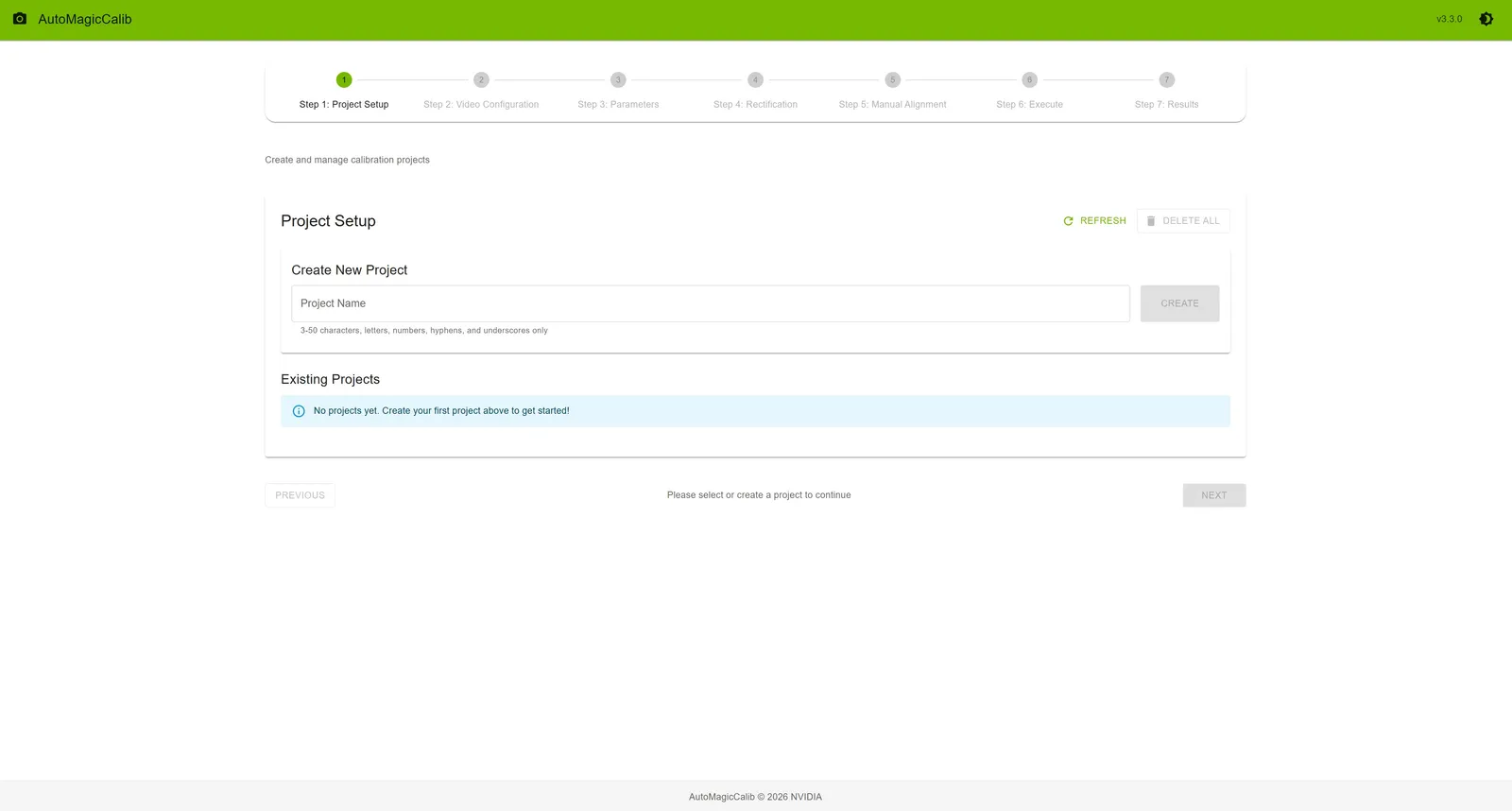
Creating a New Project
- Enter a project name in the text field
- Requirements: 3–50 characters
- Example:
warehouse_cam_2024,parking_lot_north
- Click the Create button
- The new project appears in the “Existing Projects” list below
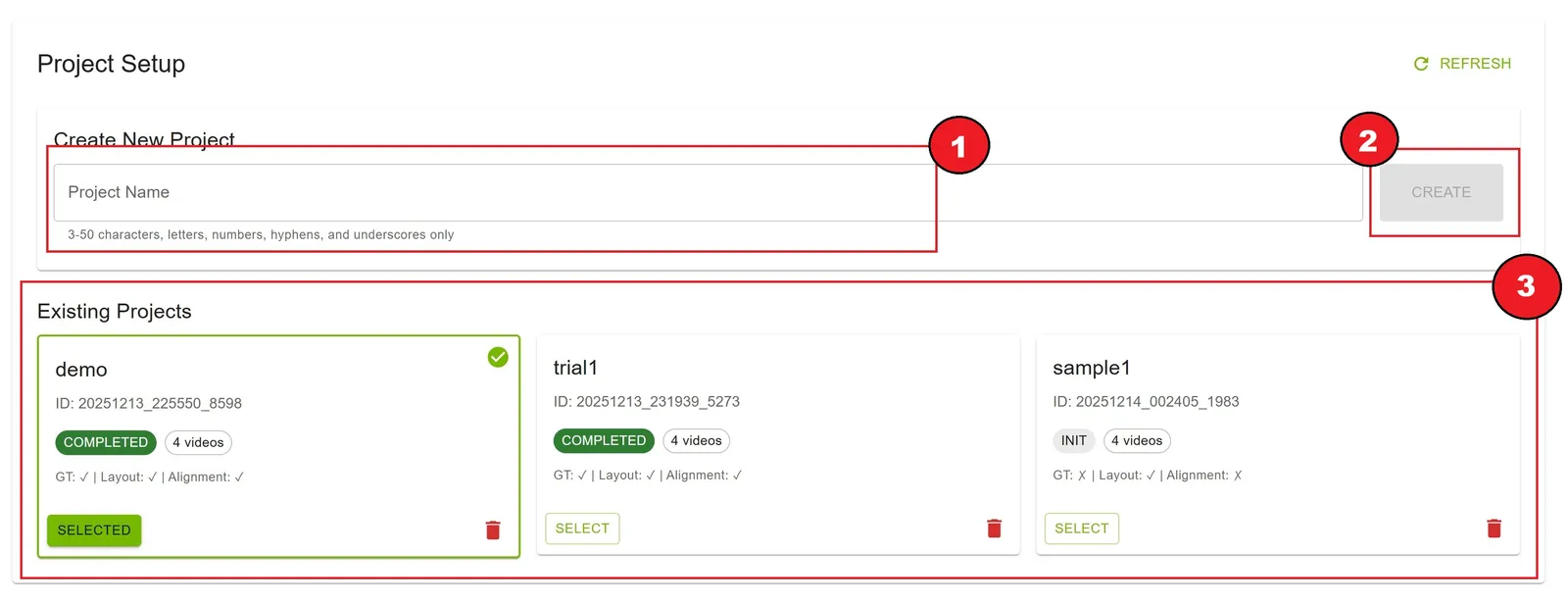
Project Name Validation
- ✓ Valid:
warehouse_calibration,site_01,parking-lot-A - ✗ Invalid:
ab(too short)
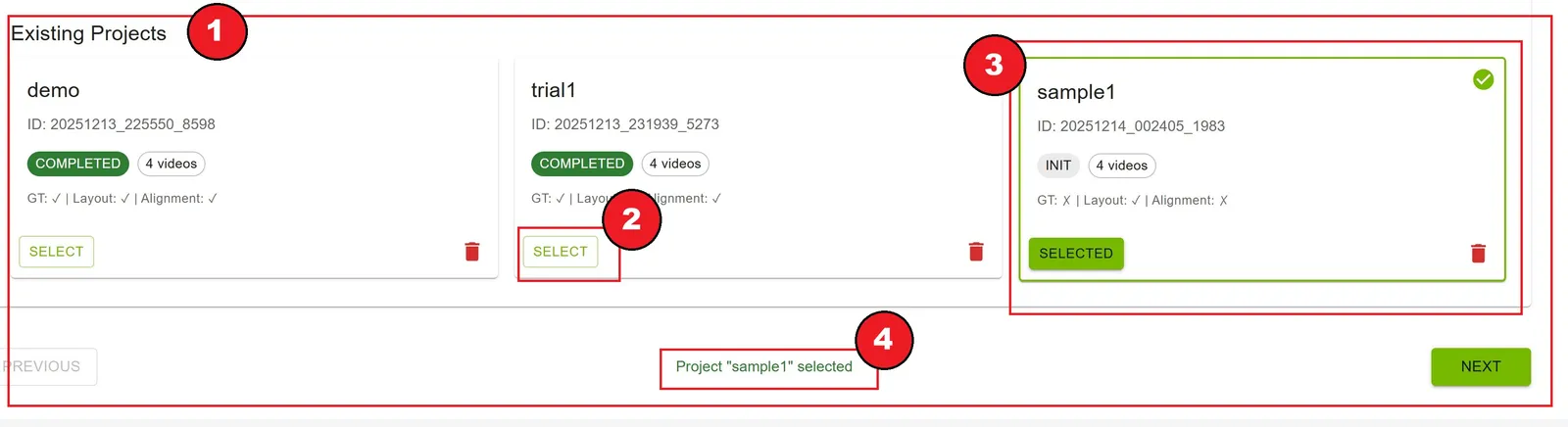
Selecting a Project
- Browse the list of existing projects
- Click the Select button on the desired project card
- The selected project is highlighted with a green border and checkmark
- Project information is displayed at the bottom: “Project ‘name’ selected”
Project Card Information
Each project card displays:
- Project Name: The name you assigned
- Project ID: Unique identifier (UUID)
- Project State: Current status badge
INIT(gray): Initial state, files not yet uploadedREADY(green): Ready for calibrationRUNNING(orange): Calibration in progressCOMPLETED(green): Calibration finished successfullyERROR(red): Calibration failed
- Video Count: Number of uploaded video files
- File Status: Checkmarks for uploaded files
- GT (Ground Truth): ✓ or ✗
- Layout: ✓ or ✗
- Alignment: ✓ or ✗
Managing Projects
Refreshing the Project List
Click the Refresh button in the top-right corner to reload the project list from the server.
Deleting a Project
- Click the trash icon (🗑️) on the project card
- Confirm deletion in the dialog that appears
- The project and all associated data are permanently deleted
Deleting Selected Projects
Use the checkboxes on project cards to multi-select projects for bulk delete (this is separate from the workflow Select button).
- Check one or more project cards
- In the Project Setup header, click Delete selected (N)
- Confirm in the Delete N selected project(s)? dialog
- Selected removable projects are permanently deleted; the project list reloads afterward
Deleting All Projects
- In the Project Setup header (next to Refresh), click Delete all
- Confirm in the Delete all projects? dialog
- Every removable project is permanently deleted; the project list reloads afterward
Delete all is disabled when there are no projects. For Delete selected and Delete all, projects with calibration running or RTSP capture in progress are skipped and not removed.
Warning: Deleting a project (including Delete selected or Delete all) cannot be undone. Export any important calibration results before deletion.
Step 2: Video Configuration
Upload camera videos, layout image, ground truth data, and optional alignment file.
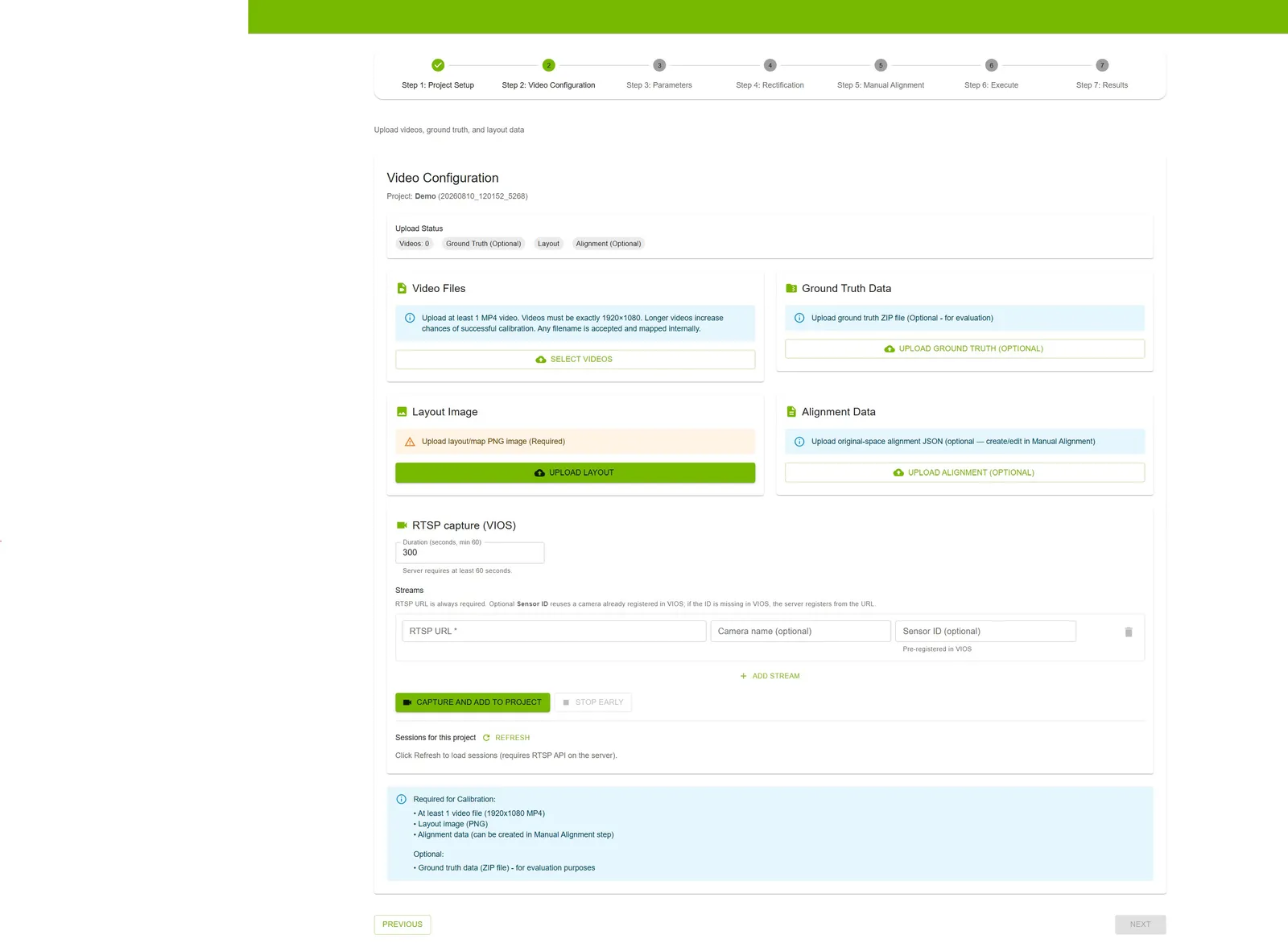
Upload Status Overview
At the top of the page, you’ll see a status summary showing:
- Videos: Count of uploaded videos (minimum 1 required)
- Ground Truth (Optional): Upload status
- Layout: Upload status (required)
- Alignment (Optional): Upload status

Uploading Video Files
Requirements
- Minimum: 1 video file (2 or more for multi-camera calibration)
- Formats: MP4. Auto Calibration does not support video formats that are not supported by DeepStream.
- Required Video Resolution: 1920×1080
- Input assumptions: See Assumptions for video content and recording requirements
Provide camera inputs using either file upload or RTSP capture (one camera for single-camera calibration, two or more for multi-camera). RTSP capture is available only when VIOS is configured on the Auto Calibration server; otherwise use file upload. The UI does not allow an active file-upload queue and RTSP capture at the same time; remove file-uploaded clips before switching to RTSP, and vice versa.
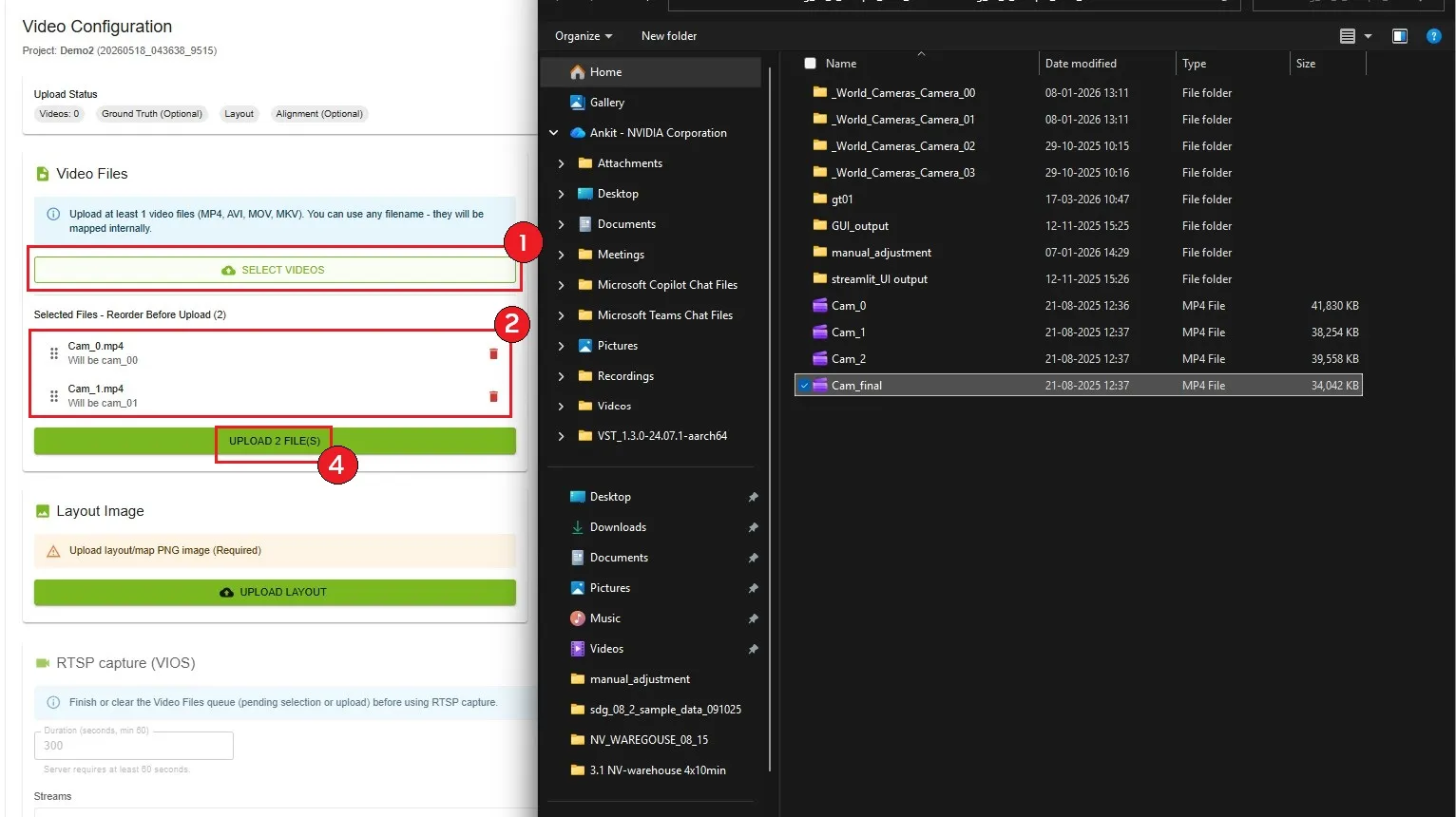
Option A: Upload video files
- Click the Select Videos button to choose video files from your computer (MP4)
- Selected videos appear in a list where you can reorder them by dragging
- Reorder videos to match your desired camera order (
cam_00,cam_01, etc.)—maintain order of overlapping field of view (FOV) - Click Upload N File(s) to upload all selected videos
- Wait for the upload progress bar to complete
Managing Video Files
- View List: All selected or uploaded videos are listed with their filenames
- Reorder: Drag and drop videos to change their order before uploading
- Delete Video: Click the trash icon (🗑️) next to a video to remove it
- Re-upload: Delete and upload again if needed
Option B: RTSP capture (VIOS)
(Shown only when the Auto Calibration service exposes RTSP capture; VIOS is configured on the server side.)
- Finish or clear any pending Video Files selection or upload before starting RTSP; if the project already has clips from file upload, remove them under Video Files first
- In the RTSP capture (VIOS) card, set Duration (seconds) between 60 and 1200 seconds (1–20 minutes), per server requirements
- Under Streams, enter all RTSP URLs for the project before capturing. Use Add stream for additional cameras. Optionally set Camera name and Sensor ID
- Click Capture and add to project once for the full stream list (all cameras record together). Do not add streams to an in-flight session or run separate captures for different camera subsets when you need multi-camera time synchronization
- Wait for the status chip and progress bar (STARTING → RECORDING → STOPPING / INGESTING as applicable → INGESTED)
- Optionally click Stop early after at least 60 seconds of RECORDING; early stop continues into automatic ingest
- When the session reaches INGESTED, captured clips appear under Video Files
While RTSP capture or ingest is running, Video Files upload is disabled until the pipeline completes.
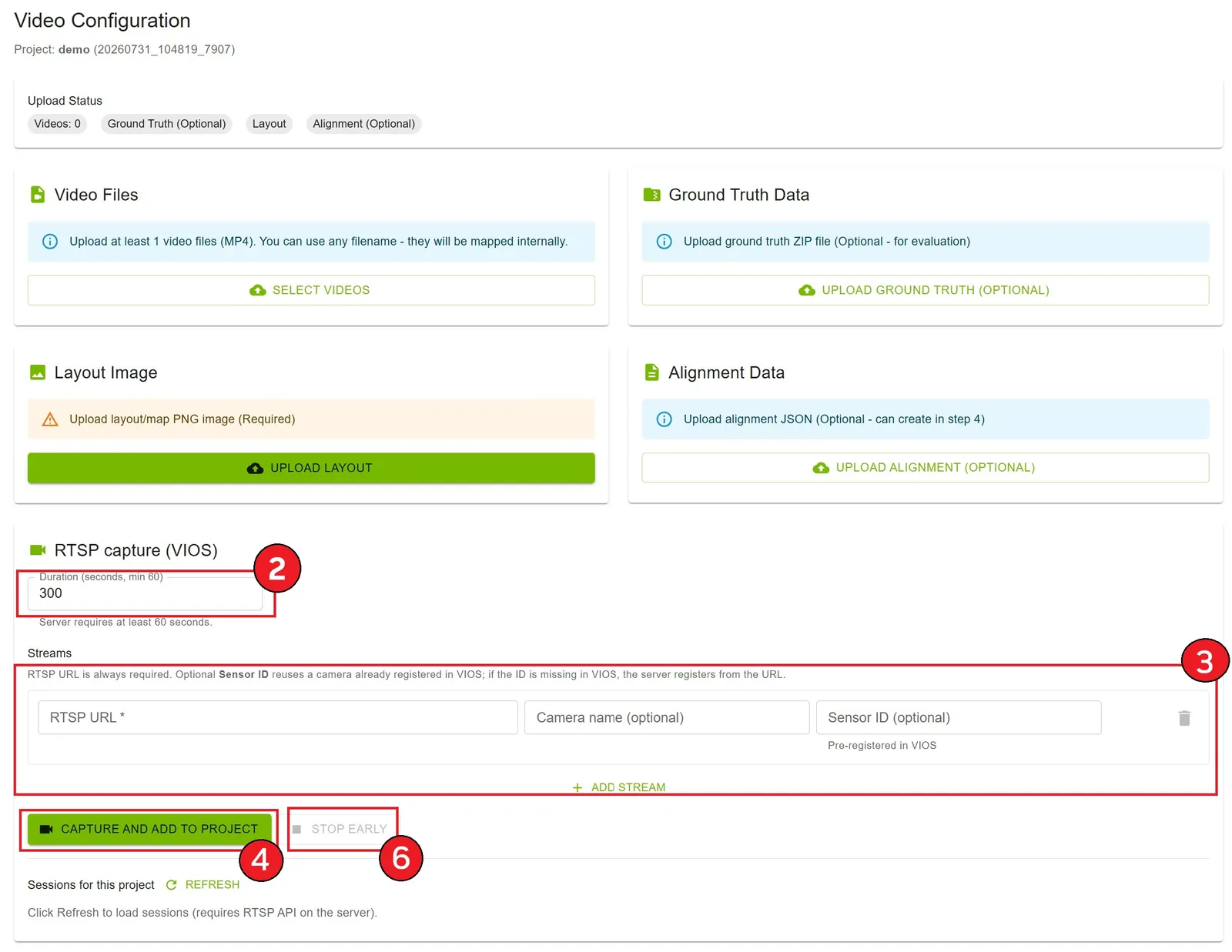
RTSP streams must be time-synchronized: one Capture and add to project with every stream configured together—no staggered captures for different camera subsets. List each RTSP URL under Streams in order of overlapping FOV (first stream = first camera in the overlap chain). For VIOS pre-registered RTSP streams, use the source URL (for example, the NVStreamer URL if the stream originates from NVStreamer) rather than the VIOS-proxied URL.
Uploading Ground Truth Data
Ground truth data is optional and used for calibration evaluation.
Requirements
- Format: ZIP file
- Content: Ground truth calibration data
Upload Process
- Click Upload Ground Truth (Optional) button
- Select your ZIP file
- Wait for upload confirmation
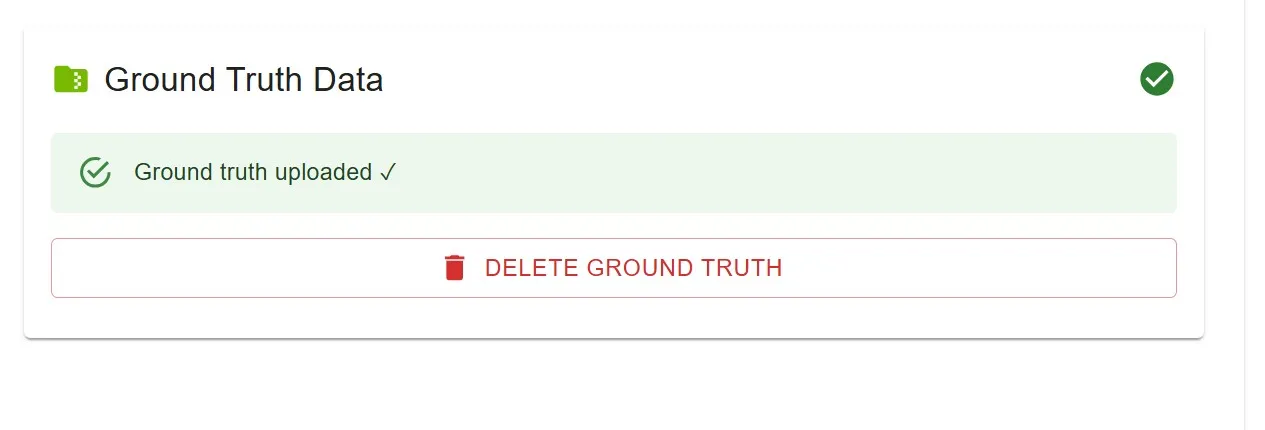
- Status changes to “Ground truth uploaded ✓”
Deleting Ground Truth
If ground truth is already uploaded, the button changes to Delete Ground Truth. Click it to remove the file.
Uploading Layout Image
The layout image is required and represents the top-down view or map of your surveillance area.
Requirements
- Format: PNG
- Content: Bird’s eye view map or layout diagram
- Recommended: High resolution for better accuracy
Upload Process
- Click Upload Layout button
- Select your image file
- Wait for upload confirmation
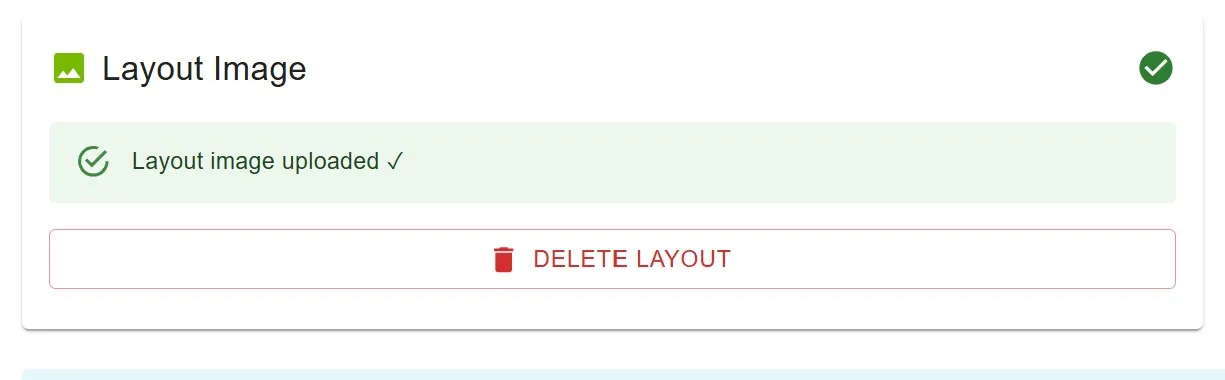
- Status changes to “Layout image uploaded ✓”
Deleting Layout
If layout is already uploaded, the button changes to Delete Layout. Click it to remove the file.
Uploading Alignment Data
Alignment data is optional at this step. You can either upload a pre-existing alignment file here or create / view / edit it interactively in Step 5.
Requirements
- Format: JSON file
- Content: Alignment point data (4+ point sets)
Upload Process
- Click Upload Alignment (Optional) button
- Select your JSON file
- Wait for upload confirmation
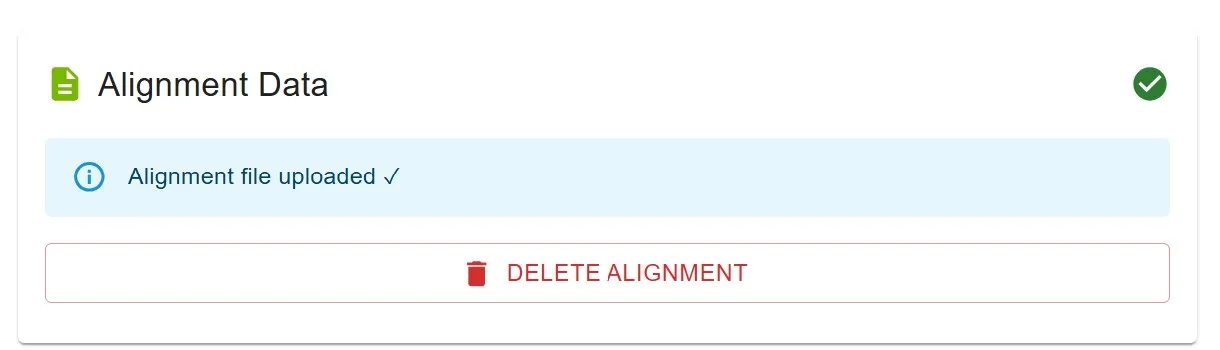
- Status changes to “Alignment file uploaded ✓”
Deleting Alignment
If alignment is already uploaded, the button changes to Delete Alignment. Click it to remove the file.
Requirements Note
Required for Calibration:
- At least 1 video file (2 or more for multi-camera calibration)
- Layout image (PNG)
- Alignment data (can be created in Manual Alignment step)
- Rectified / linear media (completed in Step 4: Rectification)
Optional:
- Ground truth data (ZIP file) — for evaluation purposes
You can proceed past Video Configuration even if ground truth and alignment are not uploaded. Complete Rectification (Step 4) before Alignment. Alignment can be created, viewed, or edited interactively in Step 5.
Step 3: Parameters
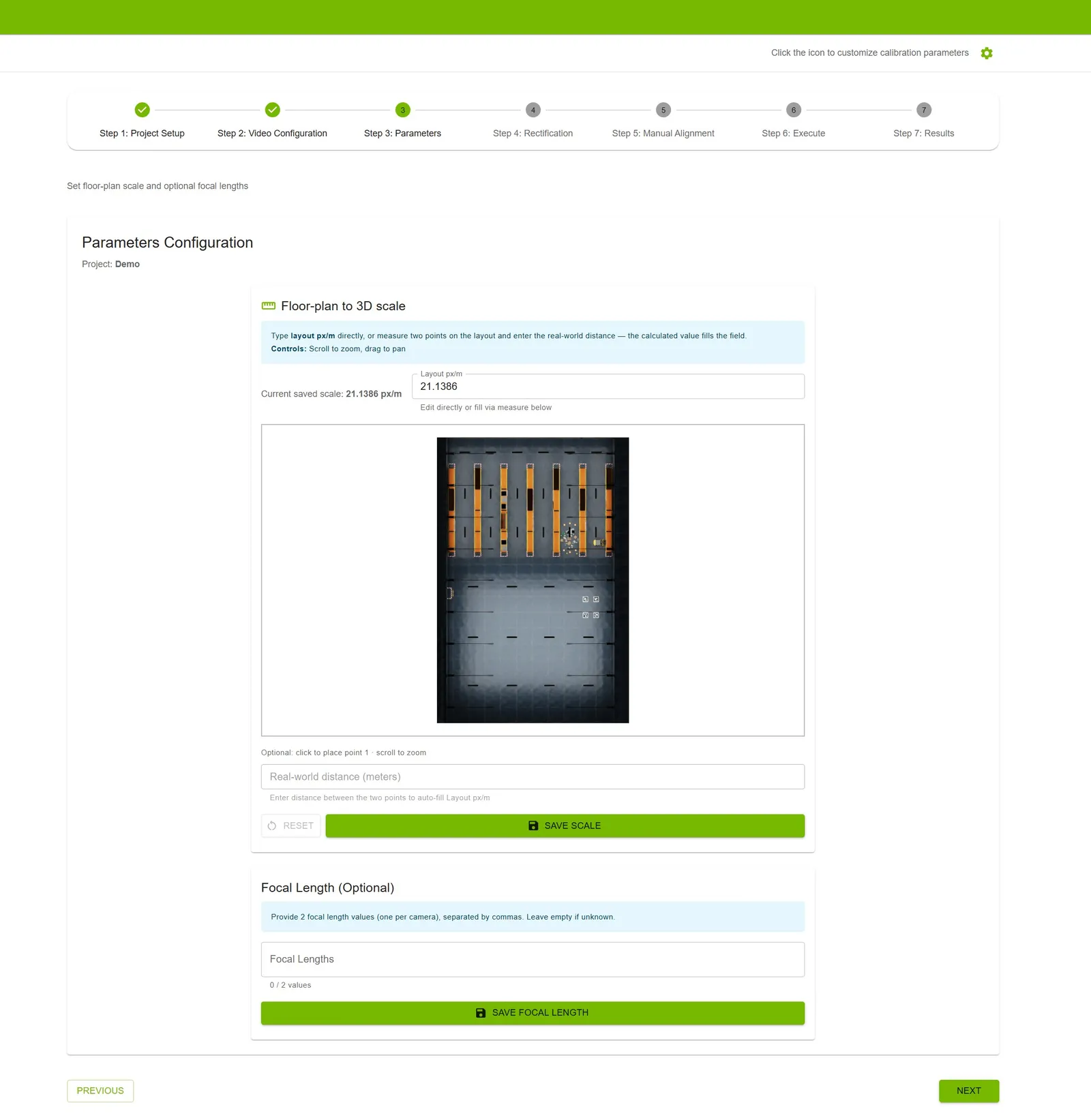
Set floor-plan scale and optional focal lengths.
Floor-Plan to 3D Scale
Initialize layout pixels per meter (layout_px_per_m) so overlays and world-coordinate exports match the physical floor plan.
Requirements
- Layout image uploaded in Step 2
How to Configure
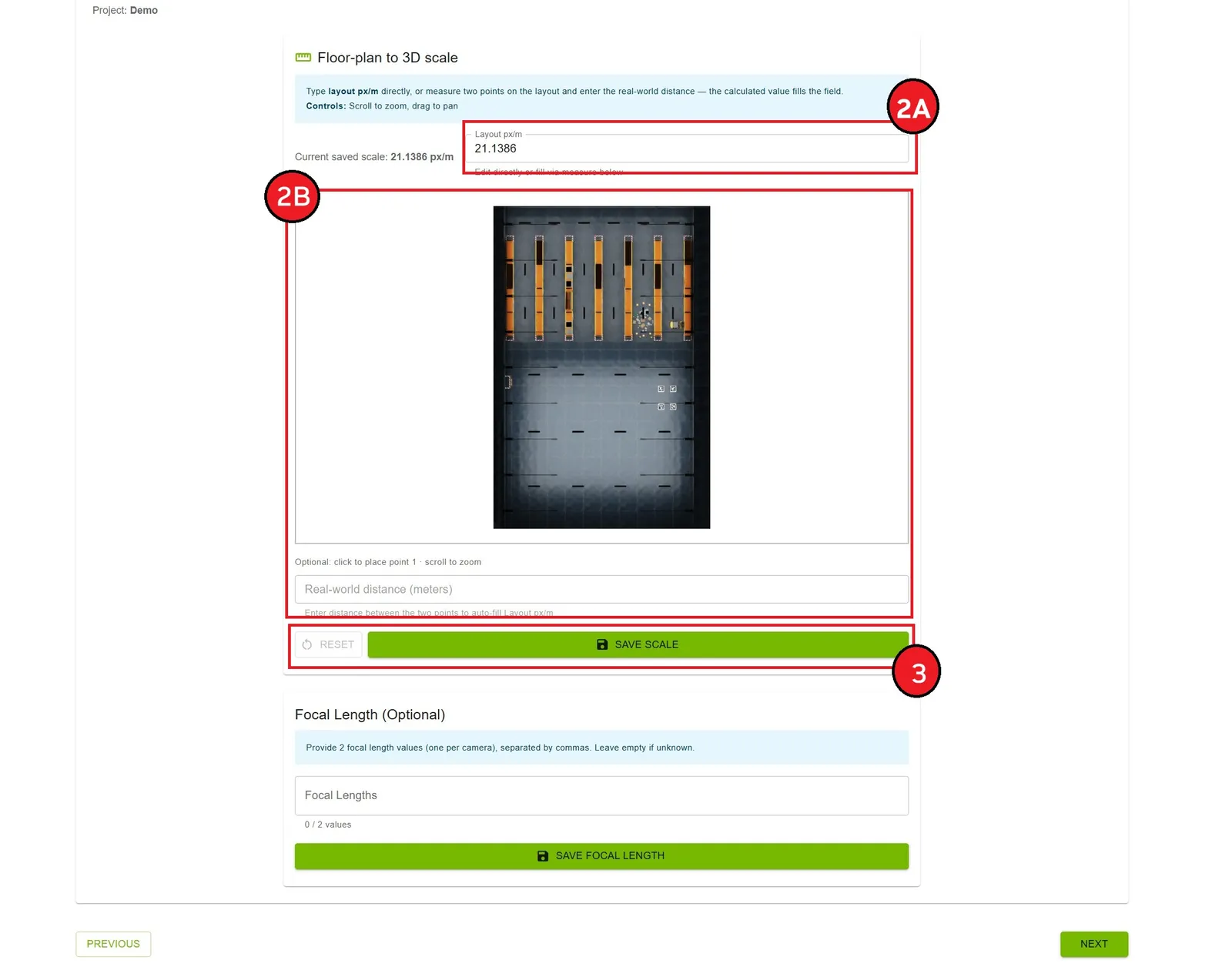
- Open the Floor-plan to 3D scale card
- Either:
- 2A. Type a positive layout px/m value directly, or
- 2B. Click two points on the layout map, enter the real-world distance in meters, and use the calculated px/m value
- Click Save Scale to persist
layout_px_per_mor Reset to recalculate layout_px_per_m
Controls
- Scroll: Zoom the layout canvas
- Drag: Pan when zoomed
- Reset: Clear measurement points and restore the last saved px/m
Wrong scale causes misaligned BEV / trajectory overlays after layout post-processing. Re-run shared post-processing after changing scale if calibration already completed.
Focal Length Configuration
Focal lengths are optional but can improve calibration accuracy.
Requirements
- One value per camera
- Comma-separated list
- Positive numbers only
- Count must match video count
How to Configure
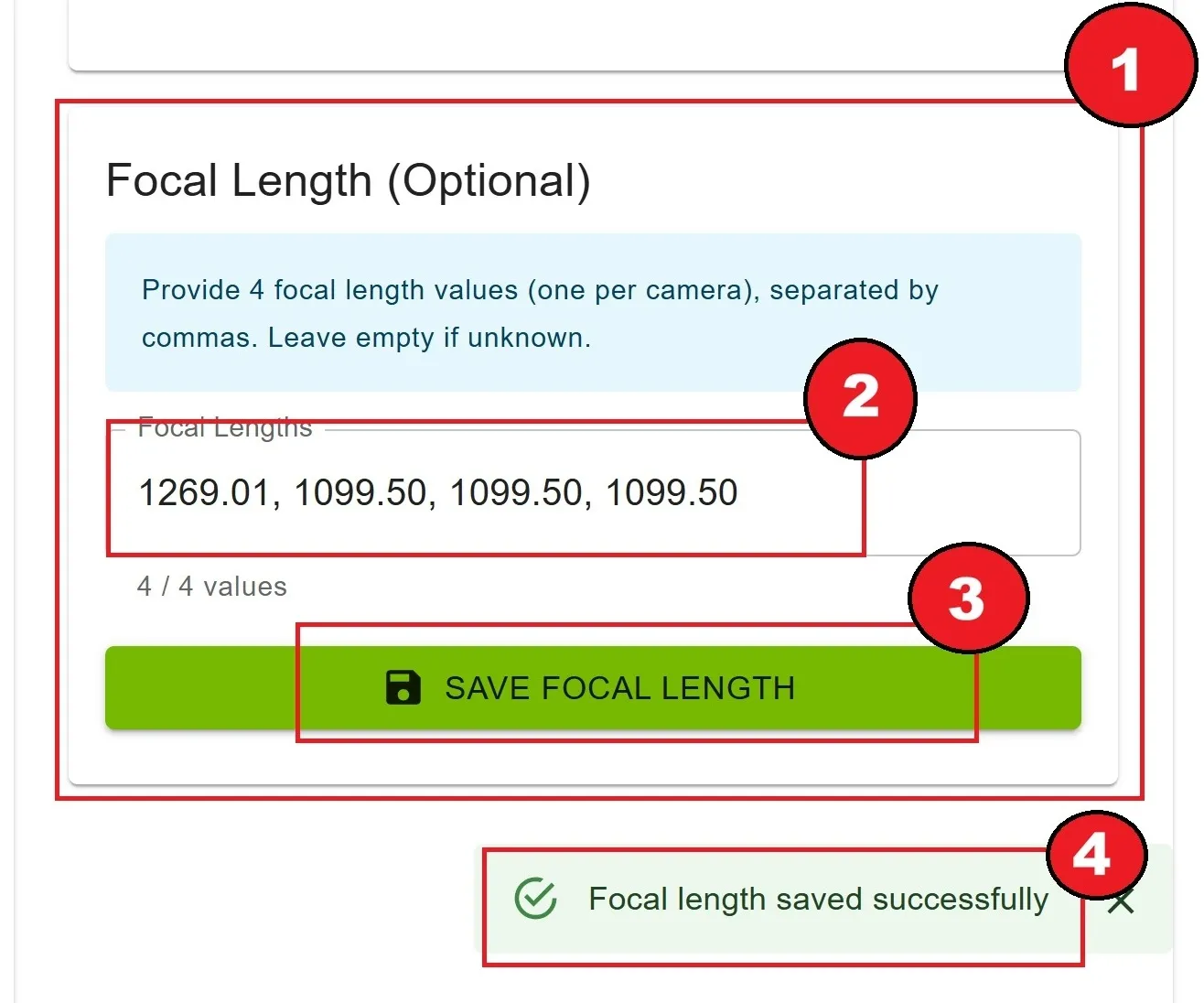
- Find the Focal Length (Optional) card
- Enter focal lengths separated by commas (e.g.,
1269.01, 1099.50, 1099.50, 1099.50) - Click Save Focal Length
- Confirmation message appears
Clearing Focal Lengths
- Delete all text from the input field
- Click Save Focal Length
- Focal lengths are cleared from the project
Scale and focal length are view-only while AMC or VGGT calibration is running.
Configuring Settings
On the Parameters step, you can customize calibration settings before running the pipeline. The settings control is only visible on this step.
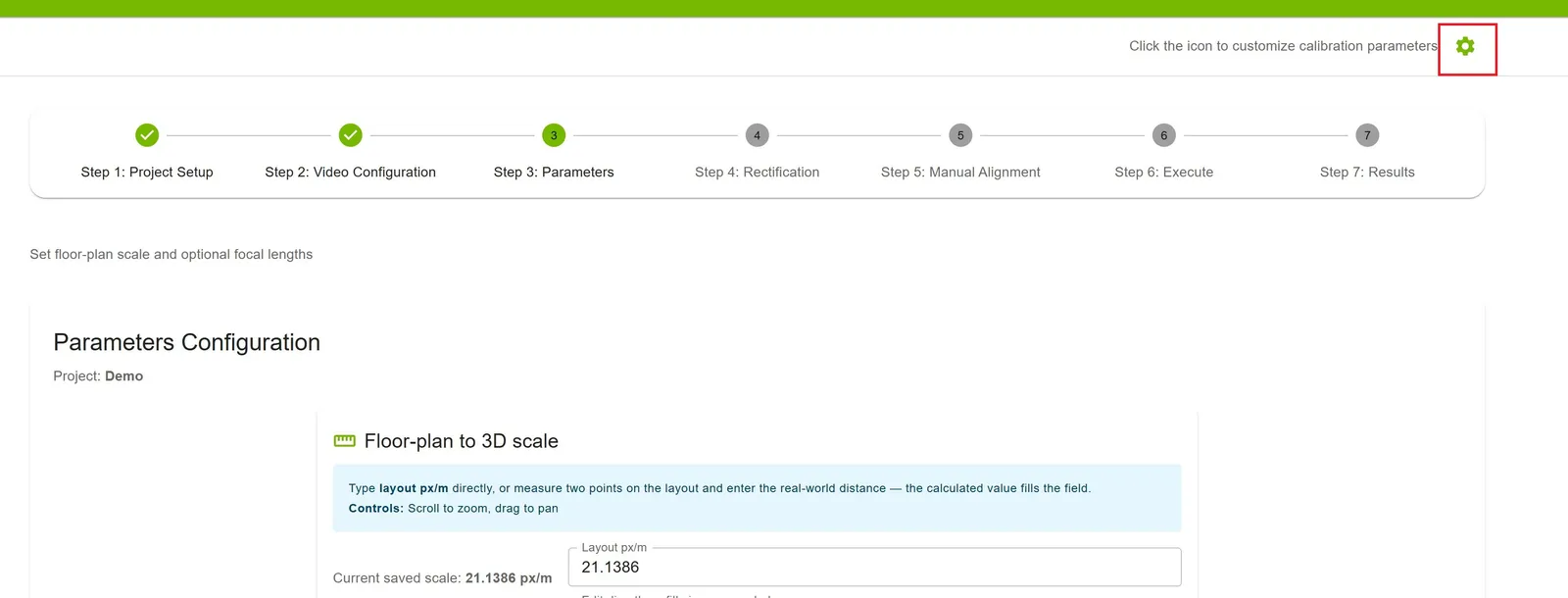
Configuration Options
- Option 1: Upload — upload a pre-configured settings file to apply all parameters at once
- Option 2: Manual Configuration — modify each parameter individually through the settings interface
Additional Actions
- Download: Export the current settings configuration to a file
- Reset to Defaults: Restore all settings to their default values
- Save Settings: Save your changes
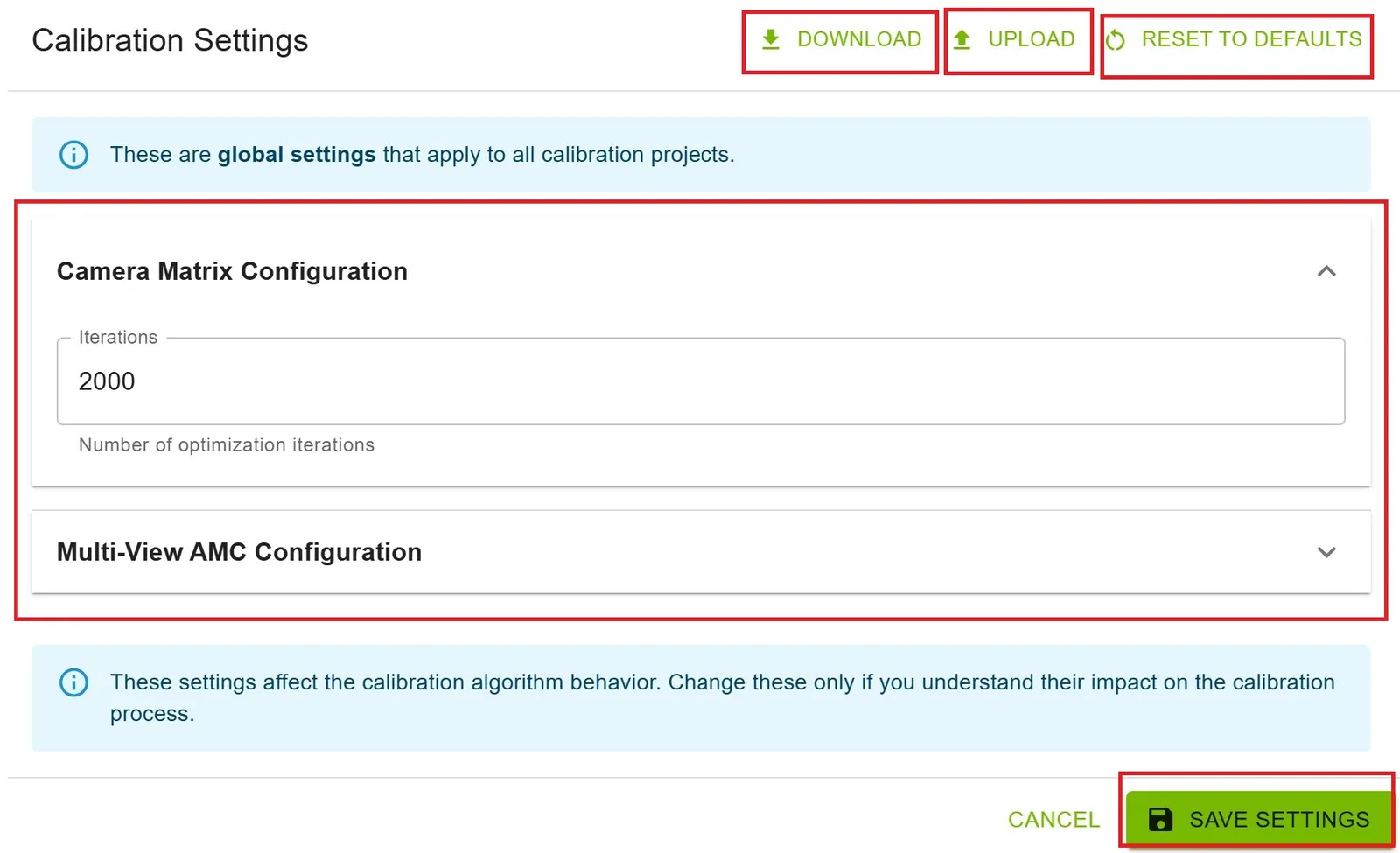
Warning: Do not change settings while AMC or VGGT calibration is running. Make configuration changes before starting calibration in Step 6: Execute. Rectification model / K1 search settings are configured on Step 4, not here.
Step 4: Rectification
Generate linear (rectified) camera media before alignment and calibration. AMC and VGGT consume staged rectified.mp4 / rectified.jpg; they no longer perform implicit in-calibration rectification.
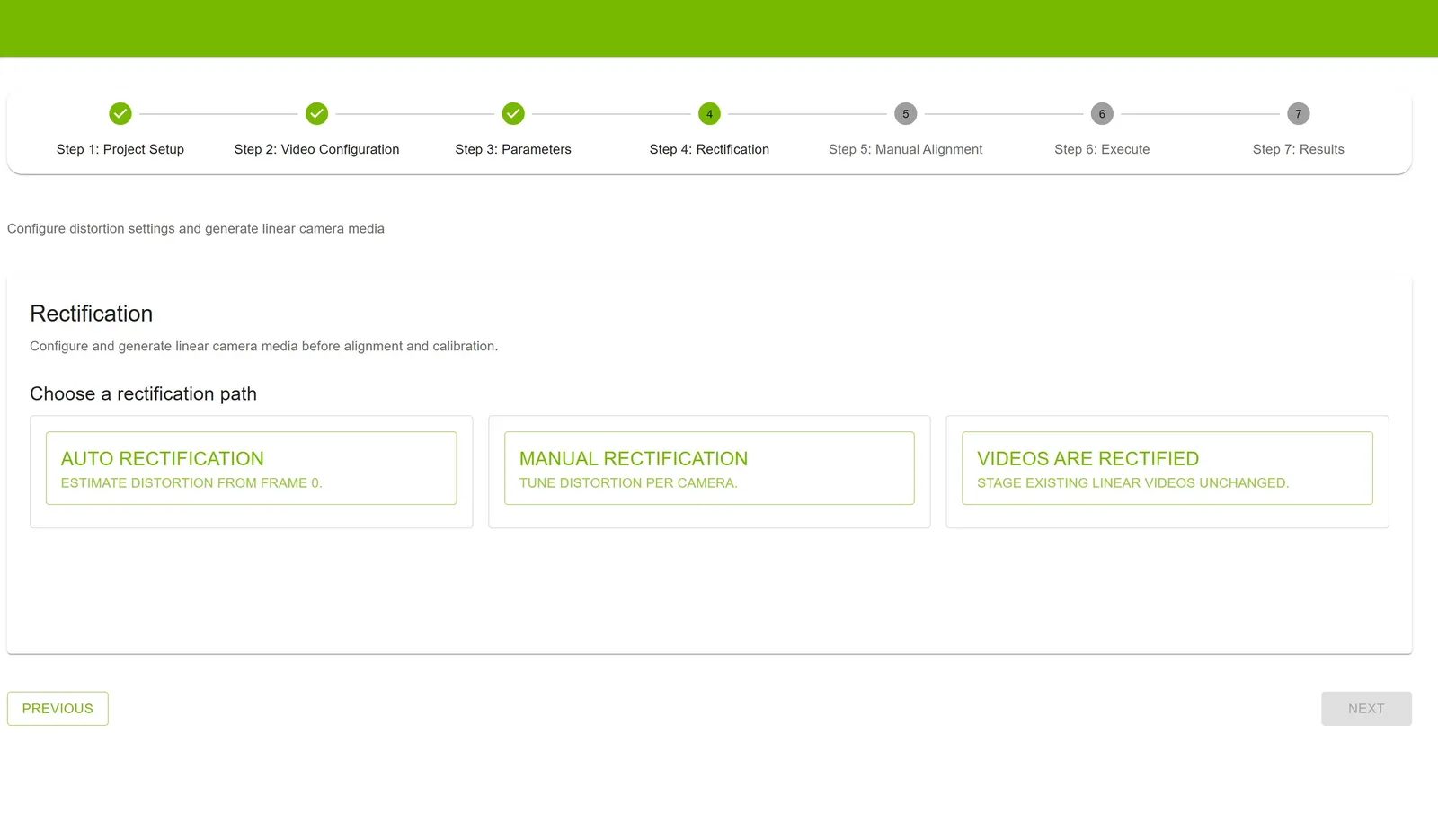
Rectification must reach COMPLETED before you can proceed to Manual Alignment. Verification on Execute also requires completed linear media.
Choose a Rectification Path
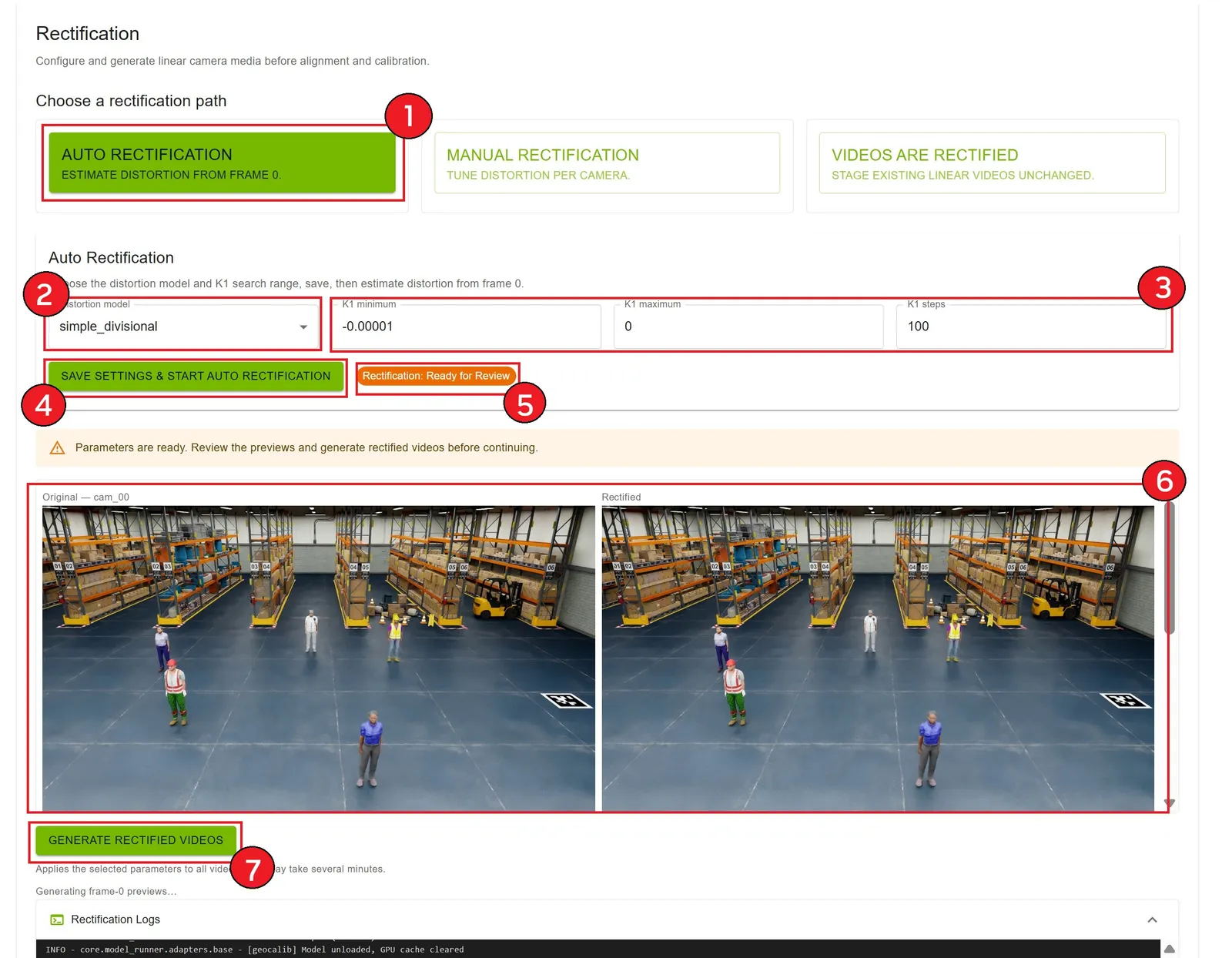
Auto Rectification
- Select Auto Rectification
- Choose distortion model:
simple_divisional(default),simple_radial, orradial - Optionally adjust K1 search range (
K1 minimum,K1 maximum,K1 steps) - Click Save Settings & Start Auto Rectification
- Wait for state Ready for Review
- Review side-by-side original / GeoCalib rectified previews
- Click Generate Rectified Videos to write full videos and
distortion.yaml
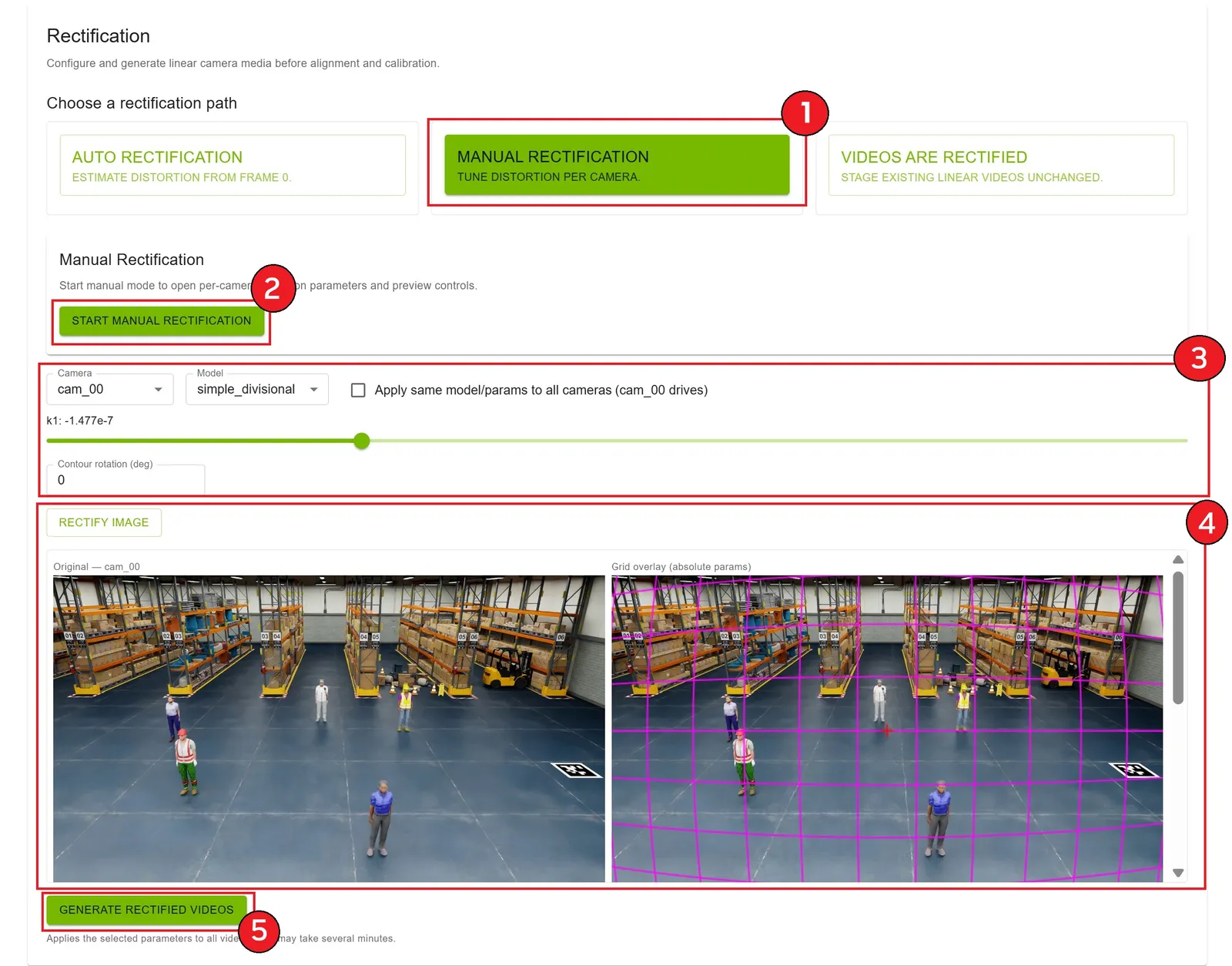
Manual Rectification
Note: You may run Manual Rectification directly, or do Auto Rectification → Manual Rectification. If Auto Rectification has run, Manual Rectification automatically sets the distortion parameters to those estimates as initial values.
- Select Manual Rectification
- Click Start Manual Rectification
- Per camera, edit absolute distortion parameters (
model,k1, andk2when model isradial). Optionally apply the same params from cam_00 to all cameras - Move sliders to set distortion parameters. Use live grid overlay feedback. Curved grid contours show the approximate look of straight objects/lines in the scene at the current distortion parameters set in the slider(s). Users may adjust Contour rotation to make in-view rotation for easier tuning; click Rectify Image for a frame-0 remapped preview
- Click Generate Rectified Videos
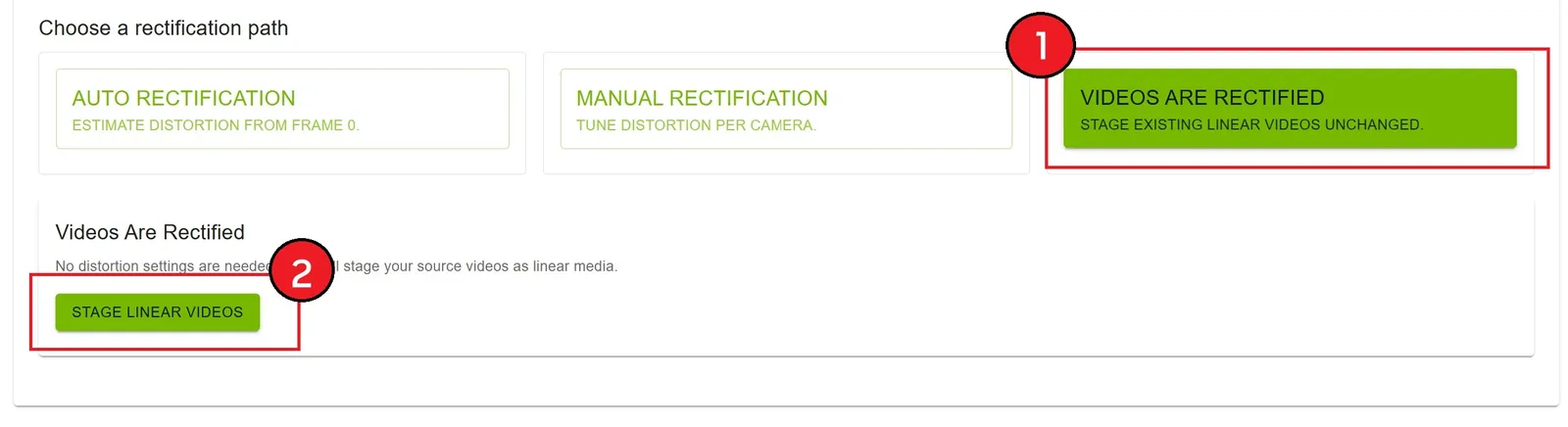
Videos Are Rectified
- Select Videos Are Rectified
- Click Stage Linear Videos
- Source videos are staged as linear media (no distortion estimate); state becomes COMPLETED
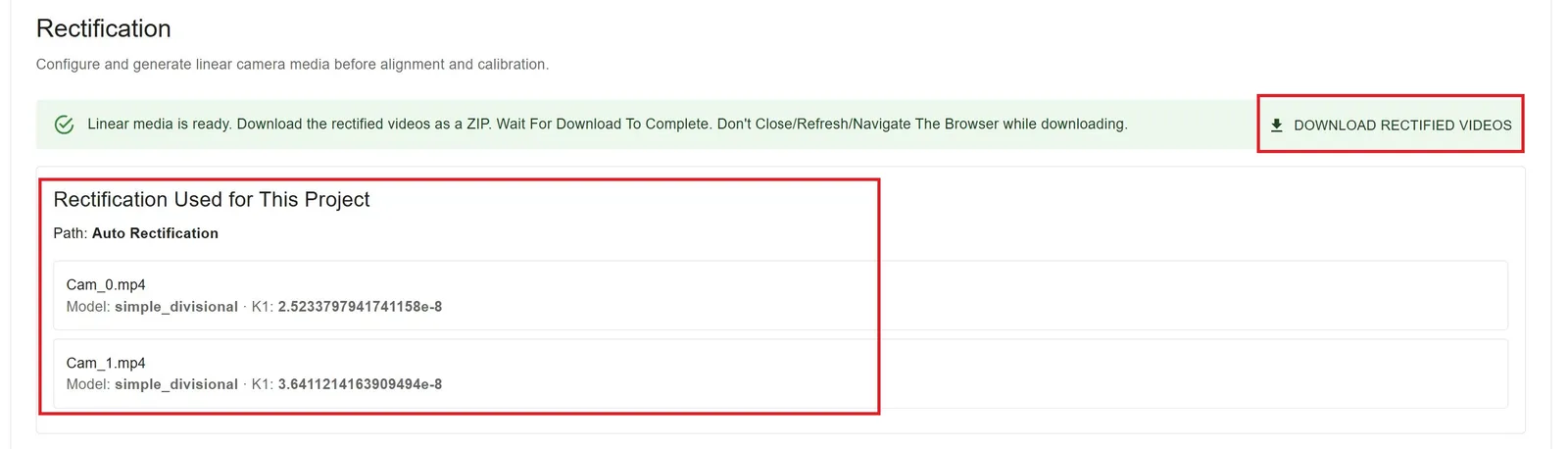
After Completion
- Download rectified media and distortion.yaml via Download rectified videos (ZIP of single-view results)
- Rectification path, model, and parameter details are shown after rectification completes.
- Alignment and calibration unlock
Re-rectification
Re-running Auto, Manual, or Videos Are Rectified after COMPLETED invalidates downstream work. You must:
- Re-verify the project on Execute
- Relaunch AMC and/or VGGT calibration
- Re-run shared layout post-processing (multi-camera)
Concurrent rectification / calibration / post-processing is rejected.
Distortion models supported in the UI:
simple_divisional(default),simple_radial,radial. Already-linear inputs use the Videos Are Rectified path instead of a separatepinholetoggle.
Step 5: Manual Alignment
Create, upload, view, or edit alignment data by selecting corresponding points across camera views and the layout map. This step is required for calibration. Interactive points are collected on rectified / linear frames from Step 4; file upload expects original / pre-rectification camera coordinates (see Option 1).
Three Options for Alignment
Option 1: Upload Existing Alignment
If you already have an alignment_data.json file (for example from CLI / original pre-rectification frames):
- Click Upload alignment_data.json
- Select your JSON file
- Wait for upload confirmation — the UI uploads with
coord_space=original; the microservice converts camera points to rectified-space alignment after Step 4 when needed - The alignment tool opens in view mode for visual inspection; switch to edit to adjust points
Important: External file upload expects original / distorted camera coordinates. Do not supply already-rectified camera points on this path — that causes an incorrect second conversion. Interactive draw/save (Option 2) uses
coord_space=rectifiedbecause points are picked on rectified frames.
Option 2: Create Alignment Interactively
- Click Open Alignment Tool / create controls
- The interactive alignment interface opens (points are collected on rectified / linear frames)
- Follow the point selection process
- Save when at least 4 point sets are complete (saved as rectified-space)
Option 3: View / Edit Existing Alignment
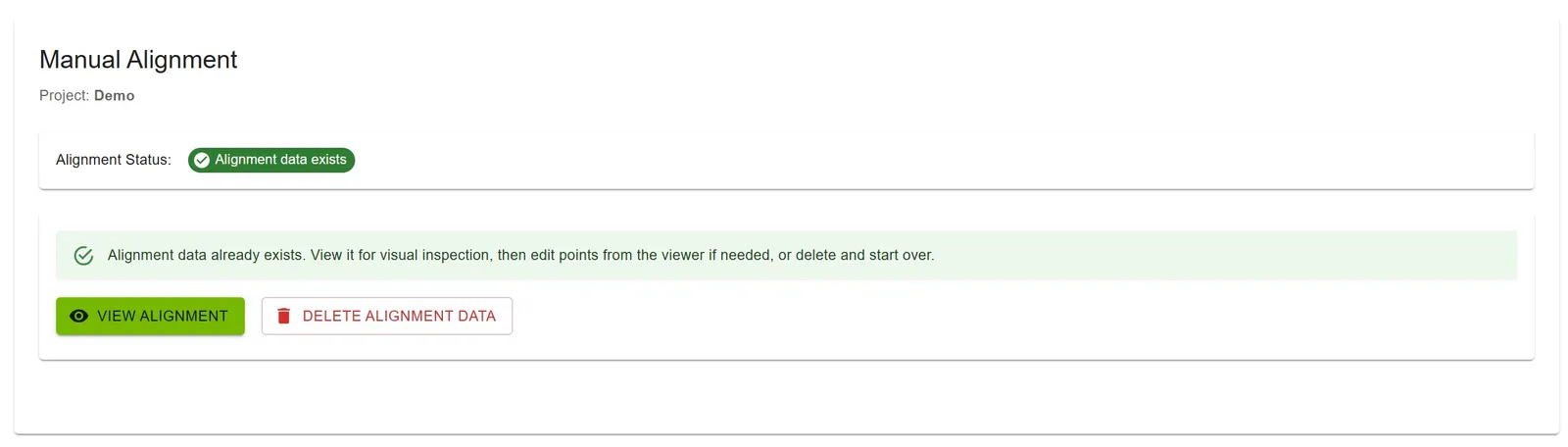
When alignment already exists:
- Click View to inspect points overlaid on camera and layout images
- Click Edit to adjust points, then Save Changes
- Or Delete Alignment Data and recreate from scratch
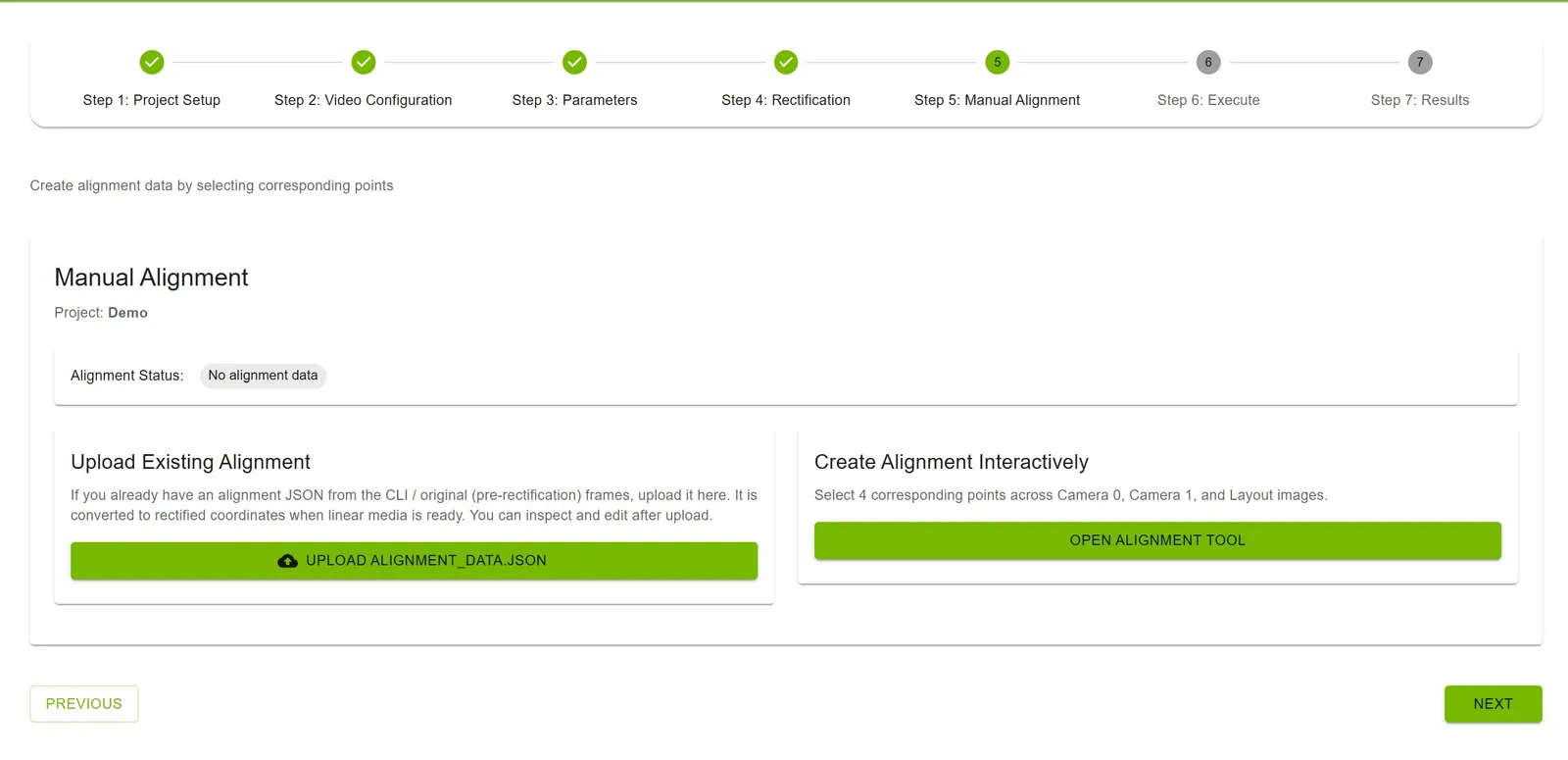
Alignment Status
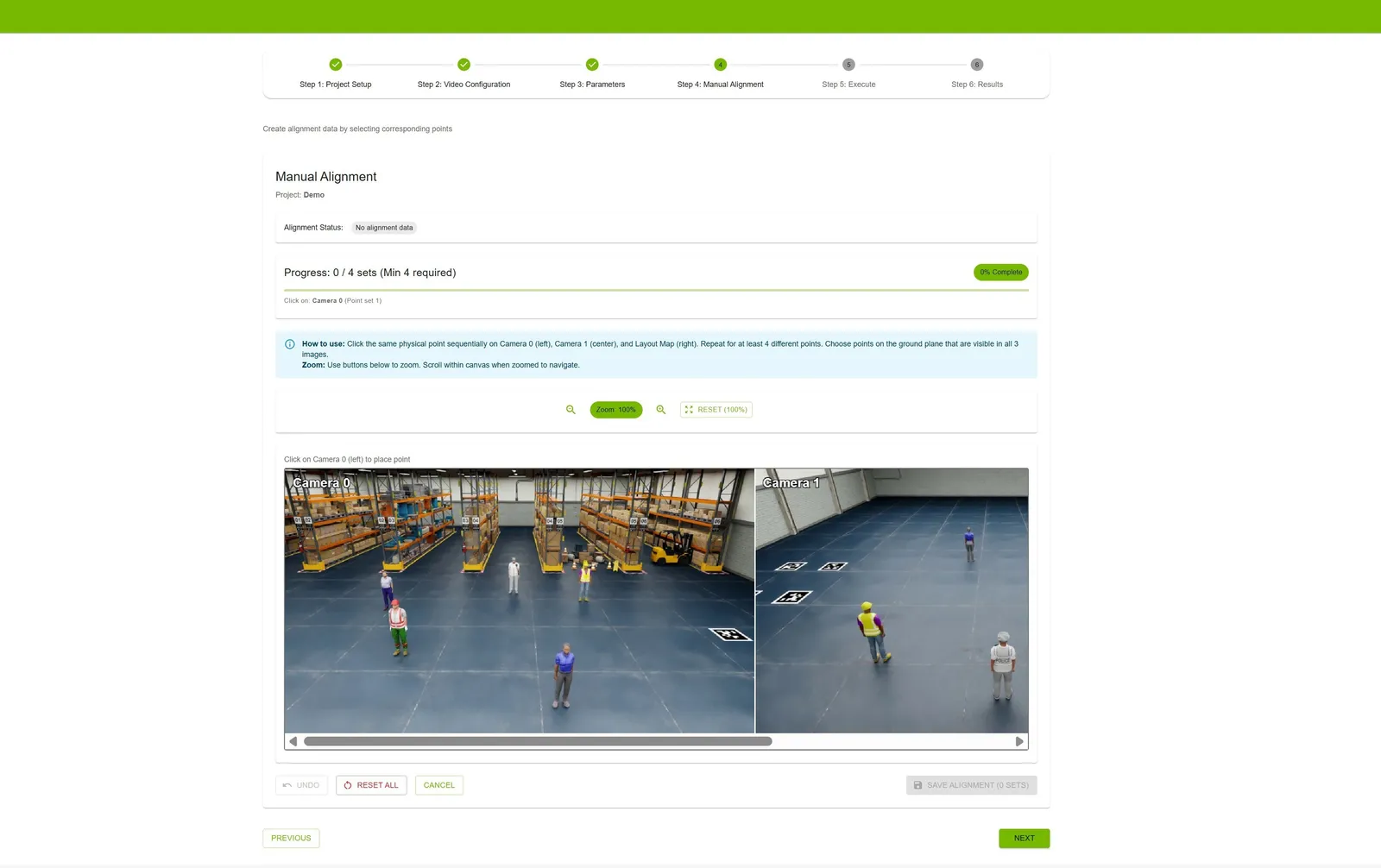
At the top of the page, you’ll see the current alignment status:
- Green Badge: “Alignment data exists” — file already uploaded or created
- Gray Badge: “No alignment data” — need to upload or create alignment
Prerequisites Check
Before creating alignment interactively, the system checks:
- ✓ At least 1 video uploaded
- ✓ Layout image uploaded
- ✓ Rectification completed (linear media ready)
If prerequisites are not met, you’ll see a warning message directing you to Step 2 or Step 4.
Interactive Alignment Tool
Interface Overview
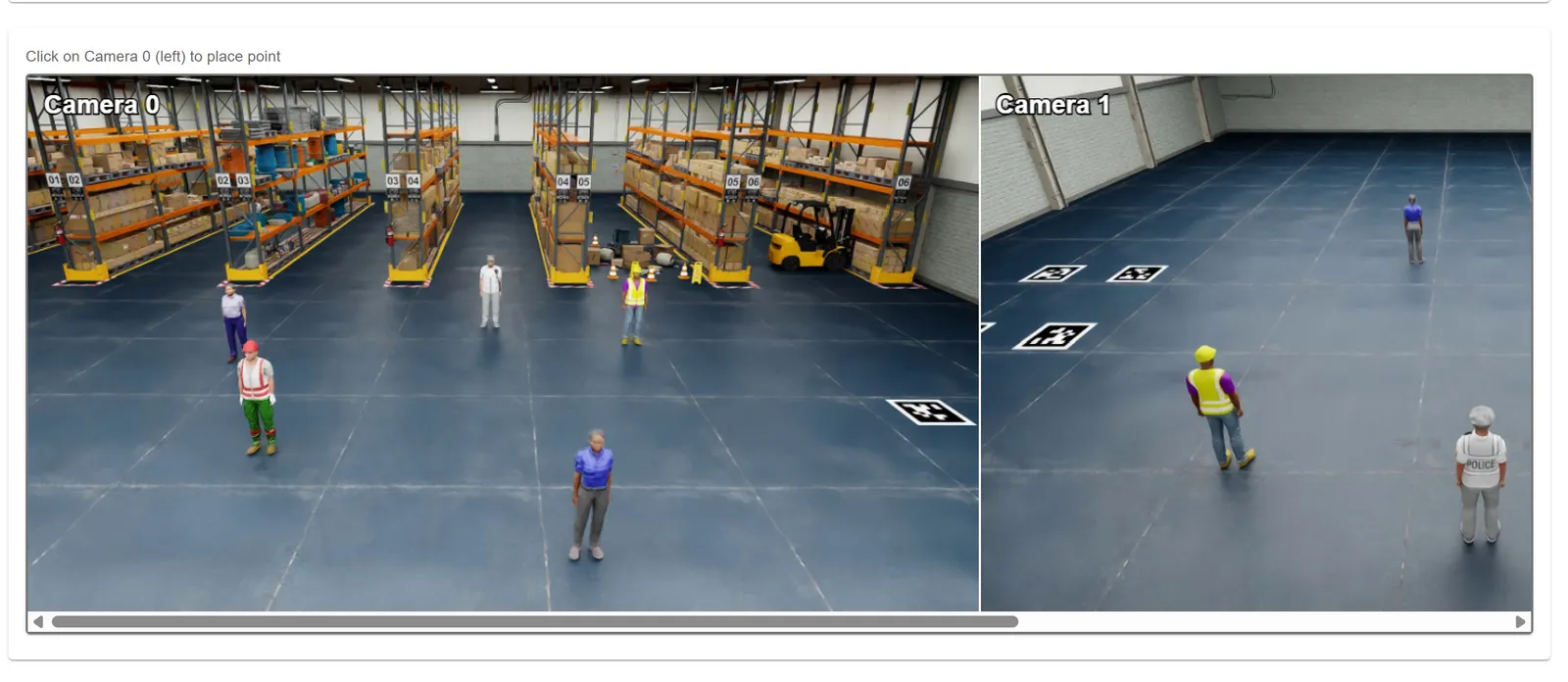
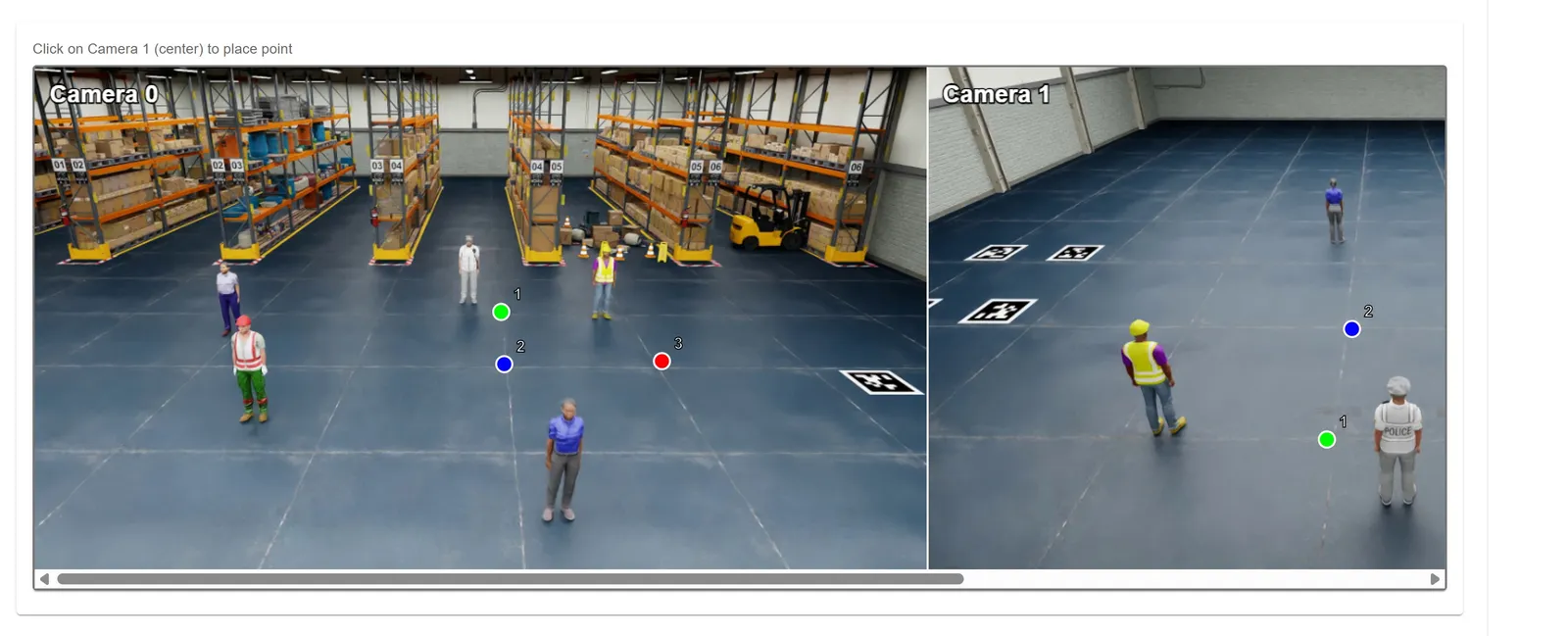
The alignment tool shows one concatenated canvas. The layout depends on how many videos are in the project:
Multi-camera (2 or more videos)
- Left: Camera 0 (cam_00.mp4)
- Center: Camera 1 (cam_01.mp4)
- Right: Layout map (BEV — bird’s eye view)
Single-camera (1 video)
- Left: Camera (cam_00.mp4)
- Right: Layout map (BEV)
Progress Indicator
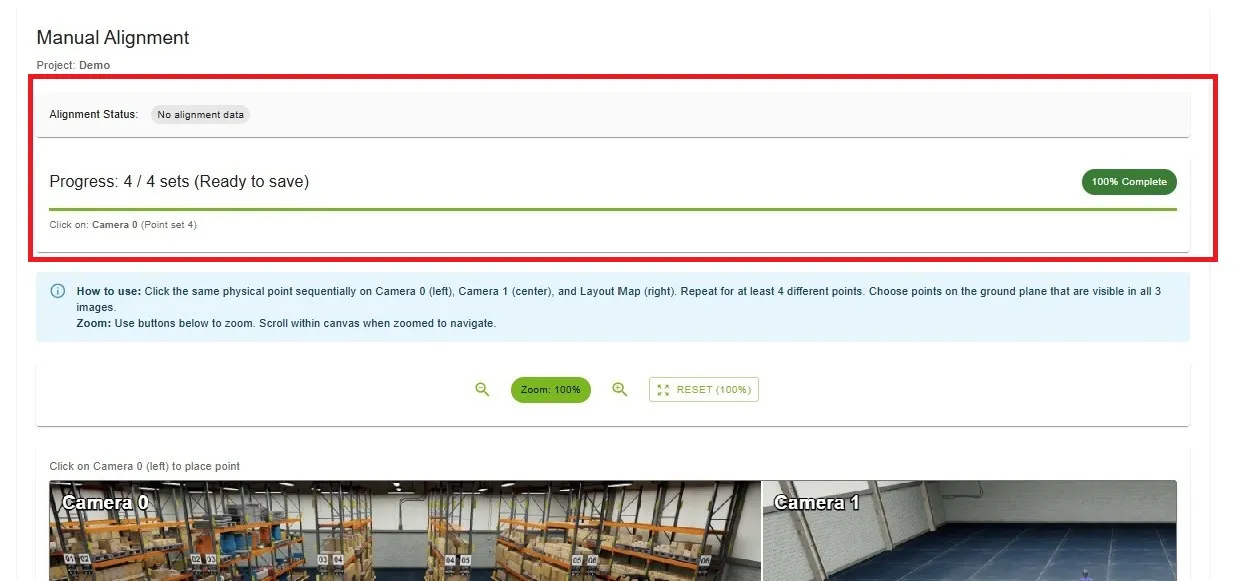
At the top, you’ll see:
- Progress Bar: Visual progress (0–100%)
- Completion Status: “X / Y sets (Min 4 required)” or “(Ready to save)”
- Current Action: Prompt shows the next panel to click—for example Camera 0, Camera 1, Layout Map, or Camera (single-camera)
Point Selection Process
Multi-camera (3 clicks per point set)
- Select Point on Camera 0 — click on a distinct feature in Camera 0 (left section); a colored circle with number “1” appears; system prompts “Click on: Camera 1”
- Select Corresponding Point on Camera 1 — click on the same physical location in Camera 1 (center section); system prompts “Click on: Layout Map”
- Select Corresponding Point on Layout — click on the same physical location on the layout map (right section); Point Set 1 complete
- Repeat for Additional Points — repeat for at least 4 total point sets; each set uses a different color (green, blue, red, yellow)
Single-camera (2 clicks per point set)
- Select Point on Camera — click on a distinct feature in the camera view (left section); system prompts “Click on: Layout Map”
- Select Corresponding Point on Layout — click on the same physical location on the layout map (right section); Point Set 1 complete
- Repeat for Additional Points — repeat for at least 4 total point sets (same minimum as multi-camera)
Point Selection Tips
- Choose points on the ground plane
- Select distinct features (corners, markings, poles)
- For multi-camera projects, choose a physical point visible in Camera 0, Camera 1, and the layout map. Additional cameras are not included in the alignment point set.
- For single-camera projects, choose a physical point visible in the camera and the layout map.
- Distribute points across different depths and locations
- Avoid points on moving objects
- Use zoom controls for precision
Zoom and Navigation
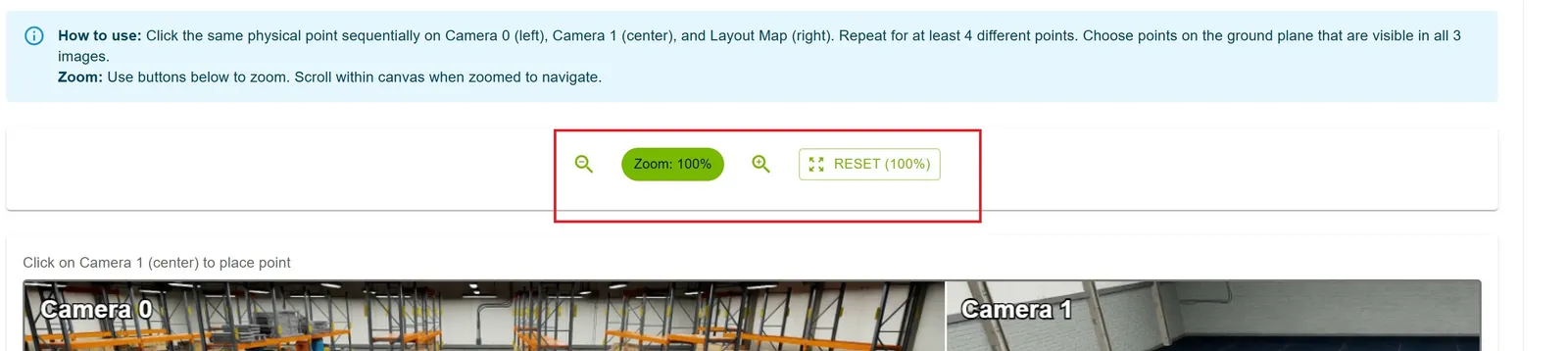
Zoom Controls (located above the canvas):
- Zoom In (🔍+): Increase zoom level
- Zoom Out (🔍-): Decrease zoom level
- Reset (100%): Return to original zoom level
- Current Zoom: Displayed as percentage (e.g., “Zoom: 150%”)
Navigation
- Scroll Wheel: Zoom in/out on the canvas
- Click + Drag: Pan around when zoomed in
- Zoom Range: 50% to 300%
Point Set Management
- Undo Last Point: Click the Undo button to remove the most recently placed point
- Reset All Points: Click the Reset All button to clear all points and start over
- Add More Points: After completing 4 point sets, click Add More Points to add additional sets for improved accuracy

Saving Alignment Data
Requirements
- Minimum 4 complete point sets
- Multi-camera: each set must include Camera 0, Camera 1, and layout map points
- Single-camera: each set must include camera and layout map points (2 points per set)
Save Process
- Complete at least 4 point sets
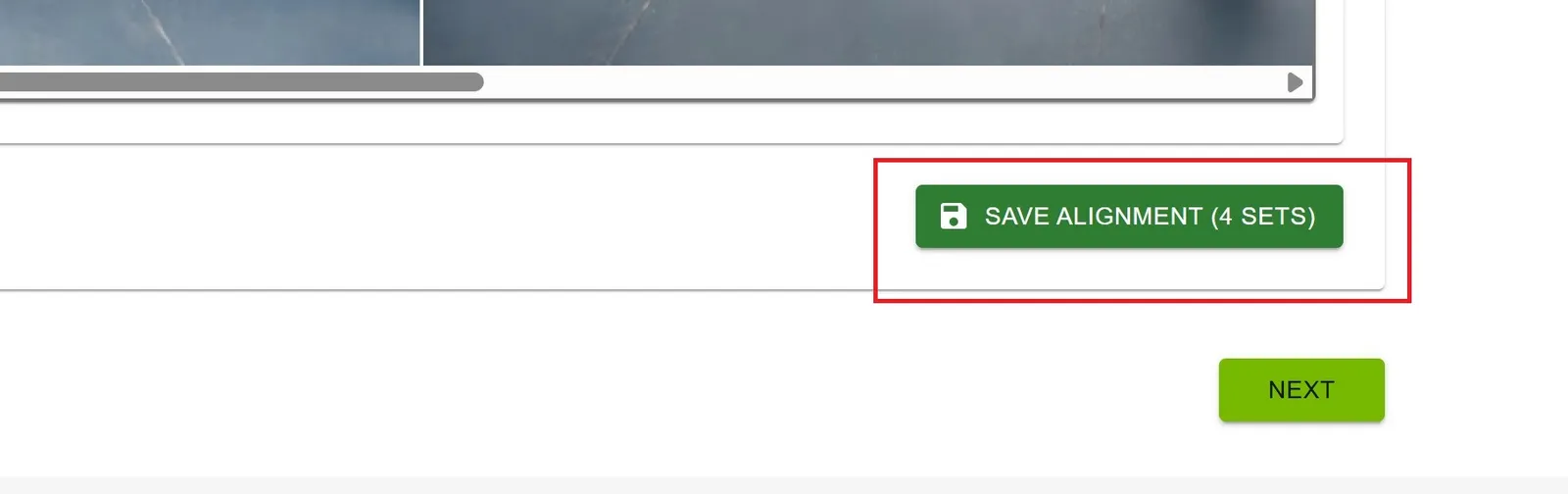
- The Save Alignment button becomes enabled
- Button shows: “Save Alignment (X sets)” where X is the count
- Click Save Alignment (X sets)
- System generates and uploads the alignment JSON file
- Success message appears
- Alignment tool closes automatically
Click the Cancel button to exit the alignment tool without saving.
Alignment Data Format
The generated / interactively saved alignment data is a JSON array. Each outer element is one point set; camera coordinates are in pixel space of the rectified / linear images. For external file upload via the UI, supply original / pre-rectification camera coordinates instead — see Option 1 above and Alignment Data (alignment_data.json).
Multi-camera — three [x, y] pairs per set (camera 0, camera 1, layout):
This remains a three-pair format for projects with more than two cameras. Do not append points for additional cameras.
Single-camera — two [x, y] pairs per set (camera, layout):
Deleting Alignment Data
If alignment data already exists and you want to recreate it:
- The interface shows: “Alignment data already exists for this project”
- Click Delete Alignment Data button
- Confirm deletion
- Create new alignment using either upload or interactive method
Warning: Deleting alignment data cannot be undone. You’ll need to recreate or re-upload it.
Best Practices
Point Selection Strategy
- Minimum 4 points: Required for calibration
- Recommended 6–8 points: Better accuracy and robustness
Point Distribution
- Spread points across the entire area
- Include points at different depths (near and far)
- Cover all quadrants of the layout
- Avoid clustering points in one area
Point Quality
- Use sharp, distinct features
- Avoid ambiguous or blurry areas
- Prefer corners and intersections
- Ensure good contrast
Common Mistakes to Avoid
- ✗ Selecting points on walls or elevated surfaces
- ✗ Choosing points only in the center
- ✗ Using points on moving objects
- ✗ Clicking too quickly without precision
- ✗ Forgetting to zoom in for accuracy
Step 6: Execute Calibration
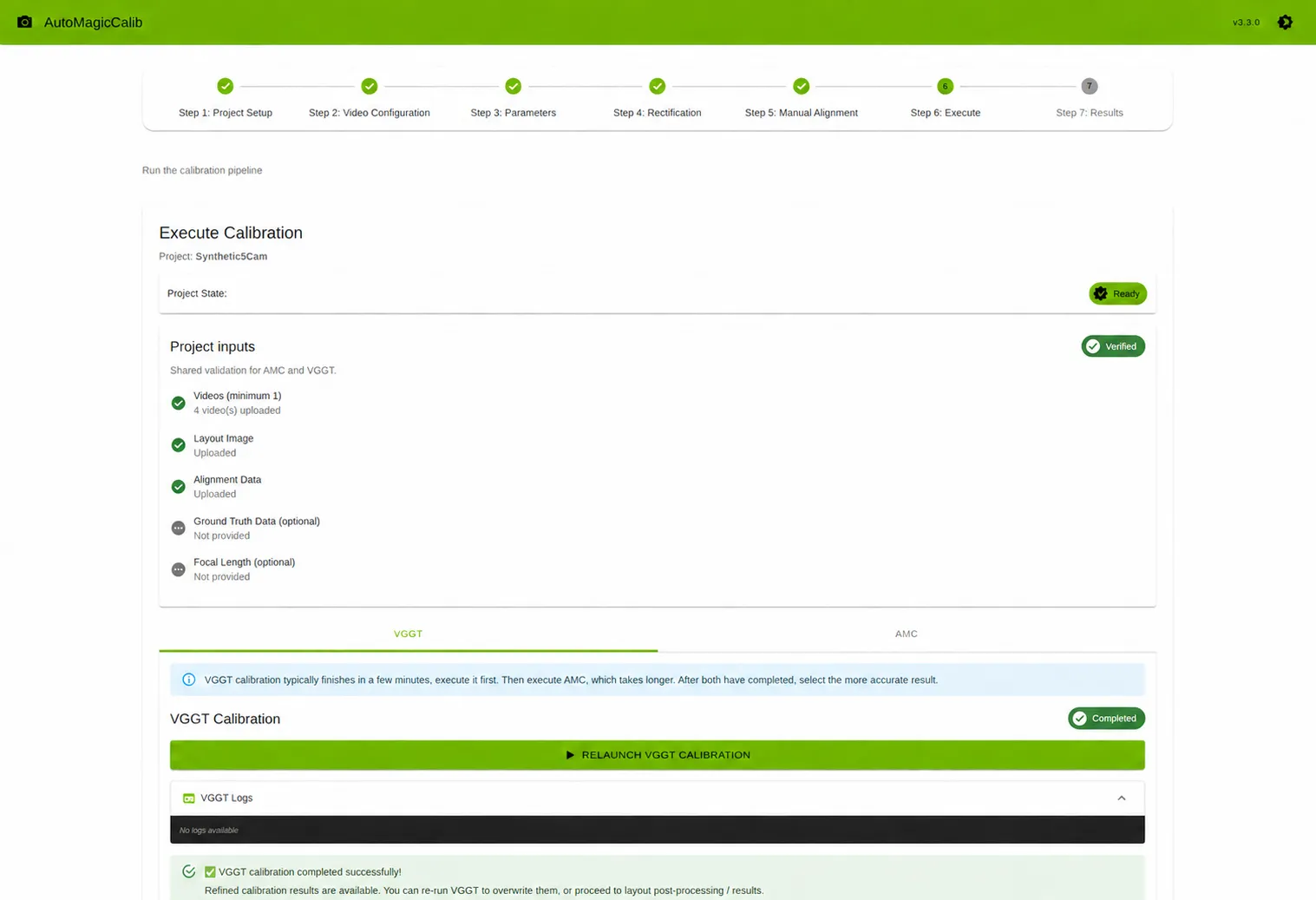
Verify project requirements and run calibration. AMC and VGGT are independent calibration choices: each can be launched or relaunched on its own. Multi-camera projects finish raw calibration first, then run shared layout post-processing for overlays, evaluation, MV3DT, and virtual-GT imagery.
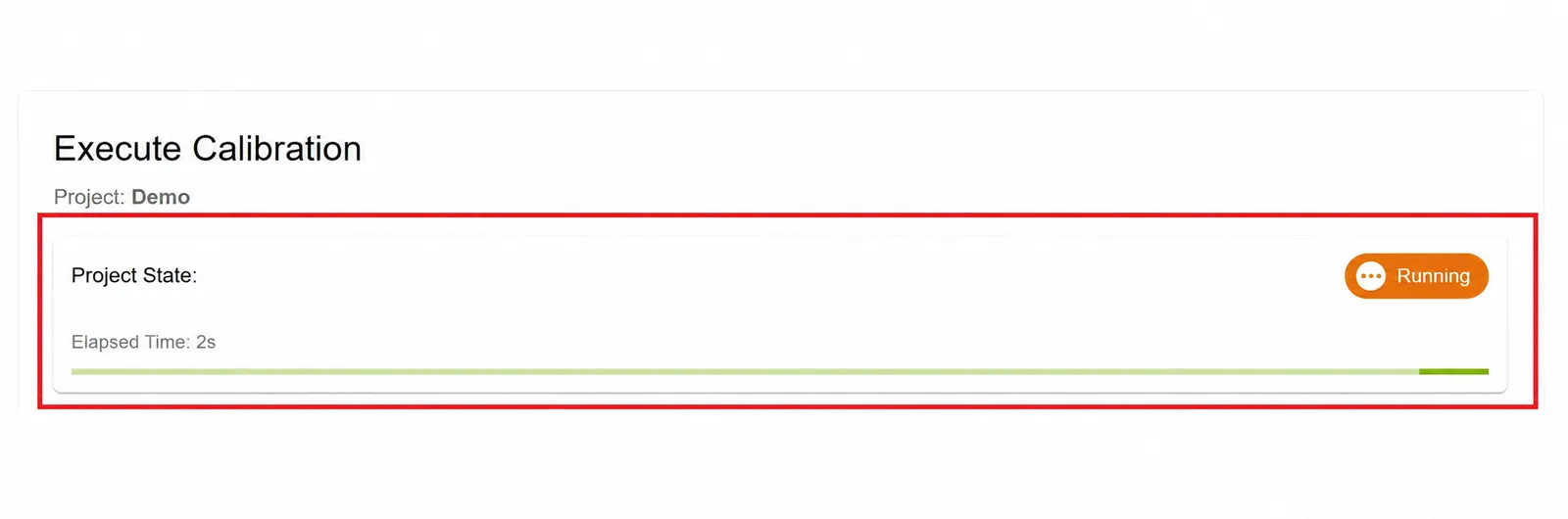
Project State Overview
At the top of the page, you’ll see the current project state:
- INIT (gray): Initial state
- READY (blue): Ready to run calibration
- RUNNING (orange): Calibration in progress
- COMPLETED (green): Calibration finished
- ERROR (red): Calibration failed
When RUNNING, an elapsed time counter and progress bar are displayed.
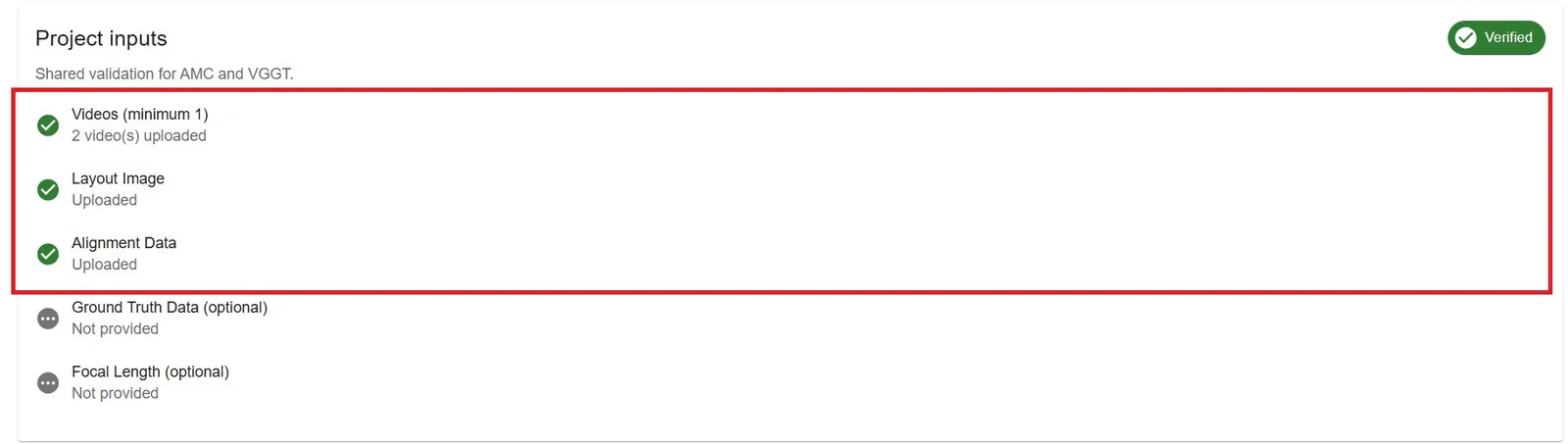
Requirements Checklist
The system validates all required files before allowing calibration:
- ✓ Videos (minimum 1): Shows count of uploaded videos
- ✓ Layout Image: Confirms layout is uploaded
- ✓ Alignment Data: Confirms alignment is uploaded or created
- ✓ Linear media / rectification: Rectification completed in Step 4
If any requirement is not met, you’ll see a warning message: “Complete required inputs before verification.”
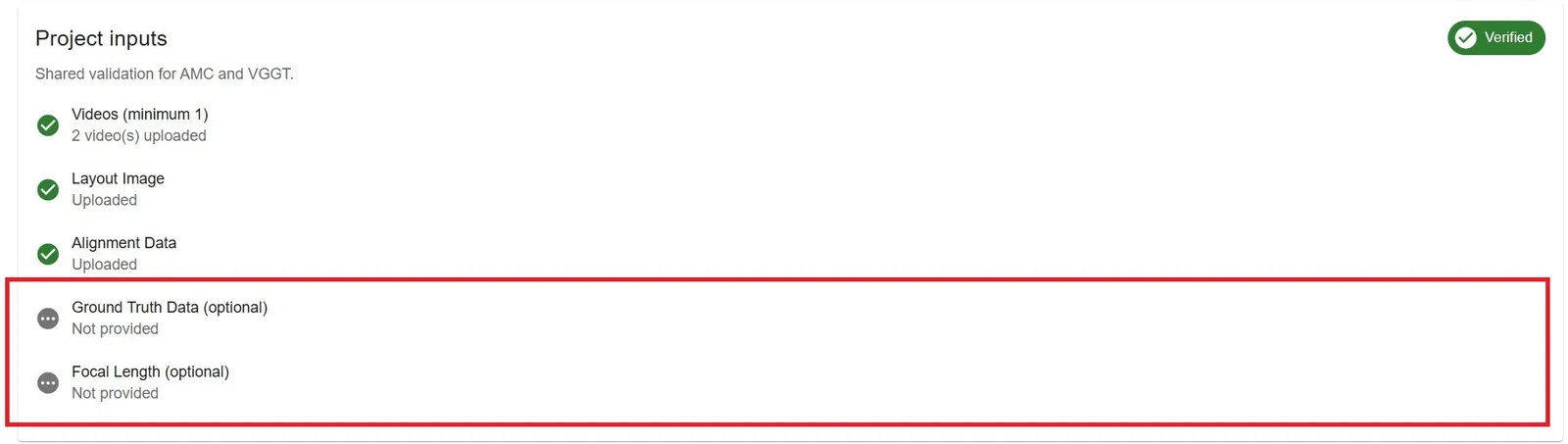
Optional Configuration
The system also displays optional configuration status:
- Ground Truth Data: ✓ Uploaded (for evaluation purposes) or ⊙ Not provided (optional)
- Focal Length: ✓ X value(s) shown, or ⊙ Not provided (optional)
Verification Process
Before running AMC or VGGT, you must verify the project. Verification is shared for both methods.
How to Verify
- Ensure all requirements are met (green checkmarks).
- Click the Verify Project button
- System validates all files and configurations (rejects nonlinear / stale input)
- Success message appears: “Project verified successfully”
- Project state changes to “READY”
- AMC and VGGT start controls become enabled (when applicable)
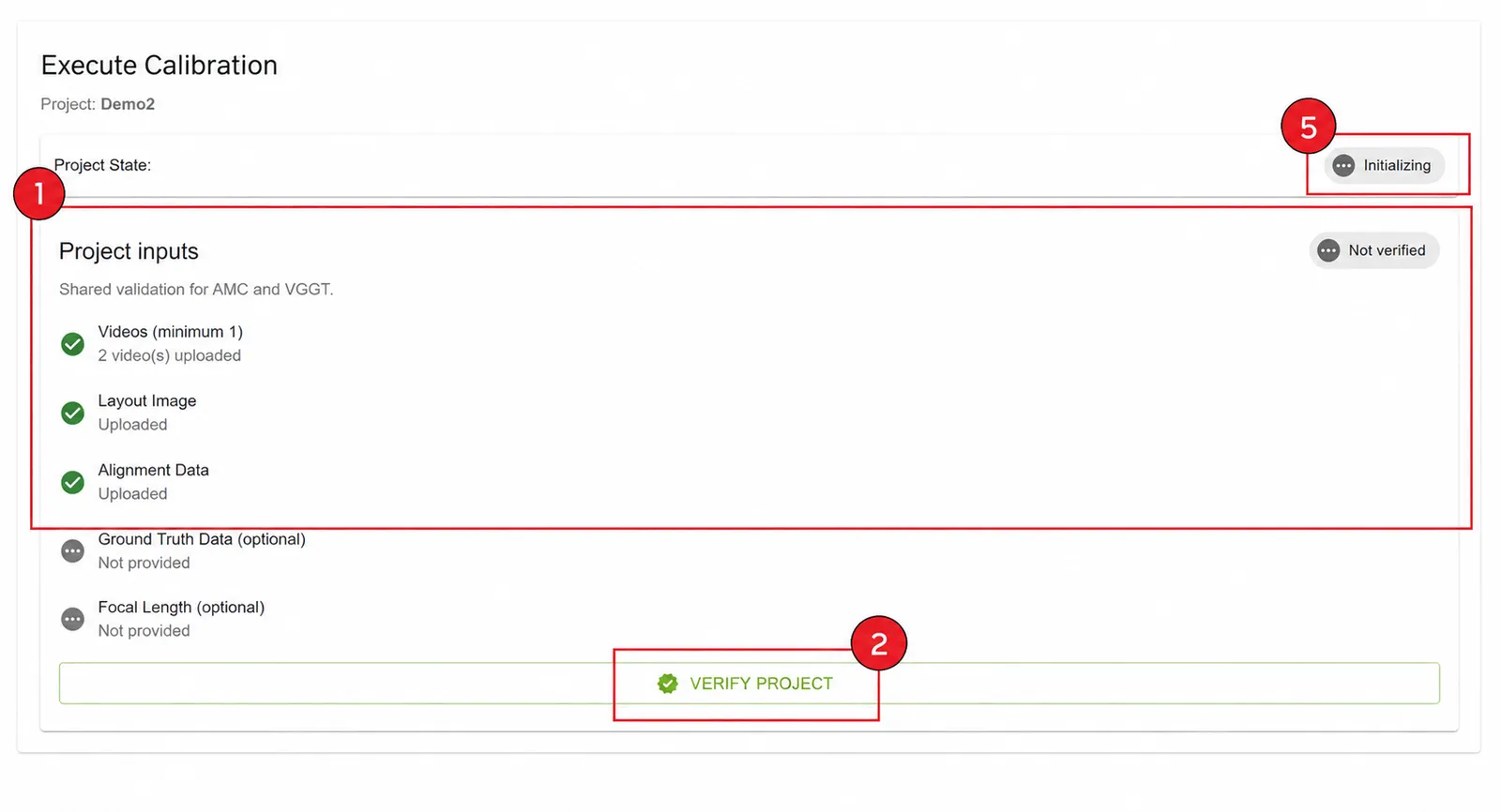
Re-rectification after a previous verify invalidates downstream work: verify again, relaunch calibration, then re-run post-processing.
Calibration
You can run AMC calibration and VGGT calibration in any order. VGGT calibration runs quickly. AMC calibration is a tracklet-based method, so it takes longer to run. First, run VGGT calibration and check its output. Then run AMC calibration if the video has sufficient people movement. After you run both calibration methods, pick the most accurate calibration from the output visualization in the last step.
Running AMC Calibration
AMC (Auto Magic Calib) is the geometry-based / tracklet-based calibration method. It consumes staged rectified media only (no implicit rectification inside the run).
How to Start
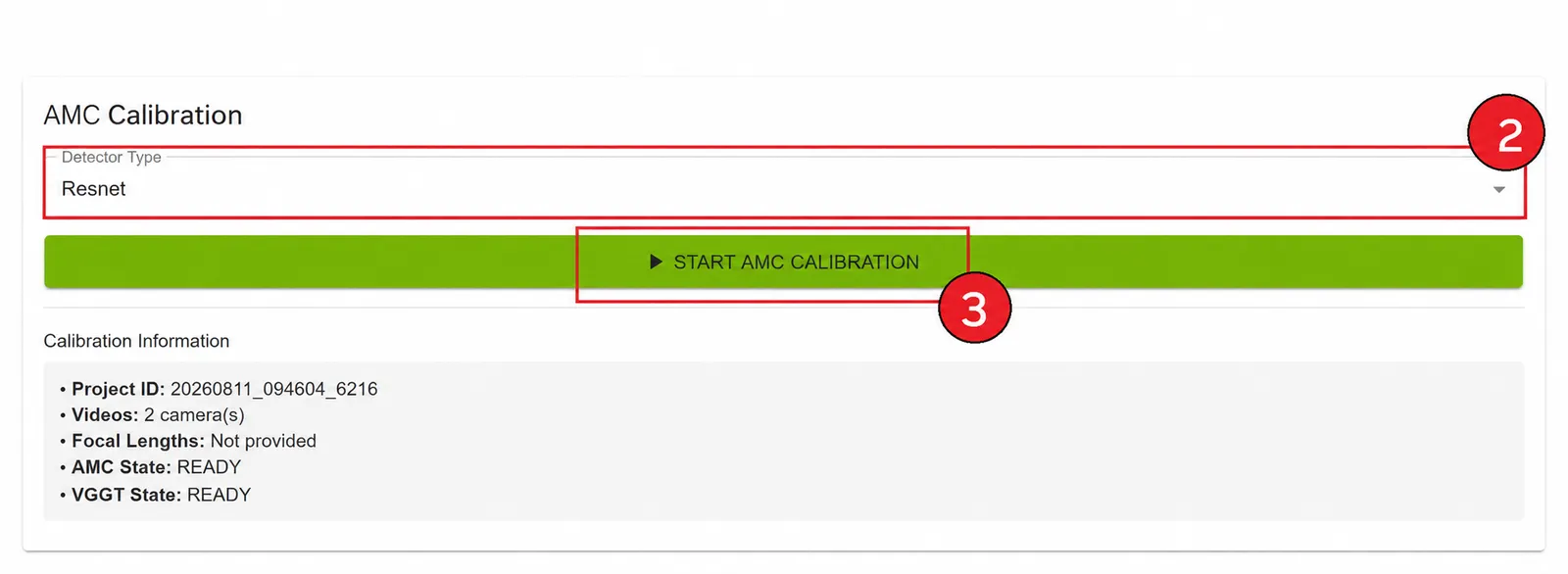
- Open the AMC tab
- After verification, select Detector Type (
ResnetorTransformer) if shown - Click Start AMC Calibration (or Relaunch AMC Calibration after a prior run)
- Calibration pipeline begins immediately
- Project / AMC state changes to “RUNNING”
- Progress indicators and live AMC logs appear
Detector selection guidance
- ResNet: Use the default for clear video with good visibility when faster calibration is preferred.
- Transformer: Use for crowded scenes, frequent occlusions, low contrast, or when ResNet produces too few or unreliable person tracks. It generally provides stronger detection at the cost of longer runtime.
During Calibration
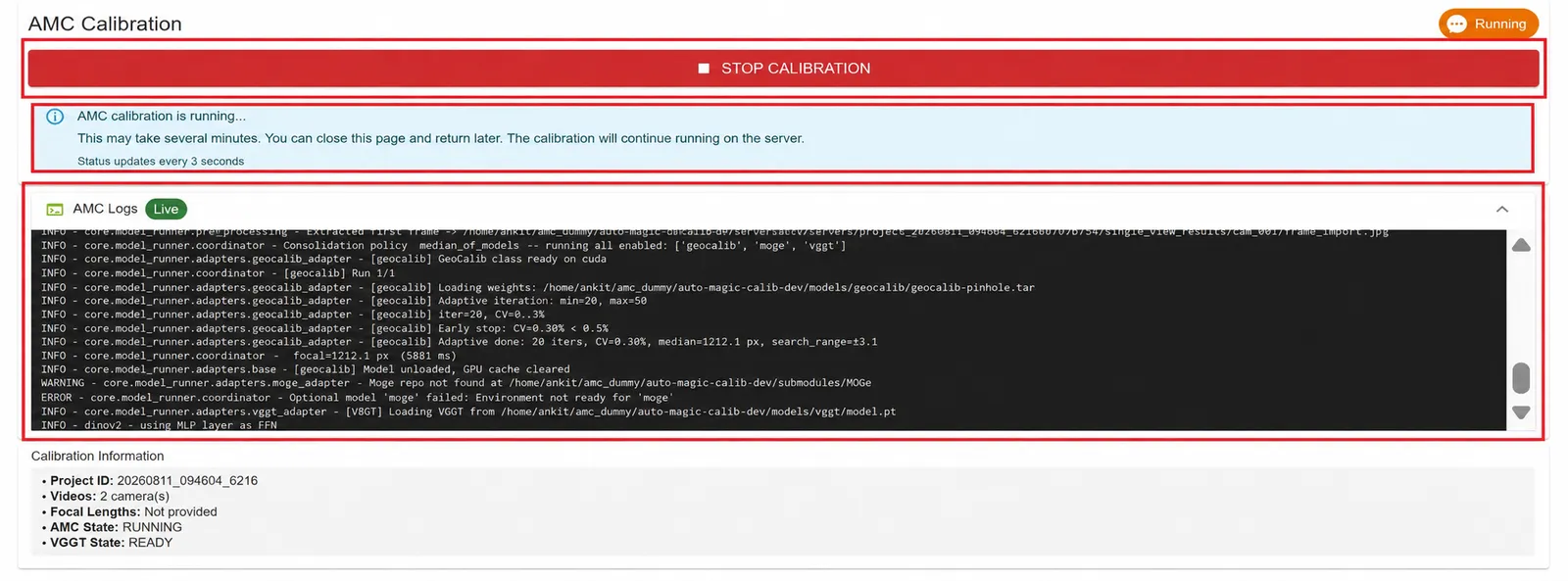
- Elapsed Time: Updates every second
- Progress Bar: Animated progress indicator
- Status Message: “AMC calibration is running…”
- Info Alert: “This may take several minutes. You can close this page and return later.”
- AMC Live Logs: Real-time calibration logs displayed during execution
- Auto-refresh: Status updates every 3 seconds
Stopping Calibration
- Click Stop Calibration (appears when AMC is RUNNING)
- Calibration process terminates
- You can relaunch after fixing inputs
Warning: Stopping calibration will discard partial AMC results for that run. VGGT state is not overwritten by AMC state transitions.
AMC Completion
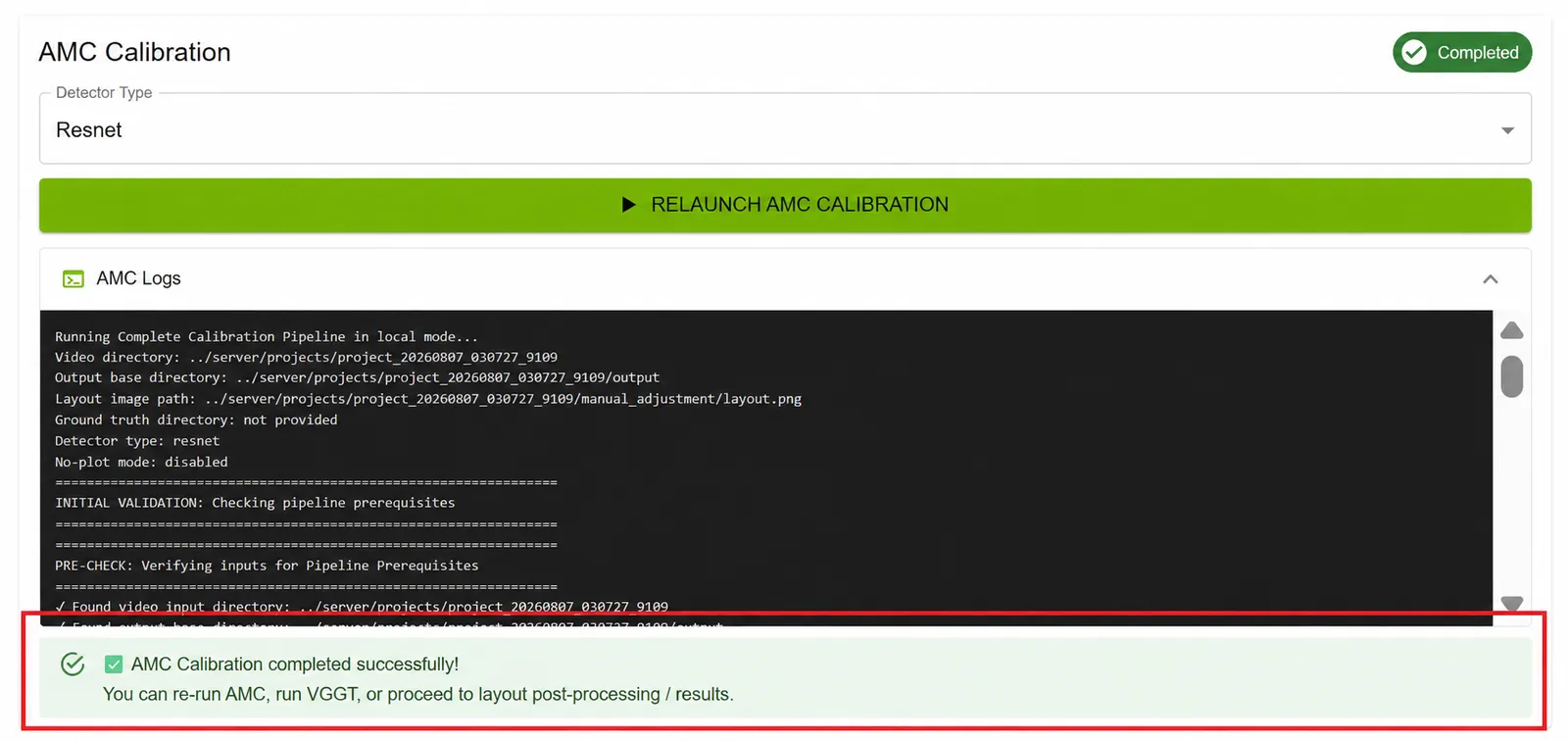
When AMC finishes successfully:
- Success Alert: ”✅ AMC Calibration completed successfully!”
- Message: Multi-camera — re-run AMC, run VGGT, or proceed to layout post-processing / results; single-camera — re-run AMC or proceed to Results
- AMC State: Shows “COMPLETED”
- AMC produces raw calibration outputs; layout overlays / GT eval / MV3DT for multi-camera come from shared post-processing
Calibration Failure
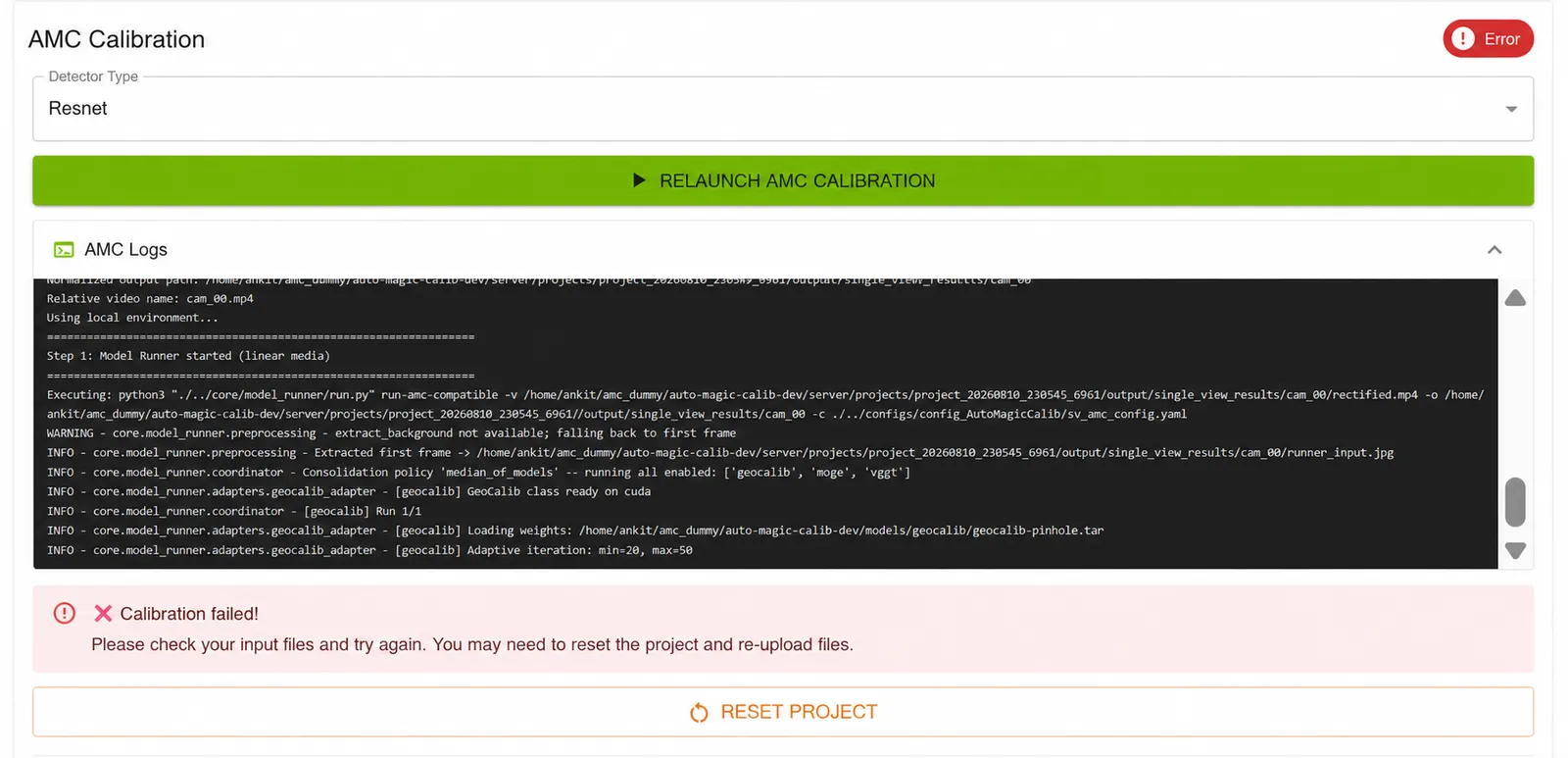
If AMC calibration fails (for example during multi-view tracklet matching):
- Error Alert: ”❌ Calibration failed!”
- AMC State: ERROR (VGGT state is tracked separately and is not incorrectly overwritten)
- Reset Option: “Reset Project” button appears
How to Recover
Option 1: Relaunch AMC Calibration
- Click Relaunch AMC Calibration
- Or re-verify if inputs / rectification changed
- Start AMC again
Option 2: Run VGGT (multi-camera)
VGGT does not require a successful AMC run. After verify + completed rectification, open the VGGT tab and start VGGT independently.
Option 3: Reset Project
- Click Reset Project
- Project state returns to “INIT”
- Go back to previous steps, fix inputs, re-rectify if needed, then verify again
VGGT Calibration
VGGT (Vision-Geometry Graph Transformer) is a multi-camera calibration method. It runs directly from staged linear camera videos and is not gated on AMC execution or success.
VGGT requires VGGT support on the backend (model and dependencies installed). It is not offered for single-camera projects.
When Available
- Multi-camera only (two or more videos)
- Backend has VGGT installed
- Rectification state is COMPLETED
- Project is verified; AMC does not have to run
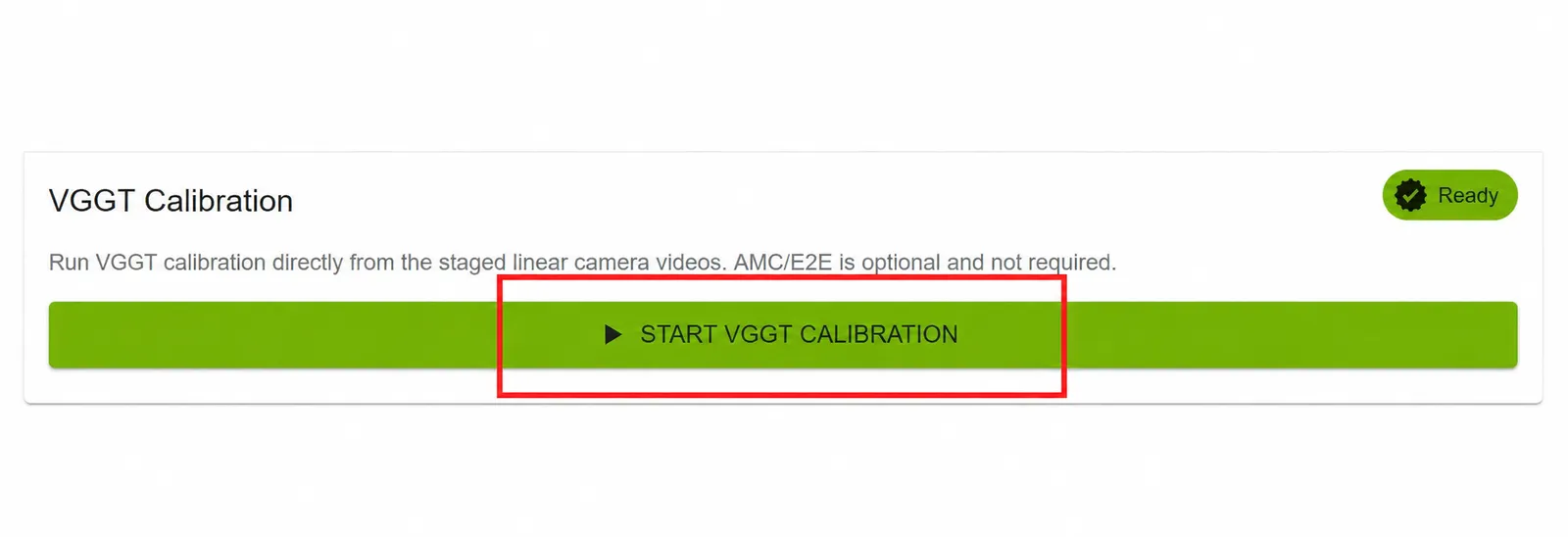
How to Run VGGT
- Open the VGGT tab
- Confirm project is verified and rectification is complete
- Click Start VGGT Calibration (or Relaunch VGGT Calibration)
- Progress indicators and live VGGT logs appear
VGGT Features
- Independent of AMC: Can run without a prior or successful AMC run
- Relaunchable: Overwrites prior VGGT raw outputs on re-run
- Duration: Typically a few minutes
- Produces raw calibration outputs; shared post-processing builds layout-derived artifacts
VGGT Completion
When VGGT finishes successfully:
- Success Alert: ”✅ VGGT calibration completed successfully!”
- Message: Re-run VGGT, or proceed to layout post-processing / results
- VGGT State: COMPLETED
VGGT Not Available
If VGGT is not installed on the backend:
- Info Alert: “VGGT Calibration Not Available”
- VGGT State: MODEL_MISSING
- Start control: Disabled until the required model is installed
- Action: Install VGGT support and restart the server; AMC remains independently available
Layout Post-processing (Multi-camera)
After AMC and/or VGGT complete, run shared layout post-processing. This stage is separate from AMC/VGGT launchers and handles:
- Layout scaling / world conversion
- Trajectory overlays
- Optional GT evaluation
- MV3DT exports
- Virtual-GT overlays
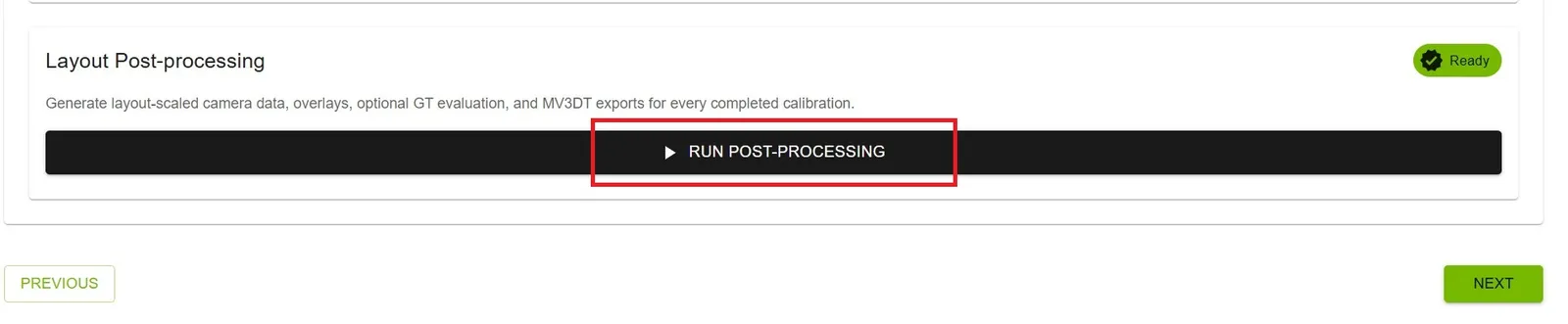
How to Run
- Complete AMC or VGGT (or both) and ensure layout alignment is present
- Click Run Post-processing (or Re-run Post-processing)
- Wait for postprocess state COMPLETED
- Open Results for trajectory / virtual-object imagery and exports
Post-processing is disabled while AMC or VGGT is RUNNING, and stays in INIT until at least one calibration path and alignment are ready. Re-run after another calibration, alignment, scale, or rectification change.
Single-camera projects use the AMC single-view post-processing path; the shared multi-camera Layout Post-processing card is shown for two or more cameras.
Calibration Information
At the bottom of the AMC panel, you’ll see a summary:
- Project ID: Unique identifier
- Videos: Number of cameras
- Focal Lengths: Provided or Not provided
- AMC State: Current AMC state
- VGGT State: Current VGGT state (multi-camera)

Best Practices
Before Calibration
- Complete rectification (Step 4) and confirm linear media
- Double-check uploaded files and floor-plan scale
- Verify alignment points are accurate (on rectified frames)
- Ensure stable network connection
After Calibration
- Run layout post-processing (multi-camera) before expecting trajectory / virtual-GT Results imagery
- Run or relaunch VGGT independently when desired
- Export results before making changes
- After re-rectification: verify → relaunch calibration → re-run post-process
Troubleshooting
Verification Fails
- Check that all required files are uploaded
- Confirm rectification is COMPLETED
- Ensure video files are not corrupted
- Verify alignment data has at least 4 point sets
- Try re-uploading files
Calibration Takes Longer Than Expected
- Runtime varies with the calibration method, video duration, camera count, detector, settings, hardware, and available system resources
- Check server resources (CPU, GPU, memory)
- Review the live calibration logs for progress or errors
Calibration Fails
- Check video file formats and quality
- Verify alignment points are on the ground plane (rectified space)
- Ensure layout image matches physical space
- Review server logs for detailed errors
- Try the other calibration path (AMC ↔ VGGT) independently
Step 7: Results
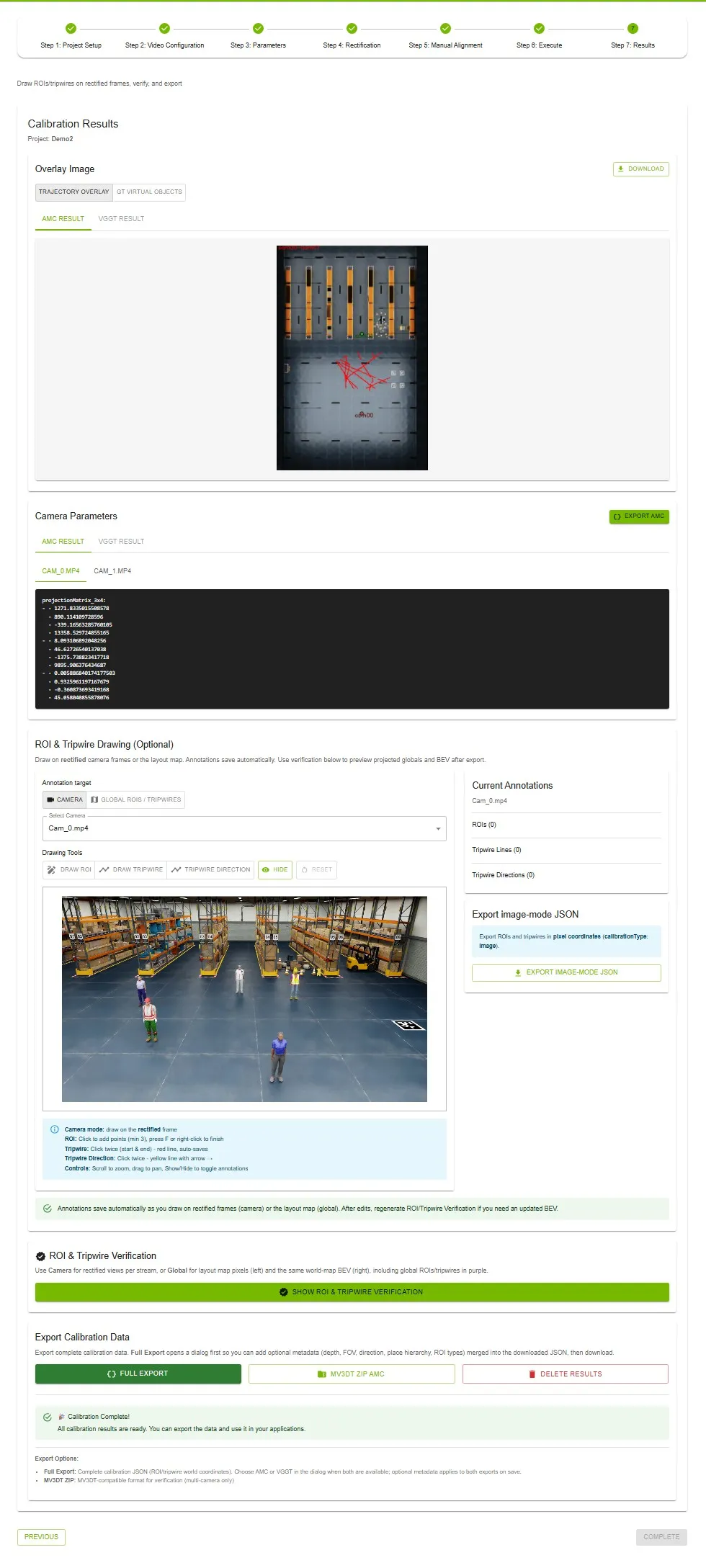
View calibration results, draw optional ROIs/tripwires on linear (rectified) frames, evaluate accuracy, and export calibration data.
Results Availability
Calibration results (overlays, evaluation metrics, camera parameters, and world-coordinate verification and export) are available when at least one calibration path has completed successfully:
- AMC completed successfully, or
- VGGT completed successfully (even if AMC was never run or failed)
For multi-camera trajectory / virtual-GT overlays and evaluation metrics, run Layout Post-processing on Execute after calibration.
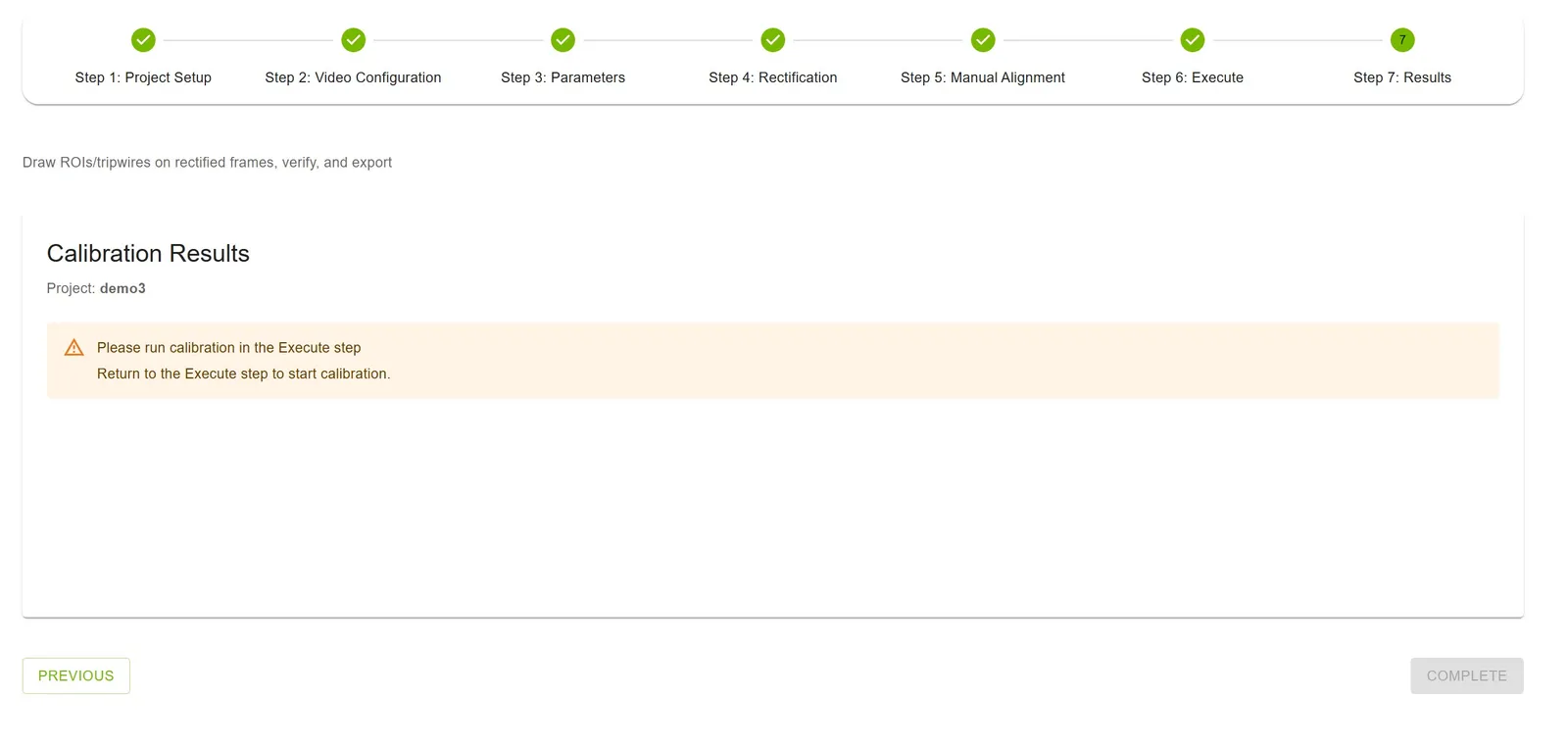
If No Calibration Results Are Available Yet
- Running: “Calibration is still running — Please wait for calibration to complete.”
- Error: “Calibration failed — Please check your input files and try again.” (if neither AMC nor VGGT has completed)
- Init/Ready: “Please run calibration in the Execute step”
Annotations do not need calibration: The ROI & Tripwire Drawing editor and Export image-mode JSON (pixel coordinates) are available on Results as soon as the project has uploaded videos and linear media (Rectification completed, or Videos Are Rectified selected), even if AMC and VGGT have not run. The editor is locked while calibration is running. World-coordinate verification and export still require a completed calibration.
Overlay Image
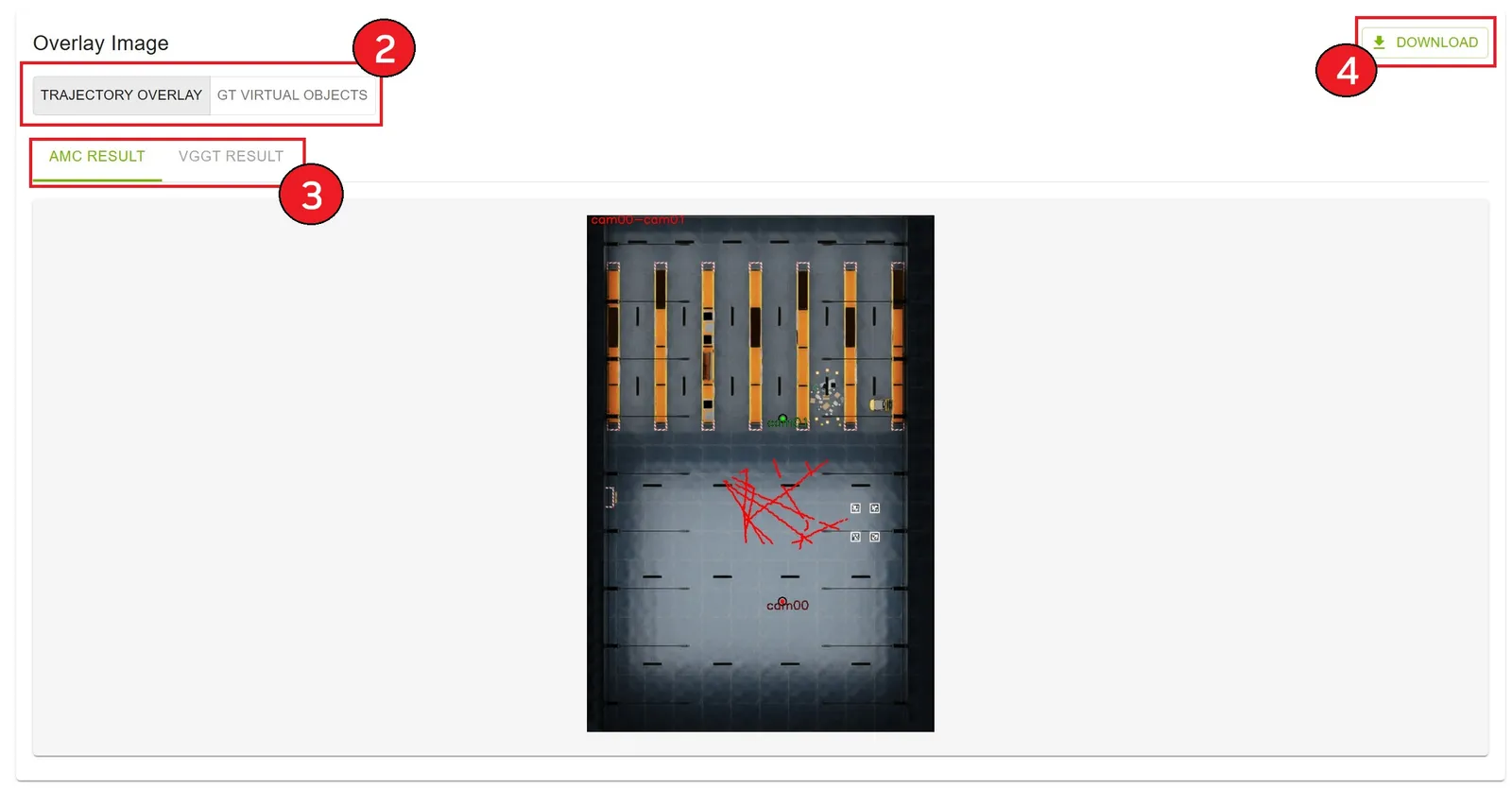
The overlay image shows calibration results on the layout map. Switch overlay source between:
- Trajectory Overlay — reconstructed object trajectories. Generated only if the AMC calibration method has run, because this overlay uses AMC tracklets.
- GT Virtual Objects — virtual-GT object imagery per camera (when post-processing produced them)
VGGT-only behavior: VGGT overlay image not available is expected when VGGT runs without AMC. VGGT does not create AMC tracklet-matching artifacts, which are required for trajectory overlays; evaluation metrics, camera parameters, and exports remain available. If AMC also runs, its artifacts enable trajectory overlays for VGGT results.
Features
- View: Displays cameras’ fields of view / trajectories on the layout (or virtual-GT per camera)
- Download: Save the overlay image
- Result Type Tabs: Switch between AMC and VGGT results (if available)
How to View
- The overlay image loads automatically when post-processed artifacts exist
- Toggle Trajectory Overlay / GT Virtual Objects
- Use AMC / VGGT tabs to switch result types
- Click Download to save the image
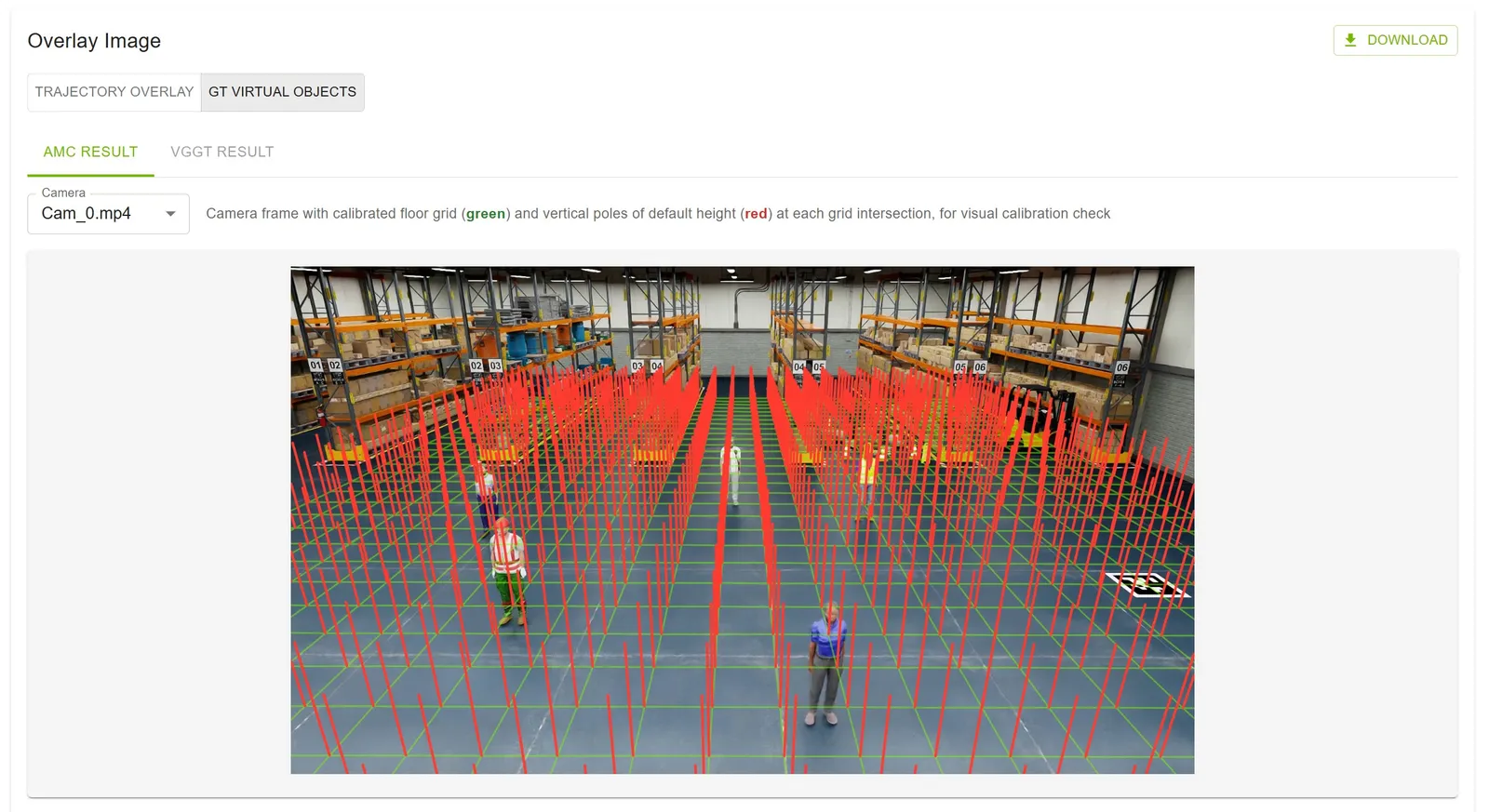
GT Virtual Objects
- Per-camera overlay produced by layout post-processing: a green world floor grid (
z = 0, typically 1 m spacing) and red fixed-height poles (current default 1.75 m) at each grid intersection, both projected with the calibrated camera matrix (AMC or VGGT). - Use it as a visual check — if calibration is good, the green grid sits on the real floor and the red poles look upright and correctly scaled; a sliding grid or leaning poles usually means that camera’s pose is off. Requires completed layout post-processing and available virtual-GT artifacts; pick a camera to inspect each view, then compare AMC vs VGGT if both exist.
Evaluation Metrics
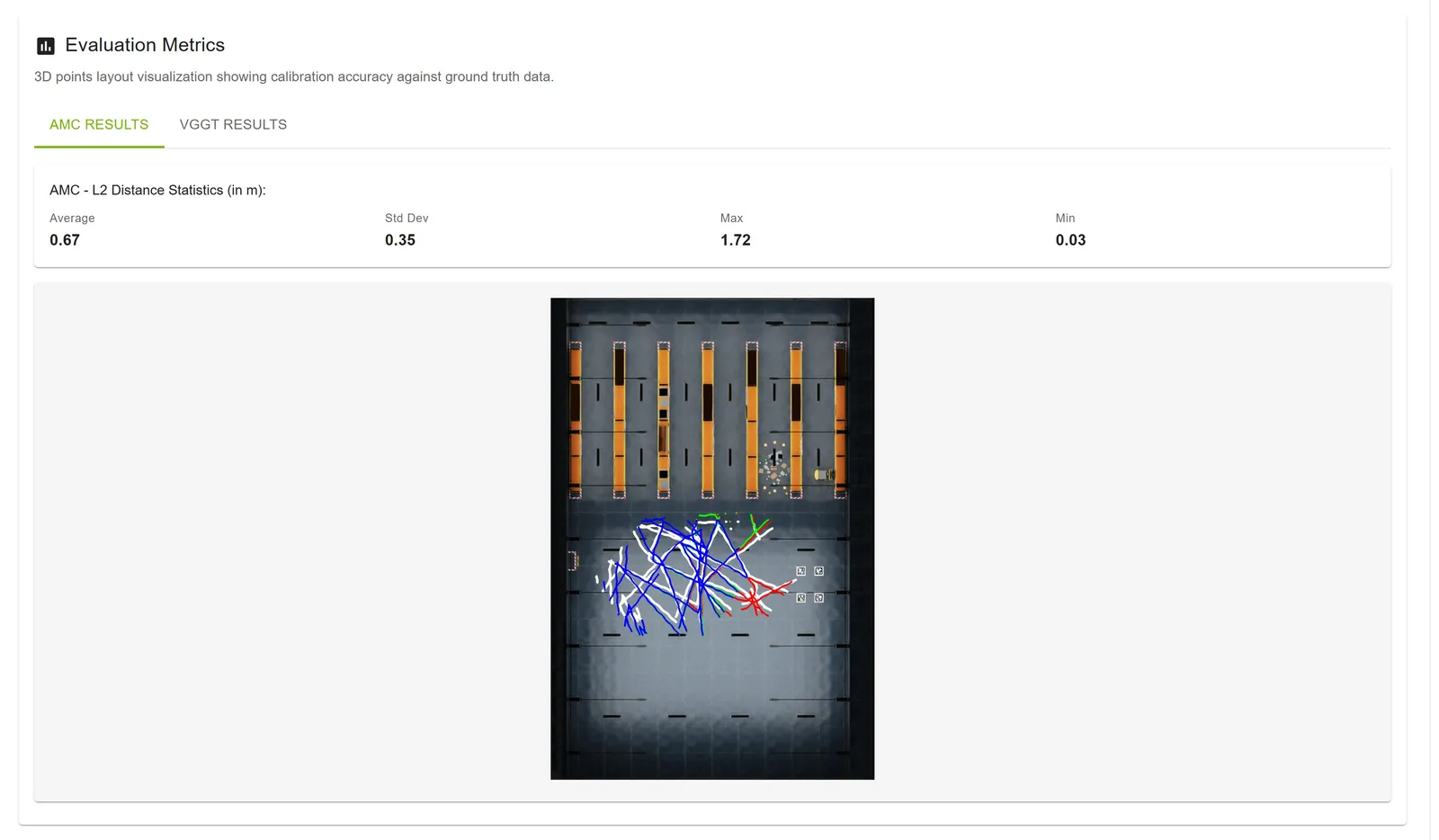
If ground truth data was uploaded and post-processing ran, evaluation metrics are available.
Metrics Display
- Layout Visualization: 3D points plotted on layout showing accuracy
- Statistics Card: L2 distance statistics in meters
- Average L2 distance
- Standard deviation
- Maximum distance
- Minimum distance
- Result Type Tabs: Switch between AMC and VGGT evaluation
Interpreting Metrics
- Lower Average: Better calibration accuracy
- Lower Std Dev: More consistent calibration
- Compare AMC vs VGGT: Use the same evaluation metrics and visual checks for both methods; neither method is assumed to be more accurate
Evaluation metrics are only available if ground truth data was uploaded in Step 2 and layout post-processing completed.
Camera Parameters
View detailed calibration parameters for each camera.
Features
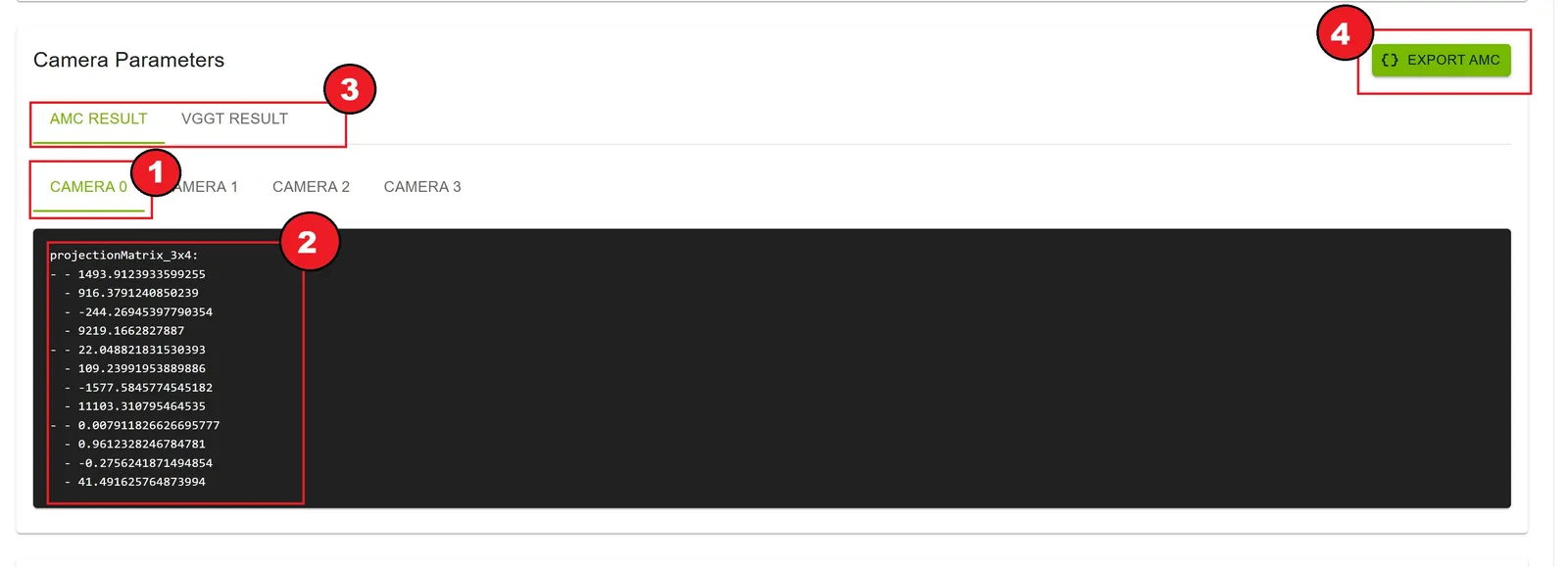
- Camera Tabs: Switch between cameras (Camera 0, Camera 1, etc.)
- Result Type Tabs: Switch between AMC and VGGT parameters
- YAML Format: Parameters displayed in YAML format
- Export Button: Export all camera parameters
How to View
- Click on a camera tab (e.g., “Camera 0”)
- Parameters load and display in a code block
- Switch between AMC and VGGT tabs to compare
- Click Export AMC or Export VGGT to download all parameters
Parameter Contents
The YAML file contains:
- Camera Projection Matrix (3×4): Camera projection matrix
ROI & Tripwire Drawing (Optional)
ROI and tripwire editing is an optional activity on Results and does not require calibration. Draw on linear (rectified) camera frames or the layout map. Annotations save automatically; the editor is locked while AMC or VGGT is running.
Annotation Target
Choose Camera or Global ROIs / tripwires at the top left of the card before drawing.

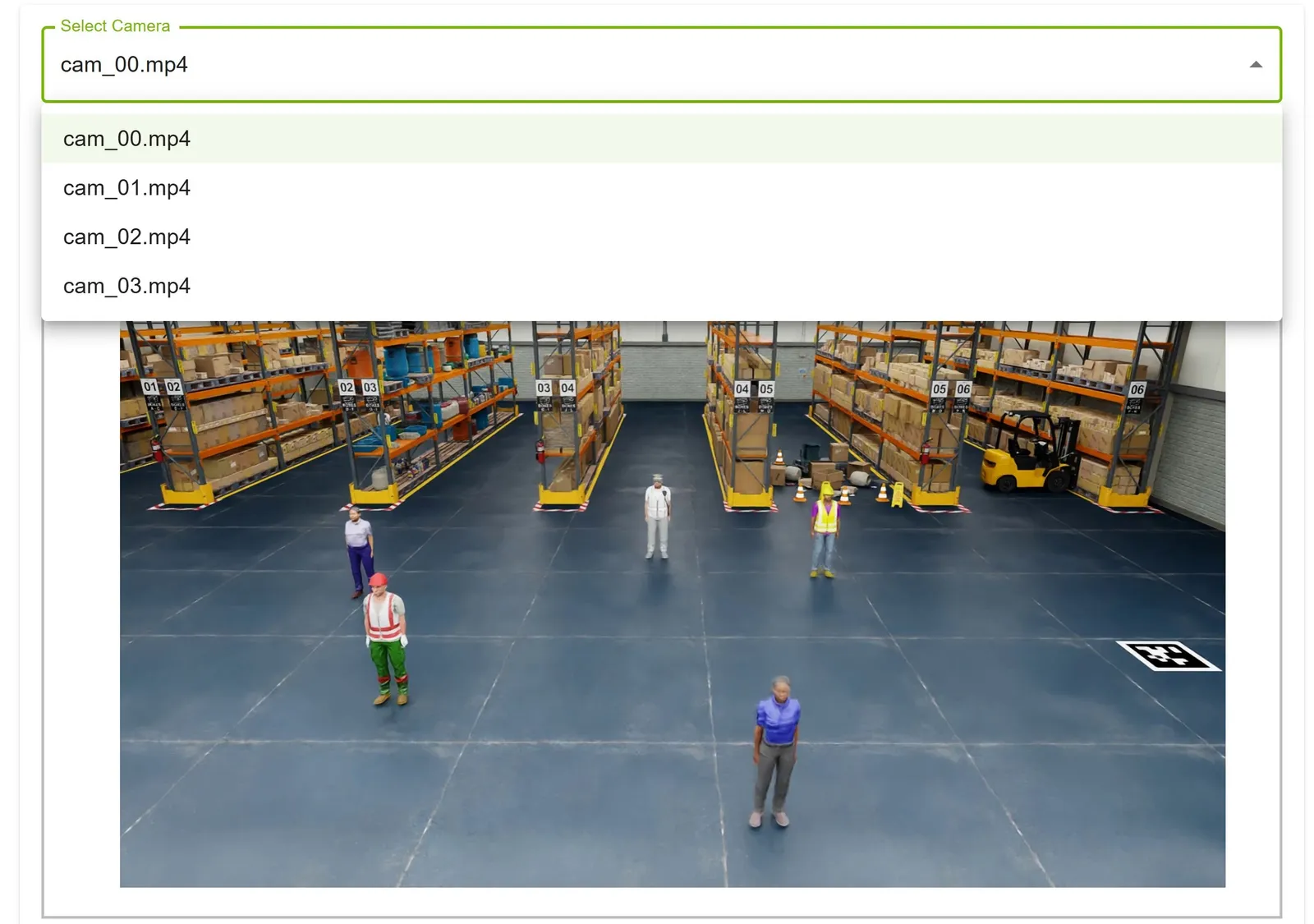
Camera (per-stream annotations)
- Select Camera in the annotation target toggle
- Choose a stream from the Select Camera dropdown
- The first frame of the selected linear (rectified) video loads on the canvas
- Switch between cameras to draw ROIs, tripwire lines, and tripwire directions as needed
Global ROIs / tripwires (layout-map annotations)
- Upload a layout image in Step 2 (required for this mode)
- Select Global ROIs / tripwires in the annotation target toggle (disabled until a layout is uploaded)
- The layout map loads on the canvas instead of a video frame
- Use the same drawing tools as for camera mode; global shapes are stored separately and listed as Global (layout map) in the right panel
Global and per-camera annotations use the same tools and auto-save behavior.
Drawing Tools
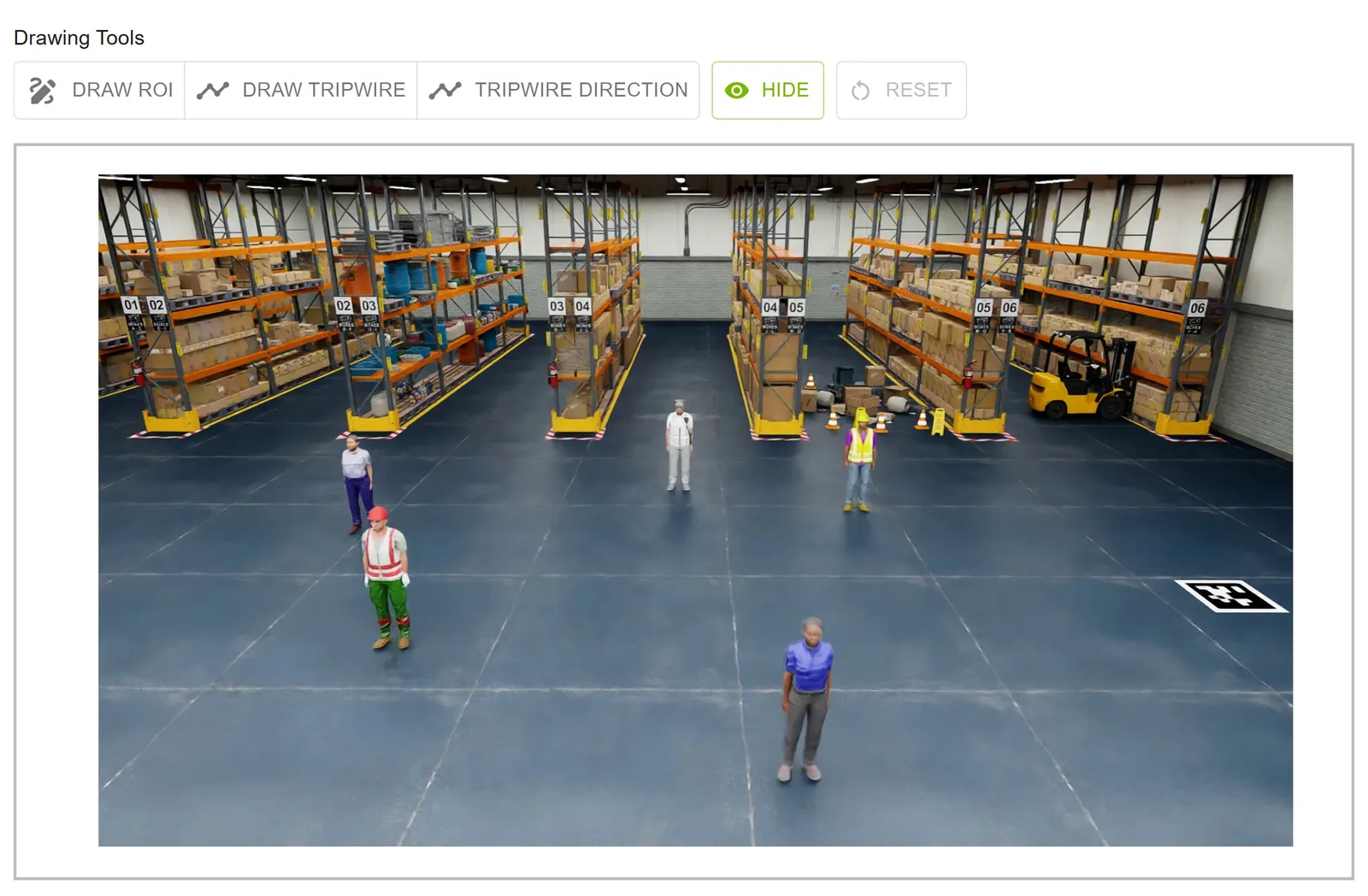
Available Tools
- Draw ROI: Create polygonal regions of interest
- Draw Tripwire: Create tripwire lines for counting
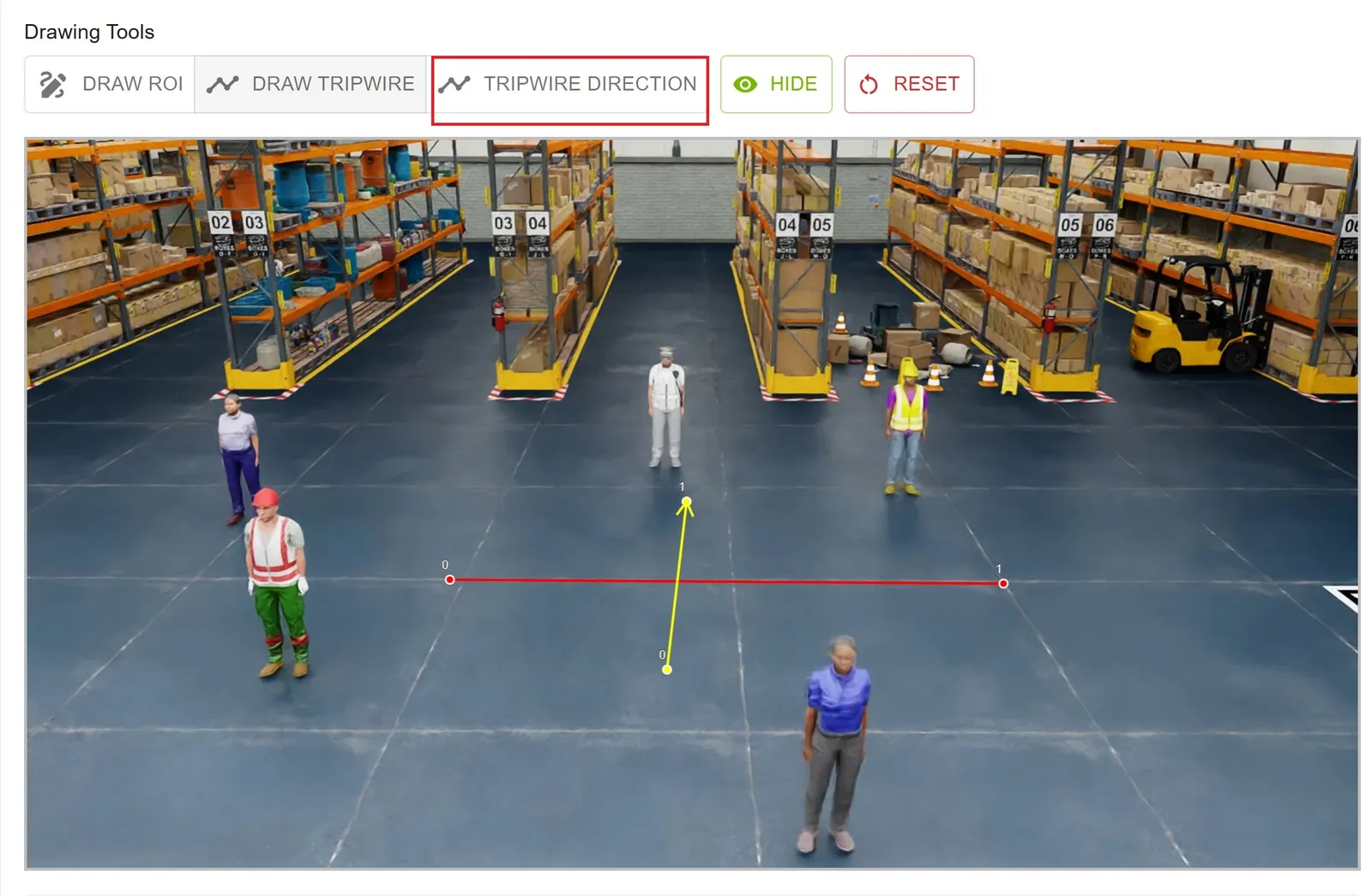
- Tripwire Direction: Create directional tripwires with arrows
- Show/Hide: Toggle visibility of annotations
- Reset: Clear all annotations for the active target (current camera or global layout map)
Drawing ROIs
ROIs define areas of interest for detection and tracking.
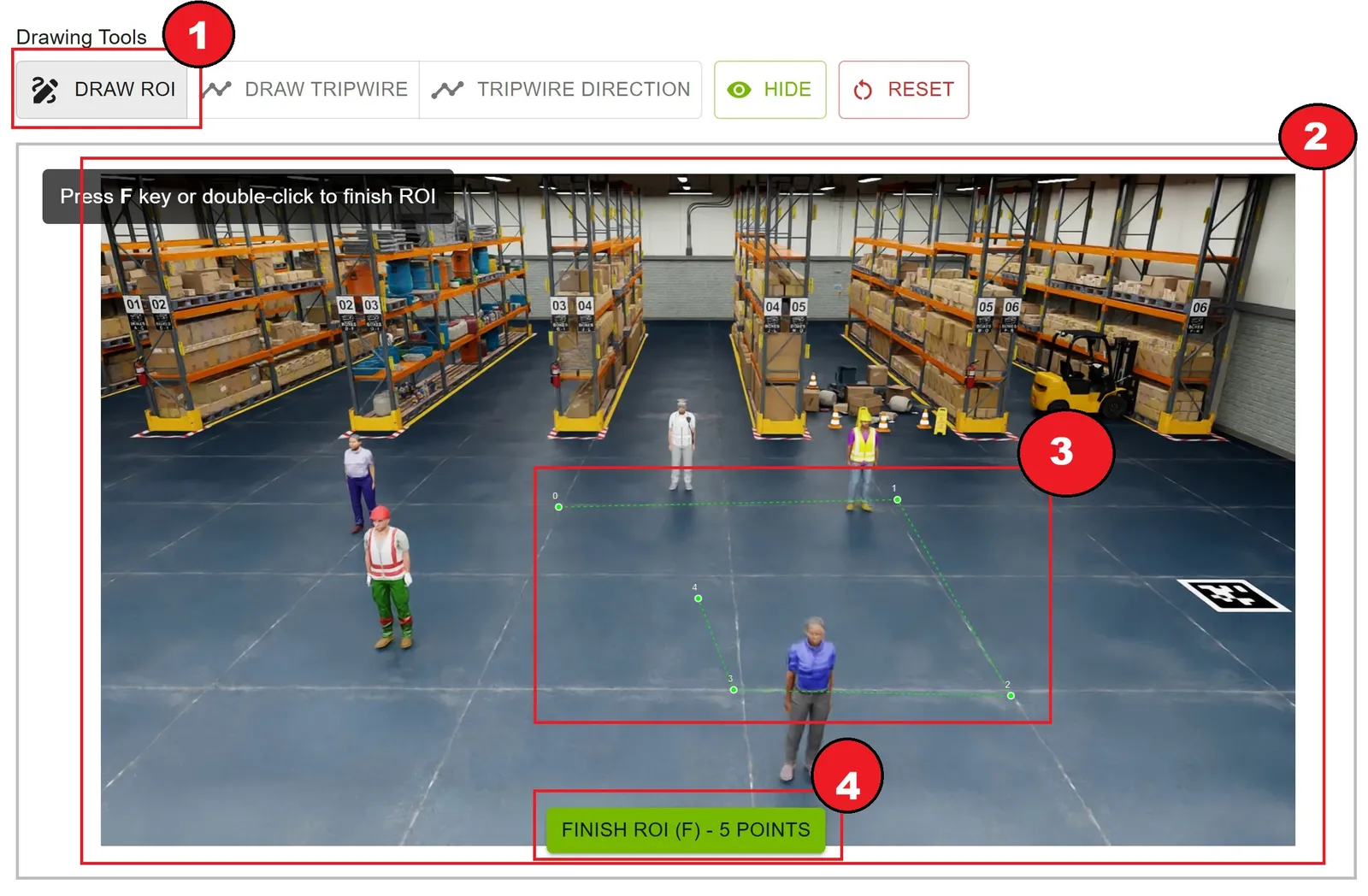
How to Draw
- Click the Draw ROI button (it becomes highlighted)
- Click on the video frame to add points
- Add at least 3 points to form a polygon
- Finish the ROI by pressing the
Fkey or right-clicking on the canvas - The ROI is automatically saved with a green color
ROI Features
- Color: Green (#00ff00)
- Minimum Points: 3
- Maximum Points: Unlimited
- Auto-save: Saved immediately upon completion
Editing ROIs
- Delete: Click the delete button next to the ROI in the right panel
- Redraw: Delete the existing ROI and draw a new one
Drawing Tripwire Lines
Tripwire lines are used for counting objects crossing a line.
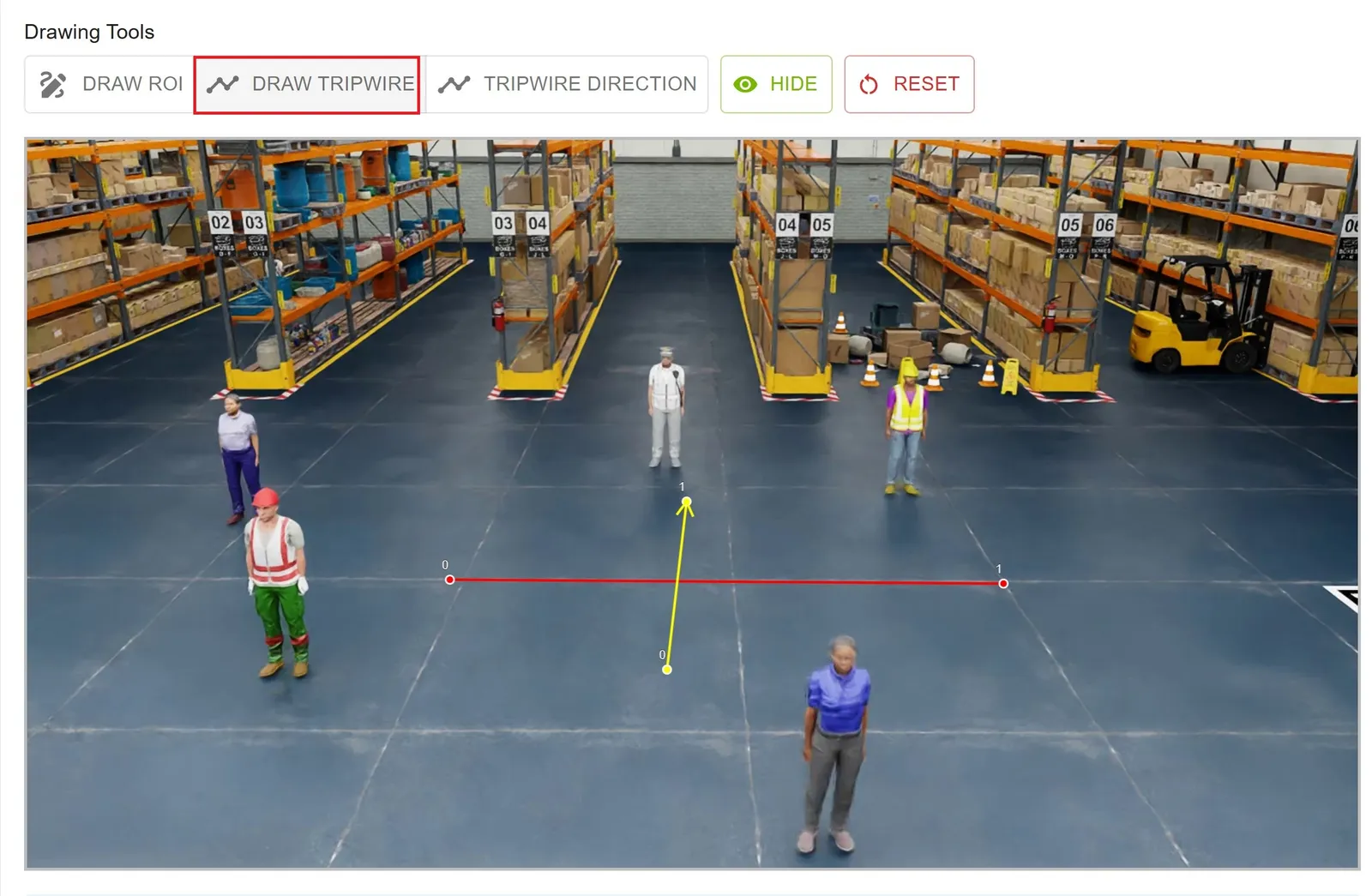
How to Draw
- Click the Draw Tripwire button
- Click once to set the start point
- Click again to set the end point
- The tripwire line is automatically saved with a red color
Tripwire Line Features
- Color: Red (#ff0000)
- Points: Exactly 2 (start and end)
- Auto-save: Saved immediately upon completion
- Use Case: Bidirectional counting
Drawing Tripwire Directions
Tripwire directions are used for unidirectional counting with an arrow indicator.
How to Draw
- Click the Tripwire Direction button
- Click once to set the start point
- Click again to set the end point (direction of arrow)
- The tripwire direction is automatically saved with a yellow color and arrow
Point order matters: Draw the arrow across the tripwire line from inside to outside. The first point (first click) is inside; the second point (second click) is outside.
Tripwire Direction Features
- Color: Yellow (#ffff00)
- Arrow: Shows direction from start to end; the start (first click) is inside and the end (second click) is outside
- Points: Exactly 2 (start and end)
- Auto-save: Saved immediately upon completion
- Use Case: Unidirectional counting (e.g., entry/exit)
Canvas Controls
Zoom and Pan
- Scroll Wheel: Zoom in/out on the canvas
- Click + Drag: Pan around when zoomed in
- Show/Hide Button: Toggle visibility of all annotations
- Reset Button: Clear all annotations for the active annotation target
Visual Feedback
- Drawing Mode: Active tool is highlighted in the toolbar
- Cursor: Changes to crosshair when in drawing mode
- Point Markers: Visible while drawing
- Completed Annotations: Rendered with solid colors
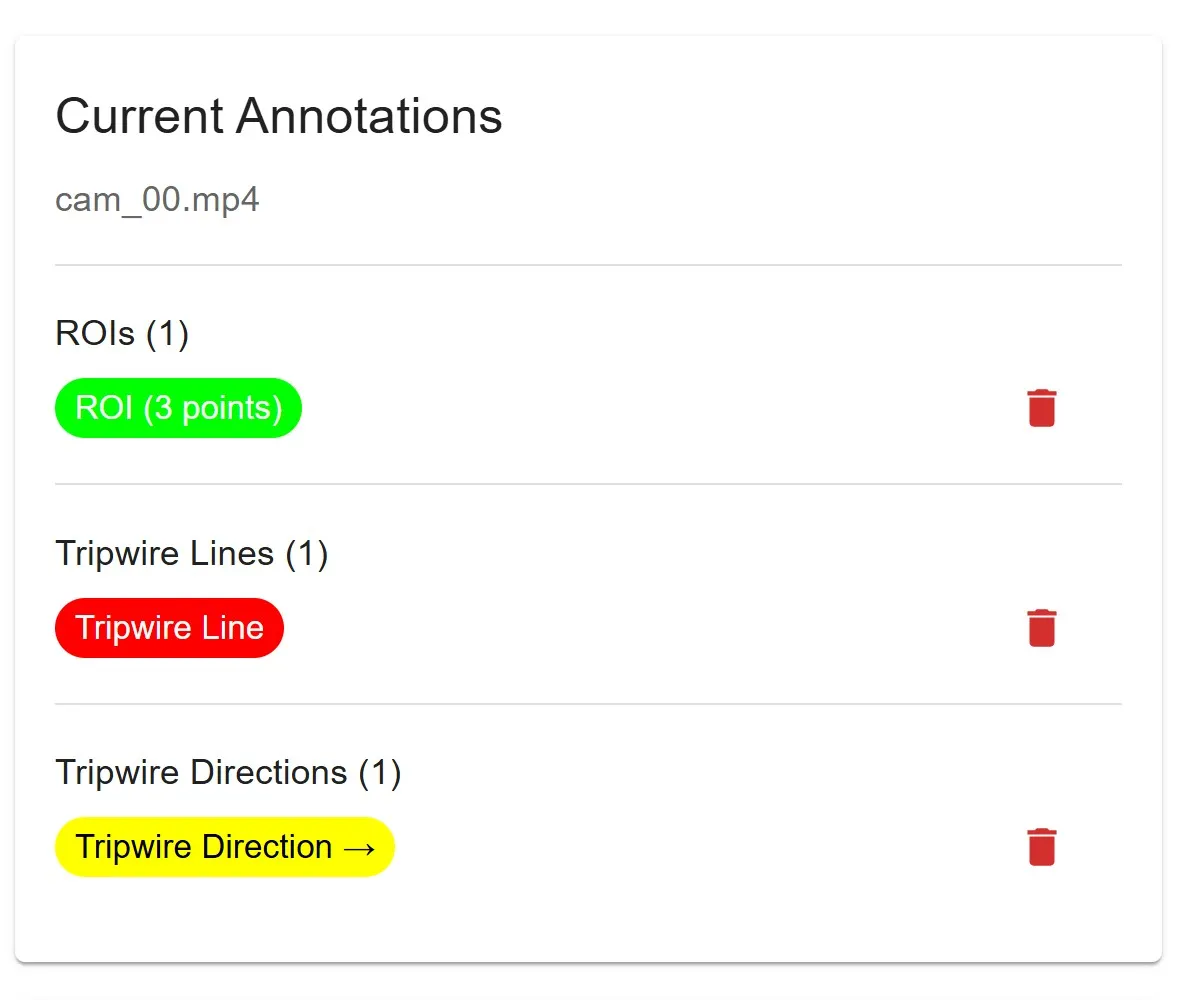
Annotation List (Right Panel)
The right panel shows all annotations for the active target—the selected Camera or Global (layout map).
- ROIs Section: Count of completed ROIs; each ROI shown as a green chip with point count; delete button for each
- Tripwire Lines Section: Count of completed tripwire lines; each line shown as a red chip; delete button for each
- Tripwire Directions Section: Count of completed tripwire directions; each direction shown as a yellow chip with arrow; delete button for each
Export Image-Mode JSON
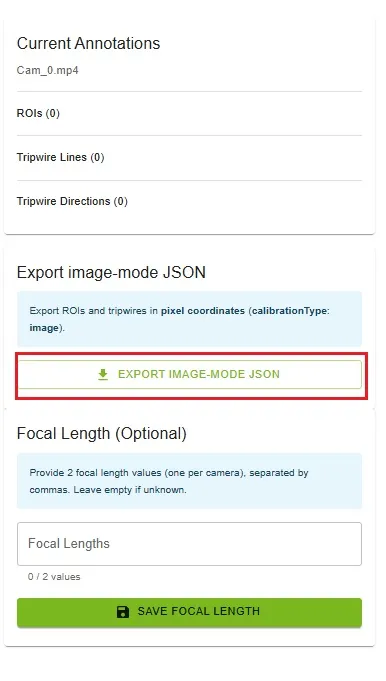
Use this when you need ROIs and tripwires in pixel coordinates without world-coordinate conversion.
For image-coordinate calibration ("calibrationType": "image") only, include the sensors that require ROIs or tripwires in calibration.json. If only one sensor needs an ROI or tripwire, annotate and include only that sensor. Sensors that need neither do not need to be added to the calibration file. This omission does not apply to Cartesian calibration.
How to Export
- In the right panel, open the Export image-mode JSON card
- Click Export image-mode JSON
- The browser downloads
<project_name>_image_mode_exported.json
What Is Exported
- ROIs and tripwires drawn on cameras plus any global layout annotations, in pixel space
calibrationTypeis image (same JSON shape as cartesian export)- Drawn on linear (rectified) frames / layout map on the Results step
ROI & Tripwire Verification
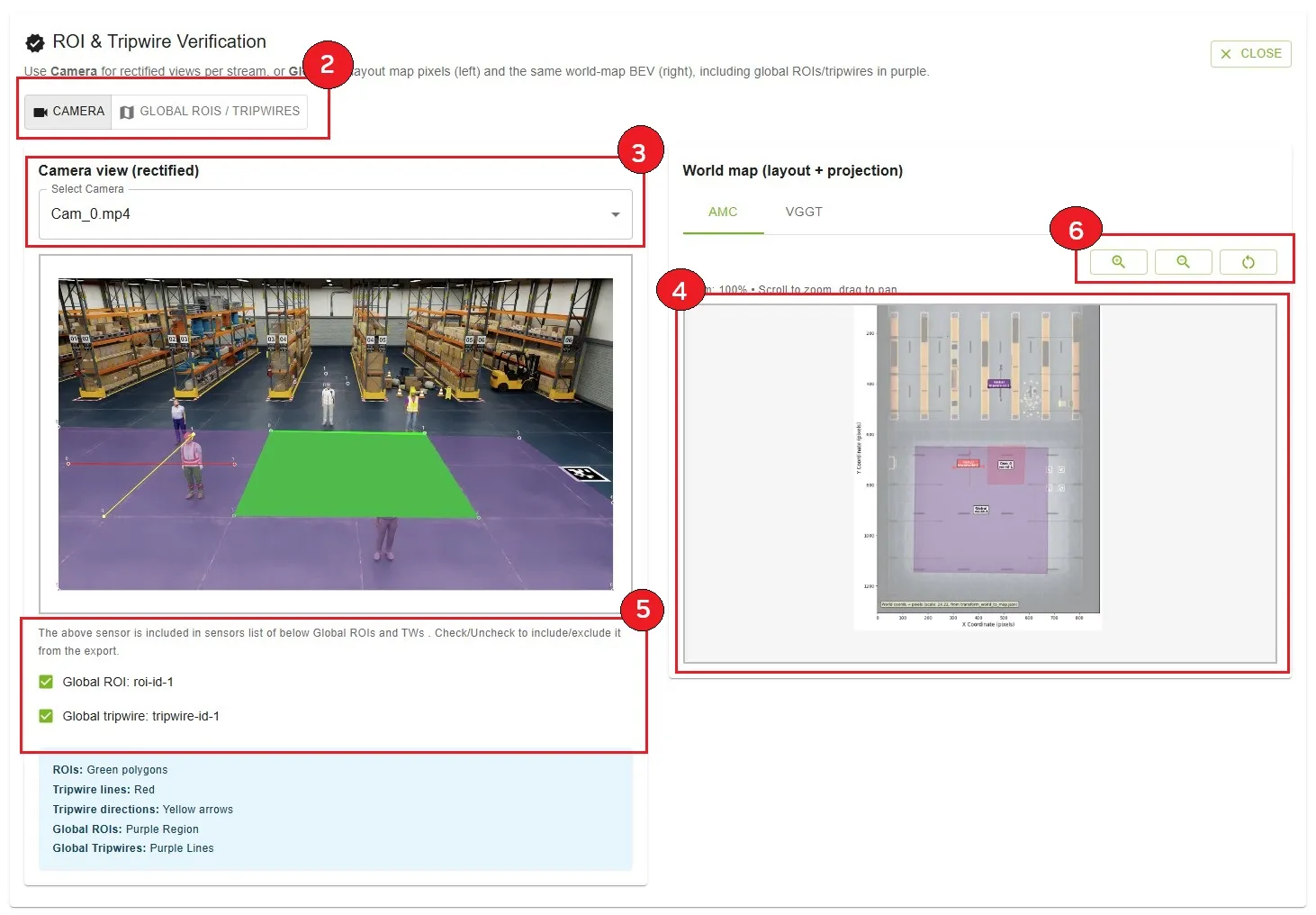
Verify per-camera and global ROIs and tripwires: how they appear on each rectified stream, on the layout map (pixel space), and on the world map (BEV) after calibration projection.
Features
- Side-by-side layout: Left panel (camera or layout map) and World map (layout + projection) on the right
- Annotation target: Camera (per-stream rectified view) or Global ROIs / tripwires (layout
layout.pngpixels; requires layout from Step 2) - Result type tabs (right panel): AMC or VGGT world-map projection when both calibrations completed
- Global features on world map: Global ROIs and tripwires projected into world coordinates and drawn in purple on the BEV
- Global features on camera view: The same global ROIs/tripwires re-projected onto the selected camera when visible in that field of view—also purple
- Sensor assignment checkboxes (camera target): Include or exclude the selected camera from each global ROI/tripwire
sensorslist in the export JSON
How to Use
- Click Show ROI & Tripwire Verification
- Choose Camera or Global ROIs / tripwires in the annotation target toggle
- Camera target: pick a stream from Select Camera; review the left rectified frame and the right world map; use AMC / VGGT tabs on the world map as needed
- Global target: left panel shows global shapes on layout.png (pixel coordinates); right panel shows their world-map projection in purple
- Under the camera view, use checkboxes labeled Global ROI: / Global tripwire: to include or exclude that camera in each ROIs/Tripwires
sensorslist (only global items projected to that camera are listed) - Use world-map zoom controls for detail; click Close when finished

Left Panel — Camera target
- Rectified video frame for the selected camera
- Per-camera annotations: ROIs (green polygons), tripwire lines (red), tripwire directions (yellow arrows)
- Global ROIs (purple regions) and global tripwires (purple lines) when they project into this camera’s view
- Global sensor checkboxes: For each global ROI/tripwire that applies to this camera, check to keep the camera in that feature’s
sensorslist in the export JSON; uncheck to exclude it
Left Panel — Global target
- Layout map (pixel coordinates): Global ROIs and tripwires drawn on
layout.png(green / red / yellow in layout space) - Compare with the right panel to confirm world projection matches the layout drawing
Right Panel — World map (layout + projection)
- Bird’s-eye / world-coordinate map with all projected annotations for the active AMC or VGGT result
- Per-camera ROIs and tripwires for all streams, plus global ROIs and tripwires in purple
- Zoom: 50% to 500%; pan by dragging when zoomed
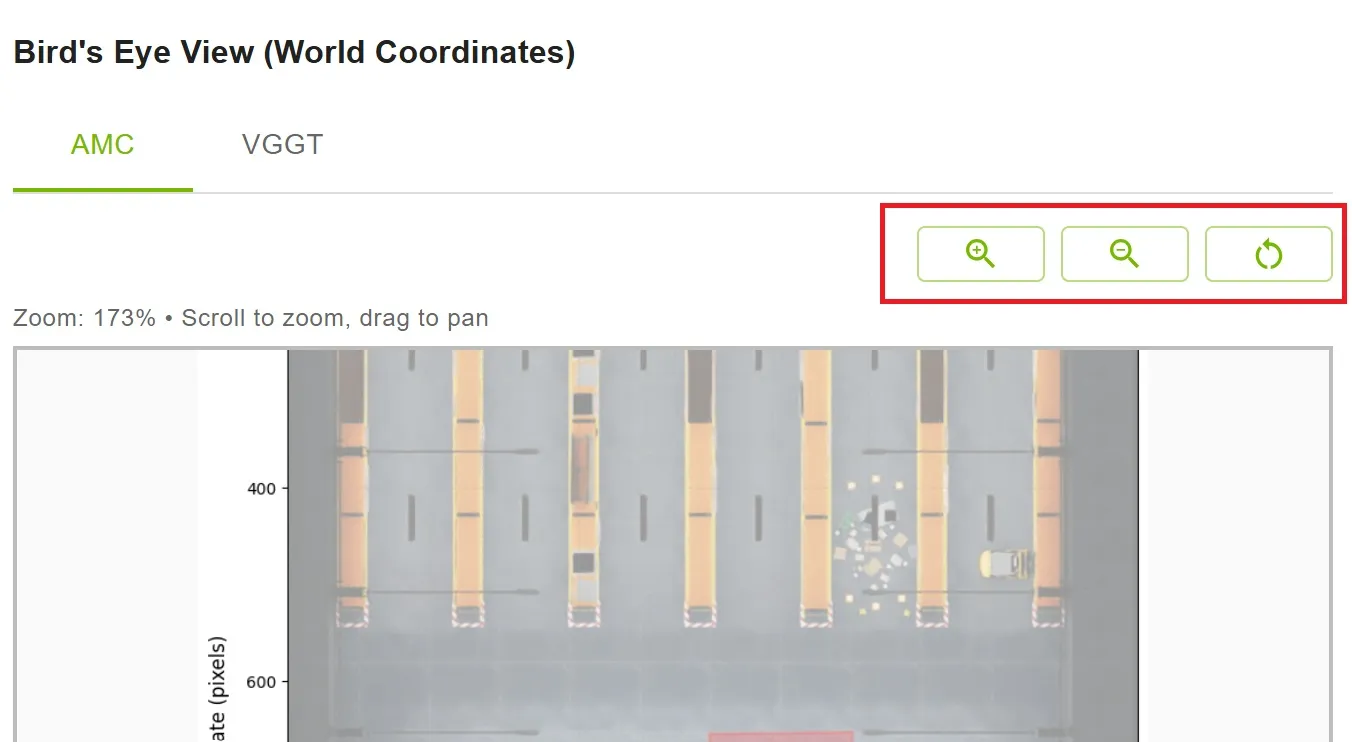
Zoom Controls
- Zoom In (🔍+): Increase zoom level
- Zoom Out (🔍-): Decrease zoom level
- Reset (↻): Return to 100% zoom
- Current Zoom: Displayed as percentage
Export Calibration Data
Export complete calibration data in various formats.
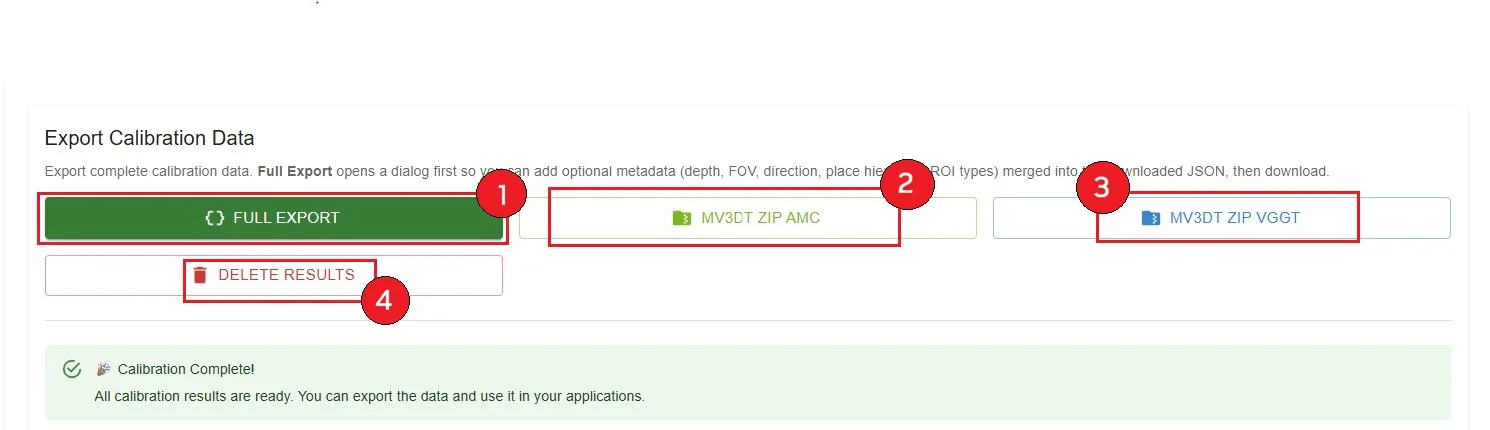
Export Options
- Full Export — Opens a dialog for optional metadata and download. Complete calibration JSON with ROI/tripwire world coordinates. Choose AMC or VGGT inside the dialog when both calibrations completed (toggle: Download / edit AMC export vs Download / edit VGGT export); otherwise the available result type is used automatically. AMC uses the AMC projection matrix; saved/downloaded as
{project_name}_exported.json. VGGT uses the VGGT projection matrix (multi-camera, when VGGT completed); saved/downloaded as{project_name}_exported_vggt.json. - MV3DT ZIP AMC — MV3DT-compatible format for verification; ZIP archive; filename:
{project_name}_mv3dt.zip - MV3DT ZIP VGGT (if available) — MV3DT-compatible format with VGGT results; ZIP archive; filename:
{project_name}_vggt_mv3dt.zip - Delete Results — removes all calibration results; project returns to READY state; allows re-running calibration
How to Export
- Full Export: Click Full Export, choose AMC or VGGT in the dialog when both are available, optionally edit metadata or open the manual JSON editor by clicking Full Control, then click Download JSON. The file downloads to your browser’s download folder.
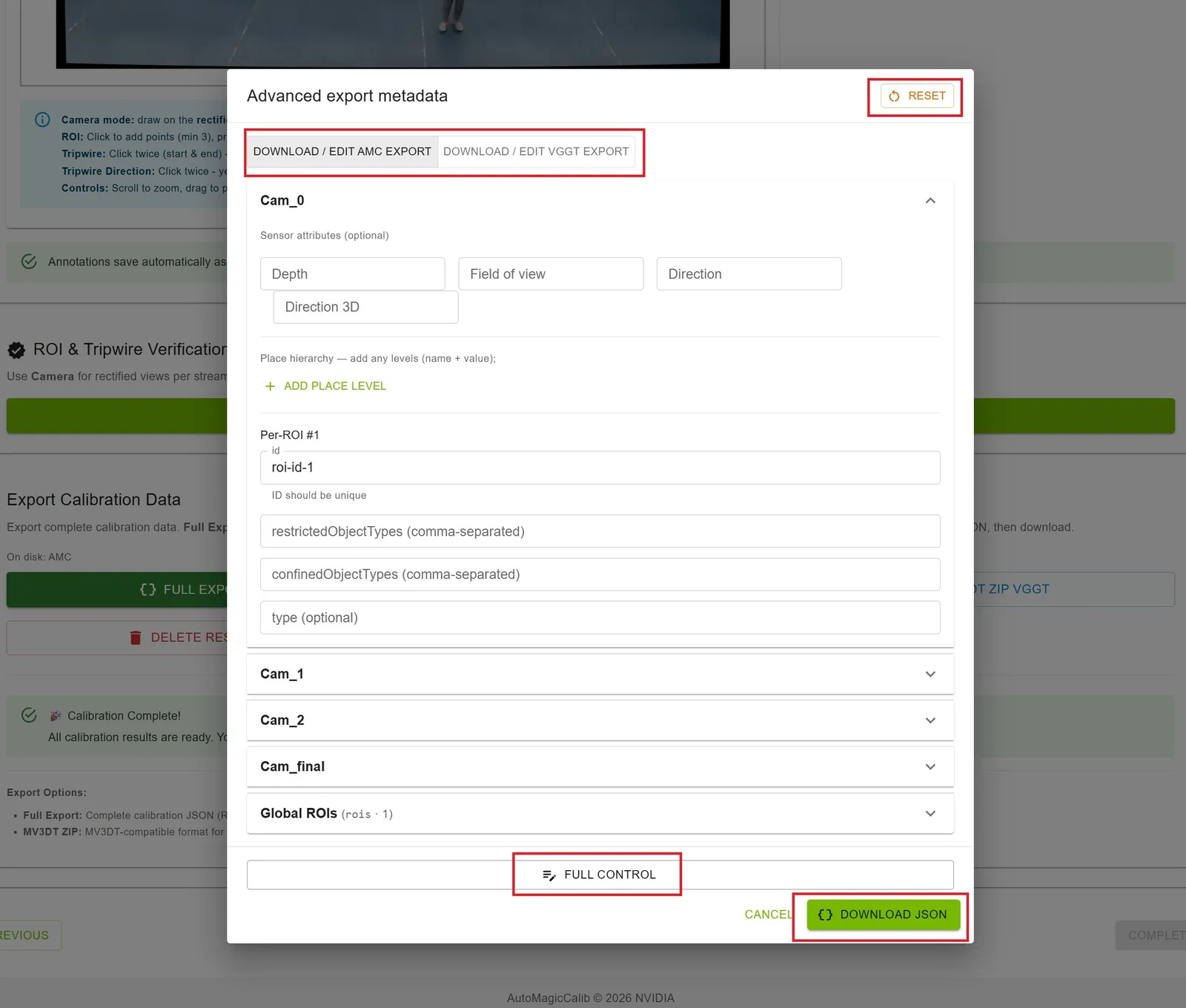
This is an advanced user feature. Edit the JSON only if you understand the calibration schema; any changes should be made carefully to avoid invalid or incorrect calibration output.
-
Reset to Original Calibration (Advanced Export Metadata): In the Full Export dialog, discard Full Control edits and structured metadata changes, including sensor attributes, place hierarchy, and ROI/tripwire metadata, and regenerate the project export from the original calibration results. Confirm in the Reset to Original Calibration? dialog — this cannot be undone.
-
Other exports (MV3DT ZIP):
- Click the desired export button
- Wait for processing (may take a few seconds)
- File downloads automatically to your browser’s download folder
- Success message confirms export
Export Options Explained:
- Full Export: Complete calibration with ROI/tripwire world coordinates; pick AMC or VGGT in the dialog when both exist
- Reset to Original Calibration: Restore export JSON from original calibration output
- MV3DT ZIP: MV3DT-compatible format for verification (separate AMC and VGGT buttons)
Deleting Results
If you need to re-run calibration with different parameters:
- Click Delete Results button
- Confirm deletion in the dialog
- All calibration results are removed
- Project state returns to “READY”
- Files (videos, layout, alignment) and staged linear media remain
Warning: Deleting results cannot be undone. Export important data before deletion.
Completion Message
At the bottom of the page, a success message confirms calibration is complete.

Message
- Title: ”🎉 Calibration Complete!”
- Text: “All calibration results are ready. You can export the data and use it in your applications.”
How to Interpret Calibration Outputs
Upon completion, the UI presents overlay images and metric numbers depending on whether ground truth data was provided and post-processing ran.
Case 1: Ground Truth Data Exists
If ground truth data was uploaded, the tool calculates the L2 distance as the primary evaluation metric — the Euclidean distance between the 3D ground truth object location and the estimated location determined by triangulation.
Statistics displayed:
- Average: Mean L2 distance across all points
- Standard Deviation: Measure of consistency
- Maximum: Worst-case error
- Minimum: Best-case error
Since a lower L2 distance indicates better accuracy, compare these metrics between AMC and VGGT results to select the superior calibration.
Additionally, calibration results from the two methods can be compared visually using the overlay visualization. Object trajectories reconstructed using the camera matrices are shown as colored lines; ground truth trajectories are displayed in white. A close alignment of the colored trajectories with the white lines signifies accurate camera parameters.
When comparing AMC and VGGT results: look for lower L2 distance values (better accuracy), compare overlay images for trajectory alignment, and check consistency of colored lines with white ground truth lines.
Case 2: No Ground Truth Data
When ground truth data is unavailable, calibration results can be compared qualitatively using overlay images, which display:
- Reconstructed object trajectories: Shown as colored lines
- Estimated camera locations: Shown as colored dots with corresponding camera IDs
- Virtual-object overlays (when generated): Qualitative check of projected virtual GT objects per camera
Qualitative Evaluation Tips:
- Camera positions should match expected physical locations
- Object trajectories should follow logical paths on the floor map
- FOV (Field of View) boundaries should align with physical constraints
- Compare AMC and VGGT overlays to identify which better matches the layout
Best Practices
Reviewing Results
- Confirm layout post-processing completed (multi-camera) before judging overlays
- Check trajectory and virtual-object overlays
- Verify evaluation metrics if ground truth is available
- Compare AMC and VGGT results if both available
- Review camera parameters for reasonableness
Exporting Data
- Export both AMC and VGGT results for comparison
- Use Reset to Original Calibration if Full Control metadata edits should be discarded
- Keep MV3DT ZIP for verification purposes
- Store exports with descriptive names and dates
- Maintain backups of important calibration data
Verification
- Draw ROIs/tripwires on Results when needed, then verify projections
- Check all cameras, not just one
- Use zoom to inspect details
- Compare AMC vs VGGT projections
Before Deleting
- Export all needed data first
- Verify exports are complete and valid
- Document any issues or observations
- Consider keeping project for reference
Next Steps
After completing calibration:
- Use exported data in your surveillance application
- Integrate calibration parameters with your tracking system
- Set up ROIs and tripwires in your production environment
- Monitor and validate calibration accuracy in real-world scenarios