

Augmented Imitation Learning
This section describes how to use Isaac Lab’s imitation learning capabilities with the visual augmentation capabilities of Cosmos models to generate demonstrations at scale to train visuomotor policies robust against visual variations.
The Cosmos Transfer1 model used in this tutorial is supported on Ampere and Hopper GPUs.
Generating Demonstrations
We use the Isaac Lab Mimic feature that allows the generation of additional demonstrations automatically from a handful of annotated demonstrations.
This section assumes you already have an annotated dataset of collected demonstrations. If you don’t, you can follow the instructions in Synthetic Data Generation and Imitation Learning with Isaac Lab Mimic to collect and annotate your own demonstrations.
In the following example, we will show you how to use Isaac Lab Mimic to generate additional demonstrations that can be used to train a visuomotor policy directly or can be augmented with visual variations using Cosmos (using the Isaac-Stack-Cube-Franka-IK-Rel-Visuomotor-Cosmos-Mimic-v0 environment).
The Isaac-Stack-Cube-Franka-IK-Rel-Visuomotor-Cosmos-Mimic-v0 environment is similar to the standard visuomotor environment (Isaac-Stack-Cube-Franka-IK-Rel-Visuomotor-Mimic-v0), but with the addition of segmentation masks, depth maps, and normal maps in the generated dataset. These additional modalities are required to get the best results from the visual augmentation done using Cosmos.
uv (Recommended)
isaaclab.sh / isaaclab.bat
The number of demonstrations can be increased or decreased, 1000 demonstrations have been shown to provide good training results for this task.
Additionally, the number of environments in the --num_envs parameter can be adjusted to speed up data generation.
The suggested number of 10 can be executed on a moderate laptop CPU.
On a more powerful desktop machine, use a larger number of environments for a significant speedup of this step.
When running large camera-heavy jobs, switch to the RTX Minimal renderer for higher throughput, or
override the task’s high-fidelity RTX settings directly if they are more expensive than your workflow
requires.
Cosmos Augmentation
The hdf5_to_mp4.py and mp4_to_hdf5.py scripts below read and write MP4 files through OpenCV’s
video I/O, which requires ffmpeg support. Recent Isaac Sim releases ship an OpenCV build without ffmpeg,
so install the full OpenCV package into the environment before running these conversions:
uv (Recommended)
isaaclab.sh / isaaclab.bat
Without it, the conversion scripts fail to open or write the video files.
HDF5 to MP4 Conversion
The hdf5_to_mp4.py script converts camera frames stored in HDF5 demonstration files to MP4 videos. It supports multiple camera modalities including RGB, segmentation, depth and normal maps. This conversion is necessary for visual augmentation using Cosmos as it only works with video files rather than HDF5 data.
Required Arguments
Optional Arguments
The default input keys cover all camera modalities as per the naming convention followed in the Isaac-Stack-Cube-Franka-IK-Rel-Visuomotor-Cosmos-Mimic-v0 environment. We include an additional modality “table_cam_shaded_segmentation” which is not a part of the generated modalities from simulation in the HDF5 data file. Instead, it is automatically generated by this script using a combination of the segmentation and normal maps to get a pseudo-textured segmentation video for better controlling the Cosmos augmentation.
We recommend using the default values given above for the output video height, width and framerate for the best results with Cosmos augmentation.
Example usage for the cube stacking task:
uv (Recommended)
isaaclab.sh / isaaclab.bat
Running Cosmos for Visual Augmentation
After converting the demonstrations to MP4 format, you can use a Cosmos_ model to visually augment the videos. Follow the Cosmos documentation for details on the augmentation process. Visual augmentation can include changes to lighting, textures, backgrounds, and other visual elements while preserving the essential task-relevant features.
We use the RGB, depth and shaded segmentation videos from the previous step as input to the Cosmos model as seen below:

We provide an example augmentation output from Cosmos Transfer1 below:
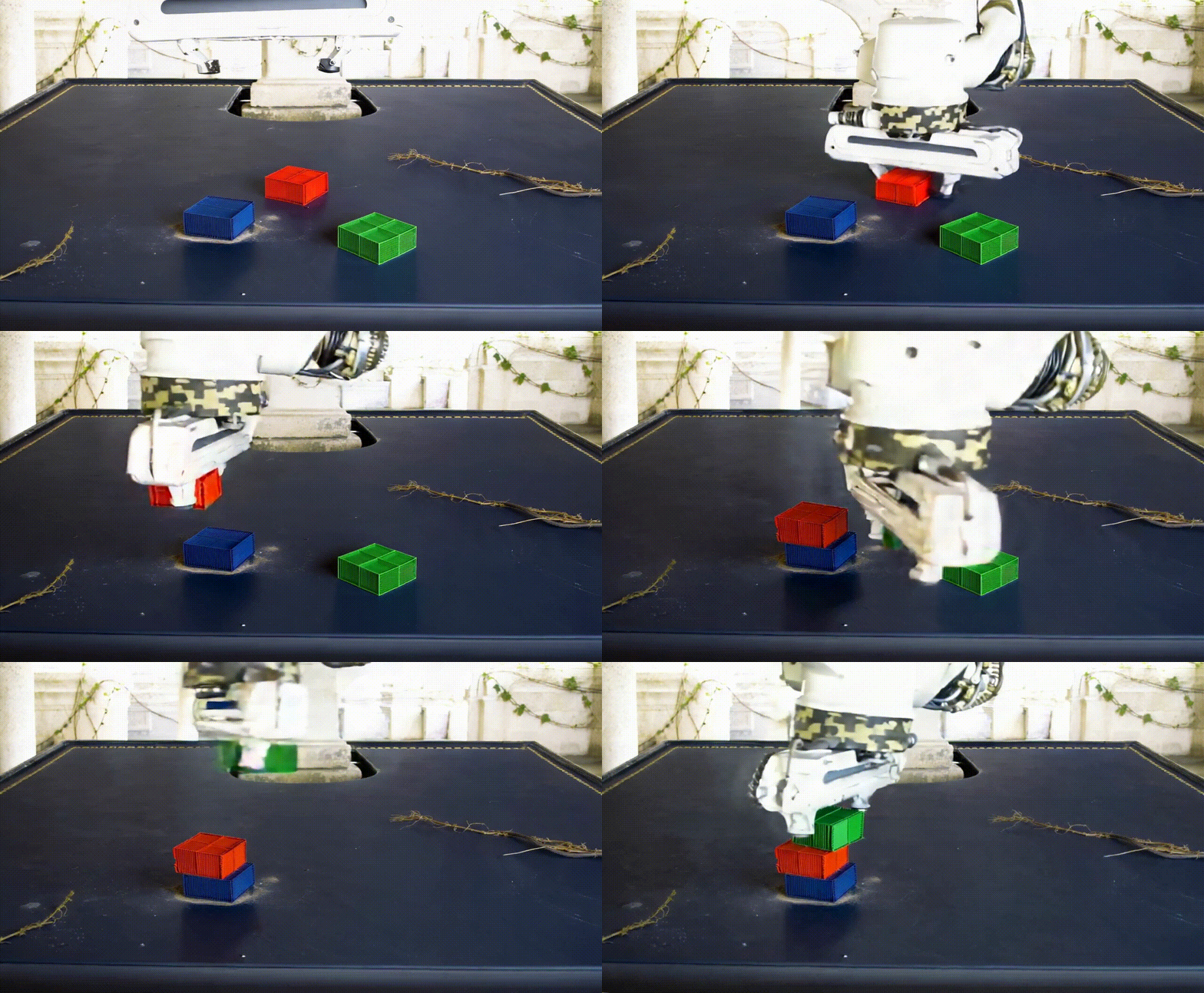
We recommend using the Cosmos Transfer1 model for visual augmentation as we found it to produce the best results in the form of a highly diverse dataset with a wide range of visual variations. You can refer to the installation instructions, the checkpoint download instructions and this example for reference on how to use Transfer1 for this usecase. We further recommend the following settings to be used with the Transfer1 model for this task:
This workflow has been tested with commit e4055e39ee9c53165e85275bdab84ed20909714a of the Cosmos Transfer1 repository, and it is the recommended version to use. After cloning the Cosmos Transfer1 repository, checkout to this specific commit by running git checkout e4055e39ee9c53165e85275bdab84ed20909714a.
Hyperparameters
Another crucial aspect to get good augmentations is the set of prompts used to control the Cosmos generation. We provide a script, cosmos_prompt_gen.py, to construct prompts from a set of carefully chosen templates that handle various aspects of the augmentation process.
Required Arguments
Optional Arguments
In case you want to create your own prompts, we suggest you refer to the following guidelines:
-
Keep the prompts as detailed as possible. It is best to have some instruction on how the generation should handle each visible object/region of interest. For instance, the prompts that we provide cover explicit details for the table, lighting, background, robot arm, cubes, and the general setting.
-
Try to keep the augmentation instructions as realistic and coherent as possible. The more unrealistic or unconventional the prompt is, the worse the model does at retaining key features of the input control video(s).
-
Keep the augmentation instructions in-sync for each aspect. What we mean by this is that the augmentation for all the objects/regions of interest should be coherent and conventional with respect to each other. For example, it is better to have a prompt such as “The table is of old dark wood with faded polish and food stains and the background consists of a suburban home” instead of something like “The table is of old dark wood with faded polish and food stains and the background consists of a spaceship hurtling through space”.
-
It is vital to include details on key aspects of the input control video(s) that should be retained or left unchanged. In our prompts, we very clearly mention that the cube colors should be left unchanged such that the bottom cube is blue, the middle is red and the top is green. Note that we not only mention what should be left unchanged but also give details on what form that aspect currently has.
Example command to use the Cosmos Transfer1 model for this usecase:
Example ./controlnet_specs/demo_0.json json file to use with the above command:
MP4 to HDF5 Conversion
The mp4_to_hdf5.py script converts the visually augmented MP4 videos back to HDF5 format for training. This step is crucial as it ensures the augmented visual data is in the correct format for training visuomotor policies in Isaac Lab and pairs the videos with the corresponding demonstration data from the original dataset.
Required Arguments
The input HDF5 file is used to preserve the non-visual data (such as robot states and actions) while replacing the visual data with the augmented versions.
If an augmented video has a different number of frames than the original demonstration, the new demonstration is truncated to the shorter of the two so that all observations and actions stay aligned. A warning is emitted in that case.
The visually augmented MP4 files must follow the naming convention demo_{demo_id}_*.mp4, where:
-
demo_idmatches the demonstration ID from the original MP4 file -
*signifies that the file name can be as per user preference starting from this point
This naming convention is required for the script to correctly pair the augmented videos with their corresponding demonstrations.
Example usage for the cube stacking task:
uv (Recommended)
isaaclab.sh / isaaclab.bat
Pre-generated Dataset
We provide a pre-generated dataset in HDF5 format containing visually augmented demonstrations for the cube stacking task. This dataset can be used if you do not wish to run Cosmos locally to generate your own augmented data. The dataset is available on Hugging Face and contains both (as separate dataset files), original and augmented demonstrations, that can be used for training visuomotor policies.
Merging Datasets
The merge_hdf5_datasets.py script combines multiple HDF5 datasets into a single file. This is useful when you want to combine the original demonstrations with the augmented ones to create a larger, more diverse training dataset.
Required Arguments
Optional Arguments
Merging datasets can help improve policy robustness by exposing the model to both original and augmented visual conditions during training.
Example usage for the cube stacking task:
uv (Recommended)
isaaclab.sh / isaaclab.bat
Model Training and Evaluation
Robomimic Setup
As an example, we will train a BC agent implemented in Robomimic to train a policy. Any other framework or training method could be used.
To install the robomimic framework, use the following commands:
For a legacy environment, install the same dependencies with
./isaaclab.sh -i mimic.
Training an agent
Using the generated data, we can now train a visuomotor BC agent for IsaacContrib-Stack-Cube-Franka-IK-Rel-Visuomotor-Cosmos:
uv (Recommended)
isaaclab.sh / isaaclab.bat
By default the trained models and logs will be saved to IsaacLab/logs/robomimic.
Evaluation
The robust_eval.py script evaluates trained visuomotor policies in simulation. This evaluation helps assess how well the policy generalizes to different visual variations and whether the visually augmented data has improved the policy’s robustness.
Below is an explanation of the different settings used for evaluation:
Evaluation Settings
Required Arguments
Optional Arguments
The evaluation results will help you understand if the visual augmentation has improved the policy’s performance and robustness. Compare these results with evaluations on the original dataset to measure the impact of augmentation.
Example usage for the cube stacking task:
uv (Recommended)
isaaclab.sh / isaaclab.bat
Verify that the models directory is not empty. By default, the training script saves models every 20 epochs starting from epoch 100.
This script can take over a day or even longer to run (depending on the hardware being used). This behavior is expected.
We use the above script to compare models trained with 1000 Mimic-generated demonstrations, 2000 Mimic-generated demonstrations and 2000 Cosmos-Mimic-generated demonstrations (1000 original mimic + 1000 Cosmos augmented) respectively. We use the same seeds (0, 1000 and 5000) for all three models and provide the metrics (averaged across best checkpoints for each seed) below:
Model Comparison
The above trained models’ checkpoints can be accessed here in case you wish to use the models directly.