

Registering an Environment
In the previous tutorial, we learned how to create a custom cartpole environment. We manually
created an instance of the environment from the class named by its configuration’s class_type.
While straightforward, this approach is not scalable as we have a large suite of environments.
In this tutorial, we will show how to use the gymnasium.register method to register
environments with the gymnasium registry. This allows us to create the environment through
the gymnasium.make function.
The Code
The tutorial corresponds to the random_agent.py script in the scripts/environments directory. The
script is a thin wrapper that calls into the isaaclab_rl.entrypoints module, where the actual
implementation lives.
The Code Explained
The envs.ManagerBasedRLEnv class inherits from the gymnasium.Env class to follow
a standard interface. However, unlike the traditional Gym environments, the envs.ManagerBasedRLEnv
implements a vectorized environment. This means that multiple environment instances
are running simultaneously in the same process, and all the data is returned in a batched
fashion.
Similarly, the envs.DirectRLEnv class also inherits from the gymnasium.Env class
for the direct workflow. For envs.DirectMARLEnv, although it does not inherit
from Gymnasium, it can be registered and created in the same way.
Using the gym registry
To register an environment, we use the gymnasium.register method. This method takes
in the environment name, the entry point to the environment class, and the entry point to the
environment configuration class.
The gymnasium registry is a global registry. Hence, it is important to ensure that the
environment names are unique. Otherwise, the registry will throw an error when registering
the environment.
Manager-Based Environments
For manager-based environments, the following shows the registration
call for the cartpole environment in the isaaclab_tasks.core.cartpole sub-package:
The id argument is the name of the environment. As a convention, we name all the environments
with the prefix Isaac- to make it easier to search for them in the registry. The name of the
environment is typically followed by the name of the task, and then the name of the robot.
For instance, for legged locomotion with ANYmal C on flat terrain, the environment is called
IsaacContrib-Velocity-Flat-AnymalC. The version number v<N> is typically used to specify different
variations of the same environment. Otherwise, the names of the environments can become too long
and difficult to read.
The entry_point argument is the entry point to the environment class. The entry point is a string
of the form <module>:<class>. In the case of the cartpole environment, the entry point is
isaaclab.envs:ManagerBasedRLEnv. The entry point is used to import the environment class
when creating the environment instance.
The env_cfg_entry_point argument specifies the default configuration for the environment. The default
configuration is loaded using the isaaclab_tasks.utils.parse_env_cfg function.
It is then passed to the gymnasium.make function to create the environment instance.
The configuration entry point can be both a YAML file or a python configuration class.
Direct Environments
For direct-based environments, the environment registration follows a similar pattern. Instead of
registering the environment’s entry point as the ~isaaclab.envs.ManagerBasedRLEnv class,
we register the environment’s entry point as the implementation class of the environment.
Additionally, we add the suffix -Direct to the environment name to differentiate it from the
manager-based environments.
As an example, the following shows the registration call for the cartpole environment in the
isaaclab_tasks.core.cartpole sub-package:
Creating the environment
To inform the gym registry with all the environments provided by the isaaclab_tasks
extension, we must import the module at the start of the script. This will execute the __init__.py
file which iterates over all the sub-packages and registers their respective environments.
In this tutorial, the task name is read from the command line. The task name is used to parse the default configuration as well as to create the environment instance. In addition, other parsed command line arguments such as the number of environments, the simulation device, and whether to render, are used to override the default configuration.
Once creating the environment, the rest of the execution follows the standard resetting and stepping.
The Code Execution
Now that we have gone through the code, let’s run the script and see the result:
uv (Recommended)
isaaclab.sh / isaaclab.bat
This should open a stage with everything similar to the Creating a Manager-Based RL Environment tutorial.
To stop the simulation, you can either close the window, or press Ctrl+C in the terminal.
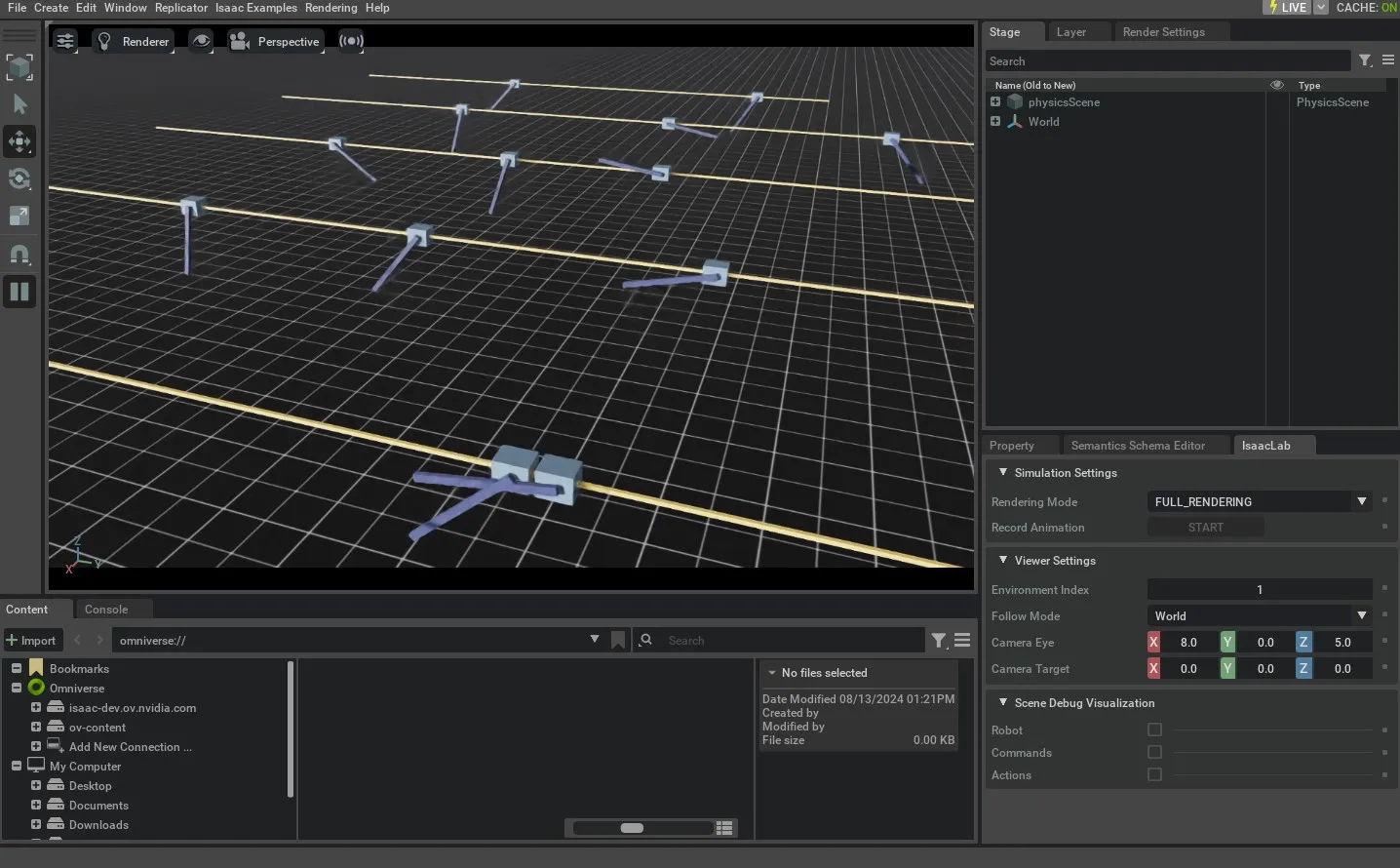
In addition, you can also change the simulation device from GPU to CPU by setting the value of the --device flag explicitly:
uv (Recommended)
isaaclab.sh / isaaclab.bat
With the --device cpu flag, the simulation will run on the CPU. This is useful for debugging the simulation.
However, the simulation will run much slower than on the GPU.