

Adding sensors on a robot
While the asset classes allow us to create and simulate the physical embodiment of the robot, sensors help in obtaining information about the environment. They typically update at a lower frequency than the simulation and are useful for obtaining different proprioceptive and exteroceptive information. For example, a camera sensor can be used to obtain the visual information of the environment, and a contact sensor can be used to obtain the contact information of the robot with the environment.
In this tutorial, we will see how to add different sensors to a robot. We will use the ANYmal-C robot for this tutorial. The ANYmal-C robot is a quadrupedal robot with 12 degrees of freedom. It has 4 legs, each with 3 degrees of freedom. The robot has the following sensors:
- A camera sensor on the head of the robot which provides RGB-D images
- A height scanner sensor that provides terrain height information
- Contact sensors on the feet of the robot that provide contact information
We continue this tutorial from the previous tutorial on Using the Interactive Scene,
where we learned about the scene.InteractiveScene class.
The Code
The tutorial corresponds to the add_sensors_on_robot.py script in the
scripts/tutorials/04_sensors directory.
The Code Explained
Similar to the previous tutorials, where we added assets to the scene, the sensors are also added
to the scene using the scene configuration. All sensors inherit from the sensors.SensorBase class
and are configured through their respective config classes. Each sensor instance can define its own
update period, which is the frequency at which the sensor is updated. The update period is specified
in seconds through the sensors.SensorBaseCfg.update_period attribute.
Depending on the specified path and the sensor type, the sensors are attached to the prims in the scene. They may have an associated prim that is created in the scene or they may be attached to an existing prim. For instance, the camera sensor has a corresponding prim that is created in the scene, whereas for the contact sensor, activating the contact reporting is a property on a rigid body prim.
In the following, we introduce the different sensors we use in this tutorial and how they are configured.
For more description about them, please check the sensors module.
Camera sensor
A camera is defined using the sensors.CameraCfg. It is based on the USD Camera sensor and
the different data types are captured using Omniverse Replicator API. Since it has a corresponding prim
in the scene, the prims are created in the scene at the specified prim path.
The configuration of the camera sensor includes the following parameters:
sensors.CameraCfg.spawn: The type of USD camera to create. This can be either~sim.spawners.sensors.PinholeCameraCfgor~sim.spawners.sensors.FisheyeCameraCfg.sensors.CameraCfg.offset: The offset of the camera sensor from the parent prim.sensors.CameraCfg.data_types: The data types to capture. This can bergb,distance_to_image_plane,normals, or other types supported by the USD Camera sensor.
To attach an RGB-D camera sensor to the head of the robot, we specify an offset relative to the base
frame of the robot. The offset is specified as a translation and rotation relative to the base frame,
and the sensors.CameraCfg.OffsetCfg.convention in which the offset is specified.
In the following, we show the configuration of the camera sensor used in this tutorial. We set the
update period to 0.1s, which means that the camera sensor is updated at 10Hz. The prim path expression is
set to {ENV_REGEX_NS}/Robot/base/front_cam where the {ENV_REGEX_NS} is the environment namespace,
"Robot" is the name of the robot, "base" is the name of the prim to which the camera is attached,
and "front_cam" is the name of the prim associated with the camera sensor.
Camera sensors need the simulator’s rendering extensions, also when running without a visualizer.
~app.launch_simulation enables them automatically when the configuration it is given contains a
camera. Since this script passes only the simulation configuration and the camera lives in the scene
configuration, the script requests camera rendering explicitly after parsing its arguments:
Height scanner
The height-scanner is implemented as a virtual ray-casting sensor. Through the
sensors.RayCasterCfg, we specify the ray pattern. PhysX-based backends
cast against the configured meshes, while Newton casts against its live scene
BVH and ignores the mesh list. By default, sensors.RayCasterCfg.spawn creates
a plain USD Xform at sensors.RayCasterCfg.prim_path to serve as the sensor’s
attachment frame. This compatibility behavior is deprecated; new configurations should
set sensors.RayCasterCfg.spawn to None and track an existing frame.
For this tutorial, the ray-cast based height scanner is attached under the base frame of the robot.
The pattern of rays is specified using the sensors.RayCasterCfg.pattern attribute. For
a uniform grid pattern, we specify the pattern using ~sensors.patterns.GridPatternCfg.
Since we only care about the height information, we do not need to consider the roll and pitch
of the robot. Hence, we set the sensors.RayCasterCfg.ray_alignment to “yaw”.
For the height-scanner, you can visualize the points where the rays hit the mesh. This is done
by setting the sensors.SensorBaseCfg.debug_vis attribute to true.
The entire configuration of the height-scanner is as follows:
Contact sensor
Contact sensors wrap around the PhysX contact reporting API to obtain the contact information of the robot
with the environment. Since it relies of PhysX, the contact sensor expects the contact reporting API
to be enabled on the rigid bodies of the robot. This can be done by setting the
sim.spawners.RigidObjectSpawnerCfg.activate_contact_sensors to true in the asset configuration.
Through the sensors.ContactSensorCfg, it is possible to specify the prims for which we want to
obtain the contact information. Additional flags can be set to obtain more information about
the contact, such as the contact air time, contact forces between filtered prims, etc.
In this tutorial, we attach the contact sensor to the feet of the robot. The feet of the robot are
named "LF_FOOT", "RF_FOOT", "LH_FOOT", and "RH_FOOT". We pass a Regex expression
".*_FOOT" to simplify the prim path specification. This Regex expression matches all prims that
end with "_FOOT".
We set the update period to 0 to update the sensor at the same frequency as the simulation. Additionally, for contact sensors, we can specify the history length of the contact information to store. For this tutorial, we set the history length to 6, which means that the contact information for the last 6 simulation steps is stored.
The entire configuration of the contact sensor is as follows:
Running the simulation loop
Similar to when using assets, the buffers and physics handles for the sensors are initialized only
when the simulation is played, i.e., it is important to call sim.reset() after creating the scene.
Besides that, the simulation loop is similar to the previous tutorials. The sensors are updated as part of the scene update and they internally handle the updating of their buffers based on their update periods.
The data from the sensors can be accessed through their data attribute. As an example, we show how
to access the data for the different sensors created in this tutorial:
The Code Execution
Now that we have gone through the code, let’s run the script and see the result:
uv (Recommended)
isaaclab.sh / isaaclab.bat
This command should open a stage with a ground plane, lights, and two quadrupedal robots. Around the robots, you should see red spheres that indicate the points where the rays hit the mesh. Additionally, you can switch the viewport to the camera view to see the RGB image captured by the camera sensor. Please check here for more information on how to switch the viewport to the camera view.
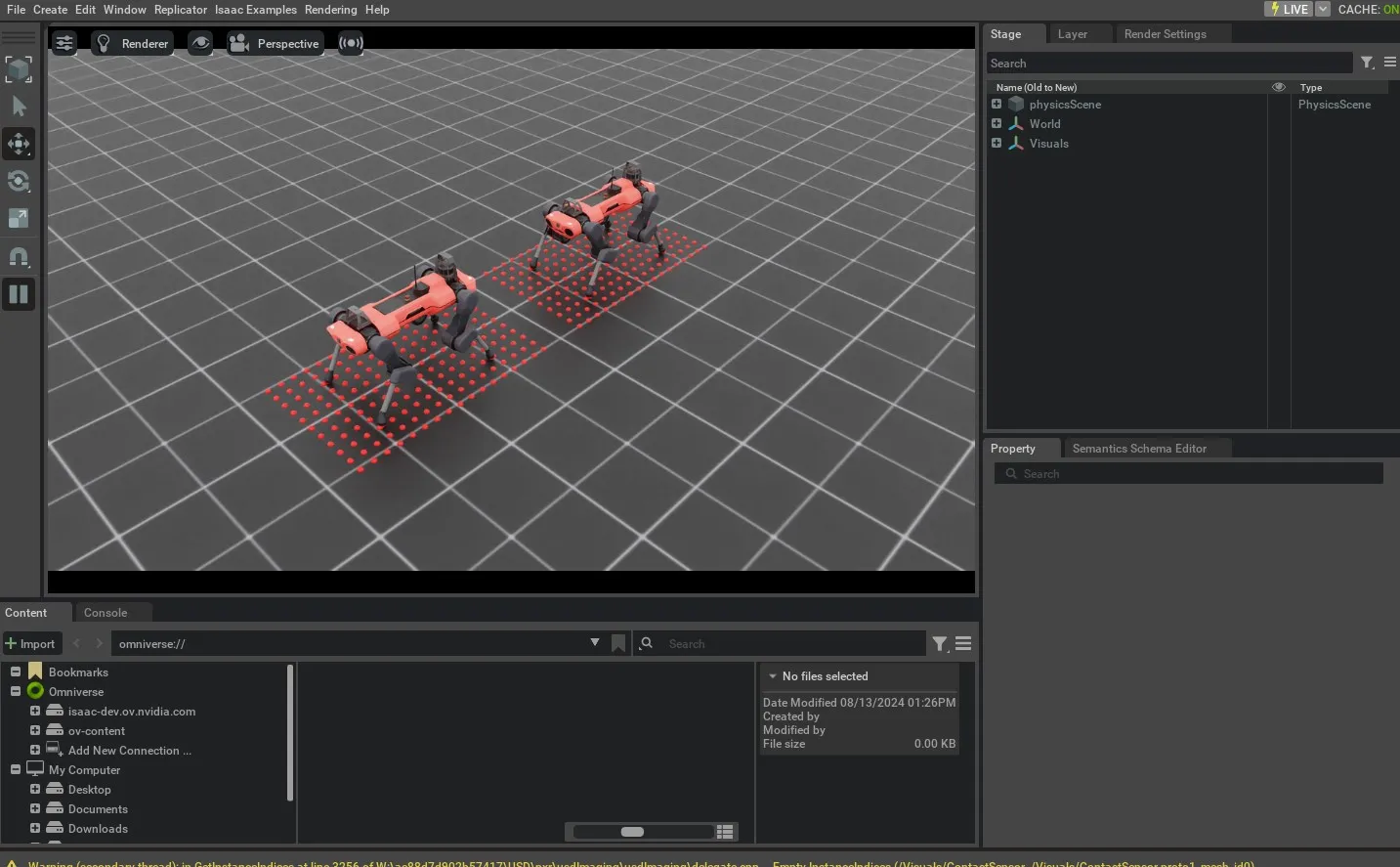
To stop the simulation, you can either close the window, or press Ctrl+C in the terminal.
While in this tutorial, we went over creating and using different sensors, there are many more sensors
available in the sensors module. We include minimal examples of using these sensors in the
scripts/tutorials/04_sensors directory. For completeness, these scripts can be run using the
following commands: