

Spawning Multiple Assets
Typical spawning configurations (introduced in the Spawning prims into the scene tutorial) copy one asset across all prim paths resolved from an expression. Multi-asset workflows cover two related composition needs:
- A rigid object collection batches several rigid objects in every environment behind one data and command API.
- A multi-asset spawner declares several variants for one scene asset binding, allowing environments to contain different geometry or robot variants.
This guide demonstrates both mechanisms and explains how their execution differs between PhysX and Newton.
The packaged multi-asset example provides the reference script, multi_asset.py.
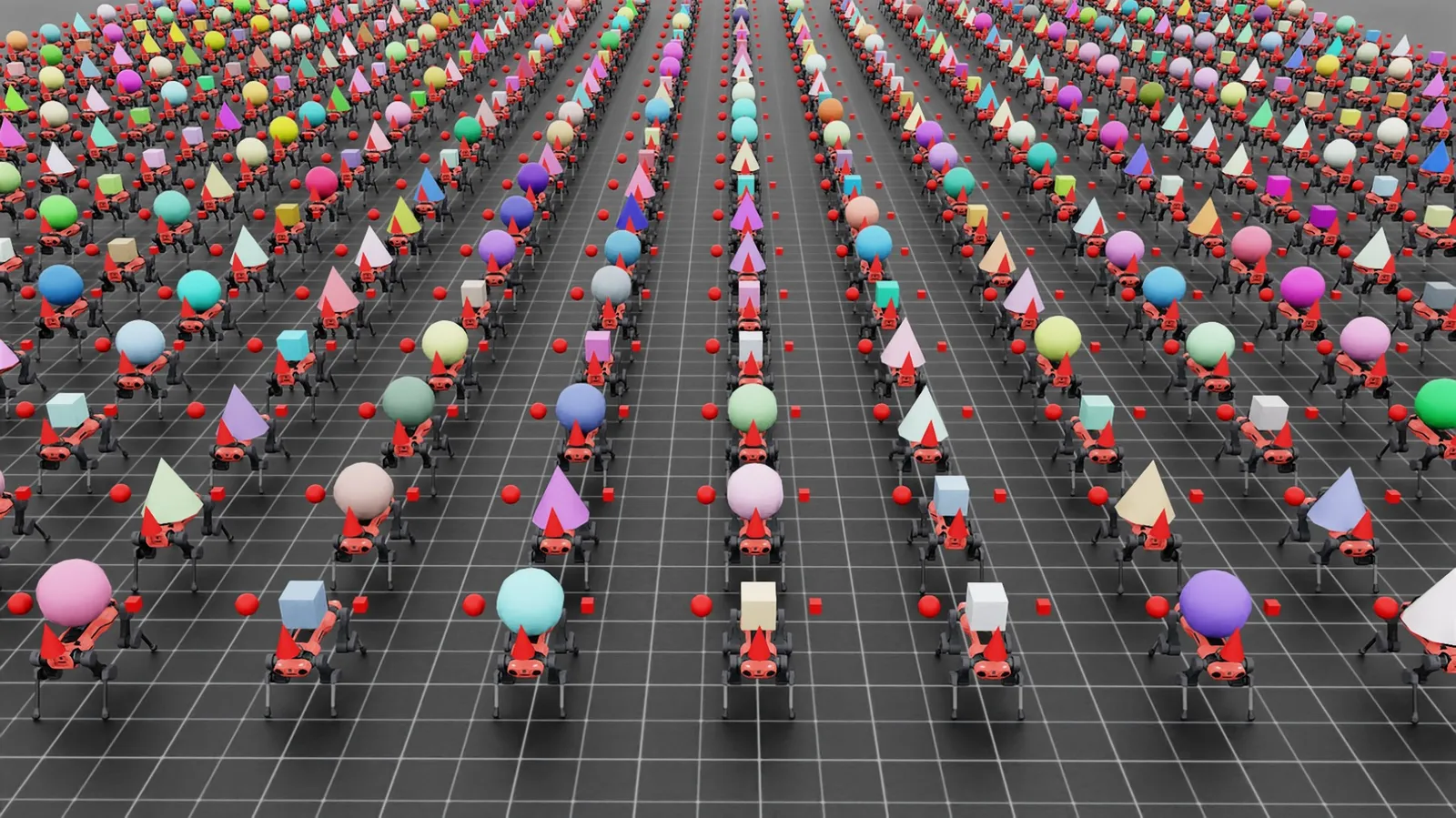
With the default Newton configuration, this script creates multiple environments containing:
- a rigid object collection containing a sphere, a cube, and a cylinder
- a rigid object selected from nine geometry and material variants by the clone plan
- an articulation selected from the ANYmal-C and ANYmal-D variants by the clone plan
Rigid object collections
Use a rigid object collection when every environment contains the same set of independently moving rigid bodies and you
want to access them as one batch. The collection exposes data with an (env, object, ...) layout and accepts
(env_ids, obj_ids) selections for commands. Compared with managing each object separately, the collection uses one
batched physics view.
The ~assets.RigidObjectCollectionCfg configuration owns a dictionary of ~assets.RigidObjectCfg
instances. Each dictionary key is the object’s stable identifier within the collection.
The example resets all collection members through the same API used by both physics backends:
Spawning variants for one scene asset
Use ~sim.spawners.wrappers.MultiAssetSpawnerCfg and ~sim.spawners.wrappers.MultiUsdFileCfg to declare
the available variants for one scene asset binding. ~scene.InteractiveScene includes these variants in its clone
plan and assigns one valid prototype combination to each environment.
For configuration-based assets, assign ~sim.spawners.wrappers.MultiAssetSpawnerCfg to the
~assets.RigidObjectCfg spawn configuration:
The assets_cfg list defines the prototypes available to the clone plan. Variant assignment is controlled by
cloner.CloneCfg.clone_strategy; the default ~cloner.sequential strategy assigns combinations in
round-robin order. To sample combinations randomly instead, set the strategy before constructing the scene:
For USD assets, assign ~sim.spawners.wrappers.MultiUsdFileCfg to the
~assets.ArticulationCfg spawn configuration:
Variant compatibility
All variants behind one batched asset interface must have a compatible structure. Articulation variants must have the same links, joints, collision-body count, and names. Rigid object variants can differ in geometry and material while retaining a compatible rigid-body layout. Model structurally different assets as separate scene bindings.
Clone planning and physics replication
~scene.InteractiveScene represents multi-asset variants as clone-plan prototypes. It can therefore keep
scene.InteractiveSceneCfg.replicate_physics enabled and replicate each prototype only to its assigned
environments. Do not disable physics replication merely because a scene uses a multi-asset spawner. Reserve
replicate_physics=False for per-environment stage differences that cannot be represented as clone variants; that
mode is not supported by the Newton backend.
The example keeps physics replication enabled. For Newton, it also narrows the standalone object and articulation to one variant because their batched Newton views currently require a uniform body layout across worlds:
For more detail on prototype assignment and replication, see cloning.
Run the example
The physics backend and visualizer are selected independently. Run one of these commands from the repository root:
PhysX with Kit
Newton MJWarp with Kit
Newton MJWarp with Newton GL
The Newton commands exercise the same ~assets.RigidObjectCollectionCfg and (env_ids, obj_ids) APIs as the
PhysX command. They do not demonstrate per-environment object or articulation variants because of the uniform-layout
restriction described above; use the PhysX command to inspect that part of the example. See the
installation guide before running
the kitless command.
To stop the simulation, you can close the window, or press Ctrl+C in the terminal.