

Using the Interactive Scene
So far in the tutorials, we manually spawned assets into the simulation and created
object instances to interact with them. However, as the complexity of the scene
increases, it becomes tedious to perform these tasks manually. In this tutorial,
we will introduce the scene.InteractiveScene class, which provides a convenient
interface for spawning prims and managing them in the simulation.
At a high-level, the interactive scene is a collection of scene entities. Each entity can be either a non-interactive prim (e.g. ground plane, light source), an interactive prim (e.g. articulation, rigid object), or a sensor (e.g. camera, lidar). The interactive scene provides a convenient interface for spawning these entities and managing them in the simulation.
Compared the manual approach, it provides the following benefits:
- Alleviates the user needing to spawn each asset separately as this is handled implicitly.
- Enables user-friendly cloning of scene prims for multiple environments.
- Collects all the scene entities into a single object, which makes them easier to manage.
In this tutorial, we take the cartpole example from the Interacting with an articulation
tutorial and replace the design_scene function with an scene.InteractiveScene object.
While it may seem like overkill to use the interactive scene for this simple example, it will
become more useful in the future as more assets and sensors are added to the scene.
The Code
This tutorial corresponds to the create_scene.py script within
scripts/tutorials/02_scene.
The Code Explained
While the code is similar to the previous tutorial, there are a few key differences that we will go over in detail.
Scene configuration
The scene is composed of a collection of entities, each with their own configuration.
These are specified in a configuration class that inherits from scene.InteractiveSceneCfg.
The configuration class is then passed to the scene.InteractiveScene constructor
to create the scene.
For the cartpole example, we specify the same scene as in the previous tutorial, but list
them now in the configuration class CartpoleSceneCfg instead of manually spawning them.
The variable names in the configuration class are used as keys to access the corresponding
entity from the scene.InteractiveScene object. For example, the cartpole can
be accessed via scene["cartpole"]. However, we will get to that later. First, let’s
look at how individual scene entities are configured.
Similar to how a rigid object and articulation were configured in the previous tutorials,
the configurations are specified using a configuration class. However, there is a key
difference between the configurations for the ground plane and light source and the
configuration for the cartpole. The ground plane and light source are non-interactive
prims, while the cartpole is an interactive prim. This distinction is reflected in the
configuration classes used to specify them. The configurations for the ground plane and
light source are specified using an instance of the assets.AssetBaseCfg class
while the cartpole is configured using an instance of the assets.ArticulationCfg.
Anything that is not an interactive prim (i.e., neither an asset nor a sensor) is not
handled by the scene during simulation steps.
Another key difference to note is in the specification of the prim paths for the different prims:
- Ground plane:
/World/defaultGroundPlane - Light source:
/World/Light - Cartpole:
{ENV_REGEX_NS}/Robot
As we learned earlier, Omniverse creates a graph of prims in the USD stage. The prim
paths are used to specify the location of the prim in the graph. The ground plane and
light source are specified using absolute paths, while the cartpole is specified using
a relative path. The relative path is specified using the ENV_REGEX_NS variable,
which is a special variable that is replaced with the environment name during scene creation.
Any entity that has the ENV_REGEX_NS variable in its prim path will be cloned for each
environment. This path is replaced by the scene object with /World/envs/env_{i} where
i is the environment index.
Scene instantiation
Unlike before where we called the design_scene function to create the scene, we now
create an instance of the scene.InteractiveScene class from the configuration object.
The configuration names the class it builds in its scene.InteractiveSceneCfg.class_type
attribute, so ~isaaclab.utils.instantiate constructs the scene from it. While creating the
configuration instance of CartpoleSceneCfg we specify how many environment copies we want to
create using the num_envs argument. This will be used to clone the scene for each environment.
The configuration class CartpoleSceneCfg can be defined at the top of the script, but the
scene.InteractiveScene class works on the USD stage of the running simulator. The
class_type attribute resolves the class lazily, so the scene class is only imported when it is
constructed inside the with launch_simulation(...) block, once the simulator runtime has been launched.
Accessing scene elements
Similar to how entities were accessed from a dictionary in the previous tutorials, the
scene elements can be accessed from the InteractiveScene object using the
[] operator. The operator takes in a string key and returns the corresponding
entity. The key is specified through the configuration class for each entity. For example,
the cartpole is specified using the key "cartpole" in the configuration class.
Running the simulation loop
The rest of the script looks similar to previous scripts that interfaced with assets.Articulation,
with a few small differences in the methods called:
assets.Articulation.reset⟶scene.InteractiveScene.resetassets.Articulation.write_data_to_sim⟶scene.InteractiveScene.write_data_to_simassets.Articulation.update⟶scene.InteractiveScene.update
Under the hood, the methods of scene.InteractiveScene call the corresponding
methods of the entities in the scene.
The Code Execution
Let’s run the script to simulate 32 cartpoles in the scene. We can do this by passing
the --num_envs argument to the script.
uv (Recommended)
isaaclab.sh / isaaclab.bat
This should open a stage with 32 cartpoles swinging around randomly. You can use the mouse to rotate the camera and the arrow keys to move around the scene.
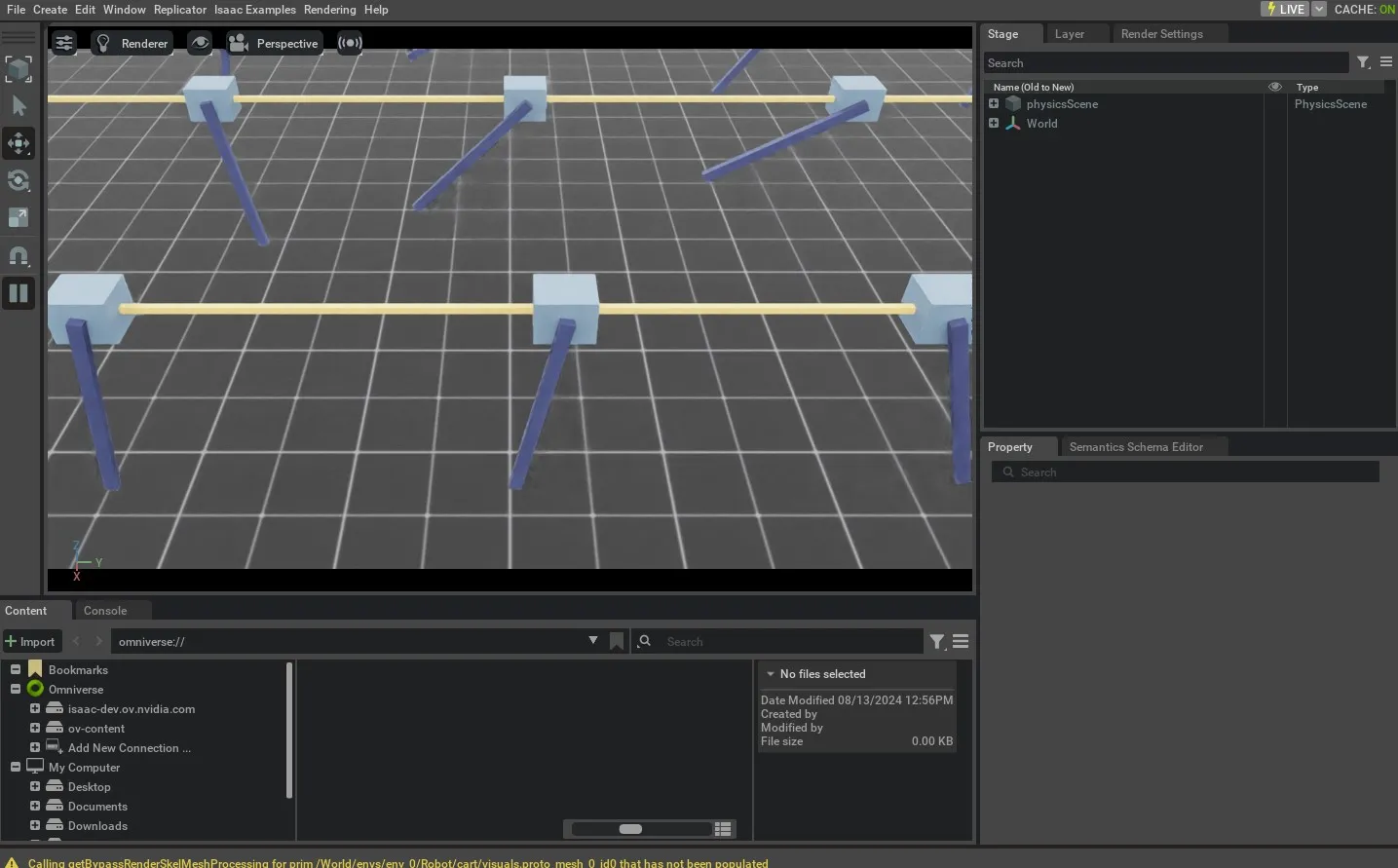
In this tutorial, we saw how to use scene.InteractiveScene to create a
scene with multiple assets. We also saw how to use the num_envs argument
to clone the scene for multiple environments.
There are many more example usages of the scene.InteractiveSceneCfg in the tasks found
under the isaaclab_tasks extension. Please check out the source code to see
how they are used for more complex scenes.