Skip to navigation

Interacting with an articulation

View as Markdown

This runtime example complements How-to Guides. It uses an existing robot configuration; see Robot and articulation configuration to create one and Choosing shared and backend-specific settings to adapt its spawn properties to PhysX or Newton.

This tutorial shows how to interact with an articulated robot in the simulation. It is a continuation of the Interacting with a rigid object tutorial, where we learned how to interact with a rigid object. On top of setting the root state, we will see how to set the joint state and apply commands to the articulated robot.

The Code

The tutorial corresponds to the run_articulation.py script in the scripts/tutorials/01_assets directory.

# Copyright (c) 2022-2026, The Isaac Lab Project Developers (https://github.com/isaac-sim/IsaacLab/blob/main/CONTRIBUTORS.md).
# All rights reserved.
#
# SPDX-License-Identifier: BSD-3-Clause
"""This script demonstrates how to spawn a cart-pole and interact with it.
~~~bash
# Usage
uv run python scripts/tutorials/01_assets/run_articulation.py
~~~
"""
"""Parse the command-line arguments first."""
import argparse
from isaaclab.app import add_launcher_args, launch_simulation
from isaaclab.utils import clone
# add argparse arguments
parser = argparse.ArgumentParser(description="Tutorial on spawning and interacting with an articulation.")
# append simulation launcher cli args
add_launcher_args(parser)
# parse the arguments
args_cli = parser.parse_args()
"""Rest everything follows."""
import torch
import isaaclab.sim as sim_utils
from isaaclab.assets import Articulation
from isaaclab.sim import SimulationContext
##
# Pre-defined configs
##
from isaaclab_assets import CARTPOLE_CFG # isort:skip
def design_scene() -> tuple[dict, list[list[float]]]:
"""Designs the scene."""
# Ground-plane
cfg = sim_utils.GroundPlaneCfg()
cfg.func("/World/defaultGroundPlane", cfg)
# Lights
cfg = sim_utils.DomeLightCfg(intensity=3000.0, color=(0.75, 0.75, 0.75))
cfg.func("/World/Light", cfg)
# Create separate groups called "Origin1", "Origin2"
# Each group will have a robot in it
origins = [[0.0, 0.0, 0.0], [-1.0, 0.0, 0.0]]
# Origin 1
sim_utils.create_prim("/World/Origin1", "Xform", translation=origins[0])
# Origin 2
sim_utils.create_prim("/World/Origin2", "Xform", translation=origins[1])
# Articulation
cartpole_cfg = clone(CARTPOLE_CFG)
cartpole_cfg.prim_path = "/World/Origin.*/Robot"
cartpole = Articulation(cfg=cartpole_cfg)
# return the scene information
scene_entities = {"cartpole": cartpole}
return scene_entities, origins
def run_simulator(sim: sim_utils.SimulationContext, entities: dict[str, Articulation], origins: torch.Tensor):
"""Runs the simulation loop."""
# Extract scene entities
# note: we only do this here for readability. In general, it is better to access the entities directly from
# the dictionary. This dictionary is replaced by the InteractiveScene class in the next tutorial.
robot = entities["cartpole"]
# Define simulation stepping
sim_dt = sim.get_physics_dt()
count = 0
# Simulation loop
while sim.is_running():
# Reset
if count % 500 == 0:
# reset counter
count = 0
# reset the scene entities
# root state
# we offset the root state by the origin since the states are written in simulation world frame
# if this is not done, then the robots will be spawned at the (0, 0, 0) of the simulation world
root_pose = robot.data.default_root_pose.torch.clone()
root_pose[:, :3] += origins
robot.write_root_pose_to_sim_index(root_pose=root_pose)
root_vel = robot.data.default_root_vel.torch.clone()
robot.write_root_velocity_to_sim_index(root_velocity=root_vel)
# set joint positions with some noise
joint_pos, joint_vel = (
robot.data.default_joint_pos.torch.clone(),
robot.data.default_joint_vel.torch.clone(),
)
joint_pos += torch.rand_like(joint_pos) * 0.1
robot.write_joint_position_to_sim_index(position=joint_pos)
robot.write_joint_velocity_to_sim_index(velocity=joint_vel)
# clear internal buffers
robot.reset()
print("[INFO]: Resetting robot state...")
# Apply random action
# -- generate random joint efforts
efforts = torch.randn_like(robot.data.joint_pos.torch) * 5.0
# -- apply action to the robot
robot.actuators.target_command.set_effort_index(value=efforts)
# -- write data to sim
robot.write_data_to_sim()
# Perform step
sim.step()
# Increment counter
count += 1
# Update buffers
robot.update(sim_dt)
def main():
"""Main function."""
# Configure the simulation
sim_cfg = sim_utils.SimulationCfg(device=args_cli.device)
# Launch the simulator runtime that the configuration needs
with launch_simulation(sim_cfg, args_cli):
# Initialize the simulation context
sim = SimulationContext(sim_cfg)
# Set main camera
sim.set_camera_view([2.5, 0.0, 4.0], [0.0, 0.0, 2.0])
# Design scene
scene_entities, scene_origins = design_scene()
scene_origins = torch.tensor(scene_origins, device=sim.device)
# Play the simulator
sim.reset()
# Now we are ready!
print("[INFO]: Setup complete...")
# Run the simulator
run_simulator(sim, scene_entities, scene_origins)
if __name__ == "__main__":
# run the main function
main()

The Code Explained

Designing the scene

Similar to the previous tutorial, we populate the scene with a ground plane and a distant light. Instead of spawning rigid objects, we now spawn a cart-pole articulation from its USD file. The cart-pole is a simple robot consisting of a cart and a pole attached to it. The cart is free to move along the x-axis, and the pole is free to rotate about the cart. The USD file for the cart-pole contains the robot’s geometry, joints, and other physical properties.

For the cart-pole, we use its pre-defined configuration object, which is an instance of the assets.ArticulationCfg class. This class contains information about the articulation’s spawning strategy, default initial state, actuator models for different joints, and other meta-information. A deeper-dive into how to create this configuration object is provided in the Robot and articulation configuration tutorial.

As seen in the previous tutorial, we can spawn the articulation into the scene in a similar fashion by creating an instance of the assets.Articulation class by passing the configuration object to its constructor.

# Create separate groups called "Origin1", "Origin2"
# Each group will have a robot in it
origins = [[0.0, 0.0, 0.0], [-1.0, 0.0, 0.0]]
# Origin 1
sim_utils.create_prim("/World/Origin1", "Xform", translation=origins[0])
# Origin 2
sim_utils.create_prim("/World/Origin2", "Xform", translation=origins[1])
# Articulation
cartpole_cfg = clone(CARTPOLE_CFG)
cartpole_cfg.prim_path = "/World/Origin.*/Robot"
cartpole = Articulation(cfg=cartpole_cfg)

Running the simulation loop

Continuing from the previous tutorial, we reset the simulation at regular intervals, set commands to the articulation, step the simulation, and update the articulation’s internal buffers.

Resetting the simulation

Similar to a rigid object, an articulation also has a root state. This state corresponds to the root body in the articulation tree. On top of the root state, an articulation also has joint states. These states correspond to the joint positions and velocities.

To reset the articulation, we first set the root state by calling the Articulation.write_root_pose_to_sim and Articulation.write_root_velocity_to_sim methods. Similarly, we set the joint states by calling the Articulation.write_joint_state_to_sim method. Finally, we call the Articulation.reset method to reset any internal buffers and caches.

# reset the scene entities
# root state
# we offset the root state by the origin since the states are written in simulation world frame
# if this is not done, then the robots will be spawned at the (0, 0, 0) of the simulation world
root_pose = robot.data.default_root_pose.torch.clone()
root_pose[:, :3] += origins
robot.write_root_pose_to_sim_index(root_pose=root_pose)
root_vel = robot.data.default_root_vel.torch.clone()
robot.write_root_velocity_to_sim_index(root_velocity=root_vel)
# set joint positions with some noise
joint_pos, joint_vel = (
robot.data.default_joint_pos.torch.clone(),
robot.data.default_joint_vel.torch.clone(),
)
joint_pos += torch.rand_like(joint_pos) * 0.1
robot.write_joint_position_to_sim_index(position=joint_pos)
robot.write_joint_velocity_to_sim_index(velocity=joint_vel)
# clear internal buffers
robot.reset()

Stepping the simulation

Applying commands to the articulation involves two steps:

  1. Setting actuator commands: This provides desired position, velocity, or effort values to the actuator models in joint-side coordinates.
  2. Writing the data to the simulation: Based on the articulation’s configuration, this step handles any actuation conversions and writes the converted values to the simulation buffers.

In this tutorial, we control the articulation using joint effort commands. For this to work, we need to set the articulation’s stiffness and damping parameters to zero. This is done a-priori inside the cart-pole’s pre-defined configuration object.

At every step, we randomly sample joint efforts and set them on the articulation’s actuator collection by calling robot.actuators.target_command.set_effort_index. After setting the commands, we call the Articulation.write_data_to_sim method to write the data to the simulation buffers. Finally, we step the simulation.

# Apply random action
# -- generate random joint efforts
efforts = torch.randn_like(robot.data.joint_pos.torch) * 5.0
# -- apply action to the robot
robot.actuators.target_command.set_effort_index(value=efforts)
# -- write data to sim
robot.write_data_to_sim()

Updating the state

Every articulation class contains a assets.ArticulationData object. This stores the state of the articulation. To update the state inside the buffer, we call the assets.Articulation.update method.

# Update buffers
robot.update(sim_dt)

The Code Execution

This script uses Isaac Sim PhysX and requires Isaac Sim. The commands below display it with the Isaac Sim viewport shown below:

This command should open a stage with a ground plane, lights, and two cart-poles that are moving around randomly. Press Ctrl+C in the terminal to stop the simulation.
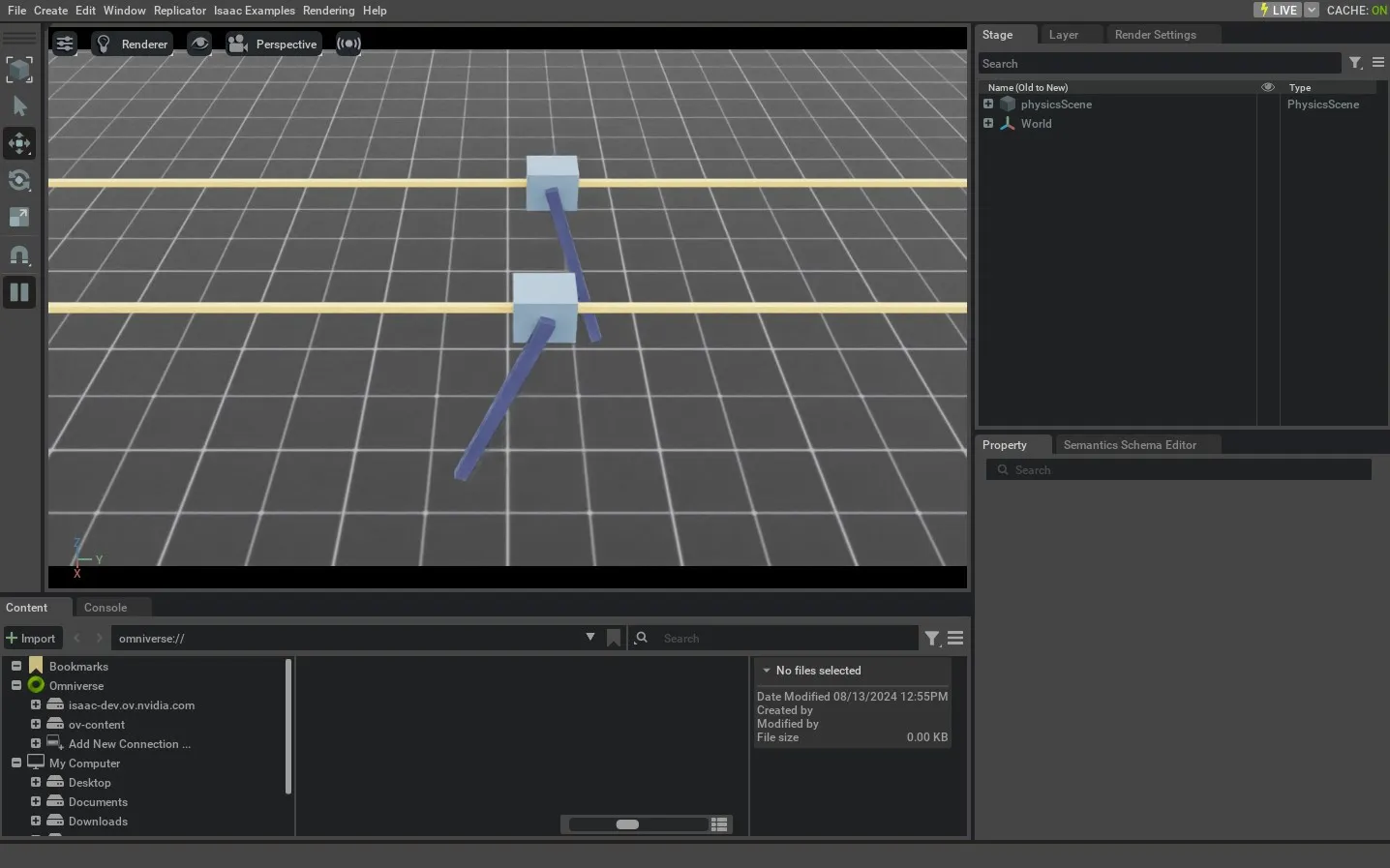
result of run_articulation.py

In this tutorial, we learned how to create and interact with a simple articulation. We saw how to set the state of an articulation (its root and joint state) and how to apply commands to it. We also saw how to update its buffers to read the latest state from the simulation.

The packaged Zoo demo also animates several robot families in one scene: