

Isaac Capture
Isaac Capture is the unified framework for high-fidelity egocentric and robot data collection. It provides a standardized device interface, a flexible graph-based retargeting pipeline, and works seamlessly across simulated and real-world robots.
Name transition. Isaac Teleop was rebranded as Isaac Capture. Isaac Lab currently pins
the 1.4 release, whose Python distribution and import package are still named isaacteleop.
Upstream renamed both to isaaccapture in 1.6, so the isaacteleop commands and imports in
this documentation are intentional. See the Isaac Capture migration guide for details.
Isaac Capture replaces the previous native XR teleop stack (isaaclab.devices.openxr) in Isaac
Lab. For migration details see Migrating To 3.0.
Just want to get running? Follow the Setting up Isaac Capture with CloudXR how-to guide for installation and first-run steps, then come back here for deeper topics.
Supported Devices
Isaac Capture supports multiple XR headsets and tracking peripherals. Each device provides different input modes, which determine which retargeters and control schemes are available.
Choose a Control Scheme
The right combination of input device and retargeters depends on your task. Use this table as a starting point, then see the detailed pipeline examples below.
Why motion controllers for manipulation? Controllers provide precise spatial control via a grip pose and a physical trigger for gripper actuation, making them ideal for pick-and-place tasks.
Why hand tracking for complex dex hands? Hand tracking captures the full 26-joint hand pose required for high-fidelity dexterous retargeting. This is essential when individual finger control matters.
How It Works
The ~isaaclab_teleop.IsaacTeleopDevice is the main integration point between Isaac Capture
and Isaac Lab. It composes three collaborators:
-
XrAnchorManager — creates and synchronizes an XR anchor prim in the simulation, and computes the
world_T_anchortransform matrix that maps XR tracking data into the simulation coordinate frame. -
TeleopSessionLifecycle — builds the retargeting pipeline, acquires OpenXR handles from Isaac Sim’s XR bridge (or, in standalone mode, creates its own OpenXR session through the CloudXR runtime — see Run Without a Headset (Standalone I/O)), creates the
TeleopSession, and steps it each frame to produce an action tensor. -
CommandHandler — lightweight callback registry for START / STOP / RESET commands. Scripts can register callbacks via
~isaaclab_teleop.IsaacTeleopDevice.add_callback, but the primary control path uses~isaaclab_teleop.poll_control_events(see Teleop Control States (Start / Stop / Reset)).
The session uses deferred creation: if the user has not yet clicked “Start XR” in the Isaac
Sim UI, the session is not created immediately. Instead, each call to advance() retries
session creation until OpenXR handles become available. Once connected, advance() returns a
flattened action tensor (torch.Tensor) on the configured device. It returns None when
the session is not yet ready or has been torn down.
In standalone mode (Run Without a Headset (Standalone I/O)), creation is not gated on Kit XR handles — the session starts as soon as the CloudXR runtime is available.
Visualize XR Tracking
Isaac Capture can draw the raw XR tracking poses in the Isaac Lab world frame. Use this visualization to confirm that tracking data is available and aligned with the simulated robot:
- red spheres show the 26 joints of each tracked hand when the retargeting pipeline contains a
HandsSource; - RGB coordinate axes show the OpenXR aim pose of each tracked controller. The X, Y, and Z axes
are red, green, and blue, respectively, and the controller’s
-Zaxis points forward in its natural pointing direction.
Enable the visualization when launching a teleoperation session:
uv (Recommended)
isaaclab.sh / isaaclab.bat
The --enable_debug_visualization flag is also available in scripts/tools/record_demos.py
and scripts/environments/teleoperation/teleop_replay_agent.py. The option is applied when the
Isaac Capture device is created and cannot be toggled during a running device session. The markers
are diagnostic only and do not change the actions produced by the retargeting pipeline.
Tracking markers are only visible when the Kit visualizer is active. A marker is created after the corresponding hand or controller first produces valid tracking data.
Teleop Control States (Start / Stop / Reset)
Isaac Lab supports remote teleop control commands — start, stop, and reset — sent
from the XR headset to the simulation. These are used to begin and end demonstration recording,
pause the robot, or reset the environment without touching the simulation host. The same commands
can be driven locally without a headset via
~isaaclab_teleop.IsaacTeleopDevice.request_start /
~isaaclab_teleop.IsaacTeleopDevice.request_stop and ~isaaclab_teleop.IsaacTeleopDevice.reset
(see Run Without a Headset (Standalone I/O)).
How it works
By default, every ~isaaclab_teleop.IsaacTeleopCfg enables a control message channel
using the well-known UUID uuid5(NAMESPACE_DNS, "teleop_command"). The channel is created as
a teleop_control_pipeline inside TeleopCore’s TeleopSession, which means:
- A
~isaacteleop.retargeting_engine.deviceio_source_nodes.MessageChannelSourceopens an OpenXR opaque data channel (XR_NV_opaque_data_channel) with the agreed-upon UUID. - The CloudXR JS client (or any other client) discovers the channel by UUID and sends UTF-8 JSON commands:
- A
~isaaclab_teleop.teleop_message_processor.TeleopMessageProcessorparses these payloads and produces boolean pulse signals (run_toggle,kill,reset). ~isaacteleop.teleop_session_manager.DefaultTeleopStateManagerconsumes the boolean signals, runs its state machine (edge detection, fail-safe), and producesteleop_state(one-hot) andreset_event(bool pulse) outputs.- TeleopCore decodes these outputs into
ExecutionEventsand injects them into every retargeter’sComputeContext, so stateful retargeters can react to state changes (e.g. reinitializing cross-step state on reset).
Polling control events in your script
Use ~isaaclab_teleop.poll_control_events to read the latest control state each frame:
~isaaclab_teleop.ControlEvents has two fields:
is_active—Trueafter a “start” command,Falseafter “stop”,Nonewhen no command has been received yet (callers should leave their own flag unchanged).should_reset—Truefor exactly one frame after a “reset” command.
Disabling the control channel
If you do not need headset-driven start/stop/reset (e.g. keyboard-only workflows), set
control_channel_uuid=None in your config:
Using a custom channel UUID
To use a different channel UUID (e.g. for a separate control protocol), pass any 16-byte
bytes value:
The CloudXR JS client must be updated to discover this UUID when sending commands.
Run Without a Headset (Standalone I/O)
By default the teleop scripts drive Isaac Capture through Isaac Sim’s Kit XR bridge, which renders the scene to a connected XR headset. When you only need Isaac Capture as an input/output transport — for example a joint-space leader arm streaming encoder angles, or any non-XR device — you can run it standalone, with no Kit XR rendering.
The teleop_se3_agent.py and record_demos.py scripts select the mode with the --xr flag:
- With
--xr— the full Kit XR path (headset rendering, anchor, hand / controller tracking). - Without
--xr— Isaac Capture creates and owns its own OpenXR session through the CloudXR runtime (create_isaac_teleop_device(..., use_kit_xr_bridge=False)); teleop input/output works headless, with no Kit XR rendering.
Starting teleop without a headset
Without a headset there is no client to send the start command, so the scripts drive the state machine locally:
- On startup they call
~isaaclab_teleop.IsaacTeleopDevice.request_start, which transitions the teleop state machine to RUNNING (see Teleop Control States (Start / Stop / Reset)) — so a headless session begins running immediately, with no headset UI. - When a Kit viewport window is present, they also bind keys for interactive control:
Both paths flow through the same state machine, so
~isaaclab_teleop.IsaacTeleopDevice.request_start /
~isaaclab_teleop.IsaacTeleopDevice.request_stop and remote headset commands are
interchangeable, and ~isaaclab_teleop.poll_control_events stays authoritative.
A clientless CloudXR runtime advertises no HMD, so the standalone OpenXR session needs a device
profile that reports a system without a connected client. The scripts default --cloudxr_env
to ~isaaclab_teleop.CLOUDXR_STANDALONE_ENV when --xr is omitted (and to cloudxrjs
when it is passed); see CloudXR Environment Profiles.
Example: SO-101 leader-arm joint teleoperation
IsaacContrib-Stack-Cube-SO101-Joint-Teleop-v0 mirrors the joint angles streamed by a physical
SO-101 leader arm directly onto the simulated follower — no XR headset, inverse kinematics, or
anchor. Its pipeline is
JointStateSource -> JointStateRetargeter (mode="joint") -> TensorReorderer.
For the end-to-end walkthrough — building the plugin, hardware setup, calibration, launching, and recording a dataset — see Data Collection in Sim in the Isaac Capture documentation. The prerequisites below are the minimum needed to get this example running.
Prerequisites
-
SO-101 hardware: A physical SO-101 leader arm connected to the workstation over USB.
-
The
so101_leaderplugin, built from Isaac Capture source: the leader’s joint state is streamed by a standalone C++ plugin that you run alongside the sim.
so101_leader_plugin is not shipped with Isaac Lab, is not part of the
isaacteleop pip package, and is not in any release archive. It exists only after building
the Isaac Capture repository from source. If
install/plugins/so101_leader/so101_leader_plugin does not exist in your Isaac Capture
checkout, this step has not been completed.
Install the build prerequisites first — a missing clang-format-14 is the most common cause
of a failed build, because the format check is enforced by default on Linux:
Then clone, check out the release branch matching the isaacteleop version Isaac Lab is
pinned to (isaacteleop~=1.4.145 in the teleop extra of the root pyproject.toml, so the
plugin’s wire format matches the isaacteleop package Isaac Lab installs), configure, build,
and install. To target a specific Python version, pass
-DISAAC_TELEOP_PYTHON_VERSION=3.12 (or 3.11, 3.13) on the configure line; each
version needs its own build directory if building multiple at once:
When Isaac Lab updates its teleoperation dependency, check out the matching
release/<version>.x branch instead.
The plugin is installed to <IsaacCapture>/install/plugins/so101_leader/so101_leader_plugin.
Every later command in this section runs from the Isaac Capture checkout root; substitute your own
path for /path/to/IsaacCapture. Verify the build by running the plugin with no arguments —
that selects the synthetic backend, so it starts without any hardware attached:
See Build from Source for the full prerequisite list and all build options, and the
build-troubleshooting table in Data Collection in Sim for common failures (including the
clang-format not found but ENABLE_CLANG_FORMAT_CHECK is ON CMake error).
-
Calibration: The SO-101 arm must be calibrated before use. The plugin talks to the FEETECH servos directly — it has no
lerobotor FEETECH SDK dependency — so calibrate with its owncalibratesubcommand, which needs no OpenXR runtime.First, identify the serial port. The easiest way is
uvx, which runslerobot-find-portin a temporary environment with no installation required:
Alternatively, plug in the USB cable and immediately run:
Because tail -1 shows only the most recent kernel message, the output unambiguously
names the just-connected device, e.g. [12345.6] usb ... ttyACM0.
Use that path (/dev/ttyACM0, /dev/ttyACM1, etc.) in the commands below.
On Linux, serial devices are owned by the dialout group, so the plugin fails with
Permission denied unless your user can access the port. Add your user to the group once, then
log out and back in for it to take effect:
Alternatively, grant access for the current session only (this resets when the arm is unplugged):
Then run the calibration:
It runs two interactive steps (hold the arm at mid-range, then sweep every joint through its full
range) and writes the calibration file, which the plugin reads at startup to map raw encoder
values to joint angles. An existing LeRobot calibration .json can be passed instead. Running
without calibration produces incorrect joint mappings and the follower arm will not track the
leader.
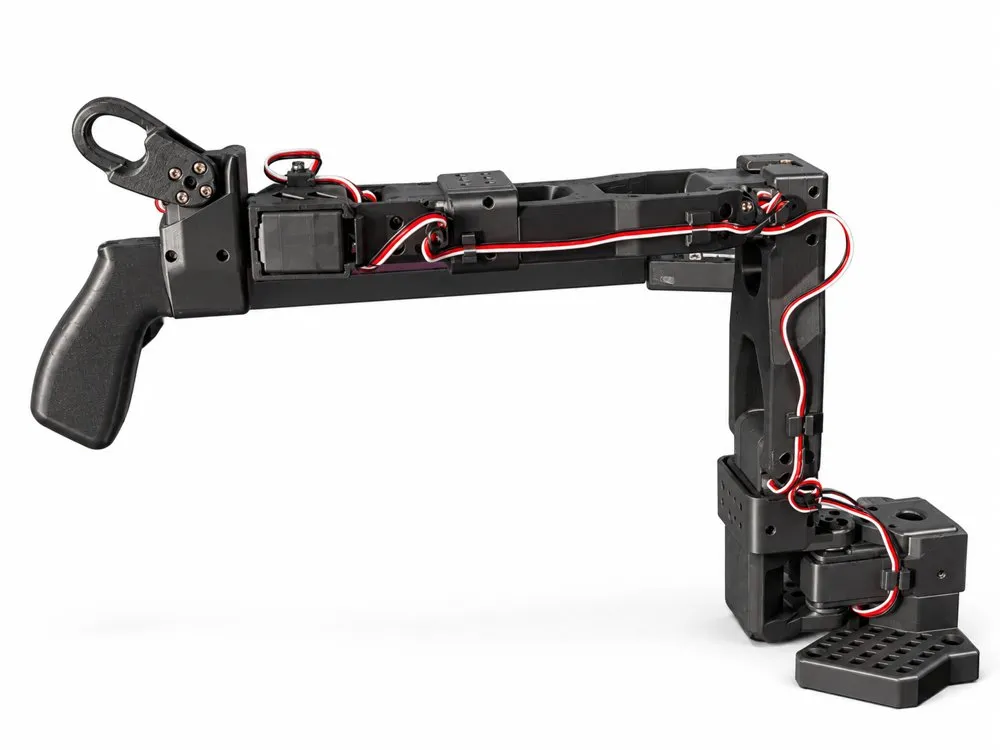
In the mid-range step, also set the gripper to the midpoint of its travel, as pictured. Leaving it fully open or closed can produce an incorrect gripper mapping.
Run the simulation
The SO-101 workflow supports two monitoring modes — choose based on whether you have an XR headset available:
Without a headset (local viewport only)
Omit --xr. The sim runs in standalone mode and the teleop state machine starts automatically
on launch — no headset connection is needed (see Run Without a Headset (Standalone I/O)). Pass
--visualizer kit to watch the follower in the local Kit viewport; headless is the default.
uv (Recommended)
isaaclab.sh / isaaclab.bat
With a headset (immersive XR view)
Add --xr to stream the simulation to a Quest, Pico, or Apple Vision Pro headset while the
SO-101 leader arm still drives the follower joints. The retargeting pipeline is unchanged; --xr
only controls whether the scene is rendered to the headset. Follow the connection steps in
Connect an XR Device to pair the headset after launching.
uv (Recommended)
isaaclab.sh / isaaclab.bat
Start the plugin
Isaac Lab does not spawn the plugin for you. Launch the sim first — it brings up the CloudXR
runtime the plugin connects through — then, in a separate terminal, source the environment
file the runtime writes on startup (this points the OpenXR loader at CloudXR) and start the plugin
on the leader’s serial port (replace /dev/ttyACM0 with your device — see the port-identification
note in the Calibration step above):
Arguments are positional: [device_path] [collection_id] [calibration_file]. The
collection_id must stay so101_leader — that is the tensor collection this task’s
JointStateSource subscribes to.
Running the plugin with no arguments at all streams a synthetic trajectory on the default
so101_leader collection, which is a good way to confirm the sim side is wired up before
connecting hardware. Because the arguments are positional, there is no way to skip only the device
path while still passing the later two:
See the SO-101 plugin README and Data Collection in Sim for all configuration options.
Start teleoperation
Without --xr: the script calls ~isaaclab_teleop.IsaacTeleopDevice.request_start
automatically on startup, so the follower begins mirroring the leader immediately with no
additional input required.
With --xr: a start command can be sent from the connected headset UI (Quest / Pico:
the CloudXR.js Connect button; Apple Vision Pro: the Play button in the Isaac XR Teleop
Sample Client). The SO-101 then begins driving the follower as soon as the headset sends the
start command.
Regardless of mode, when the Kit viewport is open you can also control the session with keyboard shortcuts:
Pressing R both resets the environment and pauses teleoperation — it does not resume
automatically. This is intentional: this task’s joint-teleop pipeline mirrors the leader arm’s
raw joint angles onto the follower with no re-anchoring or clutch, so resuming immediately after
a reset would snap the follower straight to wherever the physical leader arm currently is,
causing a sudden, large joint motion. Before pressing B to resume, move the physical leader
arm to match the follower’s reset pose.
Move the physical SO-101 leader arm and the simulated follower will mirror its joint angles in real
time. To record demonstrations from this task, run scripts/tools/record_demos.py with the same
--task and the plugin running in its second terminal — see Data Collection in Sim for the
full recording workflow and runtime troubleshooting.
After stacking the cube, open the gripper all the way before ending the episode. The task’s success check requires the gripper to be fully open — a partially open gripper holding position on top of the stack will not register as success, even if the cube is correctly placed.
Retargeting Framework
Isaac Capture uses a graph-based retargeting pipeline. Data flows from source nodes through retargeters and is combined into a single action tensor.
Source Nodes
HandsSource— provides hand tracking data (left/right, 26 joints each).ControllersSource— provides motion controller data (grip pose, trigger, thumbstick, etc.).
Available Retargeters
Retargeters are provided by the isaacteleop package from the
Isaac Capture repository. The retargeters listed below
are those used by the built-in Isaac Lab environments. Isaac Capture may offer additional
retargeters not listed here — refer to the
Isaac Capture repository for the full set.
Maps hand or controller tracking to end-effector pose. Se3AbsRetargeter outputs a 7D
absolute pose (position + quaternion). Se3RelRetargeter outputs a 6D delta.
Configurable rotation offsets (roll, pitch, yaw in degrees).
Outputs a single float (-1.0 closed, 1.0 open). Uses controller trigger (priority) or thumb-index pinch distance from hand tracking.
Retargets full hand tracking (26 joints) to robot-specific hand joint angles using the
dex-retargeting library. Requires a robot hand URDF and a YAML configuration file.
The links used for retargeting must be defined at the actual fingertips, not in the middle of the fingers, to ensure accurate optimization.
Maps VR controller buttons (trigger, squeeze) to G1 TriHand joints (7 DOF per hand). Simple mapping: trigger controls the index finger, squeeze controls the middle finger, and both together control the thumb.
Maps controller thumbsticks to a 4D locomotion command:
[vel_x, vel_y, rot_vel_z, hip_height].
Utility that flattens and reorders outputs from multiple retargeters into a single 1D action
tensor. The output_order must match the action space expected by the environment.
The built-in Isaac Lab environments use these retargeters as follows:
Teleoperation Environment Reference
The tables below list every built-in Isaac Lab environment that supports teleoperation,
organized by input method. For closed-loop policy evaluation, the play script automatically
applies each environment config’s play_mode overrides; pass --train_env_cfg to
play the training configuration as-is.
Isaac Capture (XR Headset) Environments
These environments use the Isaac Capture XR pipeline with motion controllers or hand tracking.
Controllers provide a grip pose plus physical buttons (trigger, squeeze, thumbstick), ideal for tasks that need a gripper or simple hand mapping. Hand tracking captures 26 wrist and finger joints per hand, required for dexterous retargeting to complex robot hands.
Keyboard and SpaceMouse Environments
Keyboard and SpaceMouse teleoperation uses the legacy native Isaac Lab teleop stack
(isaaclab.devices), not Isaac Capture. These environments do not require an XR headset.
The device button layouts below apply to all environments in this section. Per-environment differences (gripper enabled/disabled, sensitivity) are noted in the environment table that follows.
Keyboard
SpaceMouse
Gamepad (Reach environments only)
Humanoid arms (e.g. Galbot, Agibot) have joint limits that inverse kinematics must respect. The differential IK controller ignores these limits, so RMPFlow is preferred for teleoperating them as it enforces joint limits while solving IK. Consequently, the arm may occasionally stop responding when the commanded target pose is unreachable within those limits — this is expected, not a bug.
Leader-Arm Environments
These environments are driven by a physical leader arm that streams joint angles over the Isaac Capture tensor transport; the angles are mirrored directly onto the simulated follower with no XR headset or inverse kinematics. See Example: SO-101 leader-arm joint teleoperation above for the run command and pipeline.
Switch Between Controllers and Hand Tracking
The retargeting pipeline determines whether an environment uses motion controllers or hand
tracking. Switching input modes requires changing the pipeline_builder function in your
environment config. No other environment-level changes are needed as long as the action
space (TensorReorderer output order) stays the same.
Controller to hand tracking
The key changes are:
- Create a
HandsSourceand apply the world-to-anchor transform to it (instead ofControllersSource). - Point the
Se3RetargeterConfig.input_deviceat the appropriateHandsSourcekey. - Set
use_wrist_rotation=Trueanduse_wrist_position=Trueso that the SE3 retargeter reads from the hand wrist joint rather than the controller grip pose. - The
GripperRetargeteralready supports both inputs — it uses the controller trigger when connected to aControllersSourceor thumb-index pinch when connected to aHandsSource.
Here is the Franka stack environment’s controller-based pipeline alongside a hand-tracking variant for comparison.
Original (controller-based):
Modified (hand-tracking-based):
The GripperRetargeter needs no changes — it accepts both controller and hand inputs and
uses whichever source is connected.
Hand tracking to controller
Reverse the steps above: set input_device to a ControllersSource key, transform the
controllers instead of the hands, and set use_wrist_rotation=False and
use_wrist_position=False. Adjust target_offset_roll/pitch/yaw to account for the
controller grip frame orientation (typically 90 degrees roll for Franka-style grippers).
When switching between input modes, you may need to tune the target_offset_roll,
target_offset_pitch, and target_offset_yaw values. Controller grip frames and hand
wrist frames have different default orientations relative to the robot end-effector.
Build a Retargeting Pipeline
A pipeline builder is a callable that constructs the retargeting graph and returns an
OutputCombiner with a single "action" key. Here is a complete example for a Franka
manipulator (from stack_ik_abs_env_cfg.py):
The output_order of the TensorReorderer must match the action space of your environment.
Mismatches will cause silent control errors.
Configure Your Environment
Register the pipeline in your environment configuration using ~isaaclab_teleop.IsaacTeleopCfg:
Key IsaacTeleopCfg fields:
pipeline_builder— callable that returns anOutputCombinerwith an"action"output.retargeters_to_tune— optional callable returning retargeters to expose in the live tuning UI.xr_cfg—~isaaclab_teleop.XrCfgfor anchor configuration (see below).xr_camera_feeds— ordered selection and per-feed panel settings for existing task cameras. The list is empty by default, so tasks opt in to PiP explicitly.xr_camera_feed_layout— viewer reference, fixed world pose, and manual, horizontal, vertical, or grid panel packing.plugins— list of Isaac Capture plugin configurations (e.g. Manus).sim_device— torch device string (default"cuda:0").retargeting_execution— Isaac Capture retargeting execution settings. Defaults toRetargetingExecutionConfig(mode="pipelined")withDeadlinePacingConfig(safety_margin_s=0.025)so retargeting can run on the Isaac Capture worker instead of blocking the simulation loop. The 25 ms safety margin staggers Isaac Capture’s Python work behind Isaac Lab’s step Python, giving native work such as rendering time to overlap instead of having both Python stacks contend for the GIL at the start of the step.
pipeline_builder and retargeters_to_tune must be callables (functions or lambdas),
not pre-built objects. The @configclass decorator deep-copies mutable attributes, which
would break pre-built pipeline graphs.
CloudXR Environment Profiles
Isaac Lab ships three .env profiles that configure the CloudXR runtime — two for XR devices
and one for headless standalone use. These are bundled inside the isaaclab_teleop package and
can be referenced via constants:
All three profiles set NV_CXR_ENABLE_PUSH_DEVICES=0, which is correct for headset optical hand
tracking (the most common setup). For external push-device peripherals such as Manus gloves, set
this to 1 in a custom profile (see below).
They also set NV_ENABLE_POSE_WAIT=0 so CloudXR does not throttle the application when frame
times spike. This favors lower latency over CloudXR’s pose-wait smoothing.
~isaaclab_teleop.CLOUDXR_STANDALONE_ENV is the default when running without --xr
(see Run Without a Headset (Standalone I/O)). It pins an emulated quest3 device profile so a CloudXR
runtime with no client still advertises an OpenXR system, working around
XR_ERROR_FORM_FACTOR_UNAVAILABLE.
Override at launch time
The --cloudxr_env flag on teleop_se3_agent.py and record_demos.py selects which
.env profile to use. When unset it defaults to cloudxrjs (Quest/Pico) with --xr and
standalone without --xr. Use the avp shorthand for Apple Vision Pro, standalone
for the headless profile, or pass a full file path for a custom profile:
uv (Recommended)
isaaclab.sh / isaaclab.bat
Create a custom profile
Copy a shipped profile and edit it:
Edit ~/my-cloudxr.env to change any values (e.g. NV_CXR_ENABLE_PUSH_DEVICES=1 for
Manus gloves), then pass it via --cloudxr_env ~/my-cloudxr.env.
Disable auto-launch
If you prefer to run the CloudXR runtime manually in a separate terminal
(python -m isaacteleop.cloudxr), you can disable auto-launch in several ways:
- CLI flag:
--no-auto_launch_cloudxron the teleop script. - Disable CloudXR entirely:
--cloudxr_env none. - Environment variable:
ISAACLAB_CXR_SKIP_AUTOLAUNCH=1overrides the CLI flag at runtime.
uv (Recommended)
isaaclab.sh / isaaclab.bat
Accept the CloudXR license non-interactively
The NVIDIA CloudXR license is separate from the Omniverse one. The first time the runtime starts it asks for it on stdin:
There is no terminal to answer on in a headless, container or CI run, so the launch fails with
RuntimeError: CloudXR EULA was not accepted; cannot start the runtime. Set
ISAACLAB_CXR_ACCEPT_EULA=1 to accept it up front, the same way OMNI_KIT_ACCEPT_EULA
works for the Omniverse license:
y, yes and 1 accept it, case-insensitively and ignoring surrounding whitespace —
the same spellings OMNI_KIT_ACCEPT_EULA takes; leaving the variable unset, or setting any
other value, keeps the interactive prompt. Acceptance is recorded in
~/.cloudxr/run/eula_accepted, so once the license has been accepted — interactively or
through this variable — later runs no longer prompt. The variable applies to every script
that launches the runtime, including the process-scoped launcher in
teleop_replay_agent.py.
Configure the XR Anchor
The ~isaaclab_teleop.XrCfg controls how the simulation is positioned and oriented in the
XR device’s view.
anchor_pos / anchor_rot
Static anchor placement. The simulation point at these coordinates appears at the XR device’s
local origin (floor level). Set to a point on the floor beneath the robot to position it in
front of the user.
anchor_prim_path
Attach the anchor to a USD prim for dynamic positioning. Use this for locomotion tasks where
the robot moves and the XR camera should follow.
anchor_rotation_mode
Controls how anchor rotation behaves:
fixed_anchor_height
When True (default), keeps the anchor height at its initial value. Prevents vertical
bobbing during locomotion.
near_plane
Closest render distance for the XR device (default 0.15 m).
On Apple Vision Pro, the local coordinate frame can be reset to a point on the floor beneath the user by holding the digital crown.
Camera sensors add GPU cost. Strip them with --disable_external_cameras when the workflow
needs neither image observations nor XR camera feedback. That flag also skips configured PiP
feeds.
XR Camera Feedback
An ordered list of ~isaaclab_teleop.XrCameraFeedCfg objects selects existing task scene
cameras. The manager publishes each new RGBA frame after rendering, while
~isaaclab_teleop.XrCameraFeedLayoutCfg places the panels manually or in horizontal,
vertical, and grid layouts. The following registered tasks enable PiP by default:
IsaacContrib-PickPlace-GR1T2-AbsIsaacContrib-NutPour-GR1T2-Pink-IK-AbsIsaacContrib-ExhaustPipe-GR1T2-Pink-IK-AbsIsaacContrib-PickPlace-Locomanipulation-G1-AbsIsaacContrib-PickPlace-FixedBaseUpperBodyIK-G1-Abs
Both G1 tasks present the calibrated head camera in a head_locked panel that follows headset
position and orientation. Locomanipulation retains the camera as a recorded policy observation;
fixed-base G1 uses it only for PiP and keeps its policy observation schema unchanged.
To run fixed-base G1 upper-body teleoperation with its default head-locked PiP:
This task uses motion controllers for the arms and TriHand fingers while the robot root remains
fixed. The panel follows the headset, but its image comes from the robot’s head camera, not the
headset view. --device cpu selects CPU simulation; camera rendering and CloudXR encoding still
use the GPU.
teleop_se3_agent.py and record_demos.py show every enabled feed when an Isaac Capture-enabled
environment runs with --xr. PiP is absent unless the task explicitly selects an existing
CameraCfg through xr_camera_feeds. Except for fixed-base G1, the selected
robot_pov_cam is also a policy image observation, so the normal demonstration recorder stores
the same view shown to the operator. Each camera is parented to a physical robot body link, so the
camera view follows robot motion:
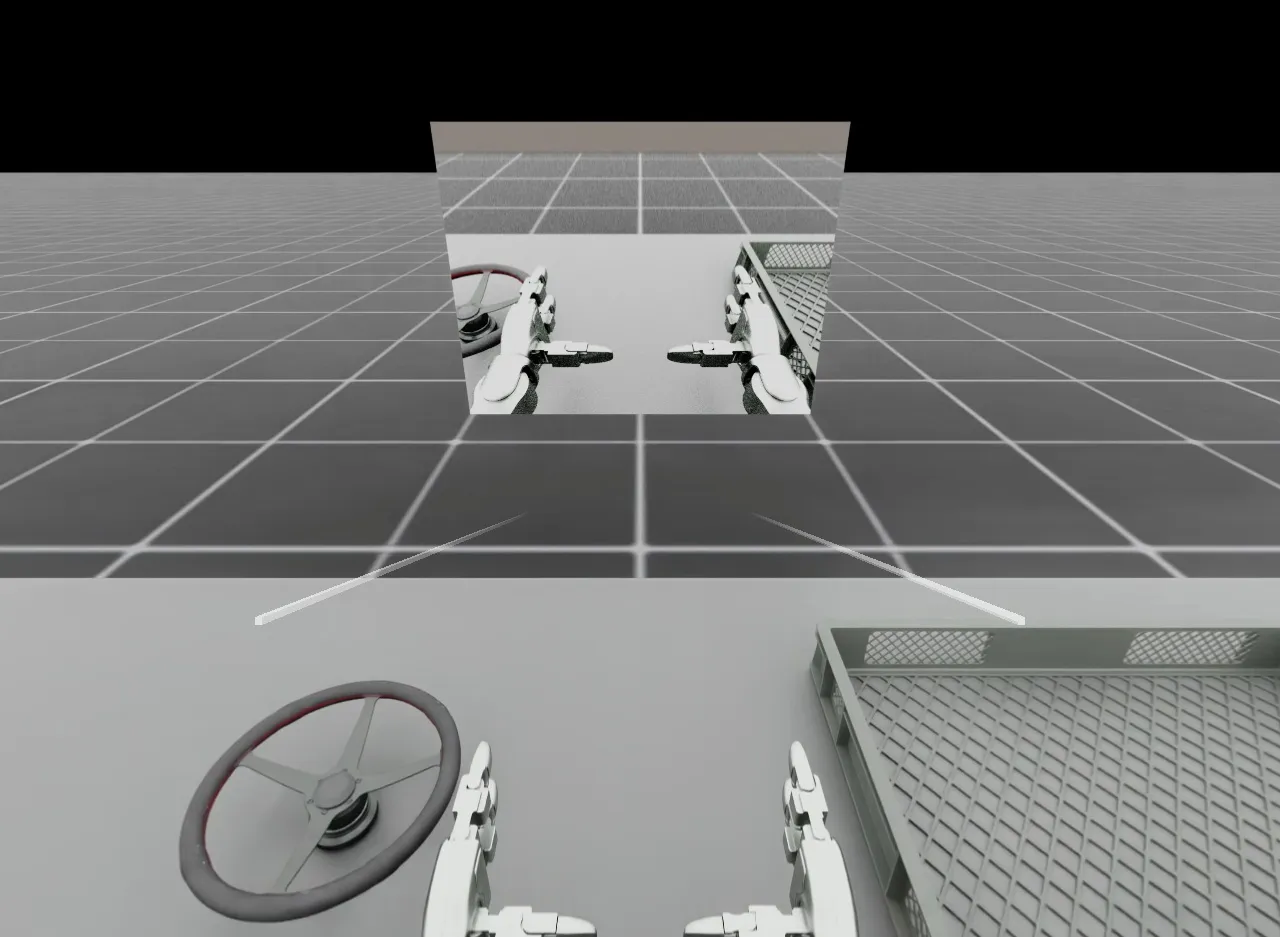
Without scene-partition isolation, a PiP panel entering its source camera’s field of view produces a recursive hall-of-mirrors effect. Move the panel or reorient the camera to keep the panel outside the camera’s field of view.
Both G1 tasks enable isaaclab_teleop.XrCameraFeedLayoutCfg.use_scene_partition
to avoid this recursion. Before environment construction, preparation temporarily disables
per-environment partitioning on selected Isaac RTX camera renderers. Binding sets
/rtx/scenePartitioning/showAllPartitionsByDefault=False after renderer initialization
and before creating panels. Geometry must start as shared,
unpartitioned background; clearing its partition after camera initialization can hide it from XR.
Other scene cameras must also set enable_scene_partitioning=False.
The SceneUI adapter assigns the XR camera and /ui to isaaclab_teleop_xr_camera_pip and
refreshes inheritance when SceneUI children appear. Robot cameras see shared background without
UI; XR sees both. XR/UI overrides use the session layer. Prior camera, renderer, and partition
settings are restored after their final owner closes, unless changed externally. Camera
configuration is restored after the last prepared session closes; the global setting’s
bind-time value is restored after the last bound session closes. Prepared sessions
must close even if environment construction fails; the teleoperation and recording scripts handle
this cleanup. Panels remain
hidden while tracking or isolation is unavailable and reappear after recovery. Other tasks retain
their existing behavior because use_scene_partition defaults to False.
XR camera PiP currently supports exactly one environment. When a task has enabled PiP feeds,
startup rejects --num_envs values other than 1; Isaac Capture XR behavior without PiP is
unchanged. For either G1 task, set env.isaac_teleop.xr_camera_feeds=[] to disable PiP and retain
the camera sensor and any configured camera observations.
The reference feeds request render-product-local DLSS Ray Reconstruction and quality execution
mode through ~isaaclab_teleop.XrCameraFeedCfg. The private PiP adapter authors those two
attributes only on the selected camera render product. Ray Reconstruction also requires the
process-global responsive-denoising setting, which the teleoperation and recording scripts
enable before environment construction when a selected feed requests Ray Reconstruction.
Camera selection
Tasks declare their default selection through IsaacTeleopCfg.xr_camera_feeds:
For a recorded training view, define the named CameraCfg in the task scene and a matching
mdp.image_rgb term in observations.policy. The normal recorder then stores that observation,
while the PiP declaration above only selects it for presentation. Enabled task-declared entries
control camera selection, panel count, display order, and automatic-layout order without mutating
the reusable task configuration.
Placement
The default isaaclab_teleop.XrCameraFeedLayoutCfg.placement is "viewer_start". The
presenter waits for the first valid headset pose, captures its eye position and upright yaw, then
places the layout 0.8 m ahead at eye height. That pose remains fixed in the world while the user
moves. Panels hide when the XR display disconnects and capture a new starting pose after reconnect;
resetting the environment does not recenter them.
Three placement references are available:
manual mode preserves each feed’s offset_m and distance_m. horizontal, vertical,
and grid modes pack enabled feeds around center_offset_m using panel_gap_m; grid mode
also honors max_columns. Offsets are measured in the selected layout plane. With
viewer_start and head_locked, distance_m places that plane in front of the viewer
reference. In manual mode, feeds with identical offsets overlap; select an automatic mode or assign
distinct feed offsets when showing multiple panels.
With world, the explicit pose is measured in the Isaac Lab USD stage world in meters, not
OpenXR physical space. Isaac Lab stages are Z-up. world_orientation_xyzw maps panel-local
coordinates into that world: local +X is image right, local +Y is image up, and local +Z points
from the readable face toward the viewer. Feed and automatic-layout offsets are applied in the
panel’s local XY plane.
Disable cameras and PiP
Set isaaclab_teleop.XrCameraFeedCfg.enabled to False to suppress one feed, or set
xr_camera_feeds=[] to suppress all PiP. The list is empty by default. These choices do not
remove camera sensors independently owned by the task.
--disable_external_cameras is the master camera-rendering switch for teleop_se3_agent.py and
record_demos.py. It strips camera sensors and suppresses every configured PiP feed.
Kit Scene UI presentation
PiP presentation uses Kit Scene UI and SpatialSource placement. Kit imports are deferred until
an enabled feed is requested. If the Scene UI modules cannot be imported, the scripts log a warning
and continue without PiP; task-owned cameras and recording observations remain unchanged. This keeps
the camera selection configuration usable when a future kitless entry point no longer provides
Scene UI. Render-product tuning is also best-effort: backends without a compatible render product
keep the Camera-buffer path, and schema-authoring failures warn while PiP continues. Other
configuration, camera-buffer, and panel-initialization errors still fail during startup.
Haptic Feedback
Isaac Capture can render haptic feedback on the operator’s device from a sim-side signal, closing the loop on grasp feel during teleoperation and demonstration recording. Two backends ship today:
- Controller vibration — a motion controller rumbles in proportion to the total contact force on the corresponding robot hand.
- Haptic glove — each finger of a haptic glove vibrates in proportion to how tightly that finger grips the manipulated object.
Feedback is an output path that mirrors the input retargeting pipeline in reverse. Each step, a
~isaaclab_teleop.HapticFeedbackDriver reads a per-hand signal vector from the scene and
pushes it to the ~isaaclab_teleop.IsaacTeleopDevice, which renders it through an Isaac
Capture HapticSink. The signal-to-device mapping runs inside the retargeting graph, so no
device-specific code lives in your environment.
The design keeps three concerns pluggable, so the same seam serves both devices:
- Signal source — how the per-hand vector is read from the environment.
- Output port — the
~isaaclab_teleop.HapticFeedbackReceiverprotocol, whose payload is a vector (one scalar for a rumble motor, one value per finger for a glove). - Device backend — selected by the concrete
~isaaclab_teleop.HapticFeedbackCfgsubclass, which wires the retargeter and device behind theHapticSink.
To enable feedback, add per-hand ~isaaclab.sensors.ContactSensor s to the scene and attach
a ~isaaclab_teleop.HapticFeedbackCfg subclass as a sibling of isaac_teleop. The teleop
scripts (teleop_se3_agent.py and record_demos.py) detect the haptic_feedback attribute
automatically — no extra flags are needed. If the active device cannot render haptics (e.g.
keyboard) or the env has no haptic_feedback, the feature is silently skipped.
Controller vibration
Use ~isaaclab_teleop.ControllerHapticFeedbackCfg. It sums each hand’s contact force to a
single amplitude and maps it via amplitude = clamp(gain * (force - deadband), 0, saturation)
(fields gain [1/N], deadband [N], saturation, plus frequency_hz / duration_s
for the pulse).
Enabled on the two G1 loco-manipulation teleop environments
(IsaacContrib-PickPlace-Locomanipulation-G1-Abs,
IsaacContrib-PickPlace-FixedBaseUpperBodyIK-G1-Abs). Controller vibration is delivered over
OpenXR (xrApplyHapticFeedback), so no CloudXR .env profile change is required.
Haptic glove (per-finger grip)
Use ~isaaclab_teleop.GloveHapticFeedbackCfg. Each hand’s contact sensor is filtered
against the grasped object (filter_prim_paths_expr), so normal_force_matrix_w reports each
finger’s force on that object and nothing else. The driver orders the per-finger magnitudes
Thumb..Pinky (matched from the sensor’s body names via finger_order) into a
FingerPowerVector rendered by a cross-process glove device on collection_id.
Enabled on the two GR1T2 pick-place teleop environments
(IsaacContrib-PickPlace-GR1T2-Abs, IsaacContrib-PickPlace-GR1T2-WaistEnabled-Abs).
The glove is a cross-process device: GloveHapticFeedbackCfg pushes per-finger powers on
collection_id (default "manus_glove_haptic") to a vendor plugin. Run that plugin and set
NV_CXR_ENABLE_PUSH_DEVICES=1 in a custom CloudXR profile (see
CloudXR Environment Profiles). Contact-sensor prim_path regexes must match your
robot’s finger body names — verify with print(robot.data.body_names) if unsure.
Record Demonstrations for Imitation Learning
Isaac Capture integrates with Isaac Lab’s record_demos.py script for recording teleoperated
demonstrations, exposed as the isaaclab teleop record command.
When your environment configuration has an isaac_teleop attribute, the script automatically
uses create_isaac_teleop_device() — no --teleop_device flag is needed:
uv (Recommended)
isaaclab.sh / isaaclab.bat
The run, record, and replay workflows accept task configuration selectors using
Hydra-style key=value syntax (with no leading --). For example, record the Franka reach
task with the PhysX and differential IK presets as follows:
When replaying a preset-configured dataset, pass the same selectors again. The HDF5 metadata stores the registered task ID, but not the command-line selector values:
Some environments use the legacy teleop_devices configuration instead of isaac_teleop
(e.g. the Galbot RmpFlow relative-mode tasks). For these, pass --teleop_device to select
the input device:
uv (Recommended)
isaaclab.sh / isaaclab.bat
The workflow is:
- Configure your environment with
IsaacTeleopCfg(see Configure Your Environment) orteleop_devicesfor legacy devices (keyboard, spacemouse). - Run
record_demos.pywith the task name and anyphysics=,renderer=, orpresets=selectors required by the task. - For XR tasks: start AR, connect your XR device, and teleoperate. For legacy tasks: use the configured input device directly.
- Demonstrations are recorded to HDF5 files.
- Use the recorded data with Isaac Lab Mimic or other imitation learning frameworks.
For the broader imitation learning pipeline (replay, augmentation, policy training), see Synthetic Data Generation and Imitation Learning with Isaac Lab Mimic.
Add a New Robot
To add teleoperation support for a new robot in Isaac Lab:
-
Choose a control scheme. Refer to the Choose a Control Scheme table to determine which retargeters match your robot’s capabilities.
-
Build the pipeline. If existing retargeters are sufficient (e.g.
Se3AbsRetargeter+GripperRetargeterfor a new manipulator), write a pipeline builder function following the pattern in Build a Retargeting Pipeline. Configure theTensorReordereroutput order to match your environment’s action space. -
For dexterous hands: create a robot hand URDF and YAML config for
DexHandRetargeter. Ensure fingertip links are positioned at the actual fingertips, not mid-finger. -
For a custom retargeter: see Add a New Retargeter below.
-
Configure the XR anchor for your robot (static for manipulation, dynamic for locomotion). See Configure the XR Anchor.
-
Register in env config via
IsaacTeleopCfg(see Configure Your Environment).
Add a New Retargeter
If the built-in retargeters do not cover your use case, you can implement a custom one in the Isaac Capture repository:
- Inherit from
BaseRetargeterand implementinput_spec(),output_spec(), andcompute(). - Optionally add a
ParameterStatefor parameters that should be live-tunable via the retargeter tuning UI. - Connect to existing source nodes (
HandsSource,ControllersSource) or create a newIDeviceIOSourcesubclass for custom input devices.
See the Isaac Capture repository and Contributing Guide for details.
Add a New Device
There are two levels of device integration:
Isaac Capture plugin (C++ level) For new hardware that requires a custom driver or SDK. Plugins push data via OpenXR tensor collections. Existing plugins include Manus gloves, Haptikos exoskeletons, OAK-D camera, controller synthetic hands, and foot pedals. After creating the plugin, update the retargeting pipeline config to consume data from the new plugin’s source node.
See the Plugins directory for examples.
Pipeline configuration only
For devices already supported by Isaac Capture (or whose data is available as hand / controller
tracking). Simply update your pipeline_builder to use the appropriate source nodes and
retargeters for the device’s data format.
Optimize XR Performance
Ensure the simulation render time step roughly matches the XR device’s display rate and can
be sustained in real time. Quest 3 and Pico 4 Ultra typically run at 90 Hz, so we recommend a
simulation dt of 90 Hz with a render_interval of 2 (rendering at 45 Hz):
sim.render_interval is the number of physics simulation steps that occur between
renders. Increasing it reduces rendering frequency (and GPU cost) without changing physics
behavior — useful when physics can keep up but rendering cannot.
The choice of sim.dt is a trade-off between stability and performance: a smaller dt
(e.g. 1.0 / 120) integrates contacts more accurately and is more stable for stiff
contact-rich tasks, but each step costs more wall-clock time and lowers achievable frame
rate. A larger dt (e.g. 1.0 / 60) is cheaper but can introduce contact jitter or
instabilities. Pick the largest dt your task tolerates.
The RTX - Minimal renderer trades image fidelity for substantially lower per-frame GPU cost.
It is the recommended choice when the simulation cannot sustain the XR device’s display rate
in real time — for example on lower-spec GPUs, in scenes with many lights or complex
materials, or when you have already configured sim.dt and sim.render_interval and
still see dropped frames.
Starting an XR session while RTX - Minimal is already the active renderer is a known issue: robot control inputs may never be applied and teleoperation stays non-functional, with no error reported. Switching to RTX - Minimal after the XR session has started and teleoperation is confirmed working is not affected.
As a workaround, start under the default renderer before switching to RTX - Minimal:
- Launch Isaac Lab with the default renderer and start the XR session.
- Confirm that teleoperation is working (the robot responds to your hand motions).
- Switch the viewport renderer to RTX - Minimal as described below.
To enable it, click the renderer dropdown at the top-left of the Isaac Lab viewport and select RTX - Minimal:
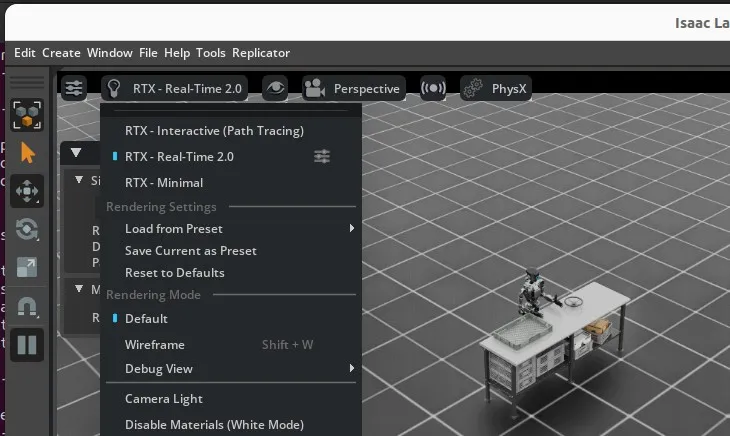
Selecting the RTX - Minimal renderer from the viewport dropdown.
For best results, open Render Settings from the top-right of the Isaac Lab UI, switch to the Minimal tab, and set Minimal Shading Mode to Diffuse/Glossy/Emission:
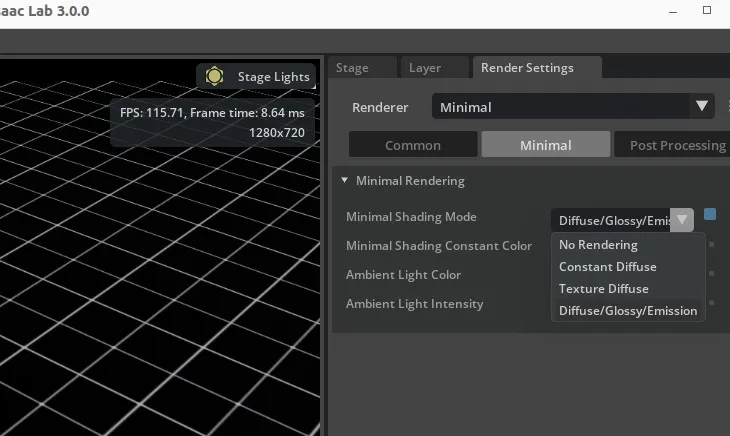
The Render Settings panel with the Minimal Shading Mode dropdown open (recommended: Diffuse/Glossy/Emission).
The RTX Minimal renderer currently only supports DistantLight prims for scene
illumination — DomeLight prims are ignored. If your environment uses a DomeLight,
swap (or supplement) it with a DistantLight so the scene is lit when running under
RTX Minimal:
Depending on your environment, the default DistantLight orientation may cast shadows
that overlap the robot and reduce visibility during teleoperation. If you encounter this,
adjust the light’s orientation via init_state on ~isaaclab.assets.AssetBaseCfg
to position the light source at an angle that gives clear visibility:
Experiment with different orientations in your scene to find an angle that avoids shadow overlap on the robot. A slight tilt away from the camera viewpoint is a good starting point.
The XR render resolution multiplier scales the size of the render buffers that are then upscaled to the headset’s recommended display resolution. Lowering it trades image sharpness for substantially lower per-frame GPU cost, which can help sustain real-time frame rates on lower-spec GPUs or in heavy scenes.
In the Isaac Lab UI, open the XR tab on the right-side panel, expand Advanced Settings -> Render Resolution, and drag the Resolution Multiplier slider:
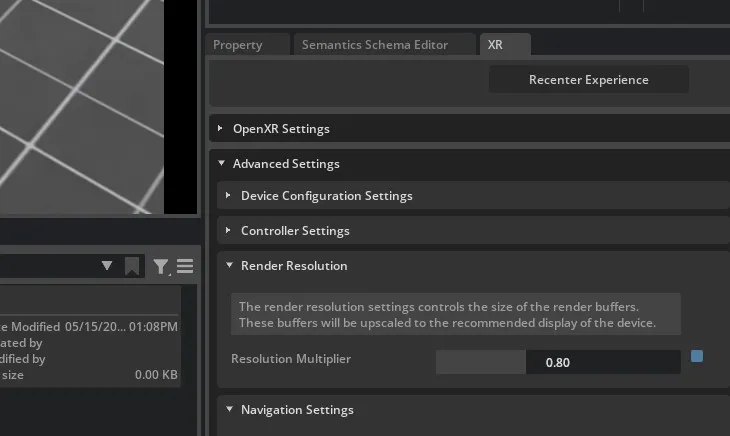
The Resolution Multiplier under XR -> Advanced Settings -> Render Resolution. Values below 1.0 reduce the render-buffer size before upscaling to the headset.
A value around 0.8 is usually a good starting point: noticeable GPU savings with minimal
perceptible quality loss. Reduce further only if you still cannot hit the headset’s display
rate.
The teleop scripts (teleop_se3_agent.py, record_demos.py, and
teleop_replay_agent.py) render external camera sensors by default. Camera render products
add significant GPU cost and contend with the XR view, so if your task does not need camera
observations during teleoperation, disable them with --disable_external_cameras:
The flag strips the environment’s camera sensors (equivalent to calling
~isaaclab_teleop.remove_camera_configs on the env config) and selects a lighter Kit
experience. For teleop_se3_agent.py it is also the master PiP gate: task-default and
task-configured feeds are ignored and no camera panel is created. Omit it to keep cameras enabled
(the default) — required when recording camera observations, showing XR camera feedback, or when
you want teleop_replay_agent.py to mirror the production render load.
Passing --visualizer kit opens the local Kit viewport, which renders a window on the host
in addition to the XR view. On a server or cloud instance — or whenever you do not need the
local window — run headless so only the XR view is rendered, freeing GPU for the headset:
In headless XR the OpenXR/AR session starts automatically — there is no local viewport to click Start XR, so Isaac Lab begins streaming as soon as a CloudXR client connects.
The --headless CLI flag was removed in Isaac Lab 3.0. Headless is now the default
(omit --visualizer); pass --visualizer none / --viz none to force it when a
config might otherwise enable a visualizer, or set HEADLESS=1 in the environment.
Isaac Capture can run retargeting either synchronously on the application thread or
asynchronously through a pipelined worker. This is controlled by
RetargetingExecutionConfig.
In synchronous mode, retargeting runs inline with the simulation step. This can be the best choice for lightweight retargeting or retargeting implemented mostly in Python, since a background Python worker can still contend with the application thread through the GIL.
In pipelined mode, Isaac Capture submits retargeting work to a background worker and the application uses the most recent completed result. This is useful when retargeting has enough native work to overlap with simulation or rendering, or when the retargeting cost is large enough that running it inline would directly extend the frame.
DeadlinePacingConfig intentionally delays the background retargeting work until
closer to when the next result is needed, instead of starting it immediately when the
request is submitted. This helps avoid competing with the Python work Isaac Lab performs
at the beginning of the frame, and tends to line the retargeting work up with rendering
or other native work where overlap is more useful.
The safety_margin_s value controls how early retargeting starts before the predicted
deadline. A larger margin starts retargeting earlier, which gives heavier or more variable
retargeting work more time to finish before the next frame consumes the result. The
trade-off is that the input sample may be slightly older, and Python-heavy retargeting
may introduce more GIL contention.
If retargeting is mostly Python and lightweight, consider mode="sync". If retargeting
performs substantial native work or has occasional long spikes, use mode="pipelined"
and increase safety_margin_s so the work starts earlier.
The CloudXR Runtime frame pacer attempts to keep the client experience smooth. If the application has repeated frame-time spikes, the pacer may settle at a lower stable frame rate instead of oscillating between rates. This can make a connected client appear slower even when Isaac Lab profiling does not show a proportional simulation-side regression.
The shipped CloudXR profiles set NV_ENABLE_POSE_WAIT=0 to mitigate this case, favoring lower
latency over pose-wait smoothing. If you use a custom .env file, copy that setting into the
custom profile, then point teleop_se3_agent.py or record_demos.py at it with
--cloudxr_env. See CloudXR Environment Profiles for the profile override workflow.
Known Issues
-
OpenXR runtime error messages (
XR_ERROR_...) are hidden by defaultIsaac Lab sets
OXR_NO_PRINTING=truefor teleoperation sessions. SetOXR_NO_PRINTING=falsebefore launching to see them when debugging an XR connection. -
XR_ERROR_VALIDATION_FAILURE: xrWaitFrame(frameState->type == 0)when stopping AR ModeCan be safely ignored. Caused by a race condition in the exit handler.
-
XR_ERROR_INSTANCE_LOST in xrPollEventOccurs if the CloudXR runtime exits before Isaac Lab. Restart the runtime to resume.
-
[omni.usd] TF_PYTHON_EXCEPTIONwhen starting/stopping AR ModeCan be safely ignored. Caused by a race condition in the enter/exit handler.
-
Invalid version string in _ParseVersionStringCaused by shader assets authored with older USD versions. Typically safe to ignore.
-
XR device connects but no video is displayed (viewport responds to tracking)
The GPU index may differ between host and container. Set
NV_GPU_INDEXto0,1, or2in the runtime to match the host GPU.
API Reference
See the isaaclab_teleop for full class and function documentation:
-
~isaaclab_teleop.IsaacTeleopCfg -
~isaaclab_teleop.IsaacTeleopDevice -
~isaaclab_teleop.create_isaac_teleop_device -
~isaaclab_teleop.ControlEvents -
~isaaclab_teleop.SupportsControlEvents -
~isaaclab_teleop.poll_control_events -
~isaaclab_teleop.TELEOP_CONTROL_CHANNEL_UUID -
~isaaclab_teleop.HapticFeedbackCfg -
~isaaclab_teleop.ControllerHapticFeedbackCfg -
~isaaclab_teleop.GloveHapticFeedbackCfg -
~isaaclab_teleop.HapticFeedbackReceiver -
~isaaclab_teleop.HapticFeedbackDriver -
~isaaclab_teleop.create_haptic_feedback_driver -
~isaaclab_teleop.XrCameraFeedCfg -
~isaaclab_teleop.XrCameraFeedLayoutCfg -
~isaaclab_teleop.XrCfg -
~isaaclab_teleop.XrAnchorRotationModeReferences