

Site Configuration Backup
The Site Configuration Backup workflow captures running configurations for every in-scope device at a site. It fans out one Configuration Backup child workflow per device, aggregates the per-device results, and produces a consolidated report distinguishing successes, failures, and whether each backup changed the stored snapshot.
Use this workflow when you need a fresh site-wide backup outside the normal scheduled backup run—for example, before a maintenance window or broad configuration change. For a single device, use Configuration Backup directly.
Prerequisites
Before running, confirm the following are in place for the devices you expect to include:
- Devices exist in the configured DCIM with primary IPv4, platform, and managed status. The workflow resolves the device list through the provider using your site, role, status, and tenant filters.
- Devices are reachable from Config Manager on their management addresses, and credentials are current in the secrets store.
- Intended configurations are available in the Config Store for render-enabled devices. Each child compares running config against the rendered intent. A backup-enabled device with rendering disabled skips the drift check.
- Device IDs and platforms are available from the DCIM provider. Config Manager derives each backup path from the device ID and the platform’s configuration filename.
- User attribution is present. UI and CLI submissions populate the requesting user automatically; the workflow rejects requests with no user attached.
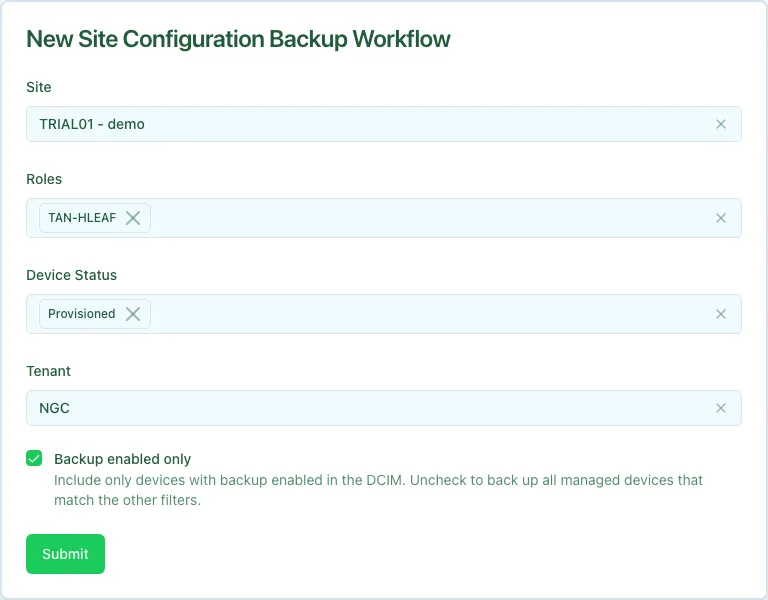
By default the workflow includes only devices with backup enabled in the configured DCIM. Uncheck Backup enabled only on the form to include all managed devices that match the other filters.
Running the workflow
- Navigate to the Config Manager URL for your environment.
- In the Config Manager UI, click New workflow (+) in the upper-right corner and select Site Configuration Backup.
- Fill in the form using the field reference below and submit.
After submission, a status page appears showing the three stages. The middle stage updates its display incrementally as child backups complete.
You can also start the workflow from the CLI. Authenticate first, then invoke site-backup. See Temporal CLI for login and discovery details.
Execution stages
The workflow runs three stages. None require manual approval at the site level.
-
get_devices— Resolve the device list from the configured DCIM.Calls the provider with the supplied site, role, status, tenant, and backup-enabled filters. Supported platforms are Arista EOS, Cisco IOS XR, Cumulus Linux, Juniper Junos, and NV-OS. The stage display lists the devices that will be backed up.
-
perform_backups— Fan out a child backup per device.For each device, the workflow starts a Configuration Backup child workflow with
trigger=WORKFLOW. Children run in parallel; the stage display updates as each completes. A child that fails is recorded in the per-device result rather than stopping the run.These children retain interactive stage-retry behavior, unlike scheduled backups. A failed stage can wait for a manual retry; each child has a 15-minute run timeout. Inspect its workflow page rather than expecting every device failure to appear immediately in the site summary.
-
format_result— Aggregate per-device results.Combines all child outcomes into a markdown summary with success, failure, changed, and unchanged counts. Each entry includes a child-workflow link or workflow ID for follow-up.
Result structure
The workflow returns a markdown summary. Each successful device entry notes whether the backup changed the stored snapshot (changed) or matched the previous backup (unchanged), plus a child-workflow link or workflow ID. Failed entries include the error message and a child-workflow link or workflow ID.
Partial failures and re-runs
A child failure does not stop the rest of the site. To recover:
- Open the consolidated result on the workflow status page and review failed devices.
- Click through to each child workflow to read the underlying error.
- Resolve per-device causes (reachability, missing intended config, credentials).
- Re-run Site Configuration Backup with the same inputs, or run Configuration Backup against individual devices.
Re-running the site workflow is safe. Devices that already have a current backup typically complete quickly with unchanged results.
Common issues
No devices found matching the specified filters.
The site name, role, status, tenant, or backup-enabled filter excluded every device. Widen the filters or confirm devices are managed and on a supported platform.
Many children fail with reachability errors.
Management connectivity or credentials are wrong for part of the site. Fix reachability, then re-run or back up the failed devices individually.
Drift alerts appear on child backups.
The running configuration differs from the intended configuration in the Config Store. This is expected when devices have diverged; investigate drift on each child workflow before applying new changes.
Missing user for backup attribution.
The workflow was started without a user context. Submit through the UI or API with authenticated user attribution.
Related guides
- Configuration Backup — the per-device child workflow, also runnable directly.
- Configuration Deploy — apply intended changes after capturing a site baseline.
- Controlling Running Workflows — approve, retry, or terminate long-running site backups.