

About Running NVIDIA NeMo Agent Toolkit Workflows#
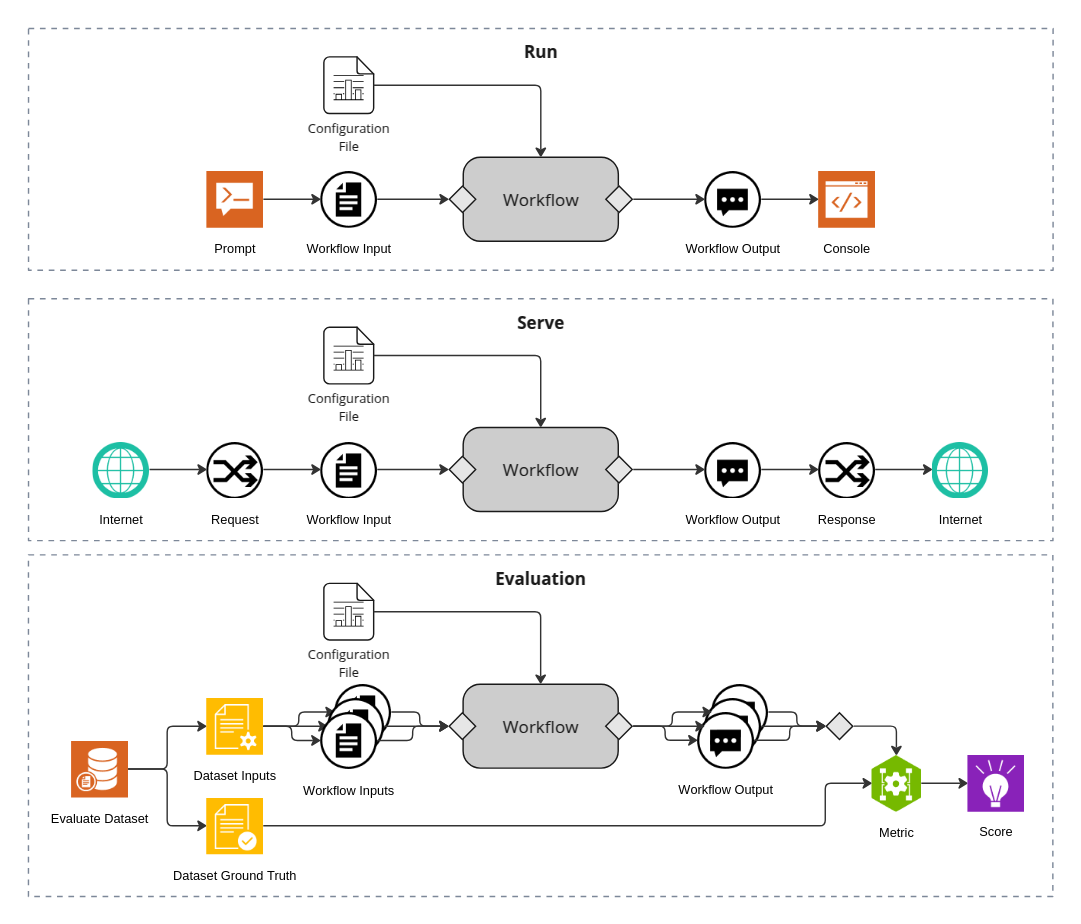
A workflow is defined by a YAML configuration file that specifies the tools and models to use. NeMo Agent Toolkit provides the following ways to run a workflow:
-
This is the simplest and most common way to run a workflow.
-
This starts a web server that listens for incoming requests and runs the specified workflow.
Using the nat mcp serve command.
This starts a Model Context Protocol (MCP) server that publishes the functions from your workflow as MCP tools.
Using the nat fastmcp server run command.
This starts an MCP server using the FastMCP server runtime and publishes the functions from your workflow as MCP tools.
-
In addition to running the workflow, it also evaluates the accuracy of the workflow.
-
This is the most flexible way to run a workflow.
Prerequisites#
Ensure that you have followed the instructions in the Install Guide to create the development environment and install NeMo Agent Toolkit.
The examples in this document utilize the examples/getting_started/simple_web_query workflow, install it by running the following commands from the root directory of the NeMo Agent Toolkit library:
uv pip install -e examples/getting_started/simple_web_query
Set Up API Keys#
If you have not already done so, follow the Obtaining API Keys instructions to obtain an NVIDIA API key. You need to set your NVIDIA API key as an environment variable to access NVIDIA AI services:
export NVIDIA_API_KEY=<YOUR_API_KEY>
Using the nat run Command#
The nat run command is the simplest way to run a workflow. nat run receives a configuration file as specified by the --config_file flag, along with input that can be specified either directly with the --input flag or by providing a file path with the --input_file flag.
A typical invocation of the nat run command follows this pattern:
nat run --config_file <path/to/config.yml> [--input "question?" | --input_file <path/to/input.txt>]
Where --input_file accepts a plain text file containing a single input string.
The following command runs the examples/getting_started/simple_web_query workflow with a single input question “What is LangSmith?”:
nat run --config_file examples/getting_started/simple_web_query/configs/config.yml --input "What is LangSmith?"
The following command runs the same workflow with the input question provided in a plain text file. The --input_file option is intended for single (typically verbose) inputs that are better stored in a file than passed on the command line:
echo "What is LangSmith?" > .tmp/input.txt
nat run --config_file examples/getting_started/simple_web_query/configs/config.yml --input_file .tmp/input.txt
Note
The --input_file option accepts a plain text file containing a single input, not an array of inputs. For batch evaluation of multiple inputs, use nat eval instead.
Using the nat serve Command#
The nat serve command starts a web server that listens for incoming requests and runs the specified workflow. The server can be accessed with a web browser or by sending a POST request to the server’s endpoint. Similar to the nat run command, the nat serve command requires a configuration file specified by the --config_file flag.
The following command runs the examples/getting_started/simple_web_query workflow on a web server listening to the default port 8000 and default endpoint of /generate:
nat serve --config_file examples/getting_started/simple_web_query/configs/config.yml
In a separate terminal, run the following command to send a POST request to the server:
curl --request POST \
  --url http://localhost:8000/generate \
  --header 'Content-Type: application/json' \
  --data '{
    "input_message": "What is LangSmith?"
}'
Refer to nat serve --help for more information on how to customize the server.
Using the nat mcp serve Command#
The nat mcp serve command starts a Model Context Protocol (MCP) server that publishes the functions from your workflow as MCP tools. This allows other MCP clients to connect to the server and use the published tools.
The following command runs the examples/getting_started/simple_web_query workflow as an MCP server listening on the default port 9901:
nat mcp serve --config_file examples/getting_started/simple_web_query/configs/config.yml
In a separate terminal, you can use the nat mcp client command to inspect and interact with the MCP server.
To list the available tools on the MCP server, run the following command:
nat mcp client tool list
The above command defaults to the default MCP server URL of http://localhost:9901/mcp, if your MCP server is running on a different URL, you can specify it with the --url flag.
To inspect a specific tool, run the following command:
nat mcp client tool list --tool react_agent
To invoke a tool on the MCP server, run the following command:
nat mcp client tool call react_agent --json-args '{"query": "What is LangSmith?"}'
Refer to MCP Server for more information on the NeMo Agent Toolkit MCP server.
Using the nat fastmcp server run Command#
The nat fastmcp server run command starts an MCP server using the FastMCP server runtime and publishes the functions from your workflow as MCP tools. This allows MCP clients to connect to the server and use the published tools.
The following command runs the examples/getting_started/simple_web_query workflow as an MCP server using the FastMCP server runtime:
nat fastmcp server run --config_file examples/getting_started/simple_web_query/configs/config.yml
Refer to FastMCP Server for more information on the NeMo Agent Toolkit MCP server using the FastMCP server runtime.
Using the nat eval Command#
The nat eval command is similar to the nat run command. However, in addition to running the workflow, it also evaluates the accuracy of the workflow, refer to Evaluating NeMo Agent Toolkit Workflows for more information.
Using the Python API#
The toolkit offers a programmatic way to execute workflows through its Python API, allowing you to integrate workflow execution directly into your Python code. Here’s how to use it:
import asyncio

from nat.utils import run_workflow

result = asyncio.run(
    run_workflow(config_file='examples/getting_started/simple_web_query/configs/config.yml',
                 prompt='What is LangSmith?'))

print(result)
Refer to the Python API documentation for the run_workflow() function for detailed information about its capabilities.