For AI agents: a documentation index is available at the root level at /llms.txt and /llms-full.txt. Append /llms.txt to any URL for a page-level index, or .md for the markdown version of any page.
  • Introduction
    • Overview
    • Relevant Technologies
    • Getting Started
  • Setup
    • SDK Installation
    • Additional Setup
      • Enabling GPUDirect RDMA
      • Enable G-SYNC
      • Disable variable backlight
      • Enable exclusive display
      • Use iGPU with dGPU
      • Deployment stack
    • Third Party Hardware Setup
  • Using the SDK
    • Holoscan Core
    • GPU Resident Execution
    • Holoscan by Example
    • Create an Application
    • Create a Distributed Application
    • Create an Operator
    • Create an Operator via Decorator
    • Create a Condition
    • Dynamic Flow Control
    • CUDA Stream Handling
    • Logging
    • Data Logging
    • Debugging
    • Python Operator Bindings
  • Operators
    • Operators and Extensions
    • Visualization
    • Inference
    • Testing
    • Video I/O Vendor Implementation Guide
  • Components
    • Schedulers
    • Conditions
    • Resources
    • Analytics
  • AI Skills
    • Ai Skills
  • API reference
  • Performance
    • Performance Considerations
    • Flow Tracking
    • GXF Job Statistics
    • Nsight Profiling
  • HoloHub
    • HoloHub Overview
  • FAQ
    • FAQ
NVIDIANVIDIA
Developer-friendly docs for your API
Privacy Policy | Your Privacy Choices | Terms of Service | Accessibility | Corporate Policies | Product Security | Contact

Copyright © 2026, NVIDIA Corporation.

LogoLogoDocumentation
SetupAdditional Setup

Enable G-SYNC

||View as Markdown|
Previous

Enabling GPUDirect RDMA

Next

Disable variable backlight

For better performance and to keep up with the high refresh rate of Holoscan applications, we recommend the use of a G-SYNC display.

Holoscan has been tested with these two G-SYNC displays:

  • Asus ROG Swift PG279QM
  • Asus ROG Swift 360 Hz PG259QNR

Follow these steps to ensure G-SYNC is enabled on your display:

  1. Open the “NVIDIA Settings” Graphics application (nvidia-settings in Terminal).

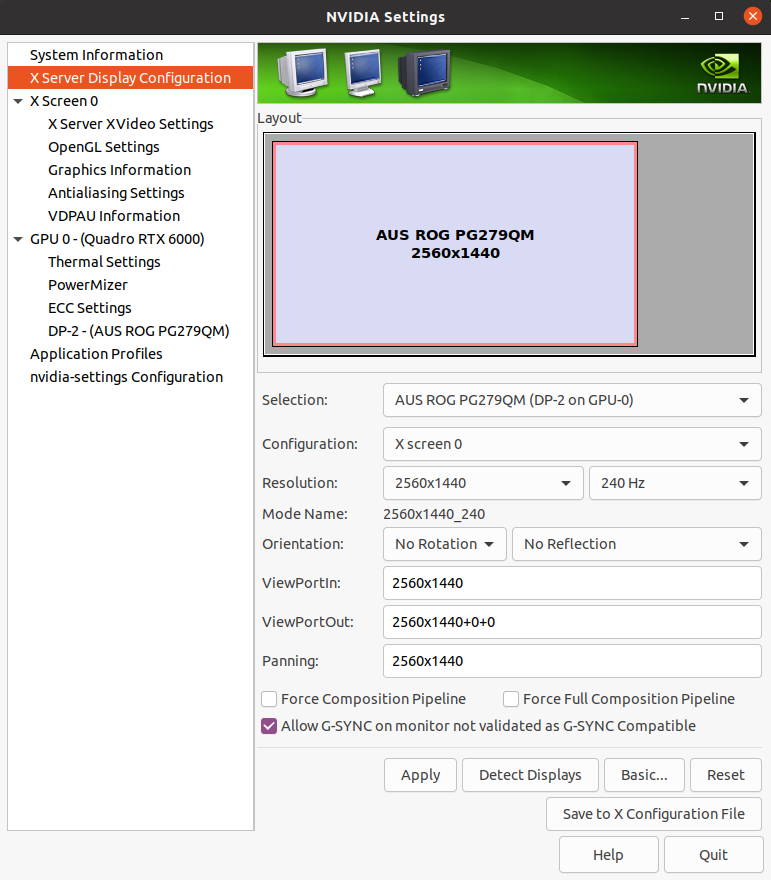
  2. Click on X Server Display Configuration then the Advanced button. This will show the Allow G-SYNC on monitor not validated as G-SYNC compatible option. Enable the option and click Apply:

    Enable G-SYNC for the current display
    Enable G-SYNC for the current display
  3. To show the refresh rate and G-SYNC label on the display window, click on OpenGL Settings for the selected display. Now click Allow G-SYNC/G-SYNC Compatible and Enable G-SYNC/G-SYNC Compatible Visual Indicator options, then click Quit. This step is shown in the image below. The Gsync indicator is at the top right of the screen once the application is running.
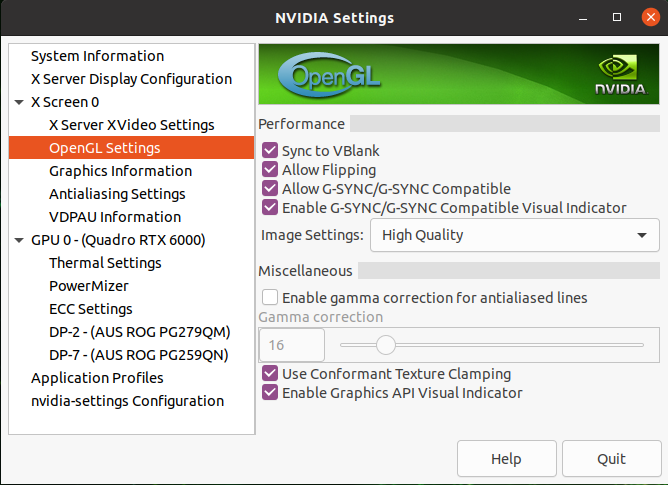
    Enable Visual Indicator for the current display
    Enable Visual Indicator for the current display