


Advanced Topics#
This chapter discusses advanced topics and settings for NVIDIA vGPU software licensing.
Configuring a Licensed Client with Custom Settings#
NVIDIA License System provides custom settings for the following configuration properties of a licensed client:
The feature type of a physical GPU
The directory in which to store the client configuration token
Details for a proxy server between a licensed client and a service instance
If you want to use the default directory in which to store the client configuration token and, on Windows, are configuring the client with NVIDIA vGPU, follow the instructions for a simplified configuration in Configuring a Licensed Client of NVIDIA License System.
Configuring a Licensed Client on Windows with Custom Settings#
Perform this task from the client.
Physical GPUs only: Add the
FeatureTypeDWord (REG_DWORD) registry value to the Windows registry keyHKEY_LOCAL_MACHINE\SYSTEM\CurrentControlSet\Services\nvlddmkm\Global\GridLicensing.Note
If you’re licensing an NVIDIA vGPU, the
FeatureTypeDWord (REG_DWORD) registry value is not required. NVIDIA vGPU software automatically selects the correct type of license based on the vGPU type.If you are upgrading an existing driver, this value is already set.
You can also perform this step from NVIDIA Control Panel.
Set this value to the feature type of a GPU in pass-through mode or a bare-metal deployment:
0: NVIDIA Virtual Applications
2: NVIDIA RTX Virtual Workstation
If you want store the client configuration token in a custom location, add the
ClientConfigTokenPathString (REG_SZ) registry value to the Windows registry keyHKEY_LOCAL_MACHINE\SYSTEM\CurrentControlSet\Services\nvlddmkm\Global\GridLicensing.Set the value to the full path to the folder in which you want to store the client configuration token for the client. You can use the syntax
\\<fully-qualified-domain-name>\<share-name>for the path to the folder. By default, the client searches for the client configuration token in the%SystemDrive%\Program Files\NVIDIA Corporation\vGPU Licensing\ClientConfigTokenfolder.By specifying a shared network drive mapped on the client, you can simplify the deployment of the same client configuration token on multiple clients. Instead of copying the client configuration token to each client individually, you can keep only one copy in the shared network drive.
If you are storing the client configuration token in a custom location, create the folder in which you want to store the client configuration token.
If the folder is a shared network drive, ensure that the following conditions are met:
The folder is mapped locally on the client to the path specified in the
ClientConfigTokenPathregistry value.The
COMPUTERobject has the rights to access the folder on the shared network drive. TheCOMPUTERobject requires these rights because the license service runs before any user logs in.
If you are storing the client configuration token in the default location, omit this step. The default folder in which the client configuration token is stored is created automatically after the NVIDIA vGPU software graphics driver is installed.
Copy the client configuration token to the folder in which you want to store the client configuration token.
Ensure that this folder contains only the client configuration token that you want to deploy on the client and no other files or folders. If the folder contains more than one client configuration token, the client uses the newest client configuration token in the folder.
If you want to store the client configuration token in the default location, copy the client configuration token to the
%SystemDrive%\Program Files\NVIDIA Corporation\vGPU Licensing\ClientConfigTokenfolder.If you want to store the client configuration token in a custom location, copy the token to the folder that you created in the previous step.
If you want the licensed client to check out a license when a user logs in to the client, add the
EnableLicenseOnLoginDWord (REG_DWORD) registry value to the Windows registry keyHKEY_LOCAL_MACHINE\SYSTEM\CurrentControlSet\Services\nvlddmkm\Global\GridLicensingand set this registry value to 1.By default, a licensed client checks out a license when the client is booted.
If a non-transparent proxy server is configured between your licensed client and a service instance, provide the information about the proxy server that the licensed client requires.
Provide this information by adding the following registry values to the Windows registry key
HKEY_LOCAL_MACHINE\SYSTEM\CurrentControlSet\Services\nvlddmkm\Global\GridLicensing.For all non-transparent proxy servers, provide the address and port number of the proxy server in the following Windows registry values.
ProxyServerAddressString(REG_SZ)The address of the proxy server. The address can be a fully qualified domain name such as
iproxy1.example.com, or an IP address such as10.31.20.45.ProxyServerPortString(REG_SZ)The port number of the proxy server.
If necessary, provide the credentials of the user that will log in to the proxy server.
This information is required for proxy servers that use the following authentication methods:
Basic authentication
Microsoft Windows Challenge/Response (Microsoft NTLM) authentication for a client that is not a member of an Active Directory domain
ProxyUserNameString(REG_SZ): The username of the user that will log in to the proxy server.
ProxyCredentialsFilePathString(REG_SZ)The full path to the file that contains the encrypted credentials of the user that will log in to the proxy server, for example,
C:\Program Files\NVIDIA Corporation\vGPU Licensing\ProxySettings\proxy-credentials.dat.This file is generated as explained in Generating an Encrypted Credentials File.
Restart the
NvDisplayContainerservice.
The NVIDIA service on the client should now automatically obtain a license from the CLS or DLS instance.
Configuring a Licensed Client on Linux with Custom Settings#
Perform this task from the client.
As root, open the file
/etc/nvidia/gridd.confin a plain-text editor, such asvi.$ sudo vi /etc/nvidia/gridd.conf
Note
You can create the
/etc/nvidia/gridd.conffile by copying the supplied template file/etc/nvidia/gridd.conf.template.Add the
FeatureTypeconfiguration parameter to the file/etc/nvidia/gridd.confon a new line asFeatureType="<value>".<value>depends on the type of the GPU assigned to the licensed client that you are configuring.GPU Type
Value
NVIDIA vGPU
1. NVIDIA vGPU software automatically selects the correct type of license based on the vGPU type.
Physical GPU
0: NVIDIA Virtual Applications
2: NVIDIA RTX Virtual Workstation
Note
You can also perform this step from NVIDIA X Server Settings. Before using NVIDIA X Server Settings to perform this step, ensure that this option has been enabled as explained in Enabling License Management in NVIDIA X Server Settings.
This example shows how to configure a licensed Linux client for NVIDIA RTX Virtual Workstation.
# /etc/nvidia/gridd.conf.template - Configuration file for NVIDIA Grid Daemon
…
# Description: Set Feature to be enabled
# Data type: integer
# Possible values:
# 0 => for unlicensed state
# 1 => for NVIDIA vGPU
# 2 => for NVIDIA RTX Virtual Workstation
# 4 => for NVIDIA vGPU for Compute
FeatureType=2
...
If you want store the client configuration token in a custom location, add the
ClientConfigTokenPathconfiguration parameter to the file/etc/nvidia/gridd.confon a new line asClientConfigTokenPath="<path>"<path>The full path to the directory in which you want to store the client configuration token for the client. By default, the client searches for the client configuration token in the
/etc/nvidia/ClientConfigToken/directory.
By specifying a shared network directory that is mounted locally on the client, you can simplify the deployment of the same client configuration token on multiple clients. Instead of copying the client configuration token to each client individually, you can keep only one copy in the shared network directory.
This example shows how to configure a licensed Linux client to search for the client configuration token in the
/mnt/nvidia/ClientConfigToken/directory. This directory is a mount point on the client for a shared network directory.# /etc/nvidia/gridd.conf.template - Configuration file for NVIDIA Grid Daemon … ClientConfigTokenPath=/mnt/nvidia/ClientConfigToken/ ...
If you are storing the client configuration token in a custom location, create the directory in which you want to store the client configuration token.
If the directory is a shared network directory, ensure that it is mounted locally on the client at the path specified in the
ClientConfigTokenPathconfiguration parameter.If you are storing the client configuration token in the default location, omit this step. The default directory in which the client configuration token is stored is created automatically after the NVIDIA vGPU software graphics driver is installed.
Copy the client configuration token to the directory in which you want to store the client configuration token.
Ensure that this directory contains only the client configuration token that you want to deploy on the client and no other files or directories. If the directory contains more than one client configuration token, the client uses the newest client configuration token in the directory.
If you want to store the client configuration token in the default location, copy the client configuration token to the
/etc/nvidia/ClientConfigTokendirectory.If you want to store the client configuration token in a custom location, copy the token to the directory that you created in the previous step.
Ensure that the file access modes of the client configuration token allow the owner to read, write, and execute the token, and the group and others only to read the token.
Determine the current file access modes of the client configuration token.
# ls -l <client-configuration-token-directory>
If necessary, change the mode of the client configuration token to 744.
# chmod 744 <client-configuration-token-directory>/client_configuration_token_*.tok
<client-configuration-token-directory>The directory to which you copied the client configuration token in the previous step.
If you want the licensed client to check out a license when a user logs in to the client, add the
EnableLicenseOnLoginconfiguration parameter to the file/etc/nvidia/gridd.confon a new line asEnableLicenseOnLogin=TRUE.By default, a licensed client checks out a license when the client is booted.
If a non-transparent proxy server is configured between your licensed client and a service instance, provide the information about the proxy server that the licensed client requires.
For all non-transparent proxy servers, provide the address and port number of the proxy server.
Provide this information by adding the following configuration parameters to the file
/etc/nvidia/gridd.confon separate lines.ProxyServerAddress=<address> ProxyServerPort=<port>
<address>The address of the proxy server. The address can be a fully qualified domain name such as
iproxy1.example.com, or an IP address such as10.31.20.45.<port>The port number of the proxy server.
This example sets the address of a proxy server to
10.31.20.45and the port number to3128.# /etc/nvidia/gridd.conf.template - Configuration file for NVIDIA Grid Daemon … ProxyServerAddress=10.31.20.45 ProxyServerPort=3128 ...
If necessary, provide the credentials of the user that will log in to the proxy server.
This information is required for proxy servers that use basic authentication.
Provide this information by adding the following configuration parameters to the file
/etc/nvidia/gridd.confon separate lines.ProxyUserName=<domain>\<username> ProxyCredentialsFilePath=<path>
<domain>The domain to which the user belongs, for example,
example.com.<username>The username of the user that will log in to the proxy server, for example,
clsuser.<path>The full path to the file that contains the encrypted credentials of the user that will log in to the proxy server, for example,
/etc/nvidia/proxy-credentials.dat.This file is generated as explained in Generating an Encrypted Credentials File.
This example sets the domain and username of the user that will log in to the proxy server to
example.com\clsuserand the path to the file that contains the encrypted credentials of the user to/etc/nvidia/proxy-credentials.dat.# /etc/nvidia/gridd.conf.template - Configuration file for NVIDIA Grid Daemon … ProxyUserName=example.com\clsuser ProxyCredentialsFilePath=/etc/nvidia/proxy-credentials.dat ...
Save your changes to the
/etc/nvidia/gridd.conffile and close the file.Restart the
nvidia-griddservice.
The NVIDIA service on the client should now automatically obtain a license from the CLS or DLS instance.
Enabling License Management in NVIDIA X Server Settings#
By default, the Manage License option is not available in NVIDIA X Server Settings. Before using NVIDIA X Server Settings to license NVIDIA vGPU software, you must enable this option.
This task requires sudo privileges.
If NVIDIA X Server Settings is running, shut it down.
If the
/etc/nvidia/gridd.conffile does not already exist, create it by copying the supplied template file/etc/nvidia/gridd.conf.template.As root, edit the
/etc/nvidia/gridd.conffile to set theEnableUIoption toTRUE.Start the
nvidia-griddservice.# sudo service nvidia-gridd start
When NVIDIA X Server Settings is restarted, the Manage License option is now available.
Configuring a Proxy Server Between a Licensed Client and a Service Instance#
Proxy Server Requirements and Firewall Rules for a Service Instance#
To enable communication between a licensed client and a service instance through a proxy server, the proxy server must meet certain requirements. To enable communication through a firewall, firewall rules that allow traffic on specific URLs through specific ports must be defined.
The processes for configuring a proxy server and defining firewall rules are separate from the process for configuring a service instance. Use the standard interfaces of the proxy server and the firewall that you are using to perform these processes.
Note
Only HTTP proxy servers are supported. HTTPS proxy servers are not supported.
Proxy Server Requirements for a Service Instance#
NVIDIA License System supports transparent proxy servers and non-transparent proxy servers.
A transparent proxy server identifies itself to the server and does not modify client requests and responses.
A non-transparent proxy server does not reveal the IP address of the client and modifies client requests and responses.
Any proxy server between a licensed client and a service instance must allow programmatic calls to the URL through which the service instance is accessed.
Service Instance Type |
URL |
|---|---|
CLS instance |
|
DLS instance |
The IP address or, if defined, the fully qualified domain name or the CNAME of the VM on which the DLS virtual appliance is installed |
Non-Transparent Proxy Server Support#
NVIDIA License System supports both authenticated and unauthenticated non-transparent proxy servers.
The following authenticated proxy servers are supported:
Squid
The following authentication methods are supported for authenticated proxy servers:
Basic
Microsoft Windows Challenge/Response (Microsoft NTLM) (Windows clients only)
Kerberos (only for clients that are a member of an Active Directory domain)
Firewall Rules for a Service Instance#
To enable communication between a licensed client and a service instance through a firewall, firewall rules that allow traffic on the URLs through the ports specified in the following table must be defined.
CLS URL |
DLS URL |
Port |
Traffic |
|---|---|---|---|
|
The IP address or, if defined, the fully qualified domain name or the CNAME of the VM on which the DLS virtual appliance is installed |
443 |
|
|
The IP address or, if defined, the fully qualified domain name or the CNAME of the VM on which the DLS virtual appliance is installed |
80 |
License return from a Windows licensed client that has not been shut down cleanly |
Generating an Encrypted Credentials File#
Some authentication methods require a licensed client to provide user credentials when the client authenticates with a proxy server. To enable the client to provide these credentials securely without input from a user, you must generate a file that contains these credentials in an encrypted form that the client can read.
The following authentication methods require an encrypted credentials file:
Basic authentication
Microsoft Windows Challenge/Response (NTLM) authentication for a client that is not a member of an Active Directory domain
How to generate an encrypted credentials file depends on the OS that client is running. For detailed instructions, refer to the following topics:
Generating an Encrypted Credentials File on Windows#
Perform this task in a Windows PowerShell window as the Administrator user on the client.
Change to the
C:\Program Files\NVIDIA Corporation\vGPU Licensing\ProxySettingsfolder.PS C:\> cd "C:\Program Files\NVIDIA Corporation\vGPU Licensing\ProxySettings"Run the
grid-proxy-credentialsWindows PowerShell script.PS C:\> .\grid-proxy-credentials.ps1In the Select Output File Path window that opens, navigate to the directory in which you want to generate the credentials file, enter the file name, and click Save.
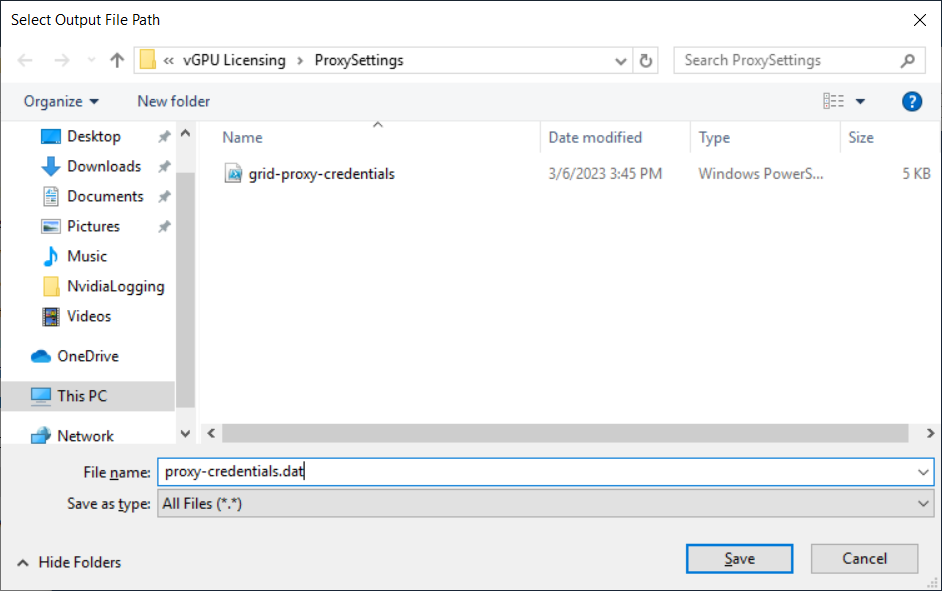
When prompted in the Windows PowerShell window, specify the password of the user that will log in to the proxy server when the licensed client requests a license.
Provide the path to this file when configuring a licensed client that will use the file as explained in Configuring a Licensed Client on Windows with Default Settings.
Generating an Encrypted Credentials File on Linux#
Perform this task in a Linux command shell on the client.
Run the
grid-proxy-credentials.shcommand.# /usr/lib/nvidia/grid-proxy-credentials.sh -o <output-file-path>
<output-file-path>The full path to the credentials file that you are generating. Ensure that the directory in the path exists.
Tip
To get help information for this command, type
/usr/lib/nvidia/grid-proxy-credentials.sh --help.This example creates the credentials file
/etc/nvidia/proxy-credentials.dat.# /usr/lib/nvidia/grid-proxy-credentials.sh -o /etc/nvidia/proxy-credentials.dat
When prompted, specify the password of the user that will log in to the proxy server when the licensed client requests a license.
Provide the path to this file when configuring a licensed client that will use the file as explained in Configuring a Licensed Client on Linux with Default Settings.
Setting the Client Host Identifier for License Checkouts#
If a VM is shut down abruptly and then restarted after a change to its network configuration, two licenses might be checked out for the same VM. You can avoid this situation by setting the client host identifier for license checkouts.
By default, the license server selects the first valid MAC address it finds to identify the VM for license checkouts. If a VM that has a license checked out is shut down abruptly, it might not release the license back to the license server. If the network configuration of the VM is changed after the shutdown and the VM is restarted, the license server might use a different MAC address to identify the VM, which will cause two licenses to be checked out for the same VM. Setting the client host identifier avoids this situation because the license server always uses identifier that you set to identify the VM.
Set
LicenseHostIdto the MAC address of a network interface controller (NIC) on the VM.On Windows, add the following Windows registry key setting:
[HKEY_LOCAL_MACHINE\SYSTEM\CurrentControlSet\Services\nvlddmkm\Global\GridLicensing]"LicenseHostId"=<vm-nic-mac-address>On Linux, add the following entry to
/etc/nvidia/gridd.conf:LicenseHostId=<vm-nic-mac-address>
<vm-nic-mac-address>The MAC address of the network interface controller (NIC) on the VM that the license server will use to identify the VM for license checkouts. Specify only the numbers and letters in the address without any spaces or punctuation, for example,
00005E0053FF.
Apply the changed setting to the VM.
If the vGPU or physical GPU assigned to the VM has already been licensed, restart the VM.
Otherwise, license the vGPU or physical GPU assigned to the VM as explained in Configuring a Licensed Client of NVIDIA License System.
Licenses Obtained After Boot or User Login#
Under normal operation, an NVIDIA vGPU software license is obtained by a platform during boot or at user login, before launch of applications. If a license is not available, the system will periodically retry its license request to the license server. During this time, the vGPU or GPU initially operates at full capability but its performance is degraded over time if the system fails to obtain a license.
The performance of an unlicensed vGPU or GPU is degraded as described in Software Enforcement of NVIDIA vGPU Software Licensing. Furthermore, vWS features described in Display Resolutions for Physical GPUs are not available to applications started while the performance of a physical GPU is degraded.
On Windows, unavailability of a license is indicated by a pop-up window or by the license status on the Licensing tab of the NVIDIA Control Panel. On Linux, unavailability of a license is indicated by log messages.
If the performance of a vGPU or GPU has been degraded, the full capability of the vGPU or GPU is restored when a license is acquired. However, application software launched while the performance was degraded might need to be restarted to recognize and use the licensed features.
Operating with Intermittent Connectivity to the License Server#
To check out a license, vWS, vPC, and vApps clients require connectivity to a license server when booting or when a user logs in to the client.
After they have obtained a license, clients may operate without connectivity to the license server for a period of up to 1 day, after which time the client will be warned of license expiration.
Windows Registry Settings for NVIDIA vGPU Software Licensing#
NVIDIA vGPU software licensing settings are controlled through the Windows Registry.
Registry Key Values for Licensing Settings#
Licensing settings are stored in this registry key:
HKEY_LOCAL_MACHINE\SYSTEM\CurrentControlSet\Services\nvlddmkm\Global\GridLicensing
Registry values are summarized in Table 4.
Name |
Type |
Description |
|---|---|---|
|
DWord ( |
The feature type of a GPU in pass-through mode or a bare-metal deployment: 0: vApps 2: vWS All other values reserved. Do not change the value of this registry key in a VM configured with NVIDIA vGPU. |
|
DWord ( |
An integer in the range 10-10080 that specifies the period of time in minutes for which a license can be borrowed after it is checked out After this period has elapsed, the client must obtain a new license from the server. The default is 1440 minutes, which corresponds to a period of 1 day. |
|
DWord ( |
Controls whether a licensed client checks out a license when the client is booted or when a user logs in to the client. If this registry key is absent, a licensed client checks out a license when the client is booted. When present: 0: A licensed client checks out a license when the client is booted. 1: A licensed client checks out a license when a user logs in to the client. (Optional: defaults to 0) |
|
DWord ( |
Disables or enables pop-up notifications for NVIDIA vGPU software license expiration. 0: Enable license expiration pop-up notifications 1: Disable license expiration pop-up notifications (Optional: defaults to 0) |
|
DWord ( |
If this registry key is absent, pop-up notifications are enabled for changes in NVIDIA vGPU software license state to the following states:
When present: 0: Disable none of the pop-up notifications for license state changes 1: Disable pop-up notifications for changes to the following license states:
(Optional: defaults to 0) |
|
DWord ( |
If this registry key is absent, significant licensing events are logged. When present: 0: Disable logging of significant licensing events 1: Enable logging of significant licensing events (Optional: defaults to 1) |
|
String ( |
If this registry key is absent, the license server selects the first valid MAC address it finds to identify the VM for license checkouts. When present, this registry key must be the MAC address of the network interface controller (NIC) on the VM that the license server will use to identify the VM for license checkouts. Specify only the numbers and letters in the address without any spaces or punctuation, for example, Setting this registry key prevents two license checkouts by a single VM if the VM is shut down abruptly and then restarted after a change to its network configuration. |
|
String ( |
The full path to the folder in which you want to store the client configuration token for the client. Set this registry key only if you want store the client configuration token in a custom location. |
|
String |
Proxy server address. Set this registry key only if a non-transparent proxy server is configured between your licensed client and a service instance. |
|
String |
Proxy server port number. Set this registry key only if a non-transparent proxy server is configured between your licensed client and a service instance. |
Registry Key Value for Managing Licensing Controls in NVIDIA Control Panel#
Licensing controls in NVIDIA Control Panel are controlled through the NvCplDisableManageLicensePage DWord (REG_DWORD) registry value in this Windows registry key:
HKEY_LOCAL_MACHINE\SYSTEM\CurrentControlSet\Services\nvlddmkm\NVControlPanel2\RegisteredServers\Overrides\{DFA226E7-D28D-407D-95ED-5A79D9745BB5}
If this registry key value is absent, licensing controls are shown in NVIDIA Control Panel for GPUs supporting licensing.
If this registry key value is present:
0: Show licensing controls in NVIDIA Control Panel
1: Hide licensing controls in NVIDIA Control Panel
All other values: reserved