


Introduction to NVIDIA vGPU Software Licensing#
The following products are available as licensed products on NVIDIA GPUs that support NVIDIA vGPU software:
NVIDIA® RTX Virtual Workstation (vWS)
NVIDIA Virtual PC (vPC)
NVIDIA Virtual Applications (vApps)
This guide describes these licensed products and how to enable and use them on supported hardware.
NVIDIA vGPU Software Licensed Products#
The available NVIDIA vGPU software licensed products support different classes of NVIDIA vGPU software deployments.
NVIDIA vGPU Software Licensed Product |
Target Users |
Supported NVIDIA vGPU Software Deployments |
|---|---|---|
vApps |
Users of PC-level applications and server-based desktops that use Citrix Virtual Apps and Desktops, VMware Horizon, RDSH, or other app streaming or session-based solutions |
|
vPC |
Users of business virtual desktops who require a great user experience with PC applications for Windows, web browsers, and high-definition video |
|
vWS |
Users of mid-range and high-end workstations who require access to remote professional graphics applications with full performance on any device anywhere |
|
Note
Microsoft DDA and VMware vDGA are functionally equivalent to GPU pass through.
Microsoft RemoteFX vGPU is a graphics virtualization technology.
Microsoft DDA requires Windows Server 2016 with the Hyper-V role.
How NVIDIA vGPU Software Licensing Is Enforced#
Depending on the NVIDIA vGPU software deployment, licensing is enforced either through software or only through the end-user license agreement (EULA).
NVIDIA vGPU Software Deployment |
Required NVIDIA vGPU Software License |
Enforcement |
|---|---|---|
A-series NVIDIA vGPU |
vApps |
Software[1] |
B-series NVIDIA vGPU |
vPC or vWS |
Software[2] |
Q-series NVIDIA vGPU |
vWS |
Software[3] |
GPU pass through for workstation or professional 3D graphics |
vWS |
Software |
GPU pass through for PC-level applications |
vApps |
EULA only |
Microsoft DDA for workstation or professional 3D graphics |
vWS |
Software |
Microsoft DDA for PC-level applications |
vApps |
EULA only |
VMware vDGA for workstation or professional 3D graphics |
vWS |
Software |
VMware vDGA for PC-level applications |
vApps |
EULA only |
Bare metal for workstation or professional 3D graphics |
vWS |
Software |
Bare metal for PC-level applications |
vApps |
EULA only |
Microsoft RemoteFX vGPU |
vPC |
EULA only |
Software Enforcement of NVIDIA vGPU Software Licensing#
When a Virtual Machine (VM) that is running NVIDIA vGPU software is first booted, the virtual GPU or physical GPU assigned to the VM operates at full capability. When licensing is enforced through software, the performance of the virtual GPU or physical GPU is degraded if the VM fails to obtain a license within 20 minutes and is further degraded if the VM still hasn’t obtained a license after 24 hours.
If users report that the performance of a virtual GPU or physical GPU is degraded, determine whether the associated VM has obtained a license as explained in Troubleshooting.
A VM obtains a license over the network from a service instance of the NVIDIA License System. When a VM obtains a license, the license is “checked out” or “borrowed.” The VM releases the license back to the service instance when the license is no longer required. You can control when a license is checked out and released back to the service instance through the setting of a Windows registry key value or Linux configuration parameter.
By default, the license is checked out when the VM is booted and released when the VM is shut down.
If the Windows registry key value or Linux configuration parameter is set, the license is checked out when a user logs in to the VM and released when the user logs out of the VM.
For information about the Windows registry key value for controlling this behavior, refer to Windows Registry Settings for NVIDIA vGPU Software Licensing.
Note
For information about setting up and running NVIDIA License System, refer to NVIDIA License System User Guide.
Figure 37 illustrates how NVIDIA vGPU software licensing is enforced through software.
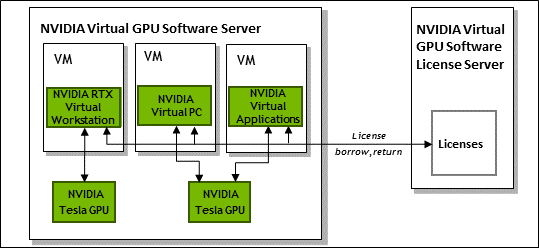
Figure 37 Software Enforcement of NVIDIA vGPU Software Licensing#
Additional Considerations for NVIDIA vGPU Deployments#
For NVIDIA vGPU deployments, the NVIDIA vGPU software automatically selects the correct type of license based on the vGPU type.
After you license NVIDIA vGPU, the VM that is set up to use NVIDIA vGPU is capable of running the full range of DirectX and OpenGL graphics applications.
Licensing settings persist across reboots and need only be modified if the license server address changes, or the VM is switched to running GPU pass through.
Additional Considerations for Physical GPU Deployments#
The type of license required depends on how the physical GPU is deployed.
In GPU pass-through mode on Windows, or in a bare-metal deployment on Windows or Linux, a physical GPU requires a vWS license.
In GPU pass-through mode on Linux, a physical GPU requires a vWS license.
You can also operate a physical GPU in pass-through mode or a bare-metal deployment at reduced capability with a vApps license. vPC is not available on GPUs running in pass-through mode or bare-metal deployments.
EULA-Only Enforcement of NVIDIA vGPU Software Licensing#
When licensing is enforced only through the EULA, no licenses are checked out from the license server. You must comply with the terms of the EULA by ensuring that all the licenses required for your NVIDIA vGPU software deployment have been purchased.
The nvidia-smi -q command indicates that the product is licensed even when no license is checked out from the license server.
If licensing for all your NVIDIA vGPU software deployments is enforced only through the EULA, you do not need to set up and run the NVIDIA vGPU software license server.
Display Resolutions for Physical GPUs#
The display resolutions supported by a physical GPU depend on the NVIDIA vGPU software license that is applied to the GPU.
NVIDIA RTX Virtual Workstation Physical GPU Resolutions#
GPUs that are licensed with an NVIDIA RTX Virtual Workstation license support a maximum combined resolution based on the number of available pixels. You can choose between using a small number of high resolution displays or a larger number of lower resolution displays with these GPUs.
The following table lists the maximum number of displays per GPU at each supported display resolution for configurations in which all displays have the same resolution.
Available Pixels |
Display Resolution |
Displays per GPU |
|---|---|---|
66355200 |
7680×4320 |
2 |
5120×2880 or lower |
4 |
The following table provides examples of configurations with a mixture of display resolutions.
Available Pixels |
Available Pixel Basis |
Maximum Displays |
Sample Mixed Display Configurations |
|---|---|---|---|
66355200 |
2 7680×4320 displays |
4 |
1 7680×4320 display plus 2 5120×2880 displays |
1 7680×4320 display plus 3 4096×2160 displays |
Note
You cannot use more than four displays even if the combined resolution of the displays is less than the number of available pixels from the GPU. For example, you cannot use five 4096×2160 displays even though the combined resolution of the displays (44236800) is less than the number of available pixels from the GPU (66355200).
NVIDIA Virtual Applications or NVIDIA vGPU for Compute Physical GPU Resolutions#
GPUs that are licensed with an NVIDIA Virtual Applications or an NVIDIA vGPU for Compute license support a single display with a fixed maximum resolution. The maximum resolution depends on the following factors:
The NVIDIA vGPU software license that is applied to the GPU
The operating system that is running on the system to which the GPU is assigned
License |
Operating System |
Maximum Display Resolution |
Displays per GPU |
|---|---|---|---|
NVIDIA Virtual Applications |
Linux |
2560×1600 |
1 |
Windows |
1280×1024 |
1 |