


Getting NVIDIA vGPU Software#
After your order for NVIDIA vGPU software is processed, you will receive an order confirmation message from NVIDIA. This message contains information that you need for getting NVIDIA vGPU software and technical support from NVIDIA.
To get NVIDIA vGPU software and technical support from NVIDIA, you must have an NVIDIA Enterprise Account, which provides login access to the following NVIDIA web properties:
NVIDIA Licensing Portal, which provides access to your entitlements, software downloads, and options for managing your NVIDIA vGPU software license servers
NVIDIA Enterprise Support Portal, which provides access to NVIDIA vGPU software support services
These web properties can be reached from the NVIDIA Application Hub.
Note
If you obtained NVIDIA vGPU software from Omnissa, contact Omnissa for all support requests for NVIDIA vGPU software. Do not use the NVIDIA Enterprise Support Portal for NVIDIA vGPU software support.
To activate the accounts for getting NVIDIA vGPU Software, create or link to an NVIDIA Enterprise Account:
Before You Begin#
Before following the procedures in this guide, ensure that the following prerequisites are met:
You have a server platform that is capable of hosting your chosen hypervisor and NVIDIA GPUs that support NVIDIA vGPU software. For a list of validated server platforms, refer to NVIDIA GRID Certified Servers.
One or more NVIDIA GPUs that support NVIDIA vGPU software is installed in your server platform.
A supported virtualization software stack is installed according to the instructions in the software vendor’s documentation.
A virtual machine (VM) running a supported Windows guest operating system (OS) is configured in your chosen hypervisor.
You have a valid NVIDIA software subscription.
For information about supported hardware and software, and any known issues for this release of NVIDIA vGPU software, refer to the Release Notes for your chosen hypervisor:
Your Order Confirmation Message#
After your order for NVIDIA vGPU software is processed, you will receive an order confirmation message to which your NVIDIA Entitlement Certificate is attached. Your NVIDIA Entitlement Certificate contains your product activation keys and provides instructions for using the certificate.
If you are a data center administrator, follow the instructions in the NVIDIA Entitlement Certificate to use the certificate. Otherwise, forward your order confirmation message, including the attached NVIDIA Entitlement Certificate, to a data center administrator in your organization.
NVIDIA Enterprise Account Requirements#
To get NVIDIA vGPU software, you must have a suitable NVIDIA Enterprise Account.
Note
For a Support, Upgrade, and Maintenance Subscription (SUMS) renewal, you should already have a suitable NVIDIA Enterprise Account and this requirement should already be met. However, if you have an account that was created for an evaluation license and you want to access licenses that you purchased, you must repeat the registration process.
Whether or not you have a suitable NVIDIA Enterprise Account depends on whether you have previously purchased NVIDIA vGPU software.
If you have previously purchased NVIDIA vGPU software, you already have a suitable NVIDIA Enterprise Account.
To use this account to get NVIDIA vGPU software, follow the Login link in the instructions for using the certificate to log in to the NVIDIA Application Hub, go to the NVIDIA Licensing Portal, and download your NVIDIA vGPU software. For details, refer to Downloading NVIDIA vGPU Software.
If you have obtained an evaluation license but have not previously purchased NVIDIA vGPU software, you do not have a suitable NVIDIA Enterprise Account.
To create a suitable NVIDIA Enterprise Account, follow the Register link in the instructions for using the certificate to create an account for your purchased licenses. You can choose to create a separate account for your purchased licenses or link your existing account for an evaluation license to the account for your purchased licenses.
To create a separate account for your purchased licenses, follow the instructions in Creating your NVIDIA Enterprise Account, specifying a different e-mail address than the address with which you created your existing account.
To link your existing account for an evaluation license to the account for your purchased licenses, follow the instructions in Linking an Evaluation Account to an NVIDIA Enterprise Account for Purchased Licenses, specifying the e-mail address with which you created your existing account.
If you have not previously purchased NVIDIA vGPU software, you do not have a suitable NVIDIA Enterprise Account.
To create a suitable NVIDIA Enterprise Account, follow the Register link in the instructions for using the certificate to create your account. For details, refer to Creating your NVIDIA Enterprise Account.
Creating your NVIDIA Enterprise Account#
If you do not have a suitable NVIDIA Enterprise Account, you must create an account.
For details of the web properties that you can access through your NVIDIA Enterprise Account, refer to Getting NVIDIA vGPU Software.
If you already have an account, skip this task and go to Downloading NVIDIA vGPU Software.
However, if you have an account that was created for an evaluation license and you want to access licenses that you purchased, you must repeat the registration process when you receive your purchased licenses. You can choose to create a separate account for your purchased licenses or link your existing account for an evaluation license to the account for your purchased licenses.
To create a separate account for your purchased licenses, perform this task, specifying a different e-mail address than the address with which you created your existing account.
To link your existing account for an evaluation license to the account for your purchased licenses, follow the instructions in Linking an Evaluation Account to an NVIDIA Enterprise Account for Purchased Licenses, specifying the e-mail address with which you created your existing account.
Before you begin, ensure that you have your order confirmation message.
In the instructions for using your NVIDIA Entitlement Certificate, follow the Register link.
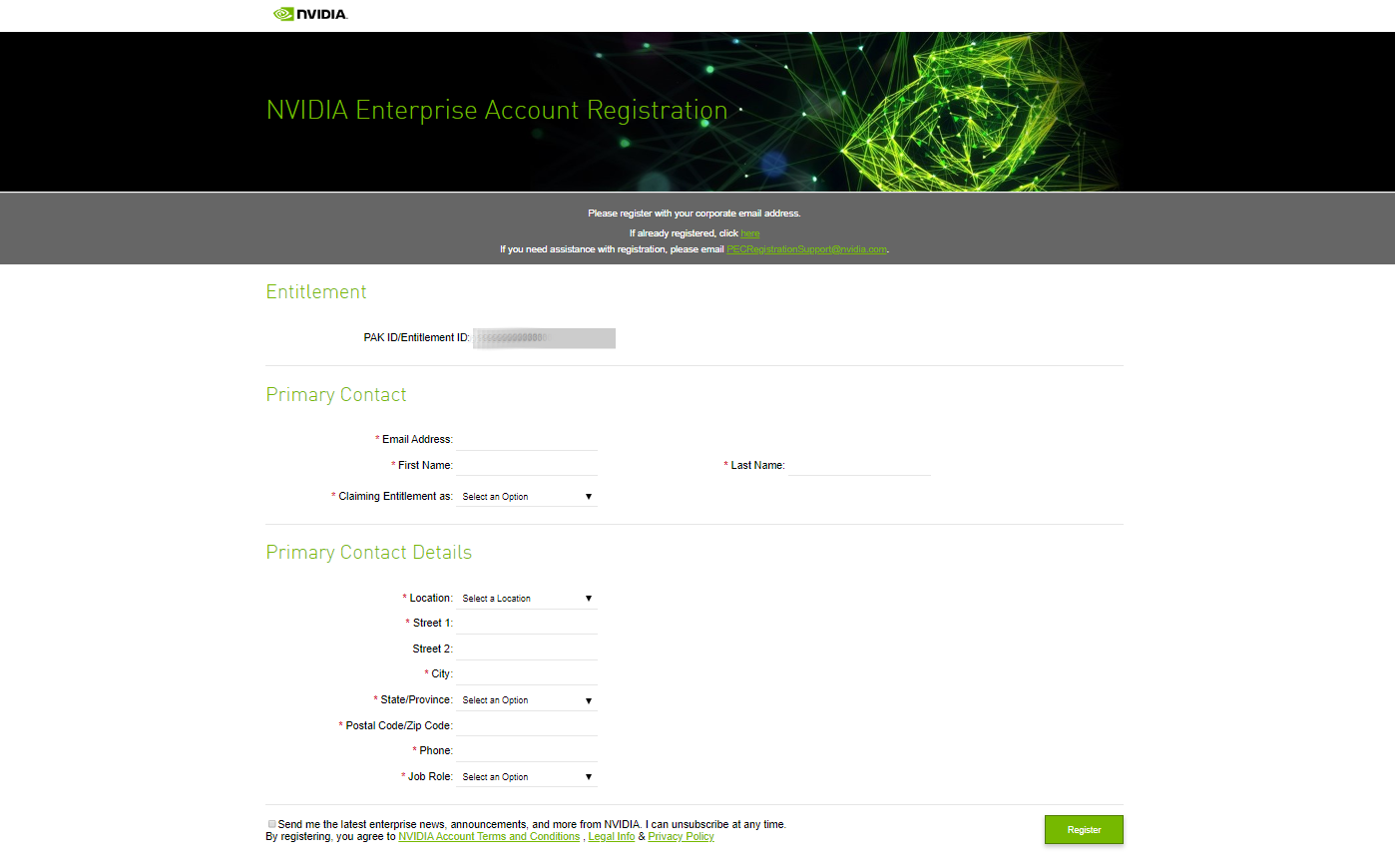
Fill out the form on the NVIDIA Enterprise Account Registration page and click REGISTER.
A message confirming that an account has been created appears. An e-mail instructing you to log in to your account on the NVIDIA Application Hub is sent to the e-mail address you provided.
Open the e-mail instructing you to log in to your account and click Log In.
On the NVIDIA Application Hub Login page that opens, in the text-entry field, type the e-mail address you provided and click Sign In.
On the Create Your Account page that opens, provide and confirm a password for the account and click Create Account.
A message prompting you to verify your e-mail address appears. An e-mail instructing you to verify your e-mail address is sent to the e-mail address you provided.
Open the e-mail instructing you to verify your e-mail address and click Verify Email Address.
A message confirming that your email address is confirmed appears.
From the NVIDIA Application Hub page, you can now log in to the web properties that are listed in Getting NVIDIA vGPU Software.
Linking an Evaluation Account to an NVIDIA Enterprise Account for Purchased Licenses#
If you have an account that was created for an evaluation license, you must repeat the registration process when you receive your purchased licenses. To link your existing account for an evaluation license to the account for your purchased licenses, register for an NVIDIA Enterprise Account with the e-mail address with which you created your existing account.
If you want to create a separate account for your purchased licenses, follow the instructions in Creating your NVIDIA Enterprise Account, specifying a different e-mail address than the address with which you created your existing account.
In the instructions for using the NVIDIA Entitlement Certificate for your purchased licenses, follow the Register link.
Fill out the form on the NVIDIA Enterprise Account Registration page, specifying the e-mail address with which you created your existing account, and click Register.
When a message stating that your e-mail address is already linked to an evaluation account is displayed, click LINK TO NEW ACCOUNT.

Log in to the NVIDIA Licensing Portal with the credentials for your existing account.
Downloading NVIDIA vGPU Software#
Before you begin, ensure that you have your order confirmation message and have created an NVIDIA Enterprise Account.
Visit the NVIDIA Application Hub by following the Login link in the instructions for using your NVIDIA Entitlement Certificate or when prompted after setting the password for your NVIDIA Enterprise Account.
When prompted, provide your e-mail address and password, and click LOGIN.
On the NVIDIA APPLICATION HUB page that opens, click NVIDIA LICENSING PORTAL.
The NVIDIA Licensing Portal dashboard page opens.
Note
Your entitlement might not appear on the NVIDIA Licensing Portal dashboard page until 24 business hours after you set your password during the initial registration process.
In the left navigation pane of the NVIDIA Licensing Portal dashboard page, click ENTITLEMENTS to view details of the NVIDIA vGPU software entitlements that you purchased.
In the left navigation pane of the NVIDIA Licensing Portal dashboard page, click SOFTWARE DOWNLOADS.
On the Software Downloads page that opens, download the software that you need for your NVIDIA vGPU software deployment.
For an NVIDIA vGPU software deployment, you need at minimum the NVIDIA vGPU software release for your hypervisor that you want, for example, NVIDIA vGPU for vSphere 8.0.0 for NVIDIA vGPU software release 20.3.
You might also need additional software for your deployment, for example:
If your system does not allow the installation of apps from the Microsoft Store, you need the standalone NVIDIA Control Panel installer.
If you are using Delegated License Service (DLS) instances to serve licenses, you need the NLS License Server (DLS) for the platform on which you want to deploy the DLS.
For information about installing and configuring DLS instances, refer to NVIDIA License System User Guide.
If you want to use NVIDIA GPU Operator, you need the vGPU Driver Catalog.
Find and download each software item that you need as follows:
Filter and sort the items in the table to find the software item.
In the row in the table for the software item, click Download.
When prompted to accept the license for the software item that you are downloading, click Agree and Download.