


Introduction to NVIDIA vGPU Software#
NVIDIA vGPU software is a graphics virtualization platform that provides virtual machines (VMs) access to NVIDIA GPU technology.
How NVIDIA vGPU Software Is Used#
NVIDIA vGPU software can be used in several ways.
NVIDIA vGPU#
NVIDIA Virtual GPU (vGPU) enables multiple virtual machines (VMs) to have simultaneous, direct access to a single physical GPU, using the same NVIDIA graphics drivers that are deployed on non-virtualized operating systems. By doing this, NVIDIA vGPU provides VMs with unparalleled graphics performance, compute performance, and application compatibility, together with the cost-effectiveness and scalability brought about by sharing a GPU among multiple workloads.
For more information, see Installing and Configuring NVIDIA Virtual GPU Manager.
GPU Pass-Through#
In GPU pass-through mode, an entire physical GPU is directly assigned to one VM, bypassing the NVIDIA Virtual GPU Manager. In this mode of operation, the GPU is accessed exclusively by the NVIDIA driver running in the VM to which it is assigned. The GPU is not shared among VMs.
For more information, see Using GPU Pass-Through.
Bare-Metal Deployment#
In a bare-metal deployment, you can use NVIDIA vGPU software graphics drivers with vWS and vApps licenses to deliver remote virtual desktops and applications. If you intend to use Tesla boards without a hypervisor for this purpose, use NVIDIA vGPU software graphics drivers, not other NVIDIA drivers.
To use NVIDIA vGPU software drivers for a bare-metal deployment, complete these tasks:
Install the driver on the physical host.
For instructions, see Installing the NVIDIA vGPU Software Graphics Driver.
License any NVIDIA vGPU software that you are using.
For instructions, see Virtual GPU Software Client Licensing User Guide.
Configure the platform for remote access.
To use graphics features with Tesla GPUs, you must use a supported remoting solution, for example, RemoteFX, Citrix Virtual Apps and Desktops, VNC, or similar technology.
Use the display settings feature of the host OS to configure the Tesla GPU as the primary display.
NVIDIA Tesla generally operates as a secondary device on bare-metal platforms.
If the system has multiple display adapters, disable display devices connected through adapters that are not from NVIDIA.
You can use the display settings feature of the host OS or the remoting solution for this purpose. On NVIDIA GPUs, including Tesla GPUs, a default display device is enabled.
Users can launch applications that require NVIDIA GPU technology for enhanced user experience only after displays that are driven by NVIDIA adapters are enabled.
Primary Display Adapter Requirements for NVIDIA vGPU Software Deployments#
The GPU that is set as the primary display adapter cannot be used for NVIDIA vGPU deployments or GPU pass through deployments. The primary display is the boot display of the hypervisor host, which displays SBIOS console messages and then boot of the OS or hypervisor.
Any GPU that is being used for NVIDIA vGPU deployments or GPU pass through deployments must be set as a secondary display adapter.
Note
XenServer provides a specific setting to allow the primary display adapter to be used for GPU pass through deployments.
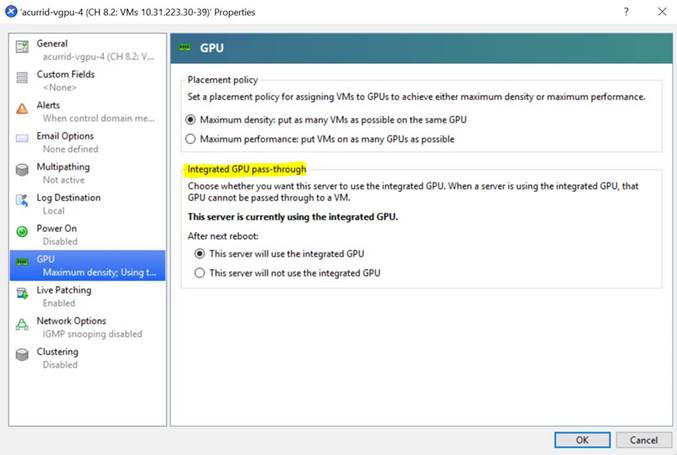
Only the following GPUs are supported as the primary display adapter:
Tesla M6
Quadro RTX 6000
Quadro RTX 8000
All other GPUs that support NVIDIA vGPU software cannot function as the primary display adapter because they are 3D controllers, not VGA devices.
If the hypervisor host does not have an extra graphics adapter, consider installing a low-end display adapter to be used as the primary display adapter. If necessary, ensure that the primary display adapter is set correctly in the BIOS options of the hypervisor host.
NVIDIA vGPU Software Features#
NVIDIA vGPU software includes vWS, vPC, and vApps.
GPU Instance Support on NVIDIA vGPU Software#
NVIDIA vGPU software supports GPU instances on GPUs that support the Multi-Instance GPU (MIG) feature in NVIDIA vGPU and GPU pass through deployments. MIG enables a physical GPU to be securely partitioned into multiple separate GPU instances, providing multiple users with separate GPU resources to accelerate their applications.
In addition to providing all the benefits of MIG, NVIDIA vGPU software adds virtual machine security and management for workloads. Single Root I/O Virtualization (SR-IOV) virtual functions enable full IOMMU protection for the virtual machines that are configured with vGPUs.
Figure 1 shows a GPU that is split into three GPU instances of different sizes, with each instance mapped to one vGPU. Although each GPU instance is managed by the hypervisor host and is mapped to one vGPU, each virtual machine can further subdivide the compute resources into smaller compute instances and run multiple containers on top of them in parallel, even within each vGPU.
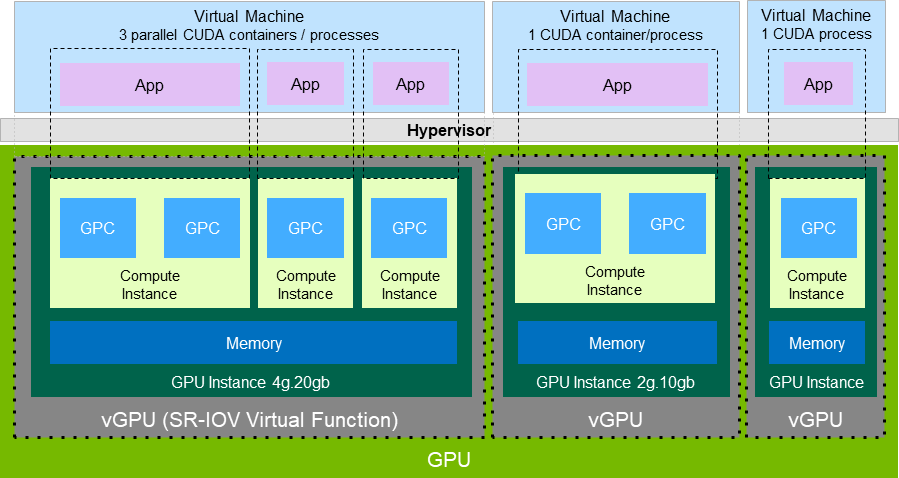
Figure 1 GPU Instances Configured with NVIDIA vGPU#
NVIDIA vGPU software supports a single-slice MIG-backed vGPU with DEC, JPG, and OFA support. Only one MIG-backed vGPU with DEC, JPG, and OFA support can reside on a GPU. The instance can be placed identically to a single-slice instance without DEC, JPG, and OFA support.
Not all hypervisors support GPU instances in NVIDIA vGPU deployments. To determine if your chosen hypervisor supports GPU instances in NVIDIA vGPU deployments, consult the release notes for your hypervisor at NVIDIA Virtual GPU Software Documentation.
To support GPU instances with NVIDIA vGPU, a GPU must be configured with MIG mode enabled and GPU instances must be created and configured on the physical GPU. For more information, see Configuring a GPU for MIG-Backed vGPUs. For general information about the MIG feature, see: NVIDIA Multi-Instance GPU User Guide.
API Support on NVIDIA vGPU#
NVIDIA vGPU includes support for the following APIs:
Open Computing Language (OpenCL™ software) 3.0
OpenGL® 4.6
Vulkan® 1.3
DirectX 11
DirectX 12 (Windows 10)
Direct2D
DirectX Video Acceleration (DXVA)
NVIDIA® CUDA® 13.2
NVIDIA vGPU software SDK (remote graphics acceleration)
NVIDIA RTX (on GPUs based on the NVIDIA Volta graphic architecture and later architectures)
Note
These APIs are backwards compatible. Older versions of the API are also supported.
NVIDIA CUDA Toolkit and OpenCL Support on NVIDIA vGPU Software#
NVIDIA CUDA Toolkit and OpenCL are supported with NVIDIA vGPU only on a subset of vGPU types and supported GPUs.
For more information about NVIDIA CUDA Toolkit, see CUDA Toolkit Documentation 13.2.
Note
If you are using NVIDIA vGPU software with CUDA on Linux, avoid conflicting installation methods by installing CUDA from a distribution-independent runfile package. Do not install CUDA from a distribution-specific RPM or Deb package.
To ensure that the NVIDIA vGPU software graphics driver is not overwritten when CUDA is installed, deselect the CUDA driver when selecting the CUDA components to install.
For more information, see NVIDIA CUDA Installation Guide for Linux.
OpenCL and CUDA Application Support#
OpenCL and CUDA applications are supported on the following NVIDIA vGPU types:
All Q-series vGPU types on the following GPUs:
NVIDIA L2
NVIDIA L4
NVIDIA L20
NVIDIA L40
NVIDIA L40S
NVIDIA RTX 5000 Ada
NVIDIA RTX 6000 Ada
NVIDIA A2
NVIDIA A10
NVIDIA A16
NVIDIA A40
NVIDIA RTX A5000
NVIDIA RTX A5500
NVIDIA RTX A6000
RTX PRO 4500 Blackwell Server Edition
Since 20.2: NVIDIA RTX PRO 5000 Blackwell Workstation Edition 72 GB
NVIDIA RTX PRO 6000 Blackwell Server Edition
NVIDIA RTX PRO 6000 Blackwell Server Edition liquid cooled
Tesla T4
NVIDIA CUDA Toolkit Development Tool Support#
NVIDIA vGPU supports the following NVIDIA CUDA Toolkit development tools on some GPUs:
Debuggers:
CUDA-GDB
Compute Sanitizer
Profilers:
The Activity, Callback, and Profiling APIs of the CUDA Profiling Tools Interface (CUPTI)
Other CUPTI APIs, such as the Event and Metric APIs, are not supported.
NVIDIA Nsight™ Compute
NVIDIA Nsight Systems
NVIDIA Nsight plugin
NVIDIA Nsight Visual Studio plugin
Other CUDA profilers, such as
nvprofand NVIDIA Visual Profiler, are not supported.
These tools are supported only in Linux guest VMs.
NVIDIA CUDA Toolkit profilers are supported and can be enabled on a VM for which unified memory is enabled.
Note
By default, NVIDIA CUDA Toolkit development tools are disabled on NVIDIA vGPU. If used, you must enable NVIDIA CUDA Toolkit development tools individually for each VM that requires them by setting vGPU plugin parameters. For instructions, see Enabling NVIDIA CUDA Toolkit Development Tools for NVIDIA vGPU.
The following table lists the GPUs on which NVIDIA vGPU supports these debuggers and profilers.
GPU |
vGPU Mode |
Debuggers |
Profilers |
|---|---|---|---|
NVIDIA L2 |
Time-sliced |
✓ |
✓ |
NVIDIA L4 |
Time-sliced |
✓ |
✓ |
NVIDIA L20 |
Time-sliced |
✓ |
✓ |
NVIDIA L40 |
Time-sliced |
✓ |
✓ |
NVIDIA L40S |
Time-sliced |
✓ |
✓ |
NVIDIA RTX 5000 Ada |
Time-sliced |
✓ |
✓ |
NVIDIA RTX 6000 Ada |
Time-sliced |
✓ |
✓ |
NVIDIA A2 |
Time-sliced |
✓ |
✓ |
NVIDIA A10 |
Time-sliced |
✓ |
✓ |
NVIDIA A16 |
Time-sliced |
✓ |
✓ |
NVIDIA A40 |
Time-sliced |
✓ |
✓ |
NVIDIA RTX A5000 |
Time-sliced |
✓ |
✓ |
NVIDIA RTX A5500 |
Time-sliced |
✓ |
✓ |
NVIDIA RTX A6000 |
Time-sliced |
✓ |
✓ |
NVIDIA RTX PRO 4500 Blackwell Server Edition |
Time-sliced |
✓ |
✓ |
MIG-backed |
✓ |
✓ |
|
MIG-backed, time-sliced |
× |
× |
|
Since 20.2: NVIDIA RTX PRO 5000 Blackwell Workstation Edition 72 GB |
Time-sliced |
✓ |
✓ |
MIG-backed |
✓ |
✓ |
|
MIG-backed, time-sliced |
× |
× |
|
NVIDIA RTX PRO 6000 Blackwell Server Edition |
Time-sliced |
✓ |
✓ |
MIG-backed |
✓ |
✓ |
|
MIG-backed, time-sliced |
× |
× |
|
NVIDIA RTX PRO 6000 Blackwell Server Edition liquid cooled |
Time-sliced |
✓ |
✓ |
MIG-backed |
✓ |
✓ |
|
MIG-backed, time-sliced |
× |
× |
|
Tesla T4 |
Time-sliced |
✓ |
✓ |
✓ Feature is supported
× Feature is not supported
Supported NVIDIA CUDA Toolkit Features#
NVIDIA vGPU supports the following NVIDIA CUDA Toolkit features if the vGPU type, physical GPU, and the hypervisor software version support the feature:
Error-correcting code (ECC) memory
Peer-to-peer CUDA transfers over NVLink
Note
To determine the NVLink topology between physical GPUs in a host or vGPUs assigned to a VM, run the following command from the host or VM:
$ nvidia-smi topo -m
Unified Memory
Note
Unified memory is disabled by default. If used, you must enable unified memory individually for each vGPU that requires it by setting a vGPU plugin parameter. For instructions, see Enabling Unified Memory for a vGPU.
NVIDIA Nsight Systems GPU context switch trace
NVIDIA NSight Systems video hardware profiling on the following GPUs:
NVIDIA L2
NVIDIA L4
NVIDIA L20
NVIDIA L40
NVIDIA L40S
NVIDIA RTX 5000 Ada
NVIDIA RTX 6000 Ada
NVIDIA RTX PRO 4500 Blackwell Server Edition
Since 20.2: NVIDIA RTX PRO 5000 Blackwell Workstation Edition 72 GB
NVIDIA RTX PRO 6000 Blackwell Server Edition
NVIDIA RTX PRO 6000 Blackwell Server Edition liquid cooled
NVIDIA A2
NVIDIA A10
NVIDIA A16
NVIDIA A40
Dynamic page retirement is supported for all vGPU types on physical GPUs that support ECC memory, even if ECC memory is disabled on the physical GPU.
NVIDIA CUDA Toolkit Features Not Supported by NVIDIA vGPU#
NVIDIA vGPU does not support the NVIDIA Nsight Graphics feature of NVIDIA CUDA Toolkit.
Note
The NVIDIA Nsight Graphics feature is supported in GPU pass-through mode and in bare-metal deployments.
Additional vWS Features#
In addition to the features of vPC and vApps, vWS provides the following features:
Workstation-specific graphics features and accelerations
Certified drivers for professional applications
GPU pass through for workstation or professional 3D graphics
In pass-through mode, vWS supports multiple virtual display heads at resolutions up to 8K and flexible virtual display resolutions based on the number of available pixels. For details, see Display Resolutions for Physical GPUs.
10-bit color for Windows users. (HDR/10-bit color is not currently supported on Linux, NvFBC capture is supported but deprecated.)
NVIDIA GPU Cloud (NGC) Containers Support on NVIDIA vGPU Software#
NVIDIA vGPU software supports NGC containers in NVIDIA vGPU and GPU pass-through deployments on all supported hypervisors.
In NVIDIA vGPU deployments, Q-series vGPU types are supported on all GPUs that support NVIDIA vGPU software.
In GPU pass-through deployments, all GPUs that support NVIDIA vGPU software are supported.
NVIDIA vGPU software supports NGC containers on any guest operating system listed in Supported Platforms - NVIDIA Container Toolkit that is also supported by NVIDIA vGPU software.
For more information about setting up NVIDIA vGPU software for use with NGC containers, see Using NGC with NVIDIA Virtual GPU Software Setup Guide.
NVIDIA GPU Operator Support#
NVIDIA GPU Operator simplifies the deployment of NVIDIA vGPU software on software container platforms that are managed by the Kubernetes container orchestration engine. It automates the installation and update of NVIDIA vGPU software graphics drivers for container platforms running in guest VMs that are configured with NVIDIA vGPU.
Any drivers to be installed by NVIDIA GPU Operator must be downloaded from the NVIDIA Licensing Portal to a local computer. Automated access to the NVIDIA Licensing Portal by NVIDIA GPU Operator is not supported.
NVIDIA GPU Operator supports automated configuration of NVIDIA vGPU software and provides telemetry support through DCGM Exporter running in a guest VM.
NVIDIA GPU Operator is supported only on specific combinations of hypervisor software release, container platform, vGPU type, and guest OS release. To determine if your configuration supports NVIDIA GPU Operator with NVIDIA vGPU deployments, consult the release notes for your chosen hypervisor at NVIDIA Virtual GPU Software Documentation.
For more information, see NVIDIA GPU Operator Overview on the NVIDIA documentation portal.
How this Guide Is Organized#
Virtual GPU Software User Guide is organized as follows:
This chapter introduces the capabilities and features of NVIDIA vGPU software.
Installing and Configuring NVIDIA Virtual GPU Manager provides a step-by-step guide to installing and configuring vGPU on supported hypervisors.
Using GPU Pass-Through explains how to configure a GPU for pass-through on supported hypervisors.
Installing the NVIDIA vGPU Software Graphics Driver explains how to install NVIDIA vGPU software graphics driver on Windows and Linux operating systems.
Modifying a VM’s NVIDIA vGPU Configuration explains how to remove a VM’s vGPU configuration and modify GPU assignments for vGPU-enabled VMs.
Monitoring GPU Performance covers performance monitoring of physical GPUs and virtual GPUs from the hypervisor and from within individual guest VMs.
Changing Scheduling Behavior for Time-Sliced vGPUs and MIG-Backed, Time-Sliced vGPUs describes the scheduling behavior of NVIDIA vGPUs and how to change it.
Troubleshooting provides guidance on troubleshooting.
Virtual GPU Types Reference provides details of each vGPU available from each supported GPU and provides examples of mixed virtual display configurations for B-series and Q-series vGPUs.
Configuring x11vnc for Checking the GPU in a Linux Server explains how to use x11vnc to confirm that the NVIDIA GPU in a Linux server to which no display devices are directly connected is working as expected.
Disabling NVIDIA Notification Icon for Citrix Published Application User Sessions explains how to ensure that the NVIDIA Notification Icon application does not prevent the Citrix Published Application user session from being logged off even after the user has quit all other applications.
XenServer Basics explains how to perform basic operations on XenServer to install and configure NVIDIA vGPU software and optimize XenServer operation with vGPU.
XenServer vGPU Management covers vGPU management on XenServer.
XenServer Performance Tuning covers vGPU performance optimization on XenServer.