


Allocation Strategies#
Strategies for allocating physical hardware resources to VMs and vGPUs can improve the performance of VMs running with NVIDIA vGPU. They include strategies for pinning VM CPU cores to physical cores on Non-Uniform Memory Access (NUMA) platforms, allocating VMs to CPUs, and allocating vGPUs to physical GPUs. These allocation strategies are supported by XenServer and VMware vSphere.
NUMA Considerations#
Server platforms typically implement multiple CPU sockets, with system memory and PCI Express expansion slots local to each CPU socket, as illustrated in Figure 30:
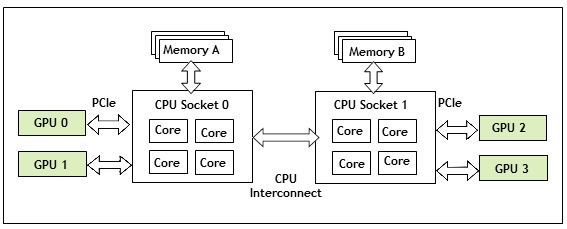
Figure 30 A NUMA Server Platform#
These platforms are typically configured to operate in Non-Uniform Memory Access (NUMA) mode; physical memory is arranged sequentially in the address space, with all the memory attached to each socket appearing in a single contiguous block of addresses. The cost of accessing a range of memory from a CPU or GPU varies; memory attached to the same socket as the CPU or GPU is accessible at lower latency than memory on another CPU socket, because accesses to remote memory must additionally traverse the interconnect between CPU sockets.
Obtaining Best Performance on a NUMA Platform with XenServer#
To obtain best performance on a NUMA platform, place VMs on the same CPU socket as the physical GPU that hosts the VM’s vGPU. On supported XenServer releases, use the Citrix NUMA feature for that placement.
See How GPU locality is determined for guidance on determining which CPU socket a GPU is connected to. Controlling the vGPU types enabled on specific physical GPUs describes how to precisely control which physical GPU is used to host a vGPU, by creating GPU groups for specific physical GPUs.
Obtaining Best Performance on a NUMA Platform with VMware vSphere ESXi#
For some types of workloads or system configurations, you can optimize performance by specifying the placement of VMs explicitly. For best performance, pin each VM to the NUMA node to which the physical GPU hosting the VM’s vGPU is attached.
The following types of workloads and system configurations benefit from explicit placement of VMs:
Memory-intensive workloads, such as an in-memory database or an HPC application with a large data set
A hypervisor host configured with a small number of virtual machines
VMware vSphere ESXi provides the NUMA Node Affinity option for specifying the placement of VMs explicitly. For general information about the options in VMware vSphere ESXi for NUMA placement, see Specifying NUMA Controls in the VMware documentation.
Before setting the NUMA Node Affinity option, run the nvidia-smi topo -m command in the ESXi host shell to determine the NUMA affinity of the GPU device.
After determining the NUMA affinity of the GPU device, set the NUMA Node Affinity option as explained in Associate Virtual Machines with Specified NUMA Nodes in the VMware documentation.
Maximizing Performance#
To maximize performance as the number of vGPU-enabled VMs on the platform increases, NVIDIA recommends adopting a breadth-first allocation: allocate new VMs on the least-loaded CPU socket, and allocate the VM’s vGPU on an available, least-loaded, physical GPU connected via that socket.
XenServer and VMware vSphere ESXi use a different GPU allocation policy by default.
XenServer creates GPU groups with a default allocation policy of depth-first.
See Modifying GPU Allocation Policy on XenServer for details on switching the allocation policy to breadth-first.
For time-sliced vGPUs on a GPU in equal-size mode, VMware vSphere ESXi creates GPU groups with a default allocation policy of breadth-first.
See Modifying GPU Allocation Policy on VMware vSphere for details on switching the allocation policy to depth-first.
The GPU allocation policy does not apply to MIG-backed vGPUs or to a GPU in mixed-size mode.
Note
Due to vGPU’s requirement that only one type of vGPU can run on a physical GPU at any given time, not all physical GPUs may be available to host the vGPU type required by the new VM.