


Known Product Limitations#
Known product limitations for this release of NVIDIA vGPU software are described in the following sections.
vGPUs of different sizes on the same GPU are not supported#
VMware vSphere Hypervisor (ESXi) supports a mixture of time-sliced vGPUs with the same amount of frame buffer from different virtual GPU series on the same physical GPU. A-series, B-series, and Q-series vGPUs with the same amount of frame buffer, for example, A40-2B and A40-2Q, can reside on the same physical GPU simultaneously. However, vGPUs with different amounts of frame buffer are not supported on the same GPU.
VMware vSphere Hypervisor (ESXi) 8 Update 3 and, unless explicitly stated otherwise, later update releases supports a mixture of different types of time-sliced vGPUs on the same physical GPU. Any combination of A-series, B-series, and Q-series vGPUs with any amount of frame buffer can reside on the same physical GPU simultaneously. The total amount of frame buffer allocated to the vGPUs on a physical GPU must not exceed the amount of frame buffer that the physical GPU has.
Maximum Allowed Network Adapters on a VM#
If a VM is configured with too many network adapters, the VM might fail to acquire or return a license. The exact number of network adapters allowed on a VM depends on your system. In testing, it was verified that a VM with 40 network adapters could successfully acquire a license.
If a VM fails to acquire or return a license because the VM is configured with too many network adapters, the following error message is written to the licensing event log file:
Failed to update local trusted store - Maximum buffer size exceeded
For information about how to recover from such a failure, refer to Virtual GPU Software Client Licensing User Guide.
NVENC does not support resolutions greater than 4096×4096#
Description#
The NVIDIA hardware-based H.264 video encoder (NVENC) does not support resolutions greater than 4096×4096. This restriction applies to all NVIDIA GPU architectures and is imposed by the GPU encoder hardware itself, not by NVIDIA vGPU software. The maximum supported resolution for each encoding scheme is listed in the documentation for NVIDIA Video Codec SDK. This limitation affects any remoting tool where H.264 encoding is used with a resolution greater than 4096×4096. Most supported remoting tools fall back to software encoding in such scenarios.
Workaround#
Use H.265 encoding. H.265 is more efficient than H.264 encoding and has a maximum resolution of 8192×8192.
Note
Resolutions greater than 4096×4096 are supported only by the H.265 decoder that 64-bit client applications use. The H.265 decoder that 32-bit applications use supports a maximum resolution of 4096×4096.
Because the client-side Workspace App on Windows is a 32-bit application, resolutions greater than 4096×4096 are not supported for Windows clients of Citrix Virtual Apps and Desktops. Therefore, if you are using a Windows client with Citrix Virtual Apps and Desktops, ensure that you are using H.264 hardware encoding with the default Use video codec for compression Citrix graphics policy setting, namely Actively Changing Regions. This policy setting encodes only actively changing regions of the screen (for example, a window in which a video is playing). Provided that the number of pixels along any edge of the actively changing region does not exceed 4096, H.264 encoding is offloaded to the NVENC hardware encoder.
NVIDIA vGPU for Compute is not supported on VMware vSphere#
NVIDIA vGPU for Compute is not supported on VMware vSphere. C-series vGPU types are not available.
Instead, NVIDIA vGPU for Compute is supported with NVIDIA AI Enterprise. For more information, see NVIDIA AI Enterprise Documentation.
Nested Virtualization Is Not Supported by NVIDIA vGPU#
In general, NVIDIA vGPU deployments do not support nested virtualization, that is, running a hypervisor in a guest VM. For example, enabling the Hyper-V role in a guest VM running the Windows Server OS is not supported because it entails enabling nested virtualization. Similarly, enabling Windows Hypervisor Platform is not supported because it requires the Hyper-V role to be enabled.
Issues occur when the channels allocated to a vGPU are exhausted#
Description#
Issues occur when the channels allocated to a vGPU are exhausted and the guest VM to which the vGPU is assigned fails to allocate a channel to the vGPU. A physical GPU has a fixed number of channels and the number of channels allocated to each vGPU is inversely proportional to the maximum number of vGPUs allowed on the physical GPU.
When the channels allocated to a vGPU are exhausted and the guest VM fails to allocate a channel, the following errors are reported on the hypervisor host or in an NVIDIA bug report:
Jun 26 08:01:25 srvxen06f vgpu-3[14276]: error: vmiop_log: (0x0): Guest attempted to allocate channel above its max channel limit 0xfb
Jun 26 08:01:25 srvxen06f vgpu-3[14276]: error: vmiop_log: (0x0): VGPU message 6 failed, result code: 0x1a
Jun 26 08:01:25 srvxen06f vgpu-3[14276]: error: vmiop_log: (0x0):         0xc1d004a1, 0xff0e0000, 0xff0400fb, 0xc36f,
Jun 26 08:01:25 srvxen06f vgpu-3[14276]: error: vmiop_log: (0x0):         0x1, 0xff1fe314, 0xff1fe038, 0x100b6f000, 0x1000,
Jun 26 08:01:25 srvxen06f vgpu-3[14276]: error: vmiop_log: (0x0):         0x80000000, 0xff0e0200, 0x0, 0x0, (Not logged),
Jun 26 08:01:25 srvxen06f vgpu-3[14276]: error: vmiop_log: (0x0):         0x1, 0x0
Jun 26 08:01:25 srvxen06f vgpu-3[14276]: error: vmiop_log: (0x0): , 0x0
Workaround#
Use a vGPU type with more frame buffer, thereby reducing the maximum number of vGPUs allowed on the physical GPU. As a result, the number of channels allocated to each vGPU is increased.
Total frame buffer for vGPUs is less than the total frame buffer on the physical GPU#
Some of the physical GPU’s frame buffer is used by the hypervisor on behalf of the VM for allocations that the guest OS would otherwise have made in its own frame buffer. The frame buffer used by the hypervisor is not available for vGPUs on the physical GPU. In NVIDIA vGPU deployments, frame buffer for the guest OS is reserved in advance, whereas in bare-metal deployments, frame buffer for the guest OS is reserved on the basis of the runtime needs of applications.
If error-correcting code (ECC) memory is enabled on a physical GPU that does not have HBM2 memory, the amount of frame buffer that is usable by vGPUs is further reduced. All types of vGPU are affected, not just vGPUs that support ECC memory.
On all GPUs that support ECC memory and, therefore, dynamic page retirement, additional frame buffer is allocated for dynamic page retirement. The amount that is allocated is inversely proportional to the maximum number of vGPUs per physical GPU. All GPUs that support ECC memory are affected, even GPUs that have HBM2 memory or for which ECC memory is disabled.
The approximate amount of frame buffer that NVIDIA vGPU software reserves can be calculated from the following formula:
<max-reserved-fb> = <vgpu-profile-size-in-mb>÷16 + 16 + <ecc-adjustments> + <page-retirement-allocation> + <compression-adjustment>
<max-reserved-fb>The maximum total amount of reserved frame buffer in Mbytes that is not available for vGPUs.
<vgpu-profile-size-in-mb>The amount of frame buffer in Mbytes allocated to a single vGPU. This amount depends on the vGPU type. For example, for the T4-16Q vGPU type,
<vgpu-profile-size-in-mb>is 16384.<ecc-adjustments>The amount of frame buffer in Mbytes that is not usable by vGPUs when ECC is enabled on a physical GPU that does not have HBM2 memory.
If ECC is enabled on a physical GPU that does not have HBM2 memory
<ecc-adjustments>is<fb-without-ecc>/16, which is equivalent to 64 Mbytes for every Gbyte of frame buffer assigned to the vGPU.<fb-without-ecc>is total amount of frame buffer with ECC disabled.If ECC is disabled or the GPU has HBM2 memory,
<ecc-adjustments>is 0.
<page-retirement-allocation>The amount of frame buffer in Mbytes that is reserved for dynamic page retirement.
On GPUs based on the NVIDIA Maxwell GPU architecture,
<page-retirement-allocation>= 4÷<max-vgpus-per-gpu>.On GPUs based on NVIDIA GPU architectures after the Maxwell architecture,
<page-retirement-allocation>= 128÷<max-vgpus-per-gpu>
<max-vgpus-per-gpu>The maximum number of vGPUs that can be created simultaneously on a physical GPU. This number varies according to the vGPU type. For example, for the T4-16Q vGPU type,
<max-vgpus-per-gpu>is 1.
<compression-adjustment>The amount of frame buffer in Mbytes that is reserved for the higher compression overhead in vGPU types with 12 Gbytes or more of frame buffer on GPUs based on the Turing architecture.
<compression-adjustment>depends on the vGPU type as shown in the following table.vGPU Type
Compression Adjustment (MB)
T4-16Q
T4-16C
T4-16A
28
For all other vGPU types,
<compression-adjustment>is 0.
Note
In VMs running Windows Server 2012 R2, which supports Windows Display Driver Model (WDDM) 1.<x>, an additional 48 Mbytes of frame buffer are reserved and not available for vGPUs.
Issues may occur with graphics-intensive OpenCL applications on vGPU types with limited frame buffer#
Description#
Issues may occur when graphics-intensive OpenCL applications are used with vGPU types that have limited frame buffer. These issues occur when the applications demand more frame buffer than is allocated to the vGPU.
For example, these issues may occur with the Adobe Photoshop and LuxMark LuxCoreRender applications:
When the image resolution and size are changed in Adobe Photoshop, a program error may occur or Photoshop may display a message about a problem with the graphics hardware and a suggestion to disable OpenCL.
When the LuxMark LuxCoreRender application is run, XID error 31 may occur.
Workaround#
For graphics-intensive OpenCL applications, use a vGPU type with more frame buffer.
In pass through mode, all GPUs connected to each other through NVLink must be assigned to the same VM#
Description#
In pass through mode, all GPUs connected to each other through NVLink must be assigned to the same VM. If a subset of GPUs connected to each other through NVLink is passed through to a VM, unrecoverable error XID 74 occurs when the VM is booted. This error corrupts the NVLink state on the physical GPUs and, as a result, the NVLink bridge between the GPUs is unusable.
Workaround#
Restore the NVLink state on the physical GPUs by resetting the GPUs or rebooting the hypervisor host.
VM failures or crashes on servers with 1 TiB or more of system memory#
Description#
Support for vGPU is limited to servers with less than 1 TiB of system memory. On servers with 1 TiB or more of system memory, VM failures or crashes may occur. For example, when Citrix Virtual Apps and Desktops is used with a Windows 7 guest OS, a blue screen crash may occur. However, support for vDGA is not affected by this limitation.
Depending on the version of NVIDIA vGPU software that you are using, the log file on the VMware vSphere host might also report the following errors:
2016-10-27T04:36:21.128Z cpu74:70210)DMA: 1935: Unable to perform element mapping: DMA mapping could not be completed
2016-10-27T04:36:21.128Z cpu74:70210)Failed to DMA map address 0x118d296c000 (0x4000): Can't meet address mask of the device..
2016-10-27T04:36:21.128Z cpu74:70210)NVRM: VM: nv_alloc_contig_pages: failed to allocate memory
This limitation applies only to systems with supported GPUs based on the Maxwell architecture, namely, Tesla M10.
Resolution#
Limit the amount of system memory on the server to 1 TiB minus 16 GiB.
Set
memmapMaxRAMMBto 1032192, which is equal to 1048576 minus 16384.For detailed instructions, see Set Advanced Host Attributes in the VMware vSphere documentation.
Reboot the server.
If the problem persists, contact your server vendor for the recommended system memory configuration with NVIDIA GPUs.
VM running an incompatible NVIDIA vGPU guest driver fails to initialize vGPU when booted#
Description#
A VM running a version of the NVIDIA guest VM driver that is incompatible with the current release of Virtual GPU Manager will fail to initialize vGPU when booted on a VMware vSphere platform running that release of Virtual GPU Manager.
A guest VM driver is incompatible with the current release of Virtual GPU Manager in either of the following situations:
The guest driver is from a release in a branch two or more major releases before the current release, for example release 9.4.
In this situation, the VMware vSphere VM’s log file reports the following error:
vmiop_log: (0x0): Incompatible Guest/Host drivers: Guest VGX version is older than the minimum version supported by the Host. Disabling vGPU.The guest driver is from a later release than the Virtual GPU Manager.
In this situation, the VMware vSphere VM’s log file reports the following error:
vmiop_log: (0x0): Incompatible Guest/Host drivers: Guest VGX version is newer than the maximum version supported by the Host. Disabling vGPU.
In either situation, the VM boots in standard VGA mode with reduced resolution and color depth. The NVIDIA virtual GPU is present in Windows Device Manager but displays a warning sign, and the following device status:
Windows has stopped this device because it has reported problems. (Code 43)
Resolution#
Install a release of the NVIDIA guest VM driver that is compatible with current release of Virtual GPU Manager.
Single vGPU benchmark scores are lower than pass-through GPU#
Description#
A single vGPU configured on a physical GPU produces lower benchmark scores than the physical GPU run in pass-through mode.
Aside from performance differences that may be attributed to a vGPU’s smaller frame buffer size, vGPU incorporates a performance balancing feature known as Frame Rate Limiter (FRL). On vGPUs that use the best-effort scheduler, FRL is enabled. On vGPUs that use the fixed share or equal share scheduler, FRL is disabled.
FRL is used to ensure balanced performance across multiple vGPUs that are resident on the same physical GPU. The FRL setting is designed to give good interactive remote graphics experience but may reduce scores in benchmarks that depend on measuring frame rendering rates, as compared to the same benchmarks running on a pass-through GPU.
Resolution#
FRL is controlled by an internal vGPU setting. On vGPUs that use the best-effort scheduler, NVIDIA does not validate vGPU with FRL disabled, but for validation of benchmark performance, FRL can be temporarily disabled by adding the configuration parameter pciPassthru0.cfg.frame_rate_limiter in the VM’s advanced configuration options.
Note
This setting can only be changed when the VM is powered off.
Select Edit Settings.
In Edit Settings window, select the VM Options tab.
From the Advanced drop-down list, select Edit Configuration.
In the Configuration Parameters dialog box, click Add Row.
In the Name field, type the parameter name
pciPassthru0.cfg.frame_rate_limiter, in the Value field type 0, and click OK.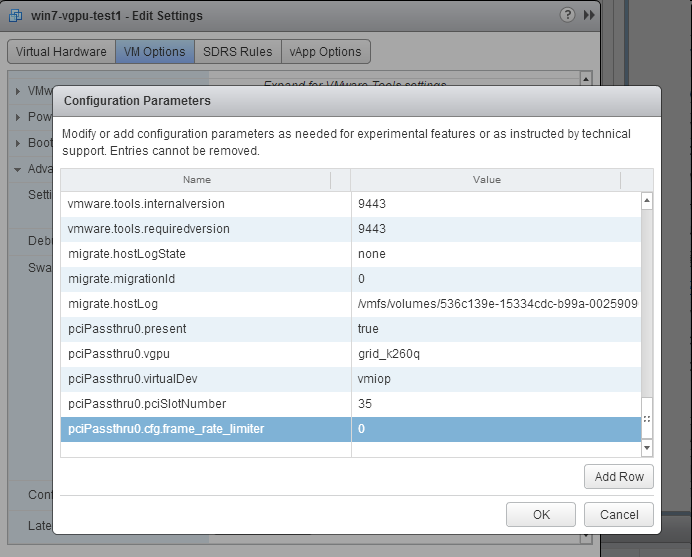
With this setting in place, the VM’s vGPU will run without any frame rate limit. The FRL can be reverted back to its default setting by setting pciPassthru0.cfg.frame_rate_limiter to 1 or by removing the parameter from the advanced settings.
VMs configured with large memory fail to initialize vGPU when booted#
Description#
When starting multiple VMs configured with large amounts of RAM (typically more than 32GB per VM), a VM may fail to initialize vGPU. In this scenario, the VM boots in VMware SVGA mode and doesn’t load the NVIDIA driver. The NVIDIA vGPU software GPU is present in Windows Device Manager but displays a warning sign, and the following device status:
Windows has stopped this device because it has reported problems. (Code 43)
When this error occurs, VGPU message failed messages and XID error messages are written to the VMware vSphere VM’s log file.
Resolution#
vGPU reserves a portion of the VM’s framebuffer for use in GPU mapping of VM system memory. The reservation is sufficient to support up to 32GB of system memory, and may be increased to accommodate up to 64GB by adding the configuration parameter pciPassthru0.cfg.enable_large_sys_mem in the VM’s advanced configuration options
Note
This setting can only be changed when the VM is powered off.
Select Edit Settings.
In Edit Settings window, select the VM Options tab.
From the Advanced drop-down list, select Edit Configuration.
In the Configuration Parameters dialog box, click Add Row.
In the Name field, type the parameter name
pciPassthru0.cfg.enable_large_sys_mem, in the Value field type 1, and click OK.
With this setting in place, less GPU framebuffer is available to applications running in the VM. To accommodate system memory larger than 64GB, the reservation can be further increased by adding pciPassthru0.cfg.extra_fb_reservation in the VM’s advanced configuration options, and setting its value to the desired reservation size in megabytes. The default value of 64M is sufficient to support 64 GB of RAM. We recommend adding 2 M of reservation for each additional 1 GB of system memory. For example, to support 96 GB of RAM, set pciPassthru0.cfg.extra_fb_reservation to 128.
The reservation can be reverted back to its default setting by setting pciPassthru0.cfg.enable_large_sys_mem to 0, or by removing the parameter from the advanced settings.