


Disabling NVIDIA Notification Icon for Citrix Published Application User Sessions#
By default on Windows Server operating systems, the NVIDIA Notification Icon application is started with every Citrix Published Application user session. This application might prevent the Citrix Published Application user session from being logged off even after the user has quit all other applications.
The NVIDIA Notification Icon application appears in Citrix Connection Center on the endpoint client that is running Citrix Receiver or Citrix Workspace.
The following image shows the NVIDIA Notification Icon in Citrix Connection Center for a user session in which the Adobe Acrobat Reader DC and Google Chrome applications are published.
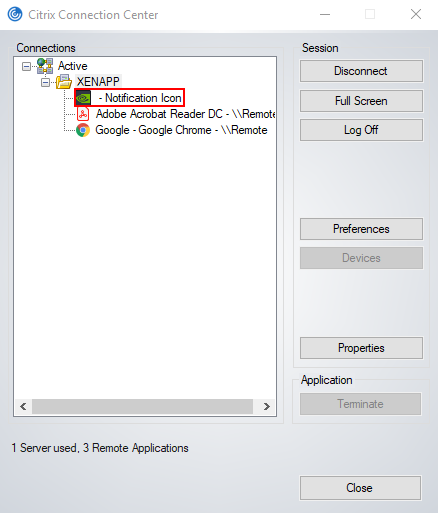
Administrators can disable the NVIDIA Notification Icon application for all users’ sessions as explained in Disabling NVIDIA Notification Icon for All Users’ Citrix Published Application Sessions.
Individual users can disable the NVIDIA Notification Icon application for their own sessions as explained in Disabling NVIDIA Notification Icon for your Citrix Published Application User Sessions.
Note
If an administrator has enabled the NVIDIA Notification Icon application for the administrator’s own session, the application is enabled for all users’ sessions, even the sessions of users who have previously disabled the application.
Disabling NVIDIA Notification Icon for All Users’ Citrix Published Application Sessions#
Administrators can set a registry key to disable the NVIDIA Notification Icon application for all users’ Citrix Published Application sessions on a VM. To ensure that the NVIDIA Notification Icon application is disabled on any virtual delivery agent (VDA) that is created from a master image, set this key in the master image.
Perform this task from the VM on which the Citrix Published Application sessions will be created.
Before you begin, ensure that the NVIDIA vGPU software graphics driver is installed in the VM.
Set the system-level
StartOnLoginWindows registry key to 0.[HKEY_LOCAL_MACHINE\SYSTEM\CurrentControlSet\Services\nvlddmkm\NvTray] Value: "StartOnLogin" Type: DWORD Data: 00000000
The data value 0 disables the NVIDIA Notification Icon, and the data value 1 enables it.
Restart the VM.
You must restart the VM to ensure that the registry key is set before the NVIDIA service in the user session starts.
Disabling NVIDIA Notification Icon for your Citrix Published Application User Sessions#
Individual users can disable the NVIDIA Notification Icon for their own Citrix Published Application sessions.
Before you begin, ensure that you are logged on to a Citrix Published Application session.
Set the current user’s
StartOnLoginWindows registry key to 0.[HKEY_CURRENT_USER\SOFTWARE\NVIDIA Corporation\NvTray\] Value: "StartOnLogin" Type: DWORD Data: 00000000
The data value 0 disables the NVIDIA Notification Icon, and the data value 1 enables it.
Log off and log on again or restart the VM.
You must log on and log off again or restart the VM to ensure that the registry key is set before the NVIDIA service in the user session starts.